


 Log In

Free gifts available with your purchase
Bass Flow
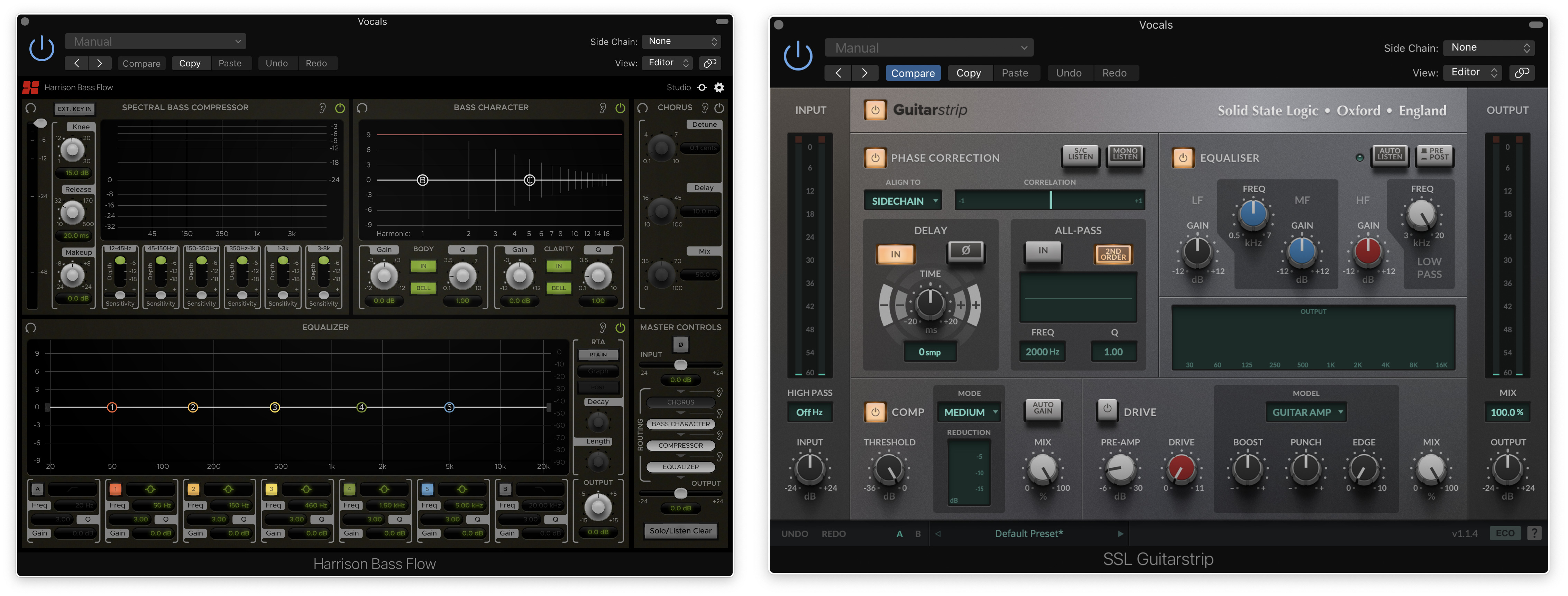
Bass Flow is a channel strip plugin designed for mixing bass. It contains 4 routable processing elements and a master section with input, output, and routing controls.
The elements included are:
- Bass Character - A unique 2-band EQ that tracks the pitch of bass notes and allows for boosting or cutting the harmonics within the spectrum of the instrument.
- Spectral Bass Compressor - A spectral compressor with 6 control bands that are perfectly suited to help with electric bass problems like fret buzz, amp/room resonances, and lack of clarity.
- Equalizer - An intuitive 5-band EQ with 2 additional filter bands and a wide variety of band shapes.
- Chorus - A creative effect that can be used to boost presence or to add motion to a bass signal.
Module Controls
The processing elements are separated into modules which can each be individually bypassed, soloed, and reset using the following controls on each module’s top bar.
- The Reset button resets all of a module’s parameters to their default states (not including RTA controls).
- The Solo button bypasses all processing outside of the module being soloed except for master controls (polarity, input and output trim). This allows individual modules to be auditioned exclusively without hearing the effects of any of the other modules.
- The In button toggles the enablement of each module. If disabled, a module’s processing is bypassed and its effects will not be heard.
Master Controls
The Master Control section at the bottom-right corner of the plugin window contains controls for switching input polarity, adjusting input & output trim, and setting the order of routing between elements.
You can change the routing order by clicking and dragging a routing item to a new position. The arrows show the direction of signal flow from top to bottom.
The “ear” icon buttons to the right of the routing items indicate Router Listen points. These buttons allow you to listen to specific positions along the signal chain by automatically bypassing all modules past the selected point in the routing order.
The Solo/Listen Clear button at the bottom of the Master Control section clears any active Routing Listen point as well as any modules that are soloed. It will light up to indicate whenever either of these is currently active.
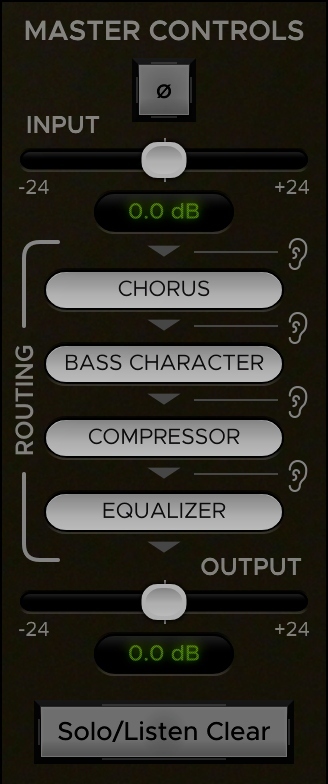
Processing Elements
Bass Character
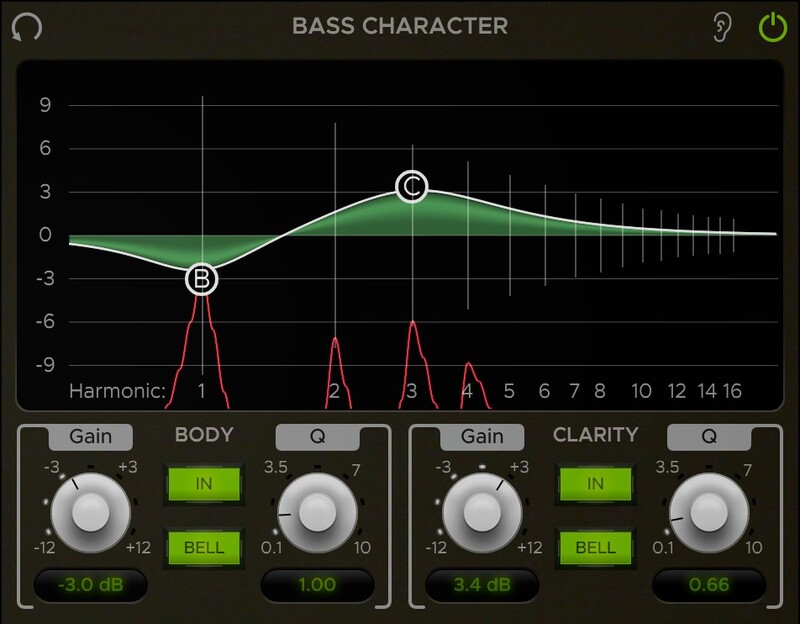
The Bass Character is a unique EQ that follows the pitch of the note being played, allowing you to boost or cut the harmonics within each note and thus alter the actual character of the bass sound.
The Bass Character has two bands: one for adjusting the Body of the note and the other for adjusting the Clarity. The corresponding band control “bubbles” on the graph are labelled “B” and “C” respectively.
Equalizer
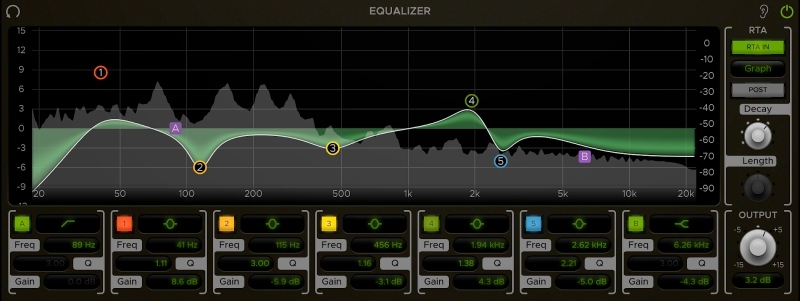
The Equalizer module consists of a 5-band EQ with 2 additional filter bands, an Output Trim control, and an optional RTA display. Each band has adjustable Frequency, Gain, Shape, and Q parameters as well as the option to toggle it in or out. You can control the bands directly on the EQ Graph or with their corresponding controls below the graph.
Spectral Bass Compressor
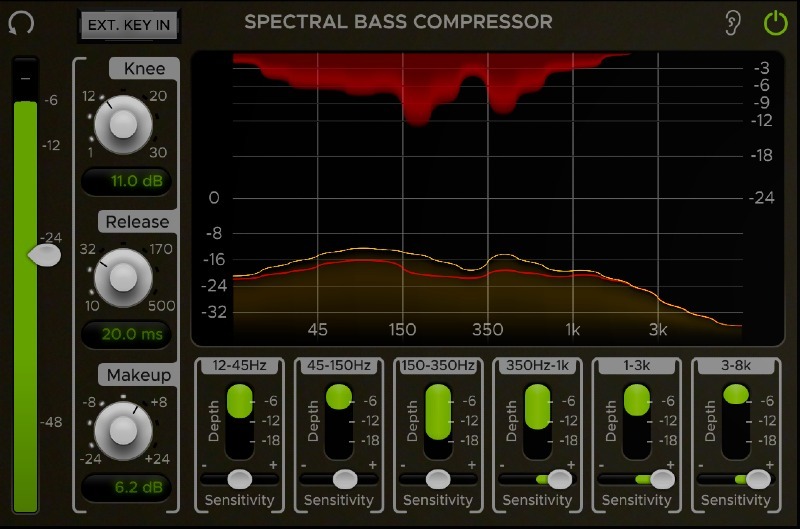
The Spectral Bass Compressor is a multiband compressor designed especially for bass. It allows for applying compression selectively across 6 frequency bands focused in the lower end of the spectrum where bass notes mainly reside.
On the far left of the module is an input meter displaying the level of the input signal in dB. The slider attached to it controls the overall Threshold of the compressor.
Below the graph are 6 control sections containing Depth and Sensitivity controls for the corresponding band ranges which are labelled at the top of each section. The Depth parameter sets the maximum gain reduction that can be applied to the corresponding band range. The Sensitivity adjusts the level fed to the compressor’s key input for each band range. This essentially dictates how “sensitively” each band reacts to levels above the Threshold, which can help with distributing compression more evenly across the spectrum if necessary.
The Spectral Bass Compressor also includes a graphical display that provides a visual representation of gain reduction across the frequency spectrum. The input signal is represented by the yellow curve on the bottom half of the display, while the top half shows the gain reduction across the spectrum in red. The level of the compressed signal relative to the input signal is shown by the red line inside the input curve.
The Knee knob controls the compressor Knee. With a low Knee value (Hard Knee), the compression will activate more abruptly as the signal passes over the Threshold. A high Knee value (Soft Knee) will apply the gain reduction more gradually as the signal passes the threshold.
The Release knob controls how long it takes the signal to return to an uncompressed state once it falls below the threshold.
The Makeup knob trims the compressor’s output level up or down between -24dB and +24dB as needed for gain compensation.
The EXT. KEY IN button near the top left corner of the compressor module enables the external key input when toggled on. This switches the compressor’s key input to whatever signal is sent to the plugin’s sidechain input so that the compressor is triggered off of the external signal instead of the one being fed directly to it.
Chorus
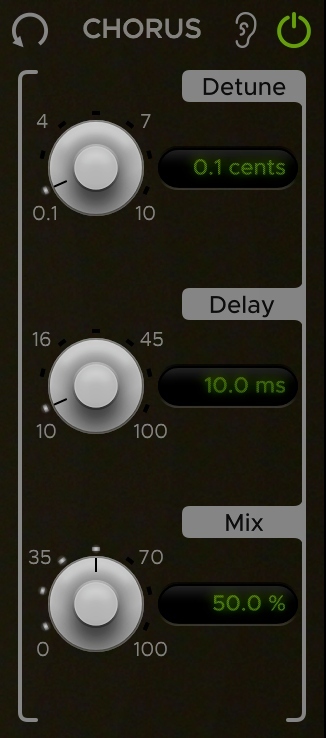
The Chorus is an effect that can be used to boost overall presence and add some extra flair to a bass signal. It has Detune and Delay controls for dialling in the effect and a Mix control for blending it with the dry signal.
The Chorus effect adds 2 pitch-shifted voices: one above and one below the input signal.
- Detune controls the amount in which the 2 voices are pitch-shifted up and down from the original signal (measured in cents).
- Delay adjusts the delay offset from the original signal in milliseconds.
- Mix sets the percentage of wet signal that gets blended with the dry signal.
System Requirements
- MacOS: 10.9 or newer required
- Windows: Win7 or newer required
- Linux: Please try the demo
Host DAW support:
- ProTools: 10.3.5 or newer required for Windows, 11 or higher required for Mac. Enable the AAX format during installation
- Logic: Enable the AU format during installation
- Cubase: Enable the VST and/or VST3 format during installation
- Most other workstations: Enable the VST format during installation







Reviews Summary
While it aims to provide a helpful overview, it may not capture every perspective or detail. We encourage you to read individual reviews to make an informed decision.
This plugin is highly recommended for its excellent bass enhancement capabilities, offering precise control, a well-designed UI, and numerous options to make bass stand out, even on smaller speakers and earbuds.


