Log In

Free gifts available with your purchase
The 32C Bus combines 4 famous Harrison processing modules - the Mixbus32C Tape Saturation / Drive processor, a Bus Compressor with Harrison's renowned 32C Hi-Pass filter, the Mixbus32C three-band Bus EQ and the Mixbus32C Master Strip Limiter - into a single comprehensive bus processing plugin.
The new cross-format 32C Bus plugin combines 4 famous Harrison processing modules – the Mixbus32C Tape Saturation / Drive processor, a Bus Compressor with Harrison's renowned 32C Hi-Pass filter, the Mixbus32C three-band Bus EQ and the Mixbus32C Master Strip Limiter - into a single comprehensive bus processing plugin.
Provided in all major workstation formats: AAX, AudioUnit VST and VST3 for nearly any host DAW.
Tape Saturation Drive
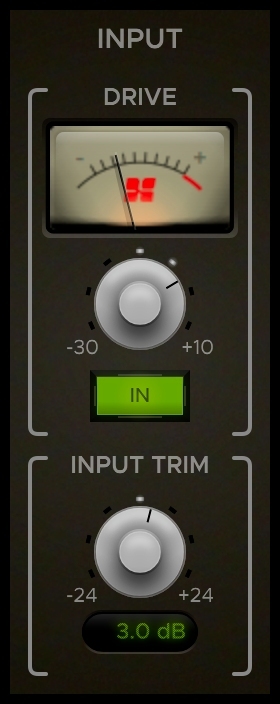
In 2009 Harrison took DAW workflow to another level. With the introduction of Mixbus and later Mixbus32C, Harrison brought back the classic analog console layout and sound to studios all around the world. A large part of the new DAW's success was due to the clever and great sounding Tape Saturation Drive processor provided on all of the dedicated mix buses in the DAW.
Now with 32C Bus that revolutionary True Analog sound can be achieved regardless of which host is being used. The new 32C Bus plugin with the Harrison Tape Saturation Drive processor is a must for anyone searching for a legendary sound.
Compressor
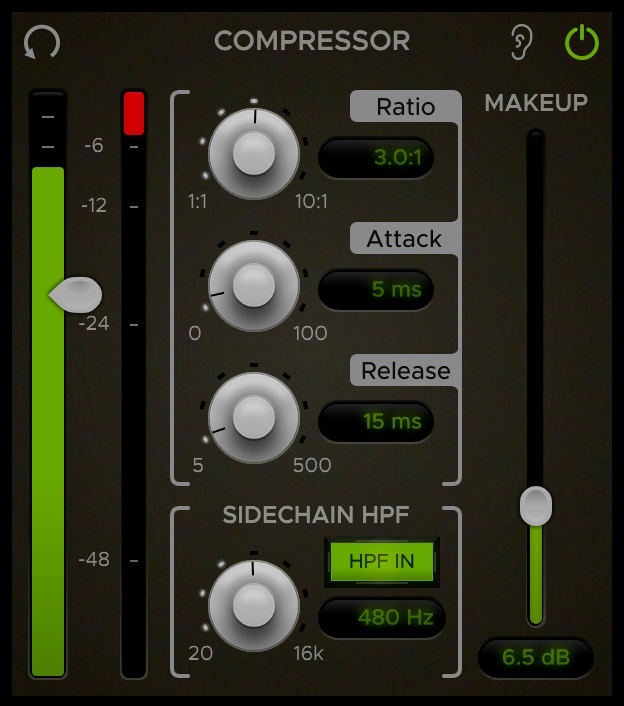
A bus processing plugin isn't complete without a great compressor. The story of the 32C Bus compressor starts in 1985 when Harrison developed the SeriesTen digitally controlled analog music console. Each output channel on the console had a full digitally controlled analog compressor included.
The 32C Bus Compressor includes:
- An internal side chain High Pass Filter modelled after the renowned 32C analog console filter section.
- Full Threshold, Ratio, Release, Attack and Gain Makeup controls.
- Extra-large Input and Gain Reduction metering.
Bus EQ
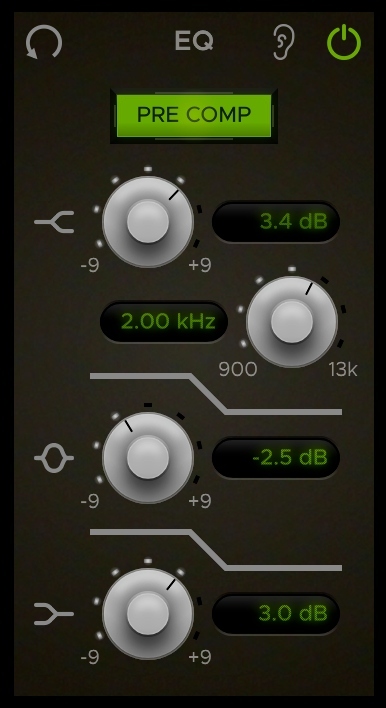
The 32C Bus EQ is a revised variation of the EQ provided on all dedicated bus channels in Mixbus and Mixbus32C DAWs.
The 32C Bus EQ includes:
- 3 Band tone controls.
- A new variable high band frequency control.
- Pre- and Post-compressor selection.
Limiter / Output Section
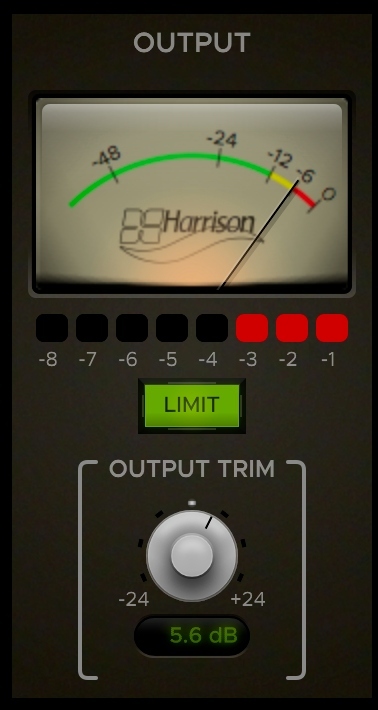
The Output Section of the 32C Bus includes a classic 'Limiter' along with a K12 output meter. Shoot for the Yellow area of the K12 meter for the perfect mix level.
System Requirements
Minimum Specifications are suggestions only and may change at any time. Harrison Consoles highly encourage you to try the free DEMO to determine if the plugins work on your setup.
- macOS 10.9 or newer (including macOS 11 Big Sur).
- Windows 7 or newer
- Linux (please try the Demo Version first)
Host DAW Support:
- Pro Tools - Version 10.3.5 or newer required for Windows | Version 11 or higher required for Mac (Enable AAX format during installation)
- Logic - Enable AU format during installation
- Cubase - Enable VST and/or VST3 format during installation
- Most other DAWs - Enable the VST format during installation
Bobby Owsinski
(Jimi Hendrix, The Who, Pantera, Willie Nelson, Elvis, Neil Young, Iron Maiden, The Ramones, and Chicago)
"Within the first 5 seconds, I knew! That's all it took. It had an analog feel to it and you could tell immediately! Immediately it was there, without doing anything."