/ Stereo Width / Halo Upmix 3D Immersive Extension
NUGEN Audio

Halo Upmix 3D Immersive Extension

5.0 (3 Reviews)
$97.00 $199.00

51% off until Dec 05

Halo Upmix3D Immersive Extension
Buy Now
Product information

3D Immersive Extension

The optional 3D Immersive Extension introduces additional vertical controls via an expanded user interface including control over Ltm and Rtm placement for Dolby Atmos compatibility. An additional real-time analysis view is also included for the vertical dimension, showing energy distribution of the output audio. The enhanced upmix algorithm allows for simultaneous use of all the original features including dialog isolation and individual channel output control.

The 3D Immersive Extension is suitable for numerous applications including sound design, film score, restoration & archive, music and atmospheric soundscape production.

System Requirements

You require Halo Upmix to use this extension

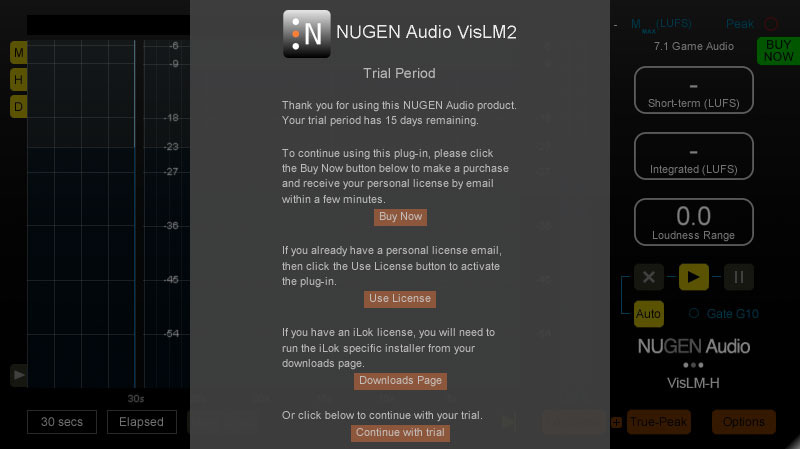
The Halo Upmix 3D Immersive Extension expands this to 7.1.2 and Ambisonic, and currently supports Avid Pro Tools (AAX) & Steinberg Nuendo (VST3) for Windows and OSX.
Installation Instructions

NUGEN Audio Installation

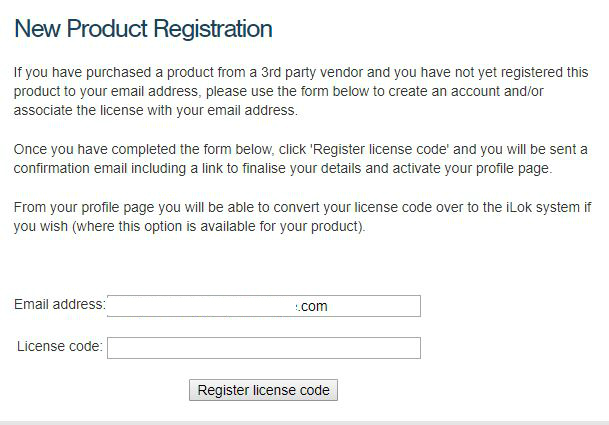
1. Visit https://www.nugenaudio.com/register.php and create a new account > enter your email address and License Code (found in your Plugin Boutique User Account).

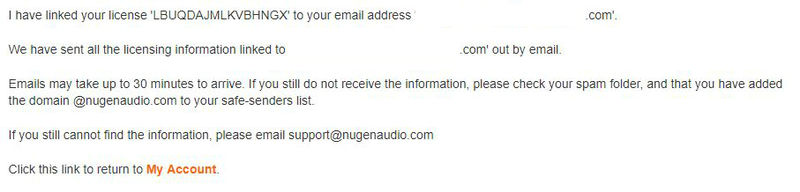
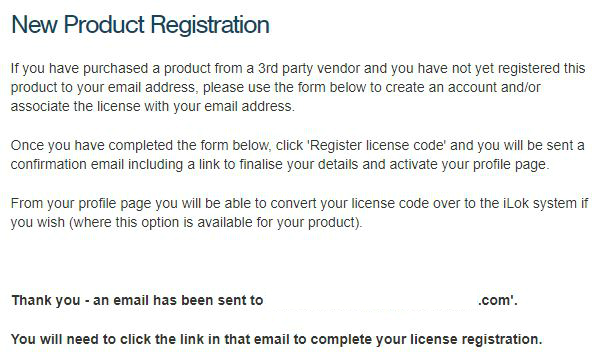
2. Check your email > Click the link that reads ‘Complete license registration’.

3. Read the following information and click ‘My Account’.

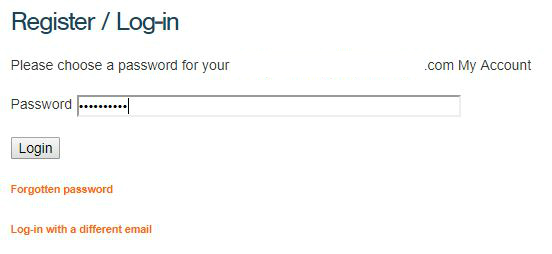
4. Create a password > Click ‘Login’.

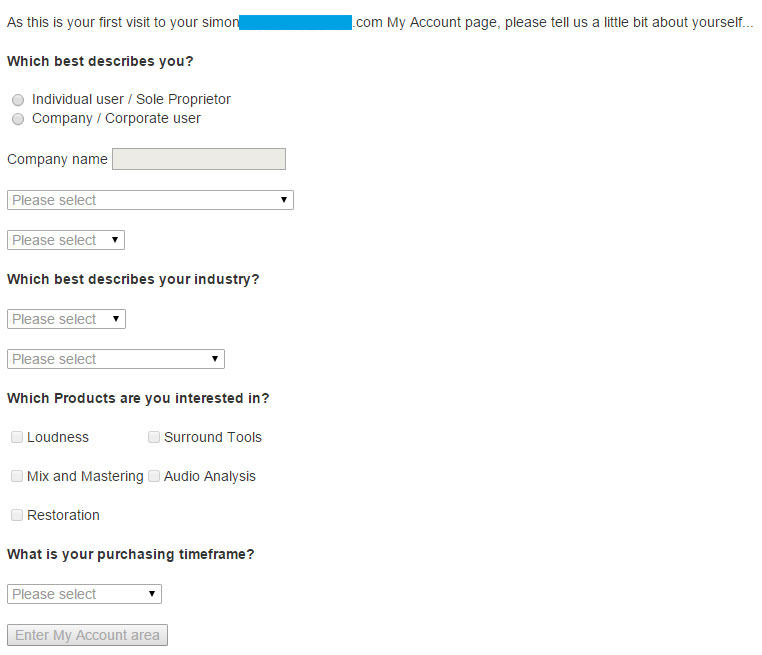
5. Once you have confirmed your account, fill in the form which greets you.

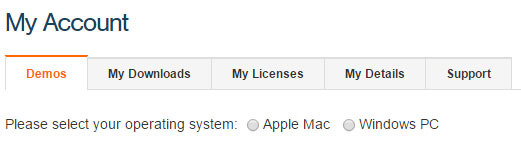
6. Select your operating system.

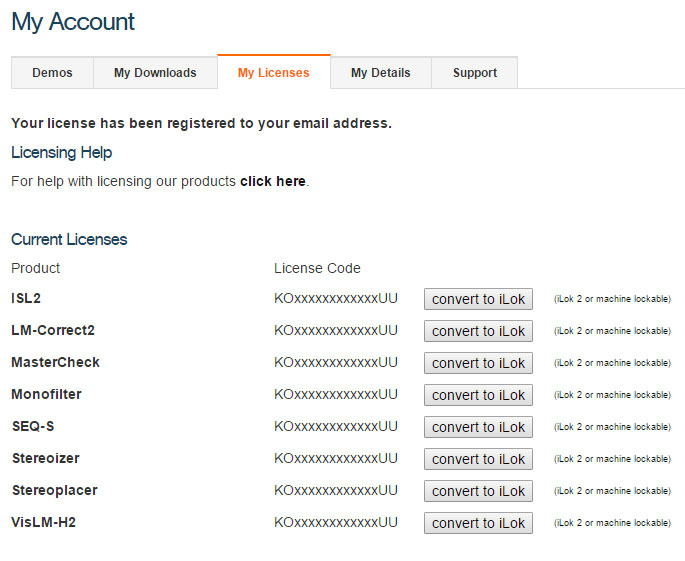
7. Your licence can be viewed under the ‘My Licenses’ Tab.

Note: If you wish to activate your Plugin using an iLok, click ‘Convert To iLok’.

8. Click on the MY DOWNLOADS tab and download the full version of your plugin.

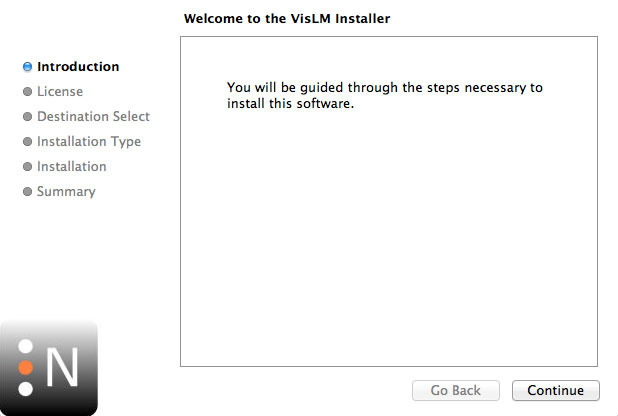
9. After the file has downloaded, run the installer.

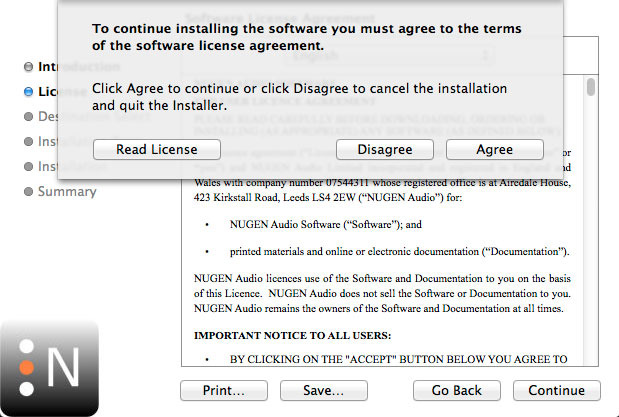
10. Read the software licence agreement and if happy, click AGREE.

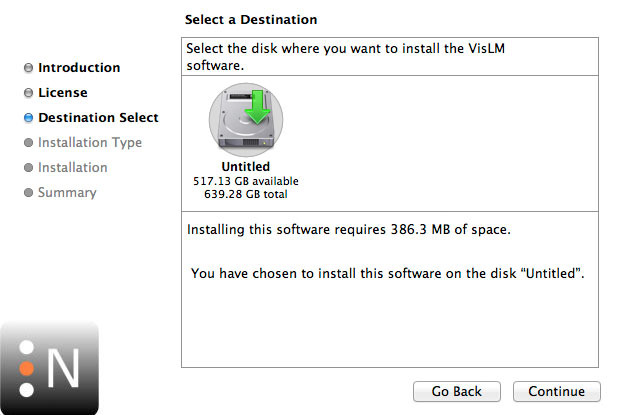
11. Select where you wish to install the plugin and click CONTINUE.

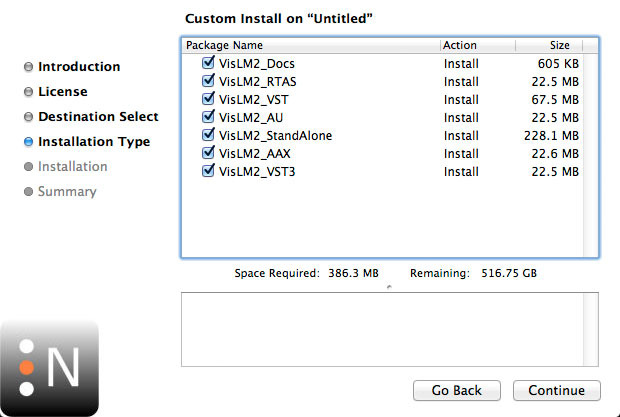
12. Select which component you wish to be installed and click CONTINUE.

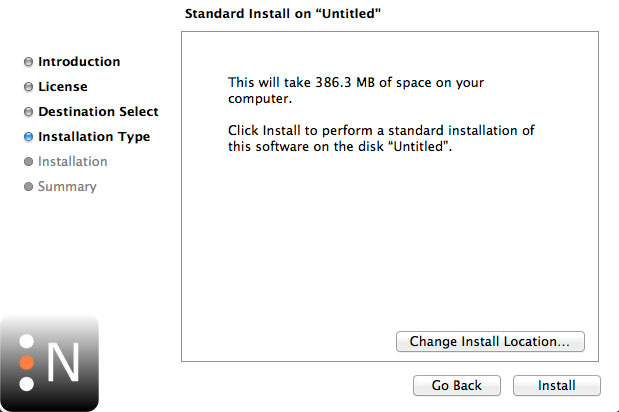
13. Check you have enough space on your computer to install and if so, click INSTALL.

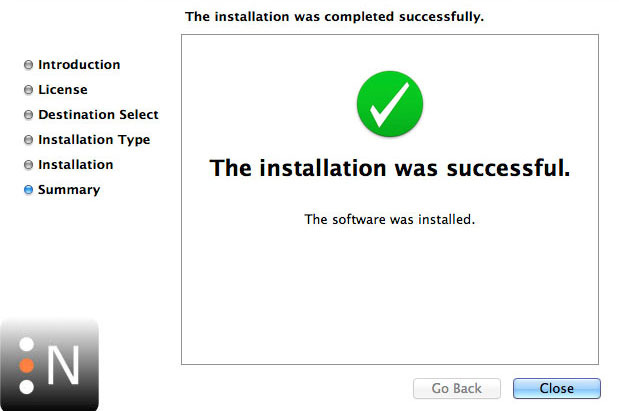
14. Once the installation concludes, open the plugin within your DAW.

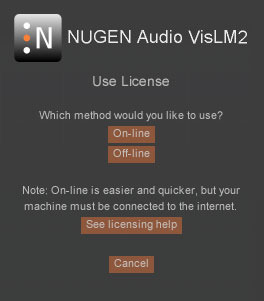
15. Once the plugin is open within your DAW, click USE LICENCE.

16. Click ON-LINE

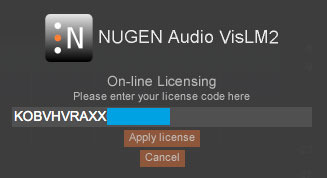
17. Enter your licence code and click APPLY LICENCE.

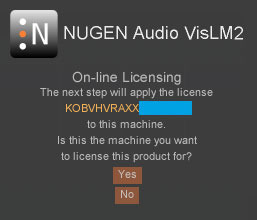
18. Once your licence has been entered, click YES to confirm you wish to licence to your machine.

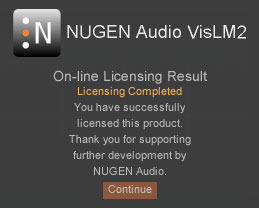
19. You have now successfully licenced your plugin!

PLEASE NOTE: If you wish to activate your licence onto your iLok dongle and not your machine, please click CONVERT TO ILOK at stage 7.

Plugin Boutique Rewards

Discover the most rewarding loyalty programme among all plugin retailers.

  • Free Loopmasters Samplepacks
  • Discounts on products and courses
  • Extra Virtual Cash claimed immediately at checkout
Find out more

Follow us:

X (Twitter) Facebook YouTube Instagram
Logo Logo

Plugin Boutique Limited, Part of the Beatport Group LLC.

Copyright © 2011-2025 Plugin Boutique. All rights reserved