Buy Stereoizer Elements, get a free gift with purchase:
Stereoizer Elements
Stereo width, streamlined

Streamlined & Accessible
Stereoizer Elements is a simplified version of our Stereoizer plug-in, giving access to all three of its stereo width algorithms - linear width, Interaural Intensity Difference and Interaural Time Difference - via one straightforward control.
- Add polish and spatial balance
- Create stereo audio from a mono source
- Create a super-wide stereo image
And the best part, your mix will still sound great in mono.

System Requirements
Mac
- Mac OSX 10.7 and above
- 512 MB RAM
Windows
- Windows XP and above
- 512 MB RAM
Plugin Formats
- AAX, VST, VST3, AU and AudioSuite (64-bit only)
NUGEN Audio Installation
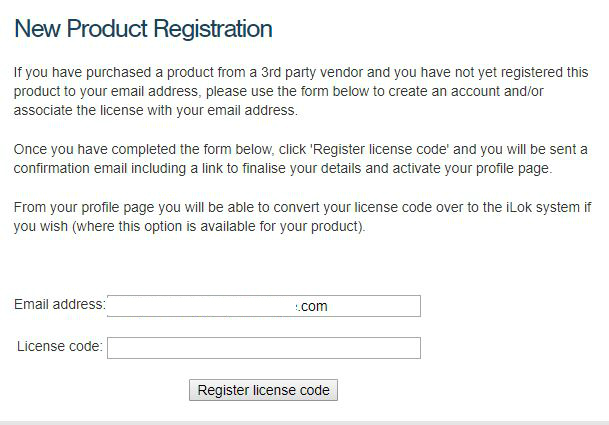
1. Visit https://www.nugenaudio.com/register.php and create a new account > enter your email address and License Code (found in your Plugin Boutique User Account).

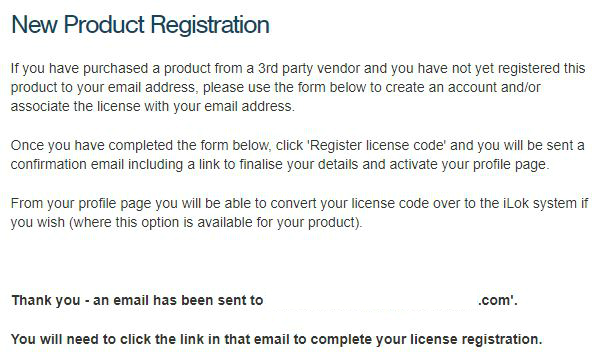
2. Check your email > Click the link that reads ‘Complete license registration’.

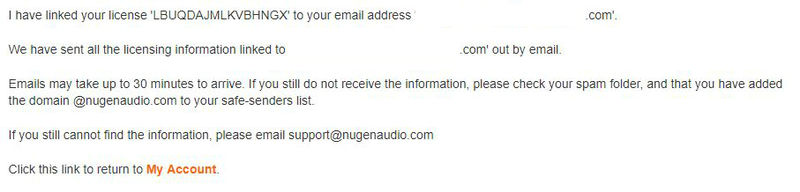
3. Read the following information and click ‘My Account’.

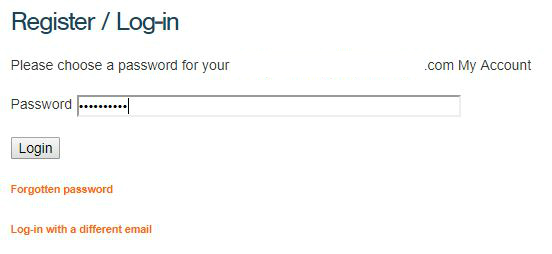
4. Create a password > Click ‘Login’.

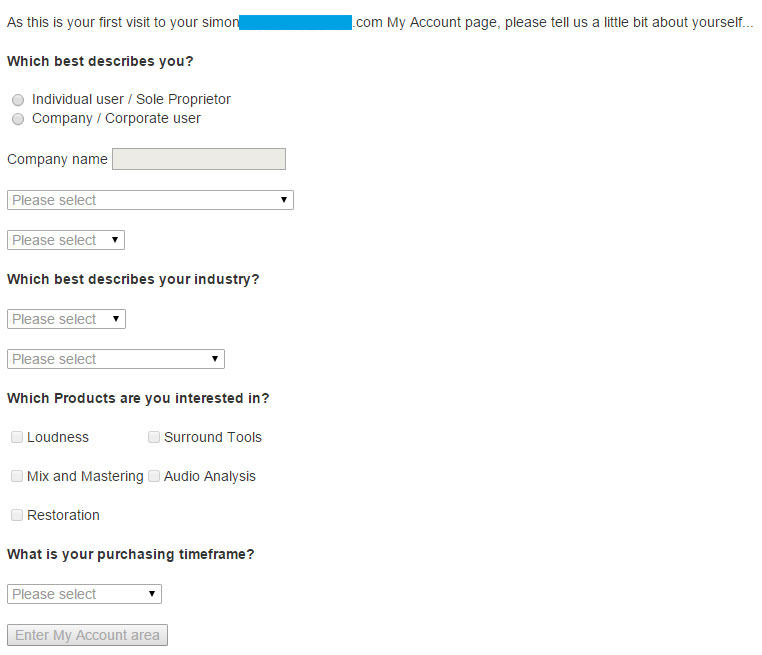
5. Once you have confirmed your account, fill in the form which greets you.

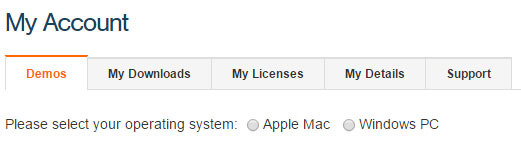
6. Select your operating system.

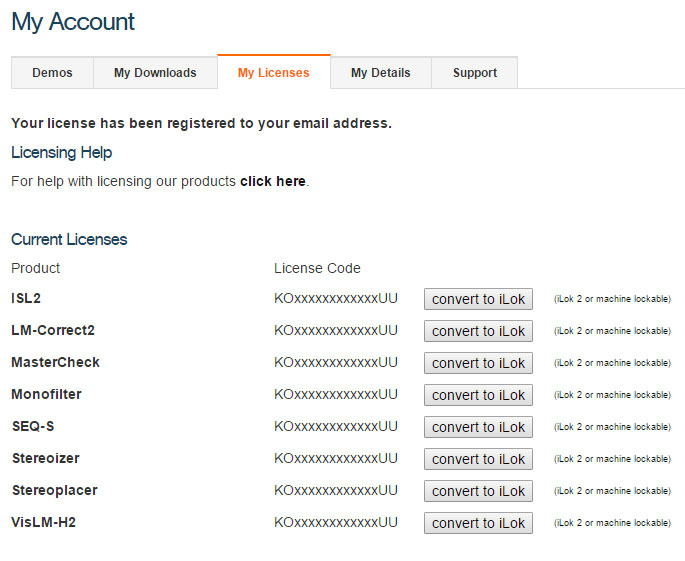
7. Your licence can be viewed under the ‘My Licenses’ Tab.
Note: If you wish to activate your Plugin using an iLok, click ‘Convert To iLok’.

8. Click on the MY DOWNLOADS tab and download the full version of your plugin.

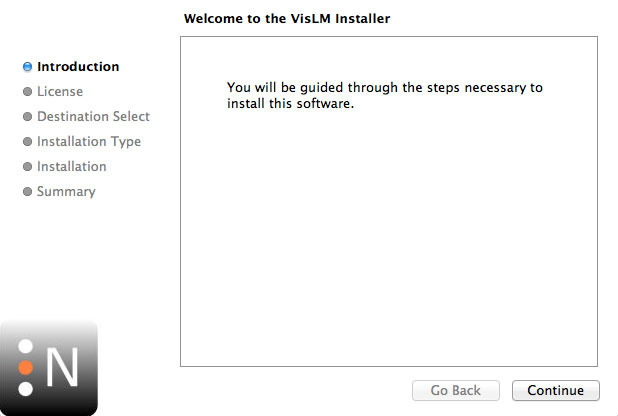
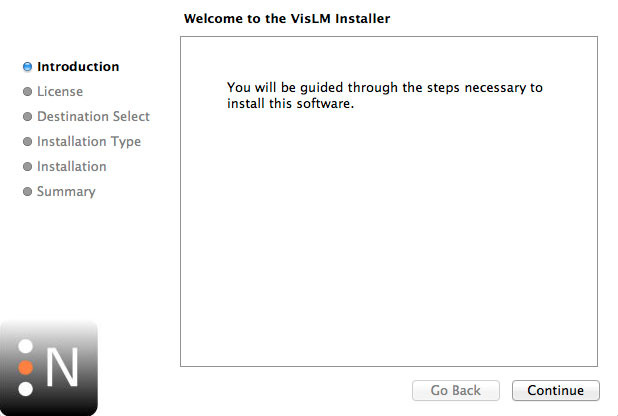
9. After the file has downloaded, run the installer.

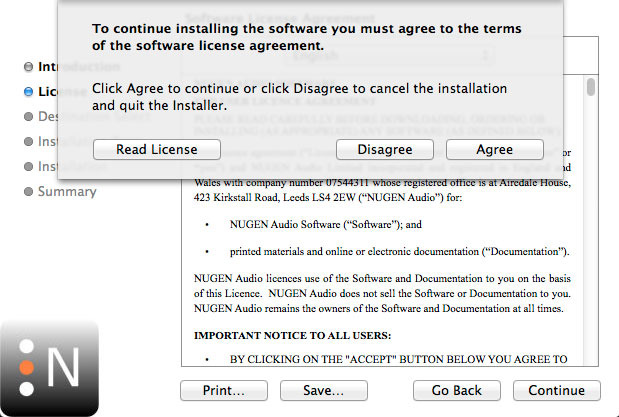
10. Read the software licence agreement and if happy, click AGREE.

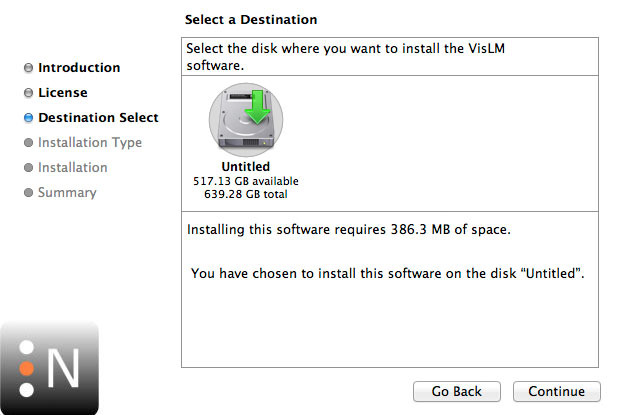
11. Select where you wish to install the plugin and click CONTINUE.

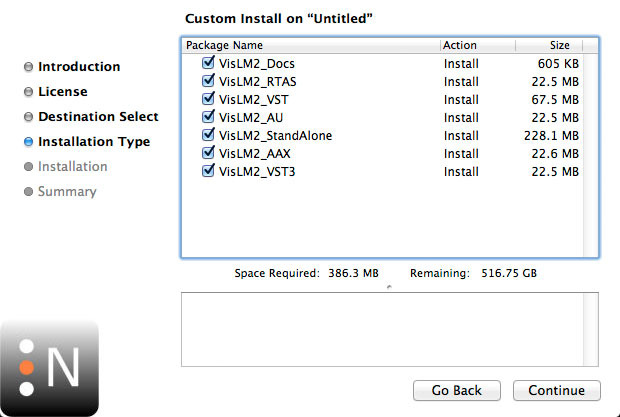
12. Select which component you wish to be installed and click CONTINUE.

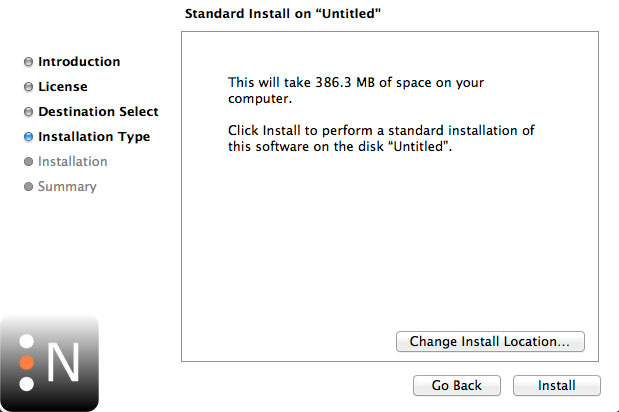
13. Check you have enough space on your computer to install and if so, click INSTALL.

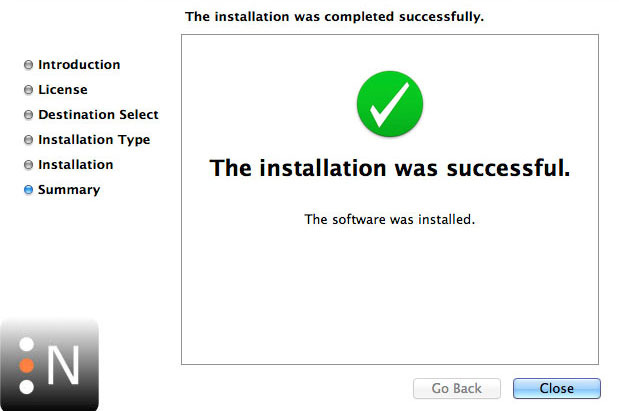
14. Once the installation concludes, open the plugin within your DAW.

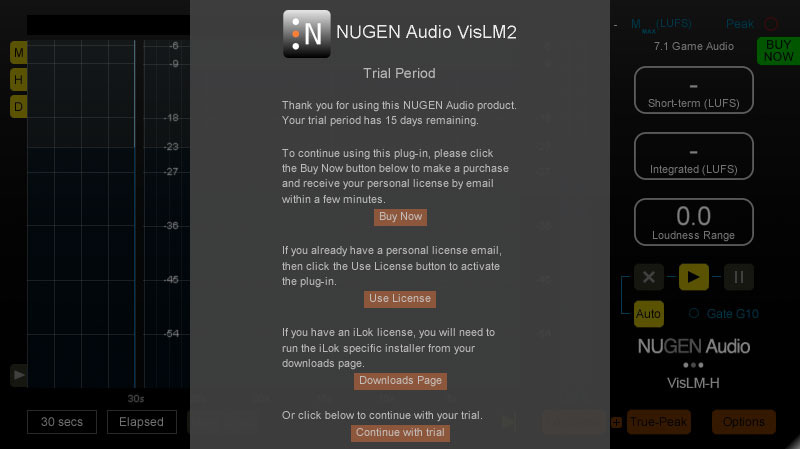
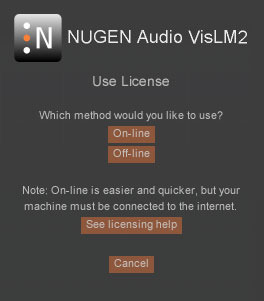
15. Once the plugin is open within your DAW, click USE LICENCE.

16. Click ON-LINE

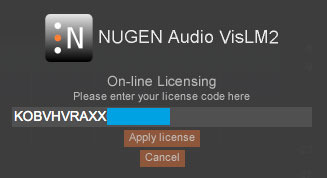
17. Enter your licence code and click APPLY LICENCE.

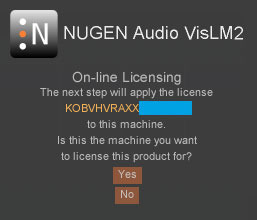
18. Once your licence has been entered, click YES to confirm you wish to licence to your machine.

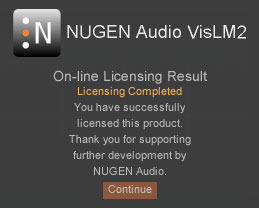
19. You have now successfully licenced your plugin!

PLEASE NOTE: If you wish to activate your licence onto your iLok dongle and not your machine, please click CONVERT TO ILOK at stage 7.