Buy Phase Motion 2, get a free gift with purchase:
Advanced Stereo Phaser
Phase Motion 2 is a stereo phaser plugin featuring up to 32 phasing stages. The Rate can be adjusted in Hertz or it can be synced to the host/DAW tempo. You can choose 6 waveforms (sine, triangle, ramp up, rump down, square, random) to modulate the phase, and you can tweak Depth and Feedback to get a classic vintage phaser sound or extreme digital modulations. From version 2 you can have different settings for the left and right channel.
Phase Motion 2 is a stereo phaser, meaning you can have different settings on each channel. Essentially it is like having two phasers, one for the Left and one for the Right channel.
Phase Motion 2 - Stereo Selector
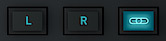
By clicking on the L or R button, the parameters will only control the selected channel. Instead, when the Link icon is selected, both L and R parameters will be affected.
Tips to make a thicker stereo phaser sound:
- Have the same settings on both L and R channel, but slightly change one or two parameters on one channel only
- Have a positive amount of Feedback on one channel, and a negative amount on the other channel
- Use the Invert button only on one channel
Features
- 32 Phasing Stages
- 6 LFO Waveforms
- Rate can be synced to the host tempo
- Preset system with randomizer
- Formats: VST, AU, and AAX (64-bit only)
- Platforms: OSX, Windows
System Requirements
Windows
- Windows 7-11
- 2GHz CPU, 4 GB RAM
- VST2, VST3, AAX, CLAP (64-bit)
Mac
- OS X 10.9 – macOS 14
- Apple Silicon (M chips) Native (Universal 2 Binary)
- 2GHz CPU, 4 GB RAM
- VST2, VST3, AU, AAX, CLAP (64-bit)
- Universal 2 Binary
Awards
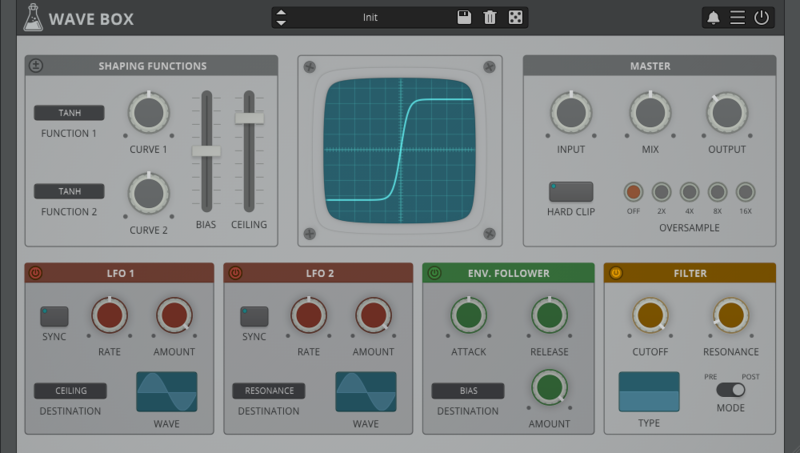
Note: Wave Box is used as the example.
Windows
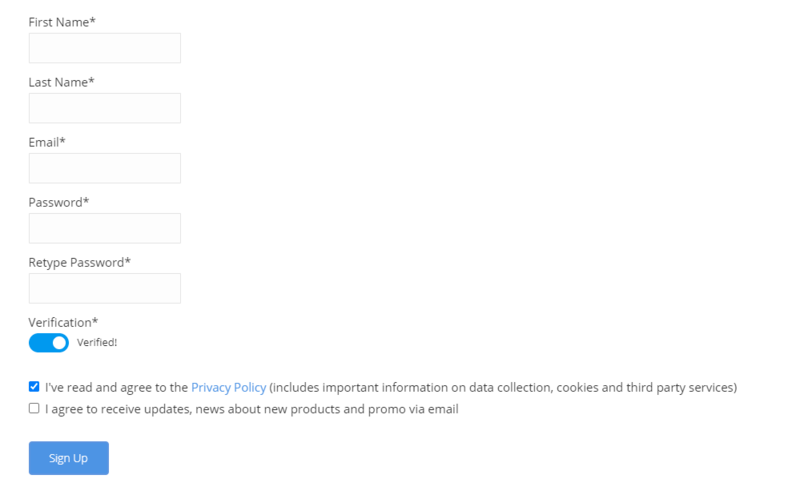
1. Visit the AudioThing Account Signup Page and enter your personal details to set up an account. Click the Verification and "I've read and agree to the Privacy Policy" > Click Sign Up.
Note: If you already have an existing AudioThing account, Login here and skip to step 3 of the installation process.

2. A confirmation email will now be sent to your registered email > click the link within the email to activate your account and Login here.
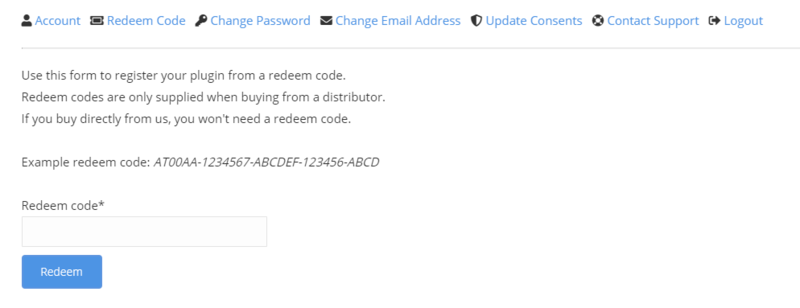
3. Once logged into your account, visit the Redeem Page and enter Redeem Code from your Plugin Boutique User Account into the box > Click 'Redeem'.

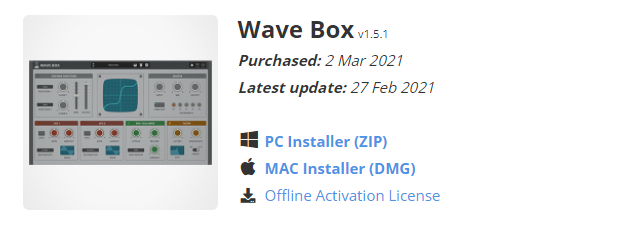
4. Download the PC installer and the Offline Activation License.
Note: Save the Offline Activation License to a memorable location on your computer for activating the software.

5. Double-click the downloaded .zip folder to extract its contents.
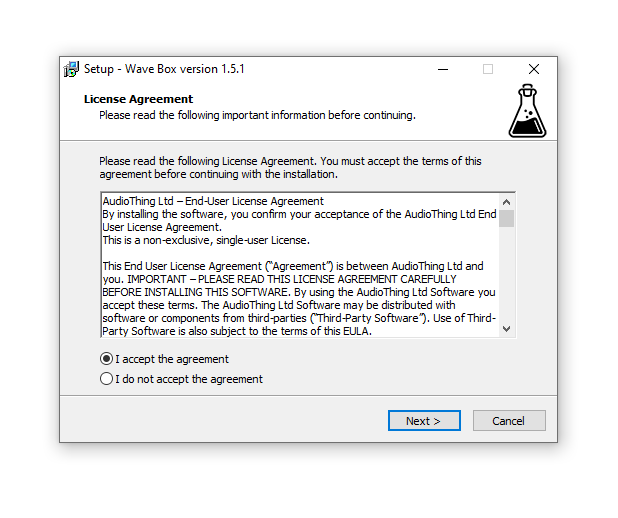
6. Double-click the extracted .exe file > click 'I accept the agreement and click 'Next'.

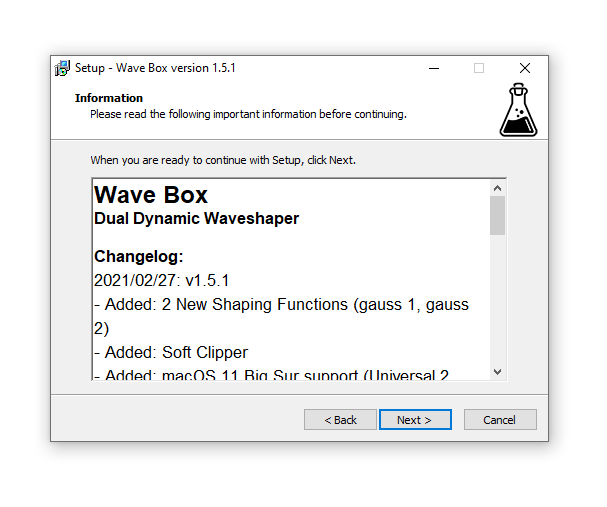
7. Click 'Next'.

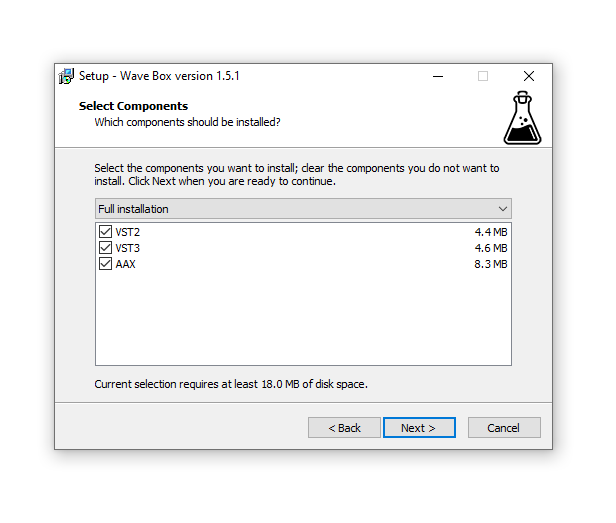
8. Select the components that you wish to install > Click ‘Next’.

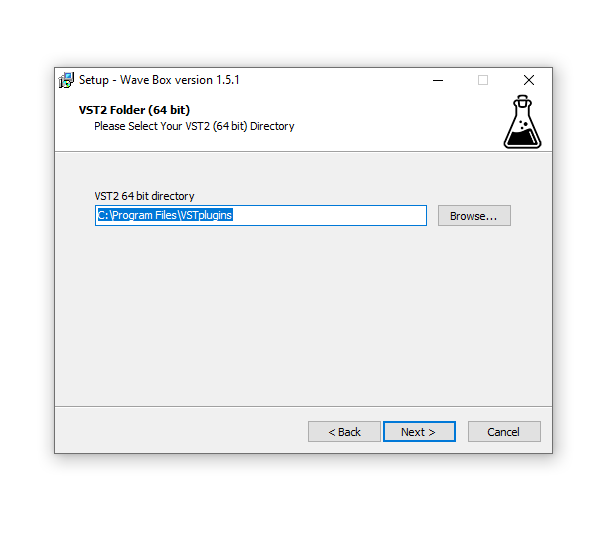
9. Click ‘Next’.

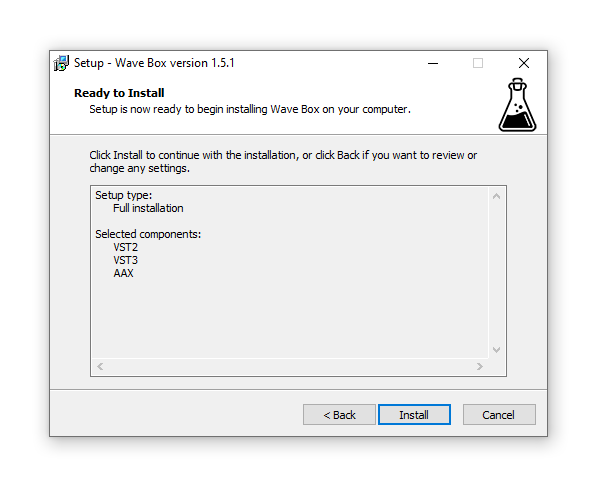
10. Click 'Install'.

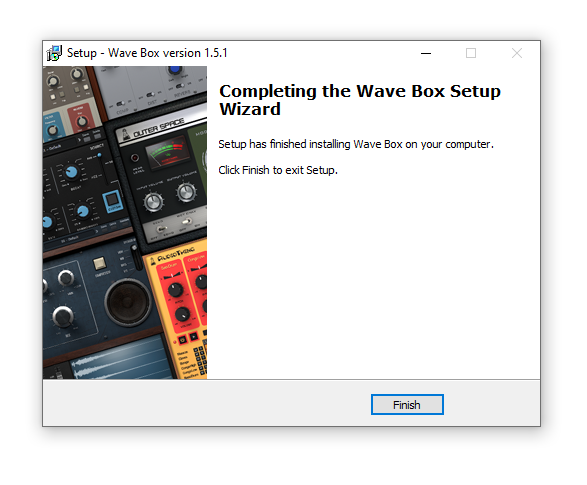
11. Click ‘Finish’.

Offline Activation
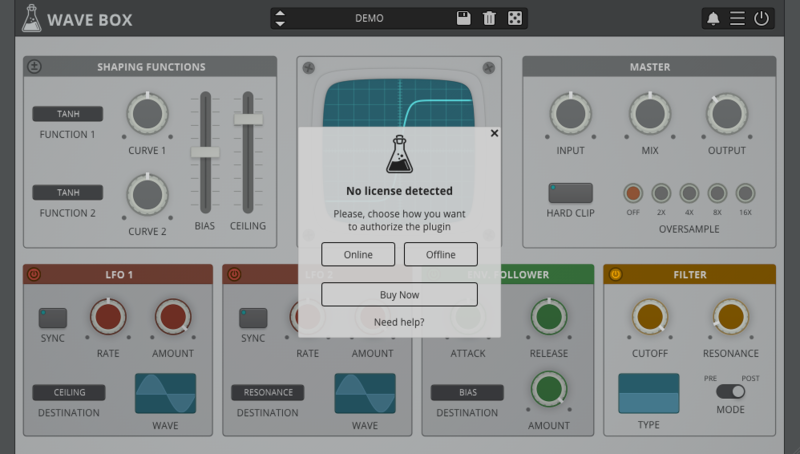
1. Open Wave Box inside of your DAW > Click 'Offline'.

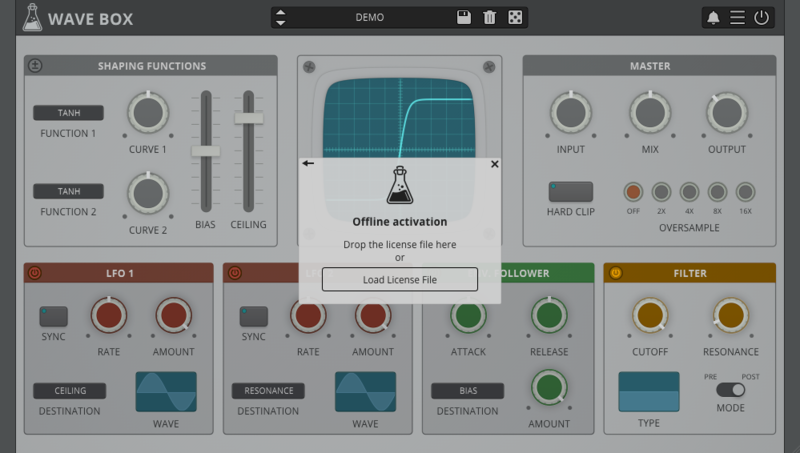
2. Click 'Load Licence File' and navigate to your Offline Activation License.

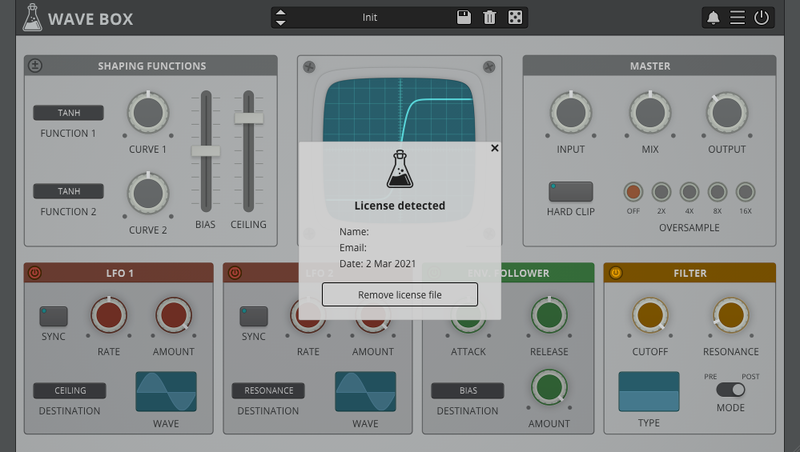
3. Click the X to close the box.

The software is now activated and ready to use inside your DAW!

Online Activation
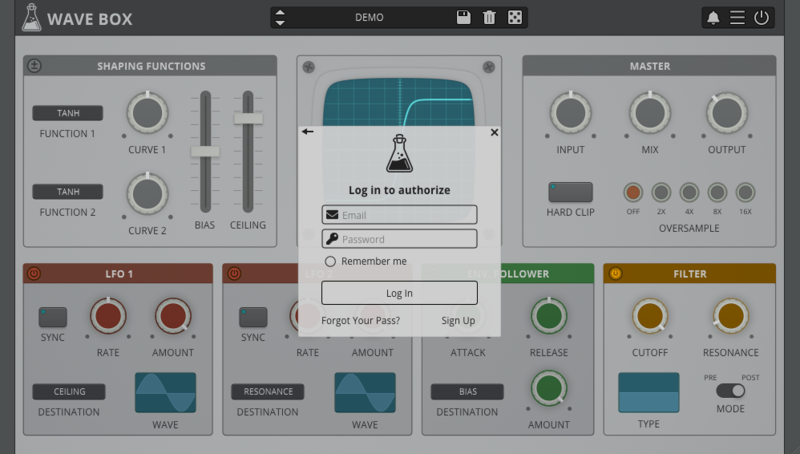
1. Open Wave Box inside of your DAW > Click 'Online'.

2. Enter your AudioThing email and password > Click 'Log In'.

3. Click the X to close the box.

The software is now activated and ready to use inside your DAW!

Mac
1. Visit the AudioThing Account Signup Page and enter your personal details to set up an account. Click the Verification and "I've read and agree to the Privacy Policy" > Click Sign Up.
Note: If you already have an existing AudioThing account, Login here and skip to step 3 of the installation process.

2. A confirmation email will now be sent to your registered email > click the link within the email to activate your account and Login here.
3. Once logged into your account, visit the Redeem Page and enter Redeem Code from your Plugin Boutique User Account into the box > Click 'Redeem'.

4. Download the MAC installer and the Offline Activation License.
Note: Save the Offline Activation License to a memorable location on your computer for activating the software.

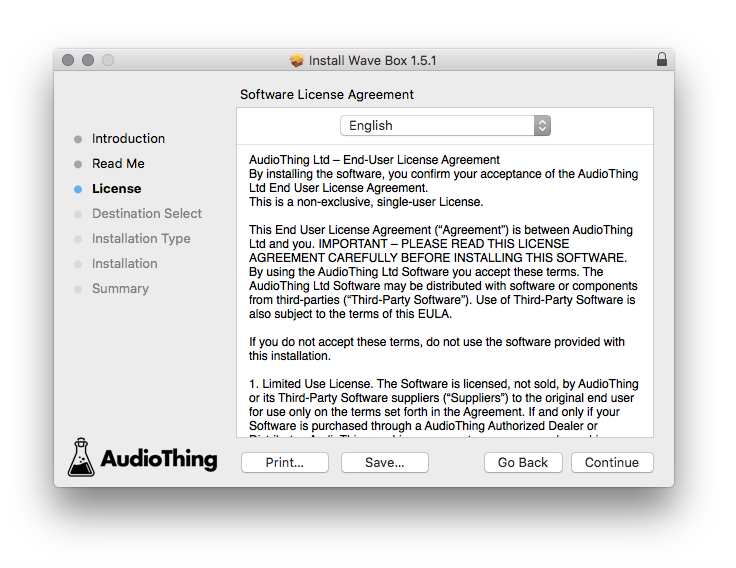
5. Double-click the downloaded .dmg folder to extract its contents > Double-click the .pkg file to run the installer
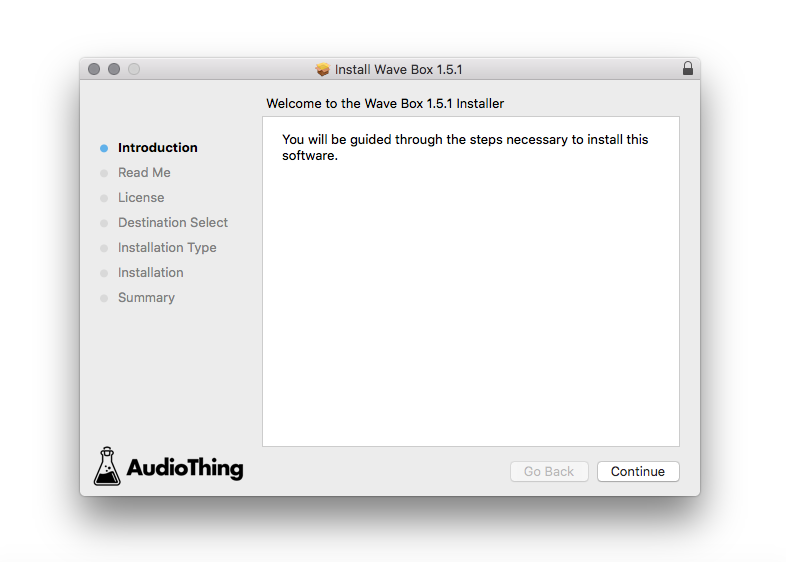
6. Click 'Continue'.

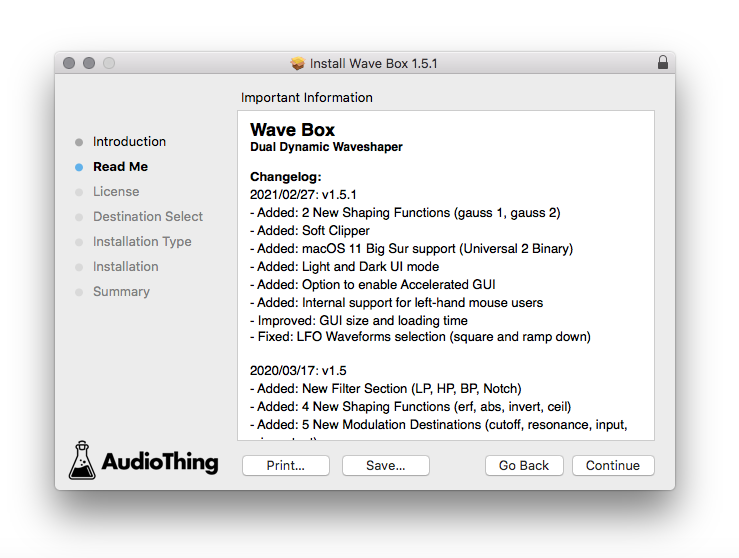
7. Click ‘Continue’.

8. Click 'Continue'.

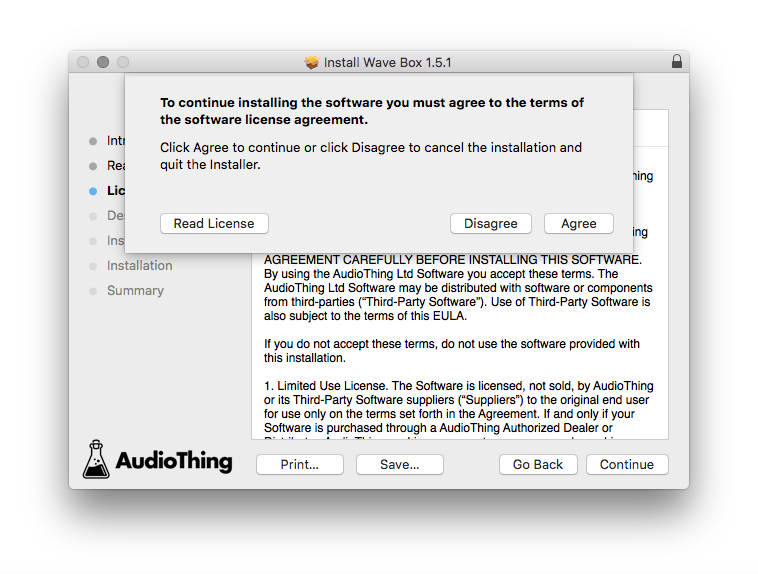
9. Click ‘Agree’.

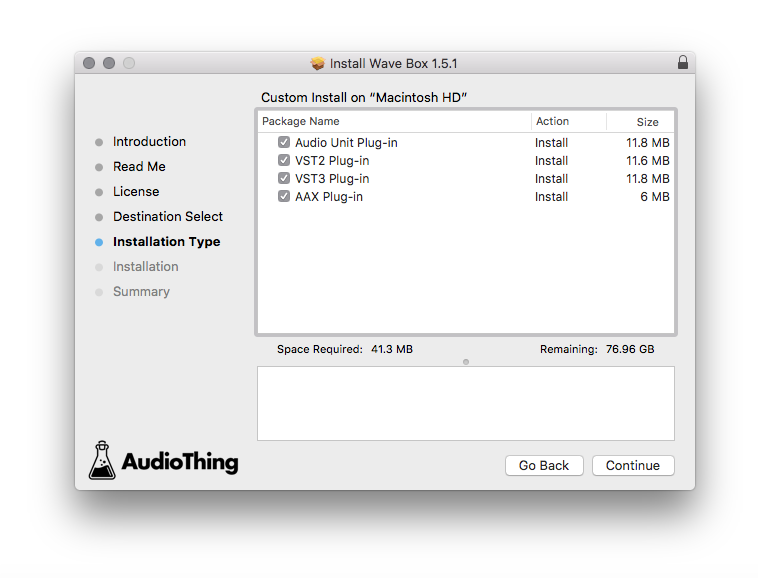
10. Select the components you would like to install > Click 'Continue'.

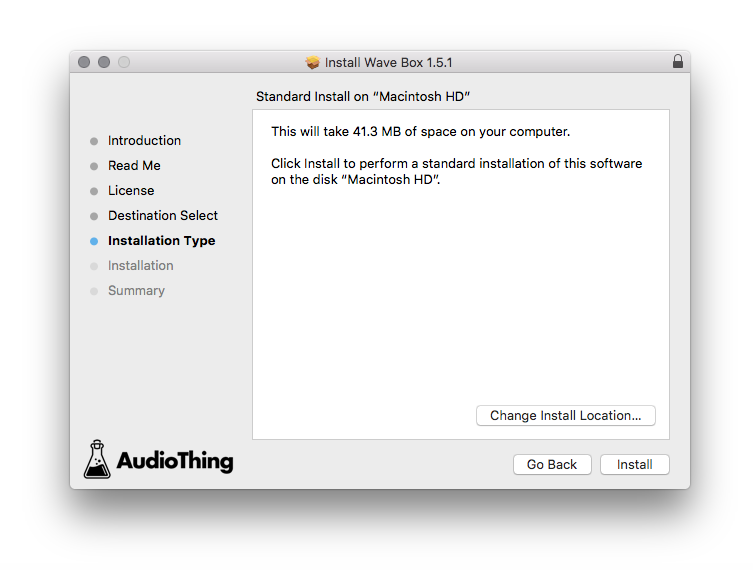
11. Click ‘Install’.

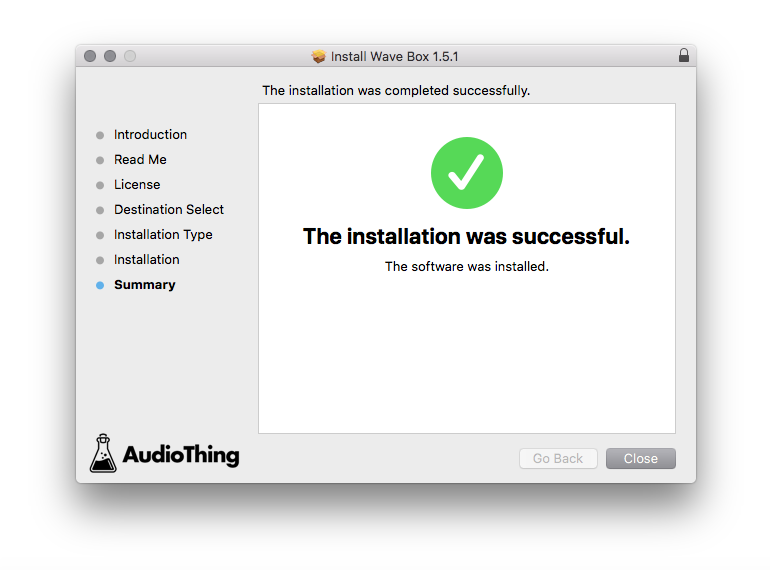
12. Click 'Close'.

Offline Activation
1. Open Wave Box inside of your DAW > Click 'Offline'.

2. Click 'Load Licence File' and navigate to your Offline Activation License.

3. Click the X to close the box.

The software is now activated and ready to use inside your DAW!

Online Activation
1. Open Wave Box inside of your DAW > Click 'Online'.

2. Enter your AudioThing email and password > Click 'Log In'.

3. Click the X to close the box.

The software is now activated and ready to use inside your DAW!