Log In

Free gifts available with your purchase
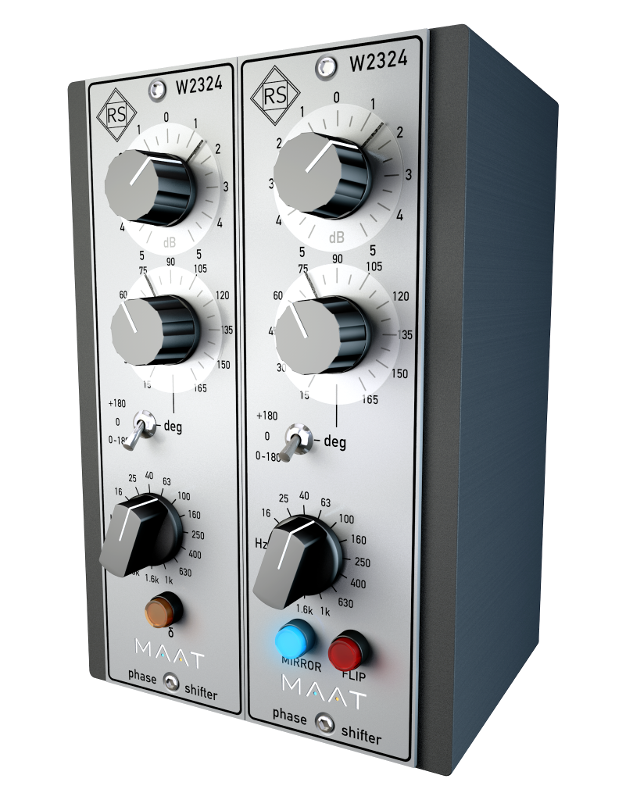
Great Sounding Alignment, Made Easy
The only official digital implementation of Roger Schult/German Audio Lab’s Phase Shifter W2324 pure analogue hardware.
Analogue Soul, Digital Heart
Creating a very high fidelity, phase shifted version of the input, RSPhaseShifter provides a fast, convenient and musical means of aligning individual mix elements for the best subjective result. RSPhaseShifter is great for any situation where you need to creatively control tonality, power spectrum and harmonic content through phase manipulation. Post–production, stem mastering, outboard gear compensation, film re-recording, “live” production, sound reinforcement, along with content creation for gaming and VR all benefit from having RSPhaseShifter on hand.
Old Skool Values
RSPhaseShifter was created in conjunction with Roger Schult/German Audio Lab and is a painstaking, 64-bit digital realization of Schult’s trusted Phase Shifter W2324 analogue hardware. When multiple sources compete rather than complement, RSPhaseShifter should be your choice for a fast, intuitive, easy to use and effective remedy.
Better By Design
As with all Roger Schult by MAAT products, the RSPhaseShifter is handcrafted and precision engineered in California by way of Germany. This is an explicit digital recreation of the analogue W2324 topology, not a modelling or simulation algorithm. We copied the functionality of the original hardware without analogue’s shortcomings. This tool´s value is more about what it does technically, so we left out stuff like fake transformer colour, hum or Johnson Noise. There are lots of colourful plugins, we simply provide convenient access to the useful functionality along with a classic API Lunchbox look.
Features
The original W2324 analogue degree scale is highly non–linear, due to issues with analogue circuitry. The original also has ten tick marks, from 10 to 125°. Freed from the limitations of an analog implementation, we have moved to a true, linear scale and extended the range slightly, something only possible in the digital domain. RSPhaseShifter’s eleven tick marks, in 15° steps, start at 15 and go to 180°; 15; 30; 45; 60; 75; 90; 105; 120; 135; 150; 180°.
- Real-time adjustment of phase angle, resonant frequency, gain
- MIRROR and FLIP modes speed stereo setting selection
- δ (DELTA) mode for modifying stereo spread in an MS workflow
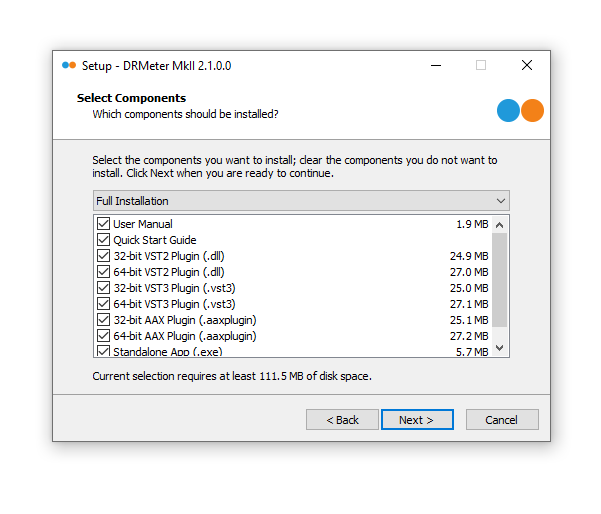
- All standard formats: AU, VST & AAX Mac/Win
- Optimized internal 64-bit processing for highest fidelity
- Operates at all standard sample rates, from 44.1 to 384 kHz
- Compatible with standard OSs; macOS, Windows
- Low fatigue visual design
- Compact layout
Functions:
- Filter gain range of -5 to + 5 dB via 41 position stepped control
- Continuously adjustable phase angle between 15° and 180°
- 3 position switch to extend phase angle from 180° to 360°
- Bypass position for quick and easy comparison with the uncorrected signal
- Stepped or continuous rotary control to select frequency range from 16 to 4 kHz
Controls:
Range
This three position switch is used to select the range of the phase shifter.
- Top Position: +180° (180 - 360°)
- Centre Position: Bypass
- Bottom Position: 0 - 180°
The centre Phase Position, the “0” setting or Bypass mode, provides a means to compare the effect of the selected phase shift with the unprocessed, original phase of the source material.
Frequency
The phase shift is dependent on the selected frequency setting. The Frequency control is either stepped for repeatability or continuous; your choice. Resonant frequency selection is managed by a 13 step ELMA–style control with the following frequencies:
- 16 Hz - 400 Hz
- 25 Hz - 630 Hz
- 40 Hz - 1000 Hz
- 63 Hz - 1600 Hz
- 100 Hz - 2500 Hz
- 160 Hz - 4 kHz
- 250 Hz
Additional controls include a ±5 dB of gain refinement plus MIRROR, FLIP and δ (DELTA) modes for use during stereo operation.
What’s Your Headache?
For most applications, it makes sense to use RSPhaseShifter on just one channel, rather than on both stereo channels. A common example would be when a stereo pair of ambiance mics suffer from slightly different distances to a localized source. Additional uses include:
1: You have a DI’d bass track which sounds dry and lifeless. You drop that track into a project so you can re-amp it, and dial up a great re-amped sound. When you try to blend the DI track with the re-amped track, it sounds…awful! Just grab RSPhaseShifter, insert it into the DI’d track, and start off with a low-frequency setting. Sweep the phase angle control and fine-tune the frequency and…Bang! Suddenly, it sounds awesome.
2: Another scenario would be you have a set of two distorted guitar tracks recorded with different guitars or amps but playing the same riff. They sound nasty because both are modeling–based guitar amp simulations. Just insert the stereo version of the RSPhaseShifter into one of those pairs of tracks and play around in Mirror mode, so that both sides of your processing track are ganged. Within seconds, you will find a sweet spot where both guitars blend perfectly because by sweeping through the phase angle control, you’re applying very complex comb filters which you could not create with other EQ.
3: A common situation is you have closely spaced, multi–mic’ed sources, like a snare with top and bottom mics, some instrument with two mics, or an acoustic guitar with a mic and a piezo pickup. Just play around with the RSPhaseShifter on one of the feeds, preferably the one which is closest to the source, such as a piezo feed, and find the sweet spot by feel.
4: Yet another would be you’ve made a great acoustic stereo recording and have used supporting microphones, such as room, spot or far hall placements. To meld these into your main stereo pair, take your mains as the phase reference, and align one supporting mic after the other with the mains. This is easiest if your supporting sources are panned centre and approximately the same level during phase alignment. Afterwards, you can set gain and panning back to taste.
5: Acoustical issues are often an annoyance at low frequencies…
- Reduce the influence of standing waves, or room modes, for a loudspeaker setup in conjunction with one or more subwoofers.
- Reduce the acoustical energy caused by low-frequency cancellation in live sound applications.
- Acoustically optimize the sound field in studio and live sound environments.
Features and Specifications:
- Analogue-Style Phase Shifting
- Mono & Stereo Operation
- 64-bit DSP
Supported Formats:
- AAX (Pro Tools 10.3.10 and newer), AU, VST2/3 M/W
- Sample rates from 44.1 to 384 kHz
System Requirements
Mac:
- macOS 10.9 and newer, Universal Binary 2, 64 bit only
PC:
- Windows 7 and newer, 32 & 64 bit.