Installation & Activation (A.L. Licensing)
Newfangled Audio plug-ins now use A.L., a new licensing system designed to make licensing easy while staying compatible with your existing iLok licenses. A.L. is new, so everyone will need to create an account before use.
1. Download and install the plug-in
Download the plug-in installer from the Newfangled Audio Downloads page or the plug-in's product page on the Newfangled Audio website.
2. Open the plug-in in your DAW
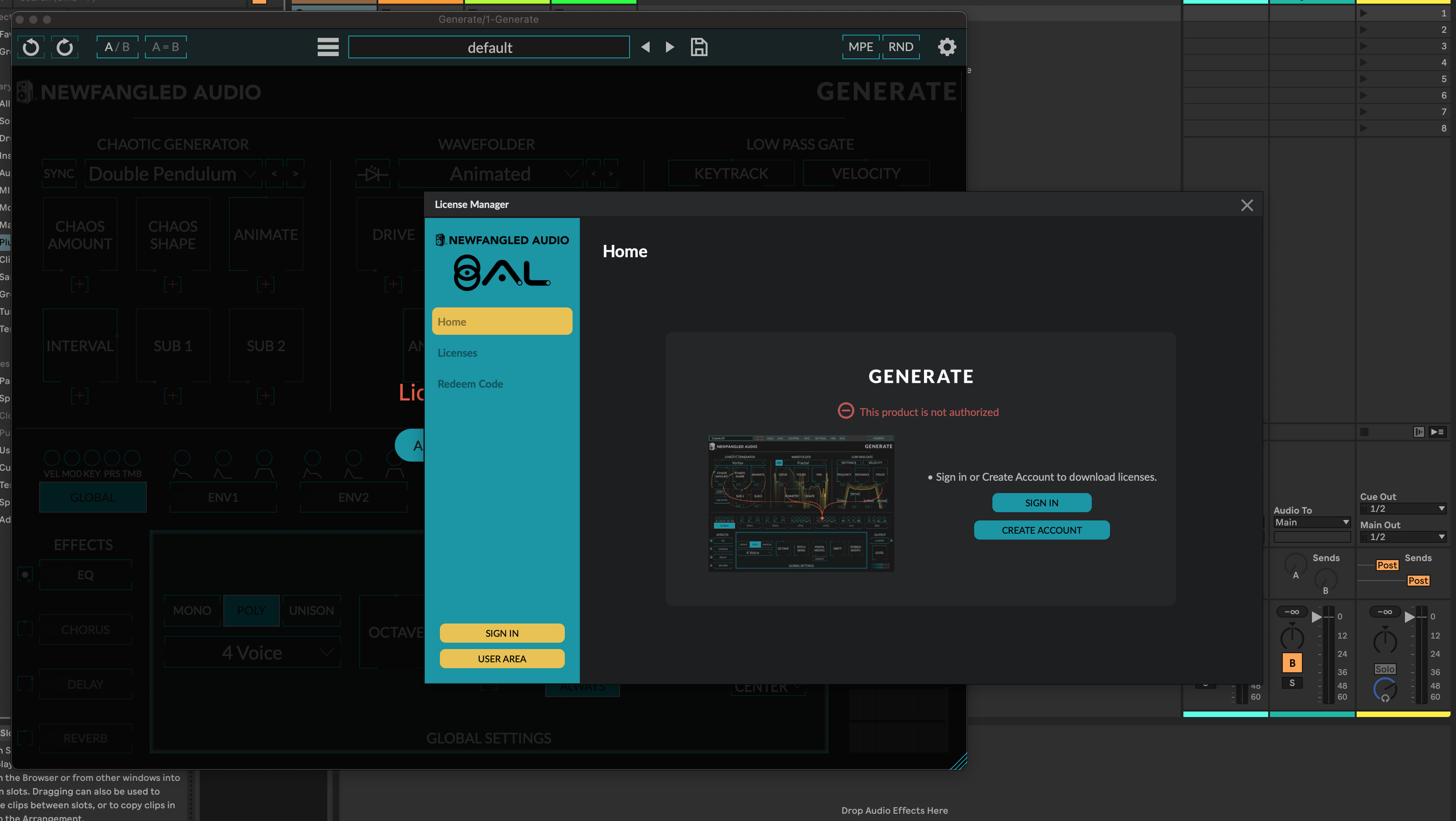
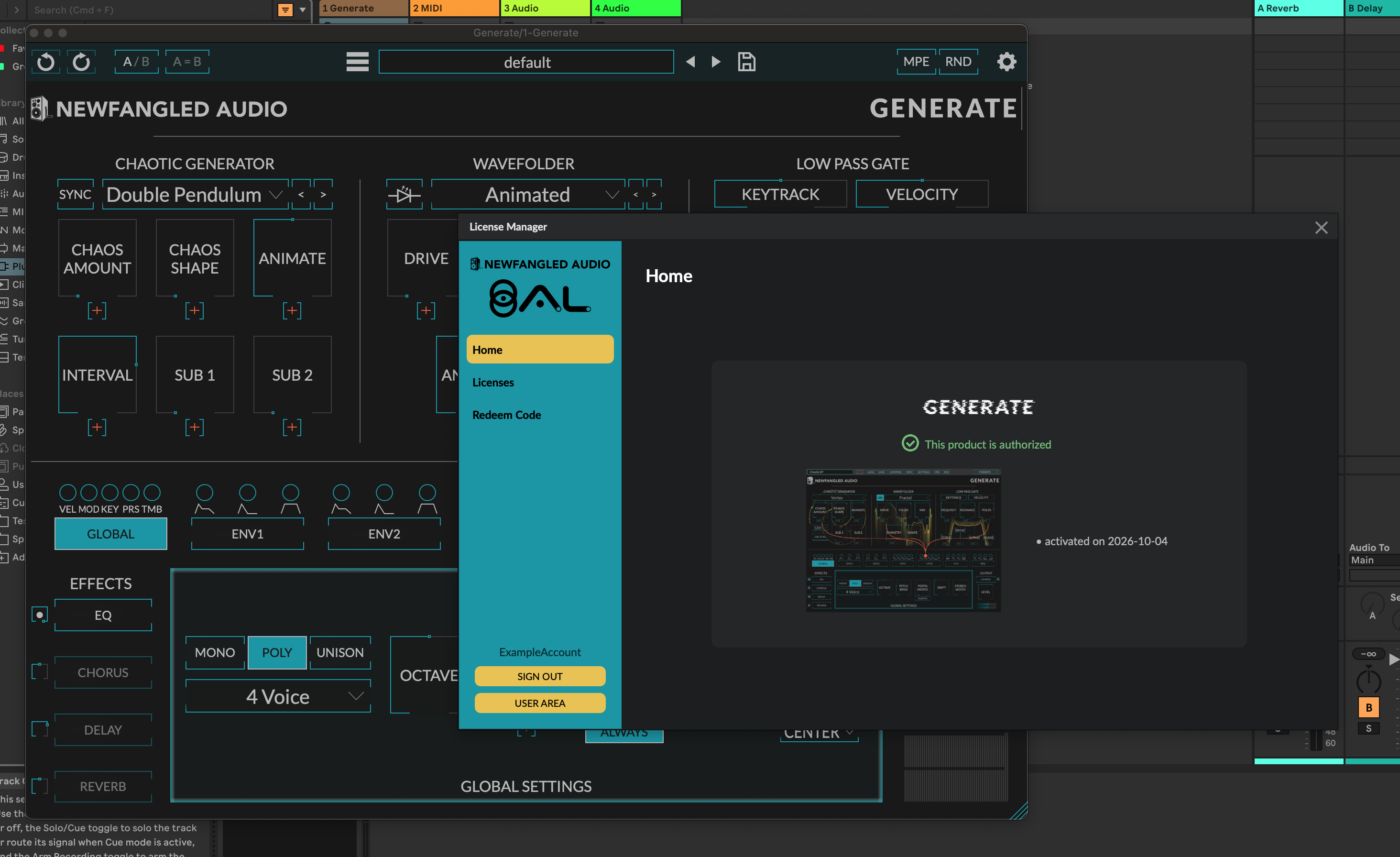
Open your DAW or plug-in host and instantiate the plug-in on a track. The A.L. License Manager should open automatically. If it doesn't, open it with the button in the plug-in UI, or from the SETTINGS menu in the top-right corner.
3. Create an account and sign in
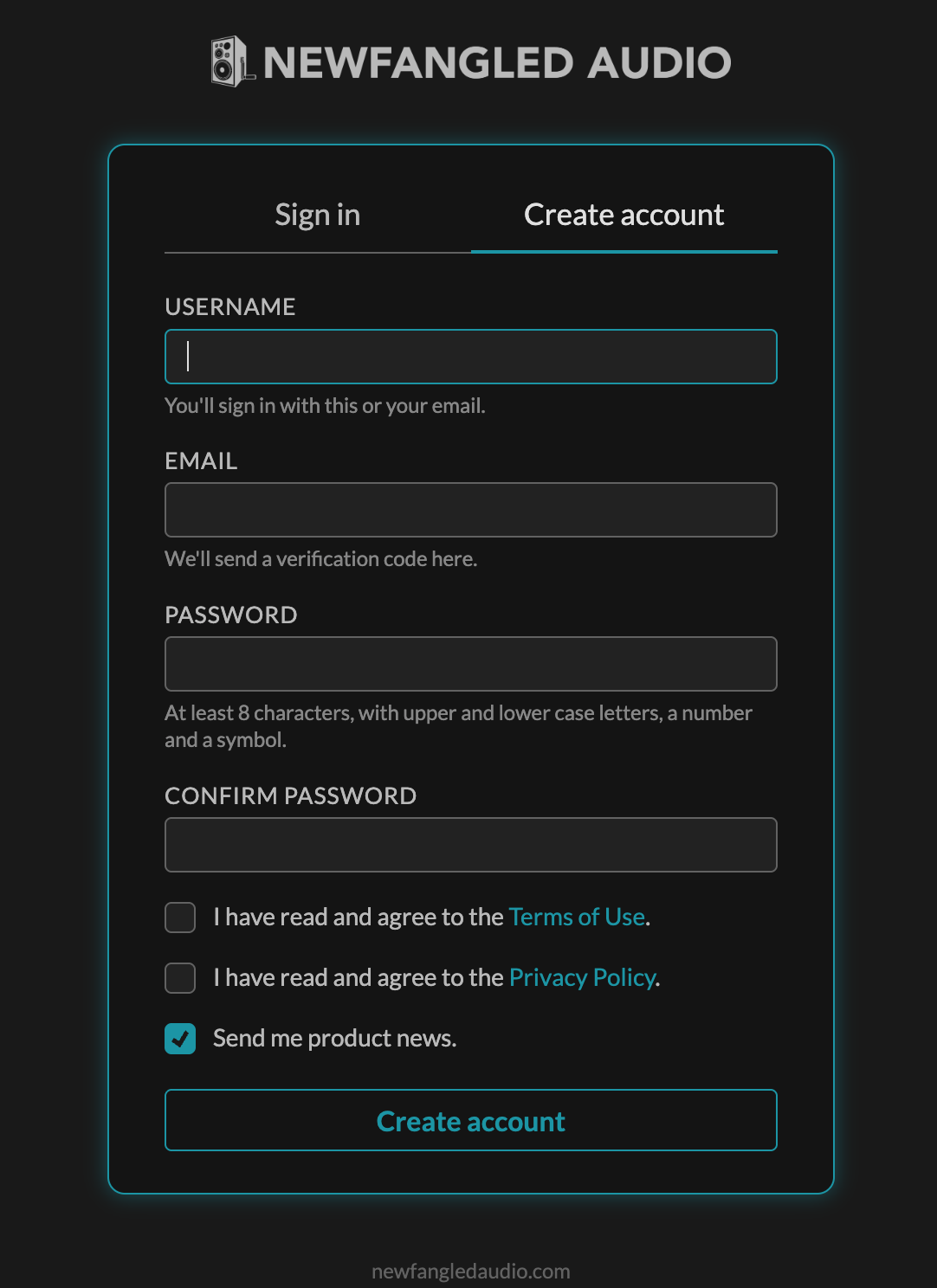
A. A.L. is new in Fall 2026, so most people will need to create an account, even if you already own Newfangled Audio plug-ins. If you already have an account, skip to step B.
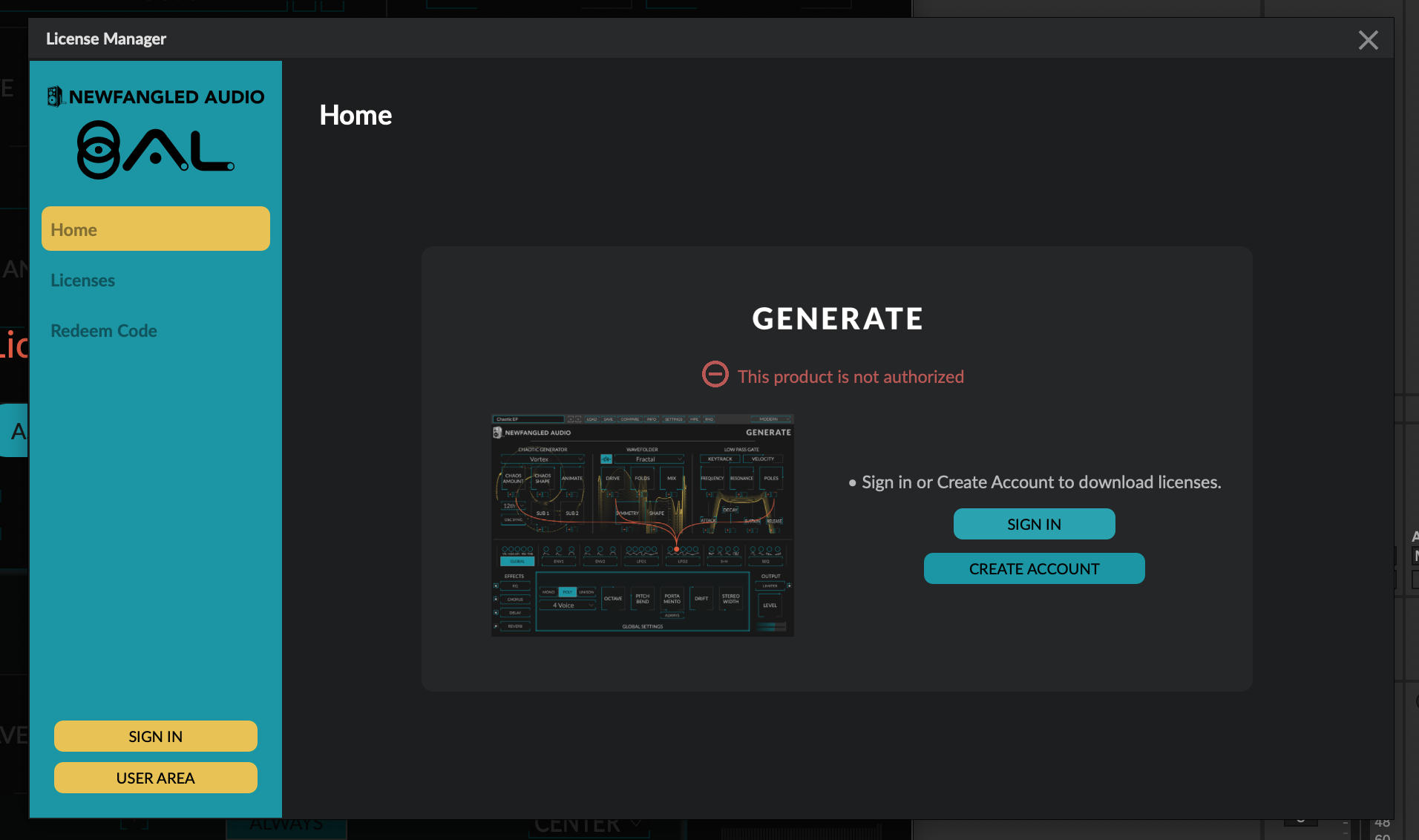
B. Once you've created an account, sign in to the A.L. License Manager by pressing SIGN IN and signing in on the page that opens in your default web browser.
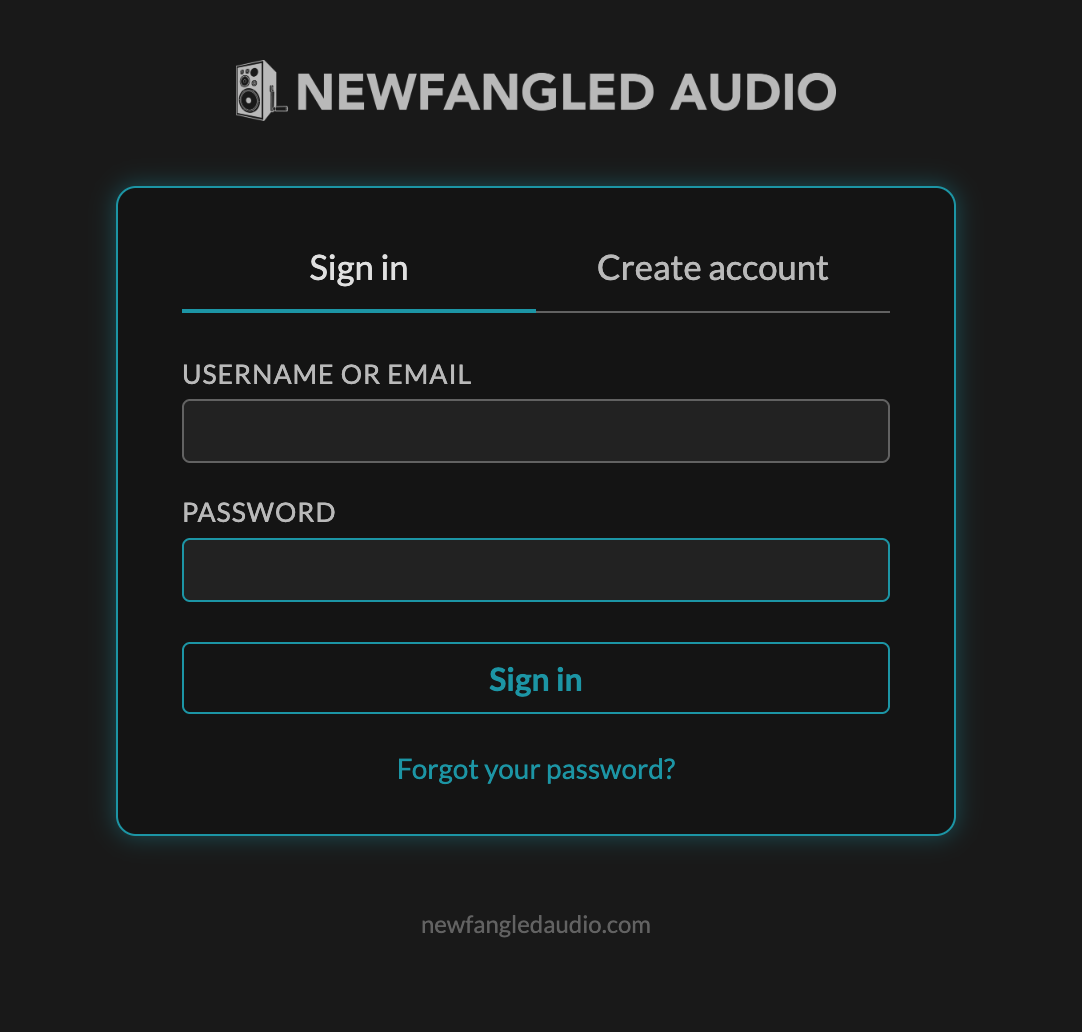
4. Get your license
Once you've signed in, there are several ways to get a license:
- If you've purchased a license from Plugin Boutique, press REDEEM CODE and enter your license code.
- To try the plug-in first, press START DEMO for a 14-day trial.
- Licenses purchased directly from Newfangled Audio are deposited and activated automatically – once you're signed in, the plug-in should just work.
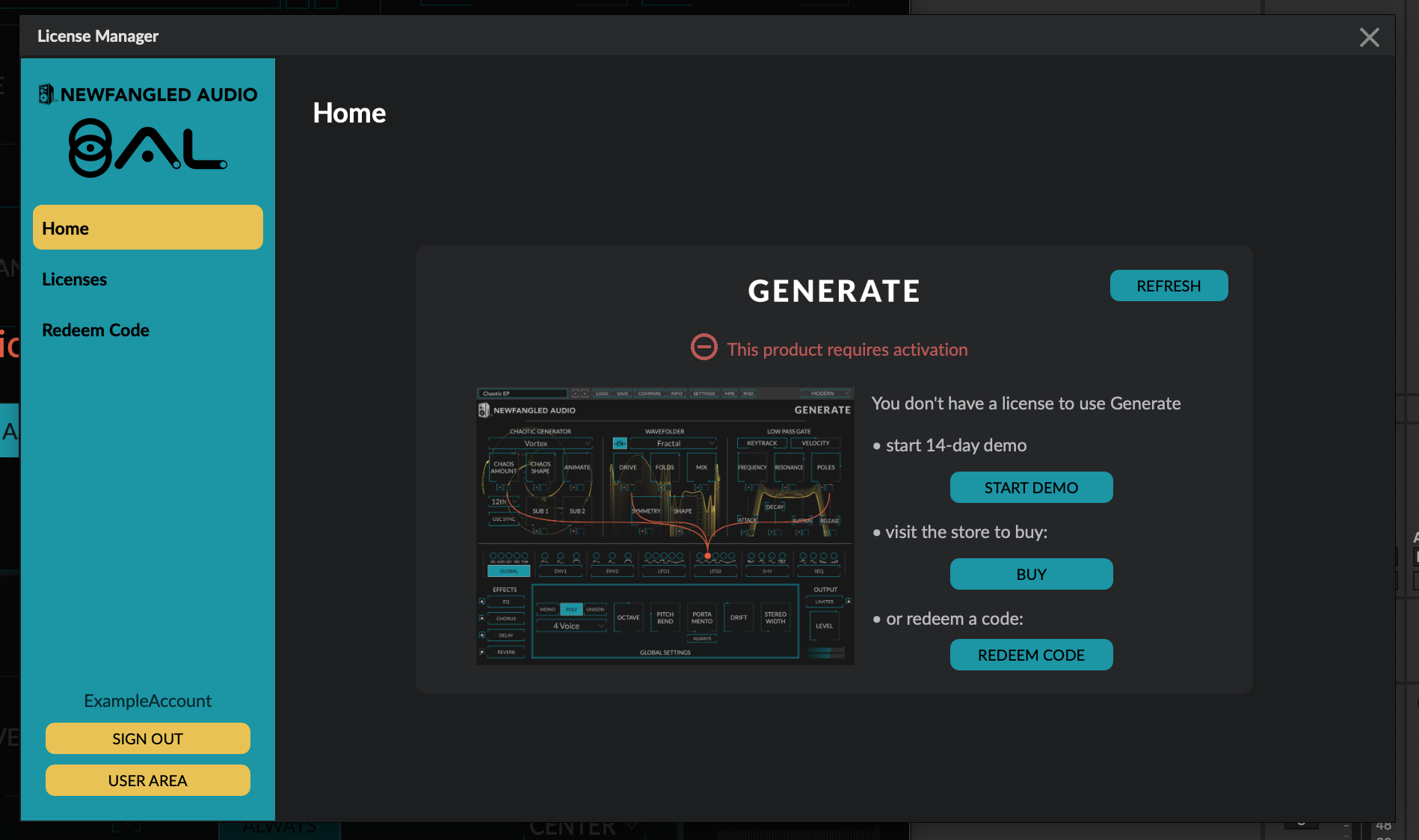
When you press REDEEM CODE, enter the license code from your Plugin Boutique account into the form…
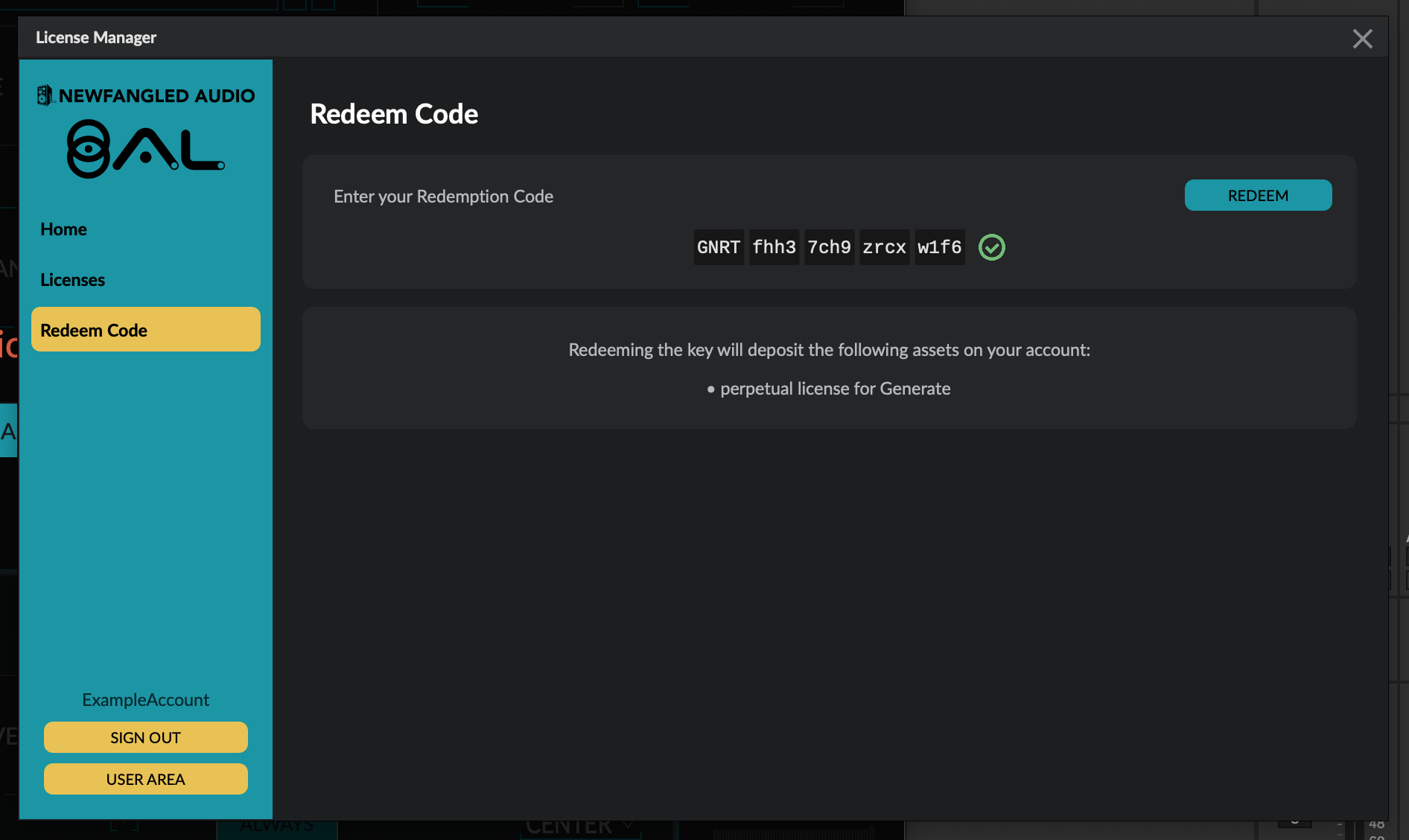
…and press REDEEM.
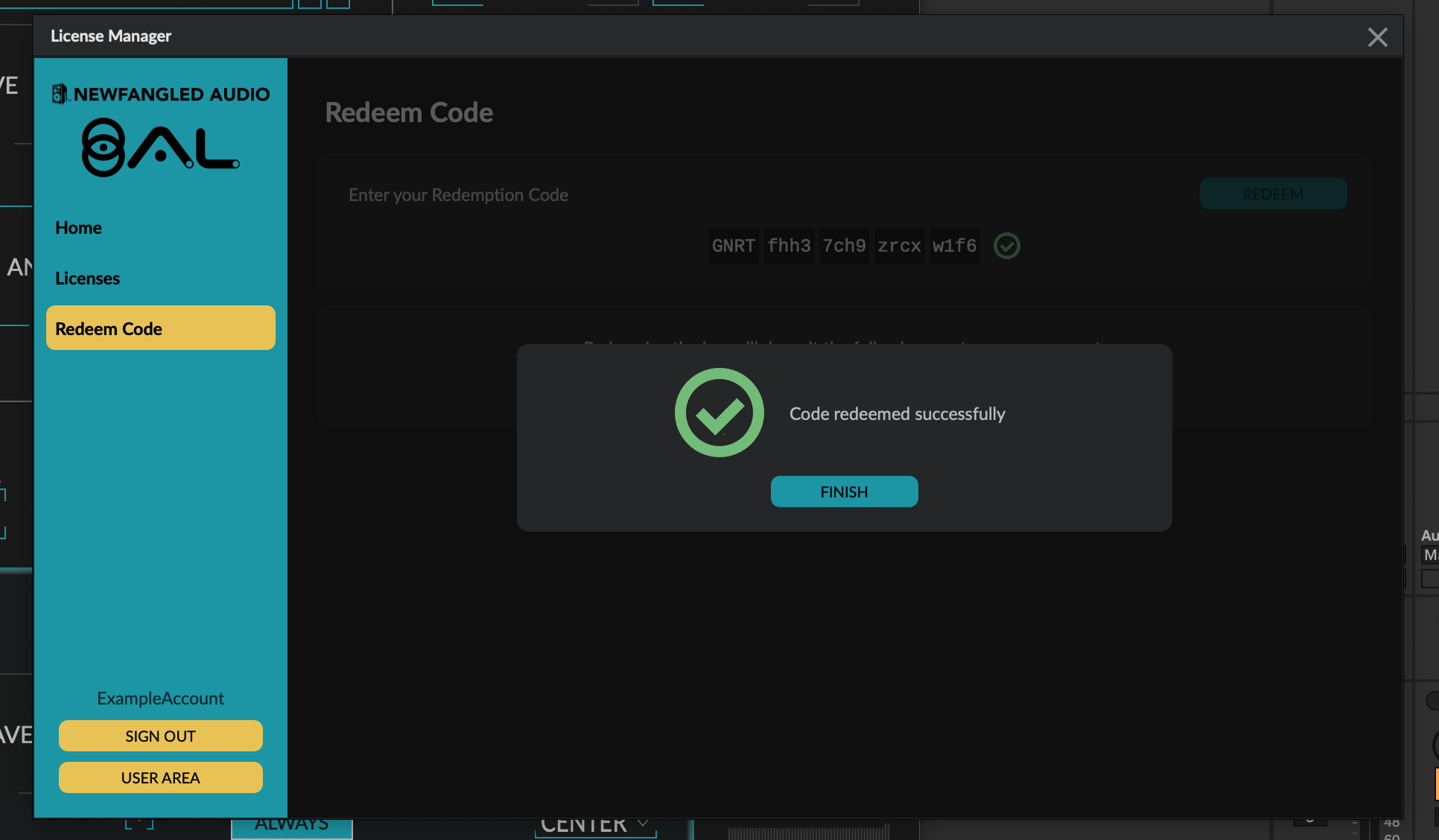
Your product is now activated and working in your DAW. You can close the A.L. License Manager window and start using your plug-in.
5. Visit the User Area (optional)
You can manage your plug-ins, licenses and activations in the Newfangled Audio User Area at my.newfangledaudio.com.
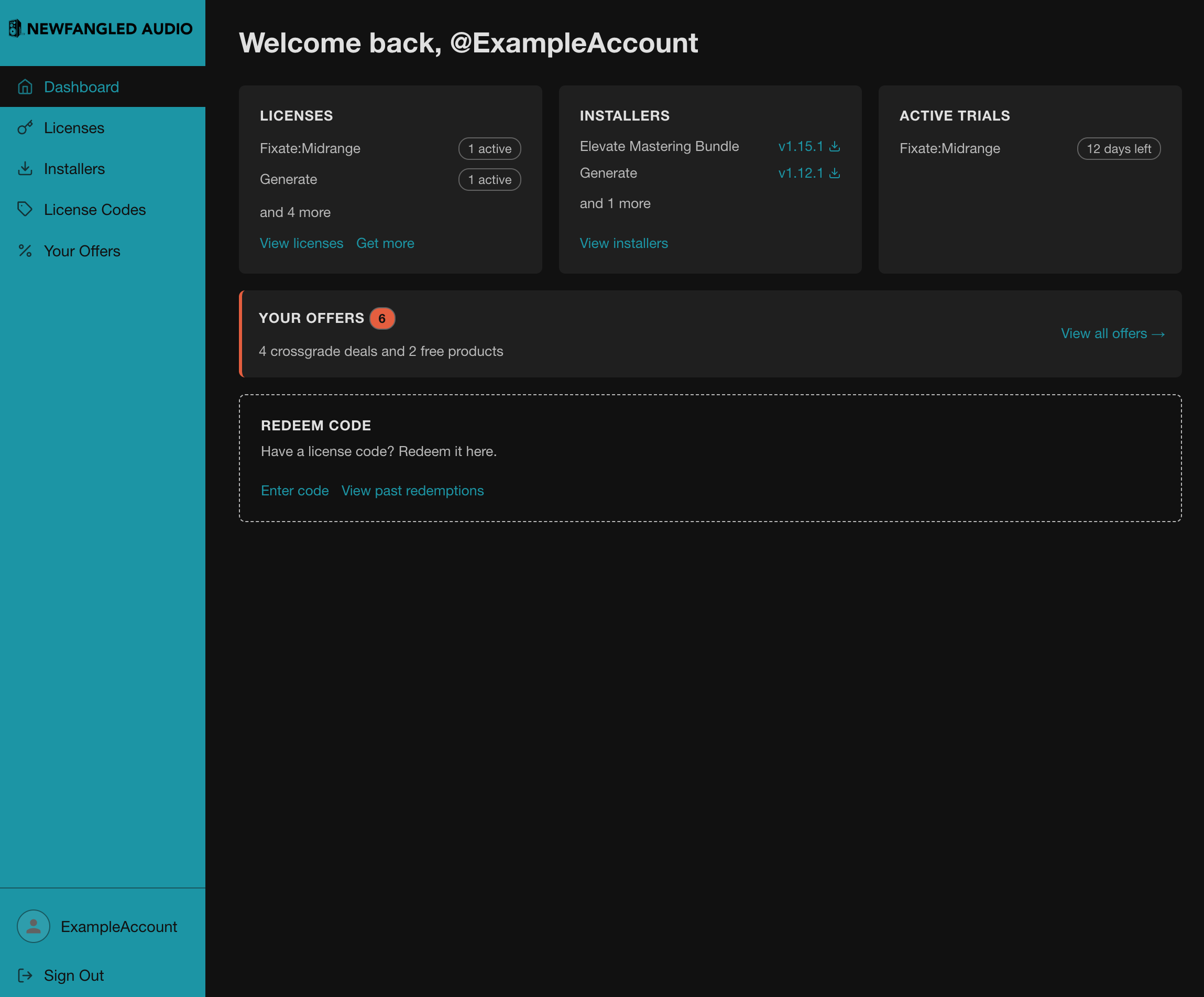
The Dashboard gives you quick access to your licenses, the latest installers, free plug-ins and license code redemption.
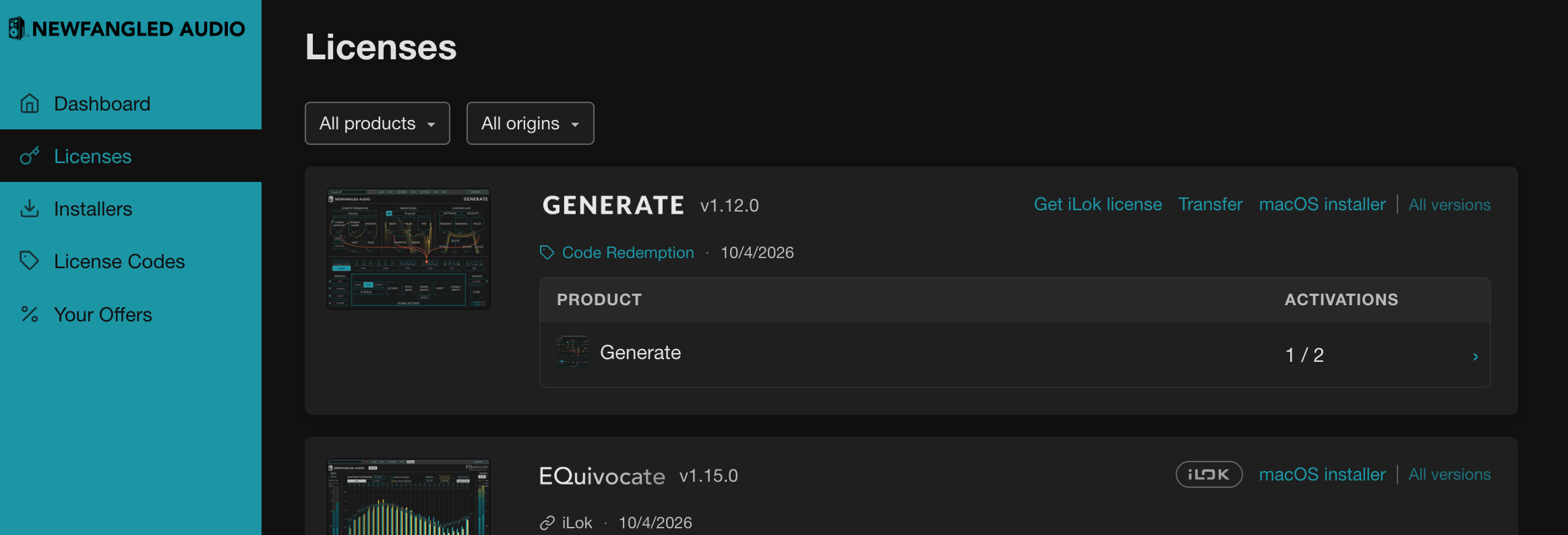
Manage your licenses under the Licenses tab. Here you can request an iLok license for a product or transfer a license to another user.
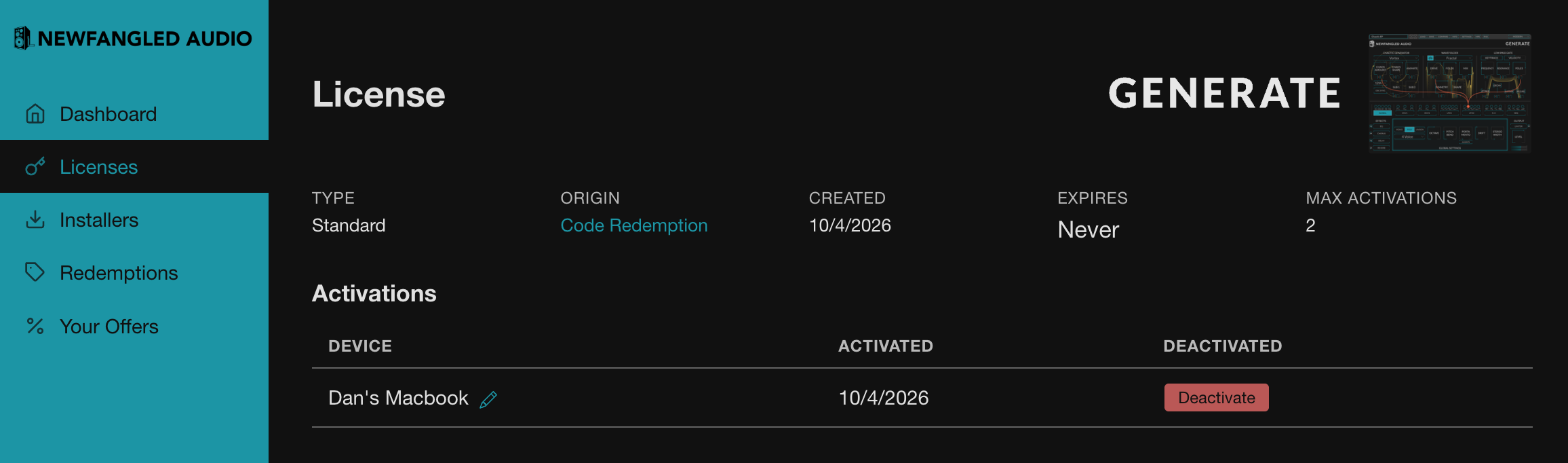
To manage activations, click the license in the PRODUCT row. Here you can rename your machines and choose which machines are activated.
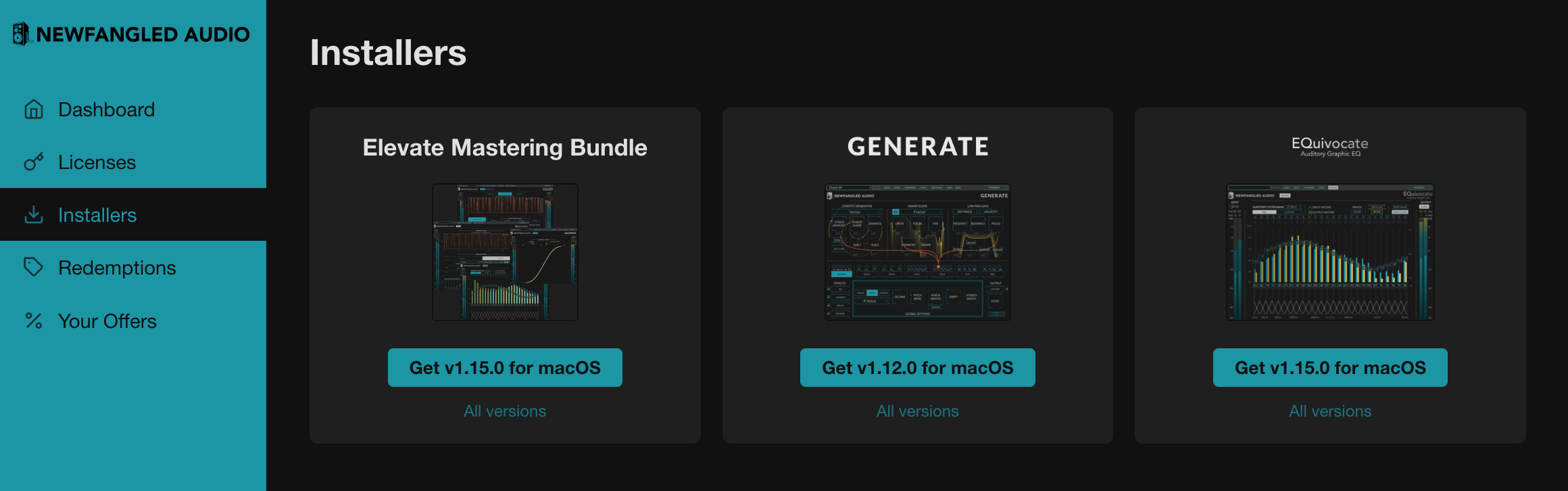
The Installers tab gives you the latest and past installers.
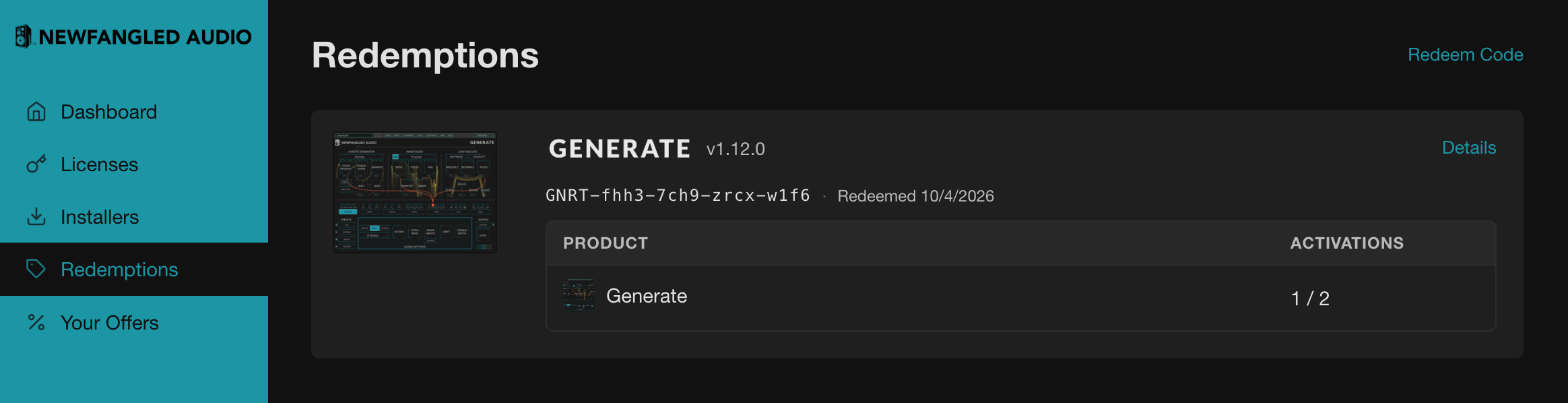
The Redemptions tab shows the license codes you've redeemed.
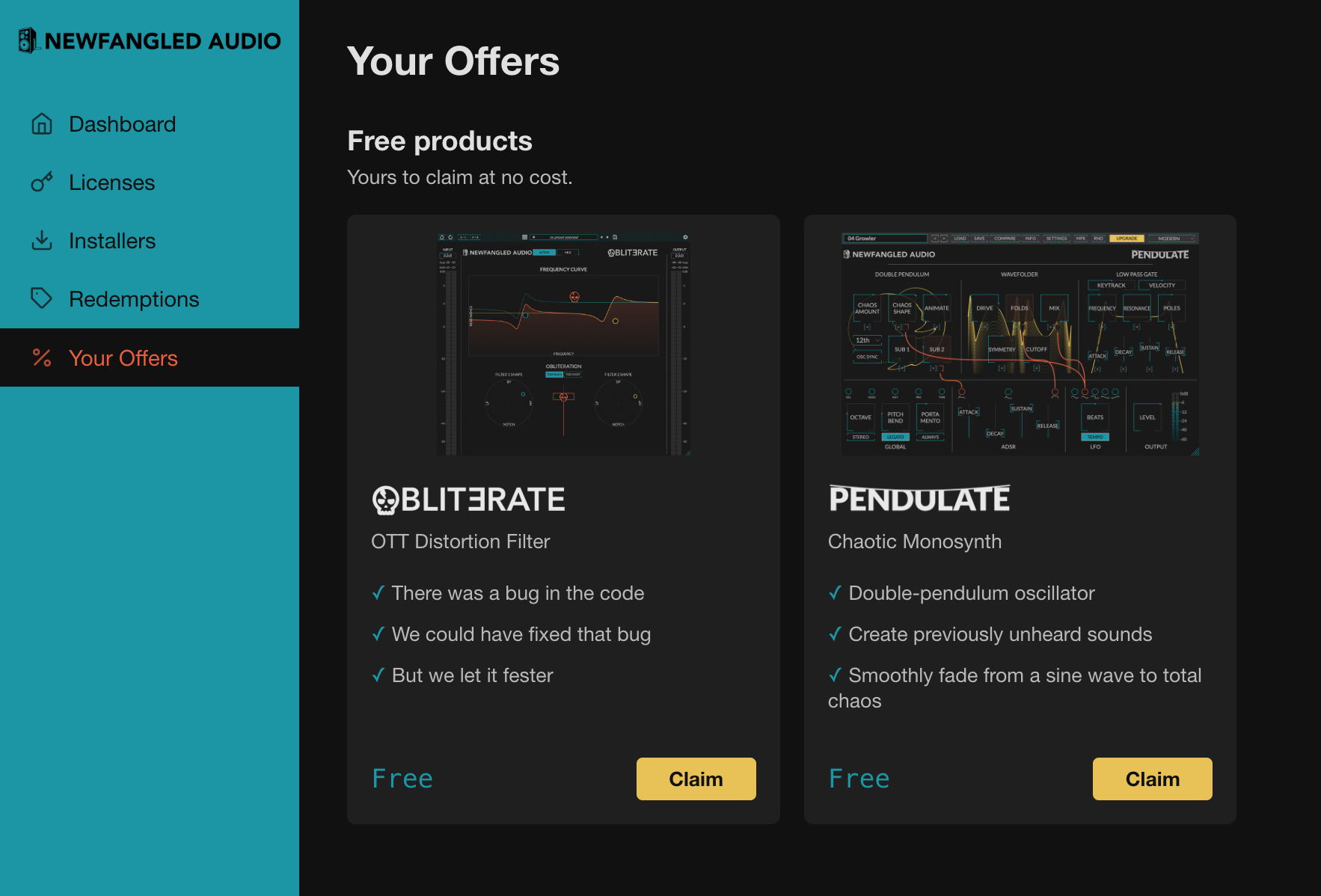
Your Offers gives you access to free products and any loyalty discounts available to you.
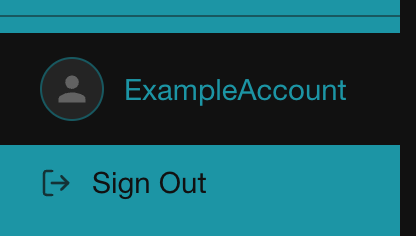
Click your user name at the bottom left to manage account settings (name, email address, password and email preferences) or to sign out.
6. Link your iLok account (optional)
Existing Newfangled Audio users will have their licenses stored in their iLok account. Your iLok account will continue to authorize your plug-ins, so you can keep working as before. However, you can link your A.L. and iLok accounts to claim A.L. licenses from your existing iLok licenses, or use new A.L. licenses to issue iLok licenses.
Once linked, you can use A.L. and iLok at the same time. A plug-in can open with either an A.L. or an iLok license, and transferring a license on one account will transfer it on the other.
If you used the same email address for both accounts, they will link automatically. If not, a banner on the User Area dashboard lets you start the process.

You can also link one or more iLok accounts from the settings page (click your user name). Start the process at the bottom of the page.
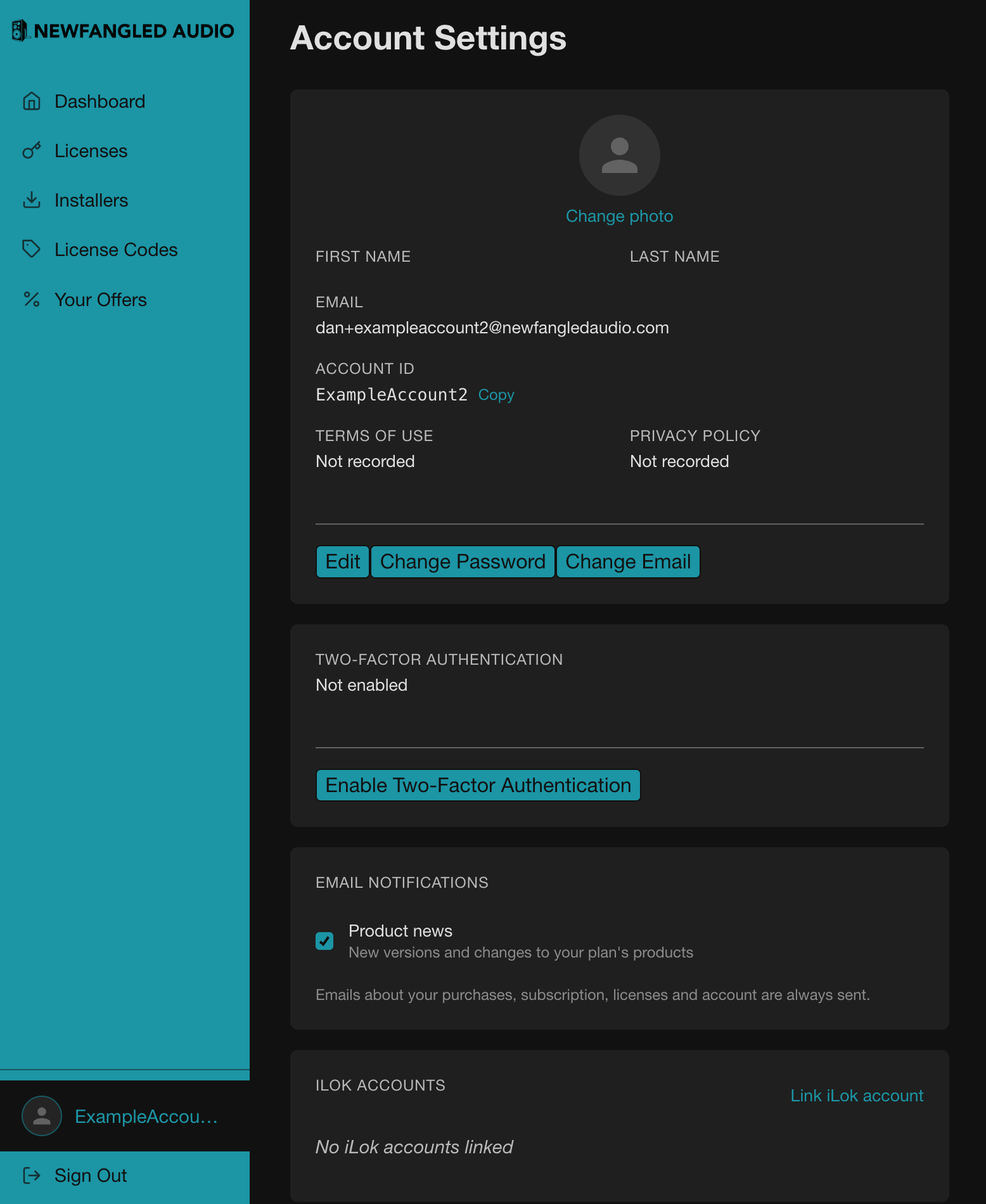
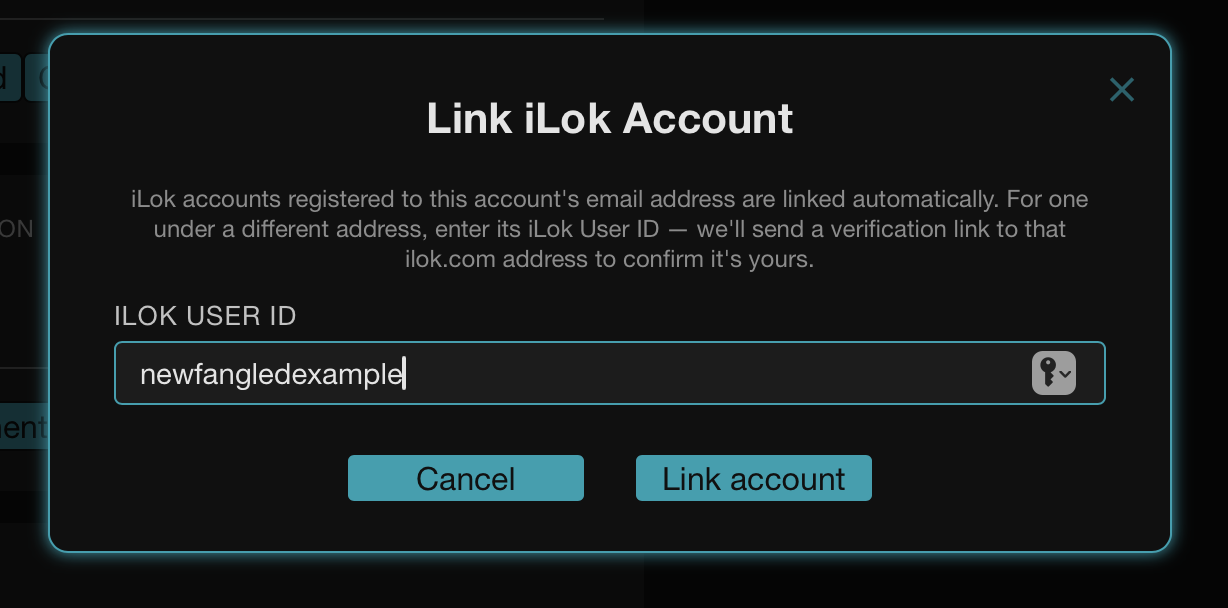
Enter the name of the iLok account you want to link.
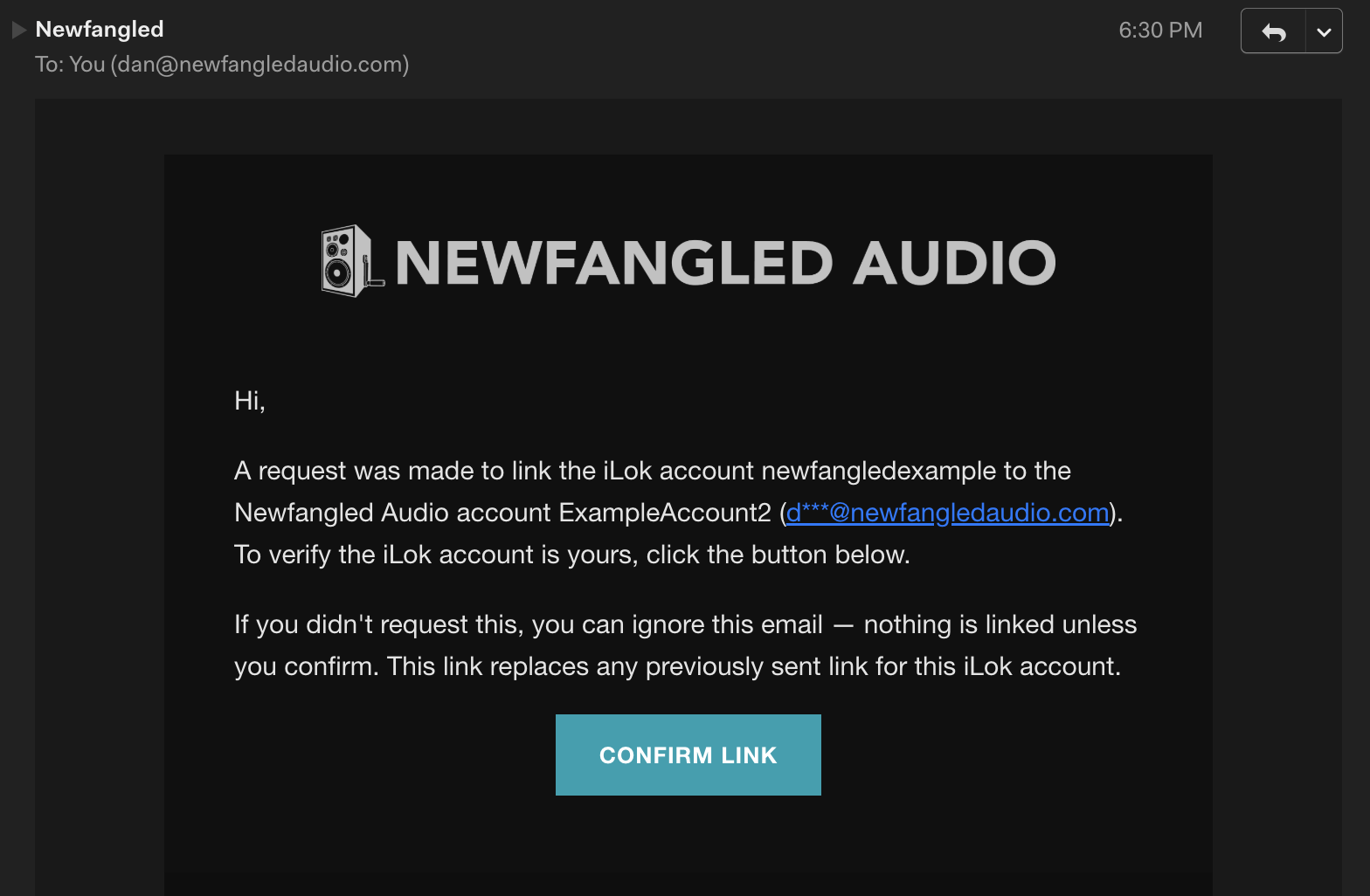
After pressing Link Account, a confirmation email is sent to the address registered with that iLok account.
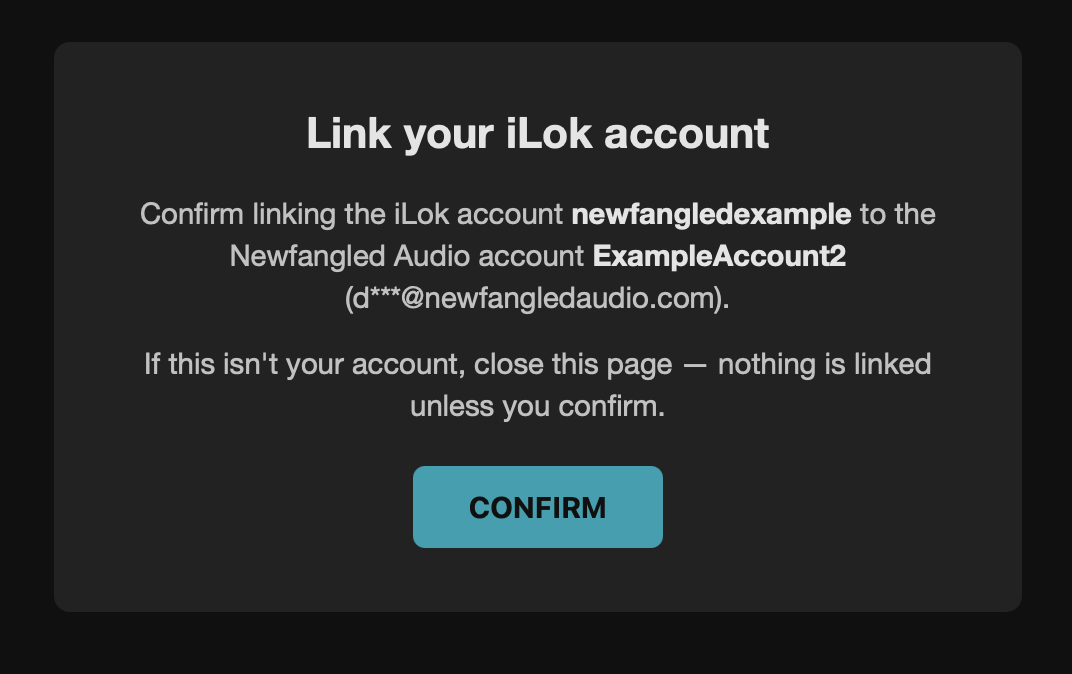
Press the button in the email to confirm and link your accounts.
You'll then be granted A.L. licenses for each Newfangled Audio license in your iLok account. These are marked with the iLok logo on the Licenses page.
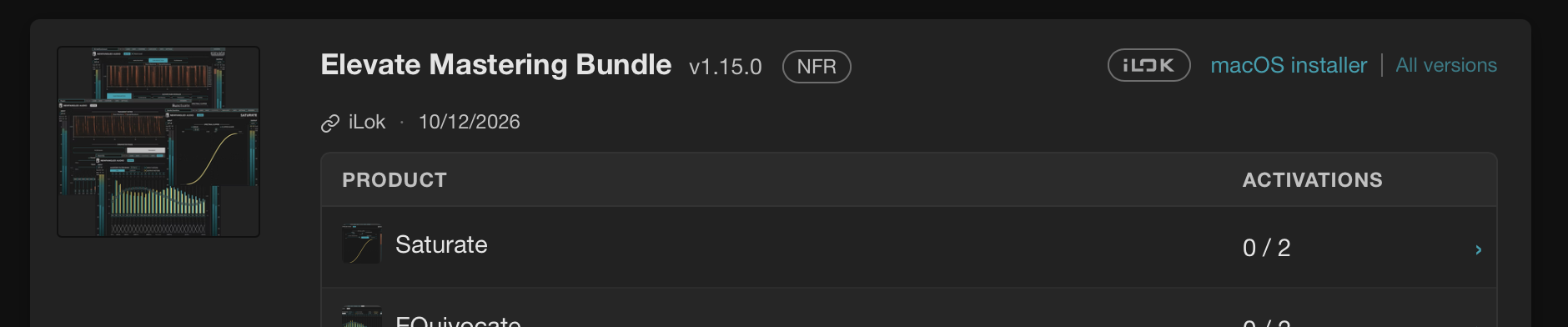
New purchases always issue A.L. licenses, but if you'd prefer to keep using iLok, use the Get iLok License button on eligible A.L. licenses.
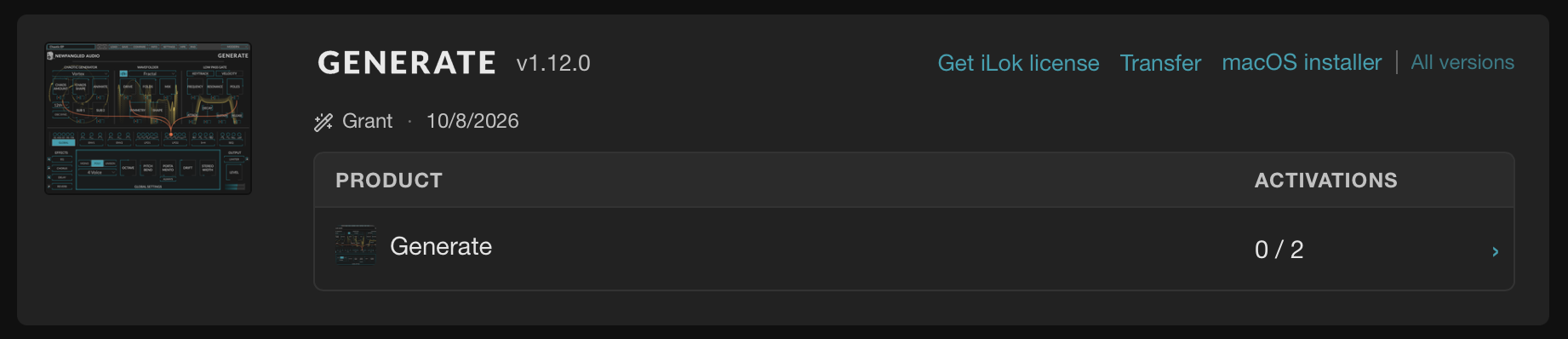
Please note: these are not duplicate licenses. Transferring a license in one system will remove it from the other.


 Log In


