


 Log In

Free gifts available with your purchase
B360 Ambisonics Encoder
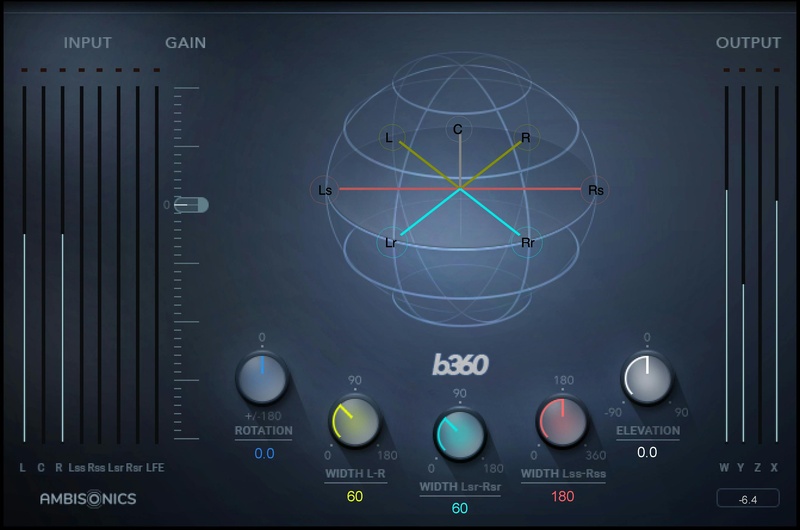
Finally—User-Friendly Ambisonics Conversion Workflow
B360 meets the ever-increasing demand from YouTube, Facebook, gaming, VR, sound effects libraries, and others for 360⸰ mixes using the industry-standard Ambisonics B-format.
Unlike standard mono, stereo or surround tracks, which route to individual speakers, B-format has four channels that together represent the entire spherical soundfield. When you want to include mono, stereo or surround tracks in an Ambisonics mix, you first need to convert them to the 4-channel B-format. B360 is the fastest, most intuitive way to do that.
Whether inserted in your final mix to encode Ambisonics mixes, or inserted in individual channels for precise positioning in the spherical sound field, B360 is your answer to simplified workflow.
Features
- Designed for the industry-standard Ambisonics B-format
- Deliver audio for VR and 360° videos
- Converts mono, stereo & surround to Ambisonics 4-channel format
- Width, rotation and elevation controls for precise positioning
- Accurate panning, in up to seven image sources
- File format follows the common AmbiX convention
- Includes AmbiX-to-FuMa and FuMa to AmbiX utilities
- Familiar interface meshes easily with traditional mixing methods
System Requirements
Mac
- macOS Monterey 12, Ventura 13, Sonoma 14, Sequoia 15
- VST / AU / AAX
PC
- Windows 10+
- VST / AAX














