


 Log In

Free gifts available with your purchase
Harmonics Analog Saturation Processor
Did you ever try to give a track attitude by adding distortion, but then wind up with a washed out, lifeless sound instead? Harmonics, with its never-before-heard approach to dynamics in distortion, is the answer.
Guitars, vocals, drums, bass, even synths often need some extra grunt to push them over the edge, but distortion can destroy dynamics and cause more problems than it solves. Too little and your sound doesn’t cut through and fill its space. Too much and you lose the light and shade, the attack and decay. Transients blend into tails, and detail and definition go out the window.
But with Harmonics, you get much more than just five awesome-sounding analog distortion models. You also get a revolutionary new approach to handling dynamics during the process of distorting the sound. The input signal is listened to and analysed by the plug-in, allowing the dynamics and detail to be preserved and enhanced even after heavy distortion is applied.
Add to that the fact that Harmonics has five totally different-sounding component-modelled distortion styles, high and low cut filters, a mix knob and more, and you end up with a very powerful secret weapon indeed.
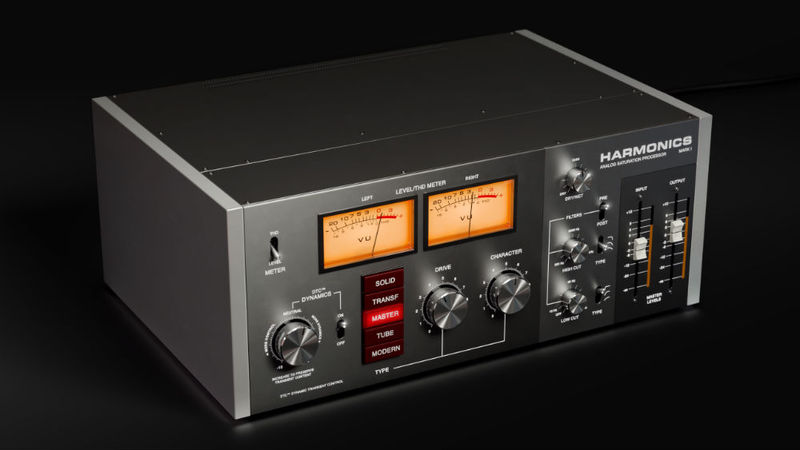
Features
- Five genuinely different component-modelled distortion sounds
- Revolutionary ‘Dynamic Transient Control’ technology
- ‘Amount’ knob to control the amount of saturation
- ‘Character’ knob controls tone or color of the distortion
- High and low cut filters can be placed before or after distortion
- Wet/dry blend knob for parallel processing
- THD meter allows fine control of subtle saturation
- All of the grunt, none of the drawbacks
- Includes presets by Joe Chiccarelli and Howard Willing
System Requirements
- macOS Big Sur 11, Monterey 12, Ventura 13
- Windows 10 (64-bit), Windows 11
- Softube account
- iLok account
- Computer with AU, VST, VST3, and/or AAX-compatible DAW host software
- Internet access (for downloading installers and managing licenses)
Supported CPU Families
- Apple macOS computers with Intel Core i3/i5/i7 or Apple silicon (M1 or newer) CPU. Apple silicon is supported natively.
- Windows computers with quad-core Intel Core i3/i5/i7 or AMD quad-core processors with SSE 4.2 support.
- Other Intel processors (Celeron, Pentium, and Xeon) are compatible if they support SSE 4.2 instructions.
Supported Host Software (DAW)
Any 64-bit VST, VST3, AU, or AAX (Pro Tools 11.0.2 or higher) compatible host application should work. However, due to plug-in host differences between DAWs—and our rigorous standards—Softube only officially test their plug-ins and instruments in the most recent versions of Pro Tools, Logic Pro, Cubase, Ableton Live, Studio One, and Reaper. Softube plug-ins are not tested regularly in non-listed systems. They will likely work if the system requirements are met. However, the manufacturer cannot guarantee a solution for issues in unsupported systems.
Softube strongly recommend using VST3, as some of their plug-ins have features that are not present in the older VST format. Supported sample rates: 44.1, 48, 88.2, 96, 176.4, and 192 kHz, in both mono and stereo. The most recent maintenance release of your DAW application is recommended. AAX DSP is not currently in active development. TDM/VENUE/RTAS are no longer supported. See Legacy Installers.
Important Note: Make sure that you always use the latest iLok License Manager. It is not included in the Softube installer but can be downloaded from www.ilok.com
Howard Willing
Producer, engieer and mixer for Smashing Pumpkins, Sheryl Crow and Kris Kristofferson.
"Fantastic plug-in - super versatile and musical. Love the thickness it creates..."
Kevin Kadish
Grammy-nominated songwriter and producer for artists such as Meghan Trainor and Jason Mraz.
"I love this plugin! It's so versatile! It's perfect for just adding a little grit to the mix, overdriving a vocal, or making anything lo-fi."
Warren Sokol
Mastering Engineer (Imagine Dragons, Paul McCartney, Lana Del Ray)
"I'm really impressed with how much you can control the sound you are shaping & the results you can get, with such a simple & easy to use interface! Will definitely be getting some milage out of this one!!"
A new spin on analogue saturation modelling The latest release from analogue modelling wizard Softube presents five distinct styles of harmonic saturation in a single plugin. Having spent the last ten years poring over a ‘what’s what’ of vintage hardware processors, the Swedish developer has...
Read MoreReviews Summary
While it aims to provide a helpful overview, it may not capture every perspective or detail. We encourage you to read individual reviews to make an informed decision.
Users widely praise this plugin as a versatile, gorgeous-sounding saturation and transient tool that excels at subtle, dynamic sound manipulation. Many consider it a mix bus essential and a significant upgrade over standard saturation tools, with the only minor critique being a sparse preset library.


