


 Log In

Free gifts available with your purchase
Spectral Clipper and Psychoacoustic Overdrive
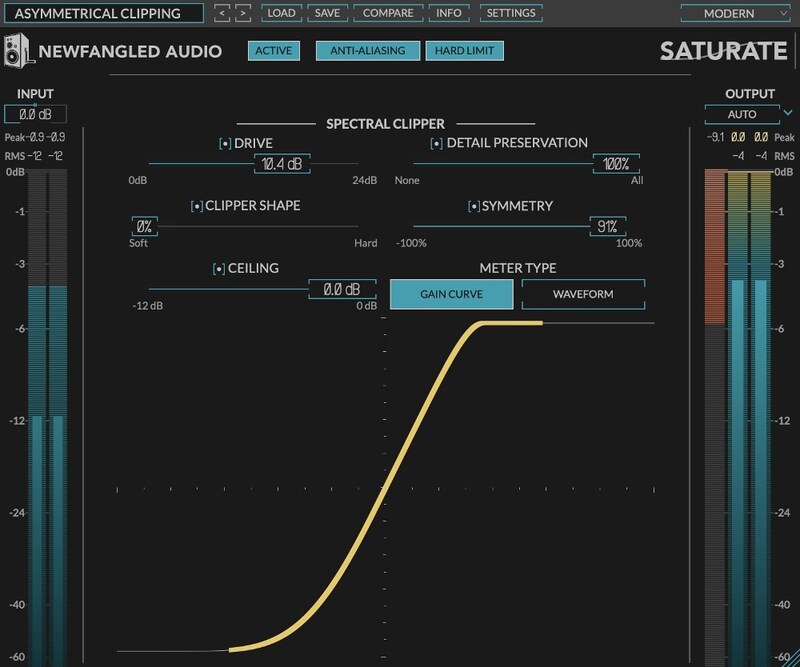
Saturate is the Spectral Clipper algorithm made popular in the Elevate Mastering Limiter. Saturate’s two controls belie a sophisticated signal processing engine that allows it to overdrive a signal without affecting the tonal balance no matter how hard you push it. Add up to 24 dB of overdrive without creating a “tubby” or muffled sound. Additionally, the SHAPE control allows you to smoothly morph between hard clipping and the mathematically smoothest curve possible. Use Saturate to overdrive individual tracks or your entire mix.
Features
- Saturation plug-in ideal for single tracks or the entire mix
- Smoothly adjust from the softest to the hardest possible clipping shape
- Spectral Clipper maintains tonal balance for an always pleasant saturation sound
- Independent INPUT and OUTPUT levels, with AUTO output level scaling for easy and precise gain scaling
- Saturation Curve Display and Meter show you how your signal is hitting the selected clipping shape
- Mastering Quality Input and Output metering show you both peak and RMS levels
- Anti-aliasing mode removes aliasing artefacts better than oversampling
- Unique Symmetry control allows you to add even harmonics for a richer tone
- Ceiling control allows you to set the clipping threshold
Science Behind Saturate
Any audio signal can be broken down into a number of sine waves at different frequencies. When you overdrive that signal the higher amplitude low frequencies can often swamp the midrange and higher frequencies that your ear is more sensitive to. Because of this, signals under heavy overdrive can lose some of their finer detail and sound “tubby” or “muddy.” This is because the lower amplitude sine waves of the midrange and high frequencies are removed by the saturator when the low frequencies are at the top and bottom of their swing. This causes shifts in the tonal balance which are dependent on the frequency content of the signal.
Saturate uses a special Spectral Clipper technology that adds this finer detail back into the saturated signal. The signal is still saturated based on the curve, but the sine waves at different frequencies are treated independently, meaning that the large low frequencies don’t crowd out the finer detail frequencies and that the tonal balance at the output is the same as the input – with only harmonics added.
Saturate also uses a very efficient anti-aliasing method that removed aliasing artefacts as well as very high oversampling with a fraction of the CPU resources.
System Requirements
Mac
- macOS 10.9 and later (64-bit only) (macOS 12 Monterey and M1 Apple Silicon supported)
- AAX, AU, VST2, VST3 (64-bit)
- Please Note: AAX format is only compatible with Intel Macs (until Avid adds native M1 Apple Silicon support).
Windows
- Windows 8 and later (64-bit only) (Windows 11 supported)
- AAX, VST2, VST3 (64-bit)
Important Notes:
- Newfangled Audio tests their desktop plugins in Ableton Live, Cubase, FL Studio, Logic Pro, Pro Tools, and Studio One (However, their plugins should work with any compatible host.)
- No iLok dongle is required to run this software - only a FREE iLok account/Manager is required for authorisation.

Eric Beam
Mastering Engineer | Chief engineer at Formosa Santa Monica.
"This thing is dangerous & fun!”

Sebastian Arocha Morton
Sting, Seal, Santana.
"I'm mastering some songs at 96K and it performs like a dream..."

John McCaig
Bitcrush, Seapony, Sufjan Stevens.
"This is my new go-to mastering plugin."








Reviews Summary
While it aims to provide a helpful overview, it may not capture every perspective or detail. We encourage you to read individual reviews to make an informed decision.
Users widely praise Newfangled Saturate as an exceptional clipper plugin, highlighting its ability to add clean loudness, detail, and energy with minimal CPU usage. Reviewers appreciate its smart interface, extensive options, and strong performance on drums, vocals, and aggressive genres like heavy dubstep, though one reviewer noted its clinical precision might not suit tracks requiring warm, analog-style saturation.


