/ Mastering / Oxford Dynamics
Sonnox

Oxford Dynamics

4.8 (190 Reviews)
$270.00
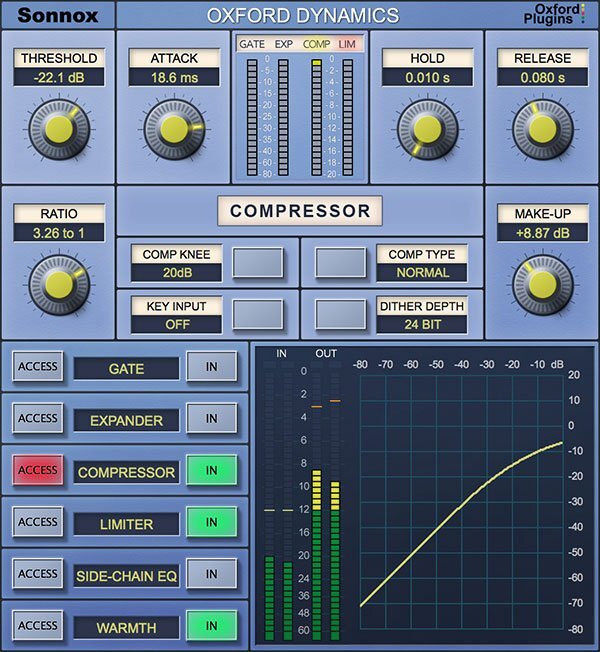
Oxford Dynamics UI
Oxford Dynamics UI
Video 1 gallery thumbnail
Video 2 gallery thumbnail
Video 3 gallery thumbnail
Main Image
Buy Now
Product information

A powerful all-in-one dynamics control plugin

Oxford Dynamics is a powerhouse of dynamic control in a single plugin that features six independent processes for precision dynamic sculpting of your tracks.

  • Gate
  • Expander
  • Compressor
  • Limiter
  • 2-band side-chain EQ 
  • Warmth control

From subtle control of a vocal to a pumping side-chained effect; from lightning-fast gating and precision expansion to peak level limiting of single tracks and buses alike. Sonic clarity at all times – with the option of tube-like harmonic saturation when you need it.

Features

  • Gate, Expander, Compressor, Limiter & 2-band side-chain EQ 
  • Warmth for extra presence and tube-like saturation 
  • 3 different compressor types; Normal, Classic and Linear  
  • Variable soft knee; 0 dBr to –20 dBr in 5 dB steps 
  • Ultra-low noise and distortion
  • The dynamics section from the acclaimed Sony OXF-R3 console

System Requirements

macOS

  • macOS 10.12 or later (Intel / M1 Apple Silicon supported) (64-bit only)
  • Plugin Formats - AAX Native, AU, VST3
  • Supported Hosts - Pro Tools 11 or above or any desktop application that supports Audio Unit (AU) or VST3 plugins.

Windows

  • Windows 10 or later 
  • Plugin Formats - AAX Native, VST3
  • Supported Hosts - Pro Tools 11 or above or any desktop application that supports VST3 plugins.

Activation

The Toolbox range offers 2 activations for each product licence you buy.

Providing you have an iLok account, each activation will allow you to authorise your plugin on one of these devices:

  • Machine
  • iLok device, iLok2 / iLok3 required with latest drivers OR
  • iLok Cloud (Active internet connection required)
Testimonials

Sebastian Arocha-Morton

"This is an unbelievable channel strip for any genre of music."

Headhunterz

"My favourite 'go to' compressor is the Oxford. Whenever I switch this on and start taking down the threshold, it already sounds amazing."

Madeon

"The ones that really matter to me are the Oxford Dynamics Compressor, which I've used since day one."

Installation Instructions

Please note: Oxford Inflator is used as an example.

Registration

Note: This product supports both iLok USB and iLok Cloud activation. You will need a free iLok account, and either a physical iLok USB key OR an active internet connection (to start an iLok Cloud Session). 

1. Go to the Sonnox registration page or find your product in your Plugin Boutique account and click DOWNLOAD.

2. Read the Software Licence Agreement at the bottom of the page, click 'I Agree'.

3. Find your 14 character activation key, marked as 'Serial Number' in your Plugin Boutique account and copy and paste it on this page and click Submit.

4. Enter your details and click 'Submit'.

5. Your product is now registered. 

Note: You will now receive a confirmation email containing your product serial number, licence details and installer links. Please keep this email safe as you may need the serial number to access any future upgrades or to re-download your product installers.

6.  Open the Order Confirmation email that you just received from Sonnox and click 'Download' (If you can't find it, check your Spam/Junk folders).

7. Enter your iLok User ID and click 'Verify'.

8. Check that the details are all correct and click 'Deposit' to add the serial to your iLok account. Your licence will now be available in your iLok License Manager but you will need to start an iLok Cloud Session in order to validate the activation inside your DAW.

9. Start an iLok Cloud Session to complete the activation. To do this, open the iLok License Manager application, log into your iLok account, and then click File > Open Your Cloud Session.

Alternatively, if you have a physical iLok USB Key, you can simply drag and drop the licence onto your iLok USB within the iLok License Manager.

Mac Installation

1. Go back to the Order Confirmation email you were sent and click 'Download'.

2. Click 'Mac Installers'. 

3. Click the name of the product in blue writing to download the installer.

4. Once the installer has downloaded, double-click the file to open it and start the installation > click 'Continue'.

5. Read through the Software Licence Agreement and click 'Continue'.

6. Click 'Agree' to continue.

7. Click 'Continue'.

8. Select the formats that you wish to install. (If you are unsure about this, either leave the default selections or check out the Plugin Formats Explained article from our Help Centre).

9. Click 'Install' and enter your password to verify the installation.

Your software is now installed and ready to use within your DAW.

Windows Installation

1. Go back to the Order Confirmation email you were sent and click 'Download'.

2. Click 'Windows Installers'. 

3. Click the name of the product in blue writing to download the installer.

4. Double-click and open the installer file, then click 'Yes'.

5. Click 'Next'.

6. Read the Software Licence Agreement > Select 'I accept the agreement' > Click 'I cannot sell/transfer my licence without prior permission from Sonnox' > Click 'Next'.

7. Select the formats that you wish to install. (If you are unsure of this, either leave the default selections or check out the Plugin Formats Explained article from our Help Centre).

8. Leave the file locations at their defaults (unless you use a custom plugin folder) and click 'Install'.

Your software is now installed and ready to use within your DAW.

Plugin Boutique Rewards

Discover the most rewarding loyalty programme among all plugin retailers.

  • Free Loopmasters Samplepacks
  • Discounts on products and courses
  • Extra Virtual Cash claimed immediately at checkout
Find out more

Follow us:

X (Twitter) Facebook YouTube Instagram
Logo Logo

Plugin Boutique Limited, Part of the Beatport Group LLC.

Copyright © 2011-2025 Plugin Boutique. All rights reserved