Log In
Free gifts available with your purchase
FutzVerb is a filter, distortion, lo-fi effect, sub octave generator, device simulator, reverberator, and more. In short, a great audio mangling processor.
Building on the very popular FutzBox plug-in, FutzVerb contains the same prefiltering and distortion features, and adds a sub octave generator, relocatable SIMs and Lo-Fi effects (pre verb, post verb, or in the reverb tank itself), and plenty of other tools to fine tune your next distortion masterpiece. The FutzVerb reverberation engine includes a wide variety of reverb and reflection types, two early reflection stages, drift modulation, and stereo field adjustment. A dynamics section post reverb can gate or duck the reverb output as needed.
Like FutzBox, FutzVerb uses SIMs (Synthetic Impulse Models) to provide accurate modeling in an extremely optimized format, allowing FutzVerb to use less dsp power than conventional convolution based products. Furthermore, SIMs can be scaled in real-time and changed on the fly.
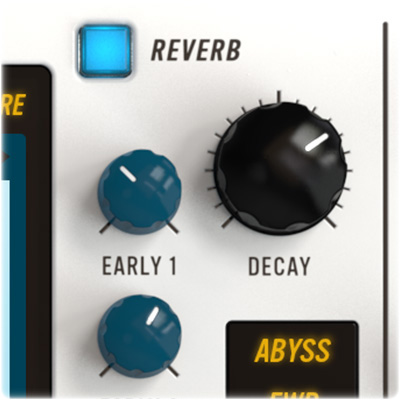
Not Just Another Reverb
FutzVerb algorithms and reflection types are conventional and out of this world algorithms. A closet. The club down the street. A town hall. The abyss in that sci-fi movie. FutzVerb has those sounds and more. Whether you want an actual physical space, or something in outer space, FutzVerb has you covered.
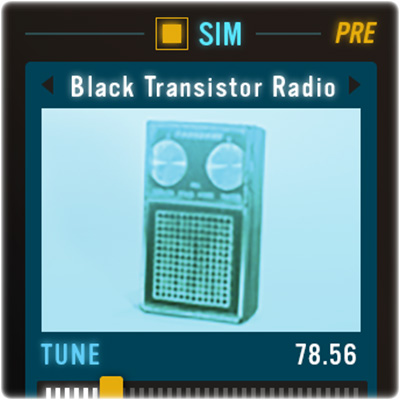
Low Fidelity
FutzVerb SIM and Lo-Fi sections can be placed before, after, or inside each reverb algorithm. Running your reverb texture through a fax machine at 10 bits might be just what you need to get your reverb ambience to become a new genius textured layer to your mix, not a muddy pile of audio clutter.
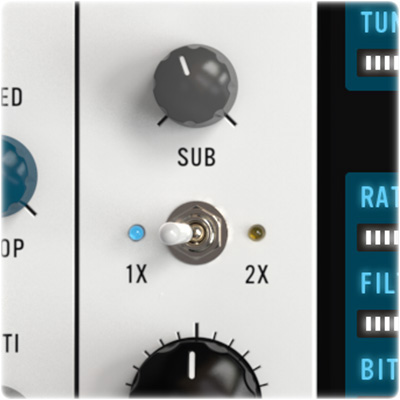
Go For Low
Add weight to your sounds with the FutzVerb sub-octave generator. Blend in signals 1x and 2x octaves below your original track, and feed the mix into the reverb section.
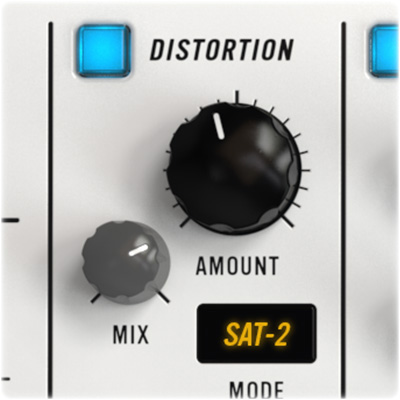
Audio Destruction
The filter and distortion controls in FutzVerb are identical to what comes with FutzBox. A wide variety of saturation and distortion modes await your command, as do unique controls like Chop, Wobble, and even a Mix control to balance out the crunch.
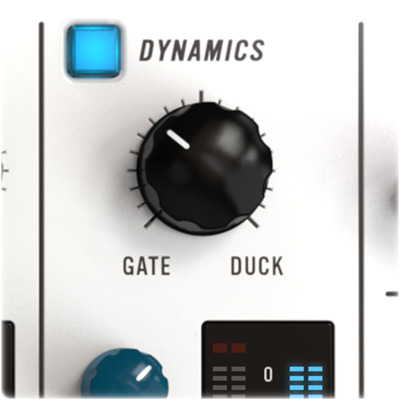
Gate or Duck
Maybe a 15 second reverb decay doesn’t always work. Engage the Dynamics section to gate the reverb based on the original input signal and keep your status as mixing genius. Or turn that big knob the other way for some ducking to reduce the reverb output when the original input is present so they two signals don’t compete with each other.
Features
- Library of Synthetic Impulse Models (SIMs) that can be placed before, after, or inside the reverb tank
- Configurable ‘futz’ effects including filtering, EQ, distortion, down sampling and bit reduction
- Compact and powerful reverb with several reverb types, reflection models, and many more processing controls including pre-delay, modulation, damping, and stereo field adjustment
- Sub octave generator for 1x and 2x pitched sounds, still synced in time with original pitch signal
- Reverb gating and ducking
- Double precision processing
- Zero Latency
- Mono and stereo algorithms
Mac
- macOS 10.13 or higher (64-bit only) (macOS 12 Monterey compatible)
- McDSP plugins run natively on Intel and M1 Apple Silicon processors
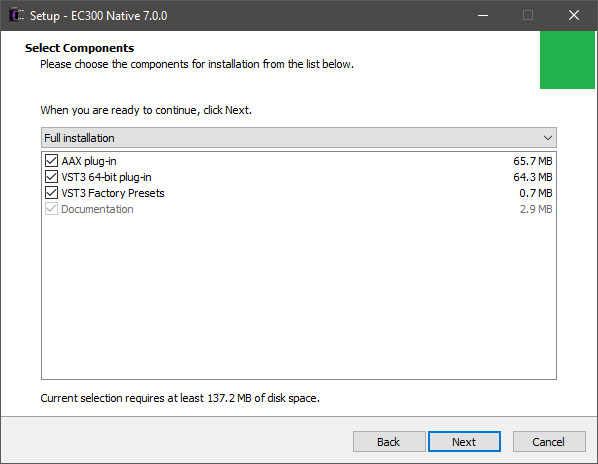
- McDSP HD plugins support AAX DSP plugin format, AAX Native, AU, and VST3 plugin formats
- McDSP plugins support Mac OS 10.13.x (High Sierra), 10.14.x (Mojave), 10.15.x (Catalina), 11.x (Big Sur), 12.x (Monterey), and Windows 10
- Mac OS version 10.12.x (Sierra) may work but is not officially supported. Earlier Mac OS versions are not officially supported
Windows
- Windows 7, 8 & 10 (64-bit only)
HD v7 Software Support
- AAX DSP
- AAX Native
- Audio Units (AU)
- VST3
Compatible DAW's
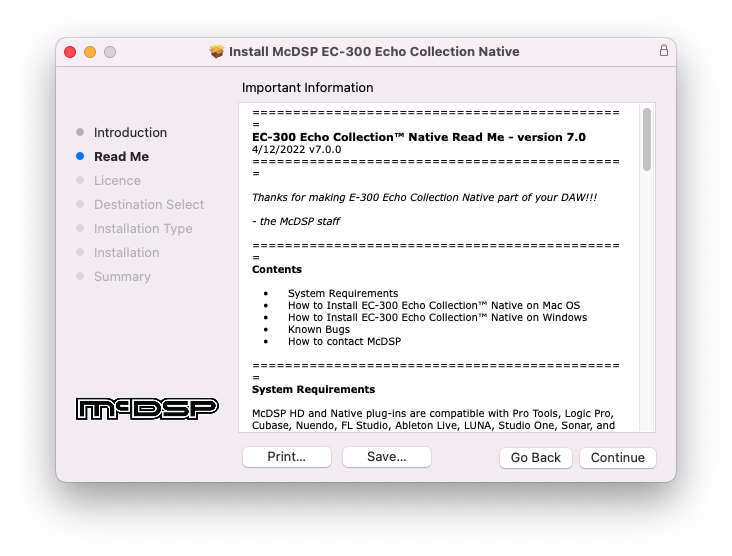
- McDSP HD and Native plugins are compatible with Pro Tools, Logic Pro, Cubase, Nuendo, Ableton Live, LUNA, Reaper, Sonar, Studio One, and other DAWs that support AAX, AU, and/or VST3 plugin formats
- As of v7.0, VST is no longer supported. VST versions of v6 McDSP plugins will no longer be updated and will be uninstalled
- McDSP HD plugins also support the VENUE S6L systems. McDSP VENUE plugins are packaged in a VENUE specific installer available on the McDSP website.
Activation:
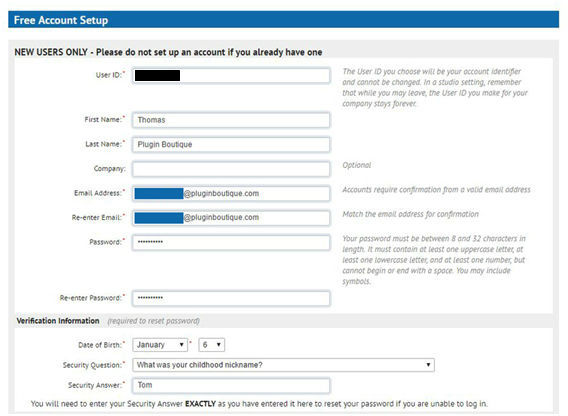
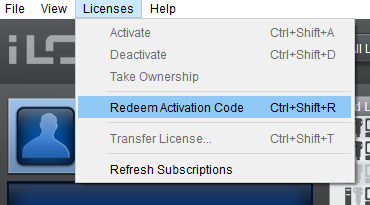
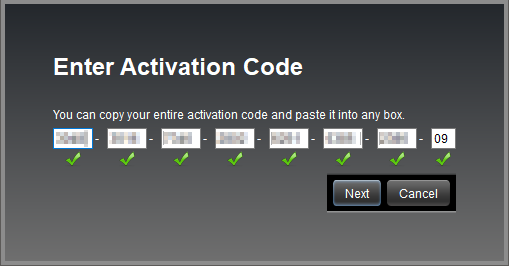
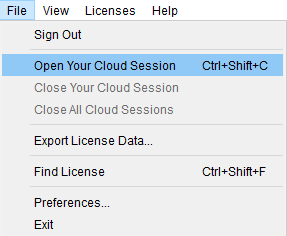
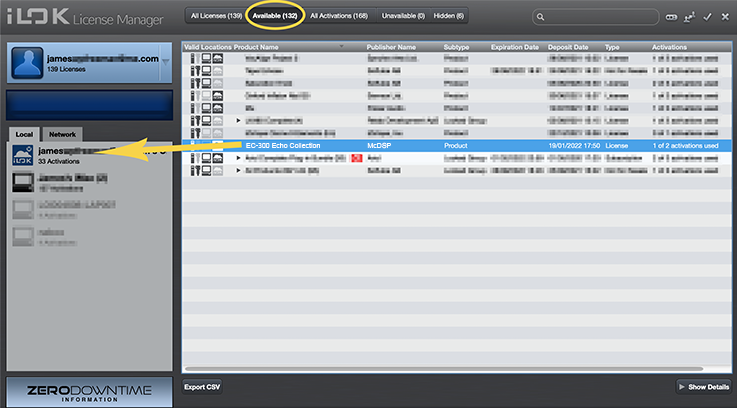
- McDSP plugins require an iLok2 or iLok3 USB Smart Key, or an iLok License Manager account and iLok Cloud for activation.
Important note: McDSP plugins require an iLok2 or iLok3 USB Smart Key, or a FREE iLok License Manager account and iLok Cloud session for authorisation. Each McDSP v7 plugin contains two activations per authorisation.