/ Multi-Effect / Speakers
AudioThing

Speakers

4.8 (761 Reviews)
$56.43 $99.00

43% off until Jan 05

Main Image
Main Image
AudioThing Speakers - Overview gallery thumbnail
Audiothing Speakers - Review and Walkthrough - It's much more than you'd expect! gallery thumbnail
AudioThing Speakers - User Interface
Buy Now
Product information

Microphone and Speaker Simulations

Speakers is a plugin effect designed to emulate a wide range of loudspeakers and microphones using AudioThing's state-of-the-art convolution engine.

Shape any sound like it’s being played by an old telephone, radio, or classic cabinet; or shape it like it’s being recorded by a vintage ribbon microphone or even a toy recorder.

Speakers features a freely configurable effects chain, comprising compression, distortion, and filtering, as well as an array of looping background noises for setting the sound in a variety of environments.

Speakers is a zero-latency post-production dream plugin.

Features

  • 50 Speakers: Cabinets, devices, phones, radios, speakers, toys.
  • 32 Microphones: Condensers, dynamics, phones, ribbons, and more.
  • 18 Distortion/Degradation Algorithms: From carbon mic overdrive to GSM interference.
  • 42 Background Noises: Devices, places, organic, and more.

Routing

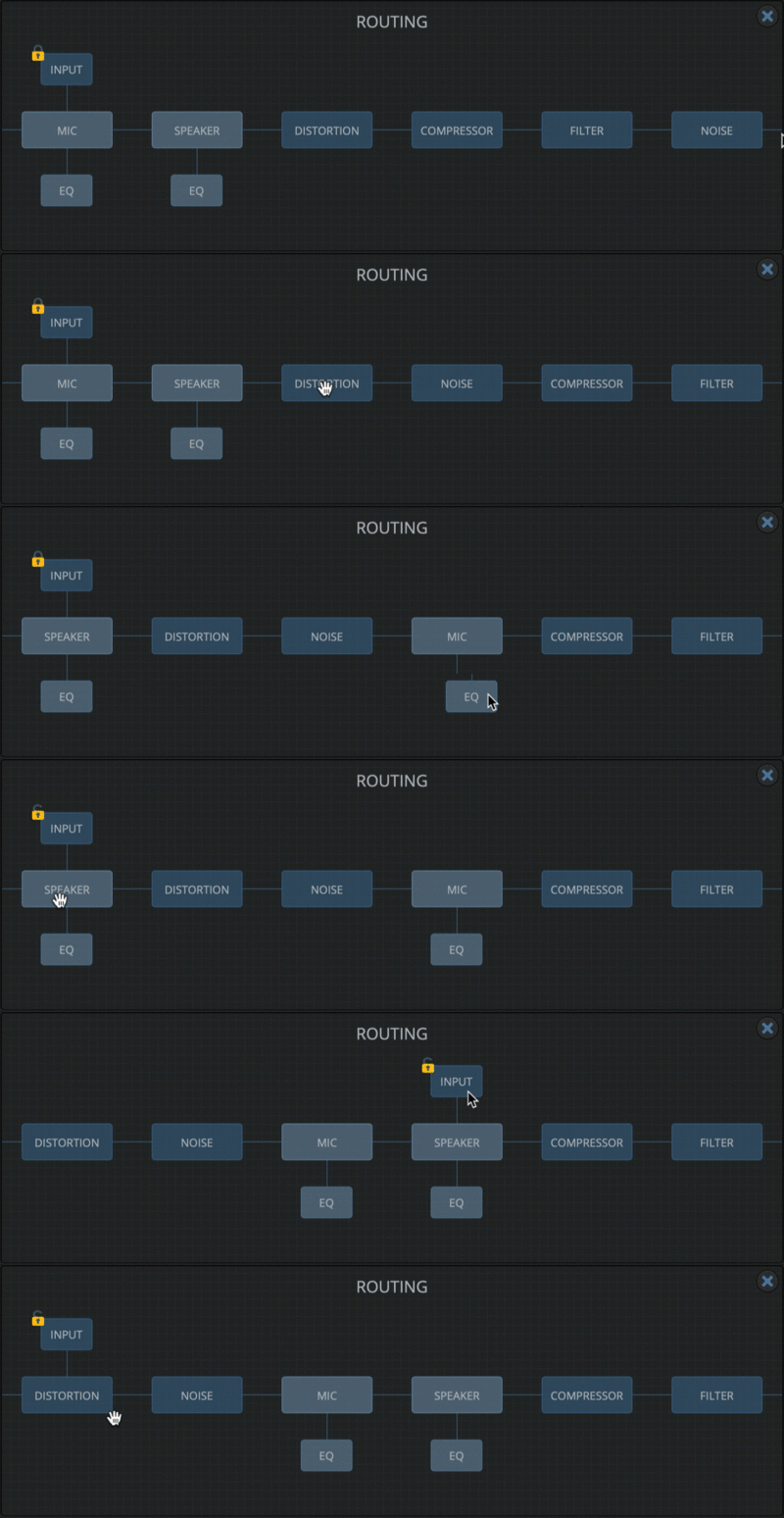
The Routing panel enables limitless reordering of Speakers’ signal flow. To move a module, simply drag it left or right. The Input module marks the point at which the source signal enters the signal path, disregarding everything to the left. This can be useful for, for example, having the Noise pass through certain modules prior to being joined by the input signal further down the path.

  • Rearrange the modules with a simple drag and drop
  • Disable a module with CMD or CTRL + Click.
  • Change the Input position, make sure the lock is open by clicking on it.
Equalizers

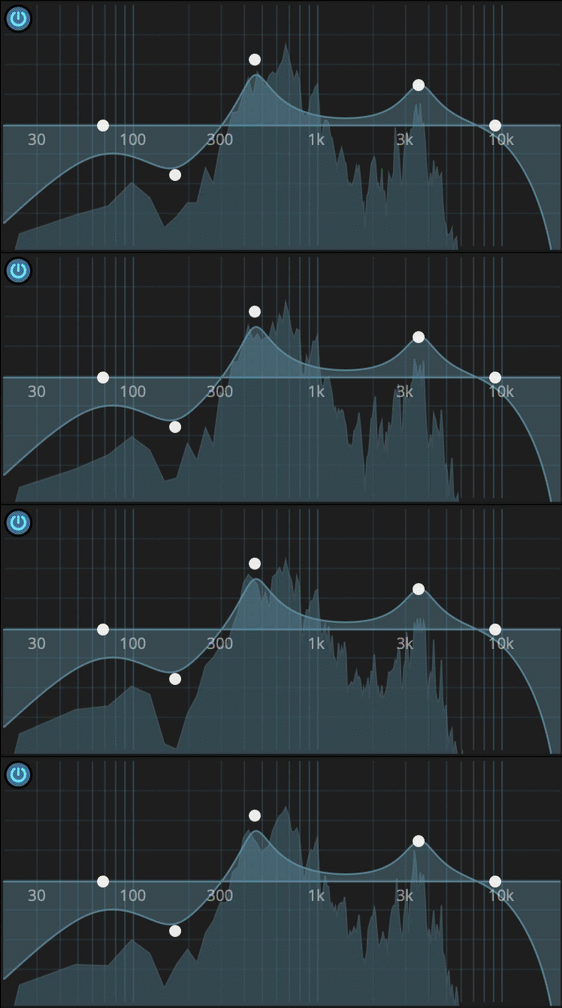
Clicking the spanner button at the top left of either panel reveals a five-band EQ – low and high shelves and three parametric bands – for shaping the frequency response of the Microphone and Speaker emulations.

Drag the nodes around to set band frequencies and gains, scroll the mouse wheel over a node to tweak the Q, double click to reset the band.
Distortion / Degradation

Speakers features 15 distortion and degradation algorithms for post-production and sound design.

  • Distortion: Carbon Mic, Classic Drive, Diode Clipper, Foldover, Soft Drive, Tape, Valve.
  • Degradation: Bit Crusher, Clicks, Drops, GSM, Interference, Quantization, Robotization, Telecom.

Background Noises

The Noise section enables a looping background noise sample to be blended with the input signal. Like all the other modules, it can be placed anywhere in the signal path.

A ton of colourful environmental, mechanical, organic, electronic, and other noises are included. You can also easily add your own samples.

Specifications

  • 55 Speakers
  • 32 Microphones
  • 18 Distortion/degradation algorithms
  • 42 Background noises (190MB)
  • EQ, Compressor, Multimode Filter
  • Flexible Routing
  • Zero Latency* / Ultra Low CPU
  • Multi-language support (beta)
  • Resizable Window
  • Preset system with randomizer

System Requirements

Windows

  • Windows 7, 8, 10, 11
  • 2GHz CPU, 4 GB RAM
  • VST2, VST3, AAX, CLAP (64-bit)   

Mac

  • OS X 10.9 – macOS 13 Ventura
  • Apple Silicon (M chips) Native (Universal 2 Binary)
  • 2GHz CPU, 4 GB RAM
  • VST2, VST3, AU, AAX, CLAP (64-bit)
  • Universal 2 Binary

Note: Speakers features AudioThing's state-of-the-art convolution engine with zero latency. However, the Robotization and Quantization degradation algorithms will introduce some latency (based on the FFT size parameter).
Installation Instructions

Windows

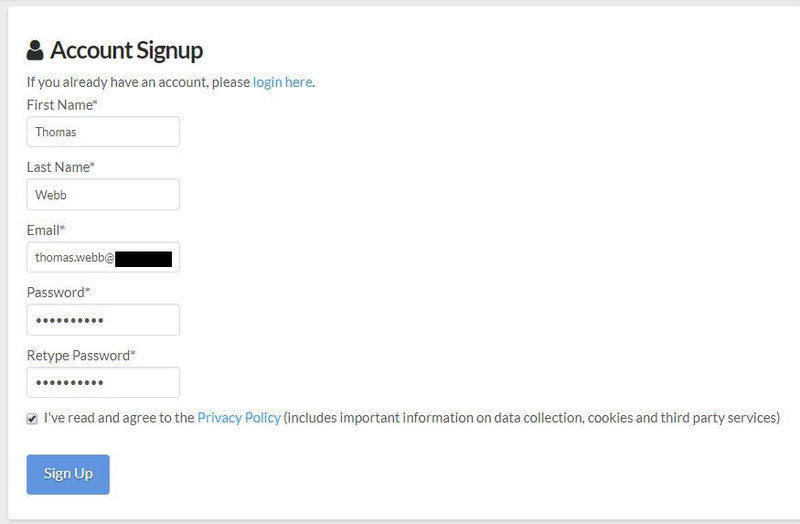
1. Visit the AudioThing Login/Registration Page and enter your personal details to set up an account > then read the 'Privacy Policy' and tick the box before clicking 'Sign Up'.

Note: If you already have an existing AudioThing account, Login here and skip to step 3 of the installation process. 

2. A confirmation email will now be sent to your registered email > click the link within the email to activate your account and Login here.

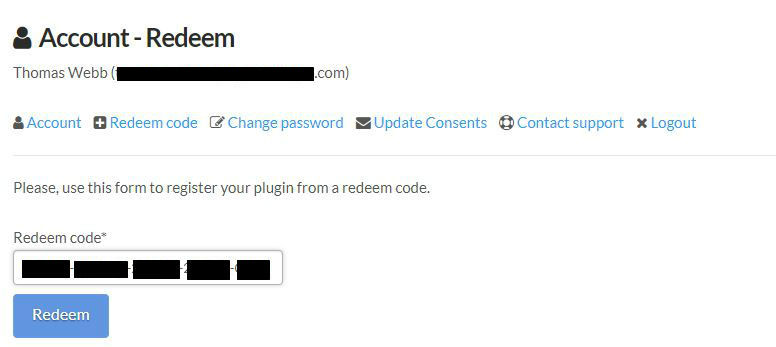
3. Once logged into your account, visit the Redeem Page and copy and paste the serial number from your User Account into the box provided > then click 'Redeem'.

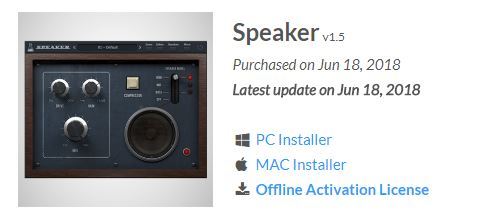
4. Download your preferred installer as well as the Activation Licence Key.

Note: Click the ‘license.atl’ file, e.g ‘speaker_license.atl’ to download it to your computer > be sure to save this to a memorable computer location so that you can easily locate and upload it when activating your software. 

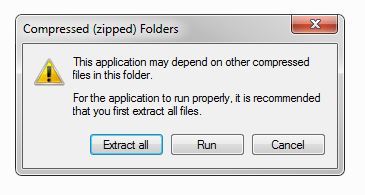
5. Double-click the compressed folder to reveal the installer file.

6. Double-click the extracted .exe file > click ‘Run' to open the installation window. 

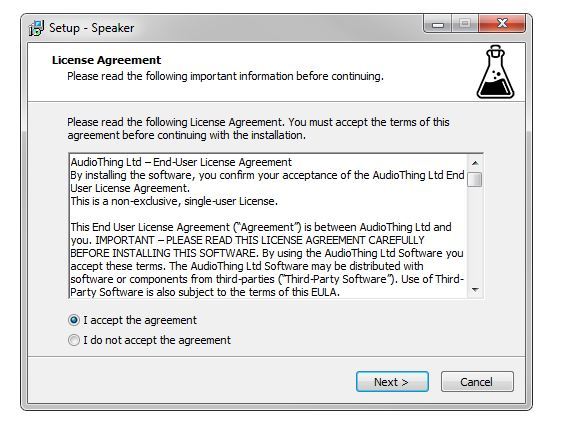
7. Read through the license agreement and click ‘I accept the agreement’ > click ‘Next’.

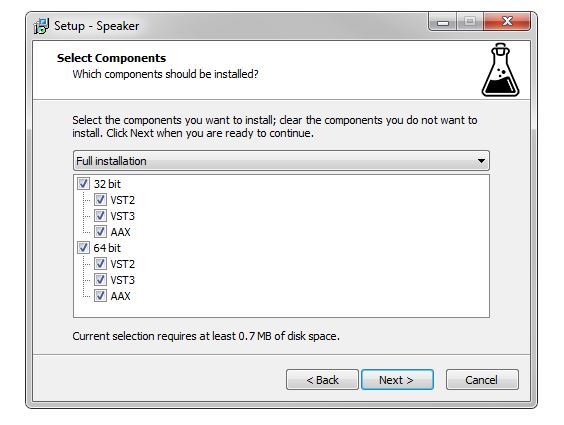
8. Select the component (s) that you wish to install > click ‘Next’.

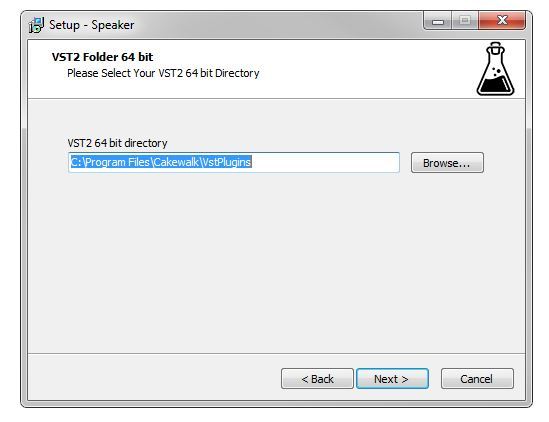
9. Choose and confirm the 64-bit plugin directory in which to save your software to > click ‘Next’. 

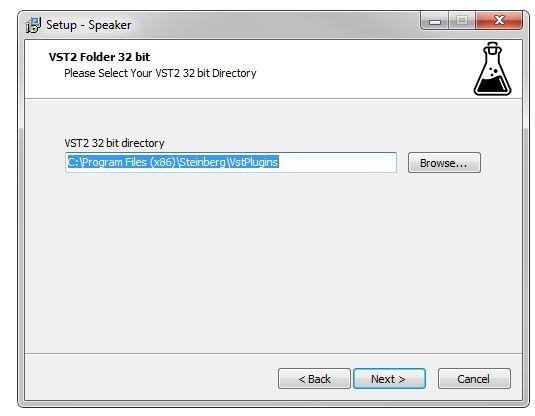
10. Choose and confirm the 32-bit plugin directory in which to save your software to > click ‘Next’.

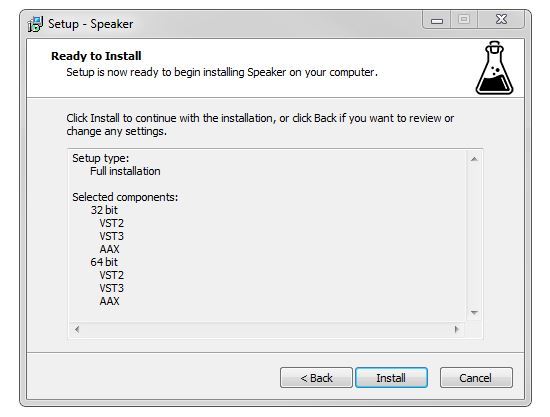
11. Review the installation and click ‘Install’. 

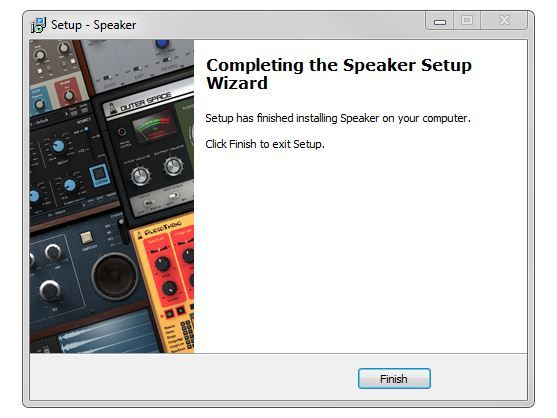
12. The installation of your software has successfully completed > click ‘Finish’.

Offline Activation

1. Restart your DAW, and rescan your plugin selection to show the new installation (in the event it fails to appear). 

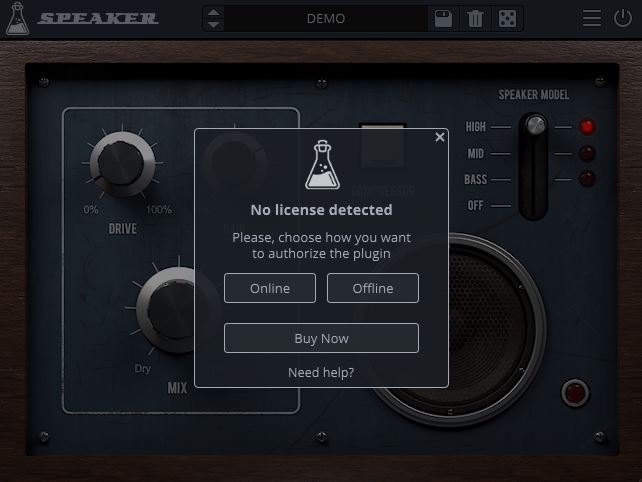
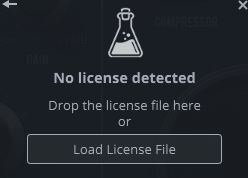
2. Locate and open the plugin on an appropriate track. You will be greeted by the window shown below > click 'Offline'.

3. Load or drag and drop the downloaded Key License File into the box to activate your software. 

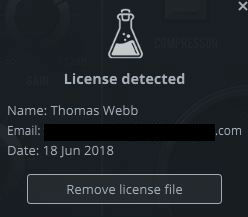
4. The software is now activated and ready for use within your DAW.

Online Activation

1. Restart your DAW, and rescan your plugin selection to show the new installation (in the event it fails to appear). 

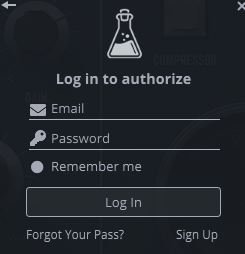
2. Locate and open the plugin on an appropriate track. You will be greeted by the window shown below > click 'Online'.

3. Enter your registered account email and password details > click 'Log In'.

4. The software is now activated and ready for use within your DAW.

Mac

1. Visit the AudioThing Login/Registration Page and enter your personal details to set up an account > then read the 'Privacy Policy' and tick the box before clicking 'Sign Up'.

Note: If you already have an existing AudioThing account, Login here and skip to step 3 of the installation process. 

2. A confirmation email will now be sent to your registered email > click the link within the email to activate your account and Login here.

3. Once logged into your account, visit the Redeem Page and copy and paste the serial number from your User Account into the box provided > then click 'Redeem'.

4. Download your preferred installer as well as the Activation Licence Key.

Note: Click the ‘license.atl’ file, e.g ‘speaker_license.atl’ to download it to your computer > be sure to save this to a memorable computer location so that you can easily locate and upload it when activating your software. 

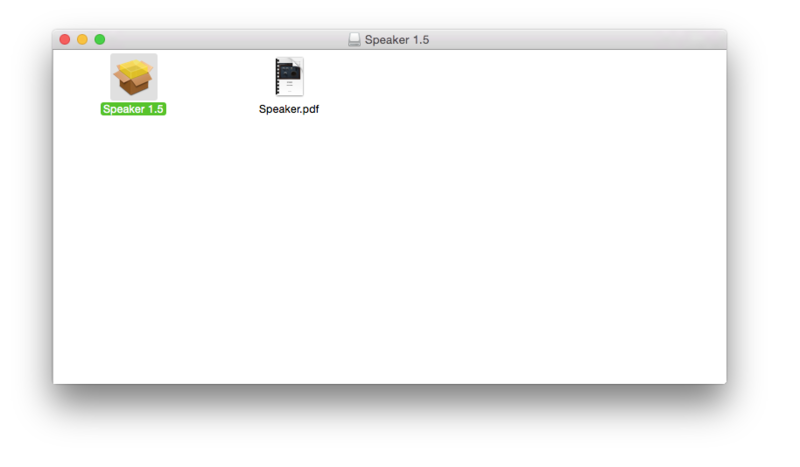
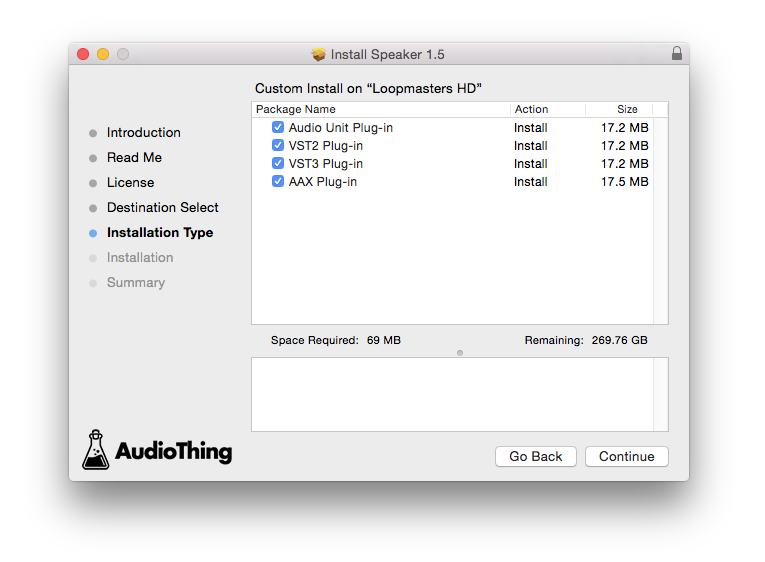
5. Double-click the .dmg file to open the installer window. 

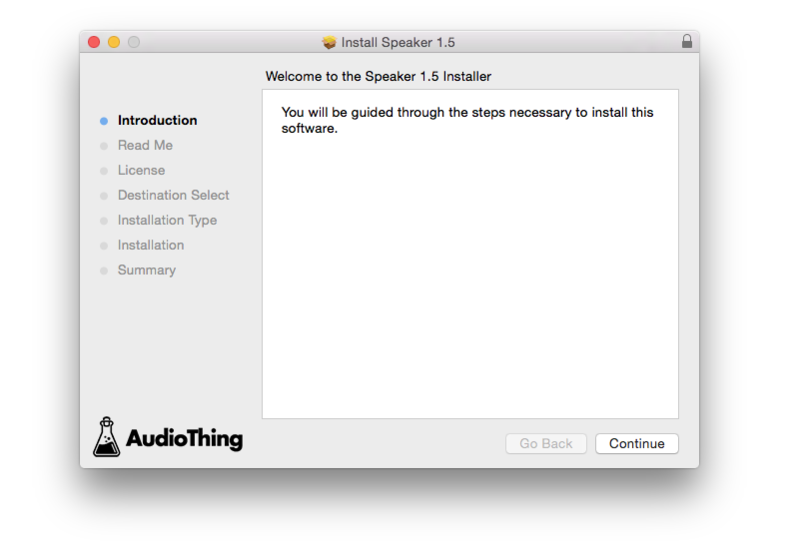
6. Double-click the installer icon to begin the installation process > click ‘Continue’.

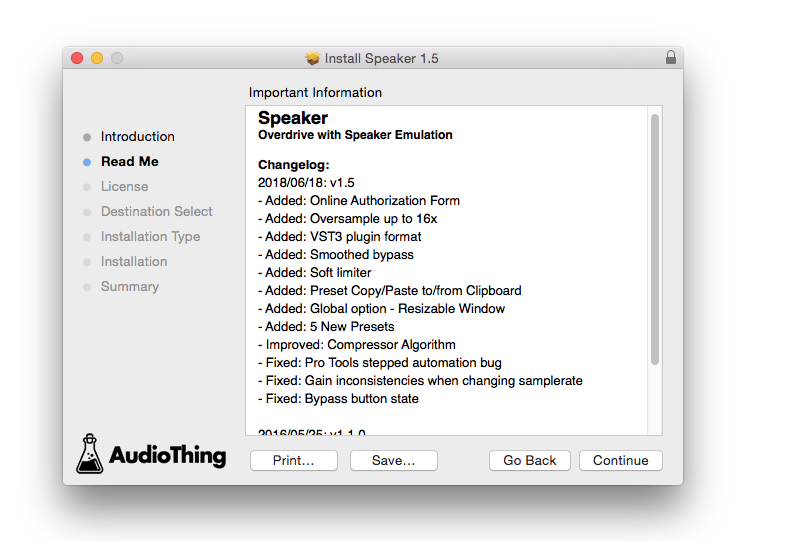
7. Read the info and click ‘Continue’.

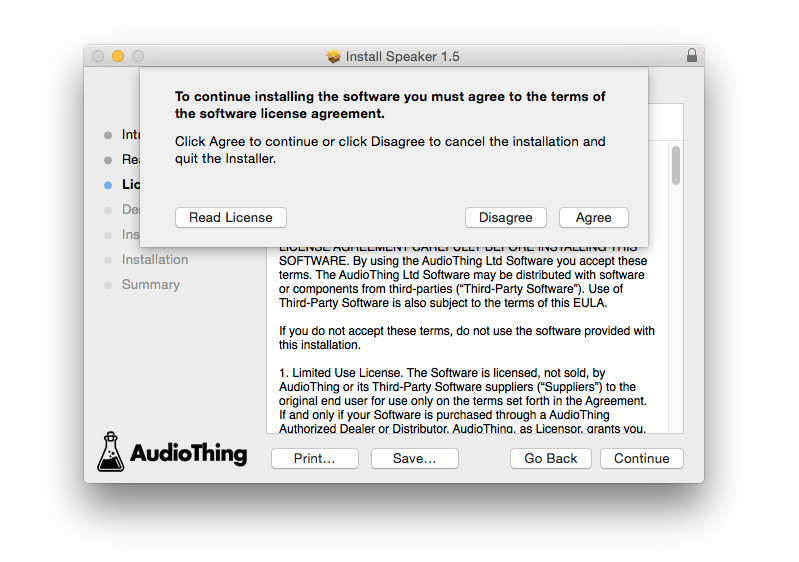
8. Read the Software License Agreement > click ‘Continue’ and then ‘Agree’.

8. Select the component (s) that you wish to install to your computer, and click ‘Continue’. 

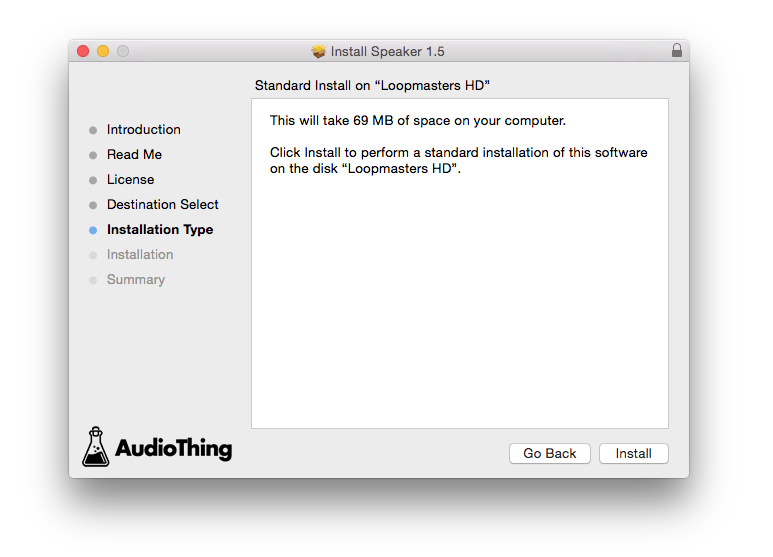
9. Review the installation and click ‘Install’.

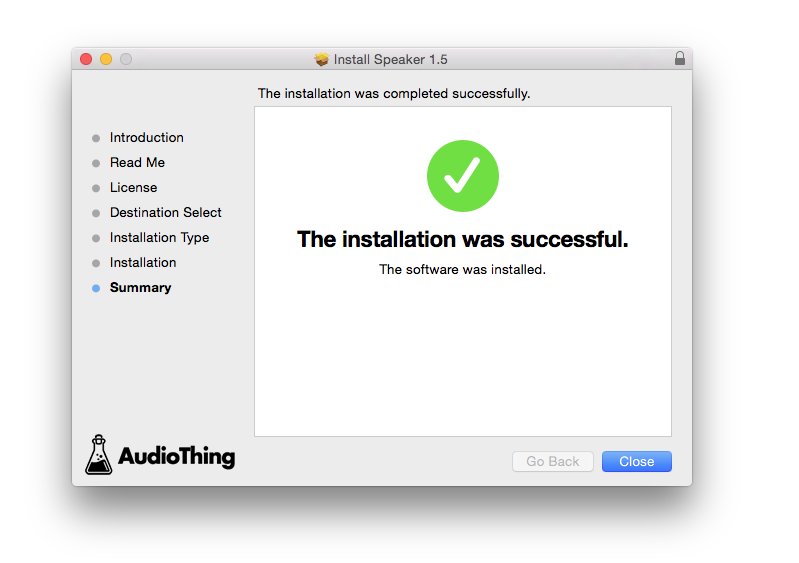
10. The installation of your software has successfully completed > click ‘Close’. 

Offline Activation

1. Restart your DAW, and rescan your plugin selection to show the new installation (in the event it fails to appear). 

2. Locate and open the plugin on an appropriate track. You will be greeted by the window shown below > click 'Offline'.

3. Load or drag and drop the downloaded Key License File into the box to activate your software. 

4. The software is now activated and ready for use within your DAW.

Online Activation

1. Restart your DAW, and rescan your plugin selection to show the new installation (in the event it fails to appear). 

2. Locate and open the plugin on an appropriate track. You will be greeted by the window shown below > click 'Online'.

3. Enter your registered account email and password details > click 'Log In'.

4. The software is now activated and ready for use within your DAW.

Plugin Boutique Rewards

Discover the most rewarding loyalty programme among all plugin retailers.

  • Free Loopmasters Samplepacks
  • Discounts on products and courses
  • Extra Virtual Cash claimed immediately at checkout
Find out more

Follow us:

X (Twitter) Facebook YouTube Instagram
Logo Logo

Plugin Boutique Limited, Part of the Beatport Group LLC.

Copyright © 2011-2025 Plugin Boutique. All rights reserved