


Buy AutoKey 2, get a free gift with purchase:

Automatic Key, Scale, and Tempo Detection
Auto-Key 2 is the automatic key, scale, and tempo detection plug-in which easily identifies primary musical properties to assist music creators and speed their workflows.

Effortless Analysis
Scan your music in real-time and detect key, scale, and tempo information automatically from any audio file.
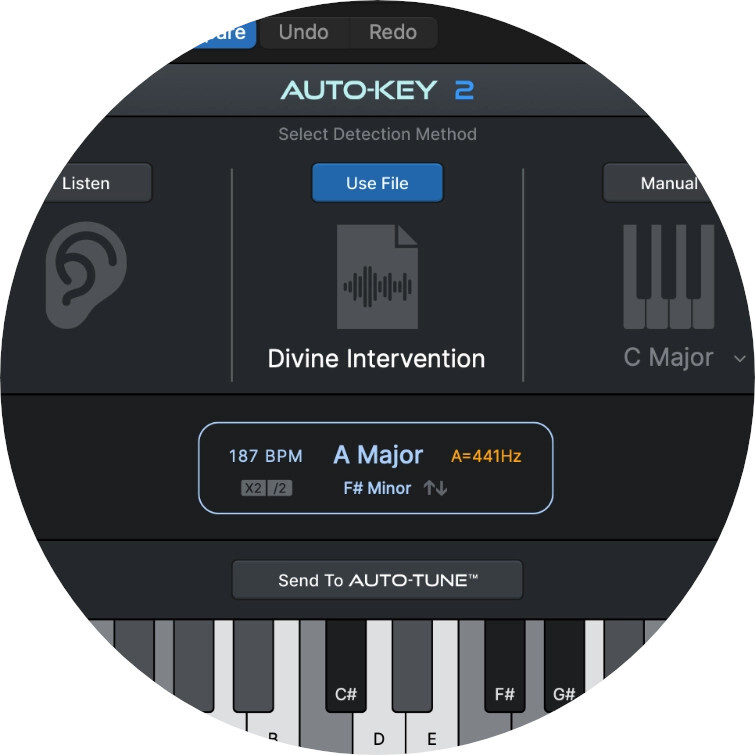
Drop It Like It’s Hot
Drag and drop audio files directly into Auto-Key 2 for easy detection of key, scale, and tempo information across all Auto-Tune plug-ins.
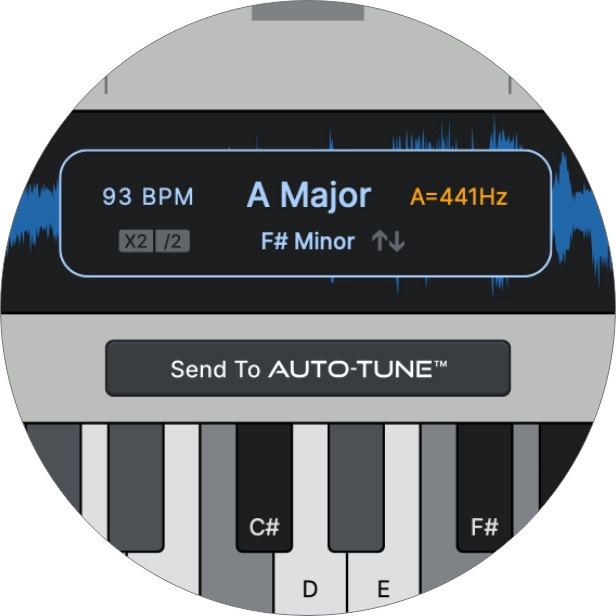
Direct to Auto-Tune
Click the “Send to Auto-Tune” button, and compatible versions of Auto-Tune are automatically updated with the correct key and scale settings.

Automatically Stay in Key
Automate key changes to compatible Auto-Tune plug-ins in your session to ensure all Auto-Tune plug-ins stay in key with your song.
Why Auto-Key?
By automatically updating the key and scale of all the Auto-Tune effects in use, Auto-Key will drastically improve your workflow and boost your productivity. However, it does much more than finding the correct key and scale for your music. Auto-Key detects the key and scale of a track outside of your session in seconds, which is ideal if you're a DJ looking for tracks in the same key. Furthermore, the pitch reference display and the Detune control will allow you to adjust the pitch reference based on the deviation from the standard A440.
What is Key and Scale Detection?
A key and scale detection plug-in analyzes an audio file and automatically detects the vocal characteristics of a track, giving all the necessary information for an effective pitch correction. Some of the best key and scale detection plug-ins provide real-time key detection and editing features to adjust the tonality of any vocal sample while recording or during playback.
How Does the Auto-Key Plugin Work?
If on your project you have multiple Auto-Tune plug-ins opened on separate tracks, you'll see they're all set to the standard C chromatic key. Add Auto-Key to the original vocal track to find the correct scale and key. After playing the track for a few seconds, Auto-Key will display the key. The final step is to click on 'Send to Auto-Tune' to update all the instances of Auto-Tune in use. Auto-Key uses TONART V3 by zplane.development as an automatic key detection engine.
Features
- Automatic Key, Scale, and Tempo Detection
- Drag-and-Drop Audio Files (MP3, WAV, FLAC, AIFF)
- Send Key and Scale Changes Directly to Auto-Tune
- Resizable UI With Light and Dark Modes
- Automated Key Changes
System Requirements
Mac
-
AAX Native
- Pro Tools 2018.1 or later
- macOS 11 and higher as required by your version of Pro Tools
-
VST3
- A compatible VST host program that supports VST3 format
- macOS 11 and higher as required by your host
-
Audio Units
- A compatible host program that supports the AU format
- macOS 11 and higher as required by your host
Windows
-
AAX Native
- Pro Tools 2018.1 or later
- Windows 10 / 11
-
VST3
- A compatible host program that supports the VST3 format
- Windows 10 / 11
Important Note
- No iLok dongle is required to run this software - only a FREE iLok account/Manager is required for authorisation.
Alex Tumay
"Auto-Tune has been a part of almost every session I've worked on since I started engineering."
DJ Swivel
"Auto-Tune works so effortlessly and keeps sessions moving quickly. I can't imagine running a session without it."
Igor Mamet
"Auto-Tune provides a pocket for the artist to sit in while being able to experiment within the key of the song."
Note: Before starting the installation, you are required to create a FREE iLok user ID and install the iLok License Manager.
Please take a look at this Help Centre Guide for more information.
Note: Auto-Tune Slice is used as an example.
Mac
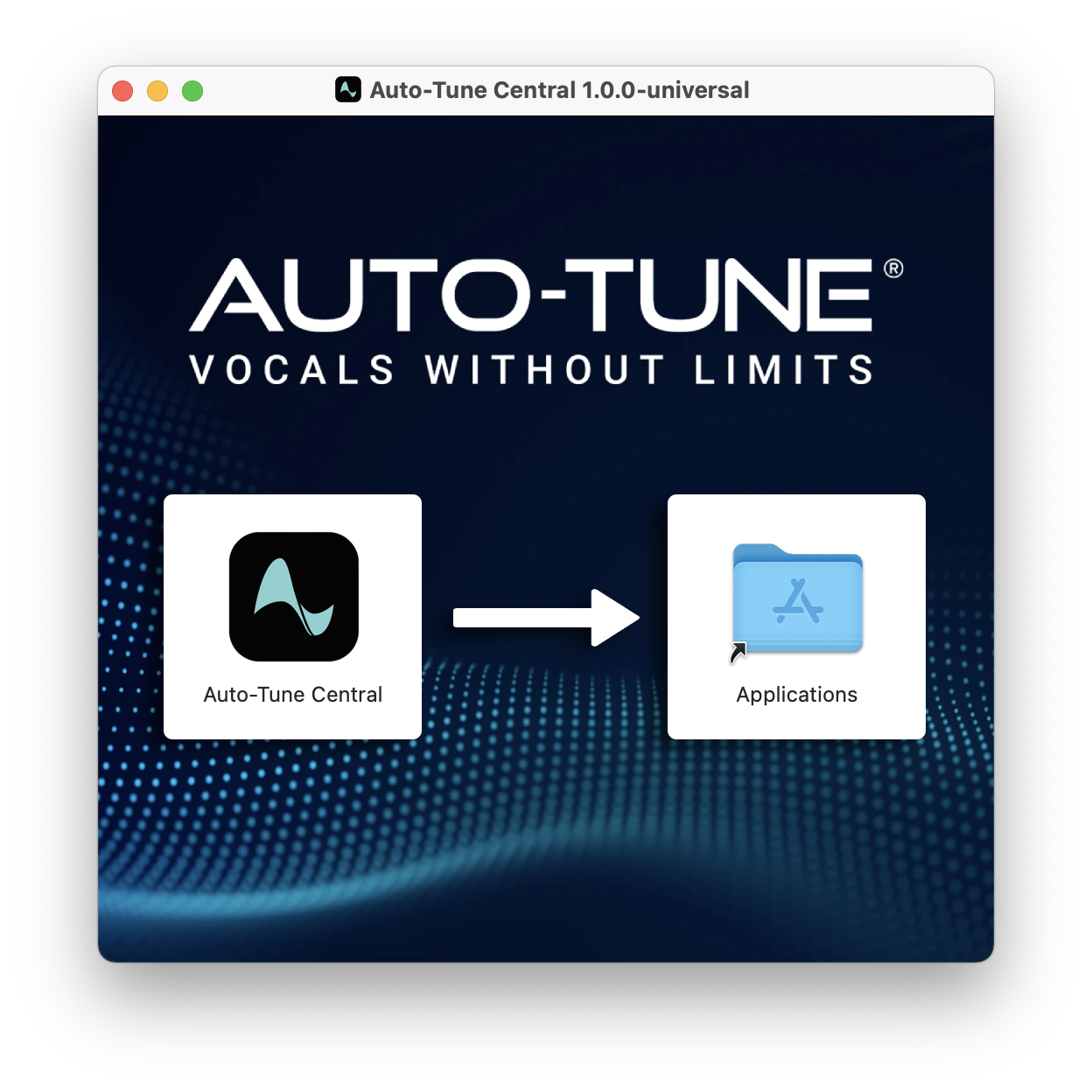
1. Download the .zip file from within your Plugin Boutique account and double-click it to extract the contents > Double-click the .dmg file to launch the installer > Drag Auto-Tune Central into your Applications folder > Auto-Tune Central will now automatically install.
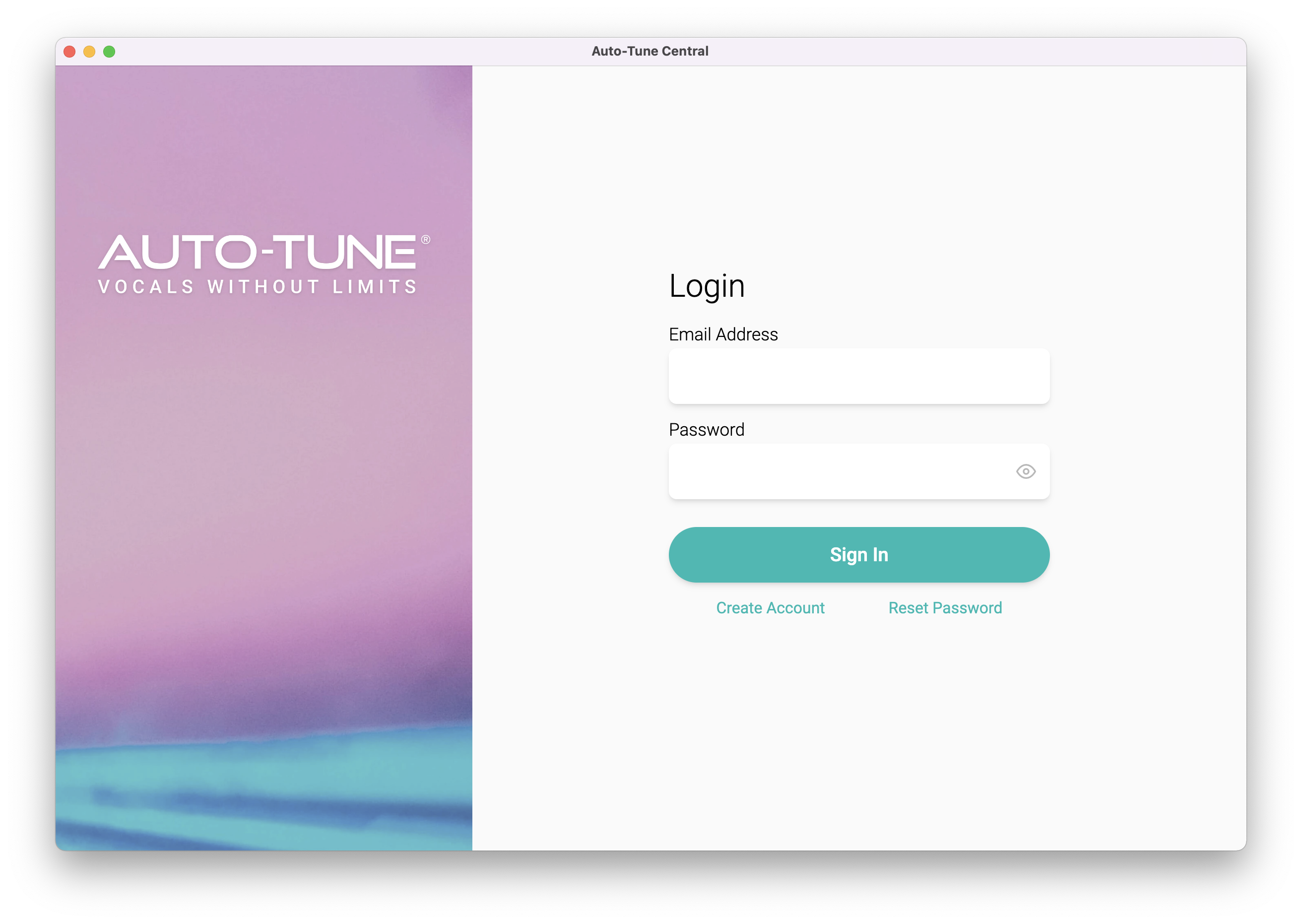
2. Launch Auto-Tune Central > Either create a new account by clicking 'Create Account' or if you already have an account, enter your Antares registered Email Address and Password > Click 'Sign In'.
3. Click 'Agree'.
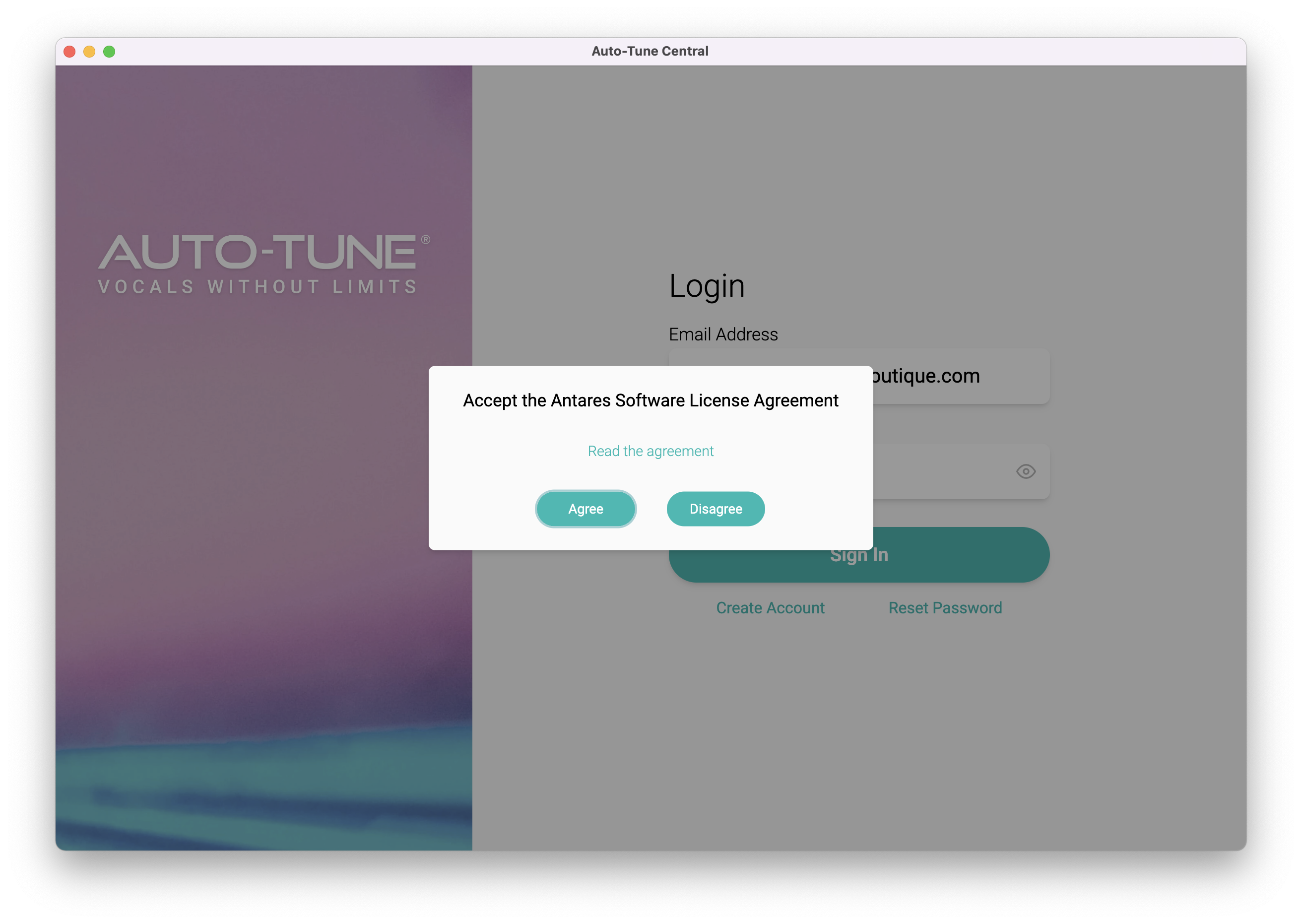
4. Enter your iLok User ID and click 'Sign In'.
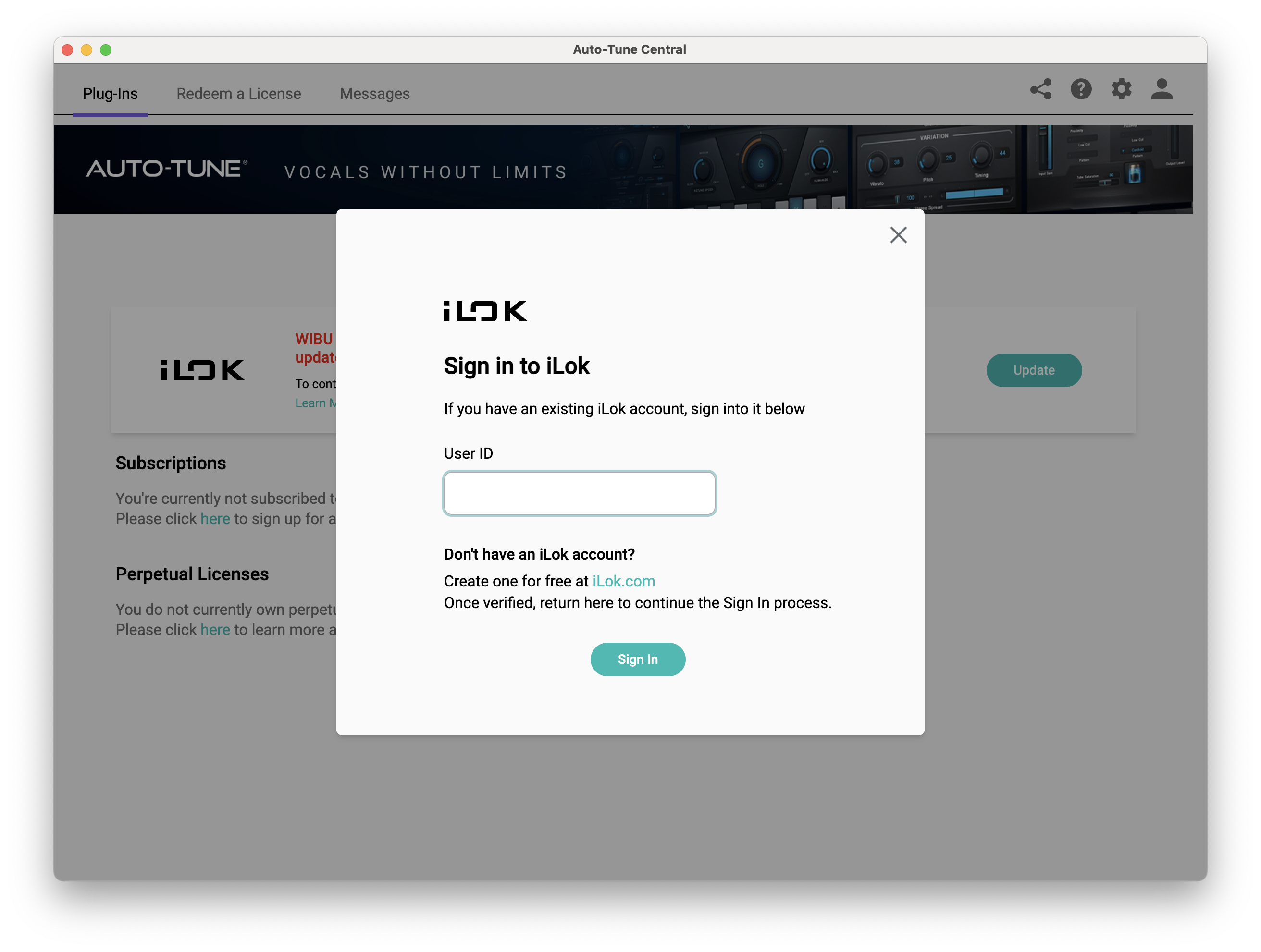
5. Click 'Continue to iLok'.
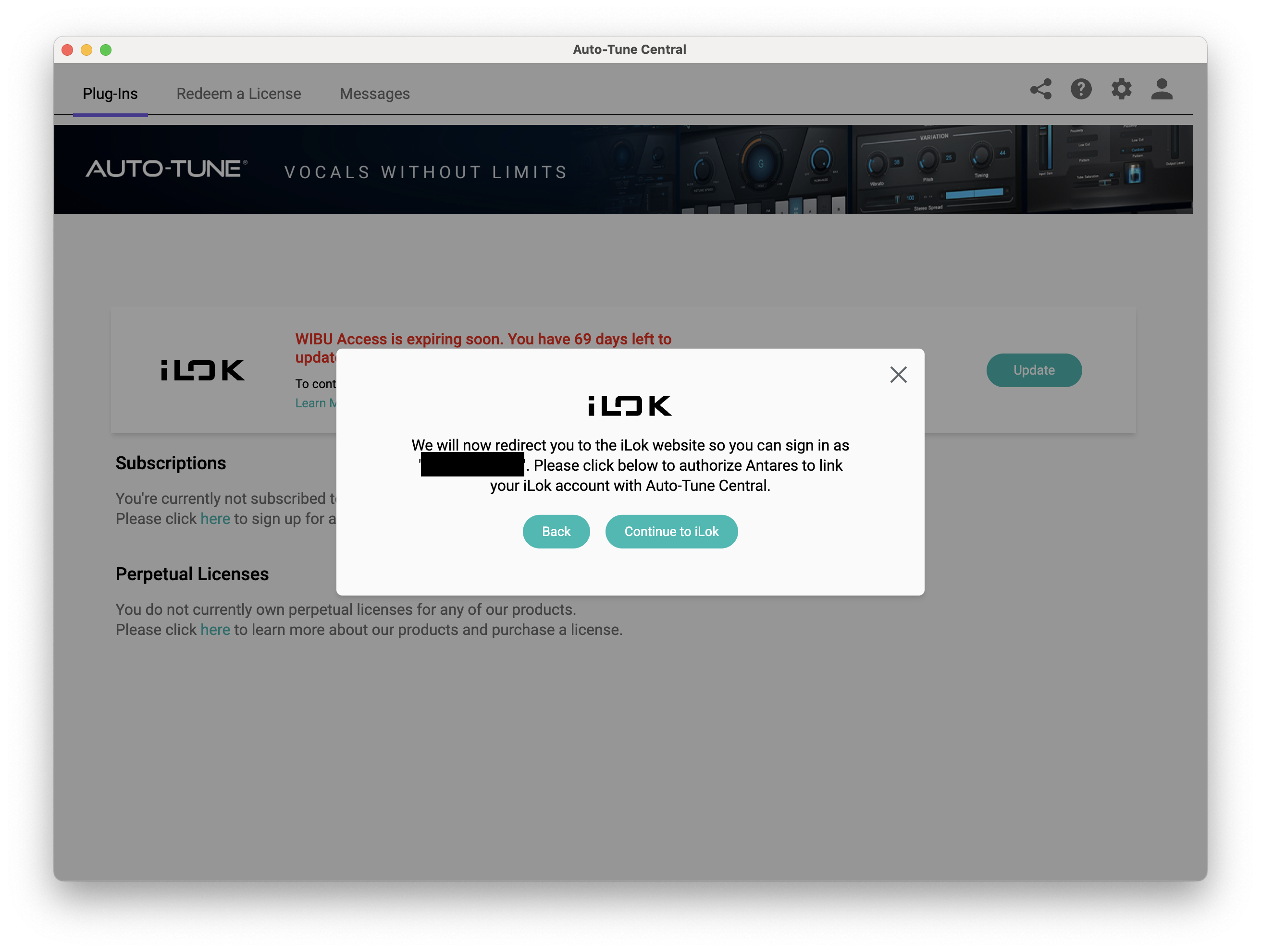
6. Enter your iLok User ID and Password then click 'Authorize'.
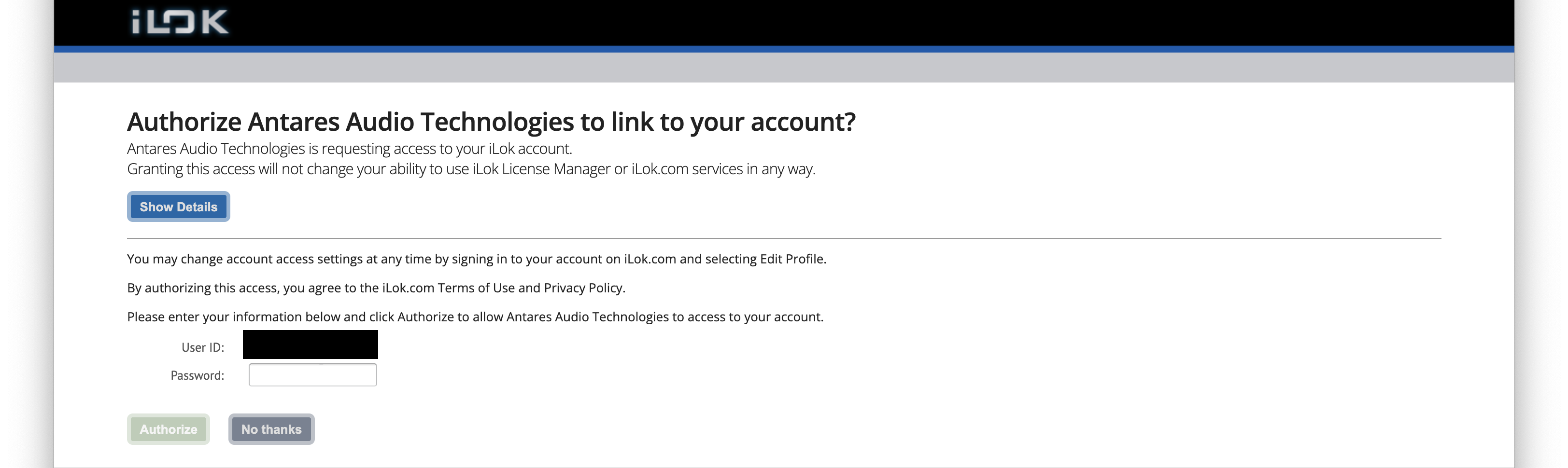
7. Your iLok account is now linked > Click 'Close'.
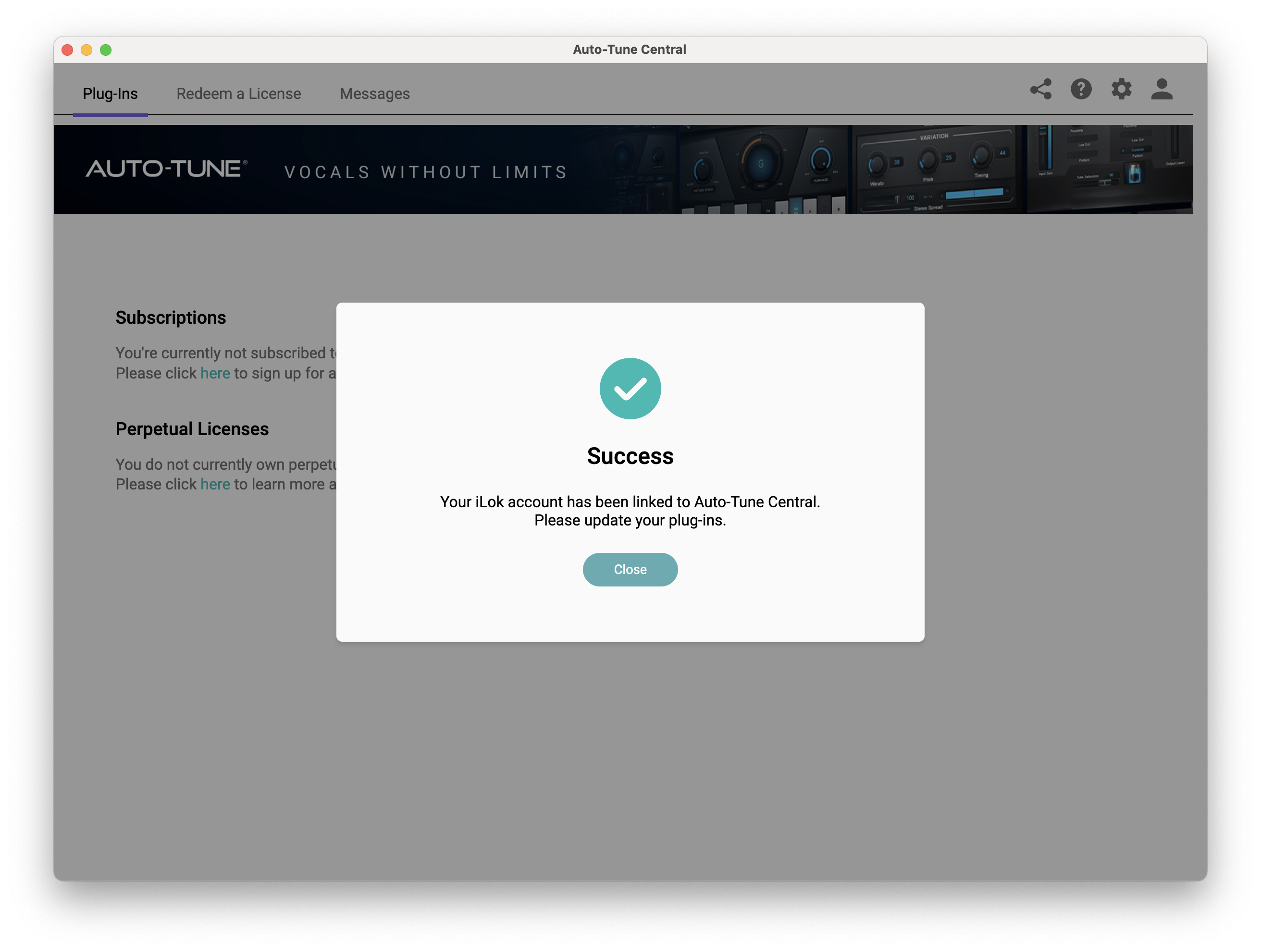
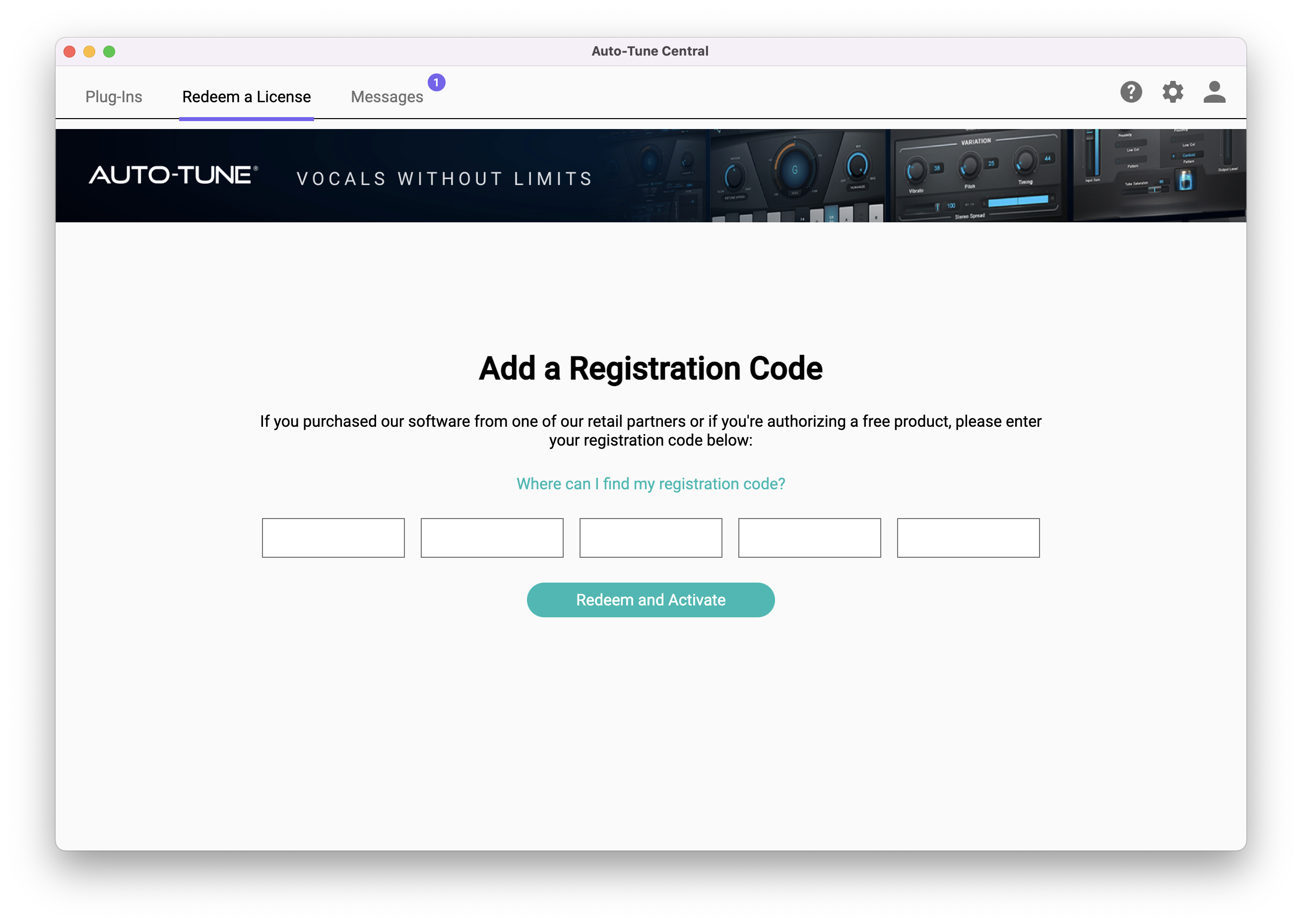
8. Click on the 'Redeem a License' tab > Enter the 25-digit Registration Code, found in the serial number section of your Plugin Boutique account > Click 'Redeem and Activate'.
9. Navigate back to the 'Plug-Ins' tab > Click 'Install' to install your plugin.
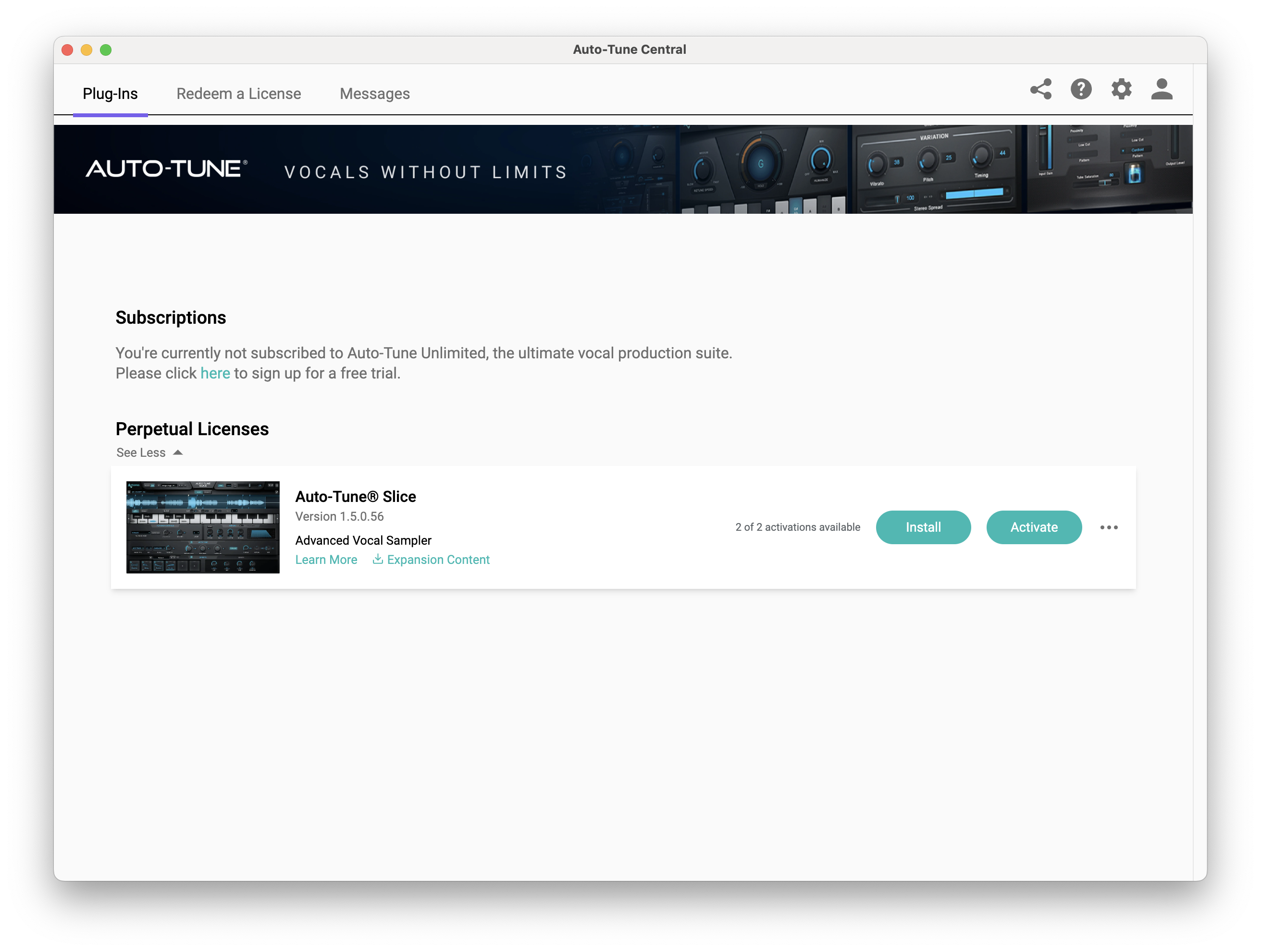
10. Click 'Activate'.
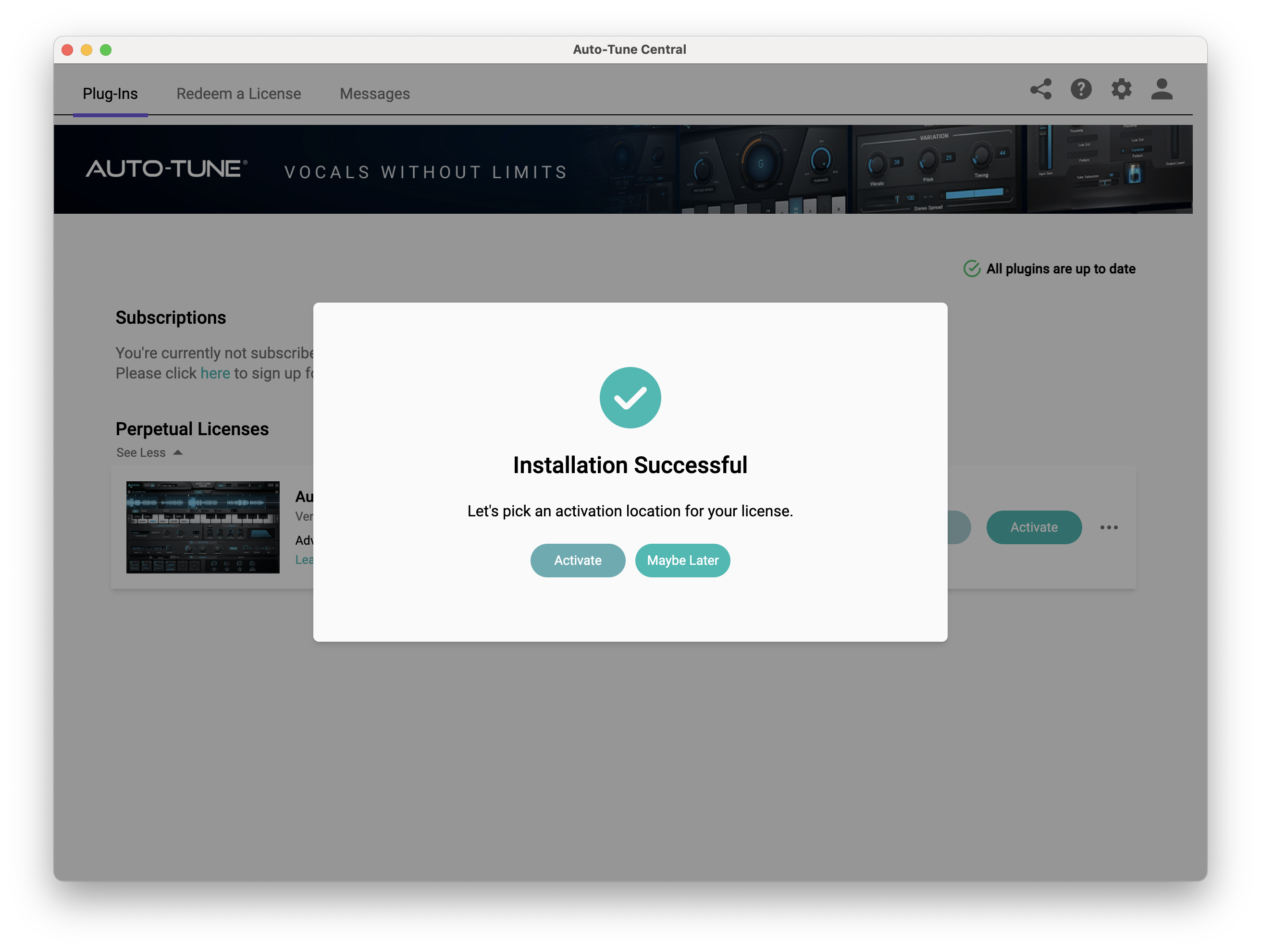
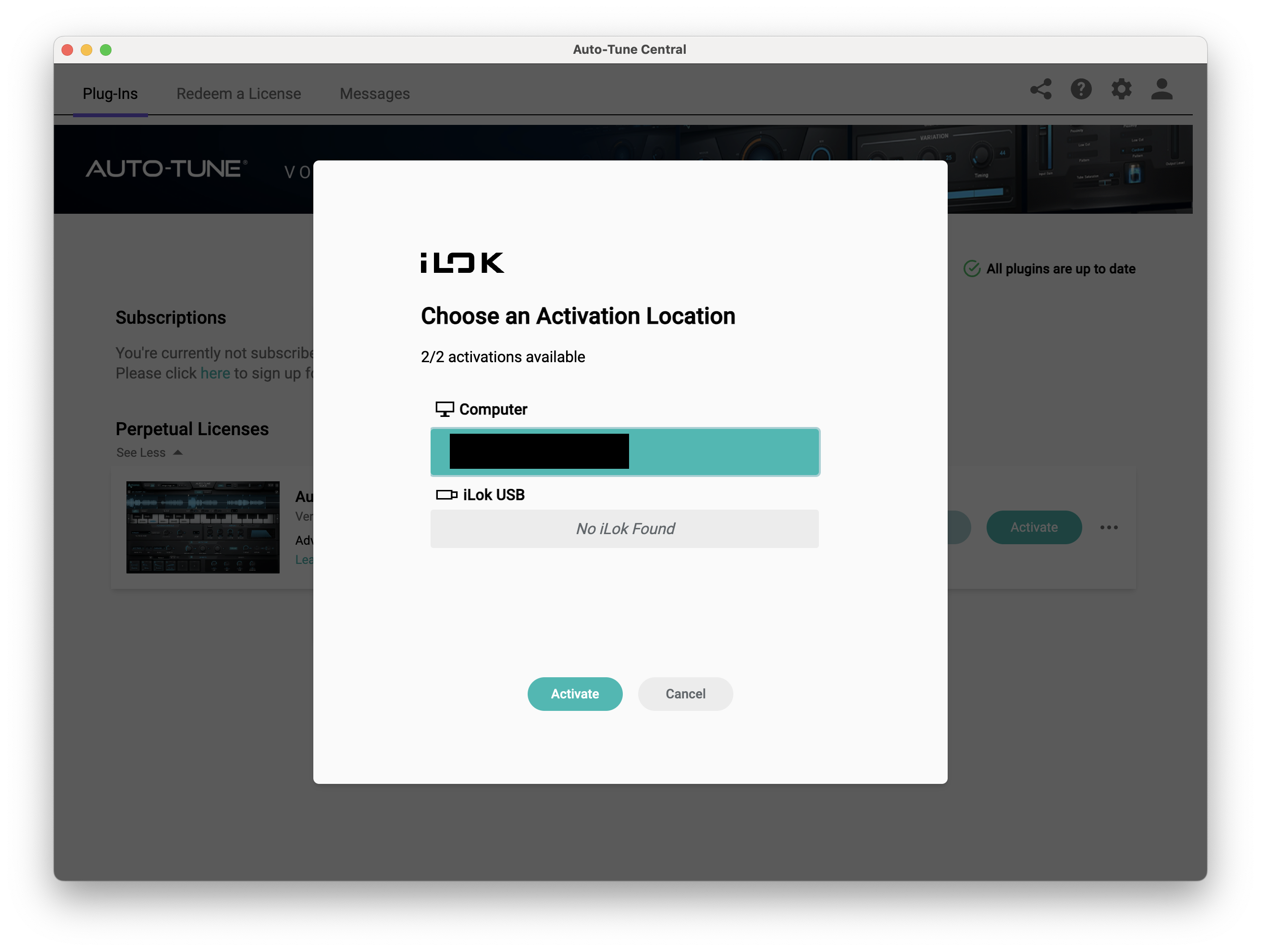
11. Select whether you want to activate the license to your Computer or iLok USB > Click 'Activate'.
12. Click 'Close'.
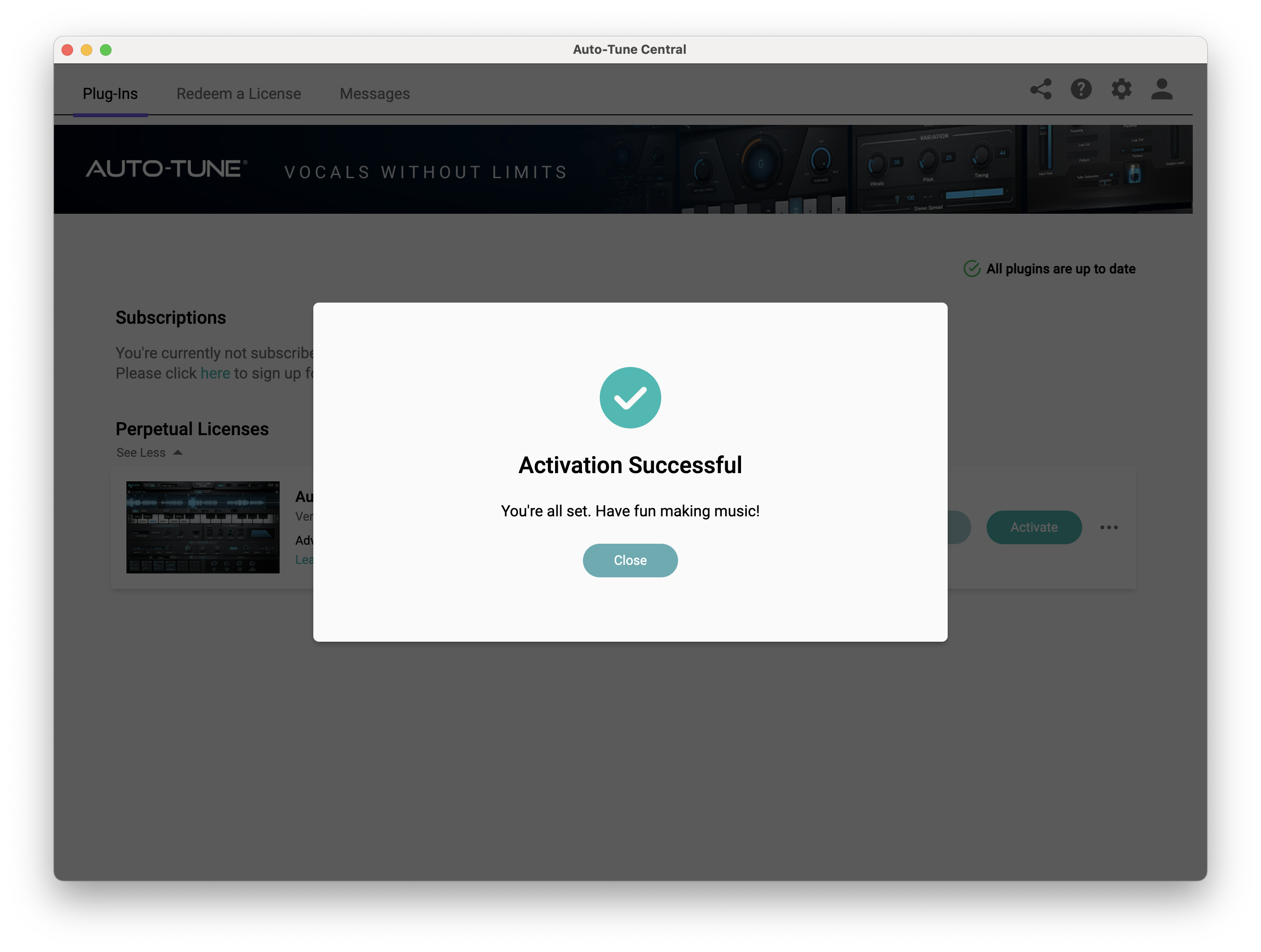
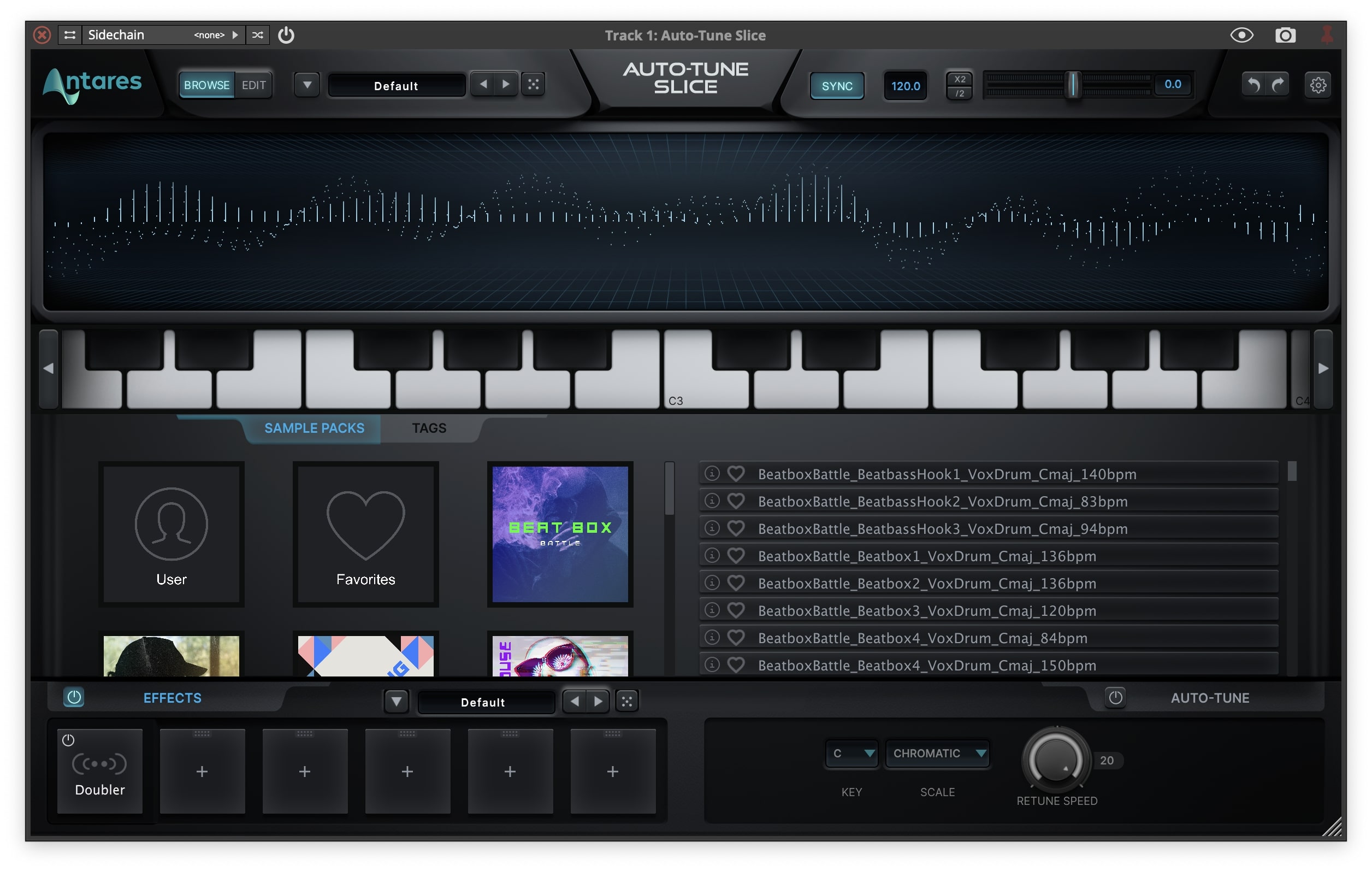
Your software is now activated and ready to use within your DAW.
PC
Windows
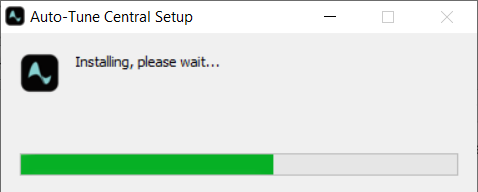
1. Download the .zip file from within your Plugin Boutique account and double-click it to extract the contents > Open the .exe file > Auto-Tune Central will now automatically install.
2. Launch Auto-Tune Central > Either create a new account by clicking 'Create Account' or if you already have an account, enter your Antares registered Email Address and Password > Click 'Sign In'.
3. Click 'Agree'.
4. Enter your iLok User ID and click 'Sign In'.
5. Click 'Continue to iLok'.
6. Enter your iLok User ID and Password then click 'Authorize'.
7. Your iLok account is now linked > Click 'Close'.
8. Click on the 'Redeem a License' tab > Enter the 25-digit Registration Code, found in the serial number section of your Plugin Boutique account > Click 'Redeem and Activate'.
9. Navigate back to the 'Plug-Ins' tab > Click 'Install' to install your plugin.
10. Click 'Activate'.
11. Select whether you want to activate the license to your Computer or iLok USB > Click 'Activate'.
12. Click 'Close'.
Your software is now activated and ready to use within your DAW.


