


 Log In

Buy Aspire, get a free gift with purchase:
ASPIRE - Aspiration Noise Processor
Perfectly control the breathiness from a vocal performance.
Aspire is the world’s first tool for modifying a voice’s breathiness independently of its harmonic content. With Aspire, you can match a vocal quality to a performance style by decreasing or increasing a voice’s natural breathiness.
Aspire analyzes a vocal in real time and separates the aspiration noise (breathiness) from the harmonic content. It then allows you to adjust the amount of aspiration noise, and affect its character independently by applying a parametric EQ to the noise component. It also includes a real-time display that lets you visualize the effect of the aspiration noise processing.
Whether reducing vocal rasp or adding a bit of smokiness, Aspire allows modification of the amount and quality of a voice’s breathiness—without affecting the vocal’s harmonic characteristics.
Key Features:
- The ability to match a vocal quality to a performance style by decreasing or increasing a voice's natural breathiness.
- A band of parametric EQ to modify the quality of the aspiration noise component of the vocal.
- A real-time display that lets you visualize the effect of the aspiration noise processing.
System Requirements
Mac
AAX Native (64-bit only):
- Pro Tools 2018.1 or later.
- macOS 11 or later as required by your version of Pro Tools.
VST3 (64-bit only):
- A compatible VST host program that supports the VST3 format.
- macOS 11 or later as required by your host.
Audio Units (64-bit only):
- A compatible DAW that supports the AU format.
- macOS 11 or later as required by your host.
Windows
AAX Native (64-bit only):
- Pro Tools 2018.1 or later.
- Windows 10
VST3 (64-bit only):
- A compatible DAW that supports the VST3 format.
- Windows 10
Important Note
- No iLok dongle is required to run this software - only a FREE iLok account/Manager is required for authorisation.
Note: Before starting the installation, you are required to create a FREE iLok user ID and install the iLok License Manager.
Please take a look at this Help Centre Guide for more information.
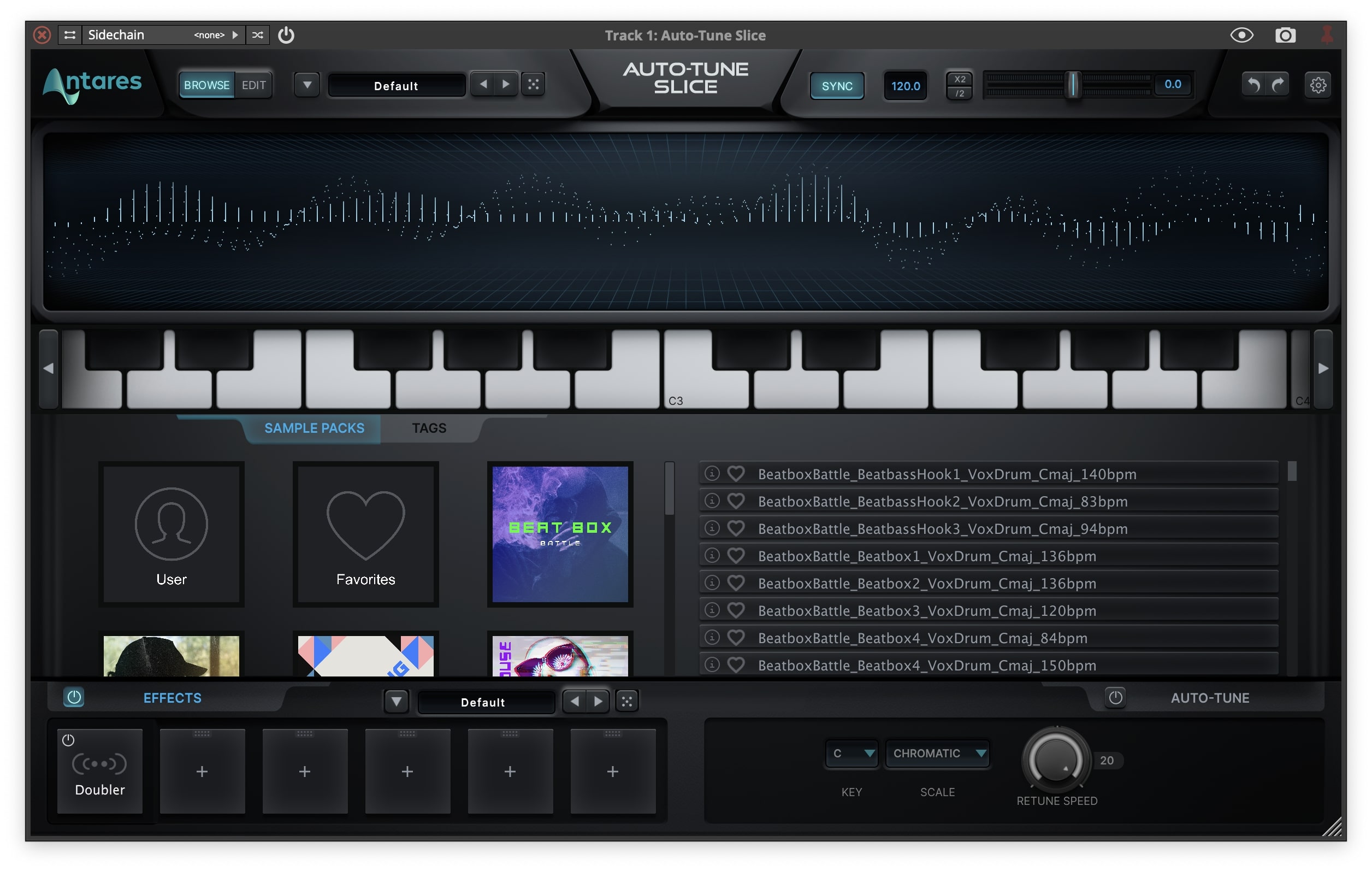
Note: Auto-Tune Slice is used as an example.
Mac
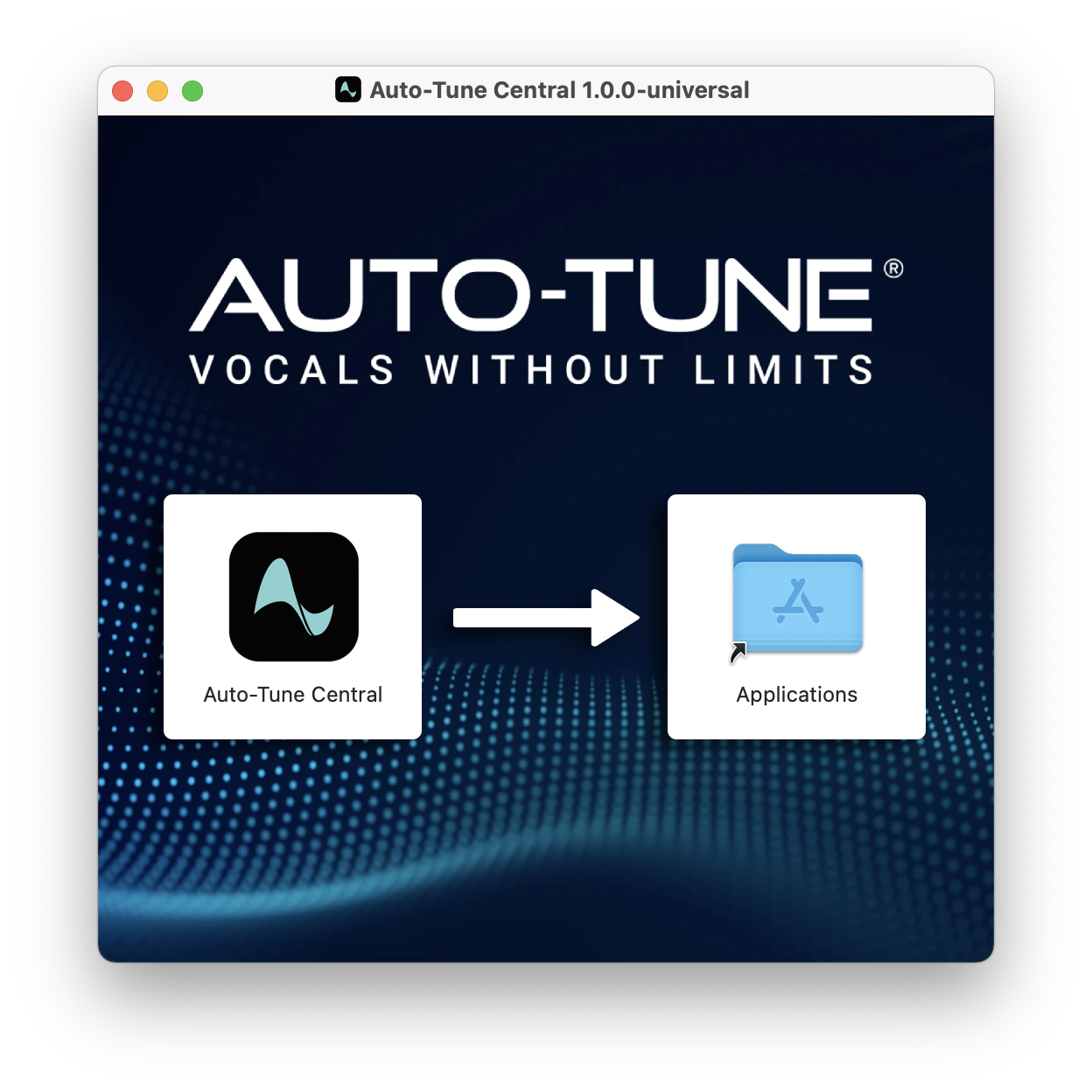
1. Download the .zip file from within your Plugin Boutique account and double-click it to extract the contents > Double-click the .dmg file to launch the installer > Drag Auto-Tune Central into your Applications folder > Auto-Tune Central will now automatically install.
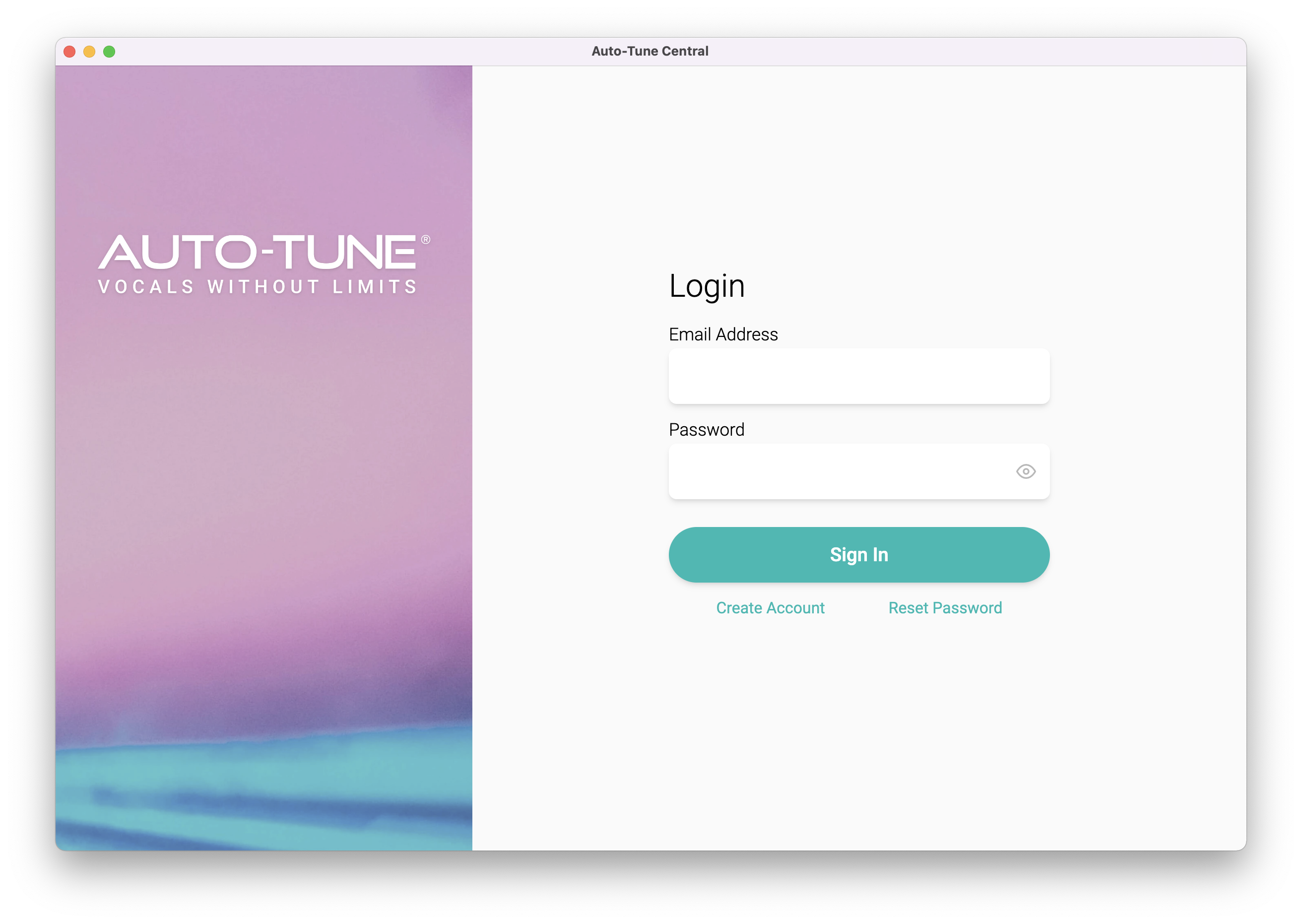
2. Launch Auto-Tune Central > Either create a new account by clicking 'Create Account' or if you already have an account, enter your Antares registered Email Address and Password > Click 'Sign In'.
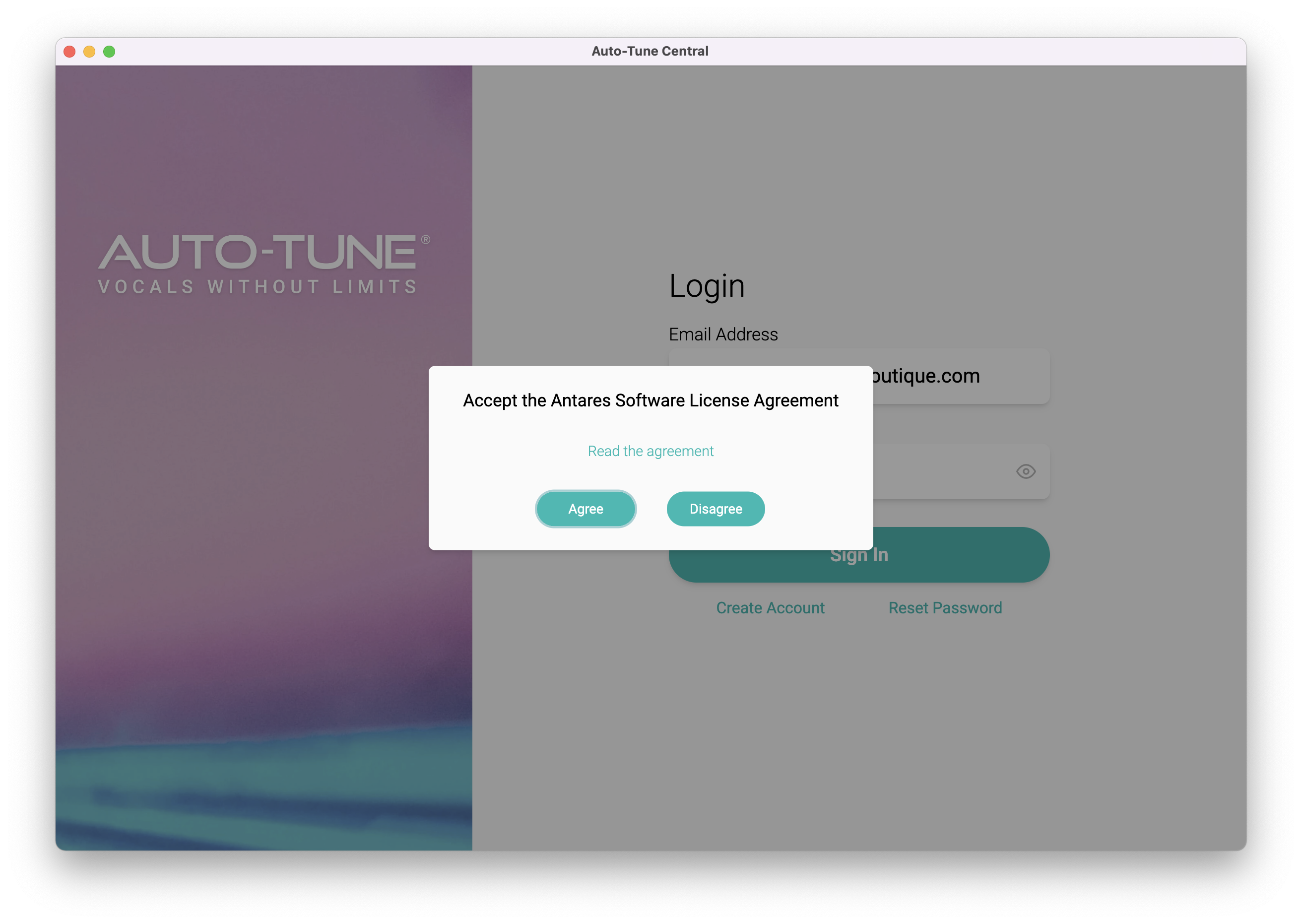
3. Click 'Agree'.
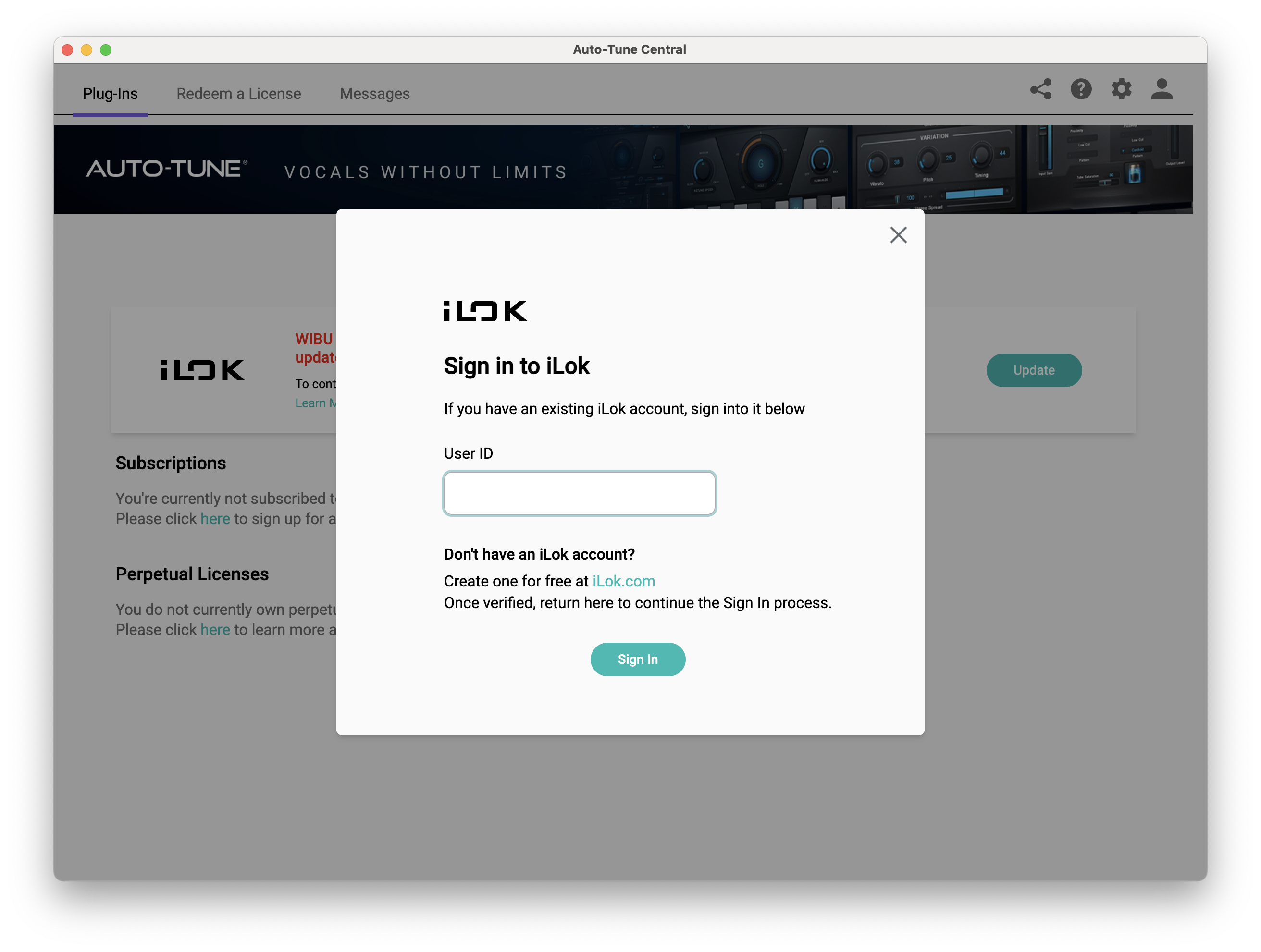
4. Enter your iLok User ID and click 'Sign In'.
5. Click 'Continue to iLok'.
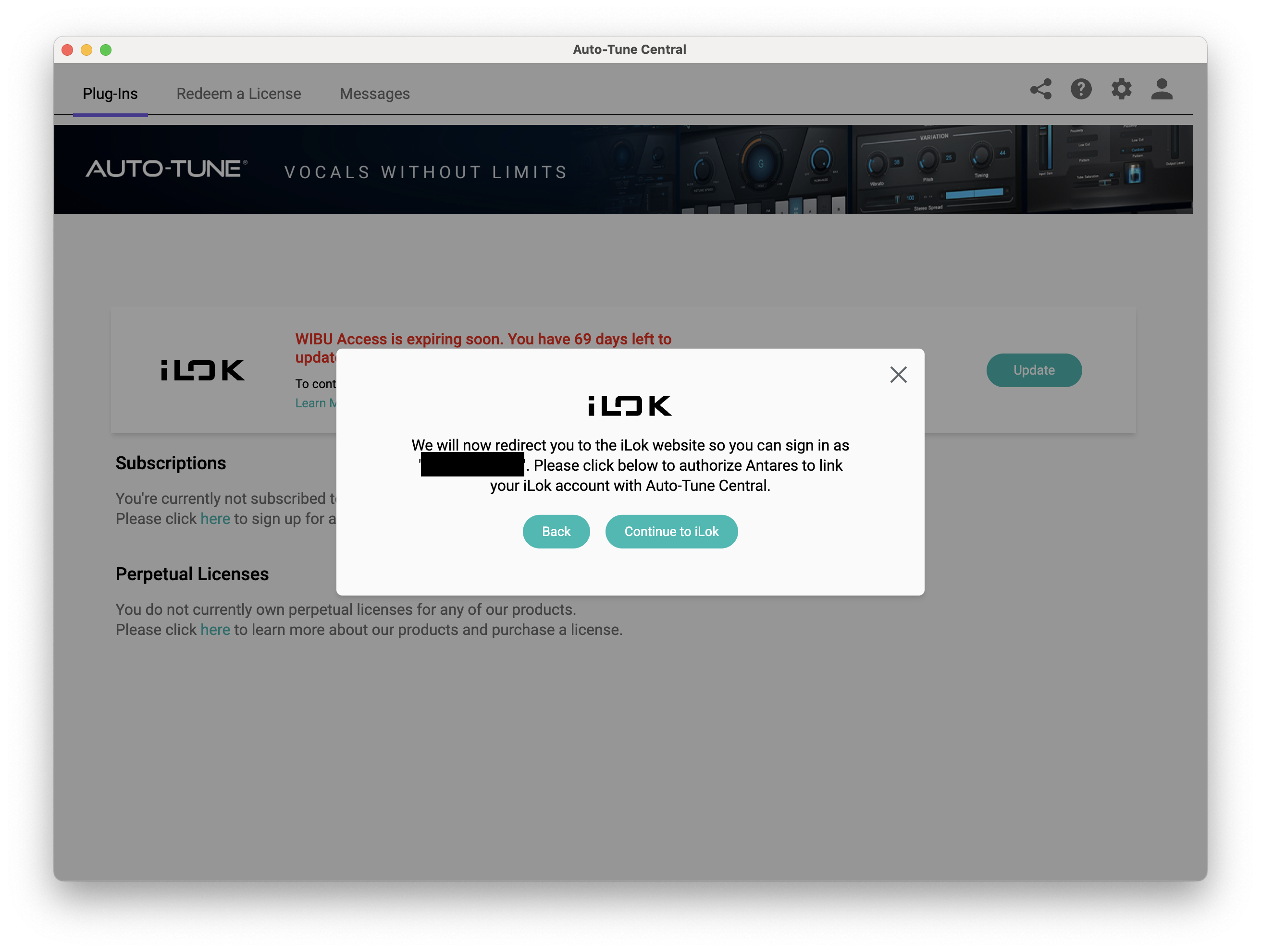
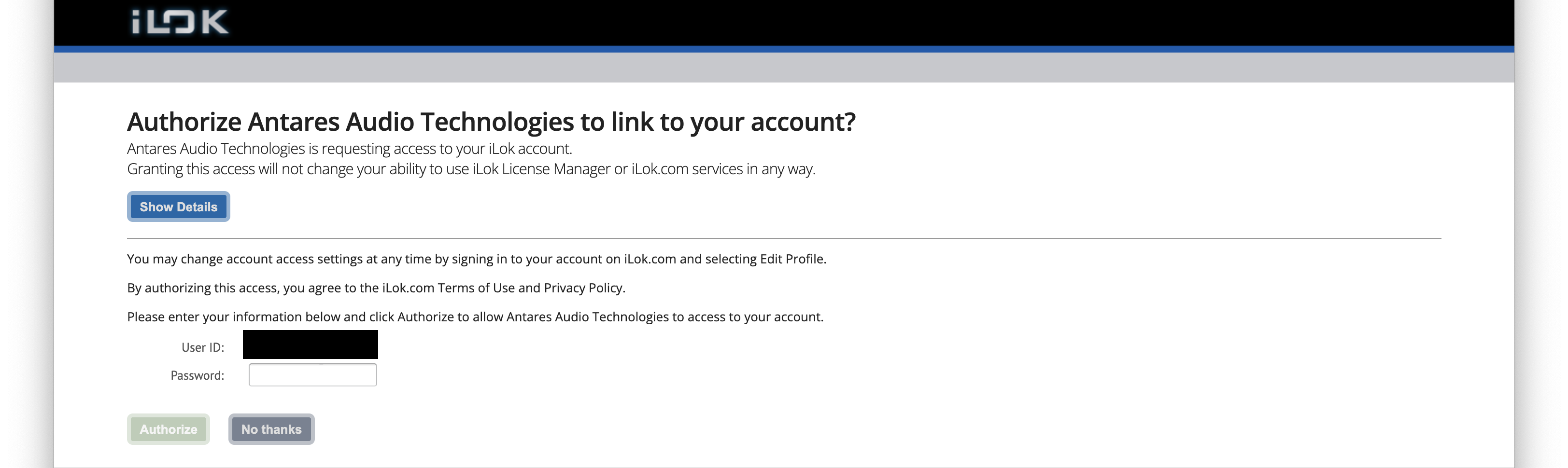
6. Enter your iLok User ID and Password then click 'Authorize'.
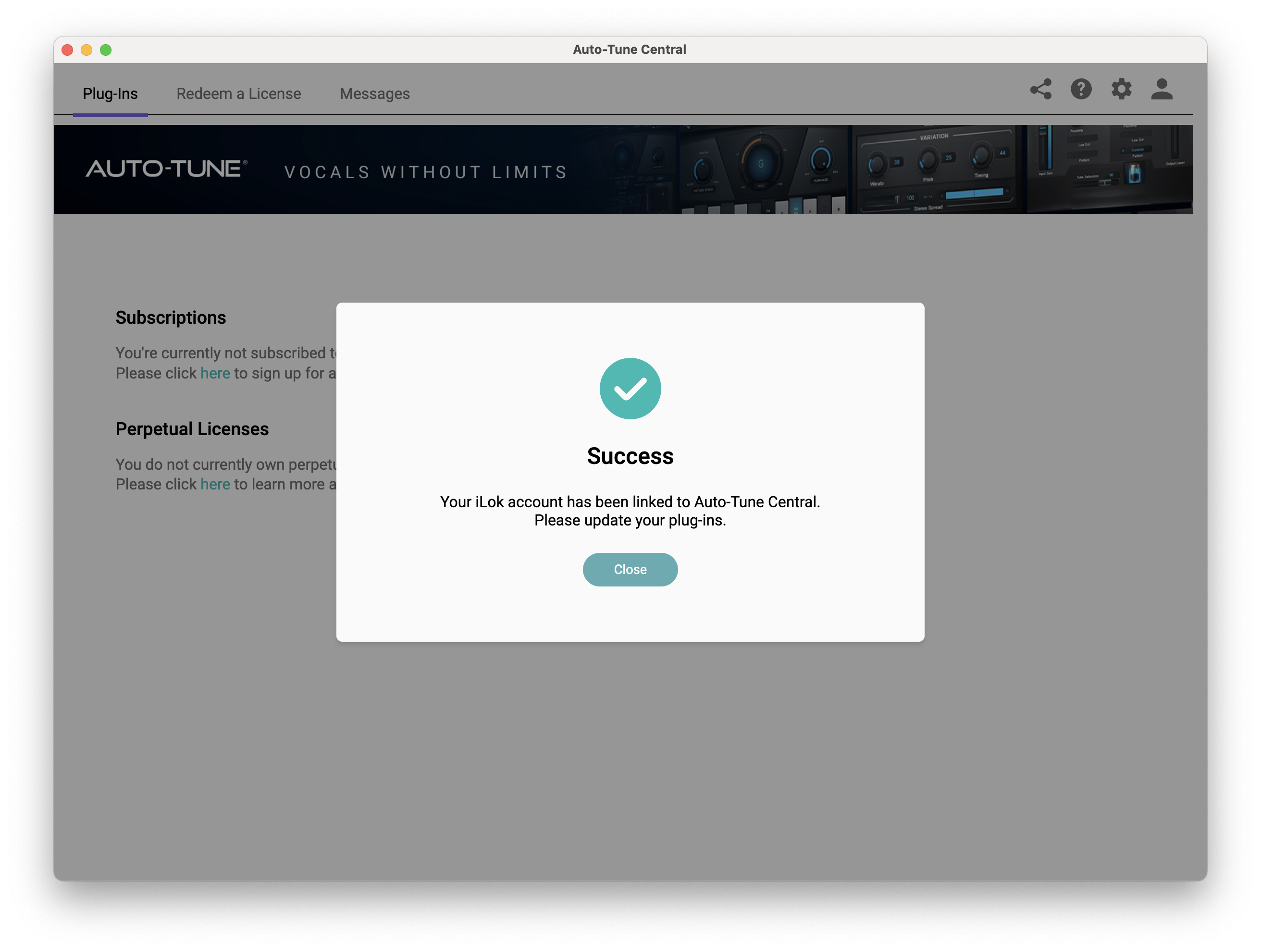
7. Your iLok account is now linked > Click 'Close'.
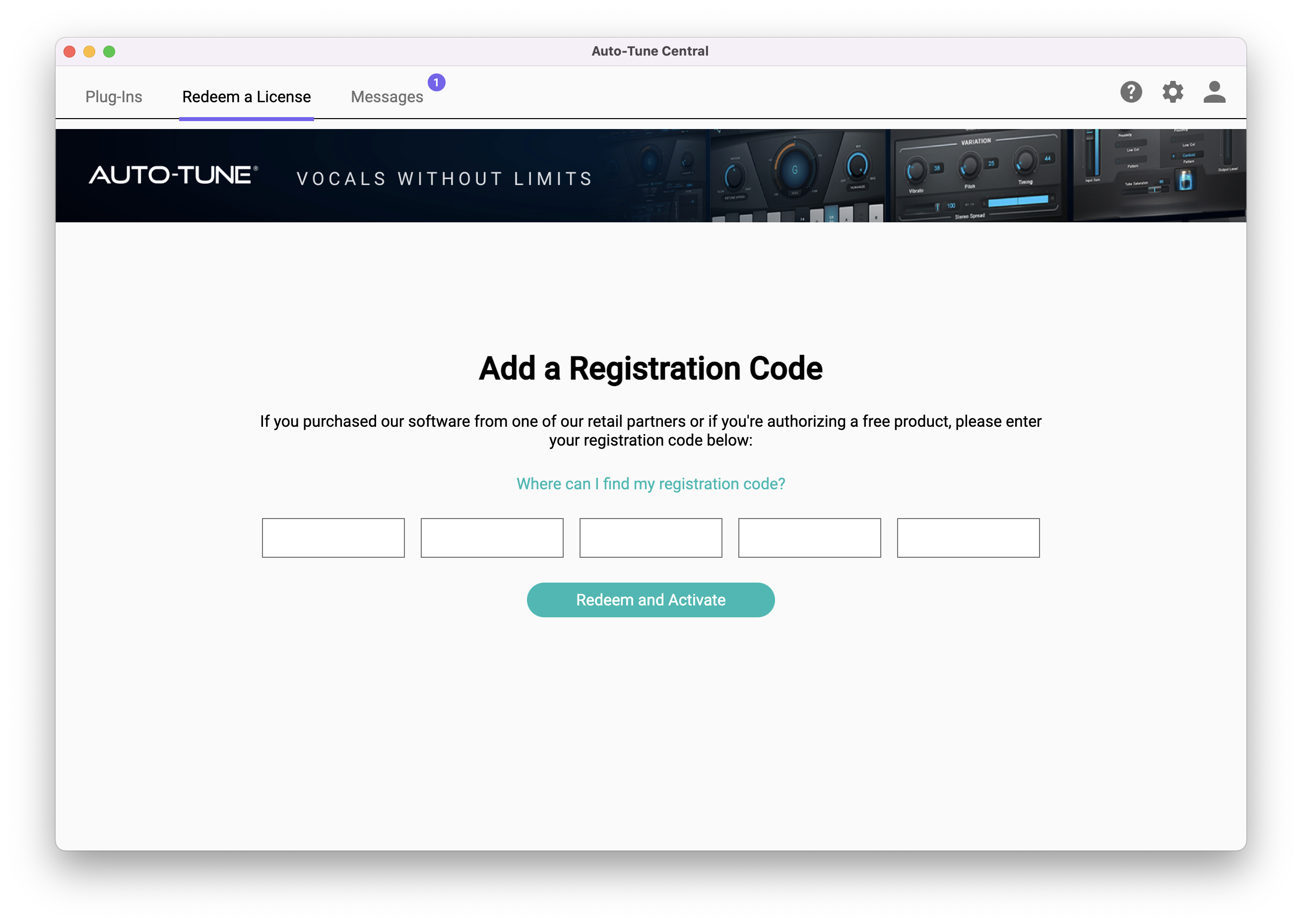
8. Click on the 'Redeem a License' tab > Enter the 25-digit Registration Code, found in the serial number section of your Plugin Boutique account > Click 'Redeem and Activate'.
9. Navigate back to the 'Plug-Ins' tab > Click 'Install' to install your plugin.
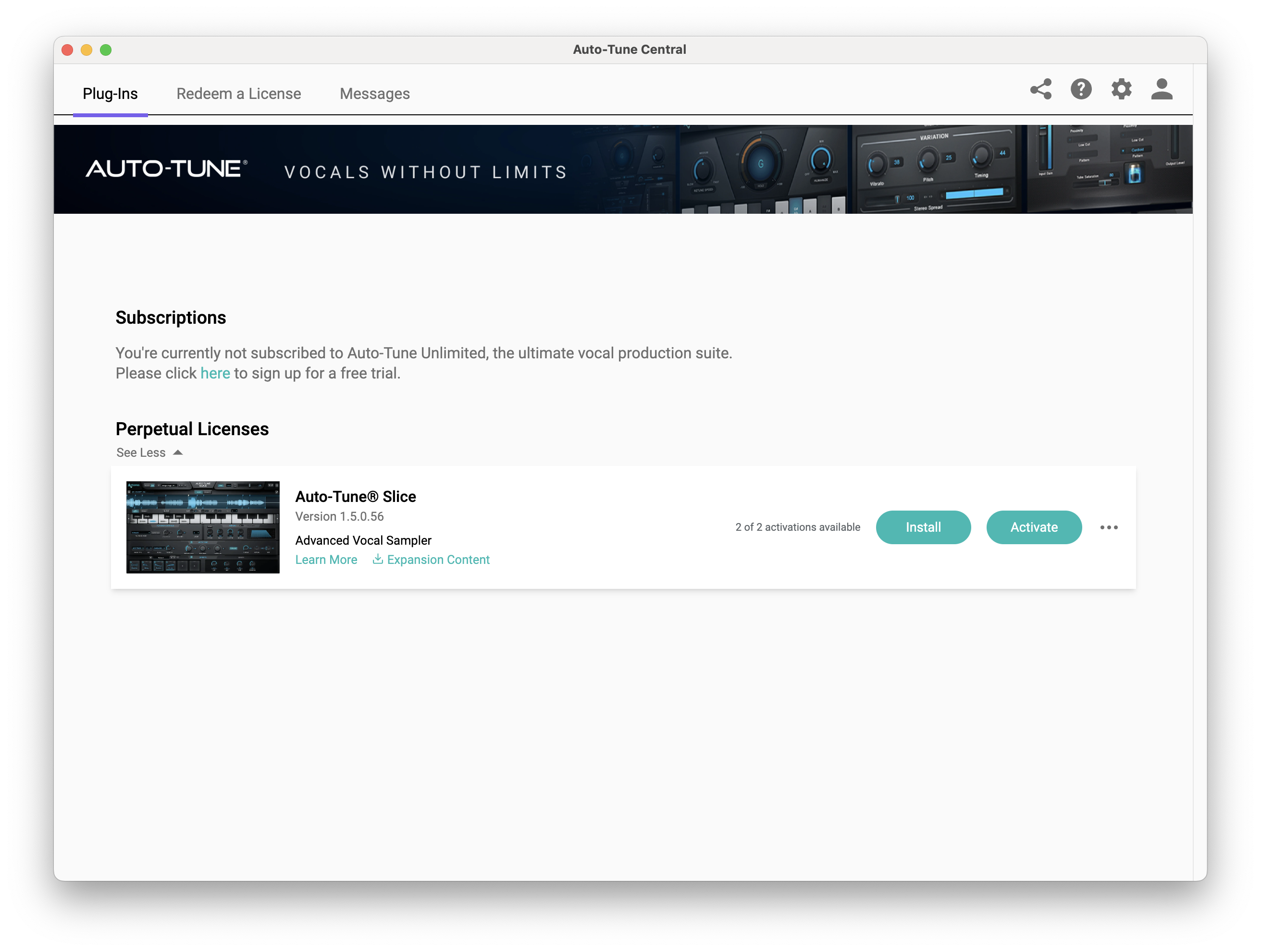
10. Click 'Activate'.
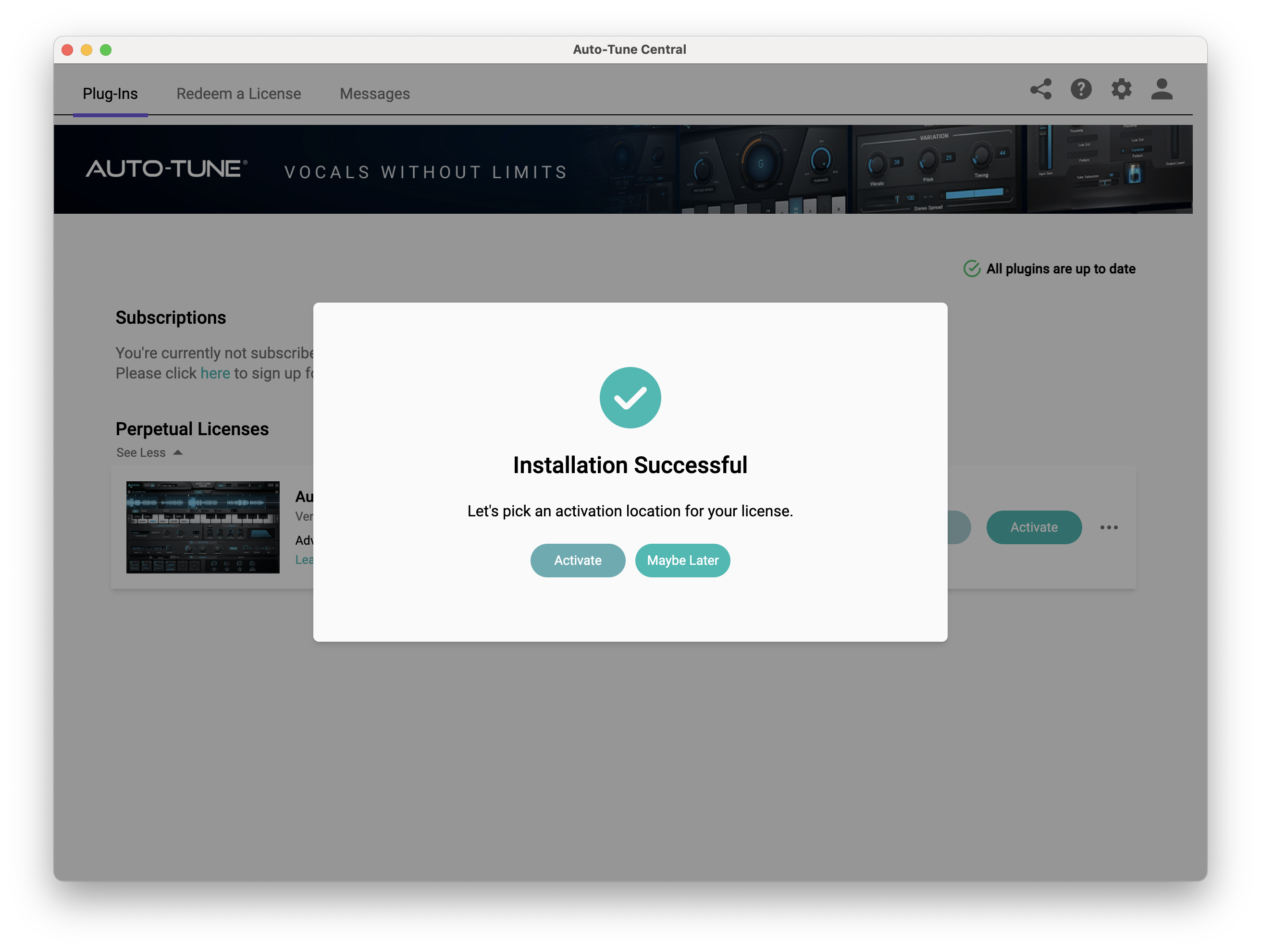
11. Select whether you want to activate the license to your Computer or iLok USB > Click 'Activate'.
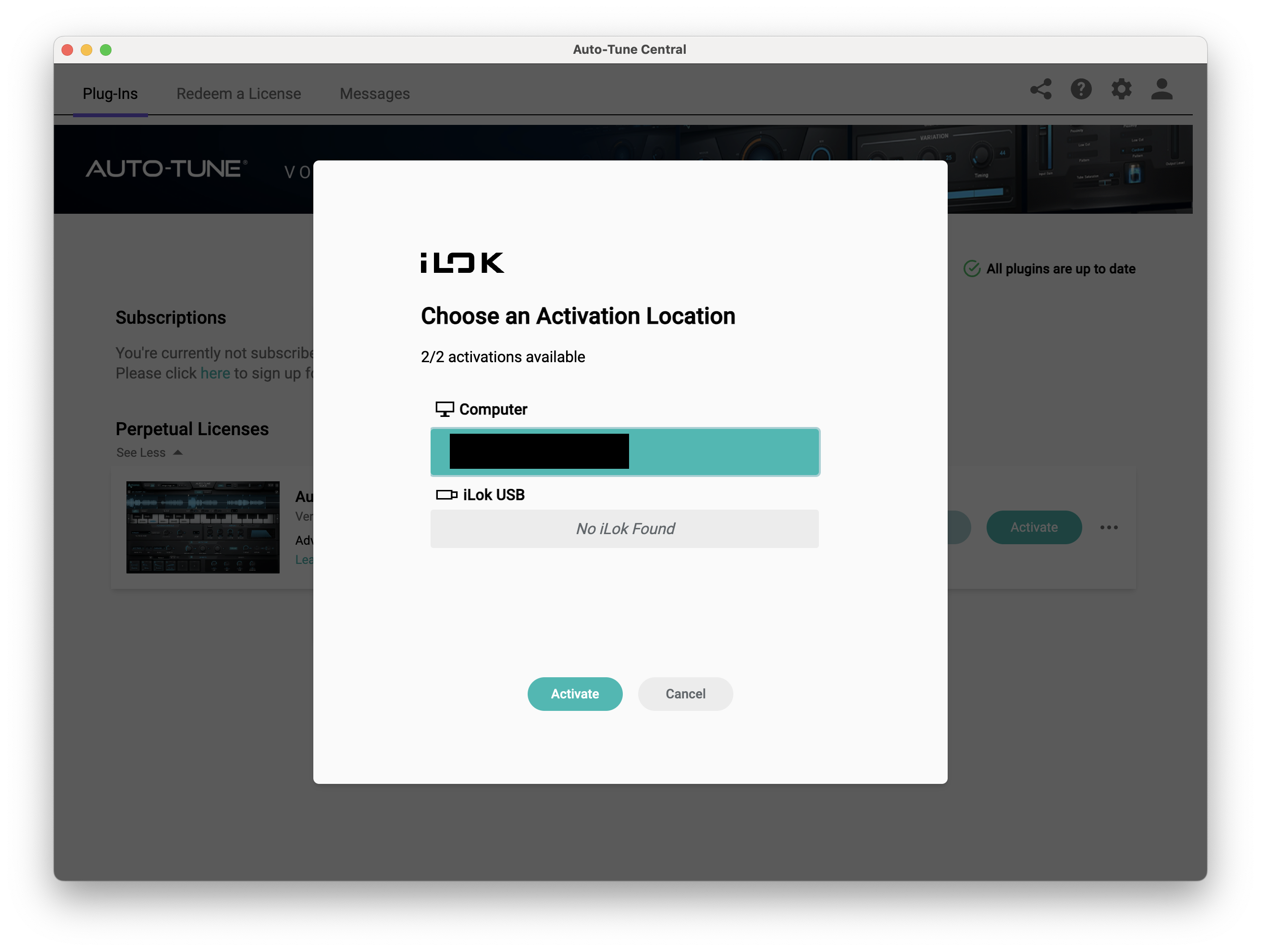
12. Click 'Close'.
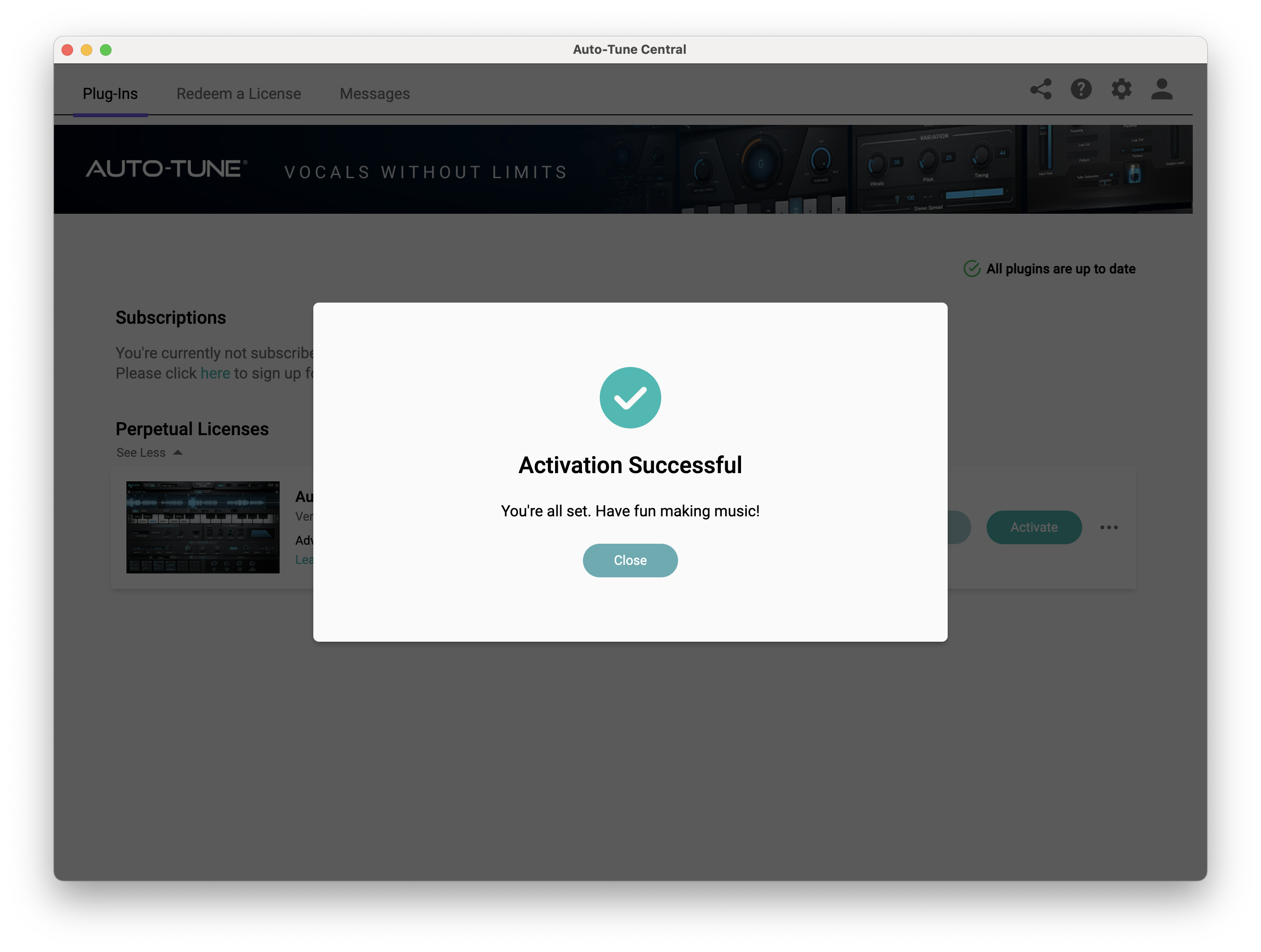
Your software is now activated and ready to use within your DAW.
PC
Windows
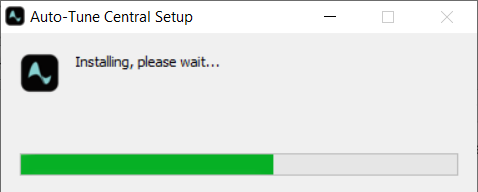
1. Download the .zip file from within your Plugin Boutique account and double-click it to extract the contents > Open the .exe file > Auto-Tune Central will now automatically install.
2. Launch Auto-Tune Central > Either create a new account by clicking 'Create Account' or if you already have an account, enter your Antares registered Email Address and Password > Click 'Sign In'.
3. Click 'Agree'.
4. Enter your iLok User ID and click 'Sign In'.
5. Click 'Continue to iLok'.
6. Enter your iLok User ID and Password then click 'Authorize'.
7. Your iLok account is now linked > Click 'Close'.
8. Click on the 'Redeem a License' tab > Enter the 25-digit Registration Code, found in the serial number section of your Plugin Boutique account > Click 'Redeem and Activate'.
9. Navigate back to the 'Plug-Ins' tab > Click 'Install' to install your plugin.
10. Click 'Activate'.
11. Select whether you want to activate the license to your Computer or iLok USB > Click 'Activate'.
12. Click 'Close'.
Your software is now activated and ready to use within your DAW.


