Buy Dehumaniser Simple Monsters, get a free gift with purchase:
Create Extreme Character Voices in Real-Time
Now you can bring versatility and differentiation to your characters’ voices without sacrificing your weekly schedule.
Dehumaniser Simple Monsters is the fastest and easiest way to create extreme vocal effects for movies, music, games and animation.
Struggling to create terrifying monster sounds or extreme metal vocals with ease and simplicity? Maybe you just want to record angry animal sounds without the risk? Or perhaps you’d like to add a unique edge to your vocal production without using loads of different plugins? Dehumaniser Simple Monsters is your solution.
Unleash the Beast in your game audio, post-production, or music project!
- Create Totally Unique Vocal Effects for your project – ideal for adding a dark and experimental edge to your music production
- Design Creature and Monster Sounds super quick – perfect for sound designers, animators and games designers
- Design Characters and Unusual Dialogue Effects with ease – the ideal solution for voice artists looking to make an impact
- Process Any Sample or Instrument with Simple Monsters to mangle and distort in totally original ways – works well with drums.
- Control Remotely with TouchOSC Integration – Take control of parameters from your iOS or android device while you perform!
Dream Up your Vocalisations in a Matter of Seconds
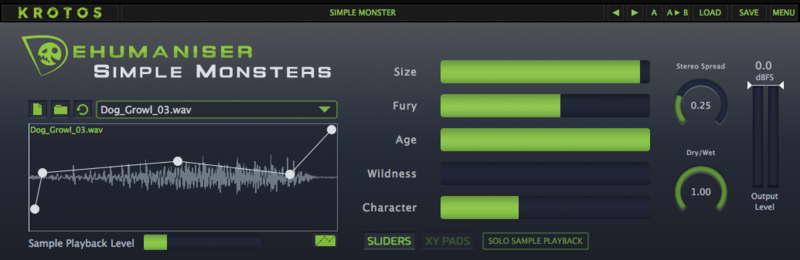
Simple Monsters takes a simplified design approach to Dehumaniser 2’s technology, packing it into a simple but powerful user interface. Using only a collection of sliders and assignable X/Y pads, a huge variety of sounds can be coaxed from the plugin to create realistic monsters in a matter of seconds.
- Monsters
- Robots
- Creatures
- Zombies
Get Started with 35 Presets
Simple Monster’s starter presets are organised into ‘Dialogue’, ‘Sci-fi’, ‘Growls and Roars’ libraries. Whether you’re making a gremlin or a god, these presets are designed to provide inspiration and cut setup time out of your workflow!
- 35 presets
- 5 dynamic parameters
- 6 sliders / 2 XY Pads
- Multiple FX modules ‘under the hood’ of the plugin
- 48 animal sounds to use the Scrubbing Convolution Module
Generate and Perform Directly into your Project, Instantly and Easily
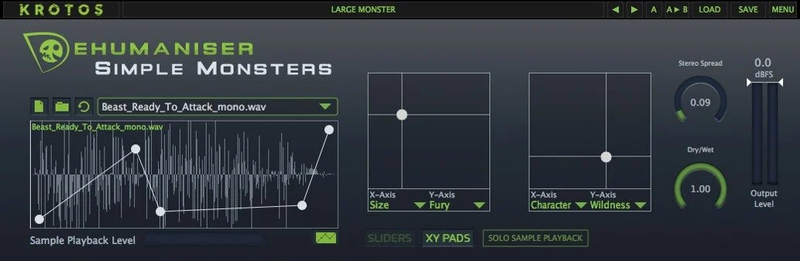
- 5 dynamic parameters and a sample scrubbing function allow you to quickly and easily design sounds for any sort of monster
- Pick between a slider layout or X/Y Pads interface
- Assign elements to each axis to explore the processing differently, coaxing unpredictable results from the plugin, or maximise responsiveness during performance
Additional Features
- Processing up to 192kHz/24 bit
- Solo scrubbing playback
- Save and recall Presets
Control Parameters
- Size
- Fury
- Age
- Wildness
- Character
System Requirements
Mac
- macOS 10.13 - macOS 11 Big Sur (64-bit only) (M1/M2 Mac Supported)
- Intel computer with a minimum of 2.4 GHz Intel Dual Core Processor
- 4 GB of RAM
- VST, VST3, AU, AAX Native
Windows
- Windows 10 and later (64-bit only)
- 2.4 GHz Intel Dual Core Processor
- 4 GB of RAM
- VST, VST3, AAX Native
Additional Information:
- This software is a digital download
- Minimum sample rate: 44.1 kHz
- Maximum sample rate: 192 kHz
- An internet connection is required at the time of activation
- Screen resolution of 1280×1024 or higher
- An iLok account (available for free at ilok.com) is required to activate and use both the demo and full version of the software
- Dehumaniser Simple Monsters can only be activated on one computer at a time
- An iLok 2 or later is required for dongle use
- TouchOSC License is not included
Supported Host Applications:
- Pro Tools (11 or later)
- Logic Pro X
- Nuendo
- Ableton Live
- Cubase
- Reaper
- Studio One
After celebrating a huge success with their flagship product Dehumaniser II, voice processing software developer Krotos upped the ante with a condensed, more affordable plugin called Dehumaniser Simple Monsters. Including just the core features of Dehumaniser II, arranged into a neat and simple i...
Read MoreImportant Notes:
- Dehumaniser Simple Monsters is used as an example.
- This product requires a free iLok account and a copy of iLok license manager to be installed on your computer. A physical iLok USB dongle is NOT required.
- Registering and logging into your Krotos account is required before activating the plugin - please follow the below registration steps before activating.
Registration (Neccessary to complete first)
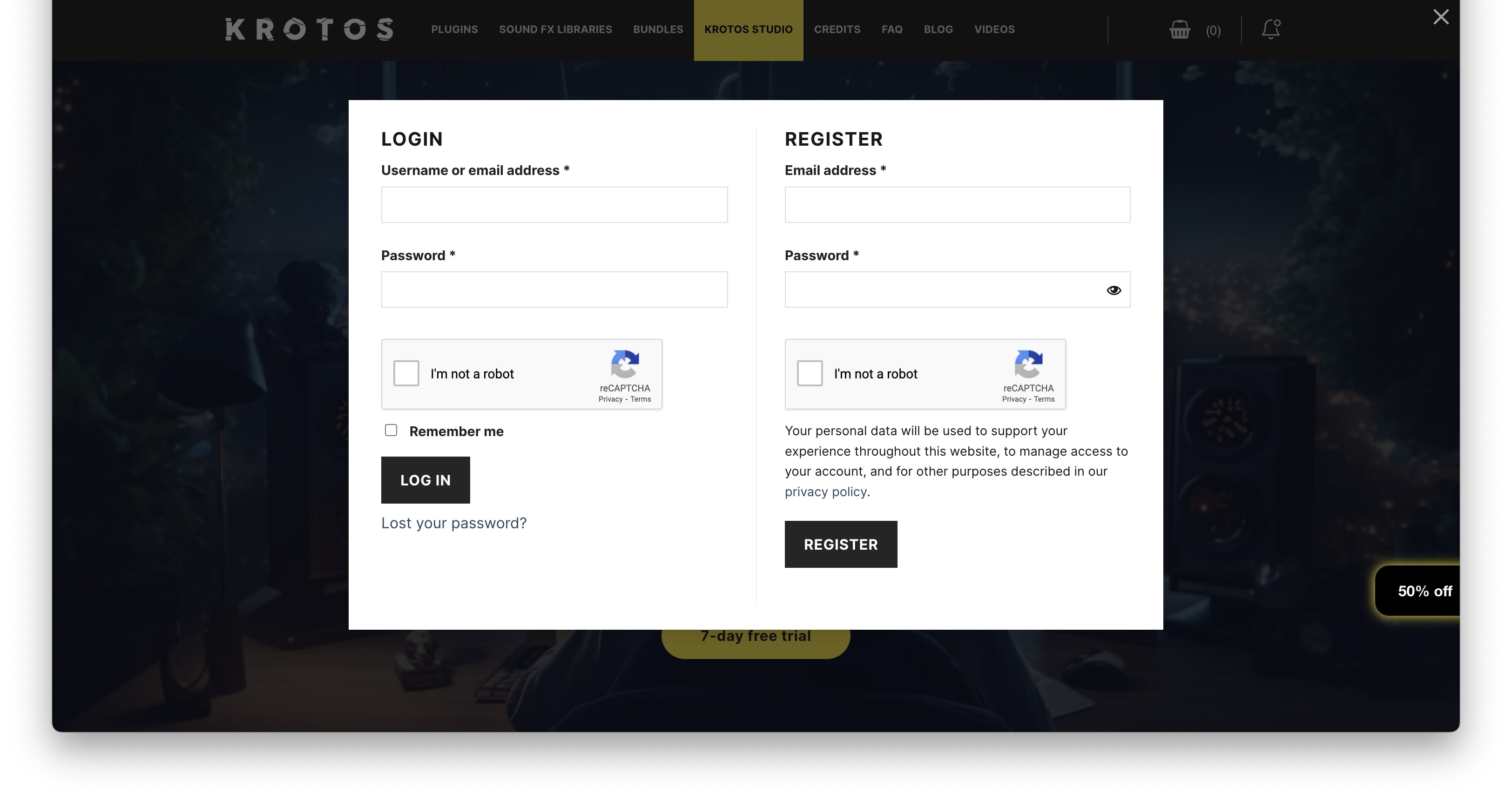
1. Go to https://www.krotosaudio.com/ > Click the 'user' icon in the top right corner.

2. Enter your details and click 'Register' > If you already have a Krotos account, log in as usual.

Activation
Mac
iLok Registration
1. Go to https://www.ilok.com/#!registration > Fill out all of the relevant fields marked with an asterisk (*) and click 'Continue'.
2. Go to https://www.ilok.com/#!license-manager > Download and install the iLok License Manager.
Krotos Registration
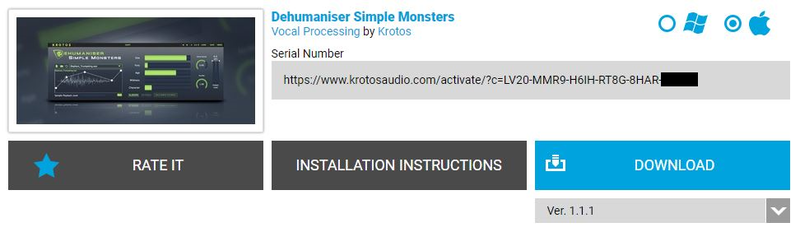
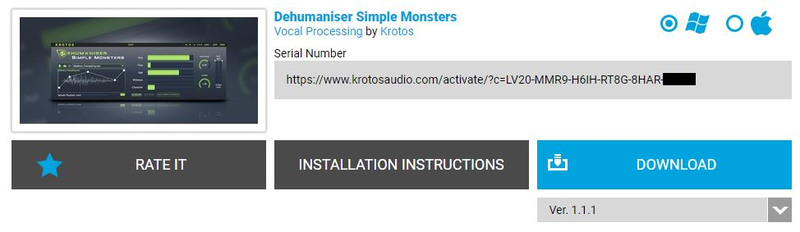
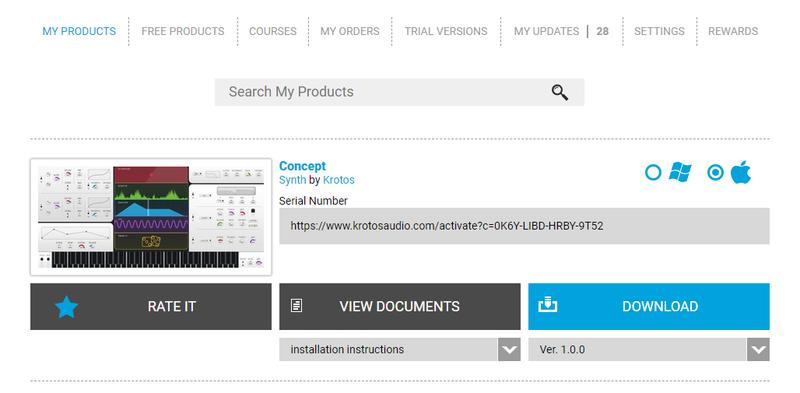
1. Go to your Plugin Boutique User Account and copy the URL found in the serial number section of your purchased product > Paste the URL into your web browser and press enter.

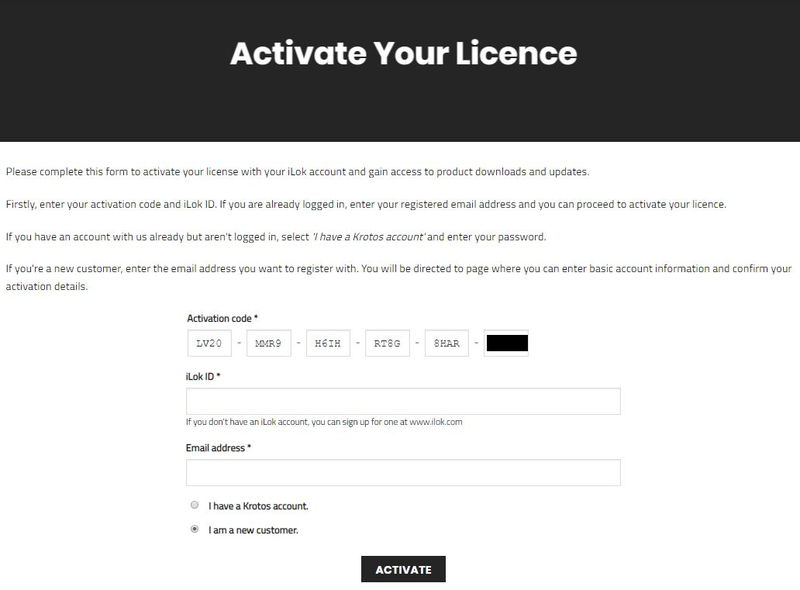
2. Fill out the relevant fields marked with an asterisk (*), including the iLok ID that you chose in step 1 of the iLok Registration instructions > Select 'I am a new customer' and click 'Activate'.

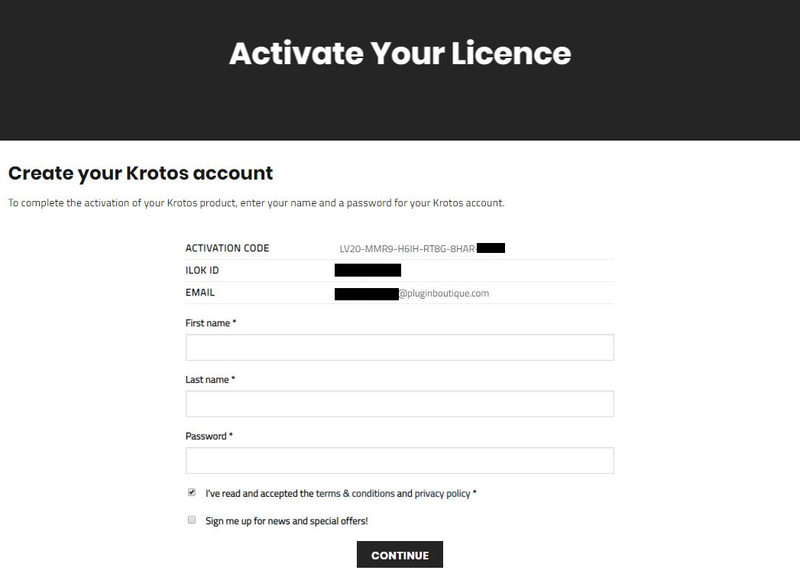
3. Enter your name and password of choice > Select 'I've read and accepted the terms and conditions and privacy policy' and click 'Continue'.

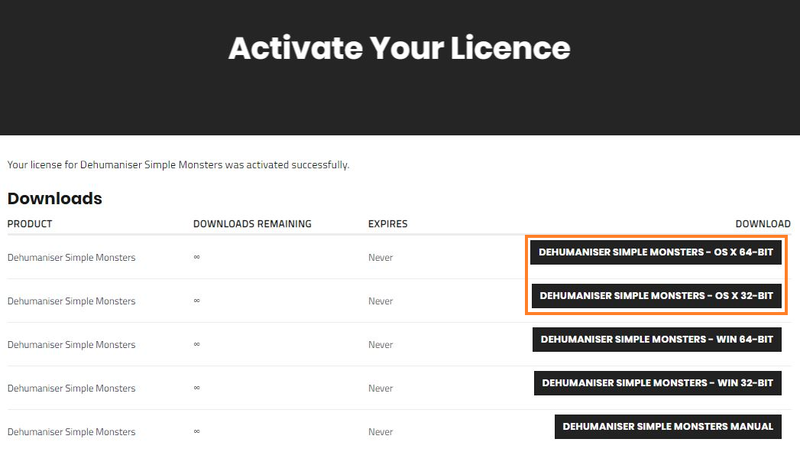
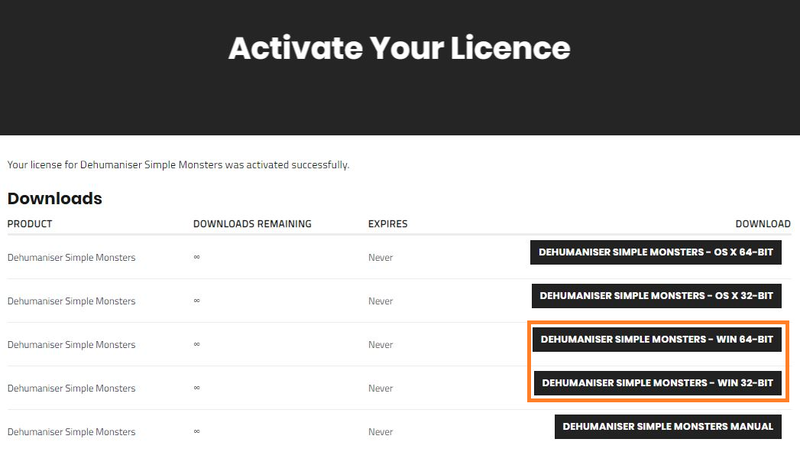
4. Download the Windows installer.

Installation
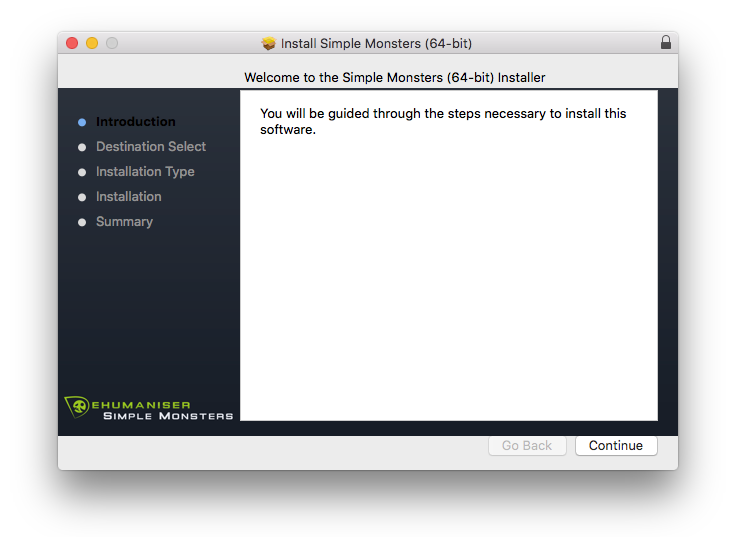
1. Double-click the downloaded .zip file to extract the contents and open the .pkg file to begin the installation > Click 'Continue'.

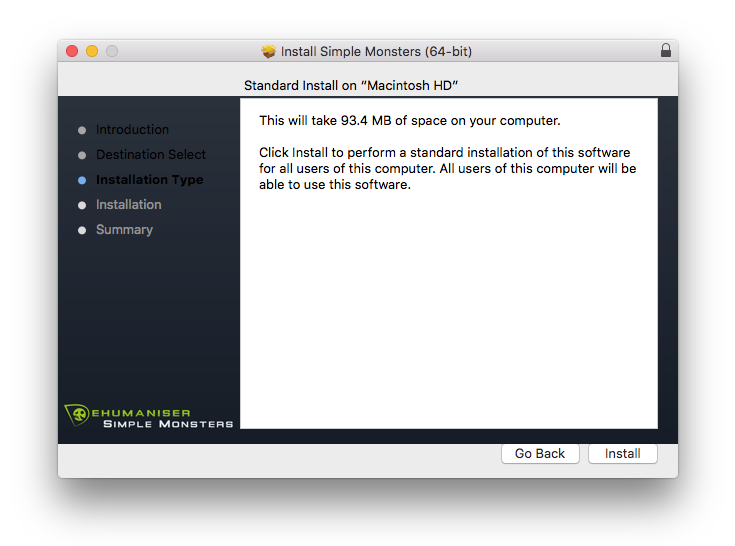
2. Click 'Install'.

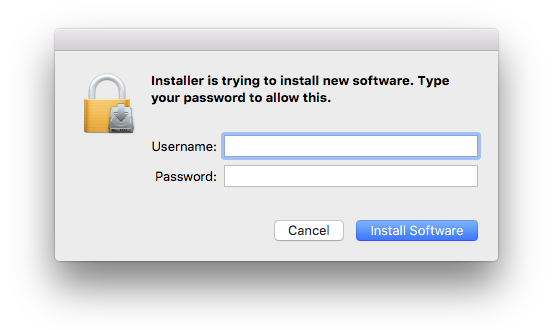
3. Enter your computer Username and Password > Click 'Install Software'.

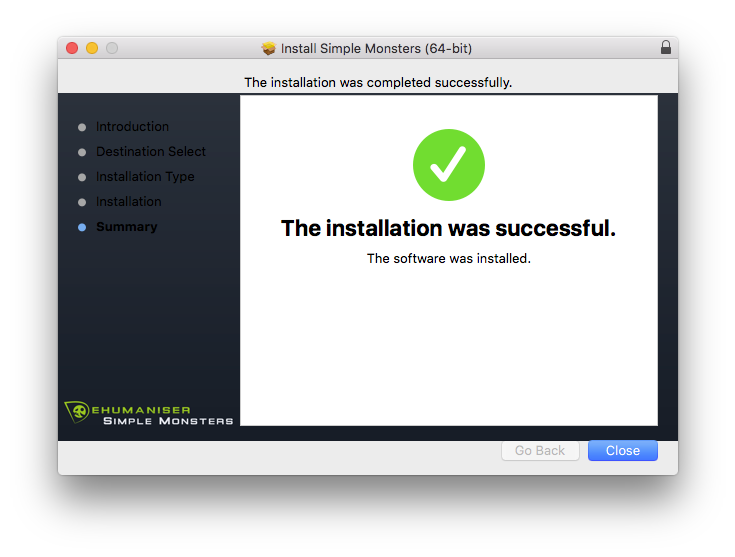
4. Click 'Close'.

Activation
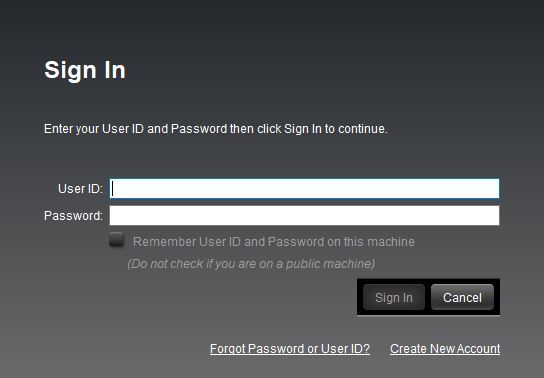
1. Open the iLok License Manager > Click 'Sign In'.

2. Enter your iLok User ID and Password > Click 'Sign In'.

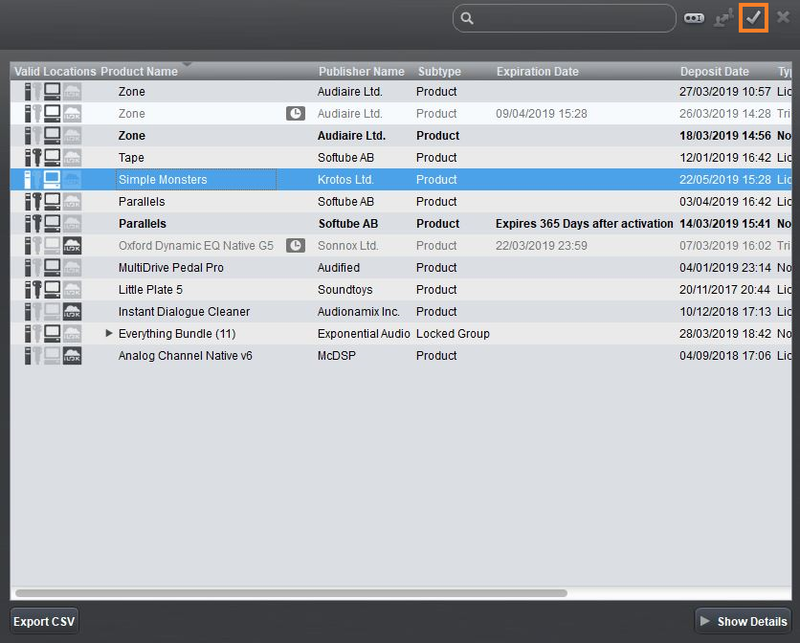
3. Select your recently installed product from the list > Click the tick icon in the top right corner of the application window.

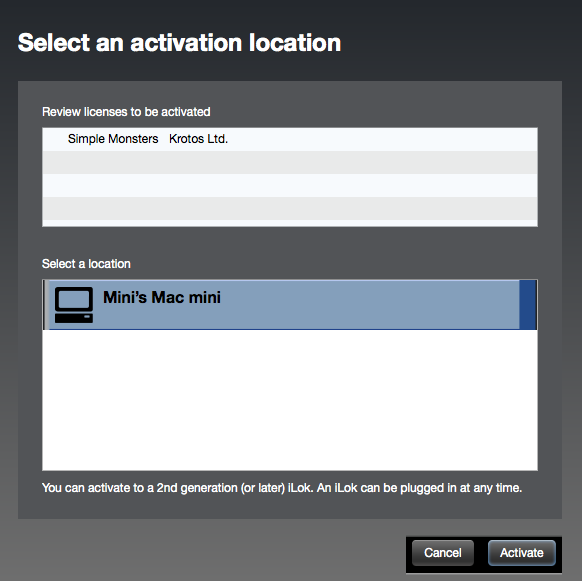
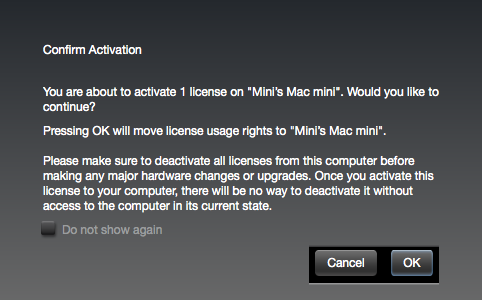
4. Select the location you wish to activate your license - this can be your computer or an iLok USB dongle > Click 'Activate'.

5. Click 'Ok'.

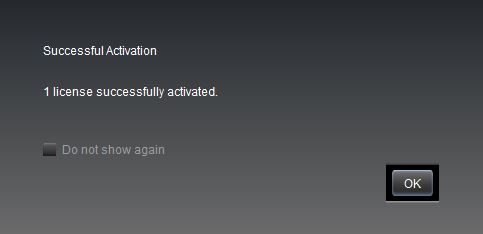
6. Click 'Ok'.

7. Open the recently installed plugin in your DAW.
Note: If your plugin fails to appear, re-scan your plugin selection in your DAW.

Your software is now activated and ready to use.
Windows
iLok Registration
1. Go to https://www.ilok.com/#!registration > Fill out all of the relevant fields marked with an asterisk (*) and click 'Continue'.
2. Go to https://www.ilok.com/#!license-manager > Download and install the iLok License Manager.
Krotos Registration
1. Go to your Plugin Boutique User Account and copy the URL found in the serial number section of your purchased product > Paste the URL into your web browser and press enter.

2. Fill out the relevant fields marked with an asterisk (*), including the iLok ID that you chose in step 1 of the iLok Registration instructions > Select 'I am a new customer' and click 'Activate'.

3. Enter your name and password of choice > Select 'I've read and accepted the terms and conditions and privacy policy' and click 'Continue'.

4. Download the Windows installer.

Installation
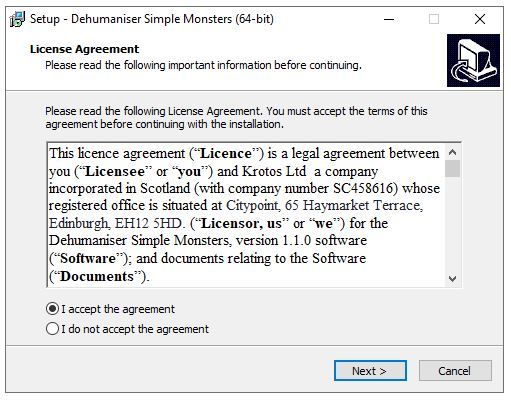
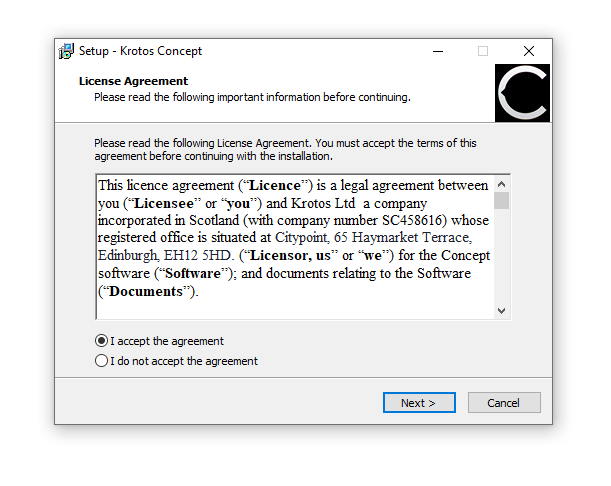
1. Double-click the downloaded .zip file to extract the contents and open the .exe file to begin the installation > Select 'I accept the agreement' and click 'Next'.

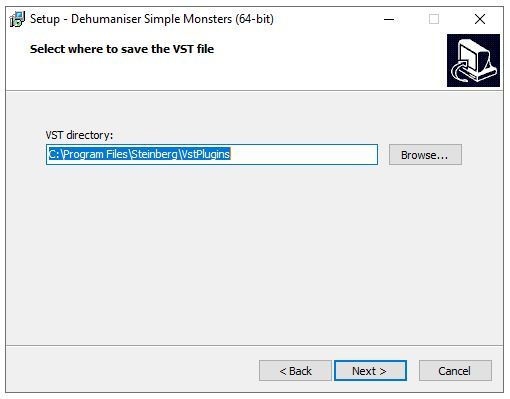
2. Click 'Next'.

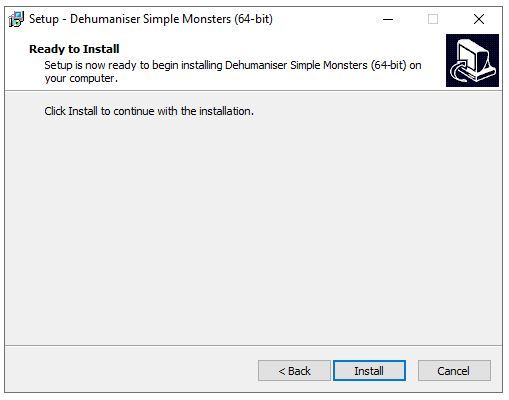
3. Click 'Install'.

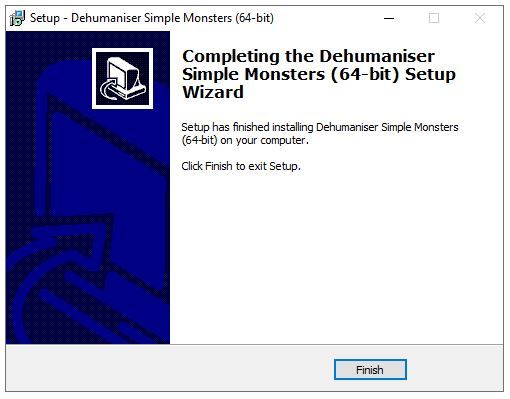
4. Click 'Finish'.

Activation
1. Open the iLok License Manager > Click 'Sign In'.

2. Enter your iLok User ID and Password > Click 'Sign In'.

3. Select your recently installed product from the list > Click the tick icon in the top right corner of the application window.

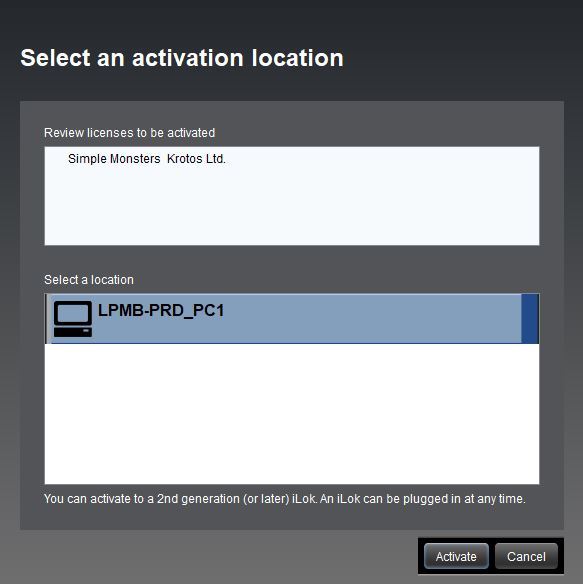
4. Select the location you wish to activate your license - this can be your computer or an iLok USB dongle > Click 'Activate'.

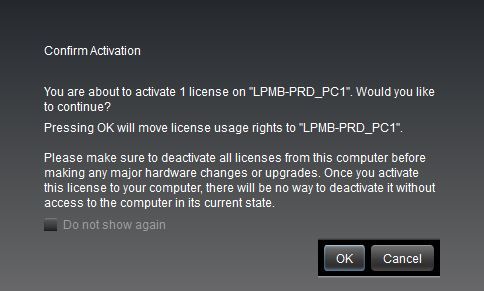
5. Click 'Ok'.

6. Click 'Ok'.

7. Open the recently installed plugin in your DAW.
Note: If your plugin fails to appear, re-scan your plugin selection in your DAW.

Your software is now activated and ready to use.
Krotos Concept Installation Instructions
Mac
Registration
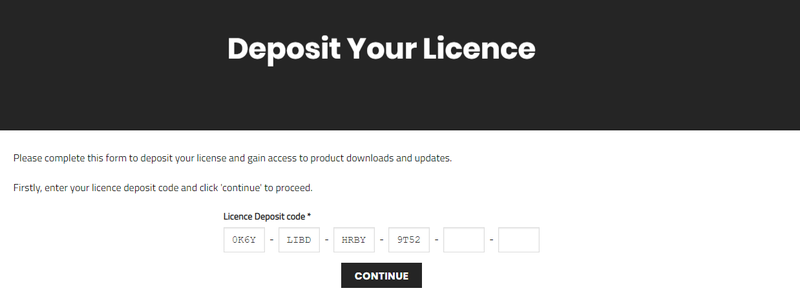
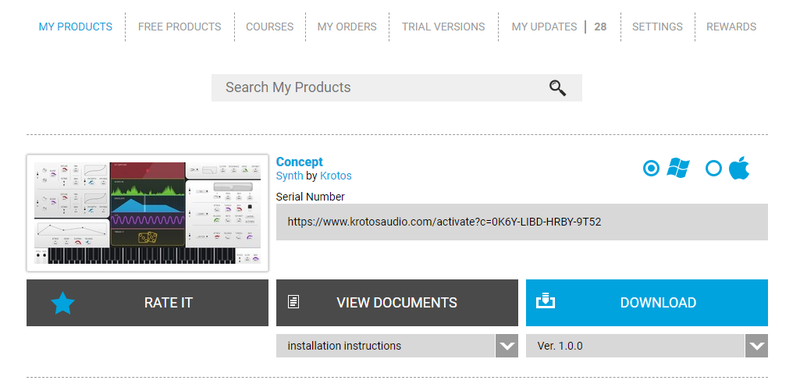
1. Go to your Plugin Boutique User Account > Copy and paste the serial number into your web browser and press enter on your keyboard.

2. Click 'Continue'.

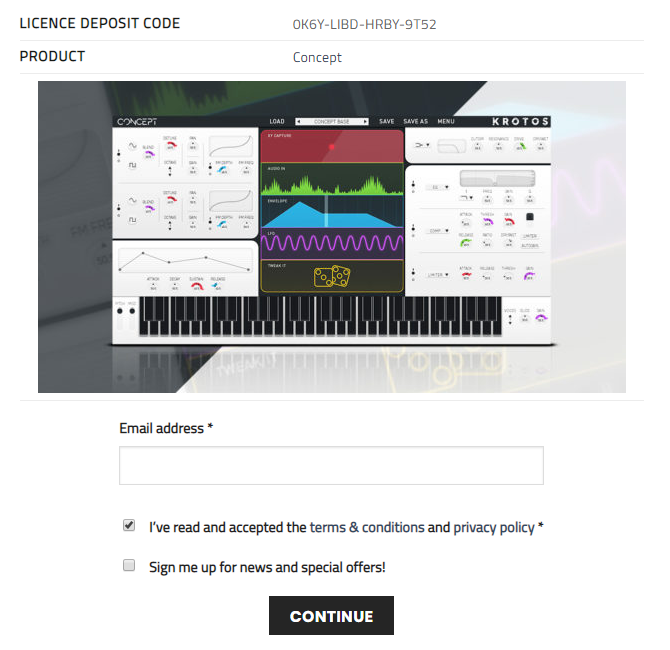
3. Enter your email address and check the box that states 'I've read and accepted the terms & conditions and privacy policy' > Click 'Continue'.

Installation
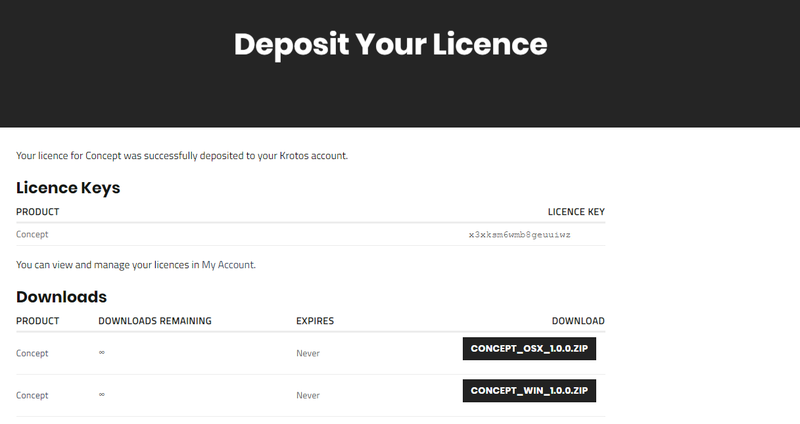
1. Download your Windows installer by clicking the button that reads 'CONCEPT_OSX_1.0.0.ZIP'.
Note: You will need your License Key for step 1 of the activation process.

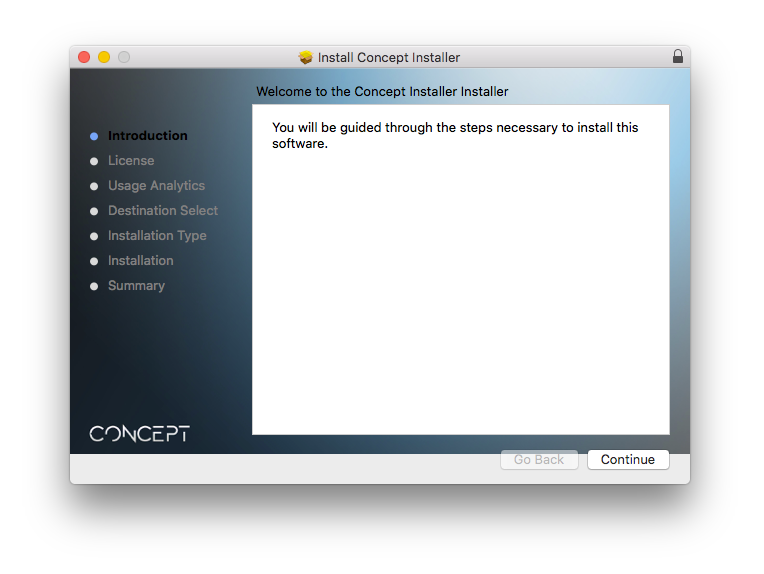
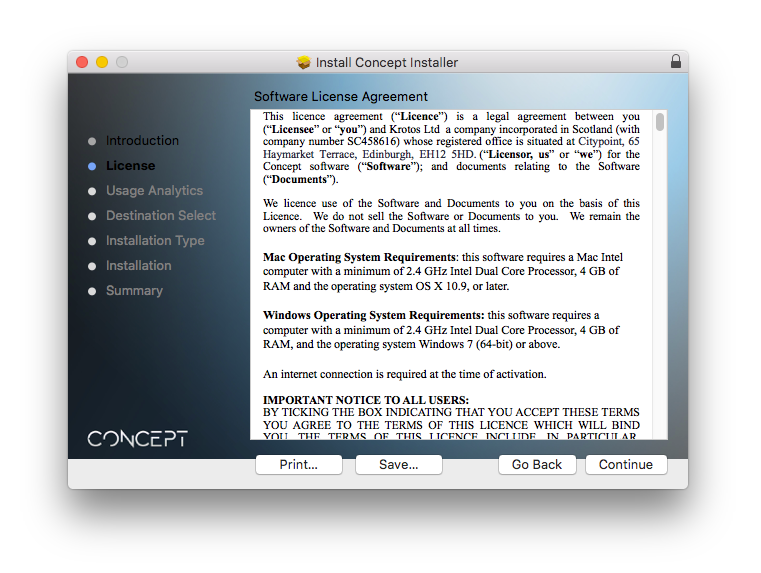
2. Double-click the .zip file to extract the contents > Open the .pkg file to begin the installation and click 'Continue'.

3. Click 'Continue'.

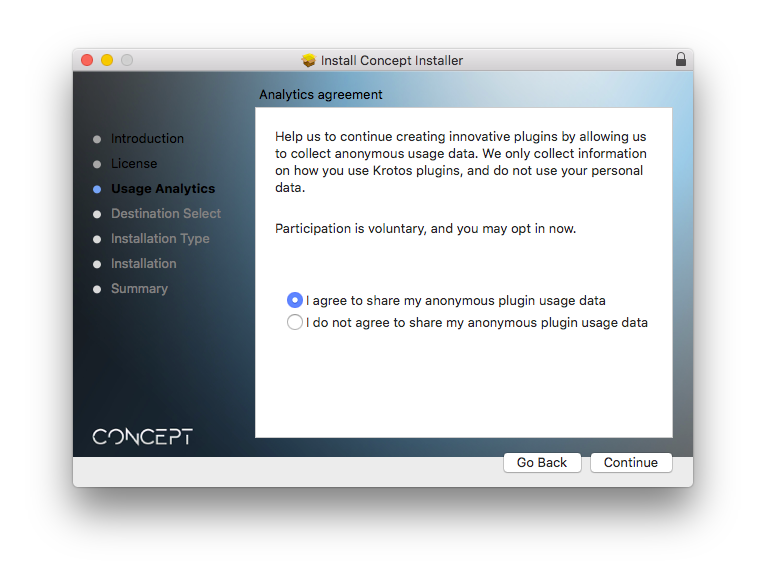
4. Select whether you agree to share your anonymous plugin usage data or not > Click 'Continue'.

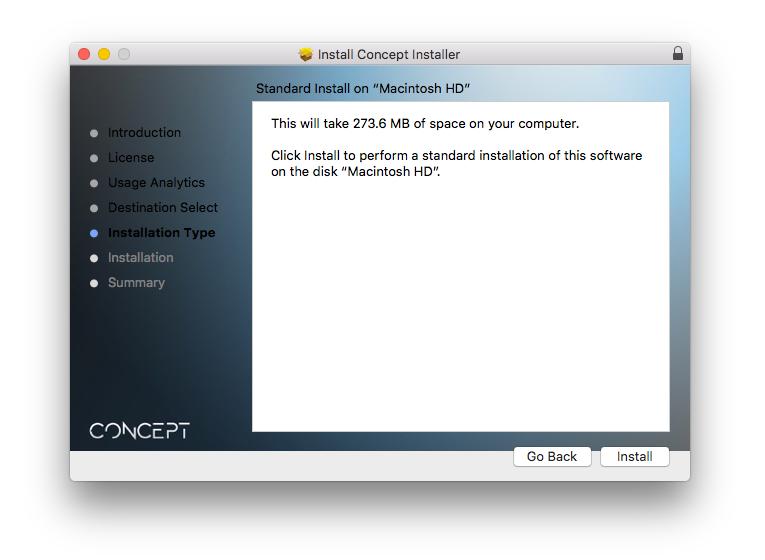
5. Click 'Install'.

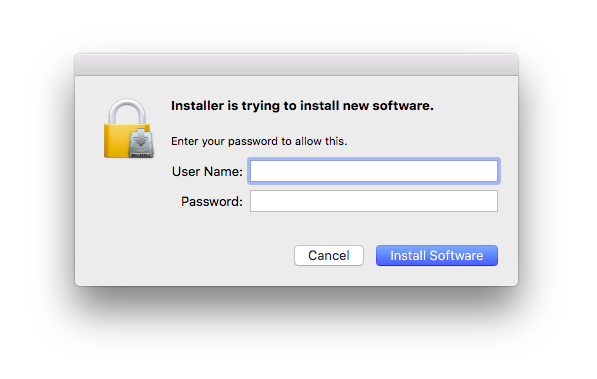
6. Enter your computer User Name and Password > Click 'Install Software'.

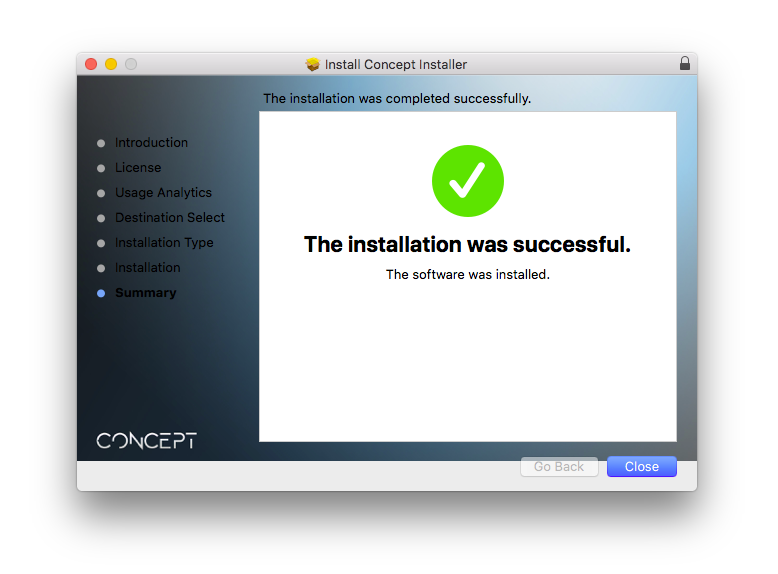
7. Click 'Close'.

Activation
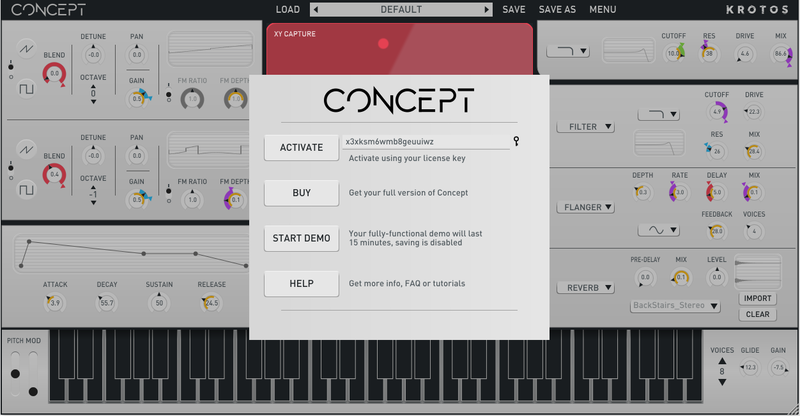
1. Open the newly installed software within your DAW > Copy and paste the License Key from step 1 of the installation process > Click 'Activate'.

Your software is now activated and ready to use within your DAW.

Windows
Registration
1. Go to your Plugin Boutique User Account > Copy and paste the serial number into your web browser and press enter on your keyboard.

2. Click 'Continue'.

3. Enter your email address and check the box that states 'I've read and accepted the terms & conditions and privacy policy' > Click 'Continue'.

Installation
1. Download your Windows installer by clicking the button that reads 'CONCEPT_WIN_1.0.0.ZIP'.
Note: You will need your License Key for step 1 of the activation process.

2. Double-click the .zip file to extract the contents and open the .exe file to begin the installation > Select 'I accept the agreement' and click 'Next >'.

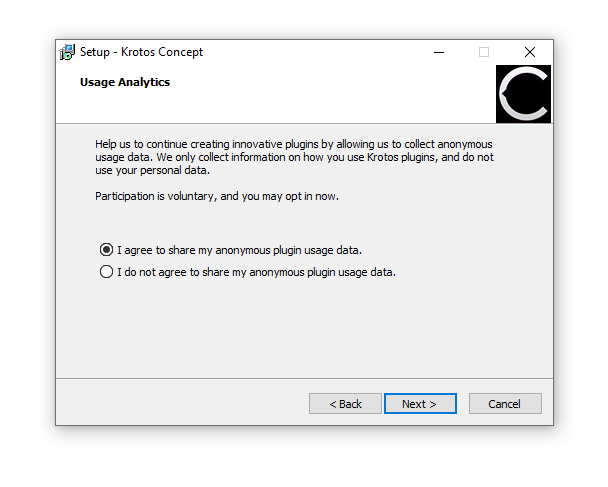
3. Select whether you agree to share your anonymous plugin usage data or not > Click 'Next >'.

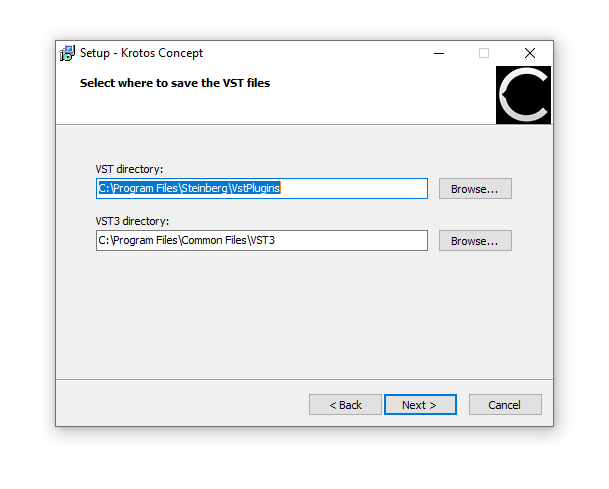
4. Select the installation location for your VST files > Click 'Next >'.

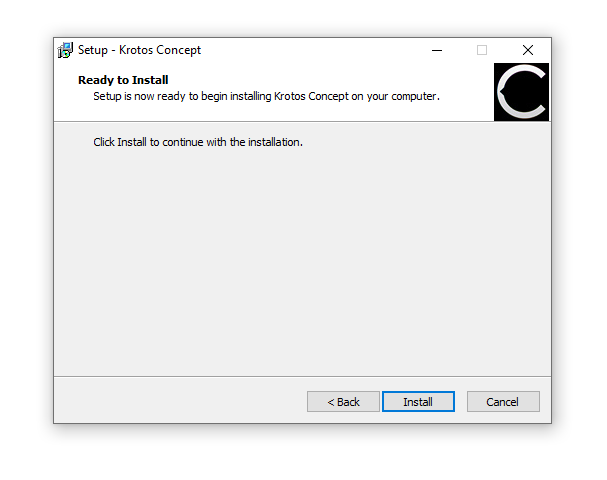
5. Click 'Install'.

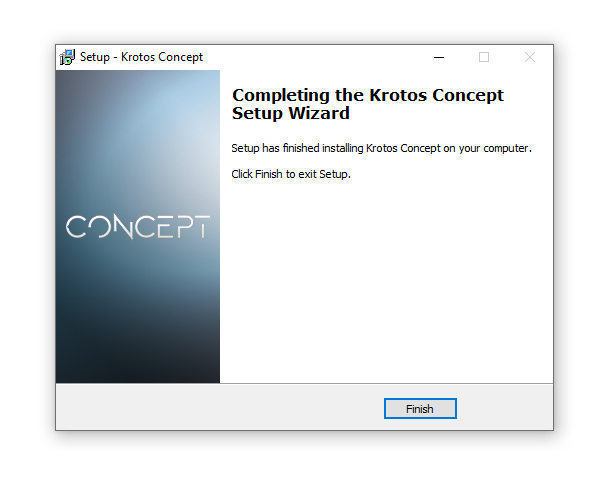
6. Click 'Finish'.

Activation
1. Open the newly installed software within your DAW > Copy and paste the License Key from step 1 of the installation process > Click 'Activate'.

Your software is now activated and ready to use within your DAW.