/ Vocal Processing / VoxDoubler
Sonnox

VoxDoubler

4.6 (1697 Reviews)
$89.00
Sonnox Vox Doubler
Sonnox Vox Doubler
VoxDoubler by Sonnox | Vocal Doubler VST Plugin Tutorial & Review of Main Features gallery thumbnail
Vox Doubler
Introducing the Toolbox VoxDoubler gallery thumbnail
Toolbox VoxDoubler part 1 - Widen on Lead Vocal gallery thumbnail
Toolbox VoxDoubler part 2 - Thicken on Backing Vocals gallery thumbnail
Toolbox VoxDoubler part 3 - Thicken on Rap gallery thumbnail
Toolbox VoxDoubler part 4 - Widen on Rap gallery thumbnail
Sonnox VoxDoubler Thicken and Widen. The Pro Tools PC gallery thumbnail
Thicken User Interface
Buy Now
Product information

VoxDoubler is presented as two separate Plug-Ins that focus on the two most common vocal doubling workflows.

Vocal performances lie at the very heart of a song. Doubling vocals is a really effective way of adding more contrast, drama and presence to the story of your song.

It’s therefore hard to imagine much of recorded popular music without the special quality that double-tracked vocals bring to a mix, either used over an entire track or just to help a chorus or key lyric connect with a listener.

Why VoxDoubler?

You want believable and natural sounding doubles but don’t have access to your vocalist, or the time required to:

  • Record extra takes in order to comp doubles
  • Transfer a lead take into an external editor, make copies of it and then manipulate the pitch and timing of them
  • Maybe you like the speed of using a classic stereo imager, chorus or harmonising effect, but aren’t so happy with the rather unnatural artefacts that can often occur?

Enter VoxDoubler. Bespoke designed to give you the best of these two approaches; ease of use, real-time processing and results that sound as lifelike as if the doubled parts were actually multi-tracked.

Saving you time, money and maintaining your creative flow.

Widen
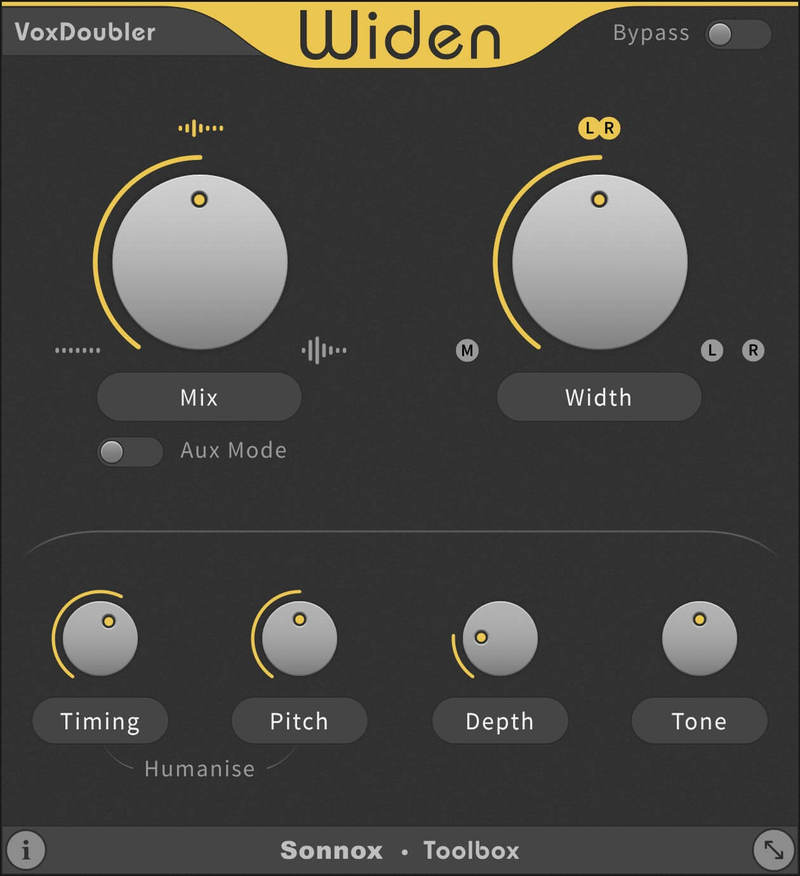
Generates two new mono voices and pans them to the left and right of the original vocal.

Great for:

Widening a mono performance, ranging from subtle enhancement to a stack of hard-panned voices

Or why not try:

Manually processing the new doubled voices separately, then mixing them back in parallel with the original

Thicken
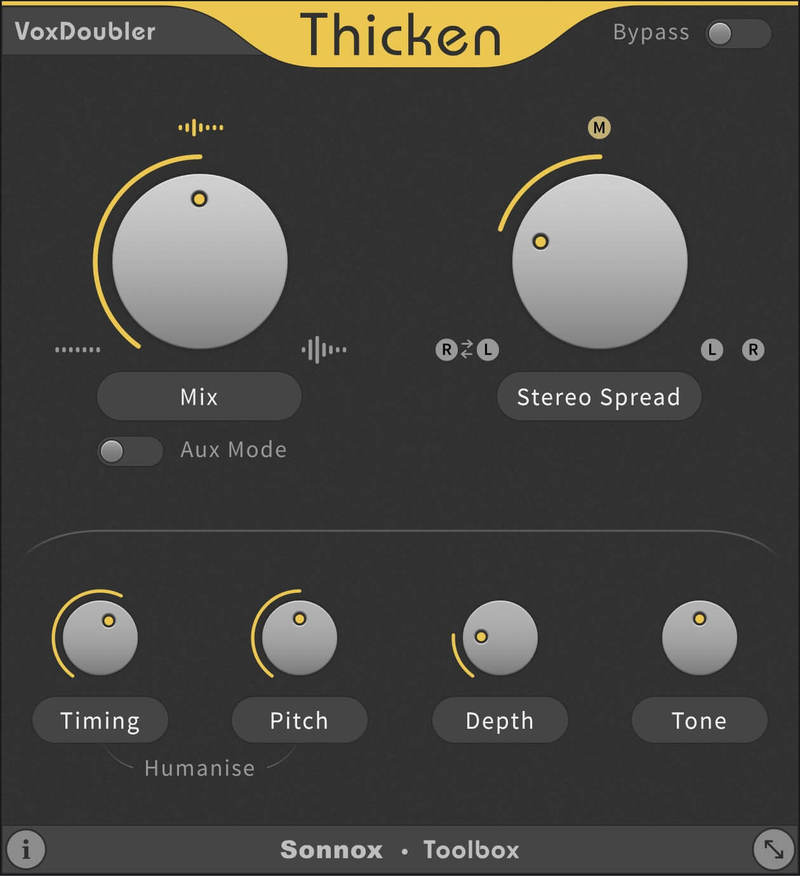
Generates a new stereo doubled voice and overlaps it with the original vocal.

Great for thickening a:

  • Mono performance, emulating the effect of singing the same part twice
  • Stereo group of voices by doubling each voice


Features

  • Generate believable double and triple vocal tracks to create width, depth or add thickness
  • Humanise section to adjust the Timing and Pitch of the doubles relative to the original vocal
  • Depth control to push the new doubled voices deeper into the mix
  • Tone control to prevent sibilant doubles from becoming distracting, or to brighten those that are too muddy
  • Track/Aux mode allows you to apply the effect in place or, for more advanced control, mix it in parallel on an aux return
  • A more cost-effective alternative, both in terms of initial outlay and speed of use, than more complex and manual processes
  • Engineered for vocals, but try it on instruments too!
  • Hallmark Sonnox audio precision, transparency and reliability

System Requirements

macOS

  • macOS 10.13 High Sierra or later (Intel / M1 Apple Silicon supported) (64-bit only)
  • Plugin Formats - AAX Native, AU, VST3
  • Supported Hosts - Pro Tools 11 or above or any desktop application that supports Audio Unit (AU) or VST3 plugins.

Windows

  • Windows 10 or later 
  • Plugin Formats - AAX Native, VST3
  • Supported Hosts - Pro Tools 11 or above or any desktop application that supports VST3 plugins.

Activation

The Toolbox range offers 2 activations for each product licence you buy.

Providing you have an iLok account, each activation will allow you to authorise your plugin on one of these devices:

  • Machine
  • iLok device, iLok2 / iLok3 required with latest drivers OR
  • iLok Cloud (Active internet connection required)
Testimonials

Produce Like A Pro

"If you’re looking for a utility stereo-izer effect to use for various elements in your mix, VoxD Widen works great as a send/return effect and it’s worth the money alone for that."

Sound On Sound

"VoxDoubler is one plugin that will see plenty of action in my studio."

Tape Op

"Sonnox scores again with simple tools that do a specific job really well – and it's affordable."

Installation Instructions

Mac

Note: Either an iLok USB Key and/or FREE soft iLok licence manager account (and application) are required to activate your Sonnox Software. If you do not have an iLok Key, you can purchase one from HERE and your FREE iLok account can be created HERE.

2. Visit Sonnox to register your product. 

3. Read the Sonnox Software Licence Agreement > Click 'I Agree' at the bottom of the page.

4. Copy and paste/manually type in the 14 character Activation Key (serial number) from your User Account, into the 'Activation Key' box and click 'Submit.'

5. Enter your personal details and complete the customer registration page and once inputted, click 'Submit.'

6. Your software product has now been successfully registered.

Please note: 

  • You will have been sent a confirmation email containing your product serial numbers, licence details and installer links to your registered Sonnox email address.
  • Please keep this email safe as you will need the serial numbers to access any future upgrades of the plug-ins or download your installers

7. Log into your email address inbox and click the 'Download' option.

NB: This email may be located in the spam/junk folder of your inbox.

8. Enter your iLok Account User ID and then click 'Verify.'

9. Check and verify your details by selecting 'Deposit.'

10. Launch your iLok licence manager application and log into your account > locate the Sonnox VoxDoubler product name and drag and drop this onto the computer/iLok USB location that you wish to activate the software to.

11. Select 'OK' to confirm the activation. 

12. The software is now successfully activated to your location of choice > you can now close the iLok licence manager application.

13. Click 'Mac Installers' to navigate to the product download section.

14. Select the 'Sonnox Toolbox VoxDoubler' link to initiate the downloading of the software.

15. Once the .pkg file has successfully downloaded, double-click it to begin the installation process > click 'Continue.'

16. Read through the Licence Agreement > click 'Continue' then 'Agree.' 

17. Select a computer destination in which to install the software to > click 'Continue.'

18. Select which software components you wish to install > click 'Continue.' 

19. Review the installation and click 'Install.'

20. The installation of the software has successfully completed > click 'Close.'

21. Restart/open your DAW, then locate and select Vox Doubler from your Audio FX drop-down selection.

Note: if the software fails to show, restart your DAW and/or rescan your plugin selection to refresh the installation.

The Software is now Ready for Use!

Windows 

Note: Either an iLok USB Key and/or FREE soft iLok licence manager account (and application) are required to activate your Sonnox Software. If you do not have an iLok Key, you can purchase one from HERE and your FREE iLok account can be created HERE.

2. Visit Sonnox to register your product. 

3. Read the Sonnox Software Licence Agreement > Click 'I Agree' at the bottom of the page.

4. Copy and paste/manually type in the 14 character Activation Key (serial number) from your User Account, into the 'Activation Key' box and click 'Submit.'

5. Enter your personal details and complete the customer registration page and once inputted, click 'Submit.'

6. Your software product has now been successfully registered.

Please note: 

  • You will have been sent a confirmation email containing your product serial numbers, licence details and installer links to your registered Sonnox email address.
  • Please keep this email safe as you will need the serial numbers to access any future upgrades of the plug-ins or download your installers

7. Log into your email address inbox and click the 'Download' option.

NB: This email may be located in the spam/junk folder of your inbox.

8. Enter your iLok Account User ID and then click 'Verify.'

9. Check and verify your details by selecting 'Deposit.'

10. Launch your iLok licence manager application and log into your account > locate the Sonnox VoxDoubler product name and drag and drop this onto the computer/iLok USB location that you wish to activate the software to.

11. Select 'OK' to confirm the activation. 

12. The software is now successfully activated to your location of choice > you can now close the iLok licence manager application.

13. Click 'Mac Installers' to navigate to the product download section.

14. Select the 'Sonnox Toolbox VoxDoubler' link to initiate the downloading of the software.

15. Once the .exe file has successfully downloaded, double-click it to begin the installation process > click 'Run.'

16. click 'Next.'

17. Read through the information and select the 'I accept the agreement' as well as 'I cannot sell/transfer my licence without prior permission from Sonivox' boxes > then click 'Next.'

18. Select which software components you wish to install > click 'Install.' 

19. The installation of the software has successfully completed > click 'Finish.'

20. Restart/open your DAW, then locate and select Vox Doubler from your Audio FX drop-down selection.

Note: if the software fails to show, restart your DAW and/or rescan your plugin selection to refresh the installation.

The Software is now Ready for Use!

Plugin Boutique Rewards

Discover the most rewarding loyalty programme among all plugin retailers.

  • Free Loopmasters Samplepacks
  • Discounts on products and courses
  • Extra Virtual Cash claimed immediately at checkout
Find out more

Follow us:

X (Twitter) Facebook YouTube Instagram
Logo Logo

Plugin Boutique Limited, Part of the Beatport Group LLC.

Copyright © 2011-2025 Plugin Boutique. All rights reserved