Log In

Free gifts available with your purchase
The Human Voice. Synthesized
Immediately recognizable, always unforgettable. Produce the unmistakable effect made famous on dancefloor bangers by Daft Punk, electro-pioneers Kraftwerk, 70's rock classics by ELO, and many more.
Introducing Auto-Tune Vocodist
AutoTune Vocodist delivers the legendary sound of vintage vocoders with the full force and flexibility of Auto-Tune built in.
Create Like the Legends
This advanced vocoder plug-in includes models of all the classic vocoders you know and love. Plus, Antares built an extensive collection of artist presets featuring P-Thugg (Chromeo), producer Buddy Ross (Frank Ocean), electronic artist Rachel K. Collier, and more to jump-start your creativity.
Easy to Use and Built for Speed
AutoTune Vocodist lets you control the pitch of your vocoded sound with your voice or your favorite MIDI keyboard. Designed for ease-of-use, a built-in 8-voice, dual oscillator synthesizer helps you start vocoding quickly and easily. Or use any external audio source via sidechain input and explore!
Push it to the Limit
Customize the classic vocoder sound even further with built-in vocal effects. For extreme vocal mutations, explore otherworldly enhancements with analog tube saturation, lush choruses, and ring modulation.
Auto-Tune Under the Hood
As the world’s only vocoder plug-in with AutoTune built-in, you can tune your vocals without ever leaving Vocodist. Dial it in for subtle results, or crank it up to combine the iconic AutoTune Effect with vocoder vibes to create your unique sound.
Features
- The legendary sounds of classic vocoders
- Extensive collection of artists presets
- Built-in 8-voice dual-oscillator synthesizer
- Control vocoded sounds with MIDI keyboard
- Customize with built-in vocal effects
- Compatible with Auto-Key and Auto-Key Mobile
System Requirements
macOS
AAX Native
- Pro Tools 2018.1 or later
- macOS 11 to 12.x as required by your version of Pro Tools
VST3
- A compatible VST host program that supports VST3 format
- macOS 11 to 12.x as required by your host
Audio Units
- A compatible host program that supports the AU format
- macOS 11 to 12.x as required by your host
Windows
AAX Native
- Pro Tools 2018.1 or later
- Windows 10
VST3
- A compatible host program that supports the VST3 format
- Windows 10
Important Note
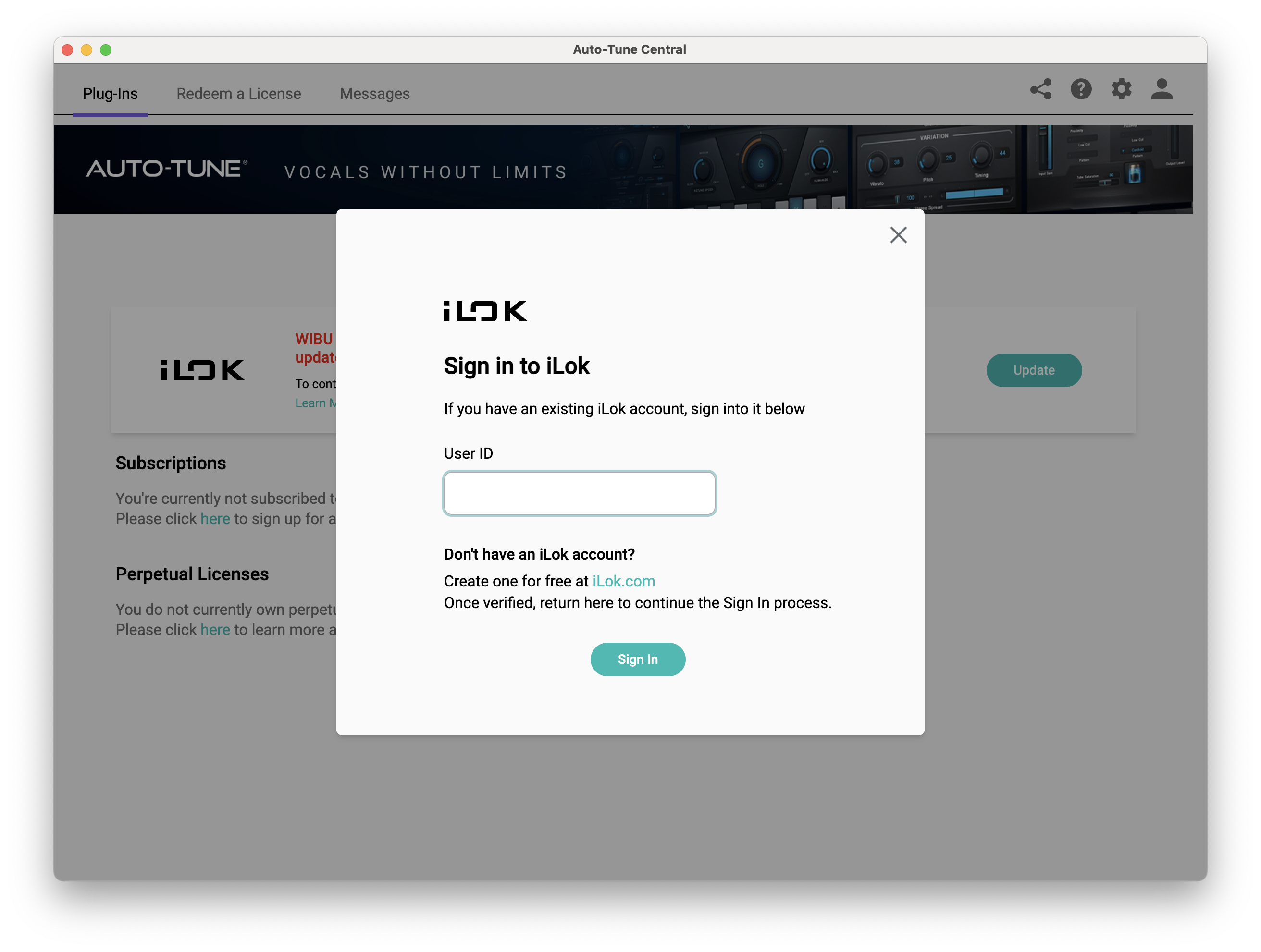
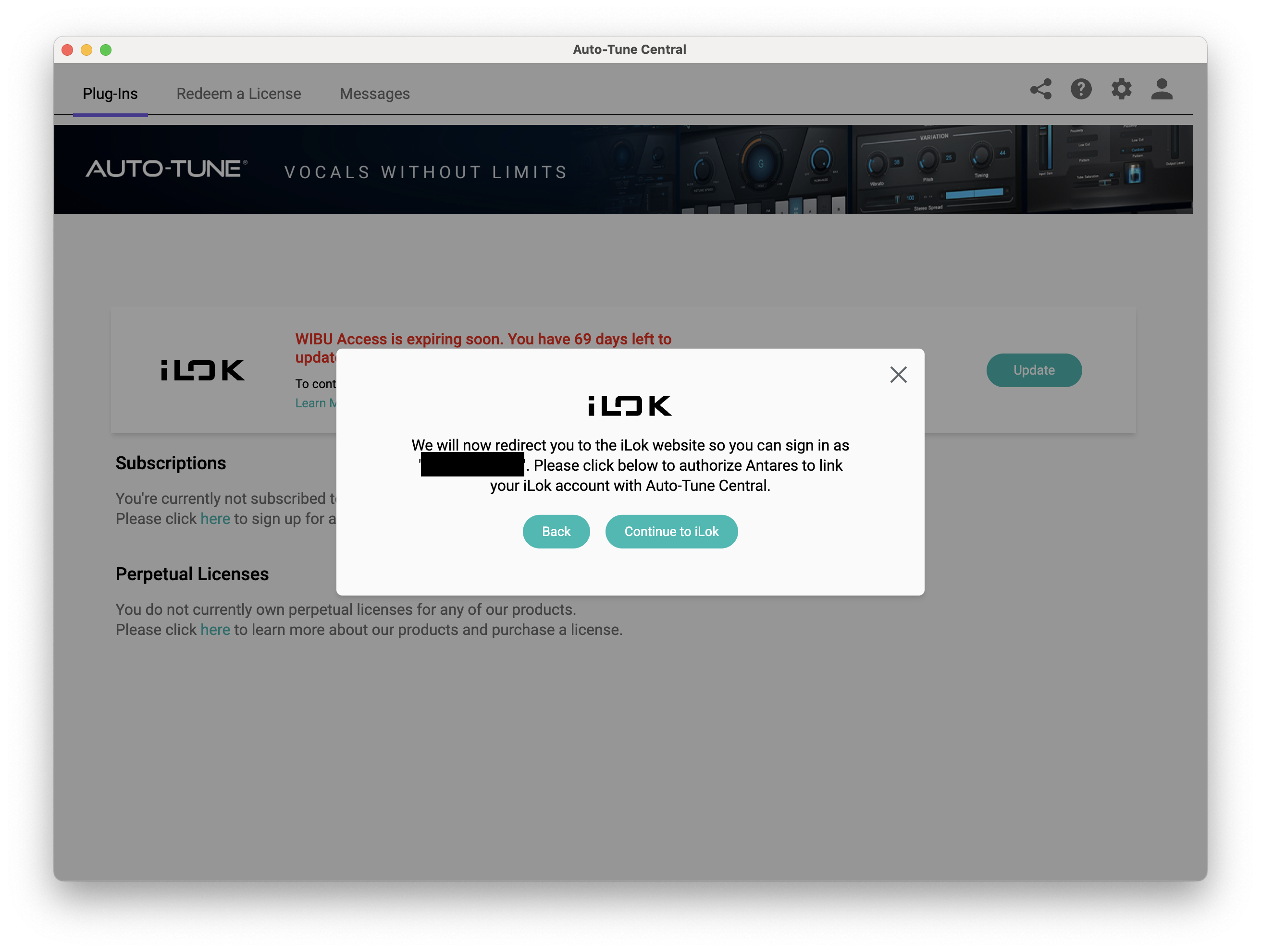
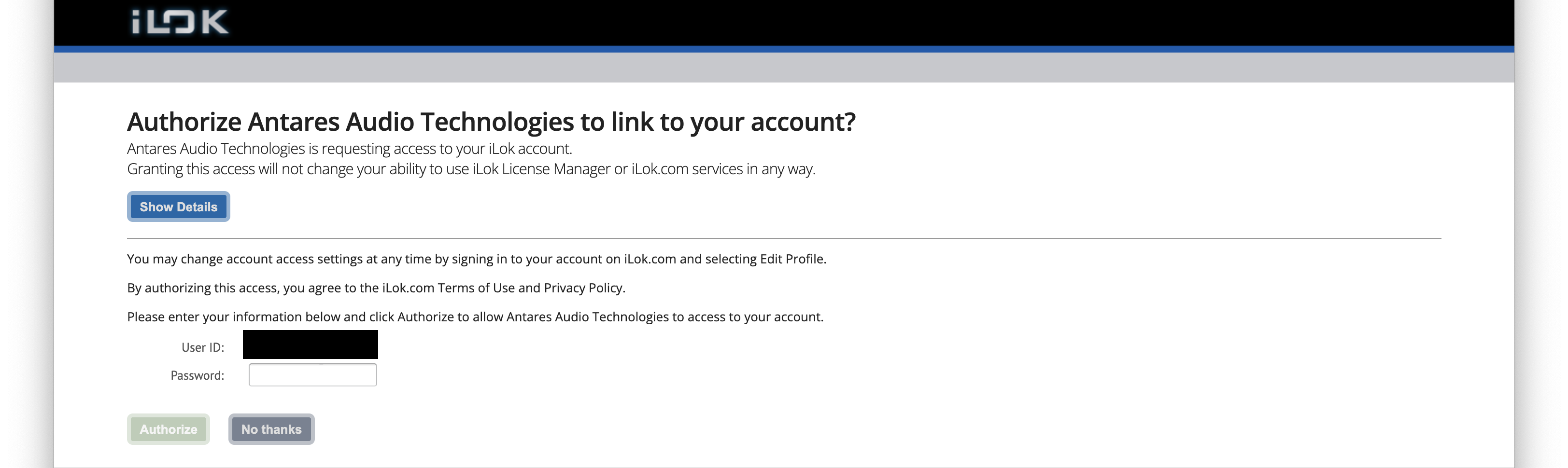
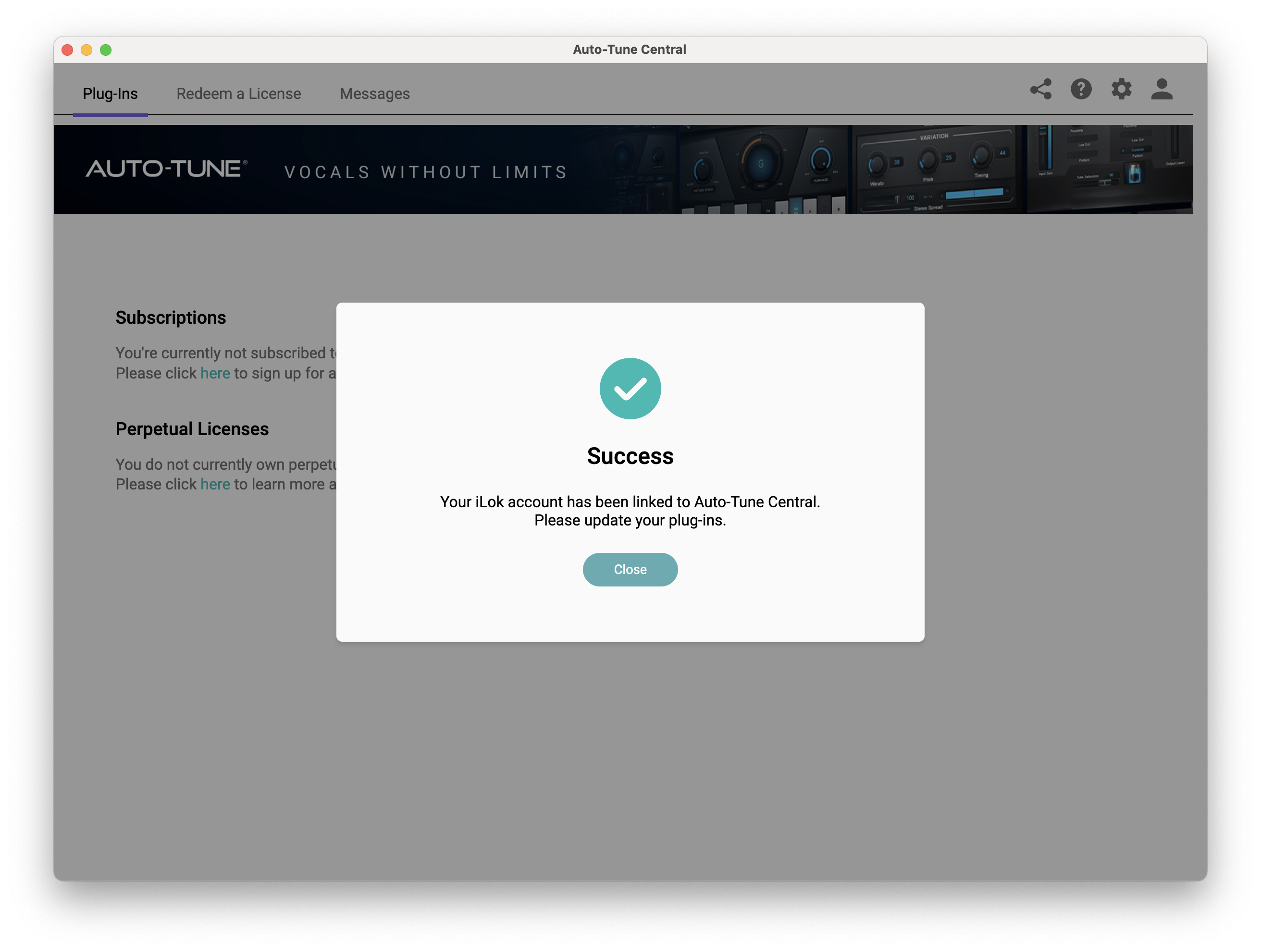
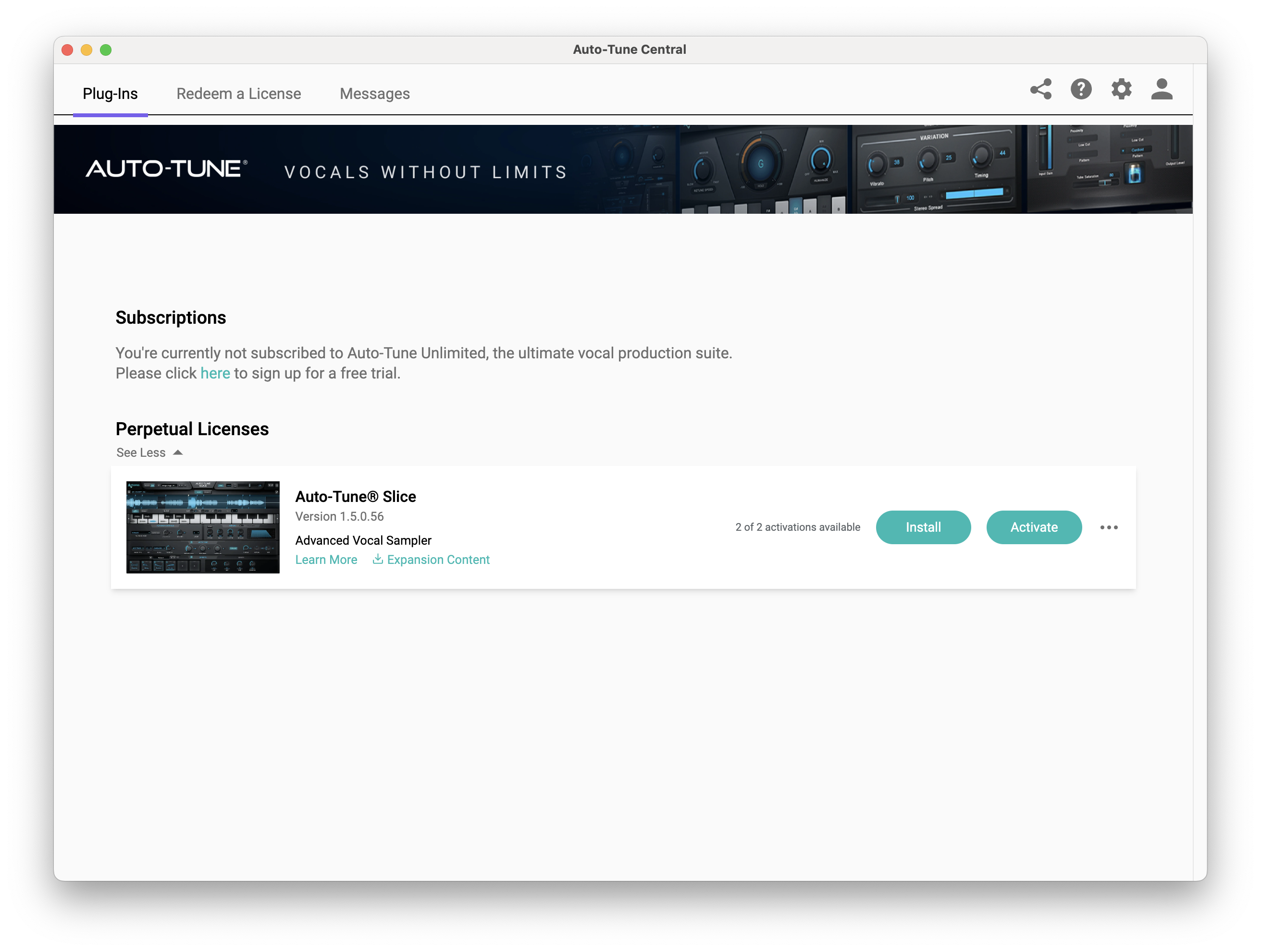
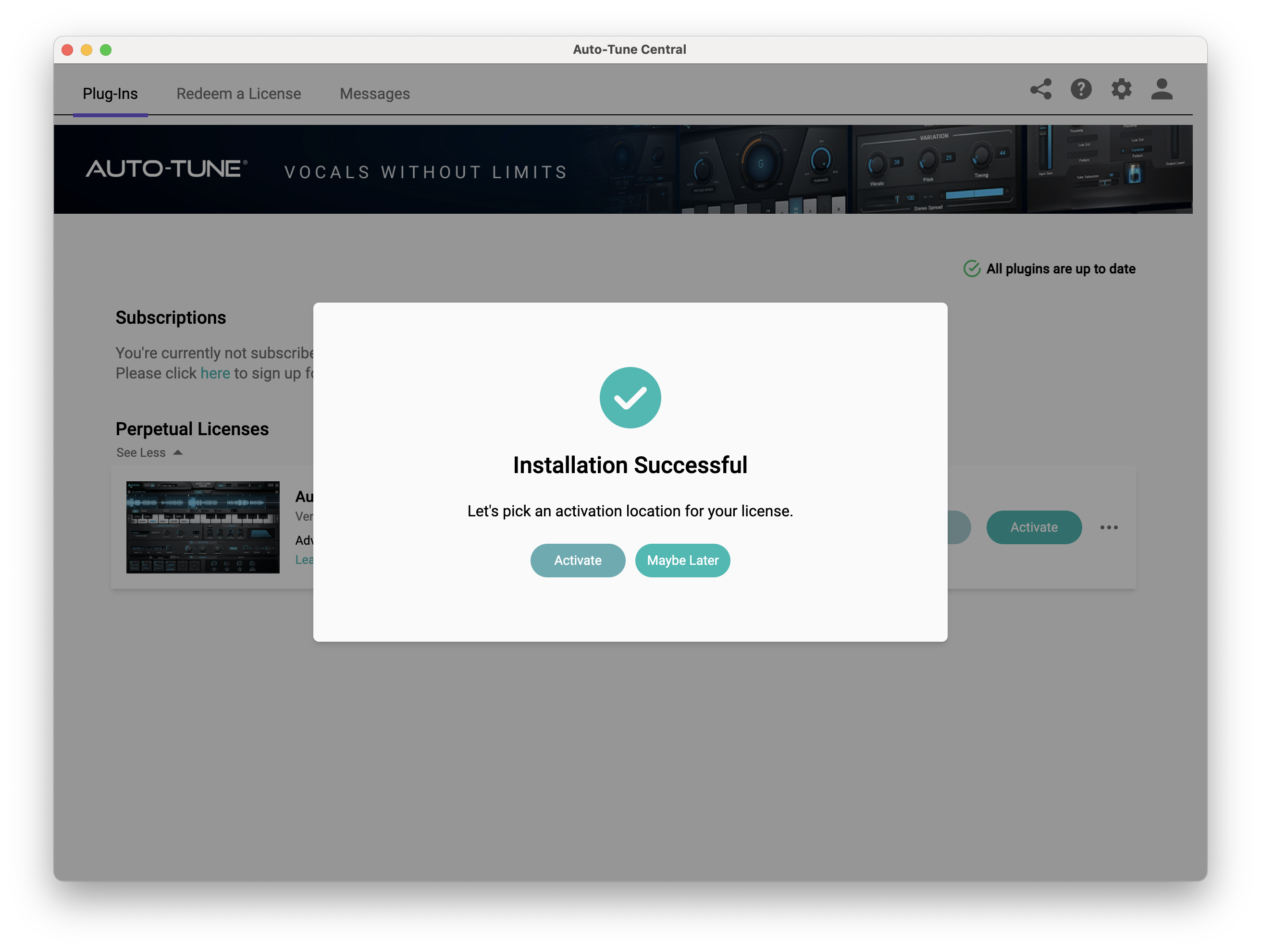
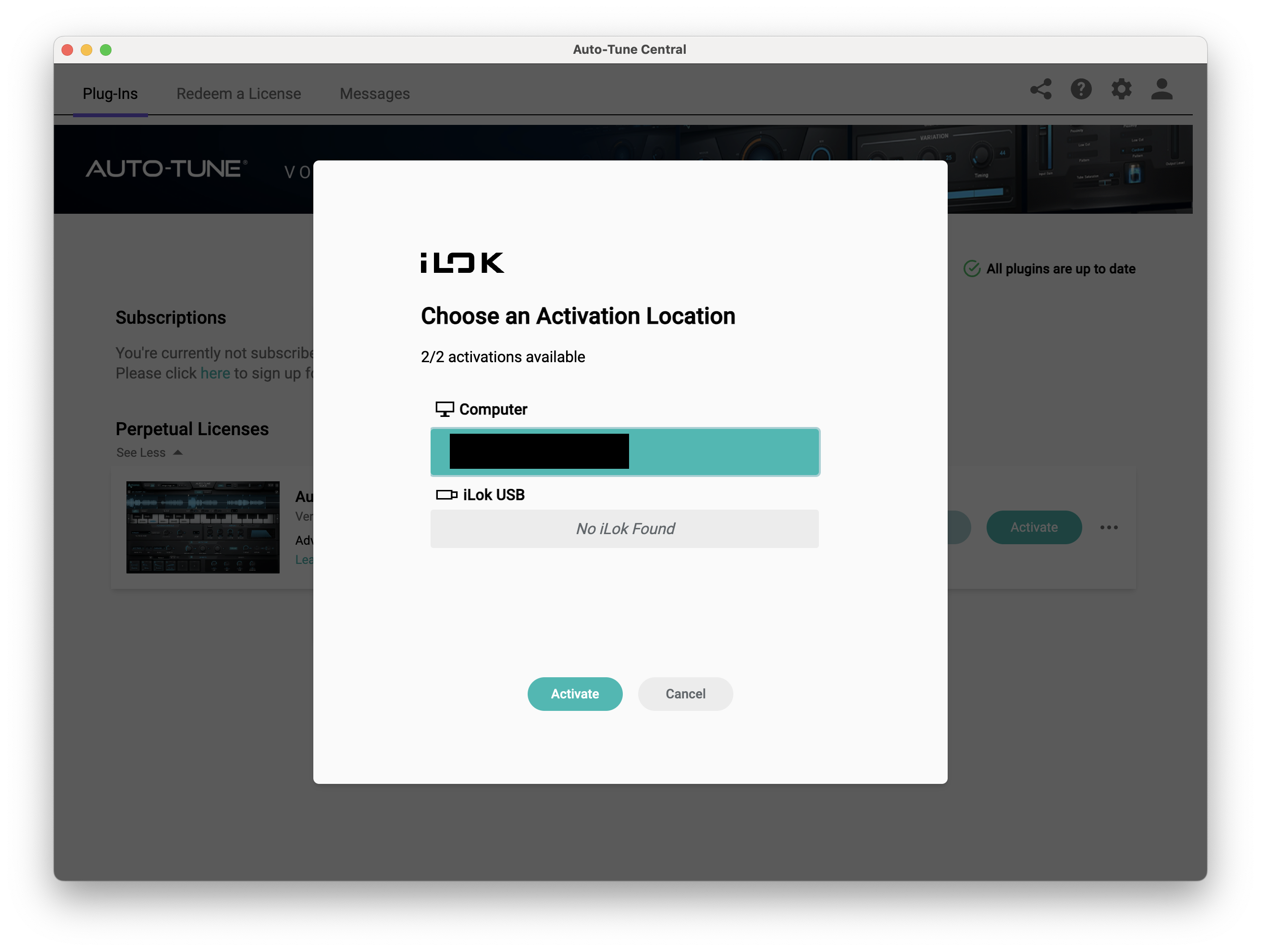
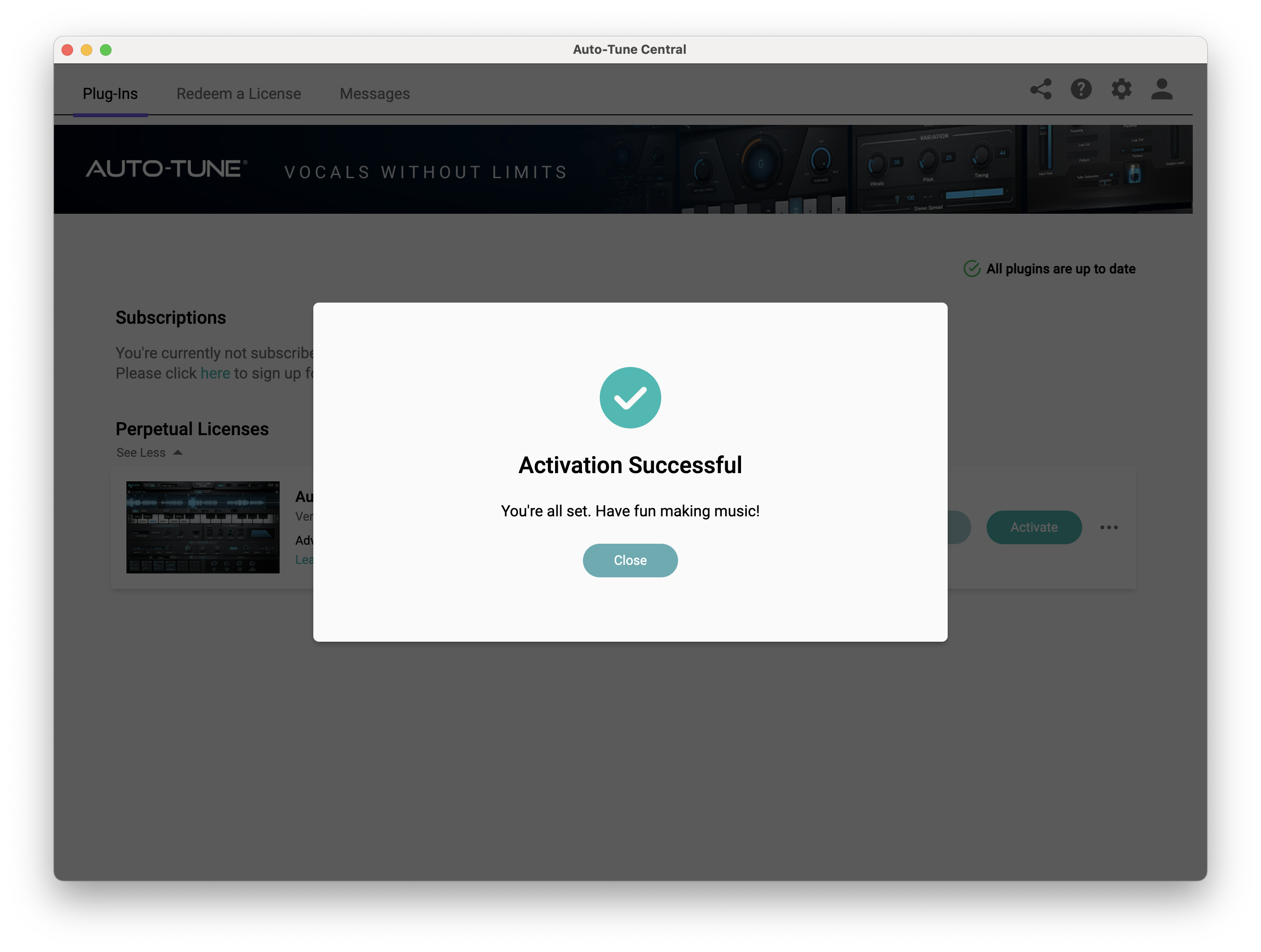
- No iLok dongle is required to run this software - only a FREE iLok account/Manager is required for authorisation.