Buy Vocal De-Esser, get a free gift with purchase:
Antares Vocal De-Esser

Vocal De-Esser is an innovation in low-latency vocal processing, incorporating artificial intelligence and a custom-trained model that uses machine learning to detect and control sibilance in the human voice. This specialized training allows it to remove undesirable “Ess” sounds in real-time without compromising the vocal characteristics or tone, resulting in a smoother and more pleasant listening experience.
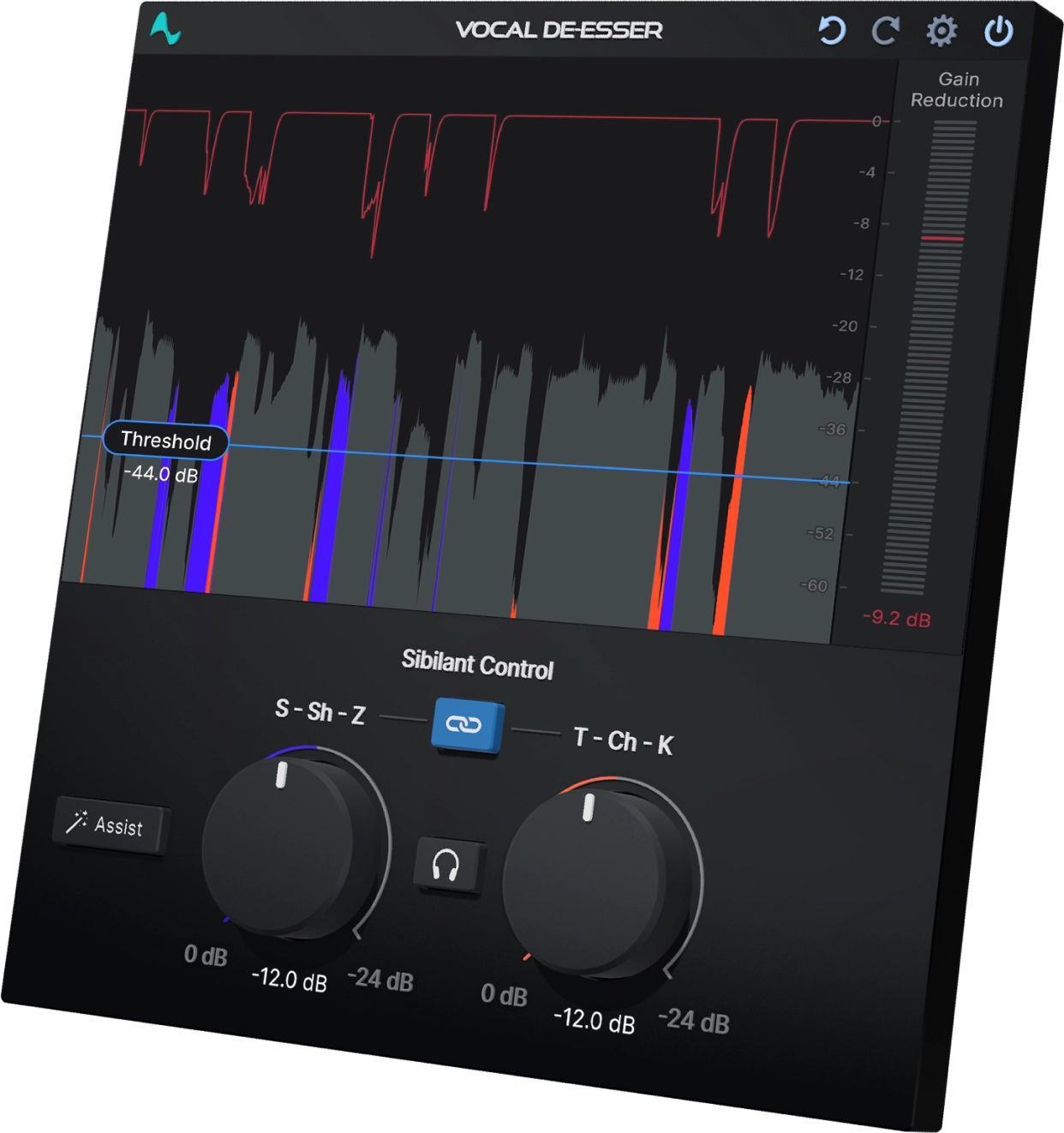
The Vocal De-Esser features a straightforward and user-friendly interface that allows for quick and easy operation. It includes two specific Sibilant Controls for managing (S, Sh, Z) and (T, Ch, K) vocal sounds, a Solo button for monitoring sibilance alone, a Link button for connecting the two sibilant controls, and an Assist button for activating the AI function.
Tame Sibilants in Your Vocals
Hissing 'S' and tiring 'T' sounds, known as sibilants, can ruin an otherwise perfect vocal recording. Vocal De-Esser quickly removes these harsh vocal sounds with the push of a single button. The result is more time to focus on your mix.
Artificial Intelligence, Genuine Confidence
Antares worked with professional vocalists to ensure the AI powering Vocal De-Esser truly understands the nuances of the human singing voice. The result is a powerful yet simple-to-use plug-in that delivers real-time sibilance control you can trust.
SSSave Your Mix
Target excessive vocal sibilance where it matters most. Vocal De-Esser features separate controls to tame soft (S, Sh, Z) and hard (T, Ch, K) sibilants, each one uniquely tuned for ultimate effectiveness in reducing these harsh vocal sounds.
Speak Easy
Not just for singing. Use Vocal De-Esser to clean up spoken dialog for film, podcasts, interviews and more. Since the AI-Powered detection operates in real-time, you can even apply it in a live setting.
Features
- Real-time AI Vocal De-Essing
- Custom AI model trained on the human voice
- Extremely simple and easy to use GUI
- Specific controls for taming soft (S, Sh, Z) and hard (T, Ch, K) sibilant vocal sounds
- Low Latency Processing
System Requirements
Mac
- macOS 11+
- AAX (Pro Tools 2018.1 or later), VST3, AU
PC
- Windows 10+
- AAX (Pro Tools 2018.1 or later), VST3
Important Note
- No iLok dongle is required to run this software - only a FREE iLok account/Manager is required for authorisation.
Note: Before starting the installation, you are required to create a FREE iLok user ID and install the iLok License Manager.
Please take a look at this Help Centre Guide for more information.
Note: Auto-Tune Slice is used as an example.
Mac
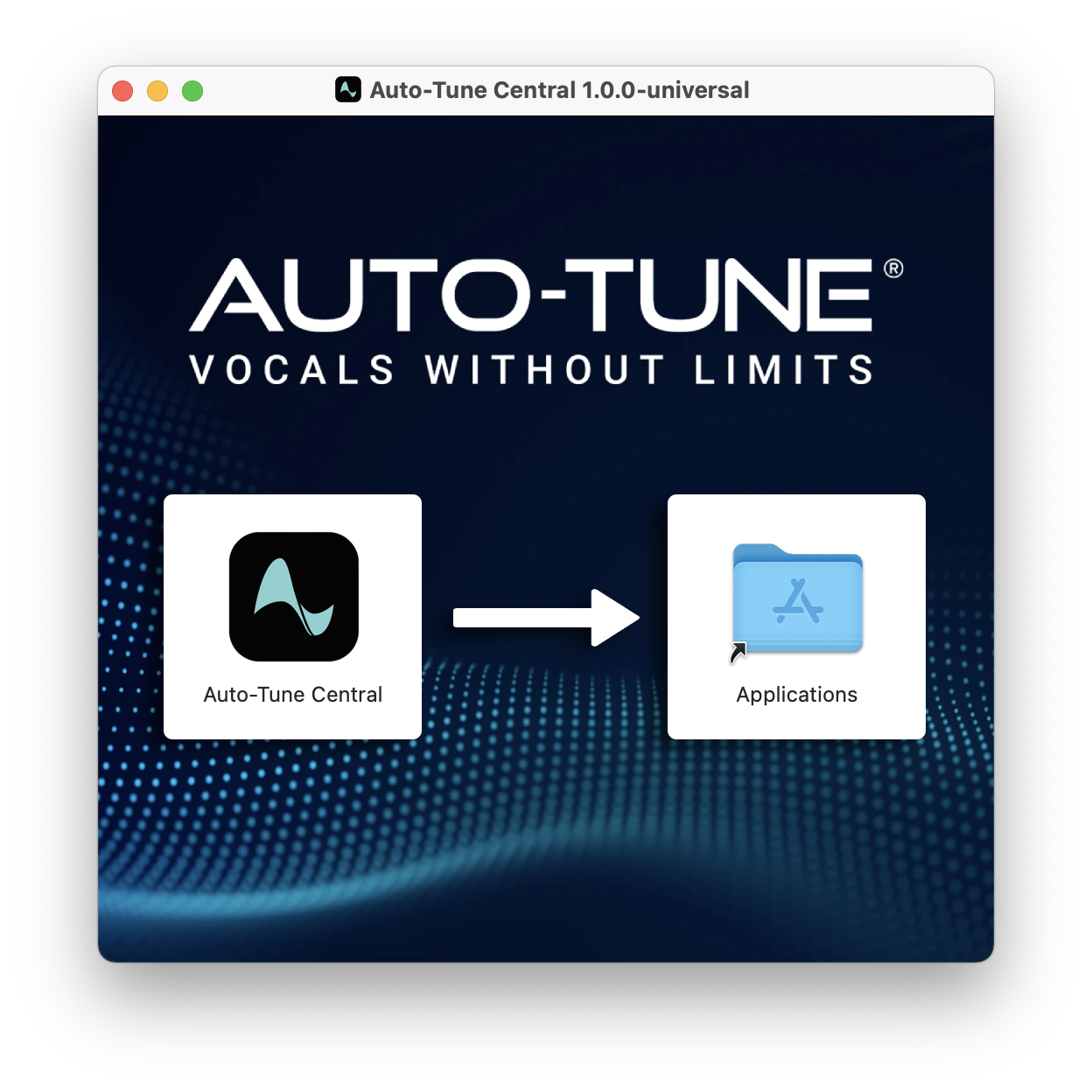
1. Download the .zip file from within your Plugin Boutique account and double-click it to extract the contents > Double-click the .dmg file to launch the installer > Drag Auto-Tune Central into your Applications folder > Auto-Tune Central will now automatically install.

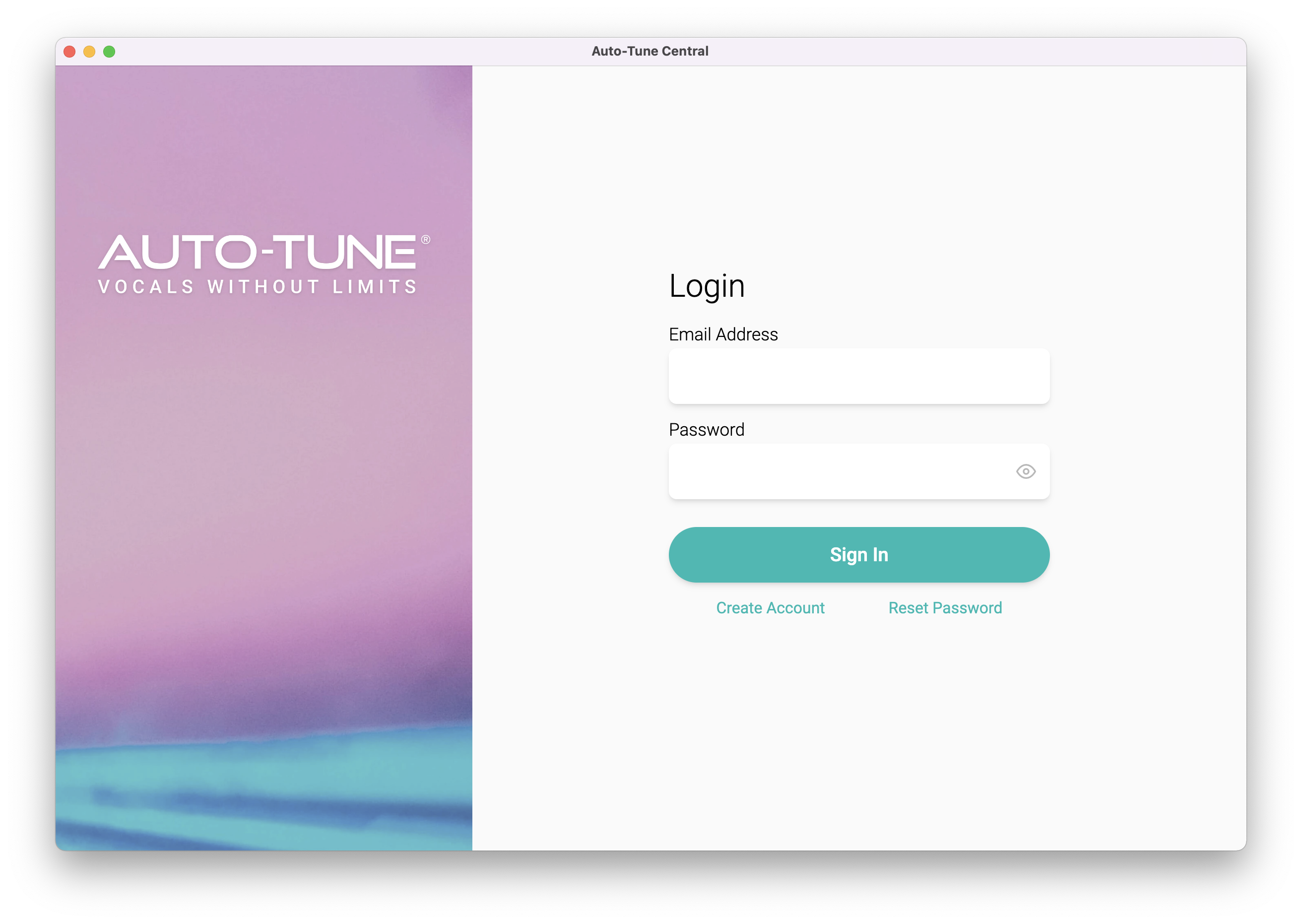
2. Launch Auto-Tune Central > Either create a new account by clicking 'Create Account' or if you already have an account, enter your Antares registered Email Address and Password > Click 'Sign In'.

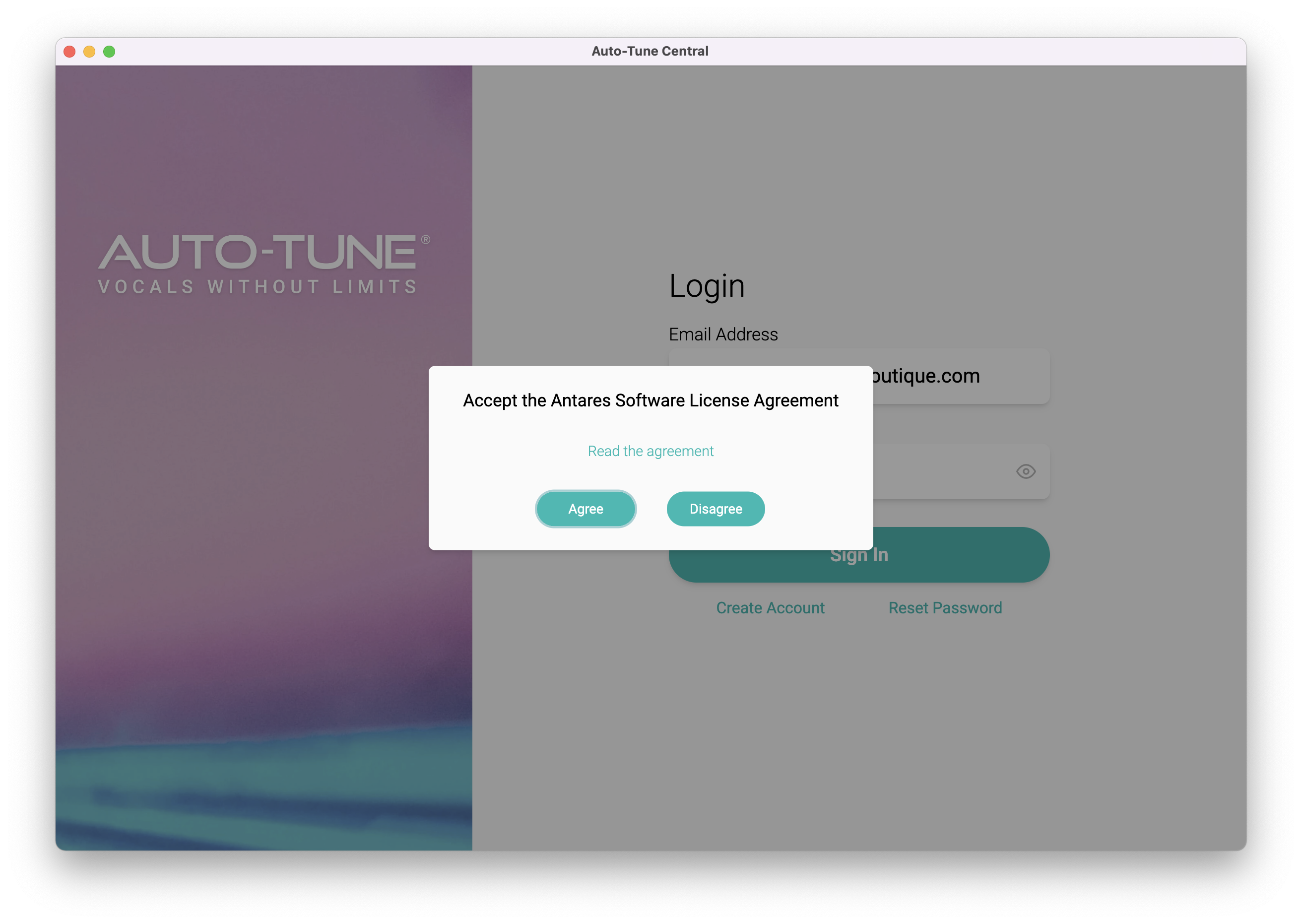
3. Click 'Agree'.

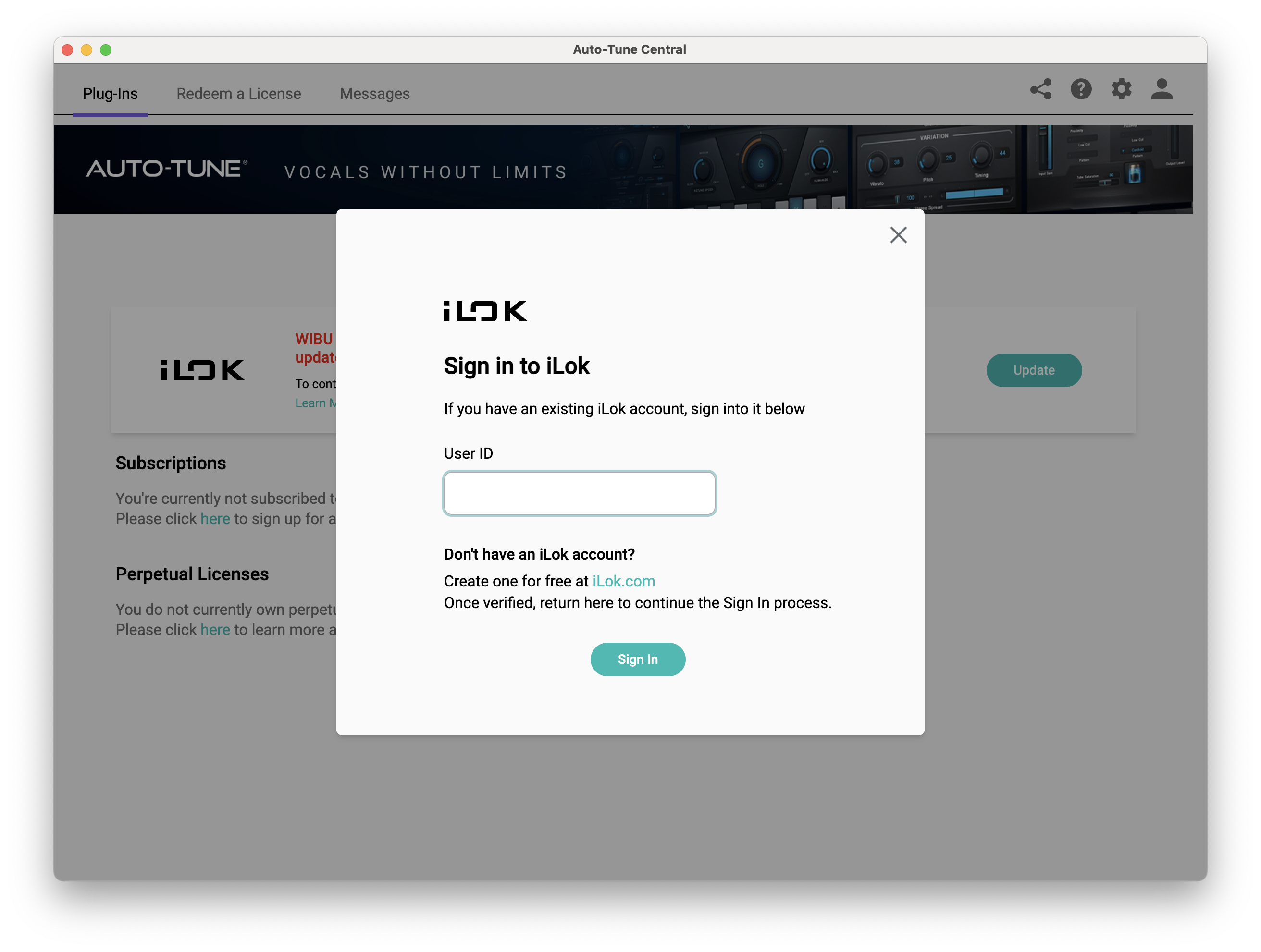
4. Enter your iLok User ID and click 'Sign In'.

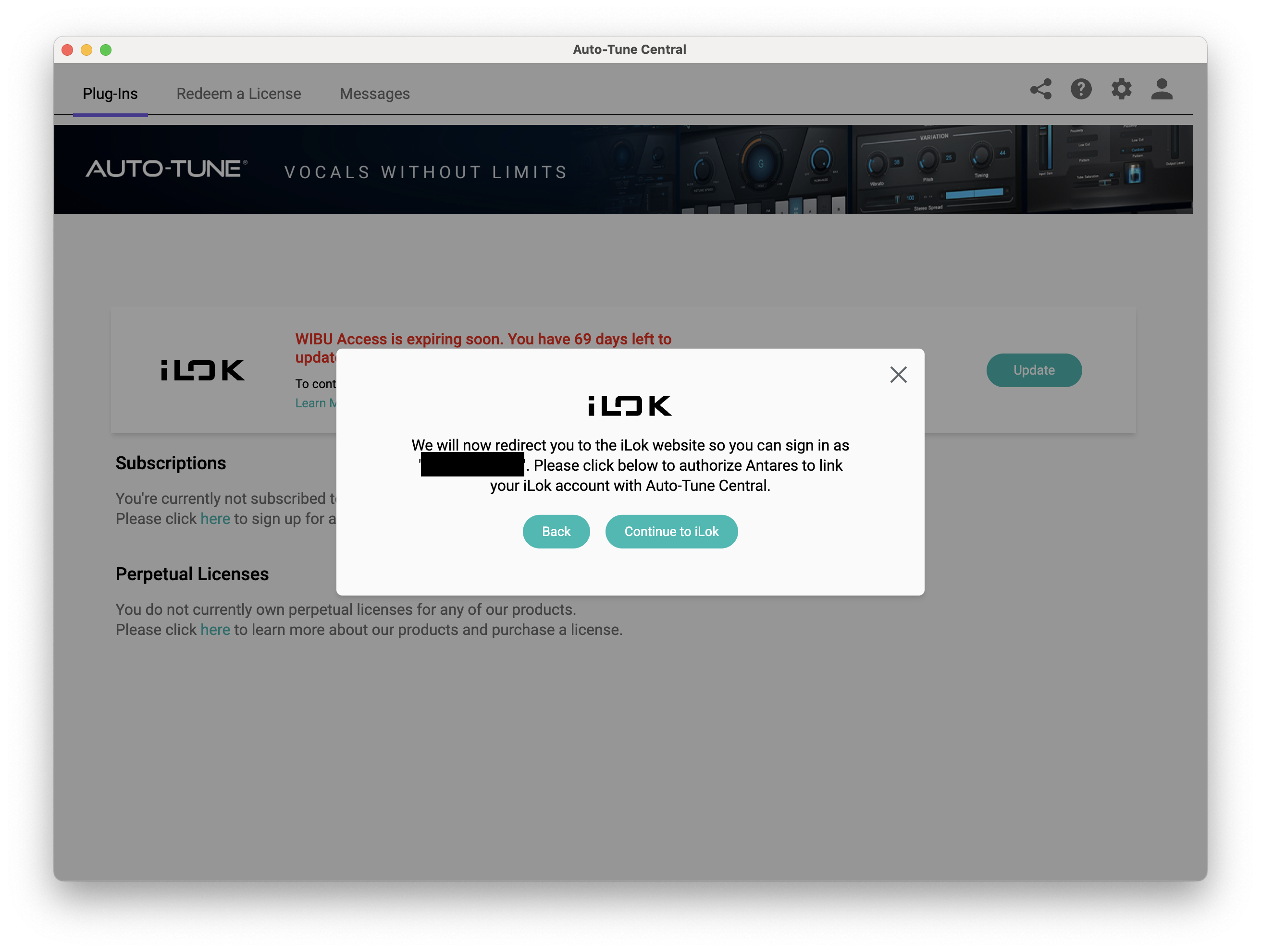
5. Click 'Continue to iLok'.

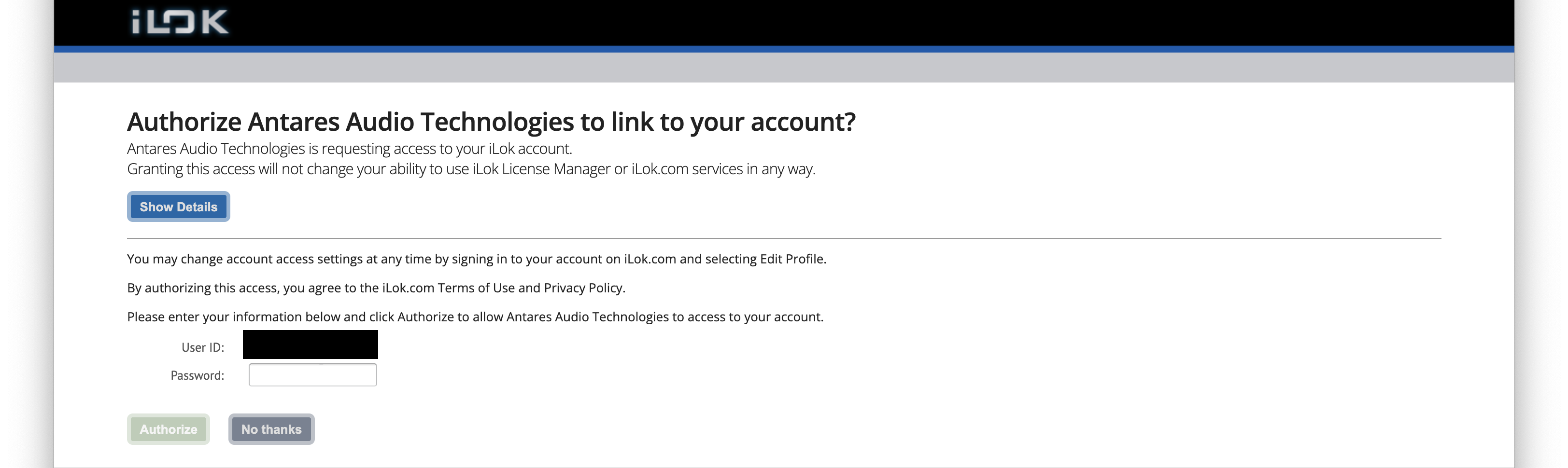
6. Enter your iLok User ID and Password then click 'Authorize'.

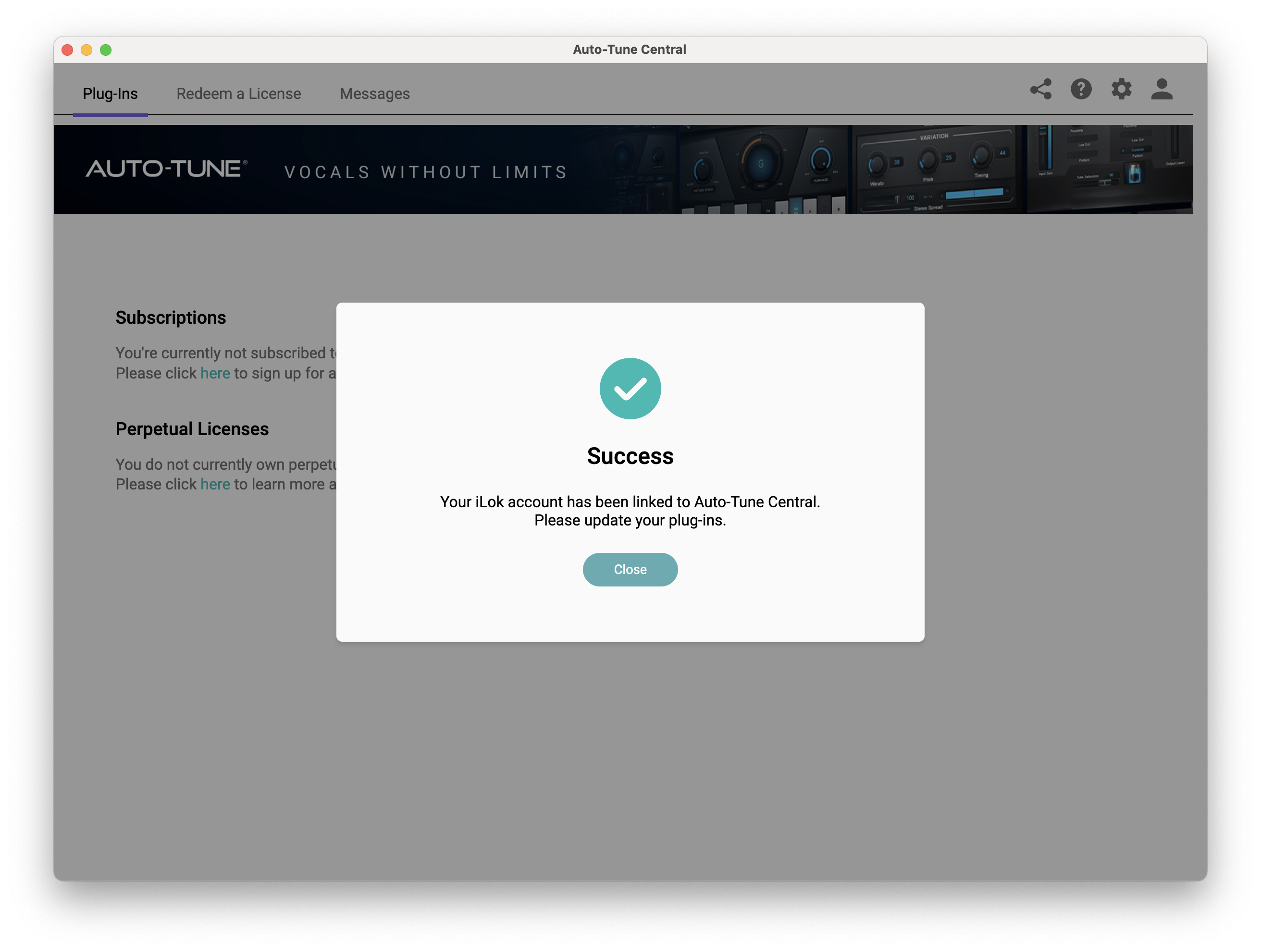
7. Your iLok account is now linked > Click 'Close'.

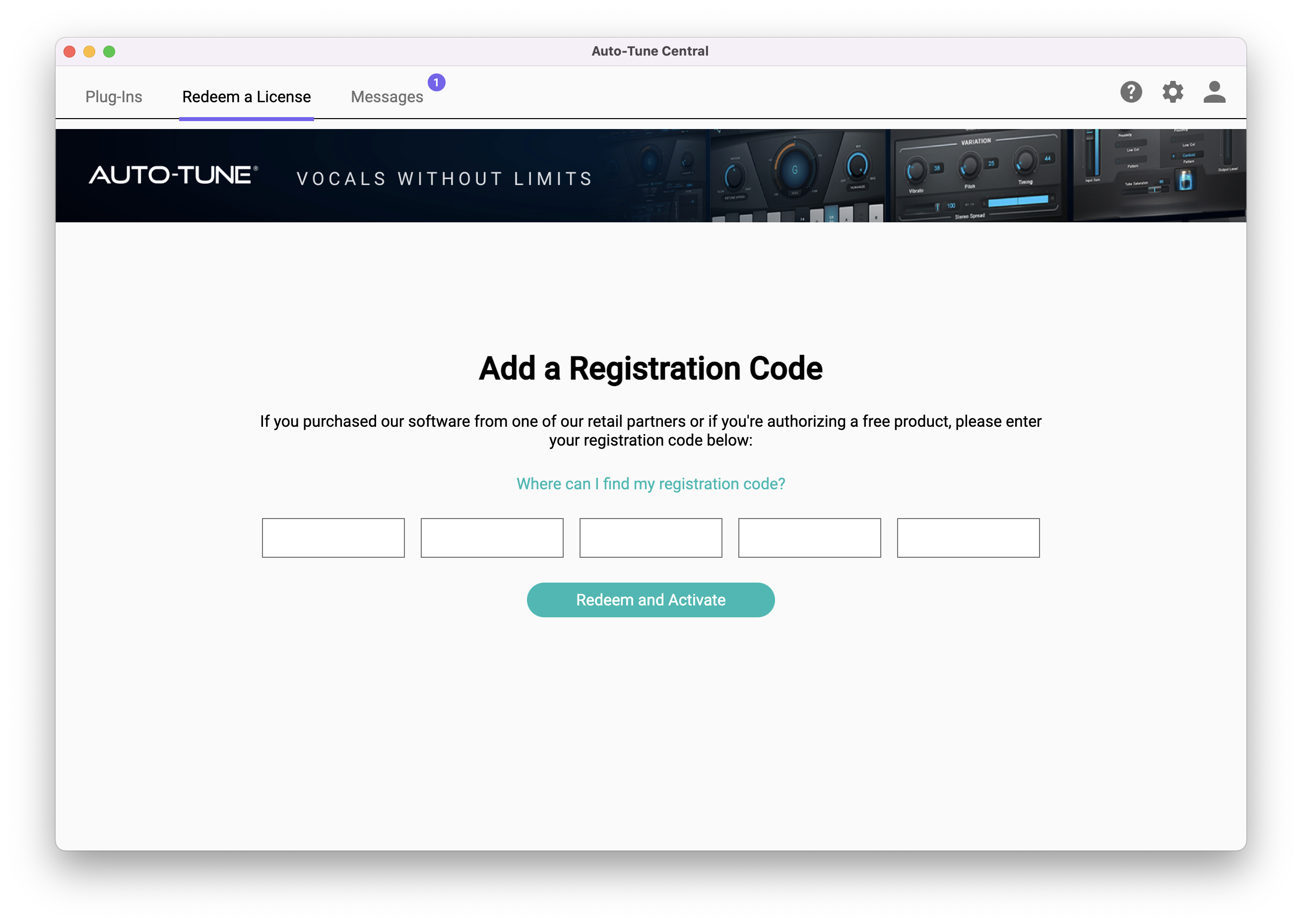
8. Click on the 'Redeem a License' tab > Enter the 25-digit Registration Code, found in the serial number section of your Plugin Boutique account > Click 'Redeem and Activate'.

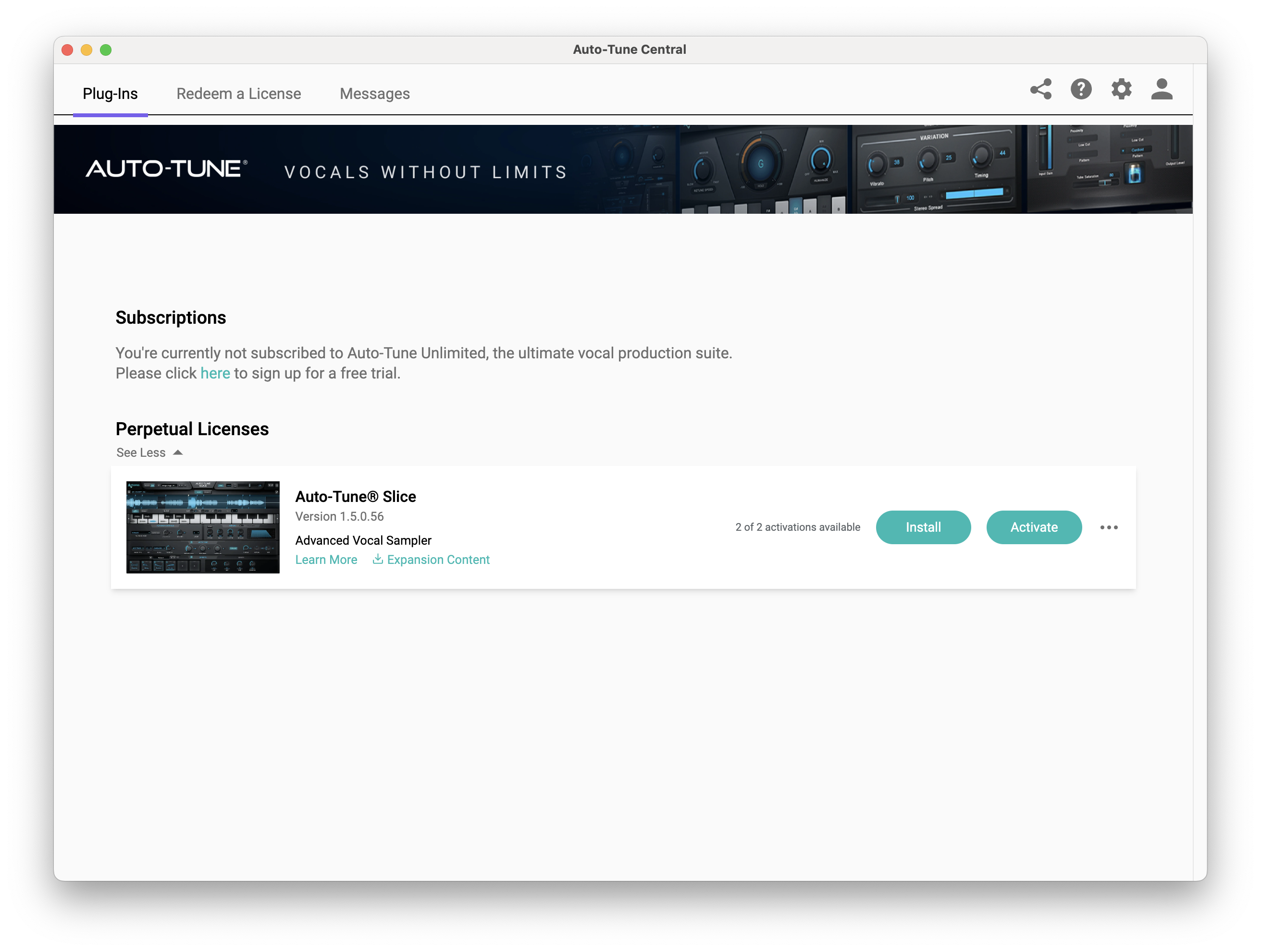
9. Navigate back to the 'Plug-Ins' tab > Click 'Install' to install your plugin.

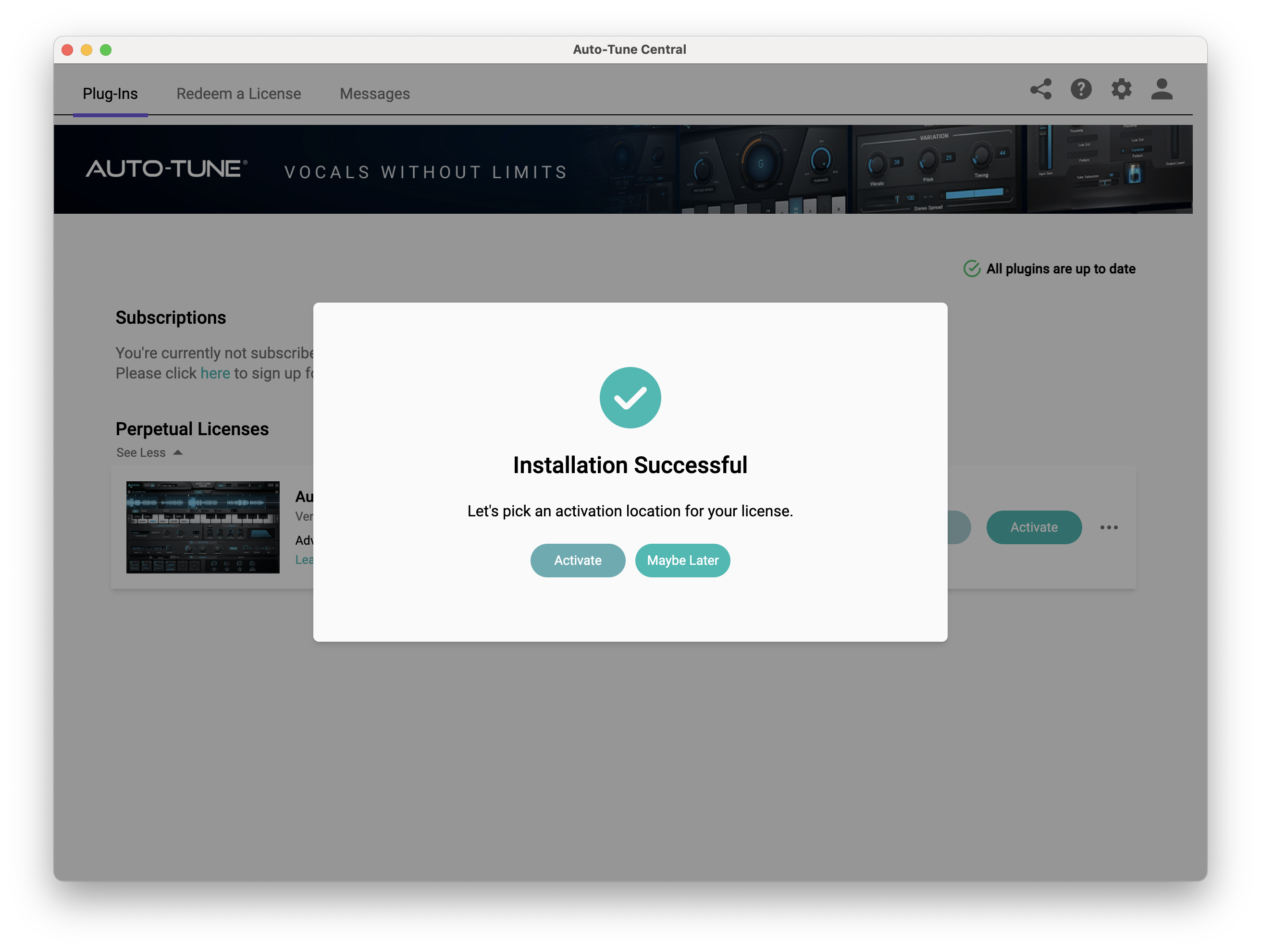
10. Click 'Activate'.

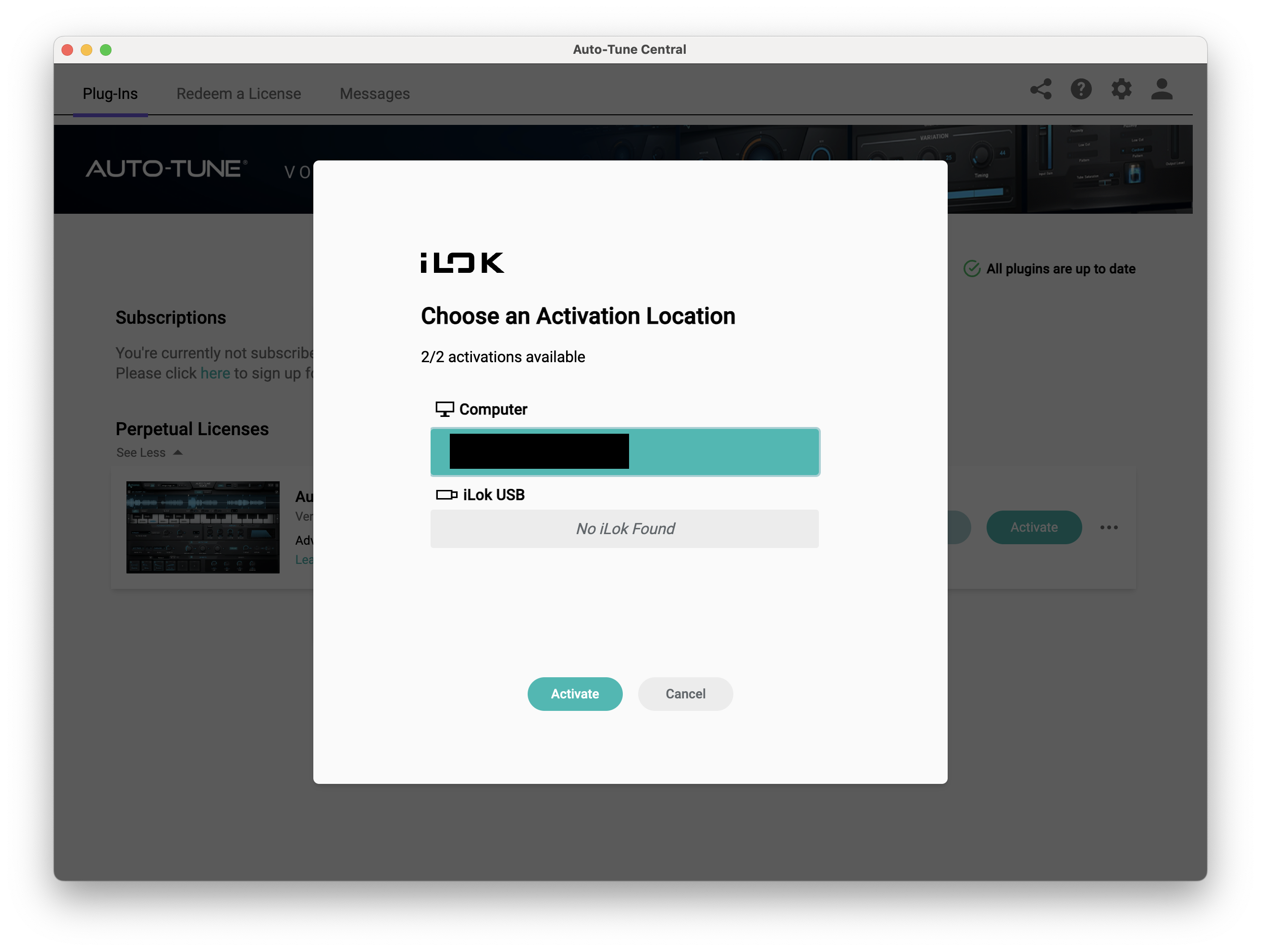
11. Select whether you want to activate the license to your Computer or iLok USB > Click 'Activate'.

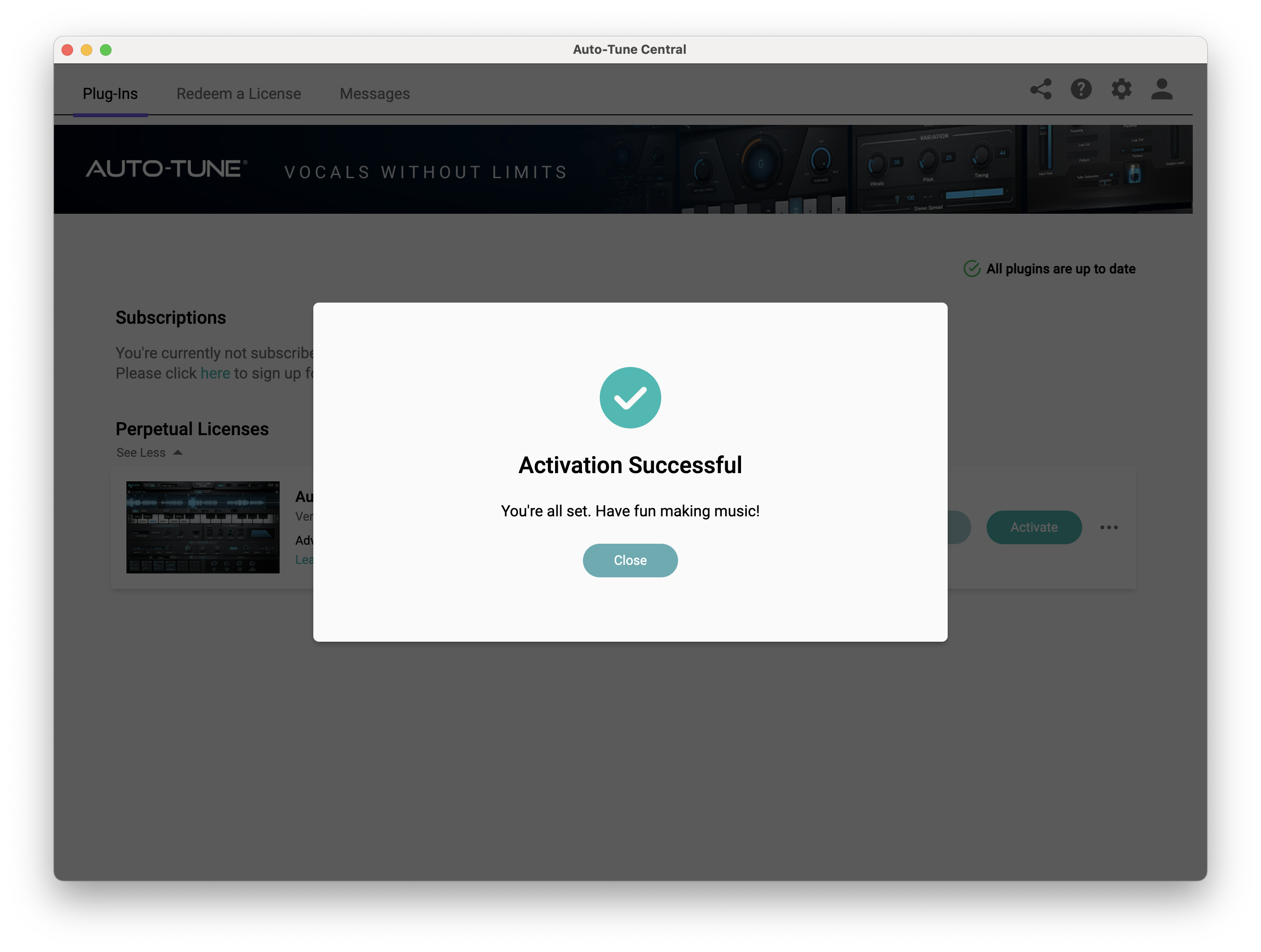
12. Click 'Close'.

Your software is now activated and ready to use within your DAW.

PC
Windows
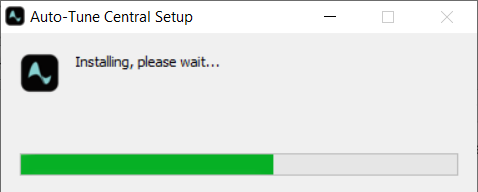
1. Download the .zip file from within your Plugin Boutique account and double-click it to extract the contents > Open the .exe file > Auto-Tune Central will now automatically install.

2. Launch Auto-Tune Central > Either create a new account by clicking 'Create Account' or if you already have an account, enter your Antares registered Email Address and Password > Click 'Sign In'.

3. Click 'Agree'.

4. Enter your iLok User ID and click 'Sign In'.

5. Click 'Continue to iLok'.

6. Enter your iLok User ID and Password then click 'Authorize'.

7. Your iLok account is now linked > Click 'Close'.

8. Click on the 'Redeem a License' tab > Enter the 25-digit Registration Code, found in the serial number section of your Plugin Boutique account > Click 'Redeem and Activate'.

9. Navigate back to the 'Plug-Ins' tab > Click 'Install' to install your plugin.

10. Click 'Activate'.

11. Select whether you want to activate the license to your Computer or iLok USB > Click 'Activate'.

12. Click 'Close'.

Your software is now activated and ready to use within your DAW.