Free gifts available with your purchase
Little Analog Beauty. When Moog Music roared back to life in 2002 with the legendary Voyager, a new chapter in synth history began. By 2007, the spotlight had shifted to the Little Phatty — a bold, all‑analog instrument wrapped in a sleek, minimalist design. With its dual oscillators and unmistakable 24 dB Ladder filter, it distilled pure Moog magic into a compact, performance‑ready frame. Lil' Chubby is Tracktion's tribute to this small‑but‑mighty icon — overlooked by some, but never outplayed. Doubt it's a "real" Moog? Just listen. For anyone chasing that unmistakable Moog warmth, Lil' Chubby is ready to play its way into your hands.
Features
- 100 presets
- 14,000 samples
- Compatible with Attracktive.
Compatible with Attracktive.
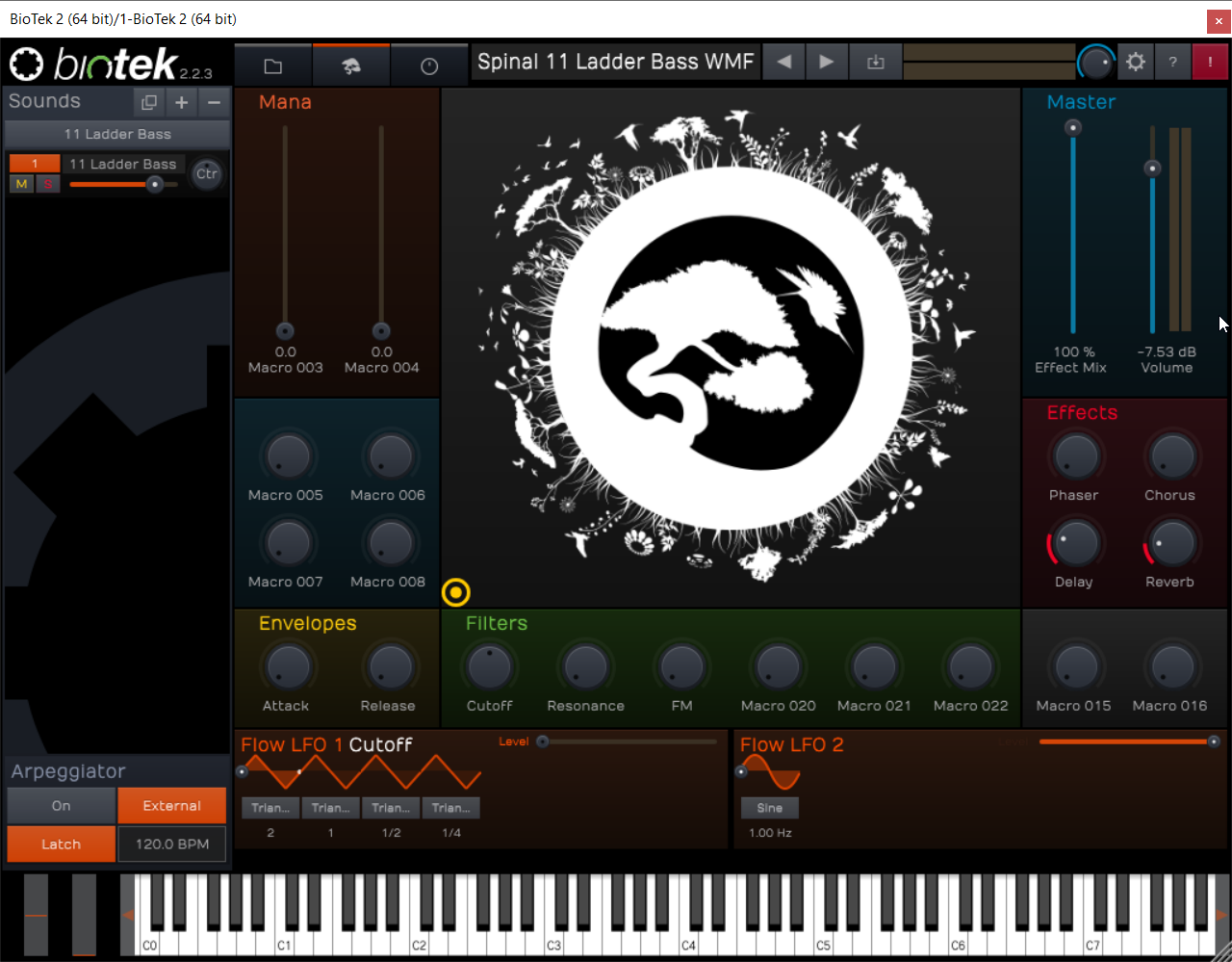
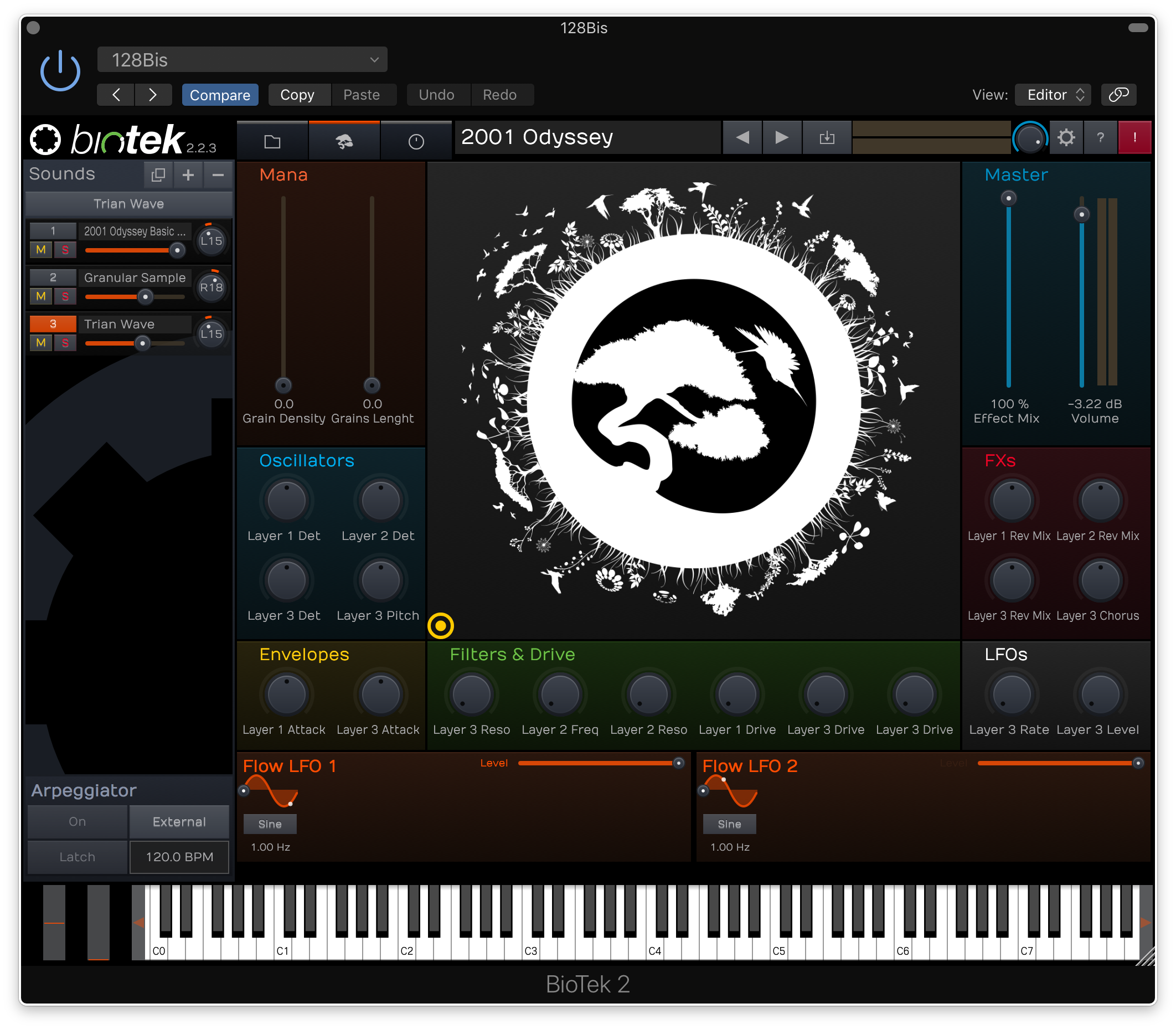
Note: BioTek2 is used as an example.
Windows
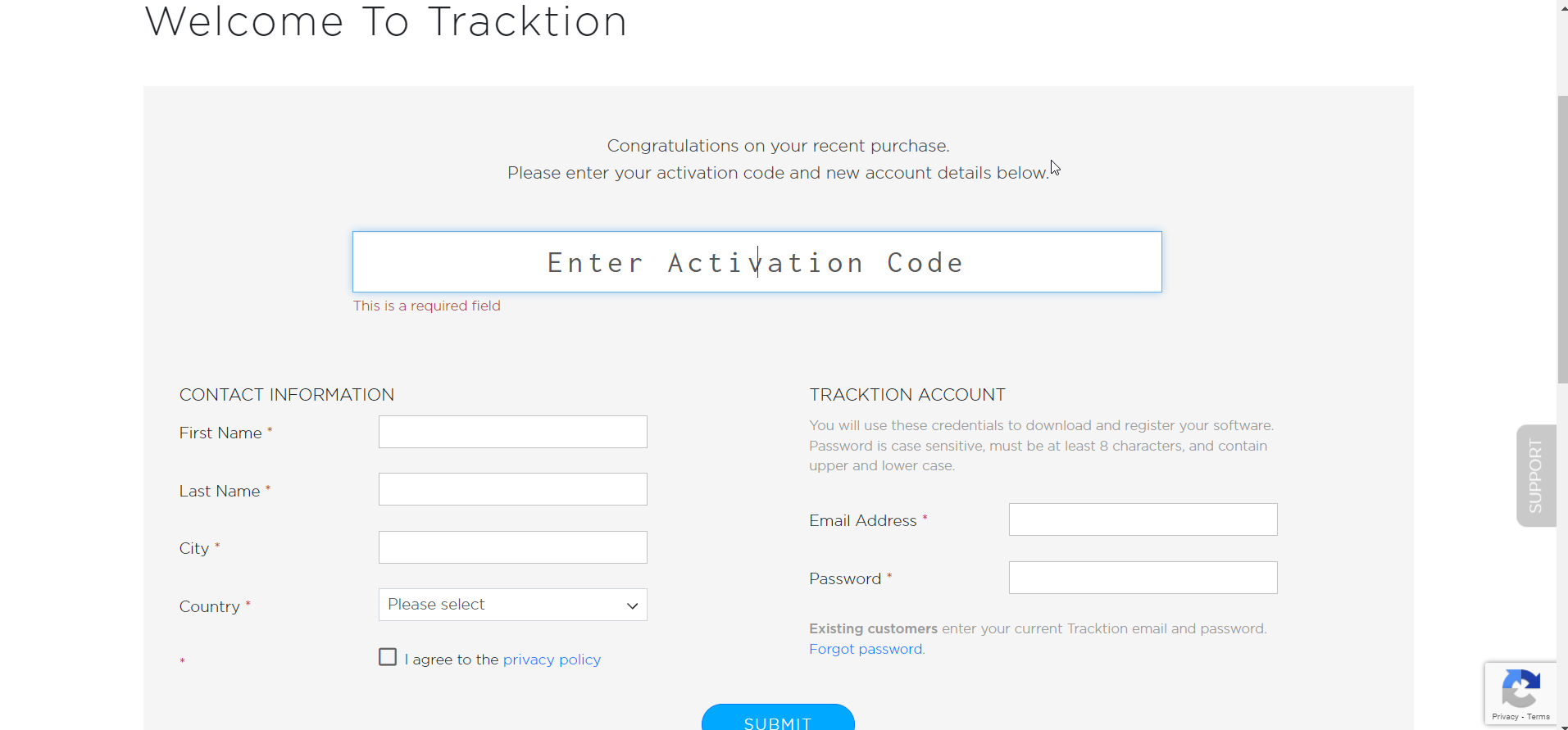
1. Visit https://marketplace.tracktion.com/activate > Enter your Activation Code found in your My Account > Enter your contact information and either register or log in to Tracktion > Click "Submit".

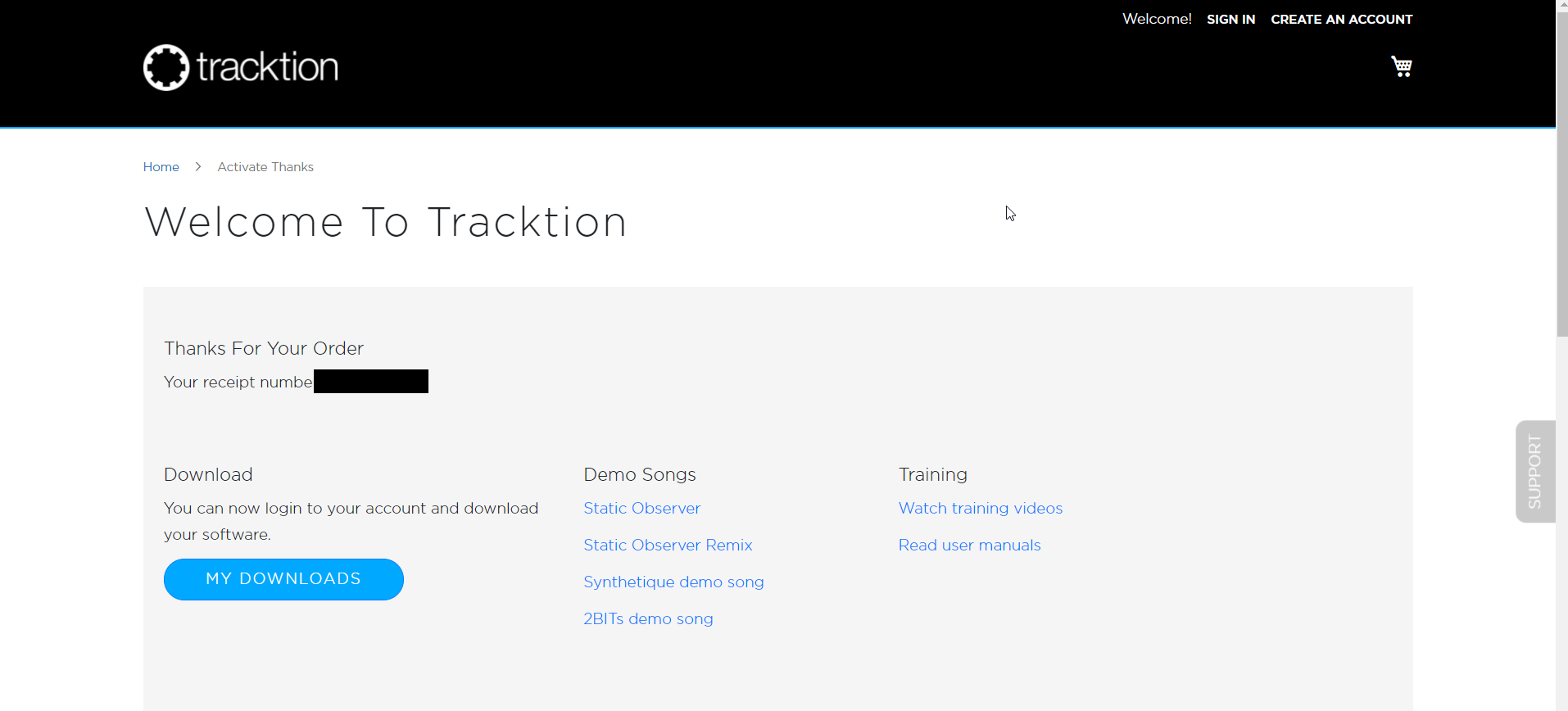
2. Click "My Downloads".

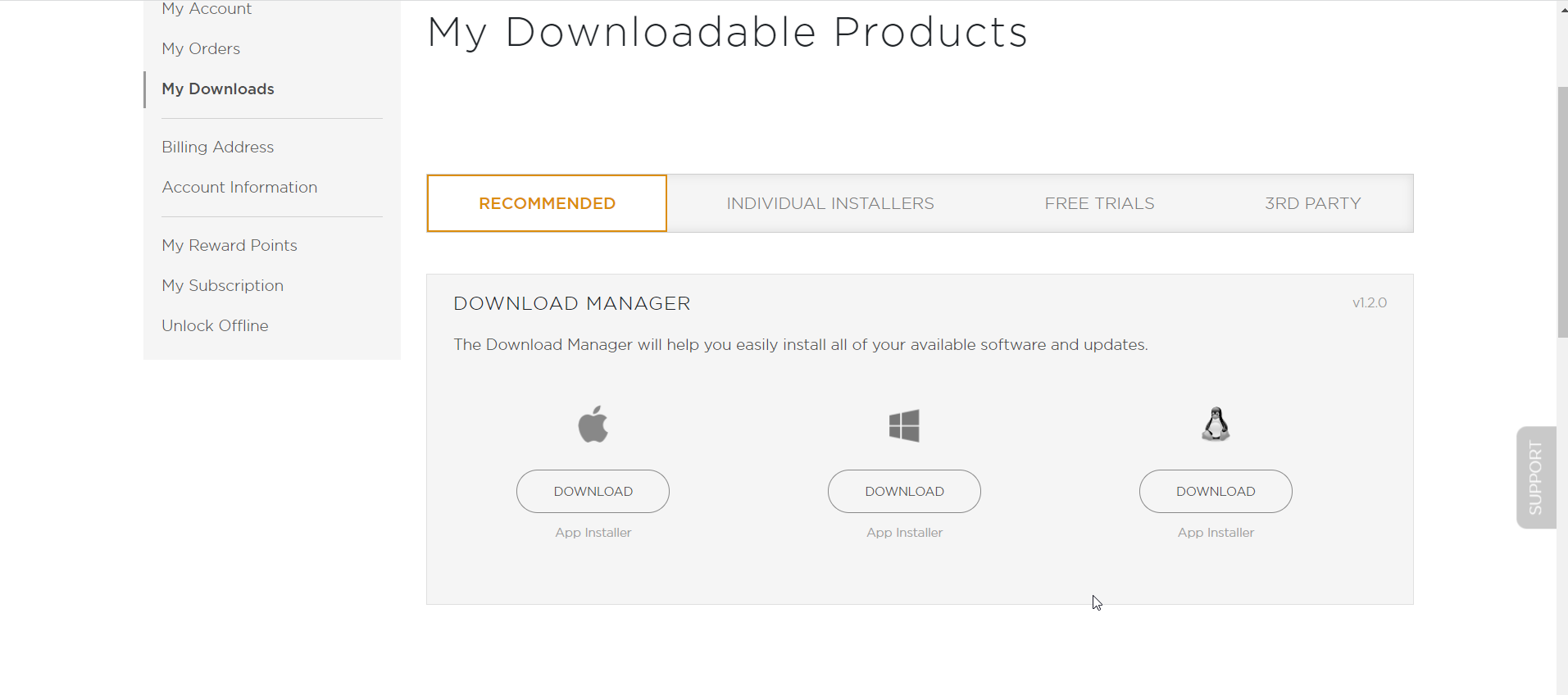
3. Download the Tracktion Download Manager by selecting your operating system and clicking "Download".

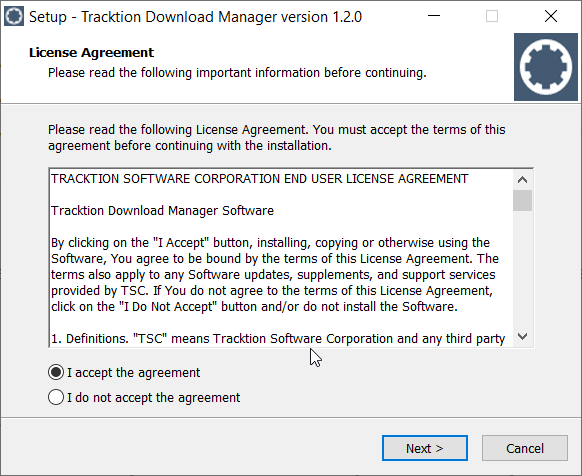
4. Double-click the downloaded .exe installer > Select "I accept the agreement" and click "Next >".

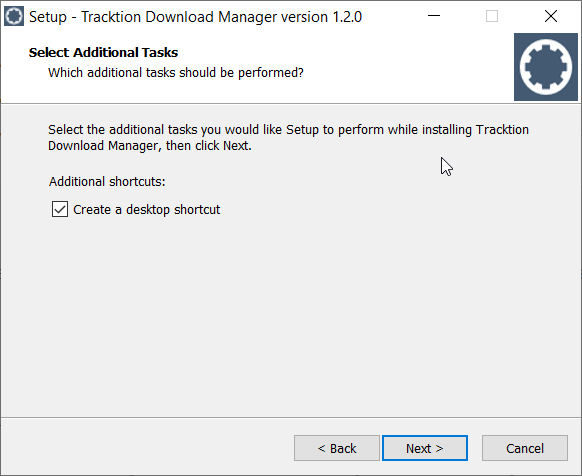
5. Decide whether or not you would like a desktop shortcut > Click "Next >".

6. Select your destination > Click "Next >".

7. Click "Install".

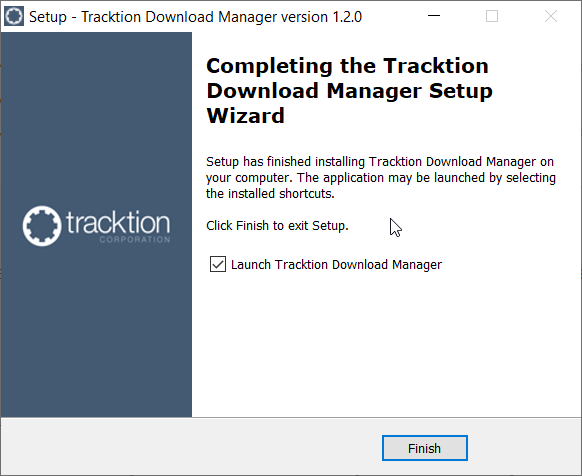
8. Click "Finish".

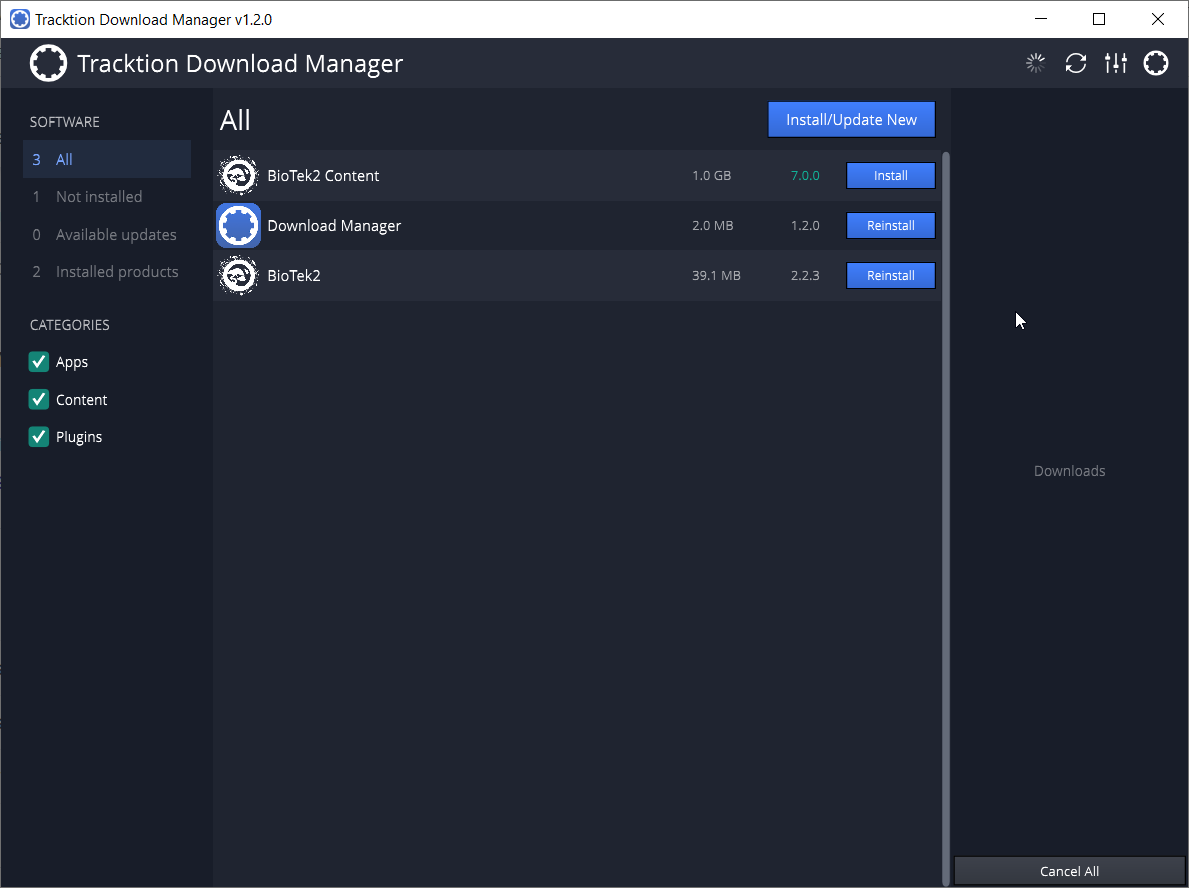
9. Open the Tracktion Download Manager > Click "Install" on both BioTek 2 and BioTek 2 content.

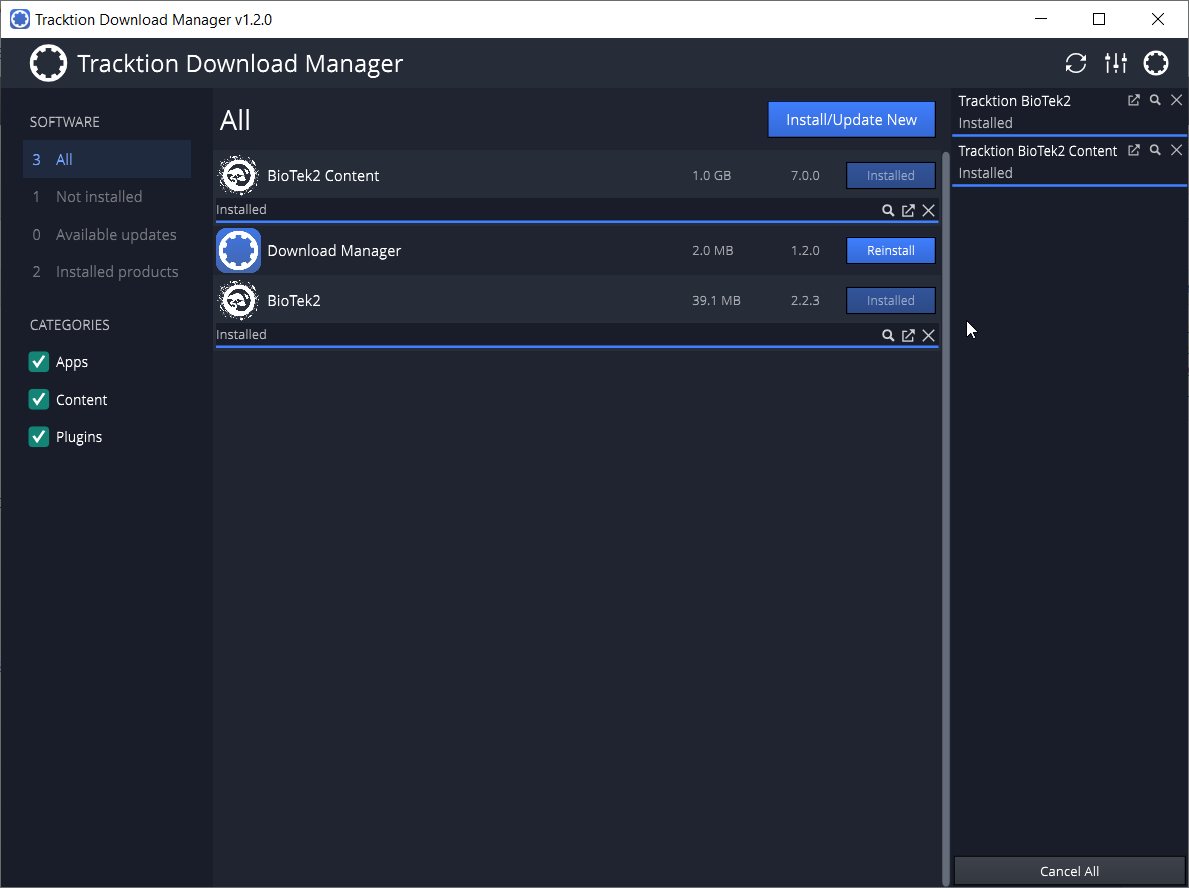
10. Once your files have been downloaded and installed, you can close the download manager. > Then open your DAW.

Your software is now installed and ready for use!

Mac
1. Visit https://marketplace.tracktion.com/activate > Enter your Activation Code found in your My Account > Enter your contact information and either register or log in to Tracktion > Click "Submit".

2. Click "My Downloads".

3. Download the Tracktion Download Manager by selecting your operating system and clicking "Download".

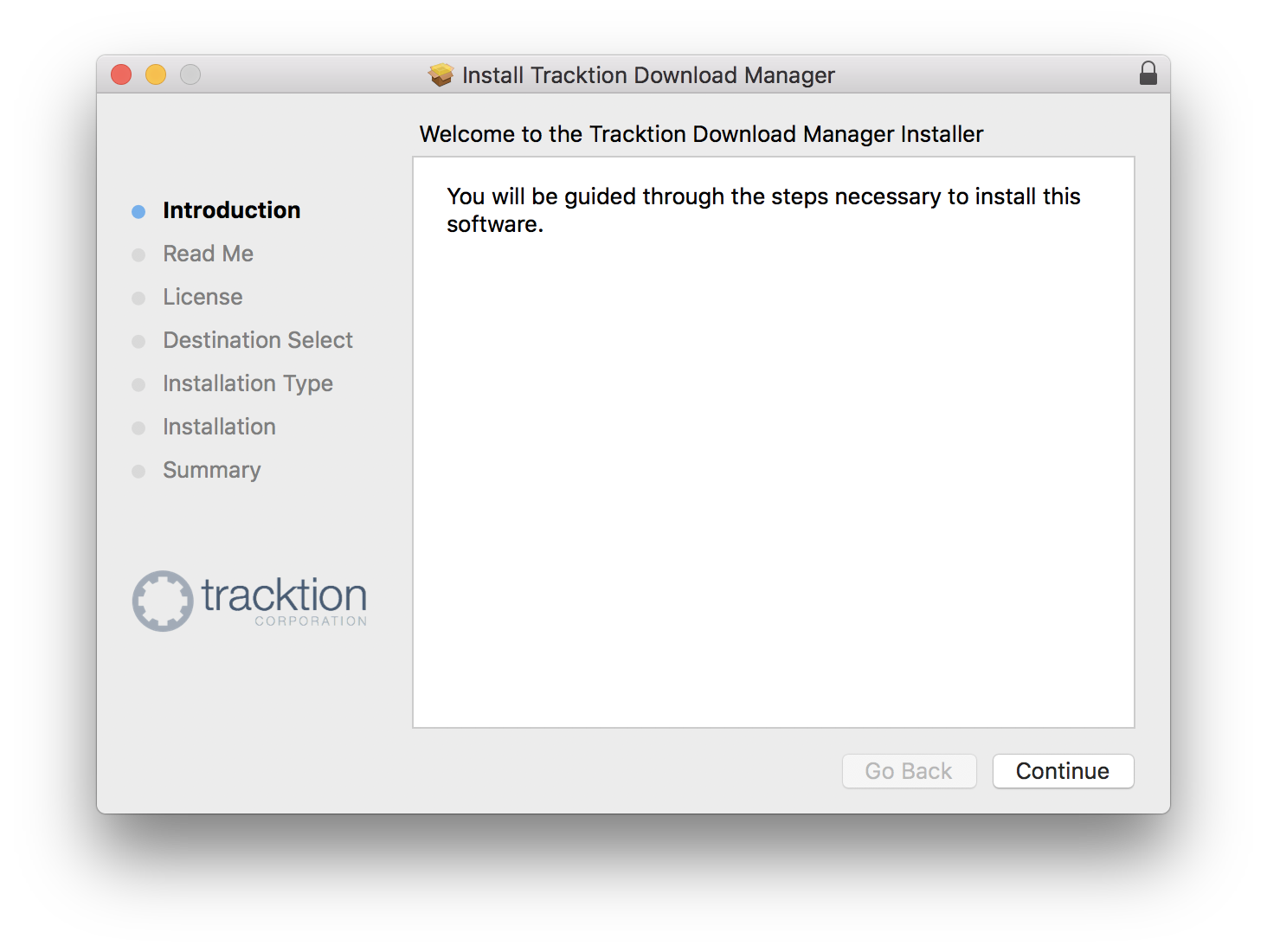
4. Open the.dmg file > Click "Continue".

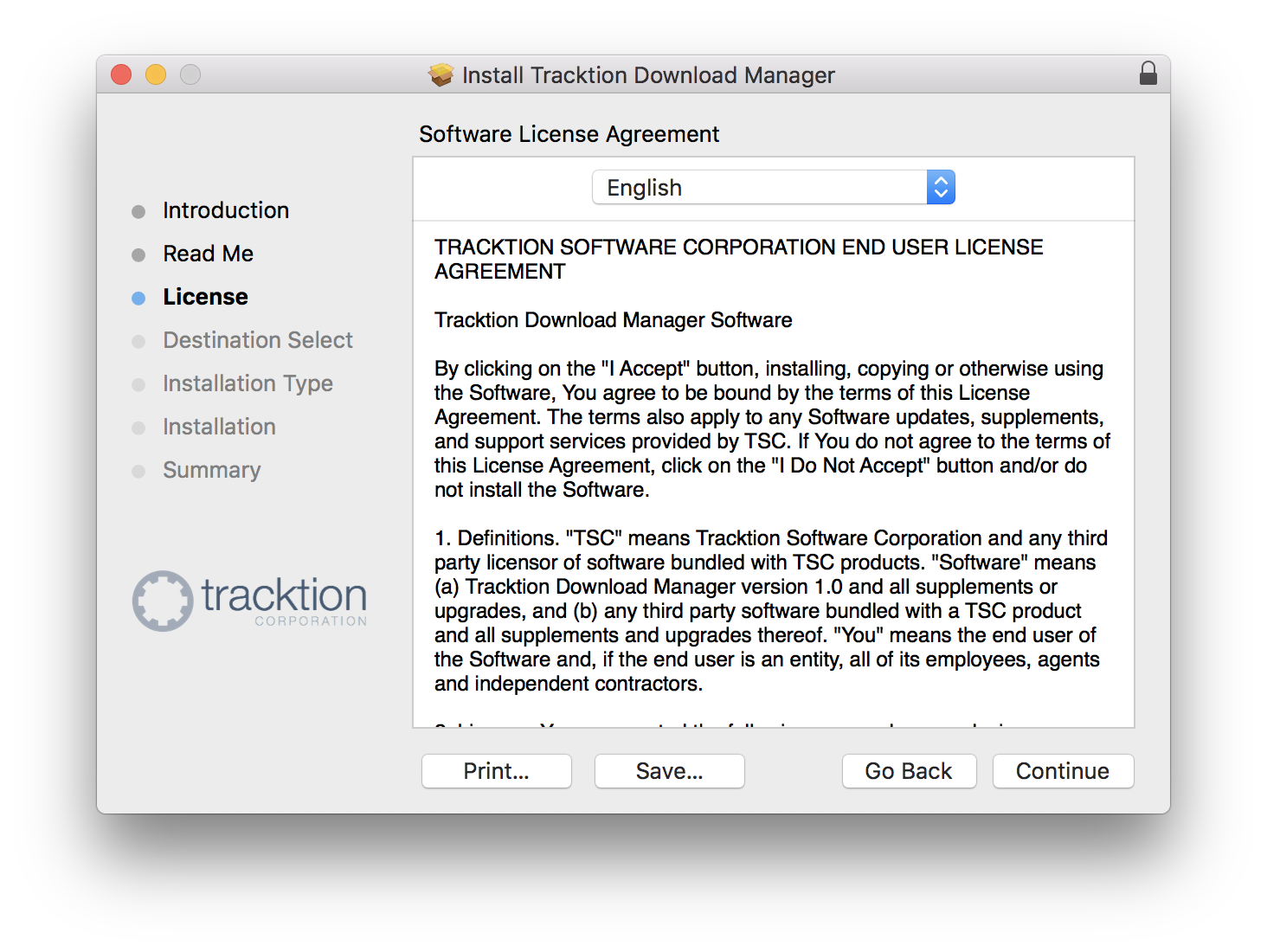
5. Read the Software License Agreement > Click "Continue".

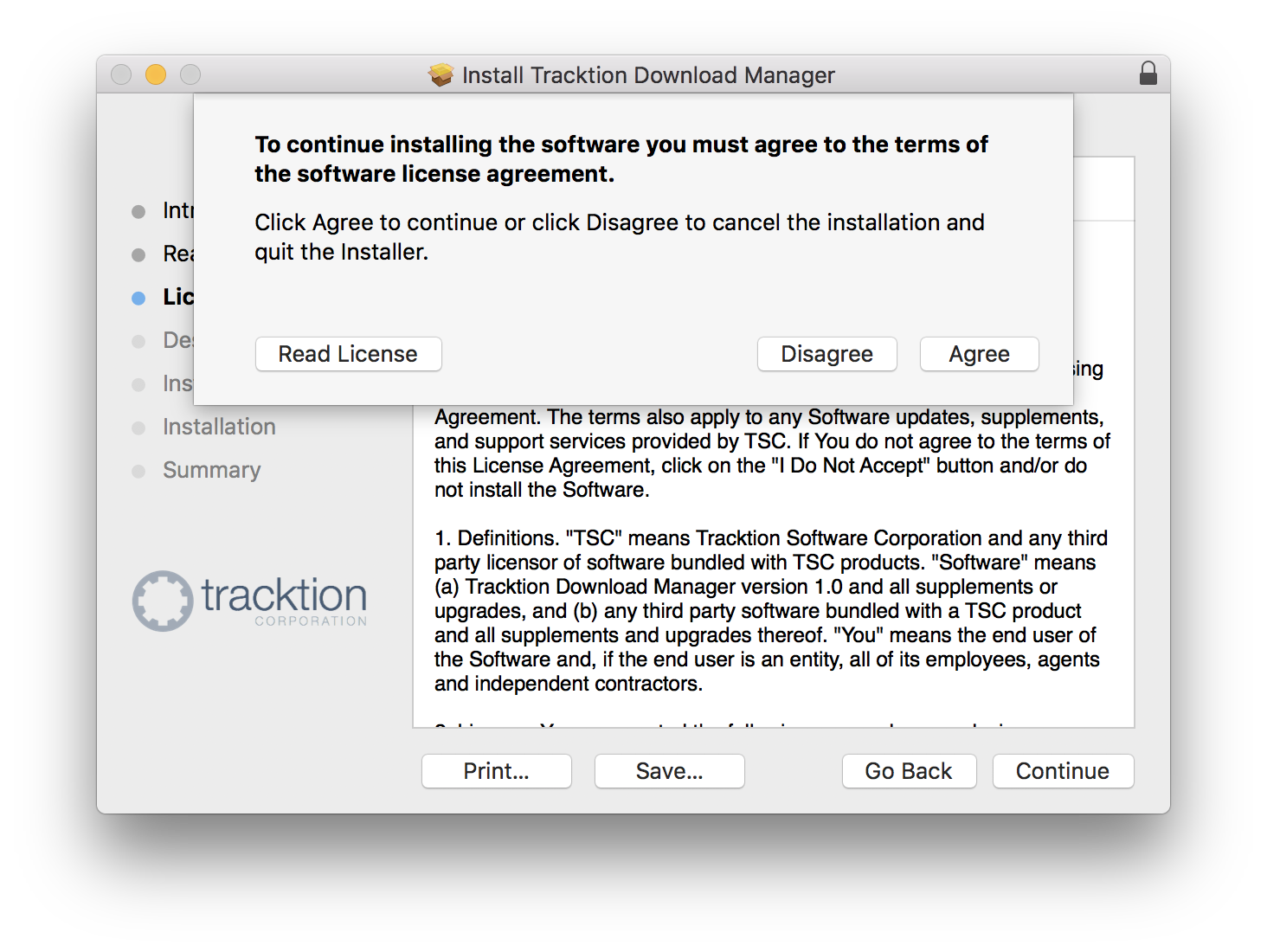
6. Click "Agree".

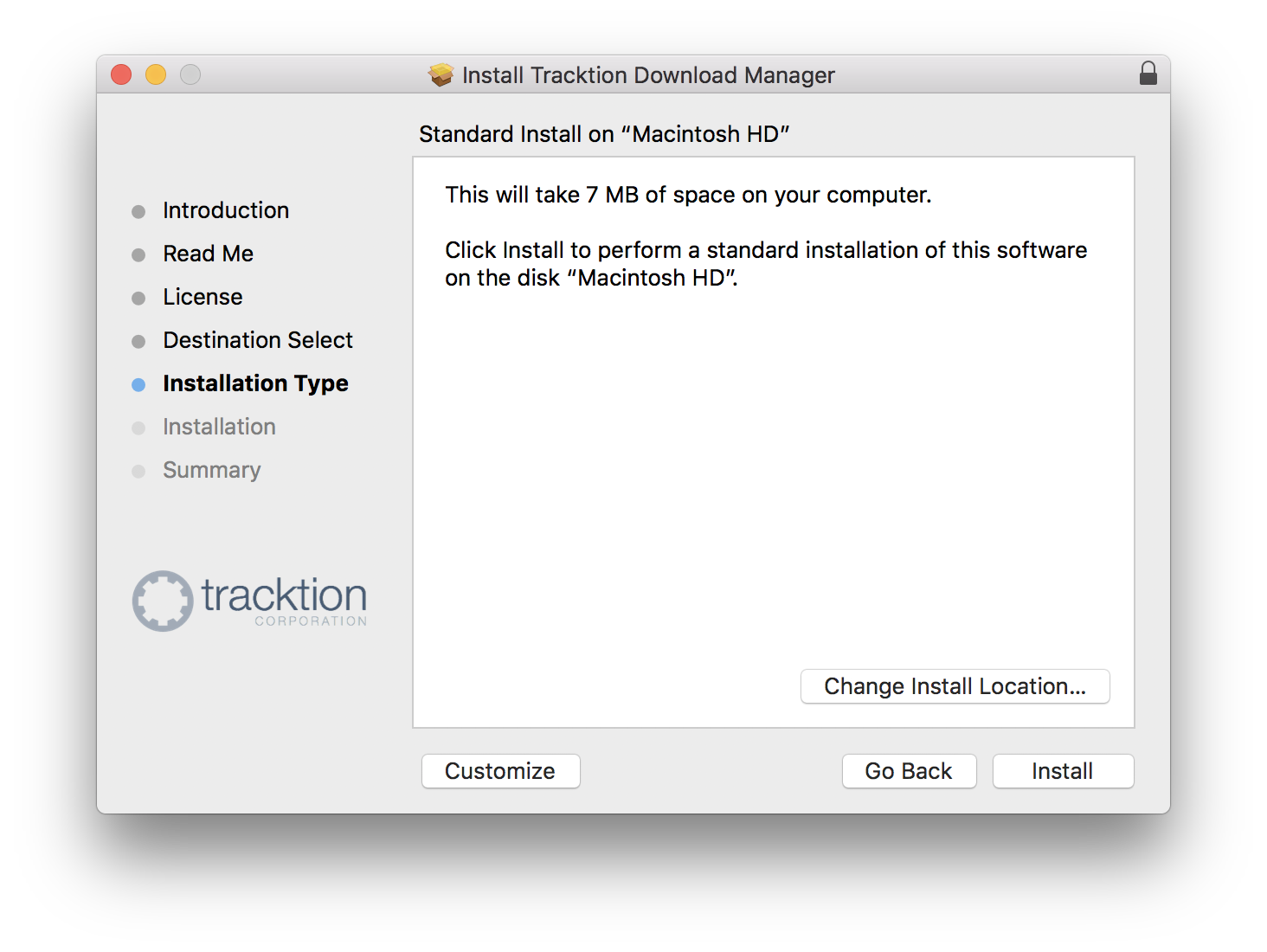
7. Click "Install".

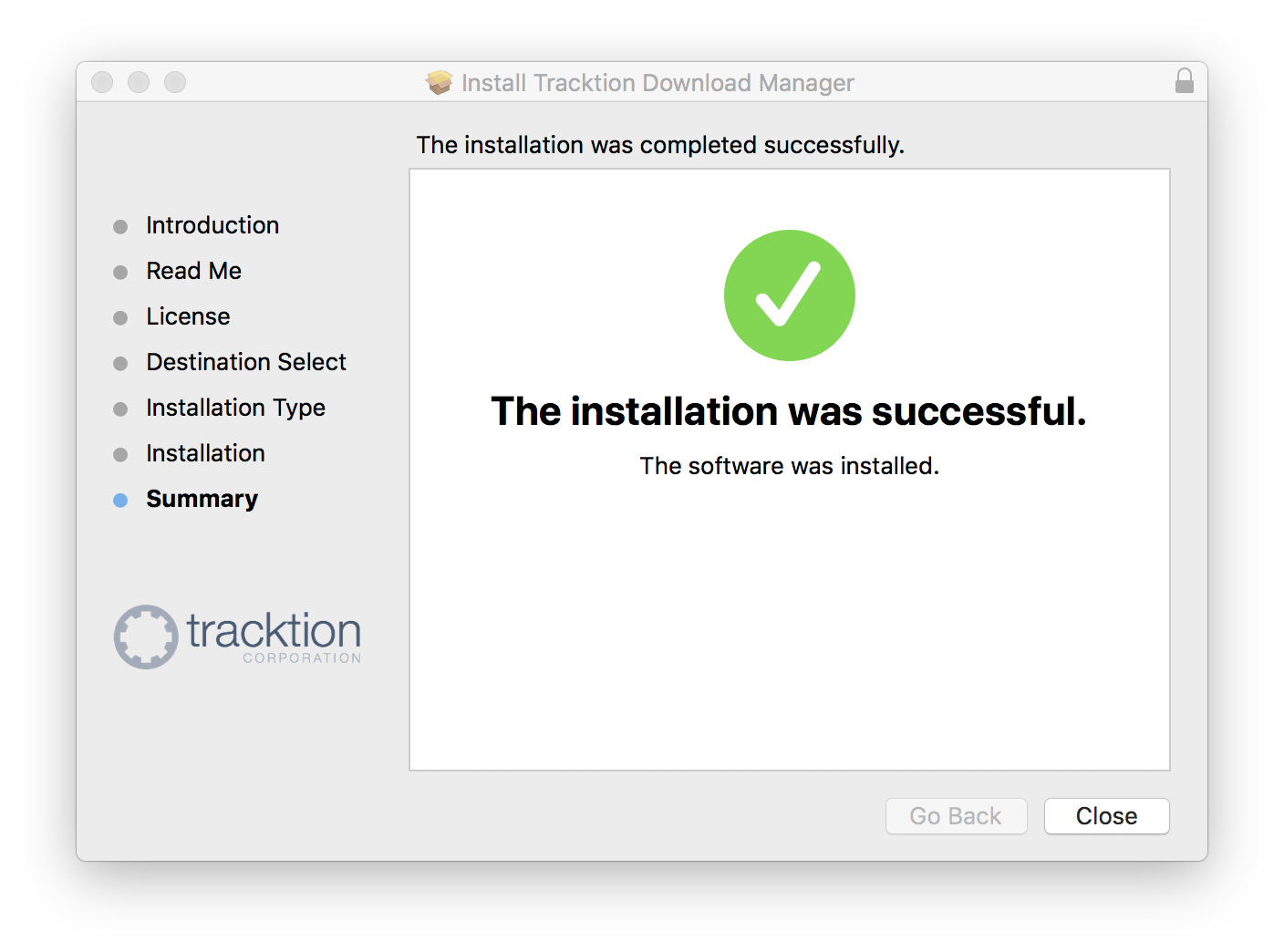
8. Click "Close".

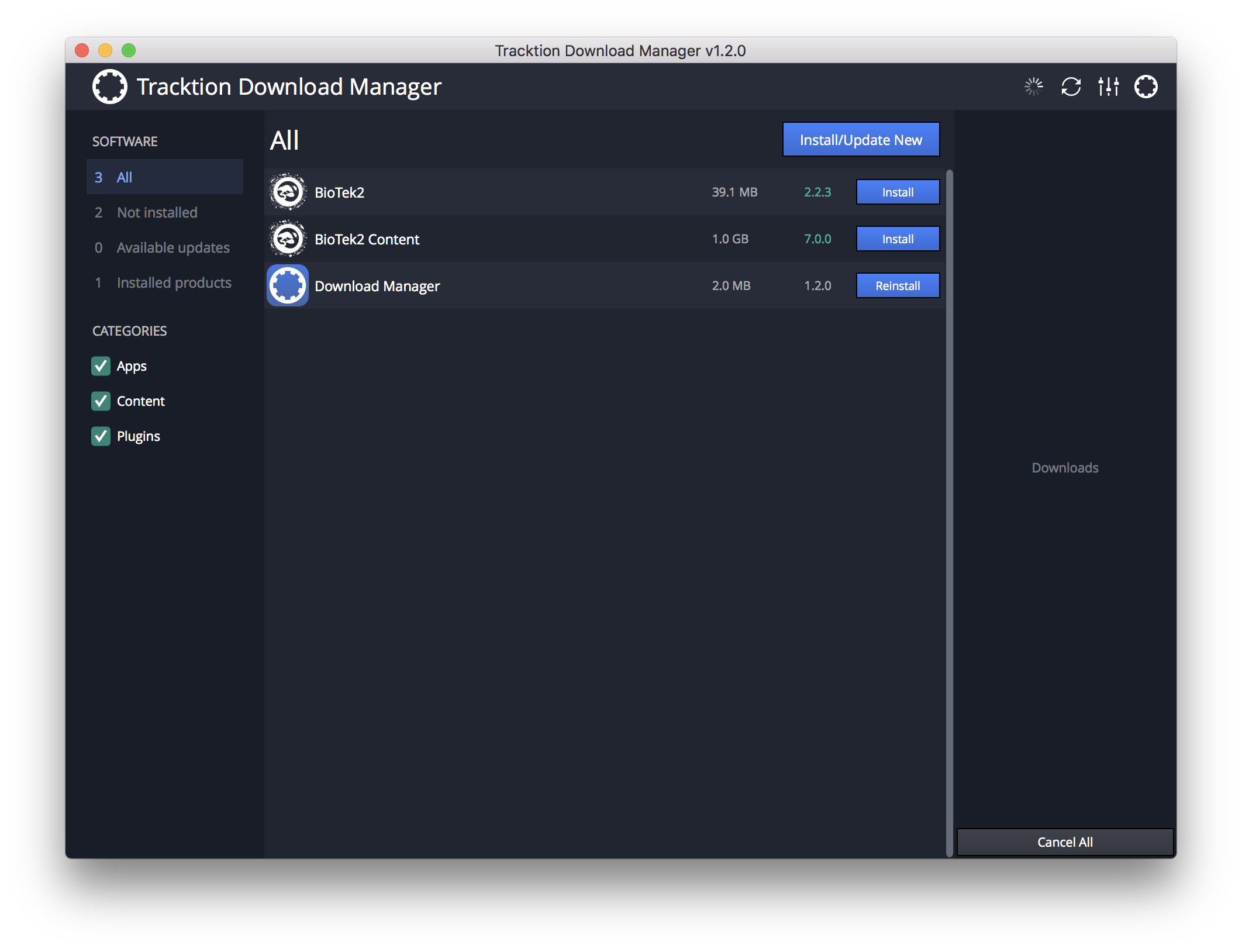
9. Open the Tracktion Download Manager > Click "Install" on both BioTek 2 and BioTek 2 content.

10. Once your files have been downloaded and installed, you can close the download manager. > Then open your DAW.
Your software is now installed and ready for use!