/ Compressor / MPC Spectral Compressor
Harrison Consoles

MPC Spectral Compressor

5.0 (2 Reviews)
$89.99
MPC Spectral Compressor
Buy Now
Product information

Professional Results, Fast And Easy!

The Spectral Compressor is a clever dynamics processor that was originally developed for highly demanding film and post-production. It is derived from Harrison’s iconic enterprise class MPC consoles and provides unparalleled accuracy when mastering your mix. It offers 18 spectral bands of dynamic range control allowing you to sculpt the sound of each band individually or use the global controls to adjust the overall tone of your mix. Whether you want to smooth out harsh frequencies, boost the low end, or brighten the highs, Spectral Compressor can handle it.

You can use it as an effective de-esser, a flexible drum bus processor, or even a subtle enhancer for vocals and instruments. No matter what genre you work in, Spectral Compressor will help you achieve a professional and refined sound.

The Depth sliders below the graph control the maximum amount of gain reduction that can be applied to the corresponding frequency bands determined by the current Range setting. The Range can be set to focus on specific areas along the frequency spectrum (Low, Mid, High, etc.), or it can be set to Full Range mode to allow control over the entire spectrum. The Threshold sets the input signal level where the overall compression begins to take effect. Additional controls include compressor Knee and output Trim.

Controls

Threshold

The slider attached to the input meter on the left is the Threshold control. The Threshold sets the input signal level where the overall compression begins to take effect. The Threshold can be set anywhere between -60 and 0 dB.

Frequency Range

The Frequency Range section allows you to select the specific frequency range that gets processed by the compressor. The 18 compressor bands will be distributed across whatever range is selected. For example, with Mid selected, all 18 bands will be focused on the Mid range, allowing for more precise control over the frequencies within that range.

The available Frequency Range options are as follows:

  • Full Range, 16 Hz - 20 kHz
  • High, 3 kHz - 20 kHz
  • High Mid, 200 Hz - 18 kHz
  • Mid, 180 Hz - 7 kHz
  • Low Mid, 12 Hz - 8 kHz
  • Low, 15 Hz - 500 Hz

Depth Controls

The 6 sliders below the graph set the Depth for their corresponding bands. The 18 compressor bands are divided among the 6 sliders so that each slider controls the Depth for 3 of those bands.

The range of frequencies affected are shown below each slider.

The Depth determines the maximum amount of Gain Reduction that can be applied within each slider’s control range. Possible Depth values range from -24 to 0 dB. Setting a Depth slider to 0 dB will prevent any attenuation from occurring within that slider’s control range.

Knee

The Knee value determines how far the input signal must exceed the threshold in a given band, to incur the full depth for that band. Possible Knee values range from 1 to 30. With a low Knee value (Hard Knee), the compression will activate more abruptly as the signal passes over the Threshold. A high Knee value (Soft Knee) will apply the gain reduction more gradually as the signal passes the threshold.

Output Trim

The Output Trim adjusts the level of the compressor’s output signal anywhere from -10 dB to +10 dB. It can be used to increase or decrease the output level as needed for gain compensation.

Gain Reduction Graph

Provides a visual representation of Gain Reduction across the frequency spectrum. The Reduction curve (red) is displayed above the Input curve (orange-yellow) indicating the amount of Gain Reduction applied and its location along the spectrum. The red line inside the Input curve indicates the level of the compressed signal relative to the input signal.
Installation Instructions

Important note:

  • For licenses with the format - XXXXXXX-XXXX-XXXX-XXXXXXXX - please scroll down and follow the instructions for Harrison Multi Band Compressor, below
  • For iLok licences with the format XXXX-XXXX-XXXX-XXXX-XXXX-XXXX-XXXX-XX please follow the instructions for Harrison Bass Flow & SSL Guitarstrip immediately below

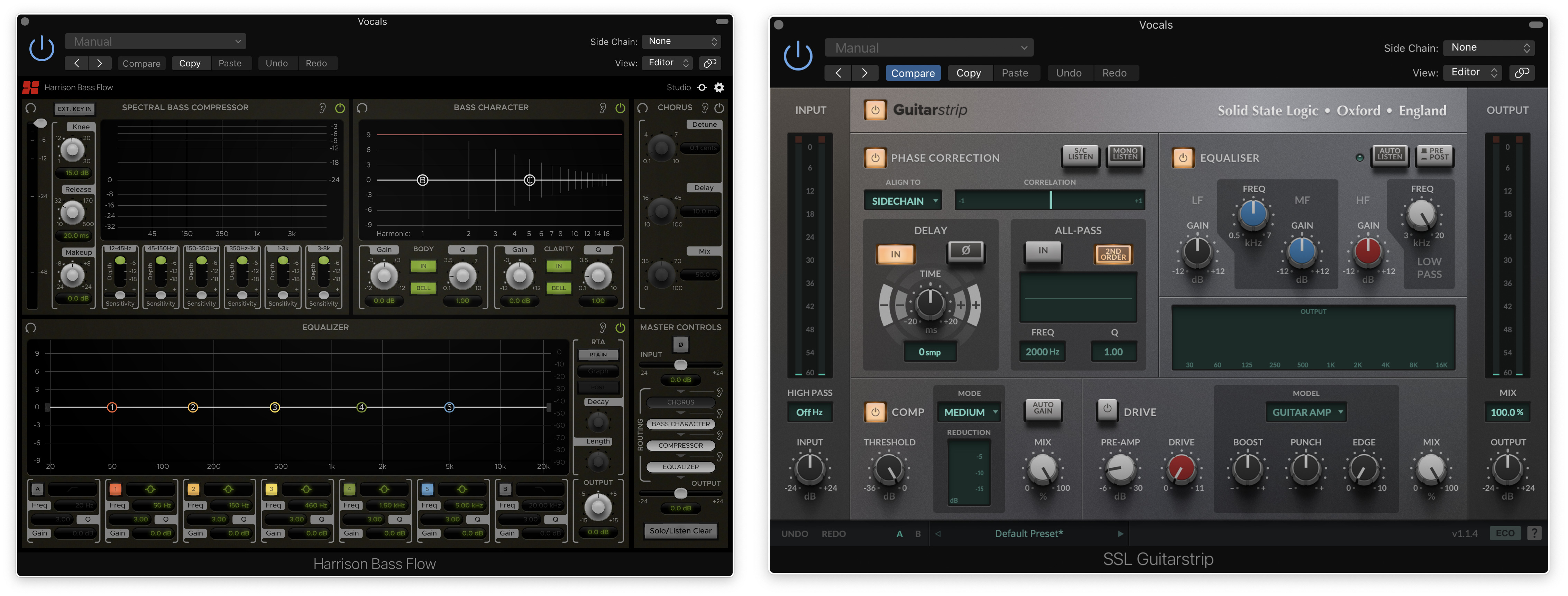
Please Note: Harrison Bass Flow & SSL Guitarstrip are used as examples

iLok Registration

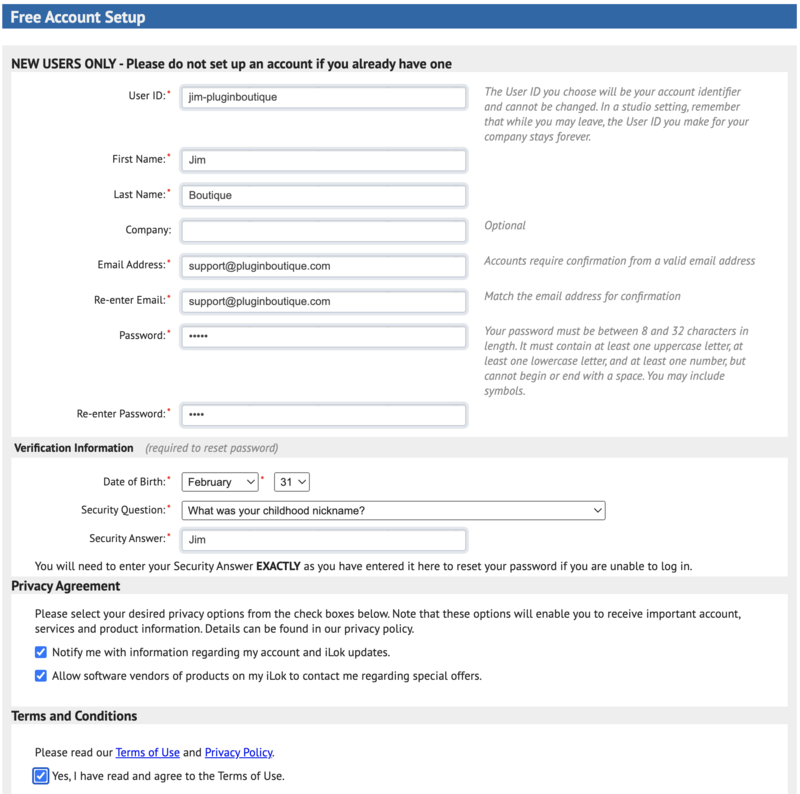
1. Go to the iLok website and create a new account if you are not currently registered and do not have the iLok Licence Manager installed on your computer

Note: Skip to the 'Registration' procedure if you are already an iLok registered user

2. Download and install the iLok License Manager

SSL Download Manager Installation

1. Go to https://solidstatelogic.com/ssl-download-manager or click DOWNLOAD in your Plugin Boutique User Account

2. Click either macOS or Windows to download the installer (Linux versions available here)

3. Double-click installer > Follow the on-screen instructions to install

4. Open SSL Download Manager

5. Locate Harrison Bass Flow & SSL Guitarstrip > Click Install on each plugin

iLok Authorisation

1. Open your iLok license manager application > click Sign In

2. Enter your iLok registered User ID and password > click Sign In

3. Once you are signed in, click the ‘Redeem’ icon which is located at the top-right corner of the iLok Licence Manager’s interface

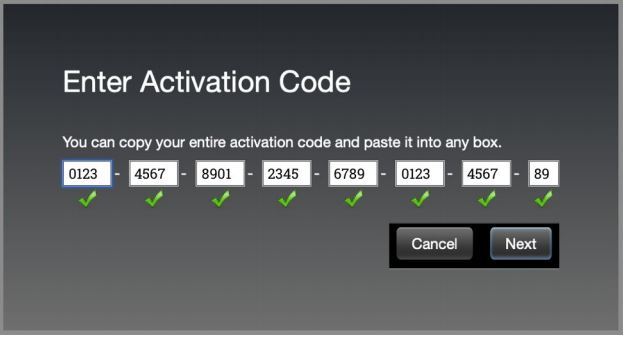
4. Copy and paste/manually enter the 30-digit code from your Plugin Boutique User Account into the available Activation Code boxes, and then click Next

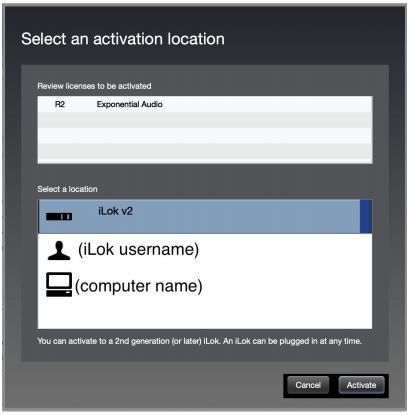
5. Select your activation destination > Click Activate

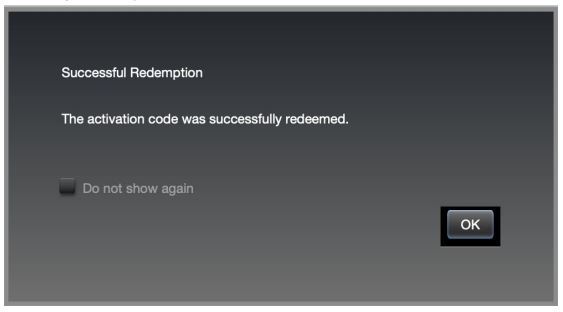
6. Click OK

7. Open the plugins in your DAW

Your plugins are now installed and ready to use. Enjoy!


Please Note: Harrison Multi Band Compressor is used as an example

Note: Harrison and SSL plugins now share the same installation process via the SSL Download Manager

iLok Registration

1. Go to the iLok website and create a new account if you are not currently registered and do not have the iLok Licence Manager installed on your computer

Note: Skip to the 'Registration' procedure if you are already an iLok registered user

2. Download and install the iLok License Manager

Registration

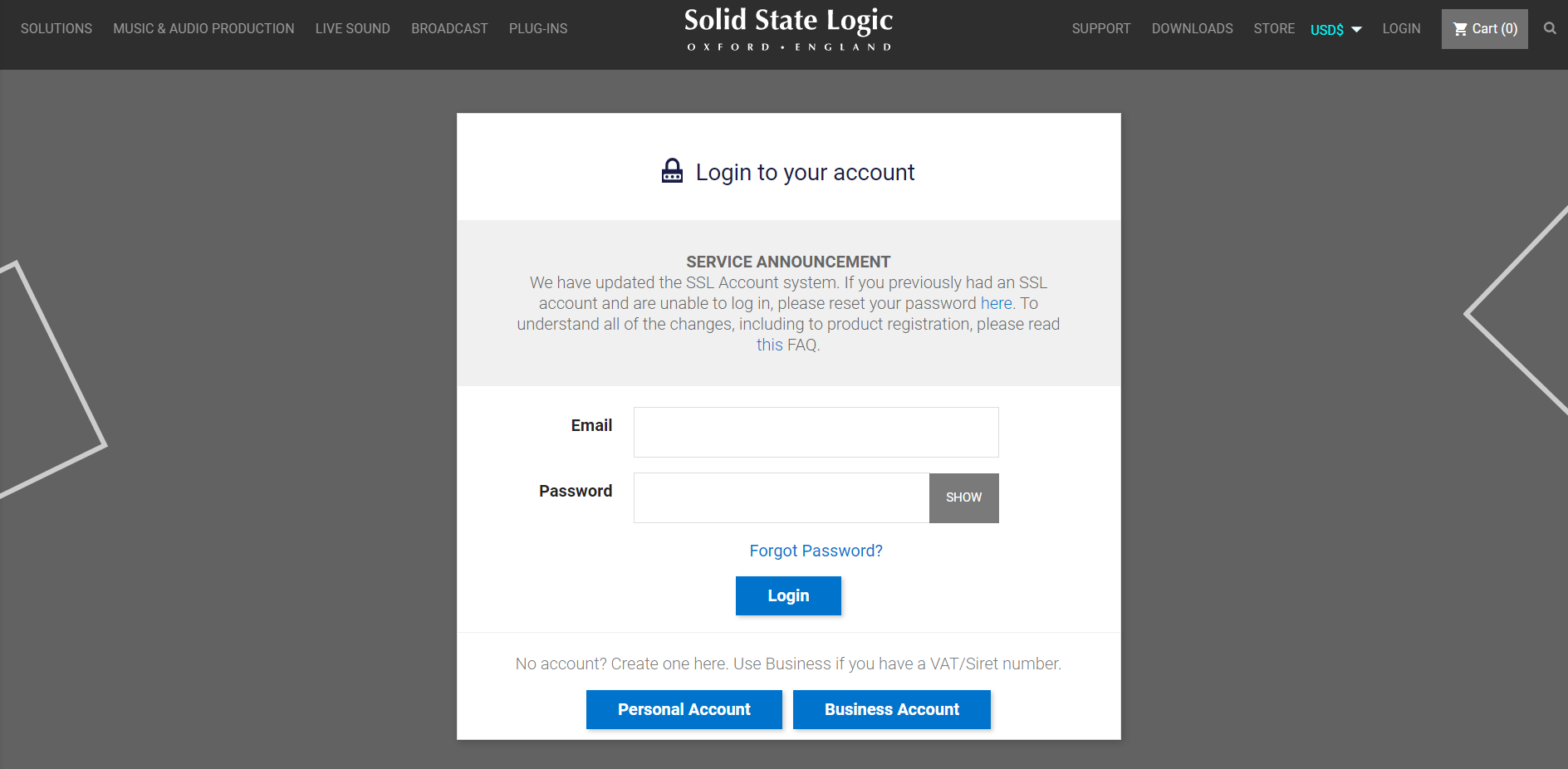
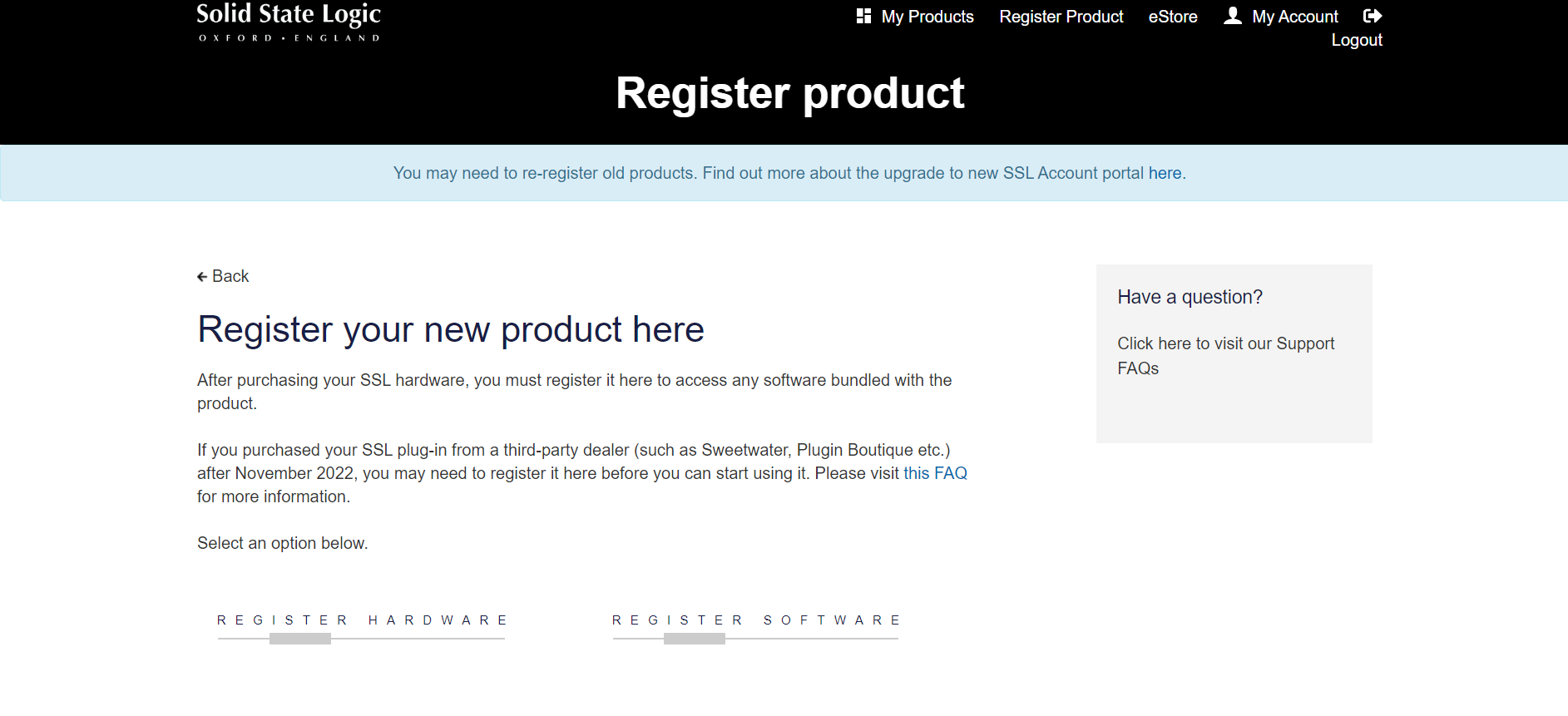
1. Go to https://account.solidstatelogic.com/register-software > Create a new account or log into your existing account if you have one

2. Click REGISTER SOFTWARE

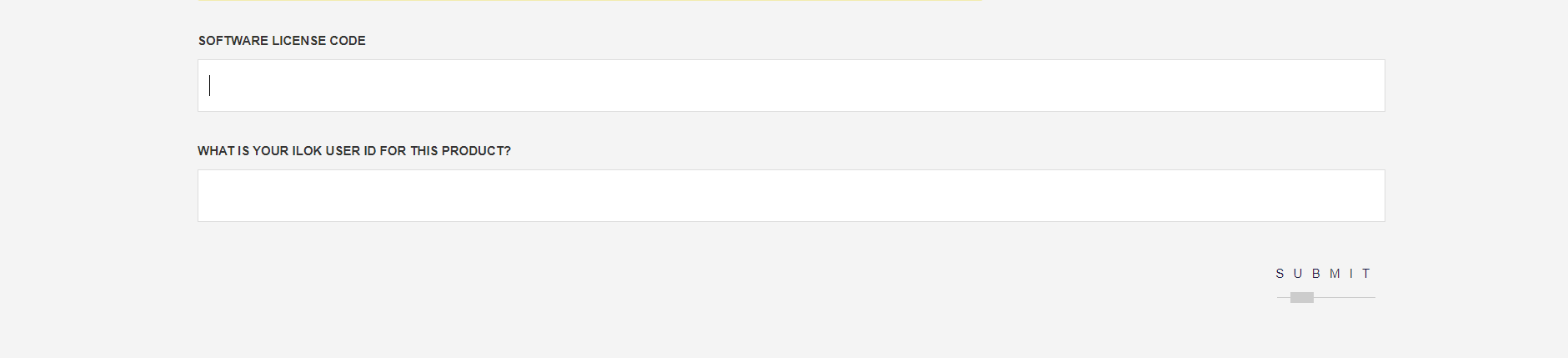
3. Enter your license code found in your Plugin Boutique User Account as well as your iLok ID > Click SUBMIT

SSL Software Installation

1. Go to https://solidstatelogic.com/ssl-download-manager or click DOWNLOAD in your Plugin Boutique User Account

2. Click either macOS or Windows to download the installer (Linux versions available here)

3. Double-click installer > Follow the on-screen instructions to install

4. Open SSL Download Manager

5. Locate Harrison Multi Band Compressor > Click Install

6. Open your DAW > Scan for plugins

7. Click Activate

8. Click Skip

9. Enter your iLok account details > Click Next

10. Select 'Harrison Multi Band Compressor' > Click Next

11. Select an activation location > Click Next

12. Click Continue

13. Open the plugin in your DAW

Your plugin is now installed and ready to use. Enjoy!

Plugin Boutique Rewards

Discover the most rewarding loyalty programme among all plugin retailers.

  • Free Loopmasters Samplepacks
  • Discounts on products and courses
  • Extra Virtual Cash claimed immediately at checkout
Find out more

Follow us:

X (Twitter) Facebook YouTube Instagram
Logo Logo

Plugin Boutique Limited, Part of the Beatport Group LLC.

Copyright © 2011-2025 Plugin Boutique. All rights reserved