


 Log In

Free gifts available with your purchase
Product information
CLA-2A Compressor / Limiter
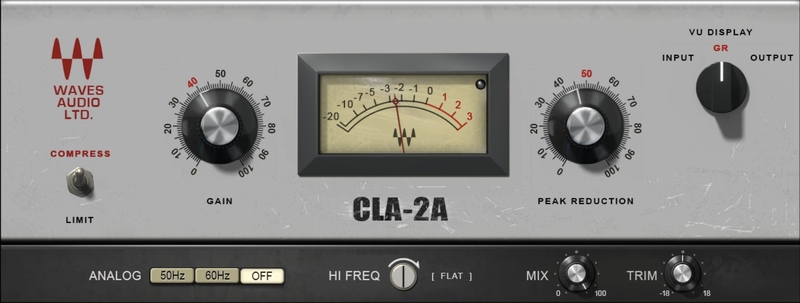
Wrap Your Tracks in Classic Silky Smooth Compression
The CLA-2A models what may be the most coveted and popular hardware compressor/limiter ever made. A favorite of studio engineers everywhere, this studio mainstay has graced countless vocal, bass, guitar, and other instrument tracks for over half a century with its alluring, warm sound.
Behind the strikingly simple interface, the original hardware’s optical-based dynamics processing relies on complex circuit interactions. Modeled from studio legend Chris Lord-Alge’s personally favorite hardware unit, CLA-2A perfectly emulates the original’s response and sound.
Features
- The legendary electro-optical tube compressor
- Modeled from Chris Lord-Alge’s personal vintage hardware
- Natural-sounding even with heavy compression
- Optimum attack/release times fit vocals like a glove
- Tube emulation adds musical, harmonic saturation
- Limiter mode increases instrument sustain
- Mix control for easy parallel compression
- Presets by Chris Lord-Alge for vocals, guitar, bass, drums, more
- Trim control for quick level adjustment
- Zero latency for both studio and live mixing
- Optional subtle analog hiss and hum for total authenticity
- Includes sidechain frequency filter
System Requirements
Mac
- macOS Monterey 12, Ventura 13, Sonoma 14, Sequoia 15
- VST / AU / AAX
PC
- Windows 10+
- VST / AAX
Installation Instructions














