


 Log In

Free gifts available with your purchase
Product information
Spherix Immersive Compressor & Limiter
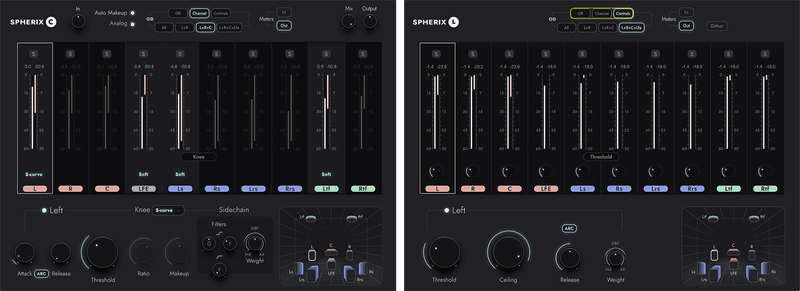
Shape Perfect Dynamics Fast in Immersive Mixes
Waves Spherix is a suite of two plugins, a compressor and a brickwall limiter, designed from the ground up for fast, efficient work on the beds (fixed channels) of immersive 7.1.4/7.1.2 mixing environments such as Dolby Atmos®.
Save precious time and avoid manual workarounds with Spherix’s tailor-made immersive workflows. Tweak in multi-mono, by zone, with a single click of the mouse; mix quickly without swapping channels; and process full speaker zones together in immersive-ready channel groupings.
Features
- Includes two plugins: Spherix Compressor and Spherix Limiter
- Dedicated workflows for 7.1.4/7.1.2 immersive formats
- Process entire grouped speaker-zones using Channel Linking
- Adjust multiple channels in a single click with Control Linking
- Choose your preferred front-wall linking: L+R, L+R+C, L+R+C+LFE
- Mix faster, without swapping channels, with quick-access knobs
- Control the sidechain’s reaction with the Spherix-only Weight-knob
- Monitor levels and gain reduction easily with multi-channel metering
System Requirements
Mac
- macOS Monterey 12, Ventura 13, Sonoma 14, Sequoia 15
- VST / AU / AAX
PC
- Windows 10+
- VST / AAX
Installation Instructions














