


 Log In

Free gifts available with your purchase
An Industry-standard Tube Compressor
The most faithful emulation of a modern yet legendary tube compressor/limiter – perfect glue for mixing and mastering.
Variable-bias tube compressors deliver smooth, transparent gain control, and naturally “glue” buses, mixes, and masters together.
Unfortunately, the original hardware is expensive and difficult to integrate with in-the-box workflows. Software emulations exist, but most owners of the hardware agree that they cannot be compared to the original unit, as there’s always “something” missing.
With its unique Topology Preservation Technology, Pulsar VM-COMP sounds objectively identical to the hardware in every production context, but also introduces improvements such as visual sidechain EQ editing and extended timing ranges.
A Modern Take on a Legendary Compressor
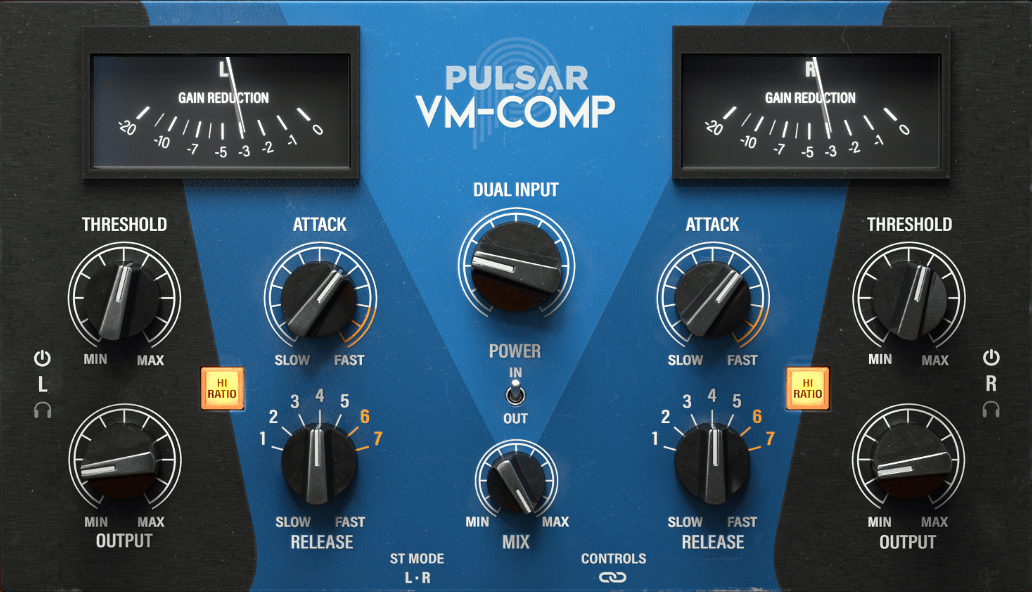
Pulsar VM-COMP is a stereo compressor operating in either Left/Right or Mid/Side modes, designed with mixing and mastering applications in mind, but also flexible enough for tracking. It can be used for levelling, limiting, or just to add a bit of analog warmth with its emulated tube signal path.
Real-Time Visuals
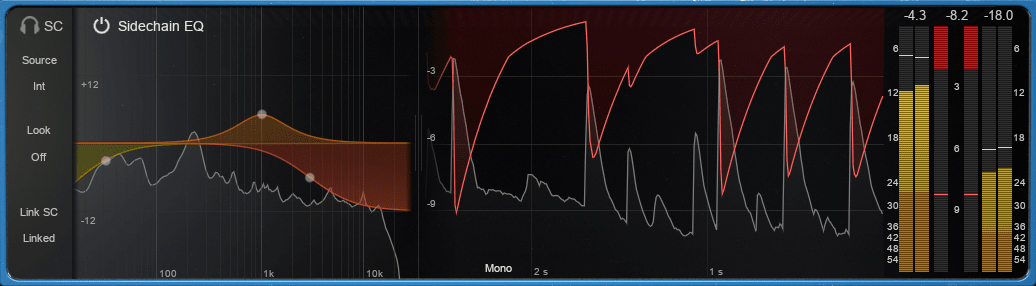
While reproducing the accurate SIFAM metering of the original unit, Pulsar VM-COMP also provides a more modern visualization mode for fine-tuning compression settings, representing the waveform and gain reduction both over time and instantaneously.
Full-featured Sidechain EQ
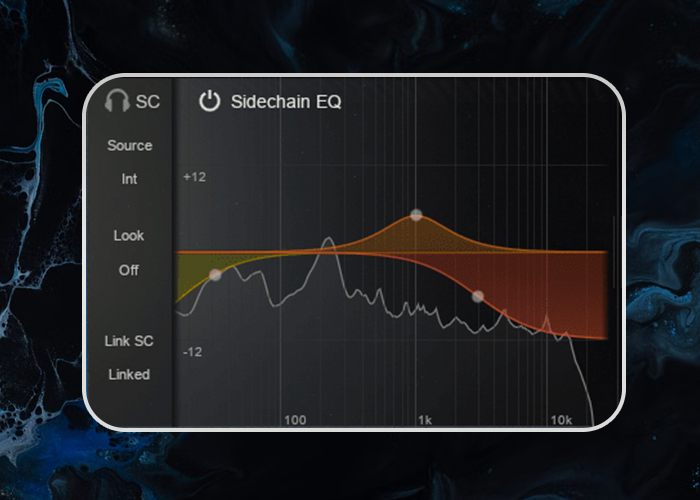
Pulsar Mu also offers various options that apply to the sidechain signal. A popular mod of the original device was to add a high-pass filter, but Mu goes even further, offering a more complete equalization section, enabling to precisely adjust the compressor’s response to bass, midrange and treble using only four knobs. And you can now freely edit the Pulsar VM-COMP sidechain EQ with an on-screen curve editor.
Master Transients with Total Timing Control
Another addition is the possibility of advancing (look-ahead) or delaying (look-behind) the sidechain signal. This enables you to take ultimate control over transients, letting the compressor start to react before they happen, or even after they happen, opening up all kinds of creative uses.
Extended Attacks and Releases
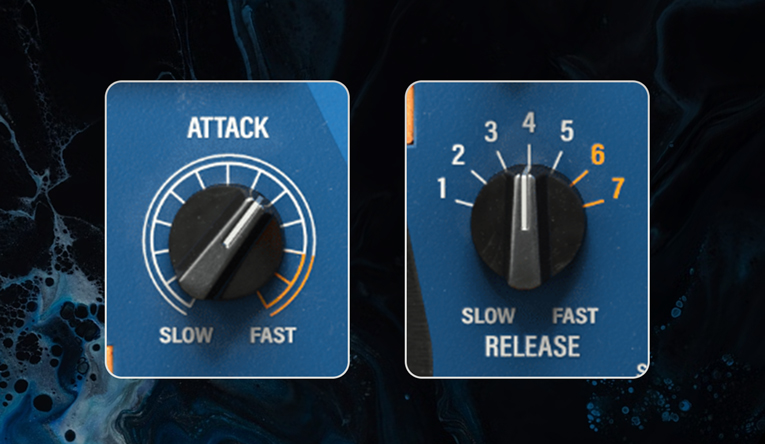
Faster attacks and releases let you dial in a more aggressive, mid-forward timbre, impossible to achieve with the original unit. Discover even more creative uses of this powerful “color box” that is the VM-COMP.
How Does It Sound?
- Transparent but musical: The sound of Pulsar VM-COMP is impressively transparent with a touch of warmth. It manages transients in a soft and musical way, even with extreme settings, unlike a FET or VCA compressor. With VM-COMP, you can add movement while respecting the natural dynamics of a source.
- Mastering: The most classic use of VM-COMP is in mastering: it brings the discreet "polish" and "glue" to subtly warm up any mix. It can be used either transparently as a leveller (with long attack and release), as a compressor to add glue (slow attack with fast release), or as a limiter (fast attack and fast release). Using VM-COMP in Mid/Side mode gives you another way to increase stereo image, or to curtail an overly wide mix.
- Drum buss: Pulsar VM-COMP can quickly create the “glue” needed for cohesive drum buss processing, while still respecting transients – even those of a kick drum. Depending on the chosen gain reduction and release time, it can restore the room ambience essential for certain styles of music – especially when used as a parallel compressor.
- Acoustic guitar: On an acoustic guitar, with a relatively low gain reduction setting, Pulsar VM-COMP creates a nice organic groove, while respecting the transients of the instrument. This subtlety is useful for livening up a dull, stiff guitar track, giving it edge and personality.
- Snare drum: Pulsar VM-COMP can give body and consistency to thin snare drums sounds, even while preserving their transients, which are essential for helping them break through the mix. When pushed a little harder, Mu can help you recover sustain, harmonics, or even ambience.
- Vocals: Pulsar VM-COMP sounds particularly good on vocals – especially with fairly high input and medium attack and release. It gives them the analog-style warmth to help them sit naturally, even in a dense mix.
Features
- Topology Preservation Technology
- Powerful sidechain EQ
- Advanced metering section
- Look ahead, look behind
- Mid-Side processing
- Extended Attacks and Releases
- External sidechain
- Low CPU consumption
Windows
- Windows 7 with SP1 / Windows 8.1 / Windows 10 (all 64-bit only)
- CPU: Intel Core i3 / i5 / i7 / i9 / Xeon or AMD Quad-Core minimum
- Memory: 4 GB RAM & 1 GB free disk space
- GPU: OpengGL 2.0 compatible GPU
- Monitor: Minimum 1024×768 Resolution (recommended 1920×1080) & 60 Hz Refresh rate
Compatible Plugin Formats (32 & 64-bit):
- AAX Native
- VST 2.4
- VST 3
Mac
- macOS10.9 and higher (M1 Apple Silicon supported) (64-bit only)
- CPU: Intel Core i3 / i5 / i7 / Xeon / Apple Silicon (M1)
- Memory: 4 GB RAM & 1 GB free disk space
- GPU: OpengGL 2.0 compatible GPU
- Monitor: Minimum 1024×768 Resolution (recommended 1920×1080) & 60 Hz Refresh rate
Compatible Plugin Formats (64-bit only):
- AAX Native
- Audio Unit
- VST 2.4
- VST 3
Activation:
- You need to have an account at ilok.com to be able to use Pulsar software.
- The Mac version of this software is 64-bit only and will not function on 32-bit systems.


