Log In

Free gifts available with your purchase
Multiband Compressor
What is the Multiband Compressor?
The Multiband Compressor is the latest implementation of Harrison’s renowned Multiband Compression algorithm, as used in ultra high-end post & film facilities worldwide. Now in the fourth generation, the Harrison Multiband Compression algorithm has been continuously tweaked by our customers in high-end music, film, broadcast, and video post-production.
Harrison’s reputation for “true analog in the box” sound is due to our unique development heritage, where we first created an analog processor and then converted the processor to digital while retaining the sound and character of the original.
The results are quintessentially “Harrison”: effortless, smooth and transparent.
Controls
Graph
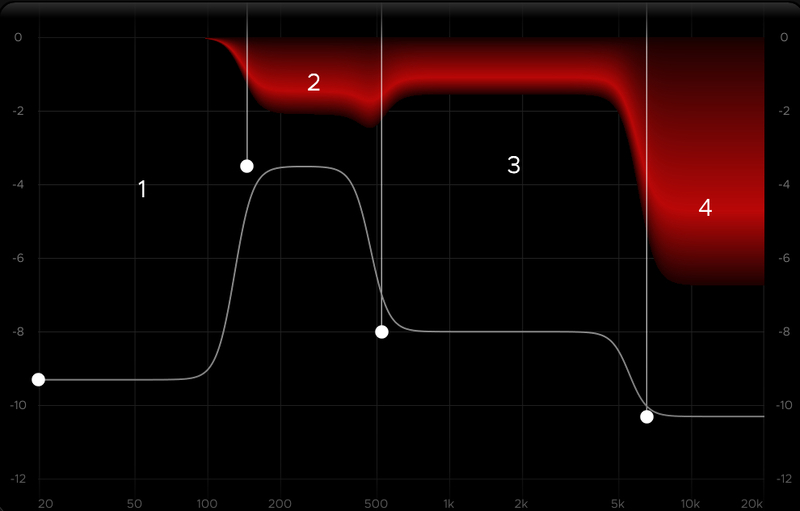
The main display graph provides control over the four band frequencies and depths.
Click anywhere inside the bands and start dragging to change the frequency and depth of that band. Using the scroll wheel you can adjust just the depth to really dial in the exact amount you want!
RTA Controls
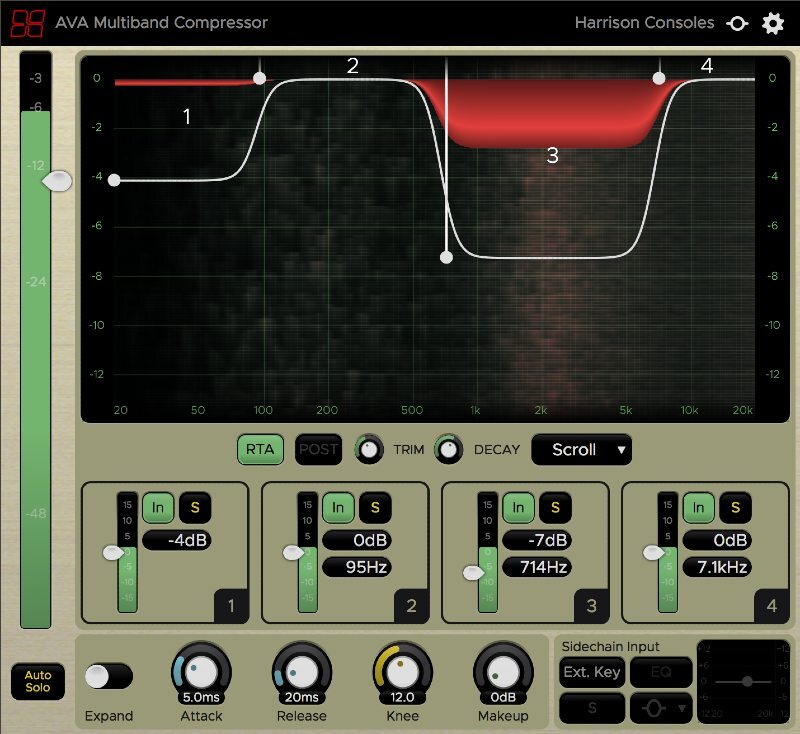
The main display also features a high precision, high-speed RTA analyzer (“Spectrum Graph”, or “Scrolling Graph”), which you can engage to be PRE or POST EQ changes. It also features a Decay knob, which allows you to control the decay rate of the display, and trim control.
Input Threshold Controls
The main input meter, and threshold slider (on the left) controls how much material is passed into the plugin (-60dB - 0dB). Moving the threshold slider down (a lower threshold) will increase the overall compression effect.
In addition to that, each band has its own input meter and threshold to let you have fine-grain control over how much material each band is working on (-15dB to +15dB).
Band Bypass and Band Solo Controls
Every band can be bypassed and removed from processing by clicking on its associated ‘IN’ button.
Every band can also be solo’d so you can hear the material the band is working on.
Band Frequency and Band Depth Controls
The band frequency control controls the low frequency of the band’s bandwidth. Adjusting a band’s start frequency might affect the width of bands adjacent to it. The available frequency settings are:7
- Band 1 - 20hz
- Band 2 - 50 - 400hz
- Band 3 - 145hz - 2.5kHz
- Band 4 - 1kHz - 8kHz
Attack, Release, Knee, and Makeup Gain
- Attack (200μs - 20ms) - The ‘Attack’ knob controls how long it takes the signal above the threshold to reach full compression.
- Release (20ms - 200ms) - The ‘Release’ knob controls how long it takes the signal, once it falls below the threshold, to return to an uncompressed state.
- Knee (3dB - 24dB) - The ‘knee’ control defines how far the signal must exceed the threshold to achieve full compression. A smaller knee setting will result in more aggressive compression.
- Makeup Gain (0dB - 12dB) - The ‘Makeup Gain’ control allows you to apply additional gain to the output signal, to ‘make up' for the attenuation applied by the compression.
Auto Solo - The ‘Auto Solo’ control allows you to automatically audition the band that you are changing. This helps you to determine the frequency content of the band, as you adjust the frequency range.
Expander
The ‘Expander’ control switches the main operation of the compressor from a Multiband Compressor into a Multiband Expander.
In Expander mode, the gain reduction curve is applied when the signal falls below the band’s threshold.
Key Input
The “Ext. Key” control allows you to use a sidechain as the signal driving the compressor. If Key Input is enabled, then:
- The main input meter and threshold will be referenced to the KEY (sidechain) input, not the main input.
- When a band is soloed (using auto-solo) then you will hear the main signal input, not the sidechain.
- The sidechain EQ is applied to the key input signal.
Sidechain EQ - The sidechain EQ is a single-band equalizer. By setting the shape of the band ( high/low-pass filter, bell, or high/low shelf ) you can modify the signal that drives compression in each of the 4 bands. For example, you can use the filter to remove all high frequencies from the sidechain input, and use only the low-frequency energy to drive the compressor bands.
Features
- Intelligent algorithm requires minimal effort to get excellent results.
- Band Solo and Auto-Solo features to help dial-in the desired frequency ranges.
- RTA analyzer display helps to locate problem frequency ranges.
- Capable of up to 12dB reduction in each band.
- Sidechain “key” input with dedicated EQ.
- Zero-latency processing, suitable for “live” use.
- “Expand” mode provides an additional creative effect.
- The “Ear” icon engages the momentary-bypass function, which allows you to audition the un-affected signal while you hold the mouse button; then restores the settings when you release the button.
- The “Gear” icon launches a menu with additional features including resizing, theme selection, and plugin version number.
- The alternative “Vintage” theme uses the colour scheme of Harrison’s large-format console software.
System Requirements
- MacOS: 10.9 or newer required
- Windows: Win7 or newer required
- Linux: Please try the demo
Host DAW support:
- ProTools: 10.3.5 or newer required for Windows, 11 or higher required for Mac. Enable the AAX format during installation
- Logic: Enable the AU format during installation
- Cubase: Enable the VST and/or VST3 format during installation
- Most other workstations: Enable the VST format during installation