Buy Korvpressor, get a free gift with purchase:
Smart Compressor
Compression has never been this easy
If you work with audio, you will eventually need a good compressor in your toolbox. Korvpressor is an adaptive compressor/limiter, designed for all purposes in audio treatment. It has a super-simple UI with a unique approach on how to tame and visualize a compressor, now also with some added controls to make it even more versatile.
The basic controls are still minimalistic – set the input gain, level of compression, and output gain. The compression algorithm was designed with transparency in mind, and Korvpressor will sound great on almost any kind of sound; all from a vocal track to a full-blown mix. If you push it even harder, it gives a nice squeezing effect.
Anatomy
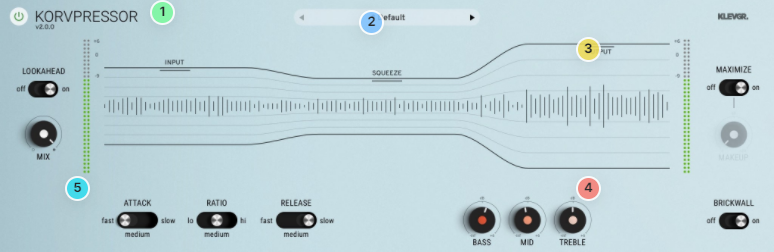
1. Input level - Drag up to increase the input signal level.
2. Squeeze - This is the main control of Korvpressor. Imagine that you're pinching the sound waves, so the more squeeze you want, the further down you should go with this handle.
3. Output - Make-up gain after the squeezing.
4. Post EQ - A musical and versatile EQ to fine-tune your finished sausages.
5. Flip the switches - Added controls for the compression behaviour.
Features
- Recognized high-quality compression algorithm
- Unique and easy-to-use UI
- New: Attack / Release time switch (three states)
- New: Dry/Wet mix
- New: Ratio switch (three states)
- New: Maximizer Mode on/off (with a Make Up parameter knob if set to off)
- New: Plenty of factory presets
- New: Output brickwall limiter on/off switch
- 3-band smooth EQ
- Lookahead on / off
System Requirements
- macOS 10.10 or later (optimized for the M1-processor)
- Windows 7 SP1 or later
- AU, VST-2, VST-3, AAX
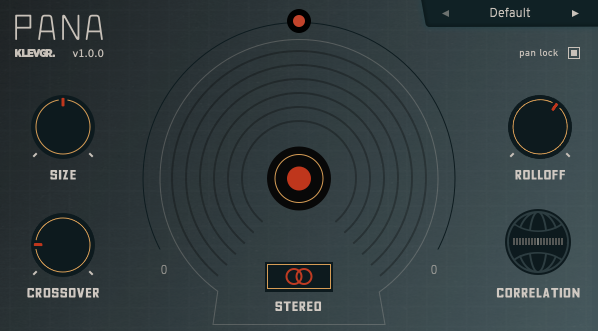
Please Note: Pana is used as the example:
Mac
License Redemption
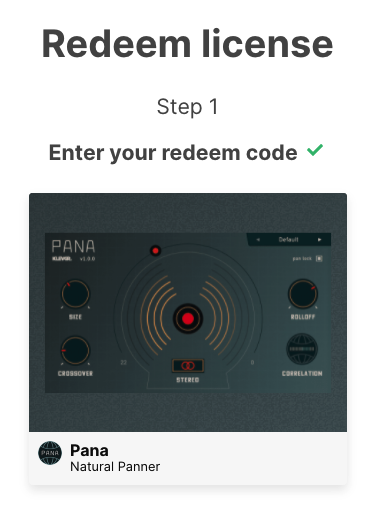
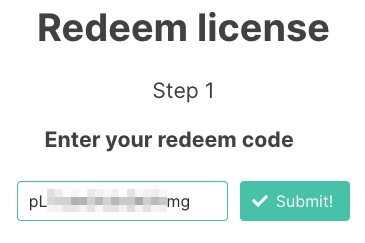
1. Navigate to https://klevgrand.com/redeem > Paste your 16 digit redemption code found in your Plugin Boutique User Account > Click 'Submit!'.
2. Your redemption code has been accepted > Scroll down to Step 2.
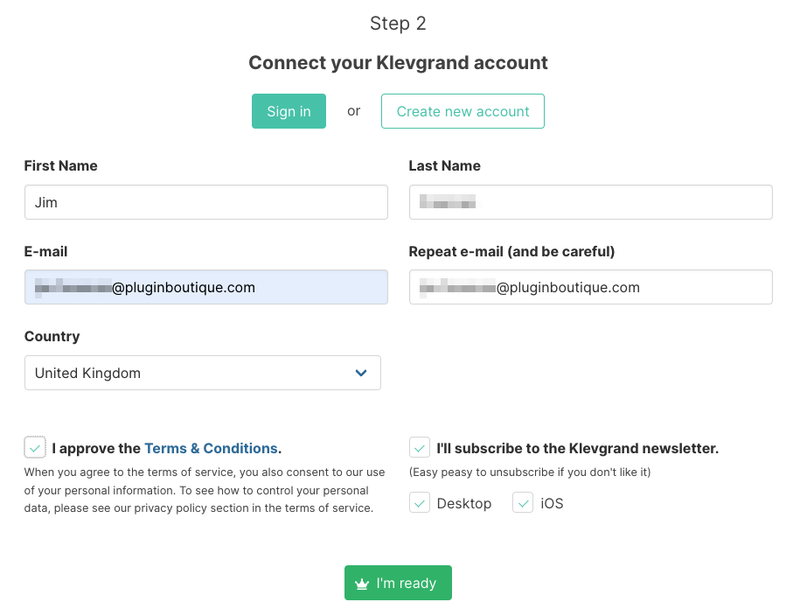
3. Click either 'Sign in' if you already have a Klevgrand account, or 'Create new account' if you do not > Fill in your personal details > Click 'I'm ready'.
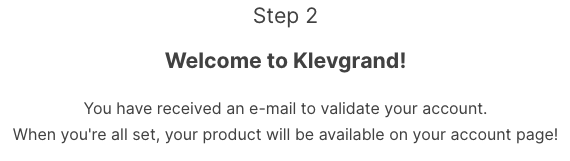
4. Your account has now been created.
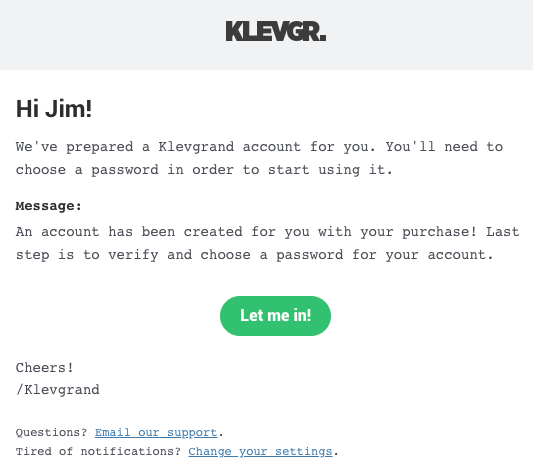
5. Navigate to your email inbox and locate the activation email that you should have received from Klevgrand > Click 'Let me in!' to activate your account.
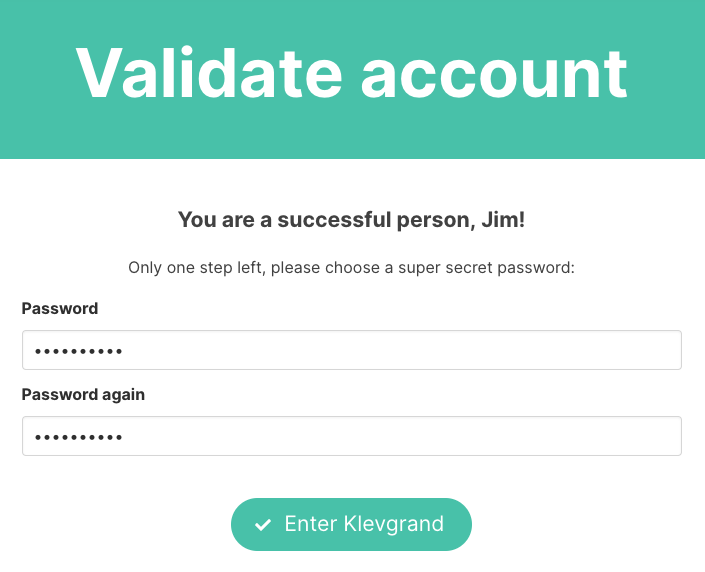
6. Create a password for your account > Click 'Enter Klevgrand'.
7. Your software and serial number is now available within your Klevgrand account > Click the Apple logo to download the installer file.
Installation
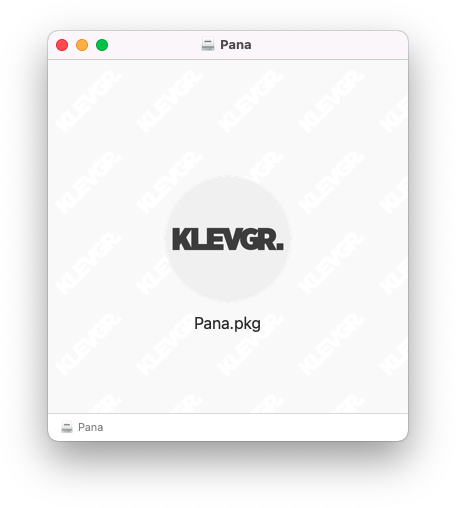
1. Launch the pana_x_x_x_macOS.dmg installer file.
2. Double click the KLEVGR. logo to launch the installer.
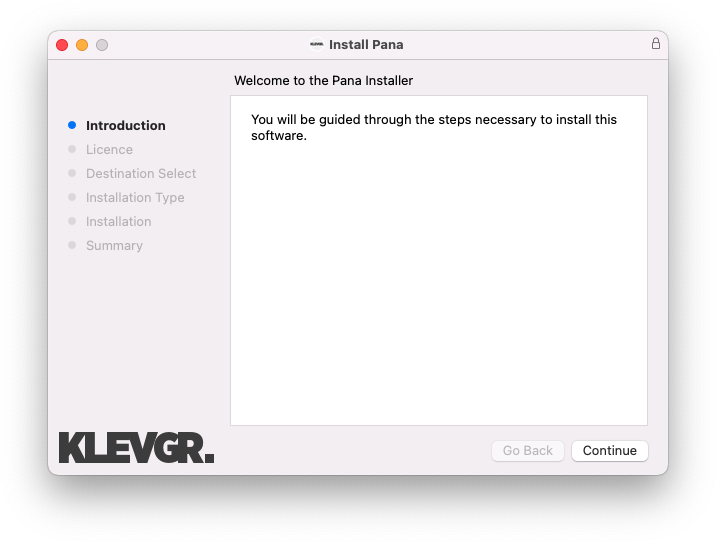
3. Click 'Continue'.
4. Click 'Continue'.
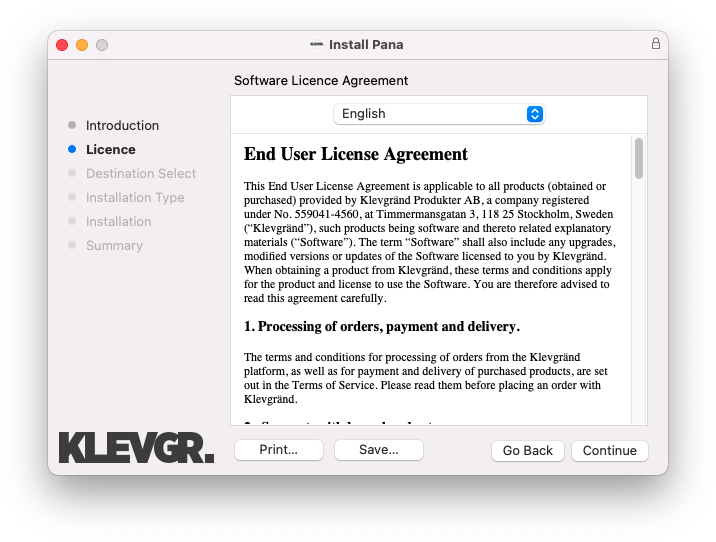
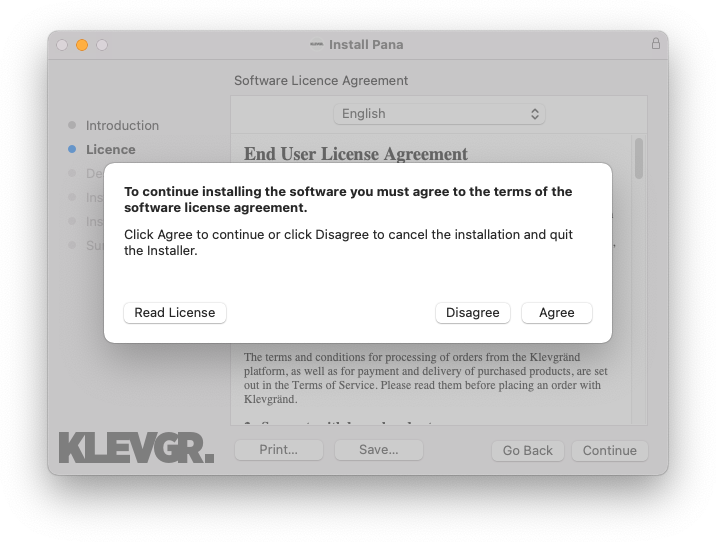
5. Click 'Agree'.
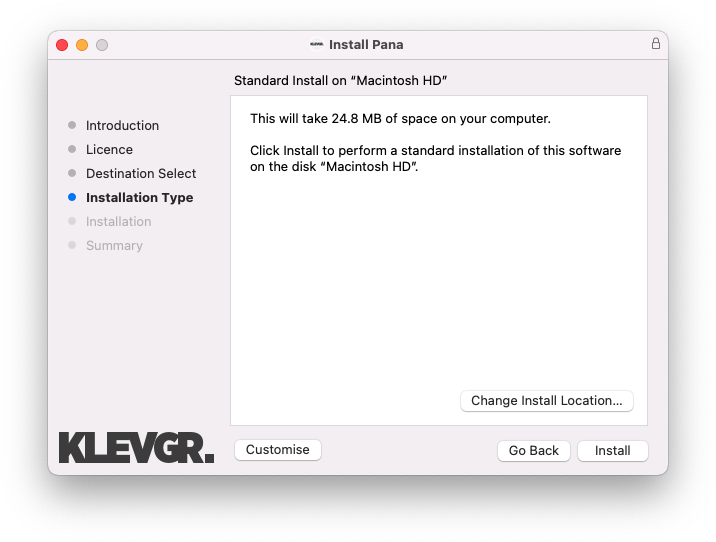
6. Click 'Install'.
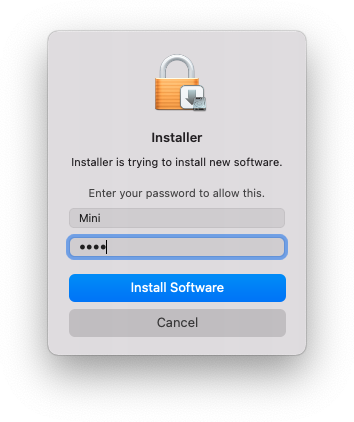
7. Enter your system password > Click 'Install Software'.
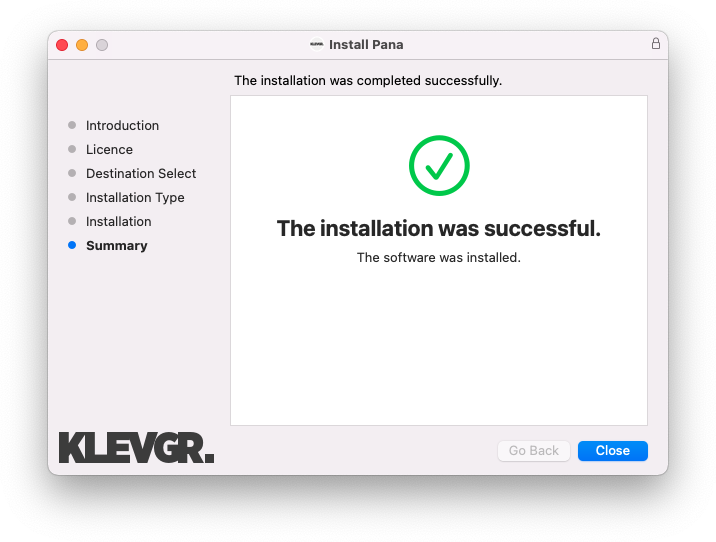
8. Click 'Close'.
9. Navigate back to your Klevgrand My Account page > Click on the serial number to copy it to your clipboard.
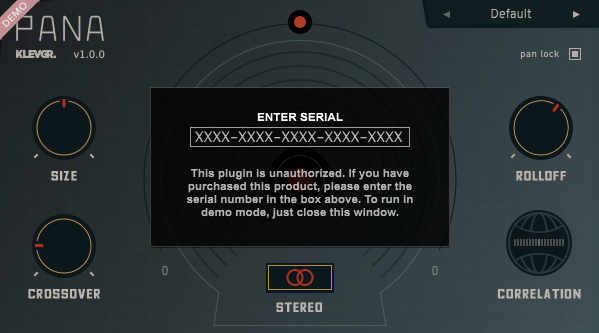
10. Launch your DAW > Create a new audio track > Insert Pana onto the channel > Paste your serial number into the box.
Your software is now activated and ready to use within your DAW
Windows
License Redemption
1. Navigate to https://klevgrand.com/redeem > Paste your 16 digit redemption code found in your Plugin Boutique User Account > Click 'Submit!'.
2. Your redemption code has been accepted > Scroll down to Step 2.
3. Click either 'Sign in' if you already have a Klevgrand account, or 'Create new account' if you do not > Fill in your personal details > Click 'I'm ready'.
4. Your account has now been created.
5. Navigate to your email inbox and locate the activation email that you should have received from Klevgrand > Click 'Let me in!' to activate your account.
6. Create a password for your account > Click 'Enter Klevgrand'.
7. Your software and serial number is now available within your Klevgrand account > Click the Windows logo to download the installer file.
Installation
1. Unpack the pana_x_x_x_win.zip installer file > Launch the pana_x_x_x_win.exe file.
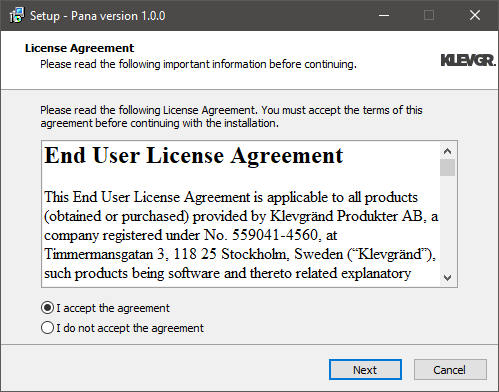
2. Click 'I accept the agreement' > Click 'Next'.
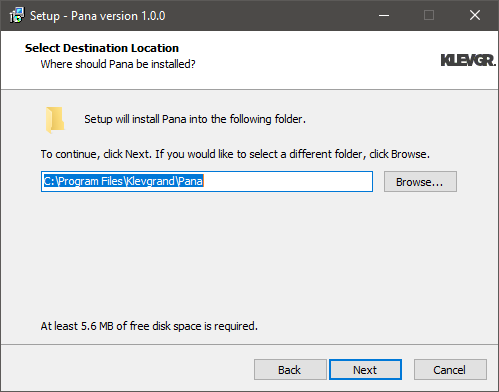
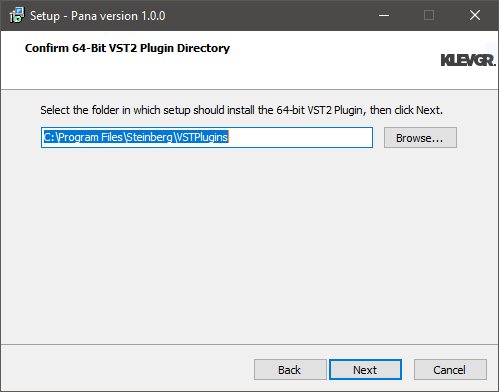
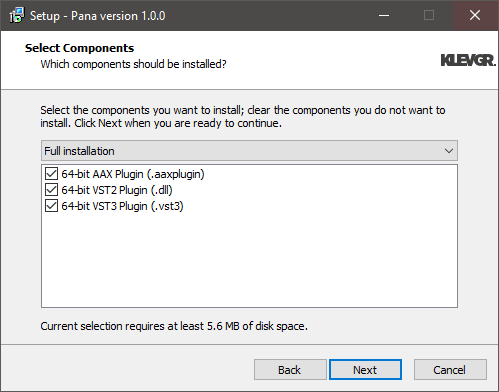
3. Click 'Next'.
4. Click 'Next'.
5. Click 'Next'.
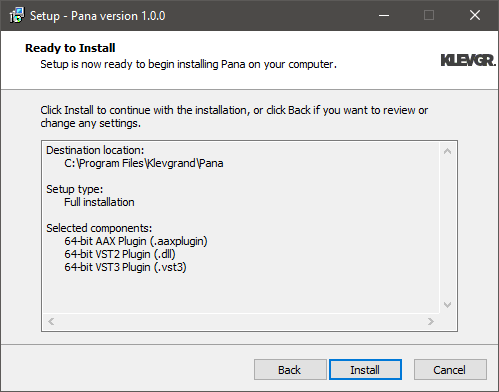
6. Click 'Install'.
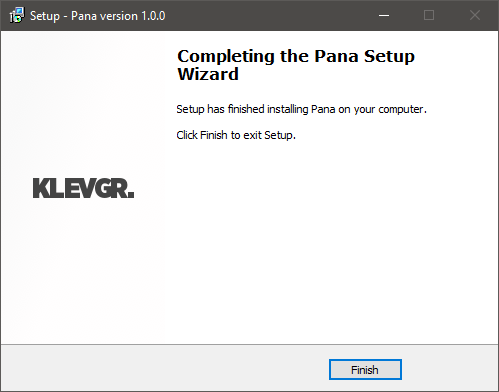
7. Click 'Finish'.
8. Navigate back to your Klevgrand My Account page > Click on the serial number to copy it to your clipboard.
9. Launch your DAW > Create a new audio track > Insert Pana onto the channel > Paste your serial number into the box.
Your software is now activated and ready to use within your DAW