Log In

Free gifts available with your purchase
BLEASS Compressor

Powerful & Flexible Dynamics Processing
Controlling the dynamics of your parts and recordings is an essential step towards a professional sounding mix. With BLEASS Compressor’s powerful performance and intuitive user interface, such pro-grade dynamics control has never been easier.
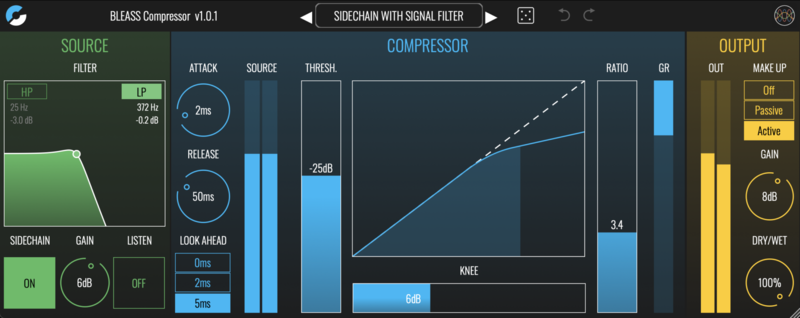
BLEASS Compressor’s flexible dynamics engine makes it an ideal choice in many different situations. With compression ratios of up-to 60:1, a variable knee, and flexible attack and release stages, BLEASS Compressor can deliver a wide range of different response characteristics.
The plug-in’s flexibility is further enhanced by a powerful dual filter that operates on the analysed signal, providing both low-pass and high-pass filtering. The filters work on both internal and sidechain signals, and are resonant too, making it easy to create dynamics effects that are highly frequency dependant.
Despite its versatility and power, BLEASS Compressor is simple to setup and work with. Compression and filter curves are set using tactile graphical widgets, whilst you receive constant easy-to-read visual feedback about how the plugin is operating.
Perhaps best of all, BLEASS Compressor is ultra-efficient, so you can include its intuitive dynamics control to any-and-every part that needs it.
Features
Source Section
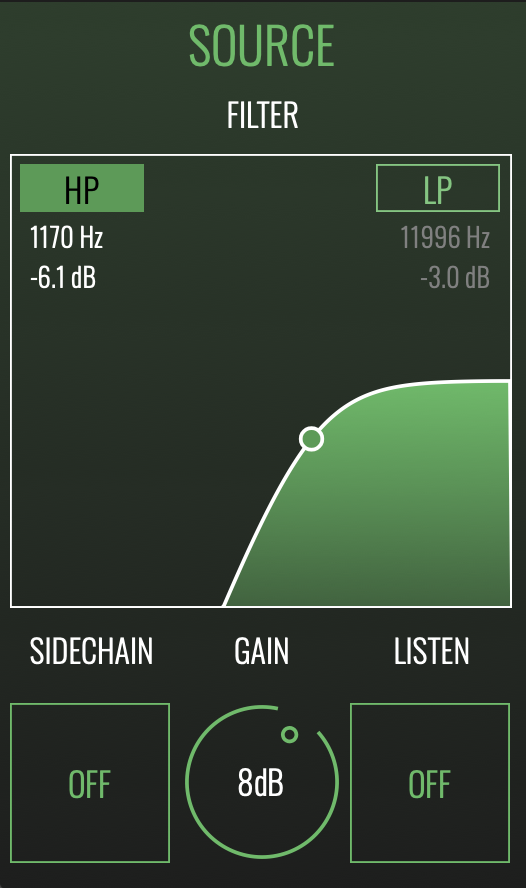
- Filter HP and LP Buttons - Enable and disable the high-pass and low-pass sidechain filters
- Filter Graph - Click and drag left-to-right to change a filter’s cutoff frequency; drag up-and-down to change a filter’s resonance. The filter settings will determine the compressor’s sensitivity at different frequencies.
- Sidechain - Enables external sidechain input. The sidechain is the signal used by the compressor to detect when, and by how much, to adjust the signal level. Often the sidechain signal will be a copy of the plugin’s input signal. Using an external sidechain signal allows you to process a part using the dynamic characteristics of another part. For example, to get a synth pad to pump with the kick drum, insert BLEASS Compressor on the pad’s channel, enable the external sidechain, and create a send from the kick drum to the plugin’s sidechain input.
- Gain - Sets the gain of the sidechain signal.
- Listen - When enabled, causes the sidechain signal to be passed to the plugin’s output for monitoring. This is useful when configuring the sidechain filter, and to confirm the presence of an external sidechain signal.
Compressor Section
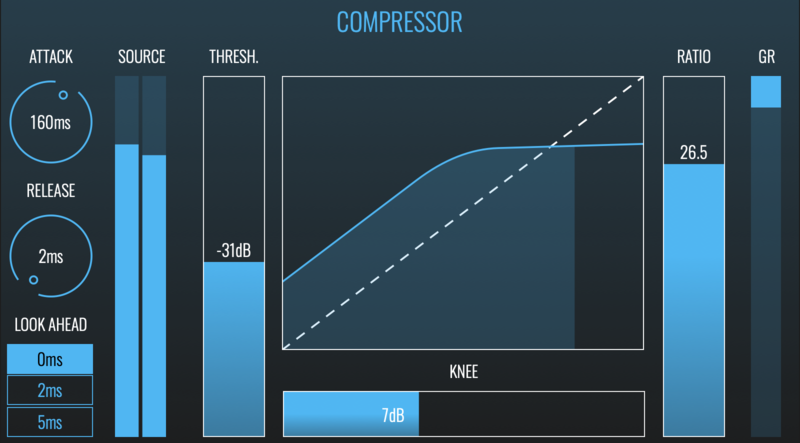
- Thresh. - Sets the compressor’s threshold. When the sidechain signal exceeds this threshold, gain reduction will be applied to the signal being processed.
- Ratio - Determines how much gain reduction will be applied when the sidechain signal exceeds the threshold. The value shown is the left-hand part of a ratio, for example a value of “3” will result in a compression ratio of 3:1 being applied. A ratio of 3:1 means that for every increase of 3dB in the sidechain signal, the compressor’s output signal will increase by 1dB.
- Attack - Determines how long it takes for the compressor to move from 1:1 compression to full-ratio compression after the sidechain signal exceeds the threshold.
- Release - Determines how long it takes for the compressor to return to 1:1 compression after the sidechain falls below the threshold.
- Knee - Determines the way in which the ratio is applied at-and-around the threshold level. A low knee setting – also known as a “hard knee” – results in full-ratio compression being applied as soon as the sidechain signal exceeds the threshold (with attack time taken into account). Conversely, a high knee setting – known as a “soft knee” – causes the compression ratio to start to increase when the sidechain signal is still some way below the threshold, with full-ratio not being reached until the sidechain signal is some way above the threshold.
- Compression Graph - The compression graph shows the compression curve that results from the current settings. Dragging left-to-right on the graph allows you to decrease or increase the compressor’s threshold and ratio values simultaneously. Dragging upwards on the graph increases the threshold whilst decreasing the ratio; dragging downwards does the opposite.
- Source Meter - Shows the sidechain signal level.
- GR Meter - Shows the amount of gain reduction being applied by the compressor.
- Look Ahead - The signal being processed can be delayed relative to the analyzed signal – the Look Ahead value determines the length of this delay. Look-ahead causes the compressor to respond slightly ahead of time, which can be helpful when dealing with audio that contains very loud, sudden and short transients, such a drum and percussive parts.
Output Section
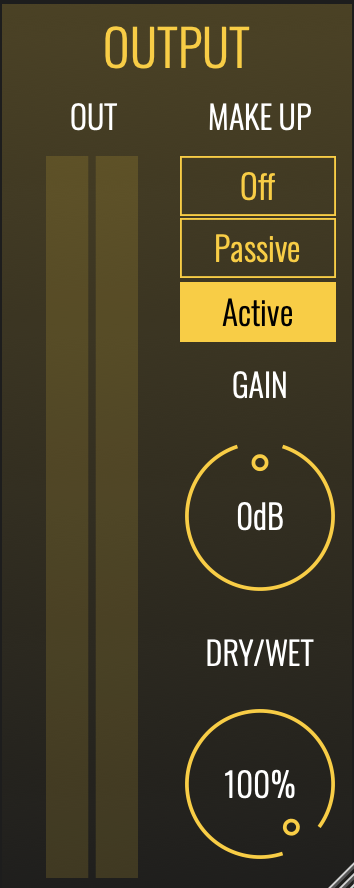
- Make Up - Select the desired make up gain mode. In Passive mode, a fixed gain increase is applied in order to counter the compressor’s gain reduction. In Active mode, BLEASS Compressor attempts to maintain a constant output level by making constant changes to the amount of make up gain being applied.
- Gain - Sets the output level of the plugin. The gain setting is added on top of any make up gain that is being applied.
- Dry/Wet - Sets the balance between the “dry” unprocessed signal and the “wet” processed signal.
- Out Meter - Shows the current output signal level.
System Requirements
PC
- Windows 8 and later (64-bit)
- VST3 / AAX
Mac
- macOS 10.9 and later (64-bit only) (including macOS 11 Big Sur and M1 processors)
- VST3 / Audio Unit / AAX