Buy Little Clipper 2, get a free gift with purchase:
Please Note: If you already own Little Clipper, please email support@pluginboutique.com with proof of your original purchase for details on your exclusive upgrade package.
What's new in Little Clipper 2?
- Resizable Interface
- Native Apple Silicon
- Asymmetrical distortion
- Oversampling
The essential clipper. Little Clipper includes all the features you need from a clipper and lays it out in a way that makes it simple to dial in.
Why make a clipper when there are already so many?
Little Clipper is the lighter, smaller version of its big brother (Big Clipper). Clipping is one of the more misunderstood processes in mixing. When used correctly, it can make mixing easier. Things just fall into place better and dynamics stay under control. As it is with all effects, however, it’s easy to overdo. Little Clipper makes it easy to dial in with clear meters that show you how much clipping is occurring, and all the essential features that let you dial in your clipping to be just the right amount.
Hard/Soft Clipping
Sometimes you need crisp hard clipping, sometimes you need smoother soft clipping. Little Clipper lets you choose easily how hard you want your clipping to be.
Stereo or Mid/Side
Little Clipper lets you choose your channel configuration for stereo tracks. We have found that clipping often sounds much more natural in Mid/Side mode on stereo buses. It even lets you clip only the mid or side channels without affecting the other, giving you even more control over your clipping.
I thought clipping was bad. Why would I do it on purpose?
Just like all effects, clipping is bad when you do it accidentally. When used purposefully, it’s a powerful tool that can be used to increase your apparent dynamics without making your peaks jump all over the place. It’s especially powerful on drums. Just a little bit of clipping your snare before your compressor will give your compressor much more natural sounding, predictable results.
Features
- Hard/Soft Clipping
- Intuitive Input Gain and Ceiling controls
- Mix knob for blending your dry sound back in
- Multiple stereo configurations for clipping stereo buses
System Requirements
Mac
Formats:
- AAX
- AU (Audio Units)
- RTAS
- VST
- VST3
Windows
Formats:
- AAX
- RTAS
- VST
- VST3
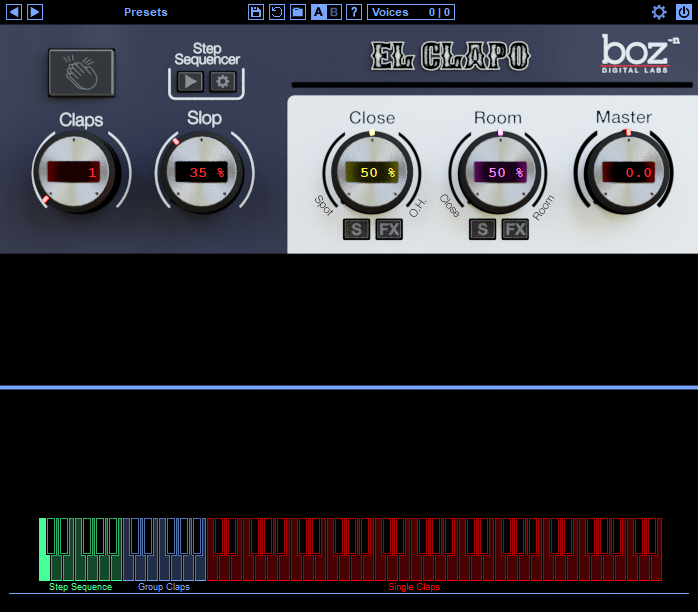
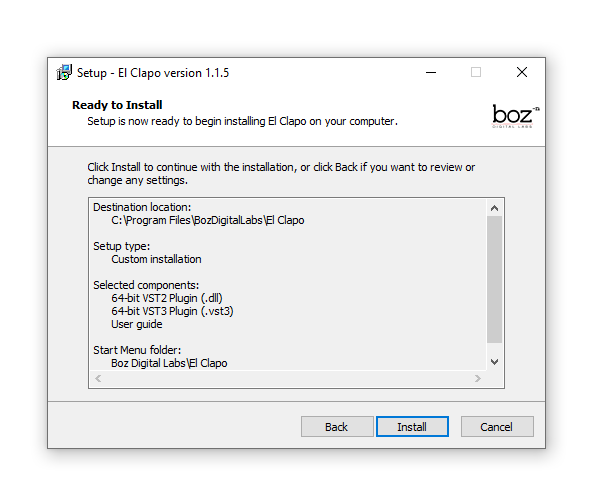
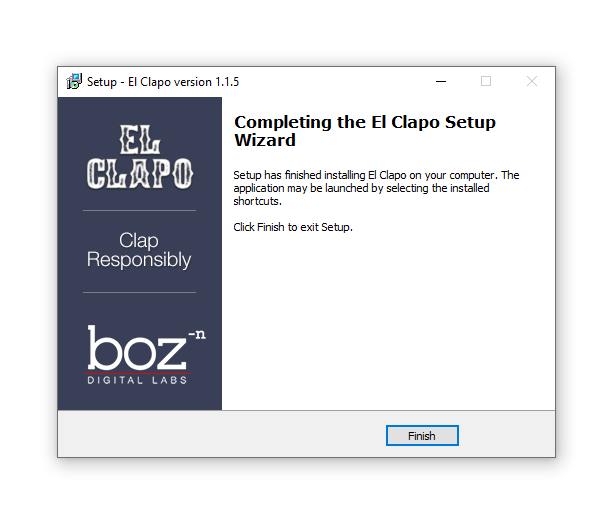
Note: El Clapo is used as an example.
Mac
Redemption
1. Click Download in your Plugin Boutique account or go to https://www.bozdigitallabs.com/plugin-boutique-retrieve/.
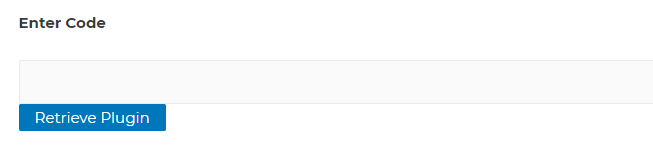
2. Copy and paste the code from your Plugin Boutique account > Click 'Retrieve Plugin'.

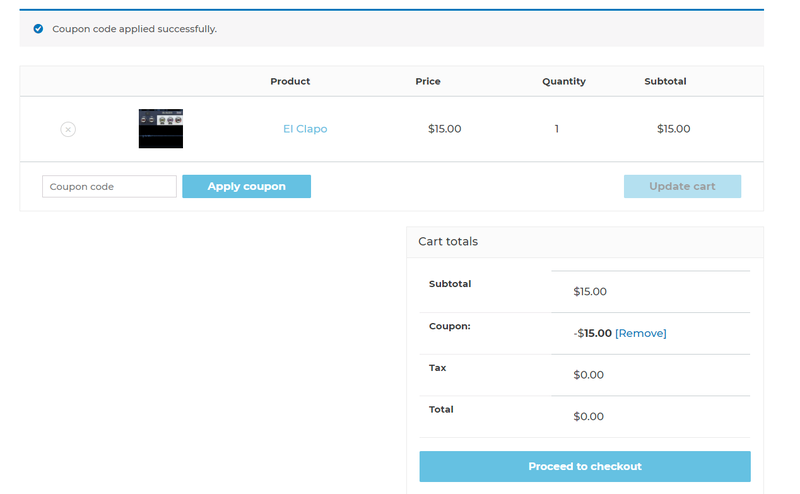
3. Review the order > Click 'Proceed to Checkout'.

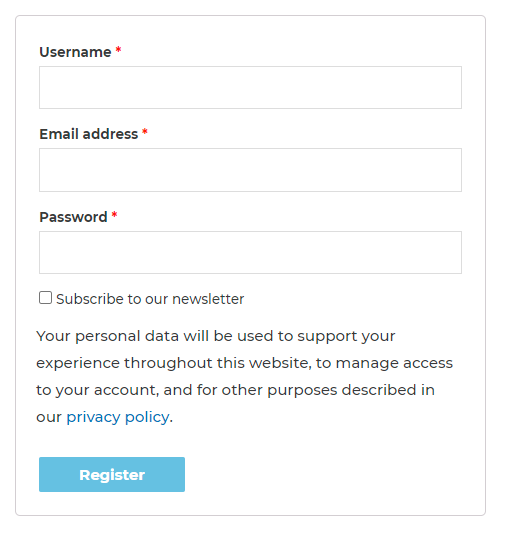
4. Enter your email address, username and password > Click 'Register'.
Note: If you already have Boz Digital Labs account, select 'Click Here to Login' after entering your email address/username and password > Click 'Login'.

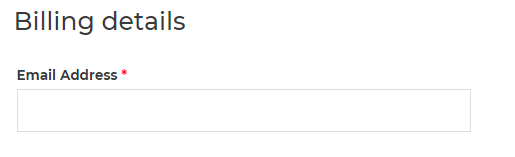
5. Check that your email is correct > Click 'Next'.

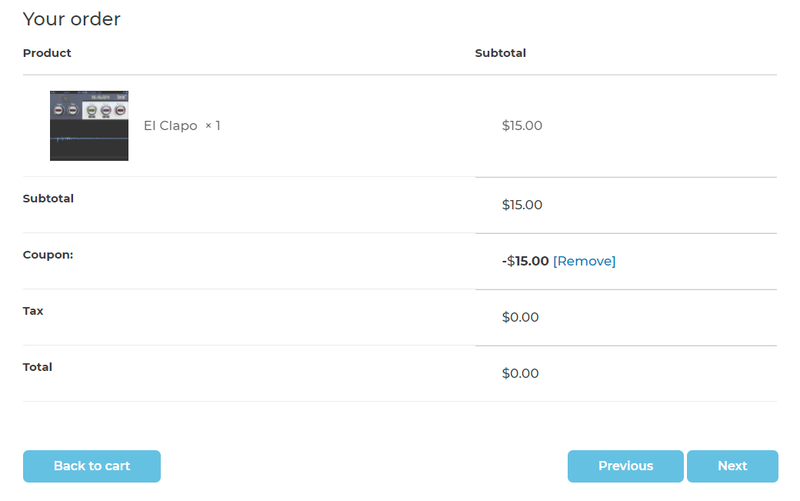
6. Review your order > Click 'Next'.

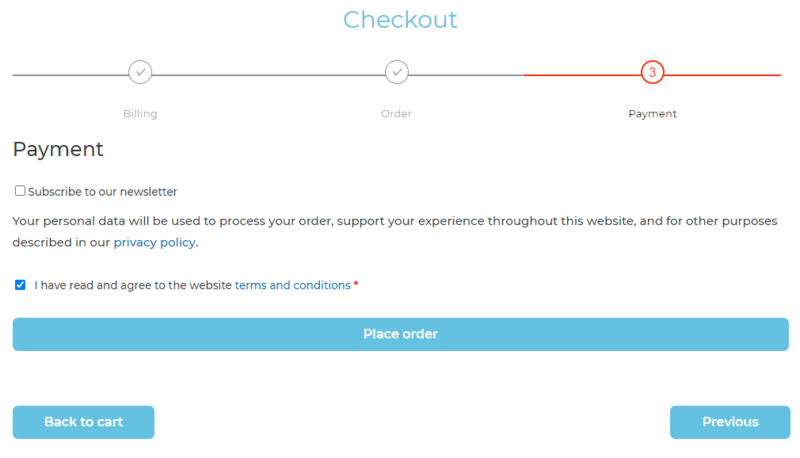
7. Click 'I have read and agree to the website terms and conditions' > Click 'Place order'.

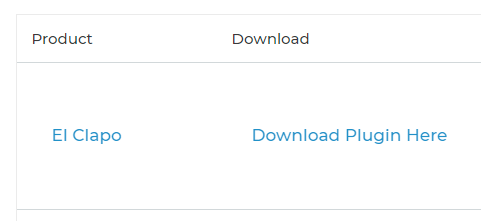
8. Click 'Download Plugin Here'.

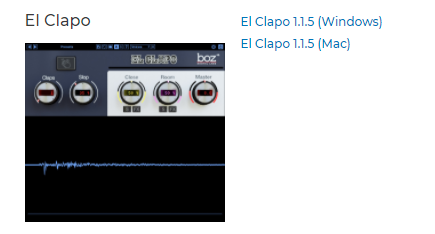
9. Click the Mac link to download the installer.

Installation
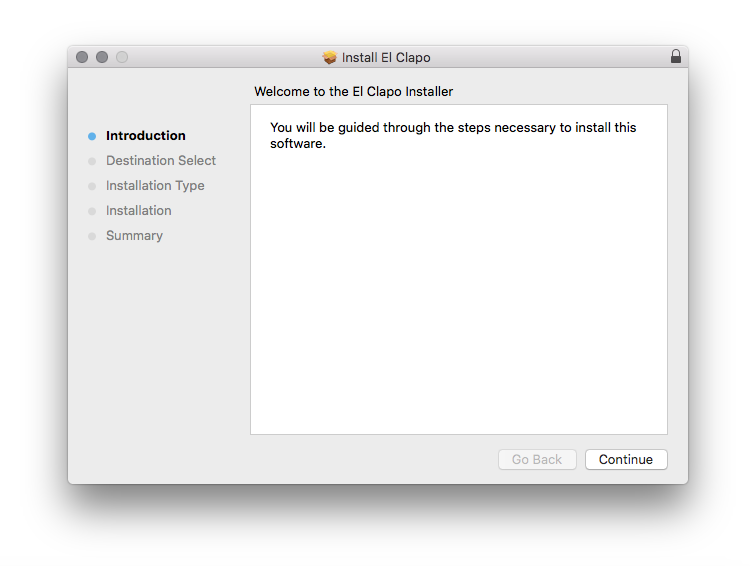
1. Run the .pkg installer > Click 'Continue'.

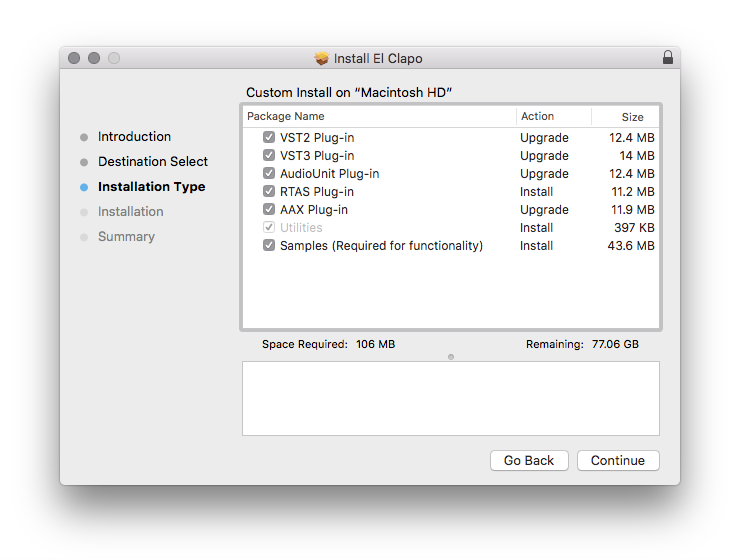
2. Select the formats you wish to install > Click 'Continue'.
Note: If you're unsure about which format to use, leave all options selected and proceed. Check out this article for more information.

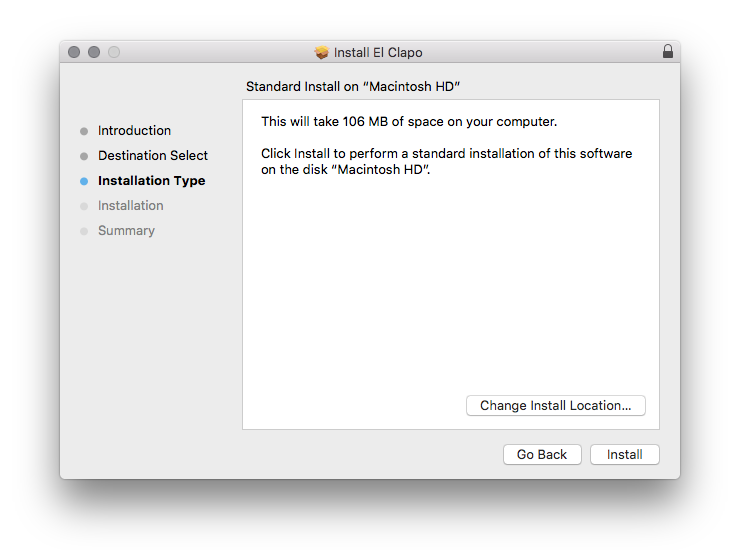
3. Click 'Install'.

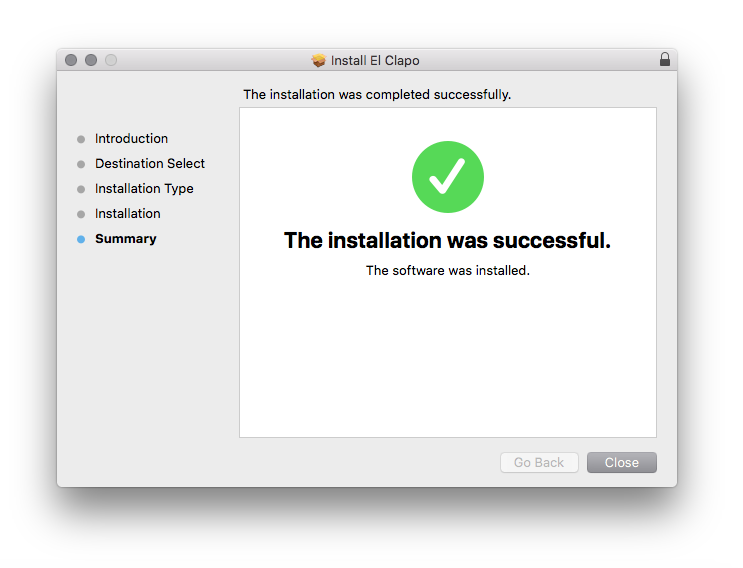
4. Click 'Close'.

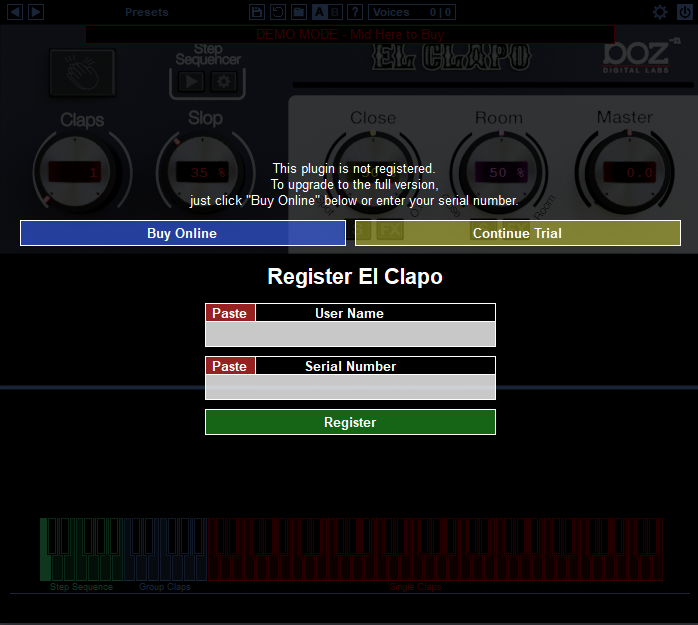
5. Open your DAW and open the plugin > Enter your Boz Digital Labs username and the serial code that you received in your Boz Digital Labs Account > Click 'Register'.

Your software is now authorised and ready for use!

Windows
Redemption
1. Click Download in your Plugin Boutique account or go to https://www.bozdigitallabs.com/plugin-boutique-retrieve/.
2. Copy and paste the code from your Plugin Boutique account > Click 'Retrieve Plugin'.

3. Review the order > Click 'Proceed to Checkout'.

4. Enter your email address, username and password > Click 'Register'.
Note: If you already have Boz Digital Labs account, select 'Click Here to Login' after entering your email address/username and password > Click 'Login'.

5. Check that your email is correct > Click 'Next'.

6. Review your order > Click 'Next'.

7. Click 'I have read and agree to the website terms and conditions' > Click 'Place order'.

8. Click 'Download Plugin Here'.

9. Click the Windows link to download the installer.

Installation
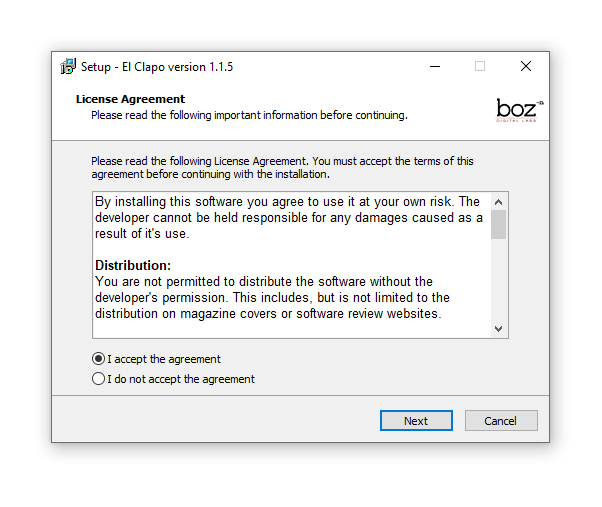
1. Double-click the .exe installer > Click 'I accept the agreement' then click 'Next'.

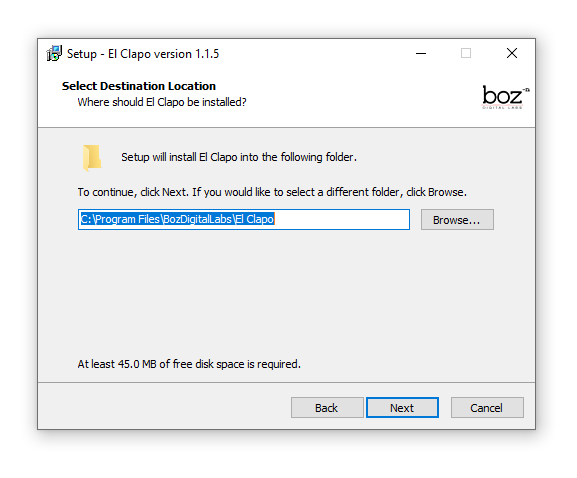
2. Click 'Next'.

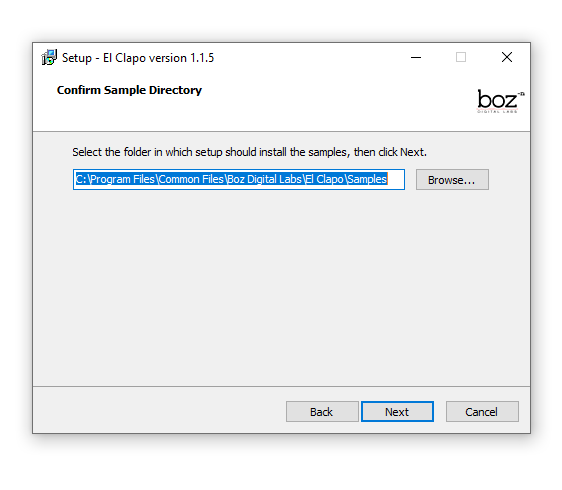
3. Click 'Next'.

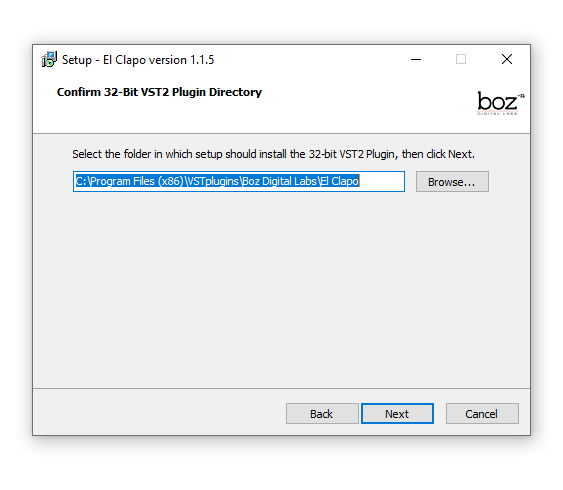
4. Select a VST folder in which to install the 32-bit software format > Click 'Next'.

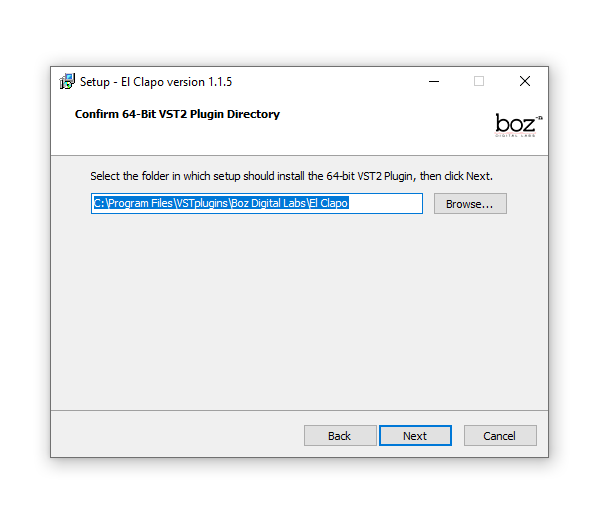
5. Select a VST folder in which to install the 64-bit software format > Click 'Next'.

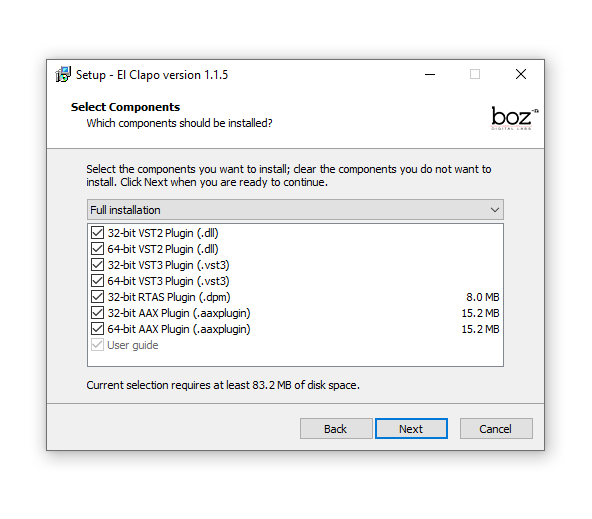
6. Select the components you wish to install > Click 'Next'.

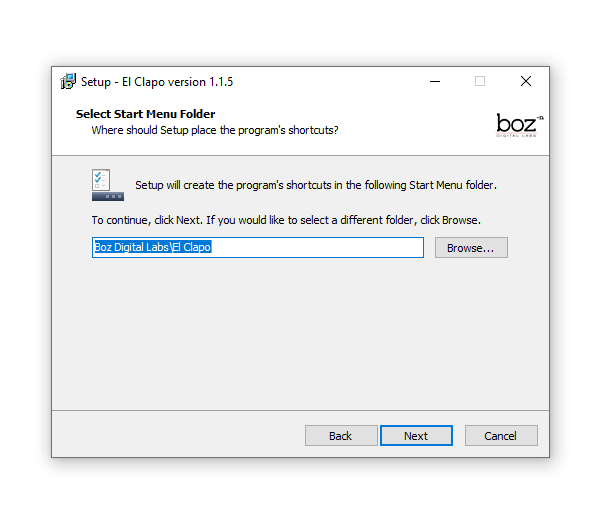
7. Click 'Next'.

8. Click 'Install'.

9. Click 'Finish'.

10. Open your DAW and open the plugin > Enter your Boz Digital Labs username and the serial code that you received in your Boz Digital Labs Account > Click 'Register'.

Your software is now authorised and ready for use!