


 Log In

Free gifts available with your purchase
UA’s Groundbreaking Tape Emulation In An Easy‑To‑Use Plug‑In
Now compatible with any soundcard on Mac and PC
Oxide Tape Recorder gives you the musical, mixable sound of tape, letting you quickly add clarity, punch, and warmth to vocals, guitars, drums, and more, so every track sounds like a record.
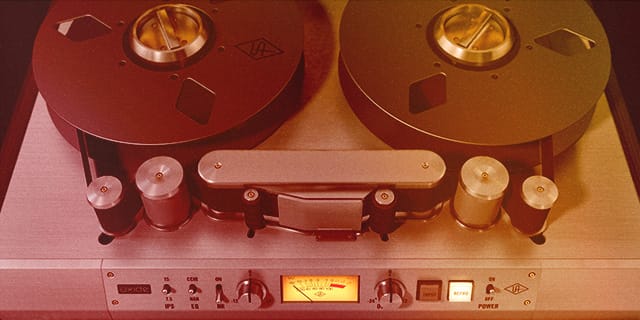
Get Hit-Making Analog Tape Sounds
Developed by the same team behind UA's industry-leading Ampex and Studer tape machine plug-ins, Oxide Tape Recorder gives your productions the warmth, presence, and vibe of professional analog tape, with only the essential controls, so you can get sounds faster.
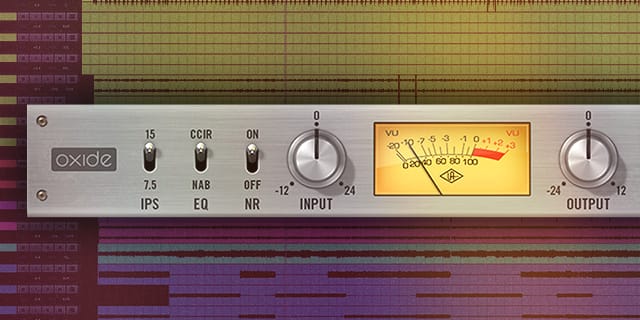
Explore Groundbreaking Tape Emulation Technology
Whether you’re tracking in realtime using an Apollo interface or mixing in your DAW, Oxide’s intuitive controls deliver musical results for beginners and pros alike. Just select IPS (inches per second), EQ, and noise reduction settings, and tweak input and output controls to taste. By emulating fat tape compression and colorful circuit behaviors, Oxide gives your tracks the cohesive glue that only analog tape can provide.
Features
- Use any audio interface, with both UAD Native and Apollo Realtime/UAD-2 versions included
- Inject the warm color and punchy low-end response of analog tape to your tracks
- Apply tape saturation and circuit overdrive via simple Input/Output controls
- Choose among 7.5 and 15 IPS Tape Speeds and two emphasis curves for colorful tape textures
- Experience in-the-box recording “through” tape in real time using Apollo interfaces
Versions Included with your Purchase
- UAD Native: Runs on your Mac or PC without any UA hardware
- Apollo Realtime & UAD-2: Runs accelerated on Apollo interfaces and UAD-2 hardware
- macOS Big Sur 11, Monterey 12, Ventura 13, Sonoma 14, Sequoia 15 and Tahoe 26
- Windows 10 or Windows 11 (64-bit editions)
- Intel, AMD, or Apple silicon processor
- Internet connection to download software and authorize UAD Native plug-ins (UADx)
- Free iLok account
- Compatible with iLok USB (2nd generation or higher) but not required
- Free UA Connect application for managing UAD Native plug-ins (UADx)
- A supported DAW compatible with VST3, AU, or AAX plug-in file formats.
Reviews Summary
While it aims to provide a helpful overview, it may not capture every perspective or detail. We encourage you to read individual reviews to make an informed decision.
Users highly praise this easy-to-use tape plugin for its exceptional sound, subtle gluing effect, and ability to add organic warmth, sweetness, and balanced compression to individual tracks and master busses.


