


 Log In

Free gifts available with your purchase
Four retro-futuristic tone machines, packed with analog magic
Give your recordings the colorful saturation and effects heard on countless hip-hop, lo-fi, electronic, rock, and experimental tracks. Designed for the modern musician, beatmaker, and producer — Verve Analog Machines puts a sandbox of playful analog sounds right in your DAW.
4 Magical Machines to Unleash Your Creativity
With four colorful UA-designed effects, giving you glossy tape warmth to gritty lo-fi saturation, Verve Analog Machines Essentials adds energy to drums, guitars, vocals, synths, or your whole mix.
Included Machines
Sweeten
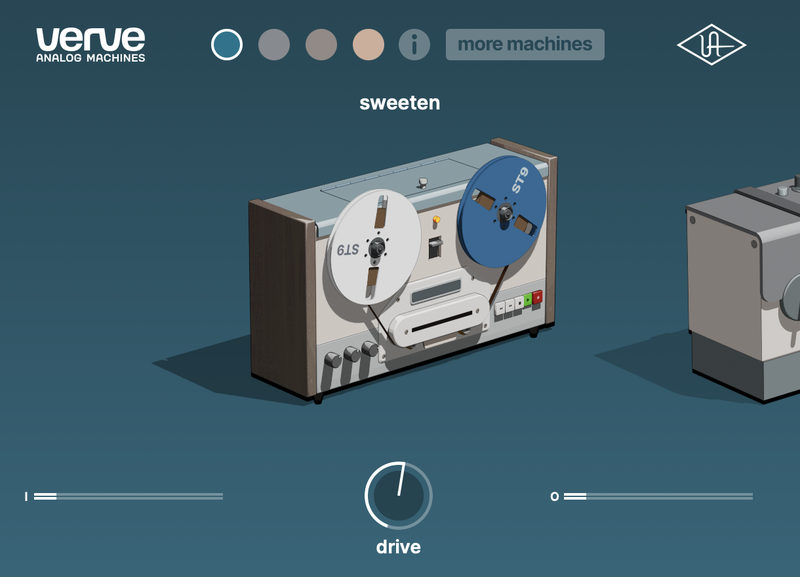
Add warmth to anything with classic reel-to-reel sound that can be gently overdriven.
Great for: Getting studio-grade tape sound on vocals, instruments, or your entire mix.
Warm
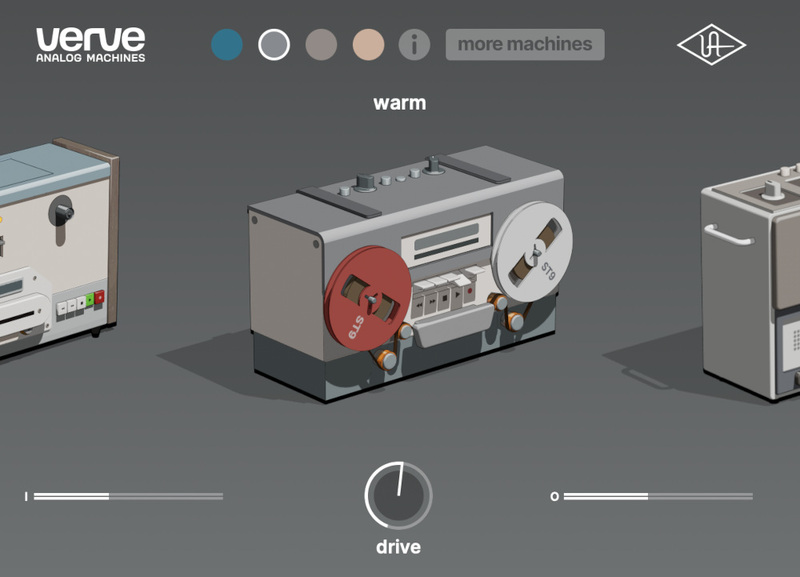
An older and bolder tape machine. It’s similar to Sweeten, but with a deeper warmth and warble.
Great for: Getting tape sound with added movement.
Thicken

Hop in your time machine and explore gritty lo-fi textures from half a century ago.
Great for: Giving any track some added vibe and dimension.
Vintagize
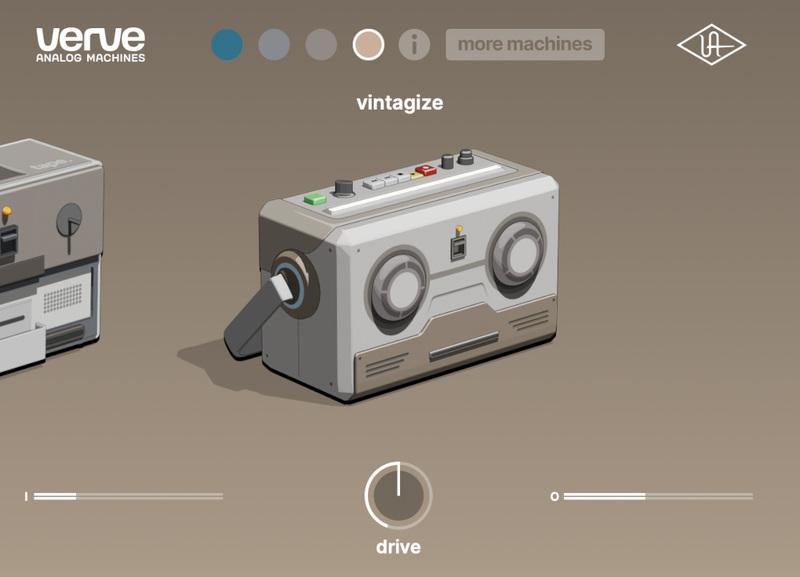
Need a tone that’s all your own? Score thriftstore tape machine sound that’s older than your grandparents.
Great for: Making modern recordings sound old.
Features
- Add analog sound to your recordings with four easy-to-use machines
- Give kicks, snares, and synths gritty tape textures or add warmth to vocals, guitar, bass, or your entire mix
- Make mixes sound instantly more expressive and alive with retro-futuristic analog sounds crafted by UA
- macOS 11 or above.
- Windows 10 or Windows 11 (64-bit only Editions)
- Intel, AMD, or Apple silicon processor
- Internet connection to download software and authorize UADx plug-ins
- Free iLok account with iLok Cloud or iLok USB (2nd generation or higher)
- A physical iLok dongle is NOT required to activate this product
DAW Compatibility
- Pro Tools 2022 (AAX)
- Logic Pro (Audio Units)
- Ableton Live 11 (VST 3, Audio Units)
- Cubase 12 (VST 3)
- Studio One 5 (VST 3)
- LUNA Recording System
You can activate this software on an online system (using iLok Cloud) or an offline system (using an iLok USB):
-
Online: an active internet connection and a FREE iLok account are required to authorise UAD Plug-ins using iLok Cloud
-
Offline: you will need a physical iLok USB (2nd generation or higher) to authorise this software
Important note: UAD plugins do not work in Apple's Garageband DAW


