


 Log In

Free gifts available with your purchase
Clarity Vx DeReverb Pro
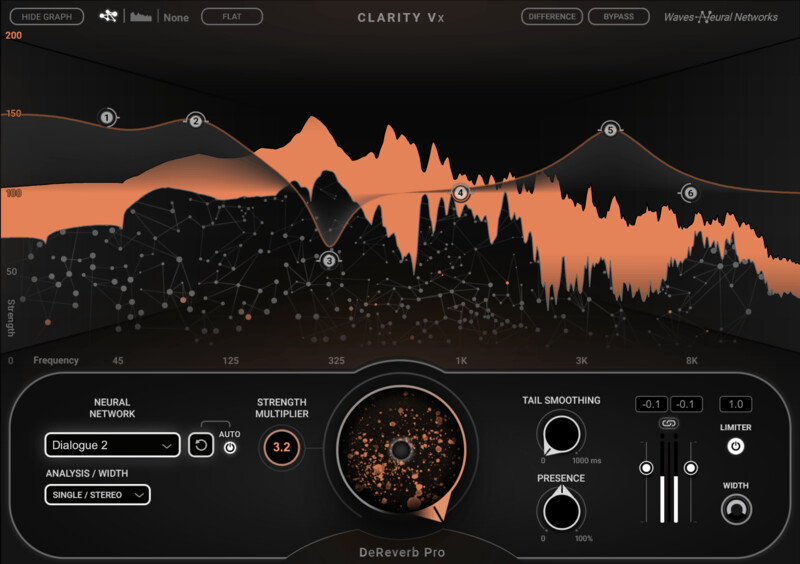
Remove Reverb from Voice with More Power, Precision & Control
Welcome to a faster and smoother workflow for dereverbing dialogue & vocals. Use Clarity’s pioneering AI technology to dry up recordings instantly, in real-time. The voice quality is unrivaled, and you’ll save time for creative work.
You have complete control over the processing for extremely accurate results: 6 flexible precision-processing bands to only dereverb problem frequencies, added power with up to 200% reduction, Tail Smoothing to make dialogue match the visuals, and much more.
Early reflections on ADR takes? Clarity will tighten them. On-location recordings with long tails? Clarity will curb the ‘verb, while keeping desired production sounds. Mixing a feature vocal with baked-in reverb? Tame low and high-frequency tails and preserve the reverb’s character.
Features
- The next generation of Clarity AI voice processing
- Acclaimed Waves Neural Networks® technology, trusted by Oscar winners
- Instant reverb removal for dialogue & vocals
- Unprecedented power, precision & control for voice dereverberation
- Fast and seamless workflow with intuitive GUI
- 6 flexible processing bands – choose where you dereverb
- Real-time workflow in context, fully automatable parameters
- Tail Smoothing to rebuild the room and help dialogue to match the visuals
- Toggles for solo, bypass & delta – hear what’s being removed
- Presence control to restore organic voice frequencies
- Trained on all types of spaces, incl. long & short tails
- Dedicated neural networks for dialogue (speech) & sung vocals
- Clarity Vx DeReverb Pro includes Clarity Vx DeReverb
System Requirements
Mac
- macOS Monterey 12, Ventura 13, Sonoma 14, Sequoia 15
- VST / AU / AAX
PC
- Windows 10+
- VST / AAX














