


 Log In

Free gifts available with your purchase
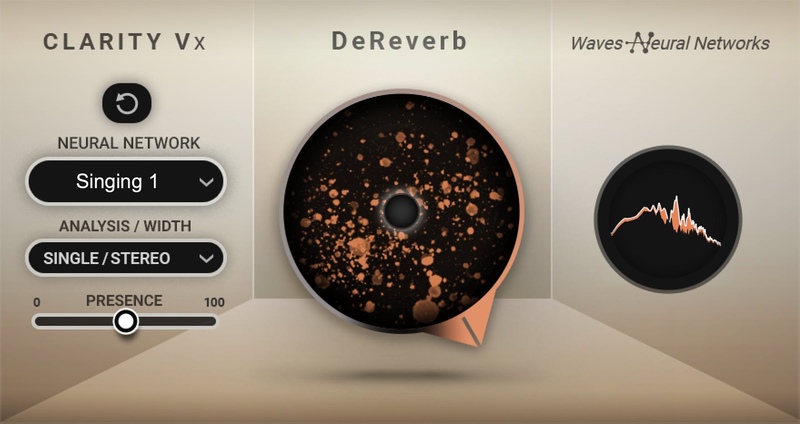
Clarity Vx DeReverb
Use AI to Make Any Vocal Usable, No Matter the Room
Clarity™ Vx DeReverb’s groundbreaking AI technology does the heavy lifting, giving you professional-sounding vocal & dialogue recordings instantly, at the highest fidelity.
When you record in an untreated environment, you also capture a serious amount of room sound. The vocals you’re working with might have more reverb & echo than they should, and that can cloud your production and reduce focus.
It could be a podcast shot in the living room. Or that inspired voice memo you recorded that’s perfect for your song—except it sounds too roomy. Or a clip from social media you want to sample. With Clarity, you can say goodbye to all these room & reverb problems.
Features
- Instant one-knob AI room & reverb removal for vocals & dialogue
- Solve room problems in any vocal or voice recording with ease
- The next generation of Clarity AI voice processing
- Make usable vocal samples that have too much reverb
- Record a spontaneous moment anywhere, and remove room issues with Clarity
- Dedicated neural networks for dialogue (speech) and sung vocals
- Trained on all types of reverby spaces, incl. long & short tails
- Acclaimed Waves Neural Networks® technology, trusted by Grammy and Oscar winners
System Requirements
Mac
- macOS Monterey 12, Ventura 13, Sonoma 14, Sequoia 15
- VST / AU / AAX
PC
- Windows 10+
- VST / AAX












Reviews Summary
While it aims to provide a helpful overview, it may not capture every perspective or detail. We encourage you to read individual reviews to make an informed decision.
Users consistently praise this de-reverb tool as an easy-to-use and highly effective solution for cleaning up reverb-heavy vocal tracks with minimal effort and minimal artifacting. While some note that it is slightly pricey and primarily limited to vocal processing, reviewers overall consider it one of the best de-reverberation tools available.


