


 Log In

Free gifts available with your purchase
COSMOS Sample Finder
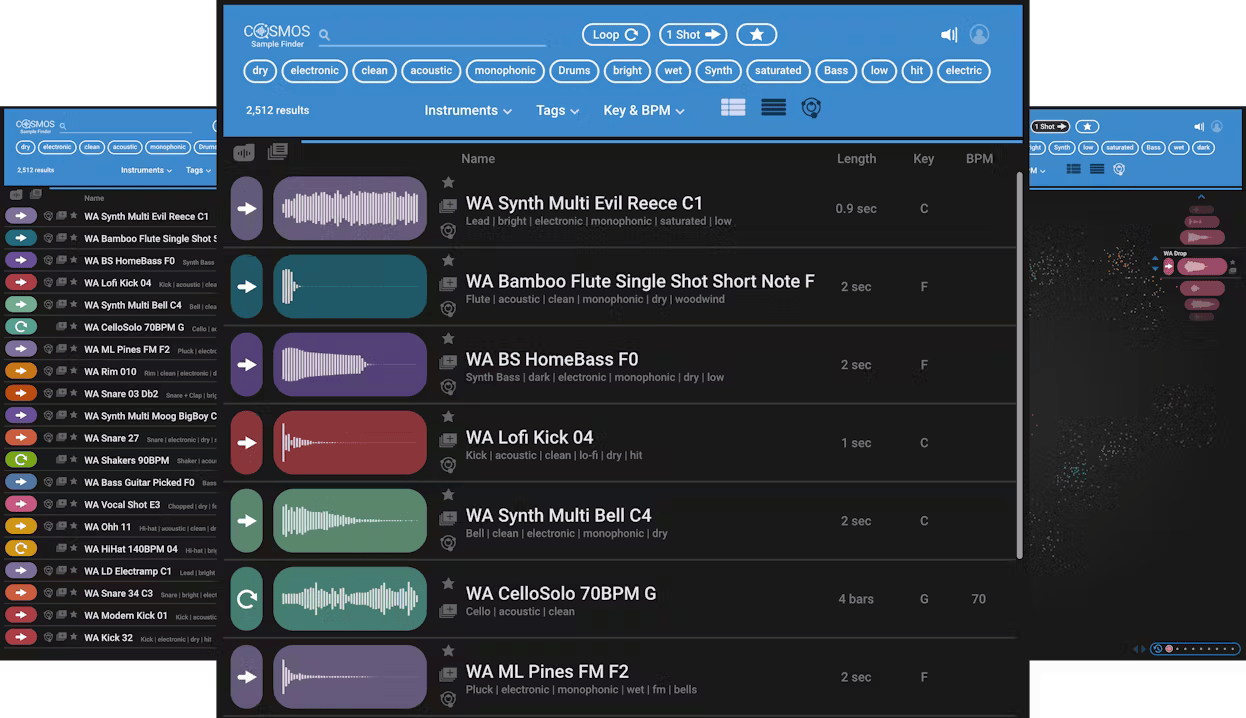
Always Find the Right Samples for Your Tracks
Quick—what sound is the sample with filename asdf_#12C.wav? You may not know, but COSMOS does. COSMOS uses an AI neural networks engine to analyze all the samples on your hard drive, and then categorizes and auto-tags the instrument, timbre, style, key, BPM, and sonic characteristics (loop or one-shot, dry or wet, and much more) in its database.
Need to find a saturated kick? Just type “saturated” and “kick” in COSMOS, and all your saturated kicks will show up, no matter what the files are actually named. Need to find a bright reverby drum loop in 120 BPM? Or a saturated synth sample in F#-minor with a cinematic feel? Just choose the appropriate tags, and COSMOS will deliver the samples you’re after, instantly.
Features
- Uses AI to sort and auto-tag all the samples on your hard drive
- Over 2500 royalty-free samples included
- Sorts by instrument, key, BPM, and more sonic characteristics
- 3 views: waveform, list, and COSMOS “cluster” view
- Saves you time by finding the samples you want
- Re-discover samples you forgot you had
- Assign oft-used samples to a favorites list, or create collections
- Compatible with all WAV, AIF, OGG and FLAC files
- Use as a standalone app, or open from the Waves CR8 sampler
- Powered by Waves Neural Networks technology
System Requirements
Mac
- macOS Monterey 12, Ventura 13, Sonoma 14, Sequoia 15
- VST / AU / AAX
PC
- Windows 10+
- VST / AAX














