


 Log In
.png)
Free gifts available with your purchase
Abbey Road King’s Microphones
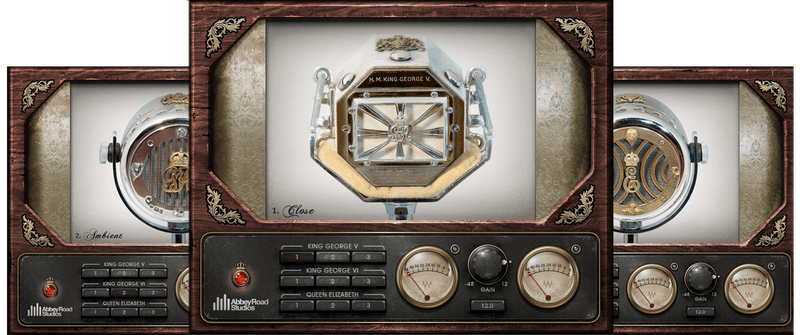
Microphones Fit for a King—and a Queen
In the 1920s and 30s, EMI crafted microphones for British Royalty—King George V, King George VI, and Queen Elizabeth—but these gorgeous mics sat neglected in the EMI Archive Trust for decades. Then, in a strange twist of fate, production started on the award-winning film, “The King’s Speech.”
After painstaking restoration, the mics came back to life to record the film’s orchestral sections, as well as “re-amp” the dialogue for authenticity. Then the Abbey Road engineers started experimenting with re-amping guitars and synths to get unique crunchy filter-like qualities. Clearly, the mics were never designed to be used in this fashion—but breaking the rules is how you stand out.
Features
- Modeled in close collaboration with Abbey Road Studios
- The King George V mic is the only known model of a carbon mic
- Each mic has 3 range positions: close, natural, and ambient
- 1920s and 30s mic characteristics provide “lost” mic timbres
- Vibey sonic qualities for sound design and music production
- Follow with reverb, for novel room and ambiance effects
System Requirements
Mac
- macOS Monterey 12, Ventura 13, Sonoma 14, Sequoia 15
- VST / AU / AAX
PC
- Windows 10+
- VST / AAX














