


 Log In

Free gifts available with your purchase
Product information
Nx Ocean Way Nashville
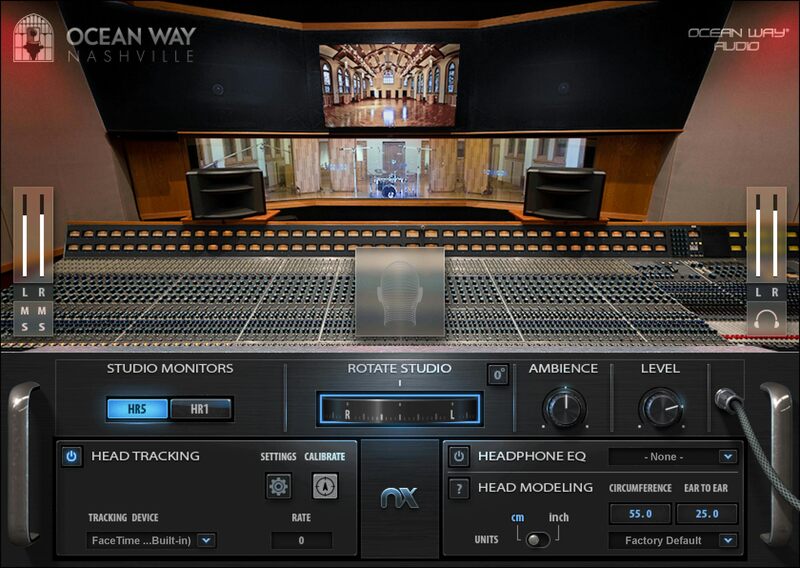
Create Headphone Mixes That Translate Effortlessly to Speakers
To create stellar mixes, you need a stellar mixing environment. The Nx Ocean Way plugin replicates the acoustics and monitoring systems of the stellar Ocean Way Nashville control rooms, over any headphones—so you can create better headphone mixes that translate reliably to all systems.
Designed by founder Allen sides, Ocean Way Nashville’s control rooms are the pinnacle of acoustic design and studio monitoring—an audiophile sound engineer’s dream. Now, the studio’s state-of-the-art acoustics and monitors are yours over any set of headphones, so you can always trust your mixing decisions.
Features
- Create better mixes on any pair of headphones
- Mix within Ocean Way Nashville’s superior control room acoustics
- Accurately judge mix depth, balance, stereo imaging, reverb
- Includes EQ correction for over 270 headphone models
- Check your mix on Ocean Way HR1 and HR5 far/near-field monitors
- Avoid the claustrophobic feel, and pitfalls, of mixing with headphones
- Supervised and approved by Ocean Way’s Allen Sides
- Powered by Waves Nx® immersive audio technology
- Adjust the amount of studio ambience on your headphones
- Personalized head anatomy calibration for precise response
- Ideal for collaboration—everyone mixes in the same environment
- Optional head tracking for extra realism, via webcam or the Nx Head Tracker (bought separately)
System Requirements
Mac
- macOS Monterey 12, Ventura 13, Sonoma 14, Sequoia 15
- VST / AU / AAX
PC
- Windows 10+
- VST / AAX
Installation Instructions












Customer Reviews
(1)


