


Buy Dugan Speech, get a free gift with purchase:
Dugan Speech
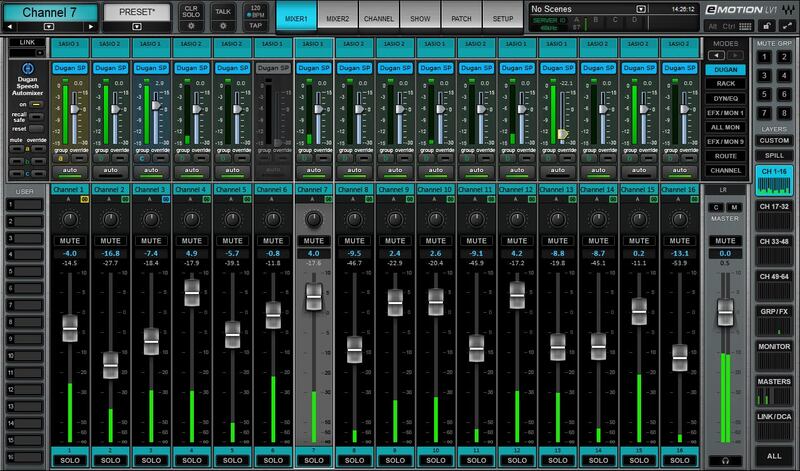
The automatic solution for mixing multiple mics
When multiple participants speak in panel discussions, corporate events, talk shows, or houses of worship, this means multiple mics—and multiple problems: Feedback, comb filtering, noise, people talking over each other…
This is where the Dugan Speech auto-mixer steps in. Developed with audio inventor Dan Dugan, Dugan Speech controls gain automatically, in real time. Forget about the nightmares of controlling multiple microphones—now you can run up to 64 mics with complete confidence.
Features
- Software version of the Dugan Automatic Mixing Controllers, developed by Dan Dugan
- Compatible with Waves' eMotion LV1 mixer & with other consoles via SuperRack SoundGrid or SuperRack Performer
- Reduces the gain of other mics when only one person is speaking
- Shares gain across channels when multiple people are speaking
- Smooth level changes don’t have the abrupt action of noise gates
- 2 modes—Automix On (normal), or Off (unity gain inputs)
- Channel Override prioritizes specific mics, like a host’s
- Adjust channel sensitivities when mixing automatically
- “Recall Safe” mode excludes snapshots from changing settings
- Gain bargraph meter & input level metering
System Requirements
Mac
- macOS Monterey 12, Ventura 13, Sonoma 14, Sequoia 15
PC
- Windows 10+
1. Head to https://www.waves.com/create-account

2. Enter your email and choose a password to create an account (if you already have a Waves account, choose Log in, enter your details and head to Step 5) > click 'Submit'

3. Open your email inbox > click the activation link in the email from Waves

4. Click 'Log in here' > Log in to your Waves account

5. Click 'Register New Products'

6. Enter the Serial Number found in your Plugin Boutique user account > click 'Submit'

7. Click download in your Plugin Boutique user account or head to https://www.waves.com/downloads/central > download the Waves Central app for your operating system

8. Install Waves Central > Open Waves Central

9. Click 'Log in' > enter your log in details

10. Click the 'Install Products' tab

11. Tick the blue dot on all products you wish to install or click the top dot to install all products > click 'Install & Activate'

12. Click 'OK'
13. Open your DAW > open the Waves plugin
Your Waves plugins are installed and ready to use, enjoy!



