Registration
1. Go to your User Account and click 'DOWNLOAD'. This will redirect you to the MeldaProduction login page.
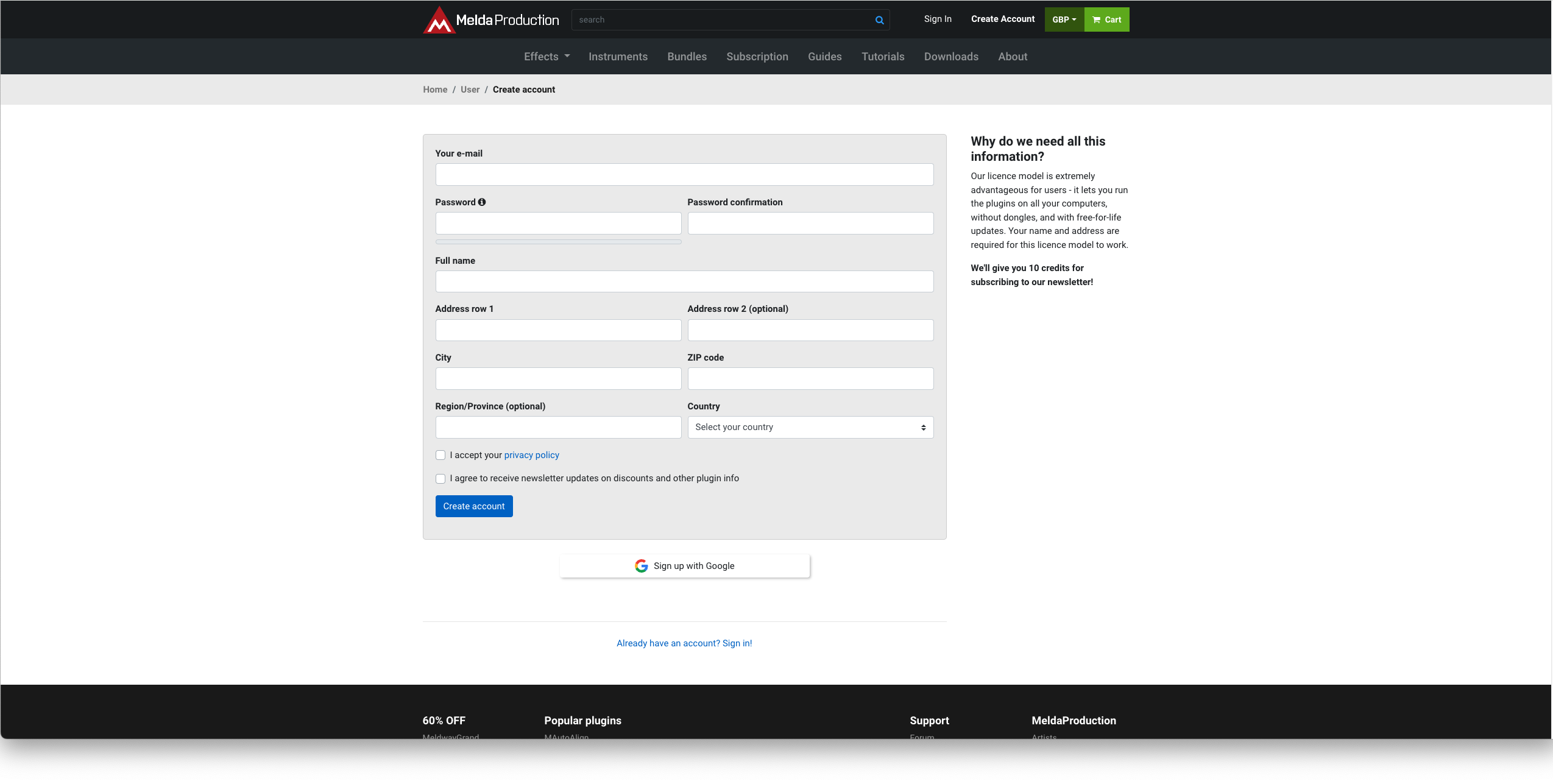
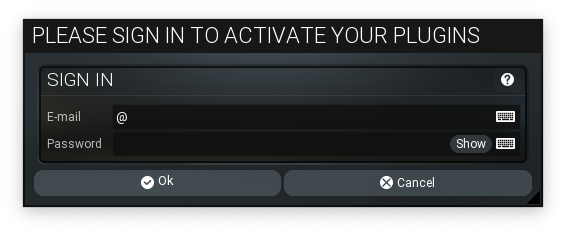
2. If you already have an account enter your details and click 'Sign in' and skip to step 4. If not, please create an account:

3. Enter your details > click 'I accept your privacy policy' > click the reCAPTCHA to prove you are a human > click 'Create account'.

4. You will now be redirected to the Redeem page > enter the license key (listed as 'Serial Number') found in your Plugin Boutique User Account > click 'Submit key'.

5. You will now be redirected to your account.
Mac Installation
(Please scroll down for Windows Installation)
1. Click 'Download' by the product name to download your license file to activate your plugin.

2. At the top of the page click 'Downloads'. This will redirect you to the MAudioPlugins Installer page.

3. Please click 'Download (Mac)' to download the MAudioPlugins installer.

4. Choose the location you want the installer to be downloaded to > click 'Save.

5. Click 'Open'.

6. Enter your Password > click 'OK'.

7. Once the installer has opened, click 'Next >'

8. Click 'I agree to the licence terms.' > click 'Next >'.

9. Select which Plugin formats you wish to install > click 'Next >'. (If you do not know which format to install, click HERE).

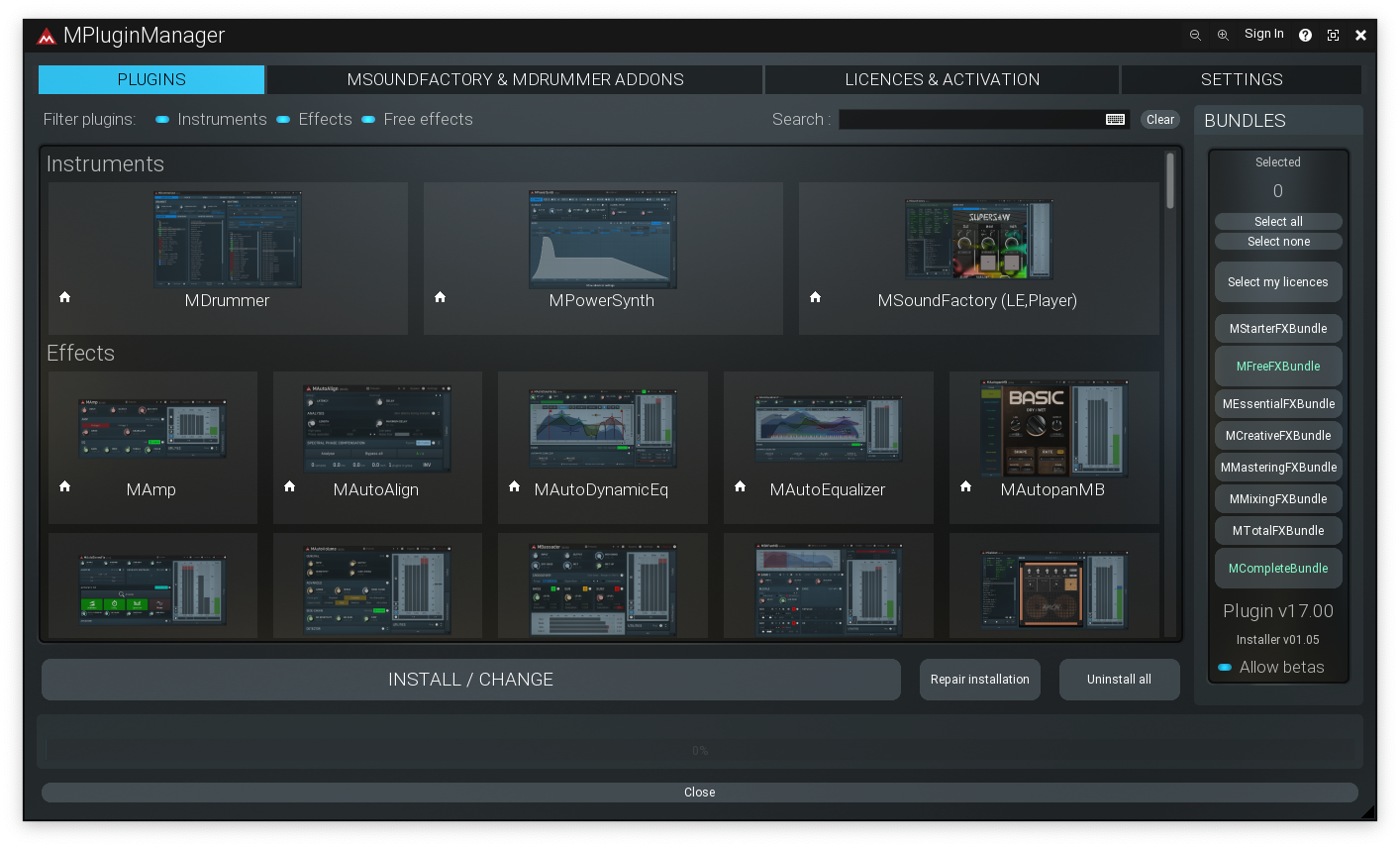
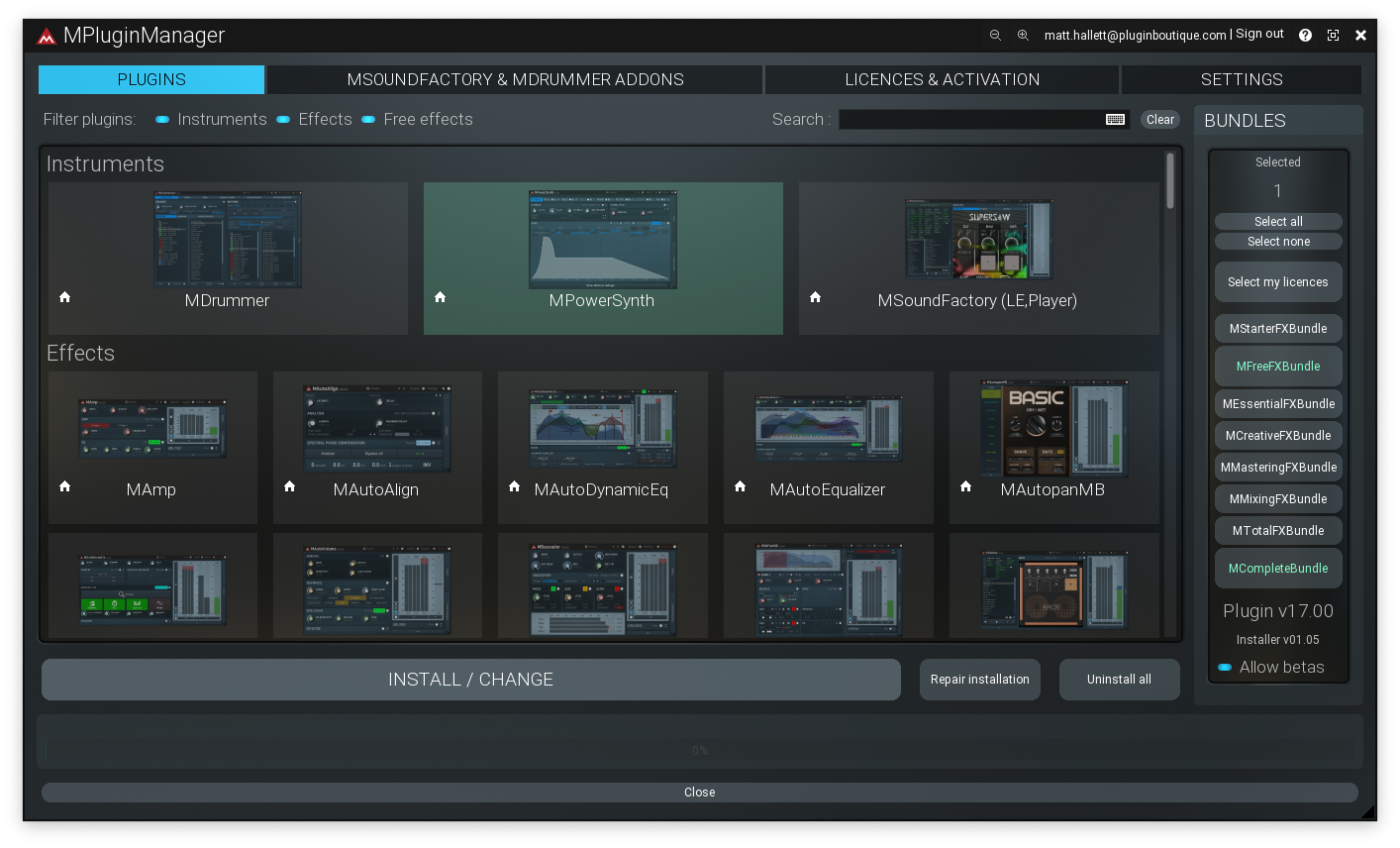
10. Select which product you have purchased and wish to install > click 'Next >'.

11. Choose where you would like to install the directories (we recommend leaving it at the default location) > click 'Next >'.

12. Click 'Next >'.

13. Click 'Next >'.

Activation
1. Open your new plugin in your DAW > simply drag and drop the license file into the plugin OR Click 'Settings & Activation'.

2. Click 'Activate'.

3. Locate the licence file you downloaded earlier > select it > click 'Ok'.

4. Make sure the information is correct > click 'Yes'.

Your software has now been successfully installed and activated.
Windows Installation
1. Click 'Download' by the product name to download your license file.

2. At the top of the page click 'Downloads'. This will redirect you to the MAudioPlugins Installer page.

3. Please click 'Download (Win)' to download the MAudioPlugins installer.

4. Open the download > click 'Yes'.

5. Once the installer has opened, click 'Next >'.

6. Click 'I agree to the licence terms.' > click 'Next >'.

7. Select which Plugin formats you wish to install > click 'Next >'. (If you do not know which format to install, click HERE).

8. Select which product you have purchased and wish to install > click 'Next >'.

9. Choose where you would like to install the directories (we recommend leaving it at the default location) > click 'Next >'.

10. Click 'Next >'.

11. Click 'Next >'.

Activation
1. Open your new plugin in your DAW > simply drag and drop the license file into the plugin OR Click 'Settings & Activation'.

2. Click 'Activate'.

3. Locate the licence file you downloaded earlier > select it > click 'Ok'.

4. Make sure the information is correct > click 'Yes'.

Your software has now been successfully installed and activated.