Note: COS Pro is used as an example.
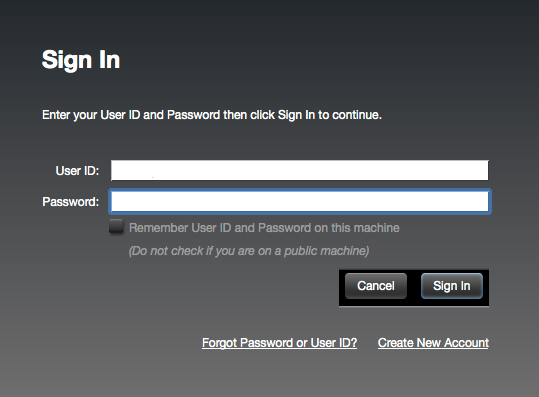
1. Launch the iLok License Manager application > Sign into your account.

2. Enter your iLok user ID and password > Click 'Sign in'.
3. Navigate to the top-right of the iLok License Manager window, and click the 'Redeem an Activation Code' button, as marked below.

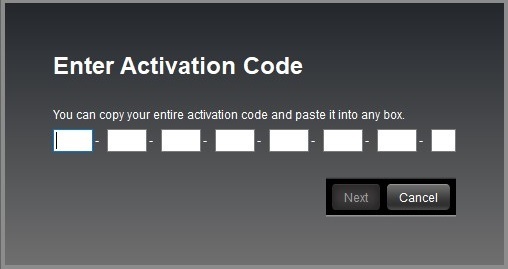
4. You should have now received a new email from Moog Music titled 'Your Moogerfooger Effects Plug-ins Activation Code and Downloads'. Copy and paste the iLok license code from within this email into the pop-up window within iLok License Manager. Click 'Next'.
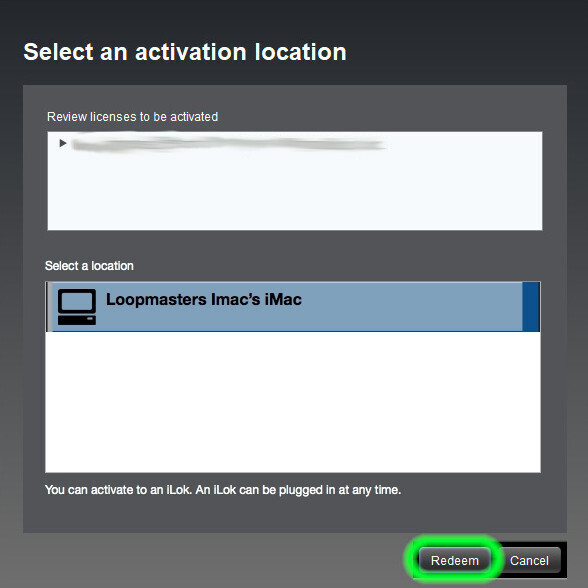
5. Select an activation location, then click 'Redeem'.
6. Your licence has now been activated, and you are ready to install your software.
Installation
Mac
1. Download the installation file from within your Plugin Boutique User Account, and unzip its contents. Launch the enclosed .pkg file.
2. Click 'Continue'.
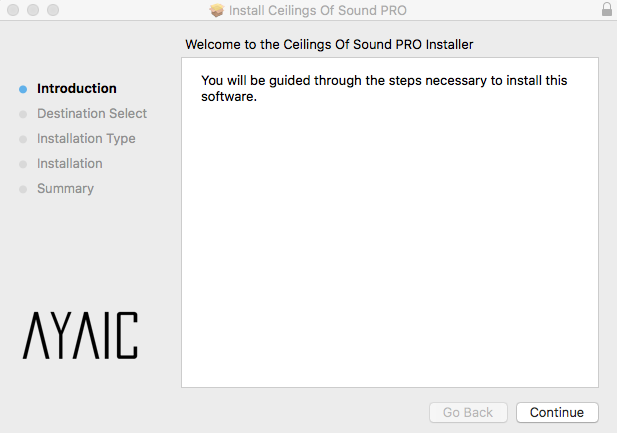
3. Click 'Continue'.
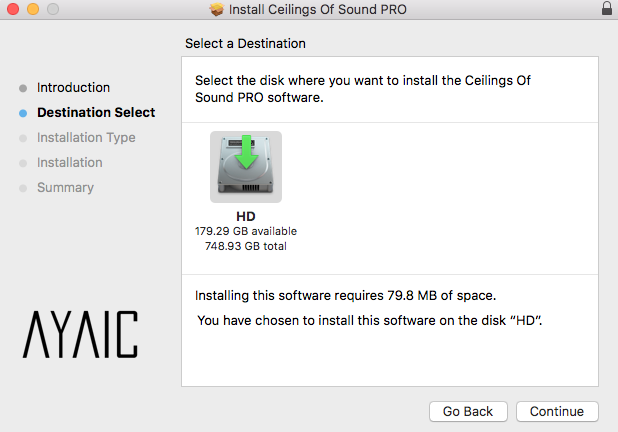
4. Click 'Install'.
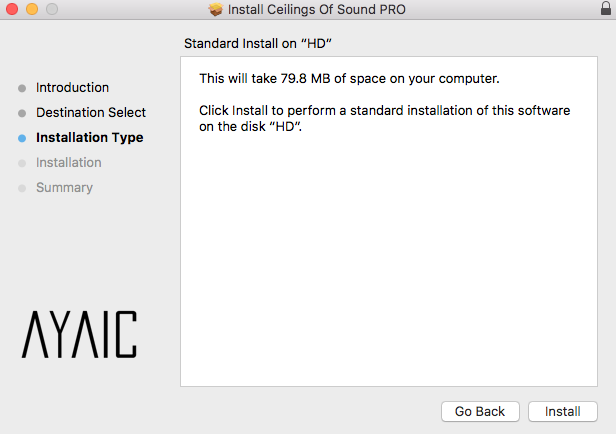
5. Once the installation process has completed, click 'Close'.
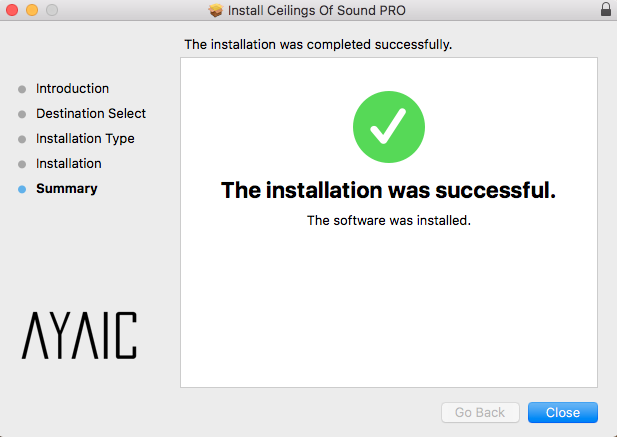
6. Upon launching your DAW, you may encounter an iLok activation window. If so, click 'Activate'.
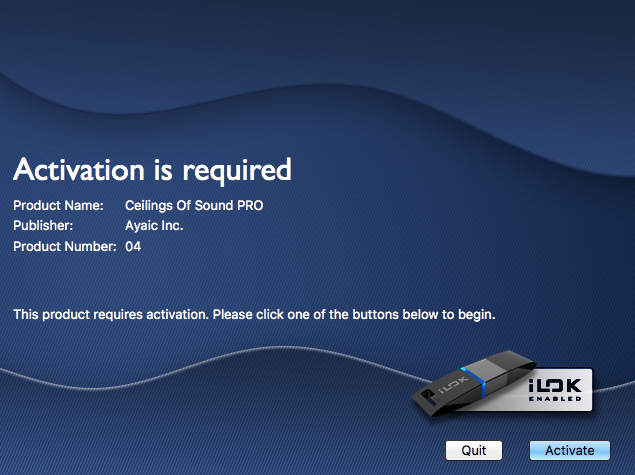
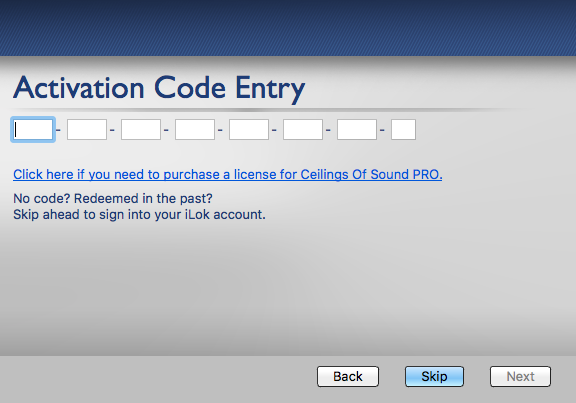
7. Having already completed registration for your product in the previous steps (see 'Registration'), click 'Skip'.
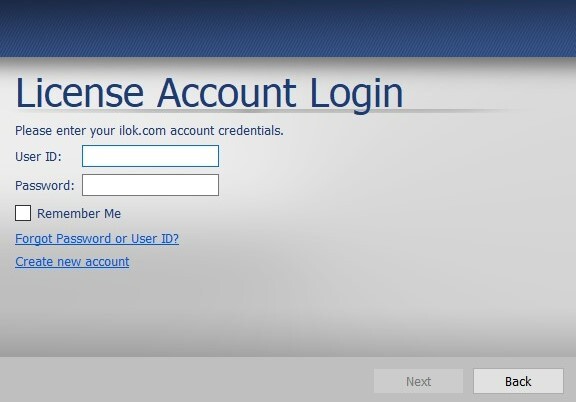
8. Enter your iLok credentials, and click 'Next'.
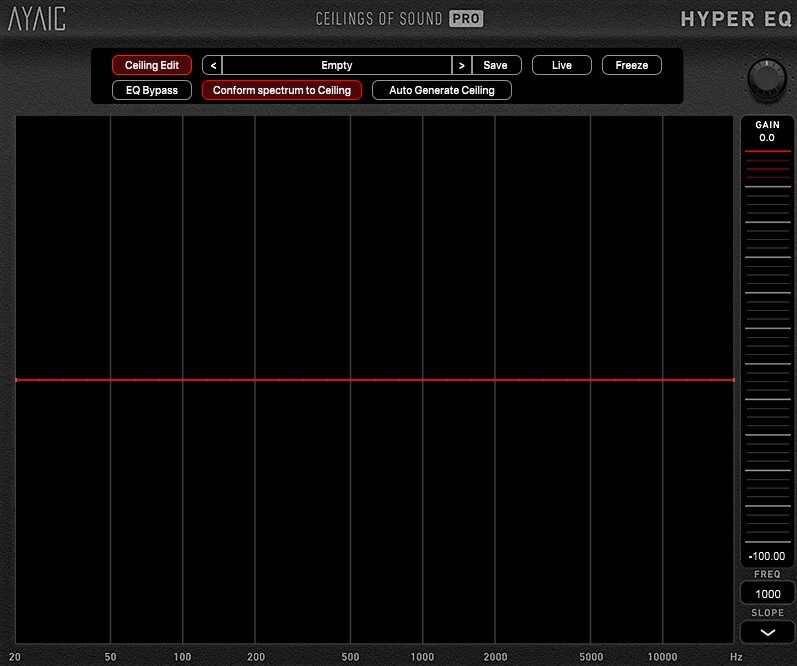
9. Launch the plugin within your DAW, and enjoy!
Windows
1. Download the installation file from within your Plugin Boutique User Account, and unzip its contents. Launch the enclosed .exe file.
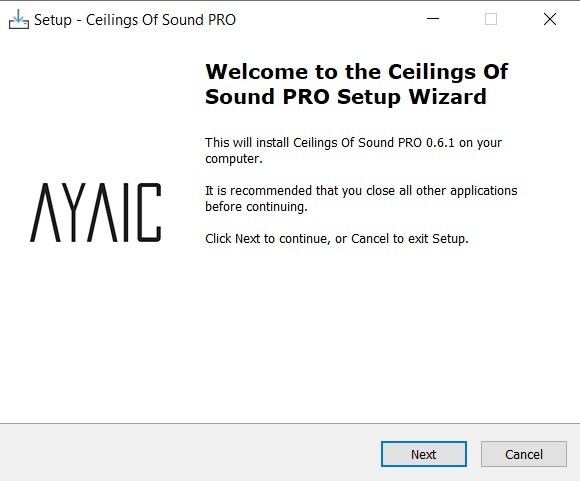
2. Select which elements you would like to install, then click 'Next'.
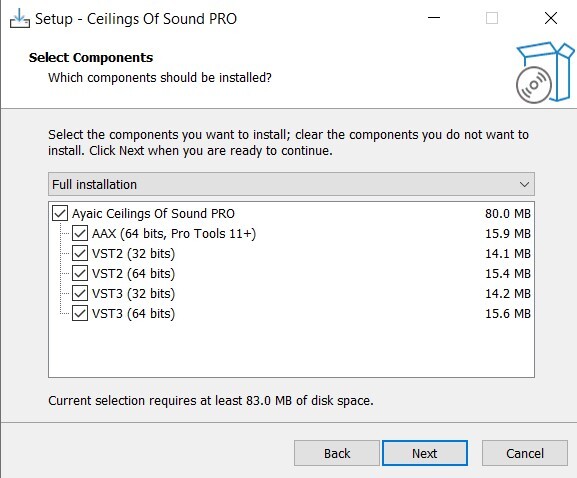
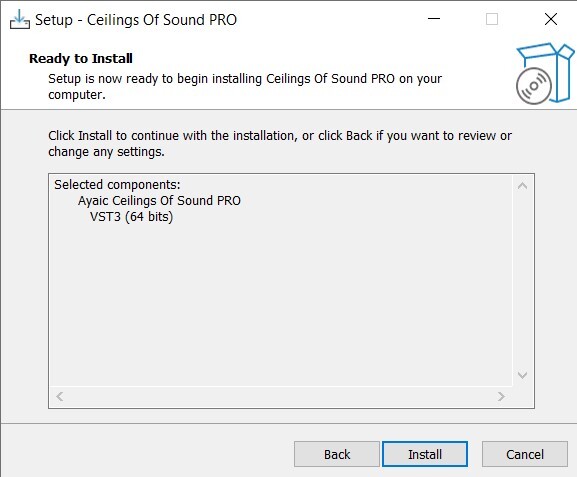
3. Click 'Install'.
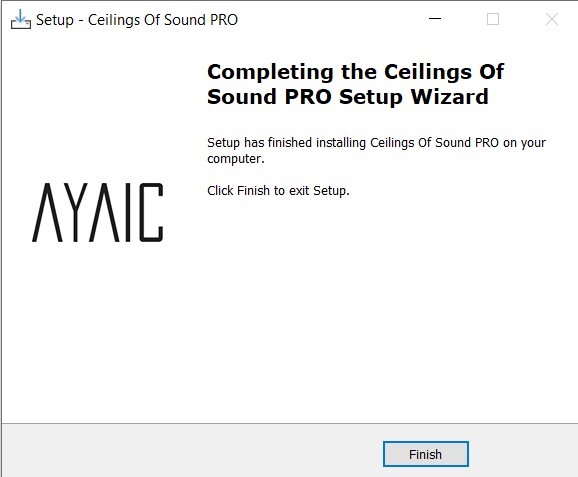
4. Once the installation process has completed, click 'Finish'.
5. Upon launching your DAW, you may encounter an iLok activation window. If so, click 'Activate'.
6. Having already completed registration for your product in the previous steps (see 'Registration'), click 'Skip'.
7. Enter your iLok credentials, and click 'Next'.
8. Launch the plugin within your DAW, and enjoy!


 Log In


