Log In
.jpg)
Free gifts available with your purchase

Create Immersive Spatial Audio Experiences Using Any Pair Of Headphones
“This is home. This is what home feels like. Please listen, close your eyes, and imagine where you are sitting … sometimes it takes a leap of faith for someone to be able to really take advantage of this new technology.” - Alan Meyerson
Personalized Spatial Monitoring In Up To 7.1.6 Channels
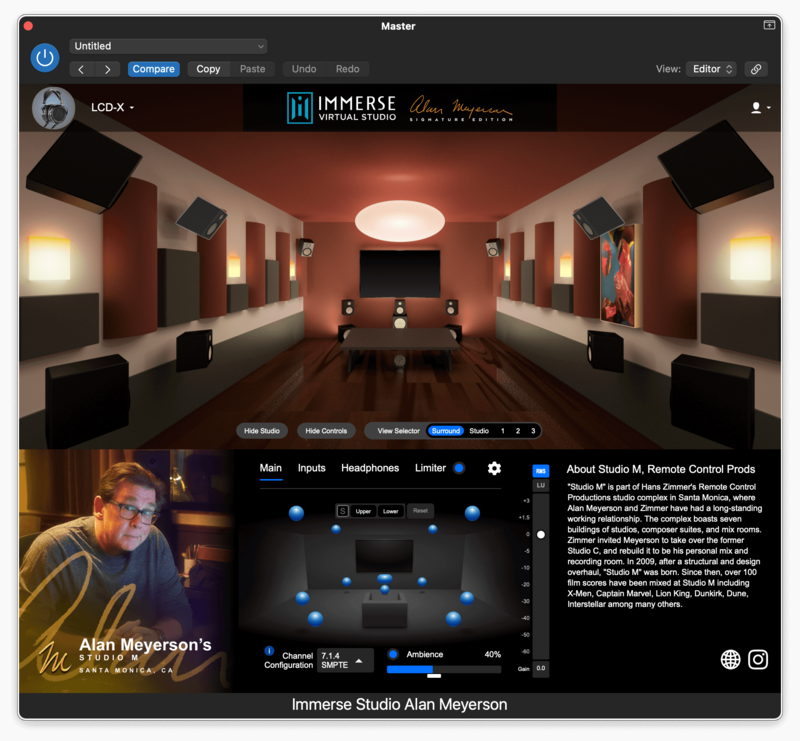
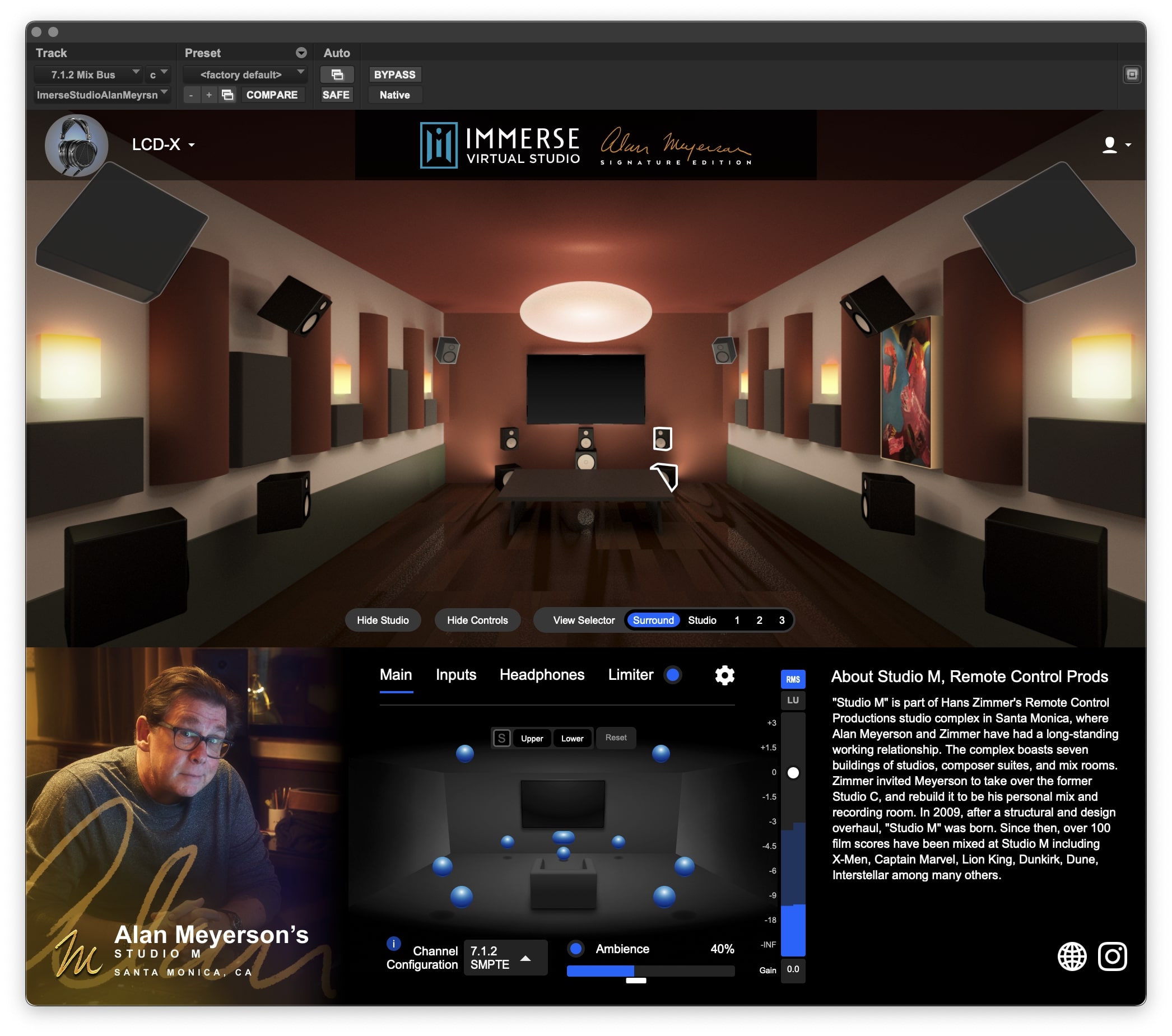
Mix and Monitor Surround Sound or Atmos content in up to 7.1.6 channels from inside the home base of legendary film mixer Alan Meyerson. Create immersive spatial audio experiences for film scores, television, and video games using any pair of headphones and this powerful virtual production tool that’s tuned to your personal HRTF.
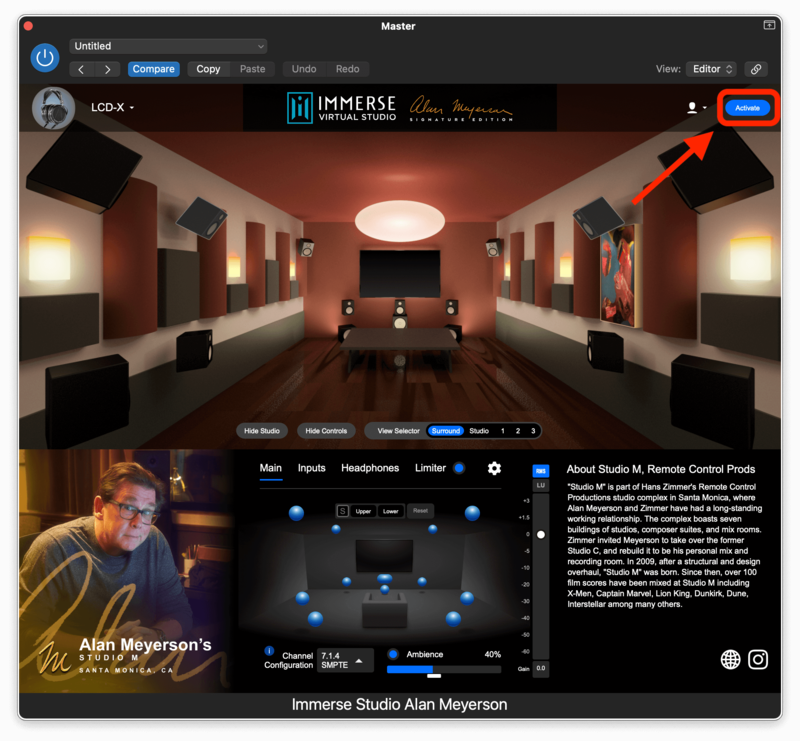
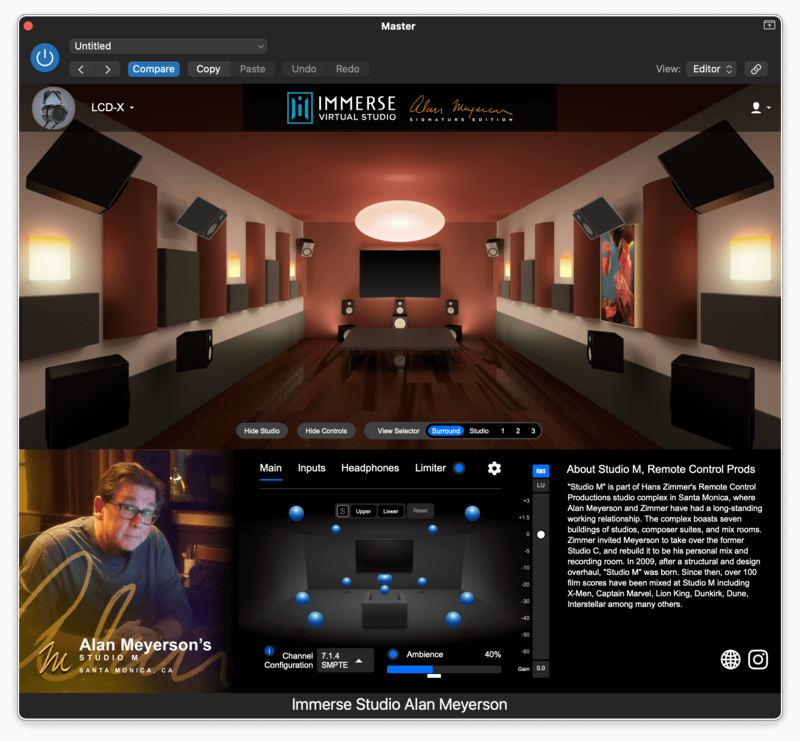
Studio M - Home Of Legends
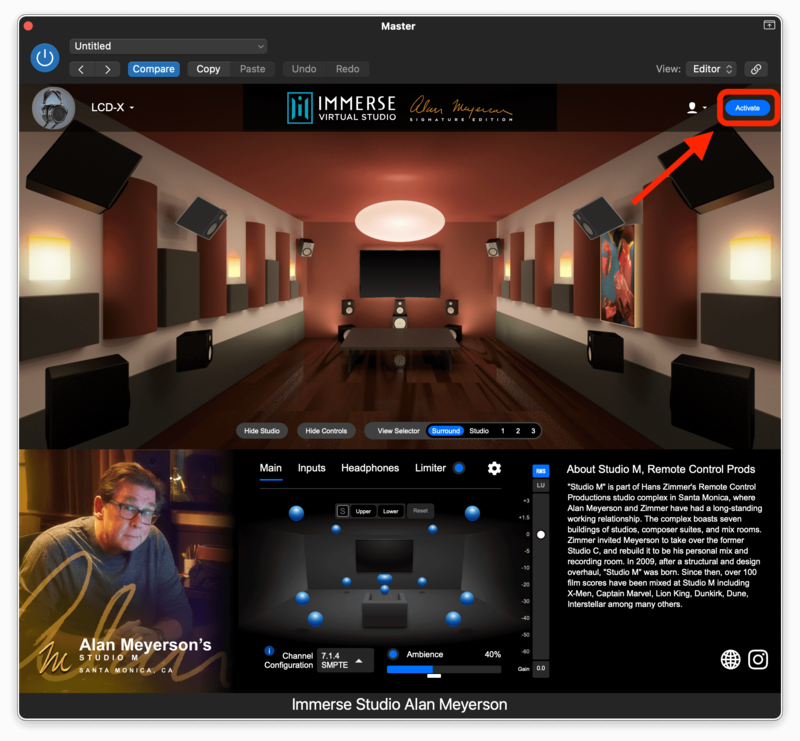
Alan Meyerson’s personal mix room is designed not only to create a film score mix that translates to any location but to impart a feeling of ease and warmth to everyone who enters. Studio M’s centerpiece is the Avid S6 control surface and ATC monitors in a 7.1.6 configuration, allowing for full spatial mixing in Dolby Atmos. The room features original artwork by Mark Mothersbaugh and painting by Herb Alpert, longtime collaborators, and friends of Meyerson.
Over 100 film scores have been mixed at Studio M including X-men, Captain Marvel, Lion King, Dunkirk, Dune, and Interstellar - just to name a few.
Immerse Engine - The Future Of Virtual Production
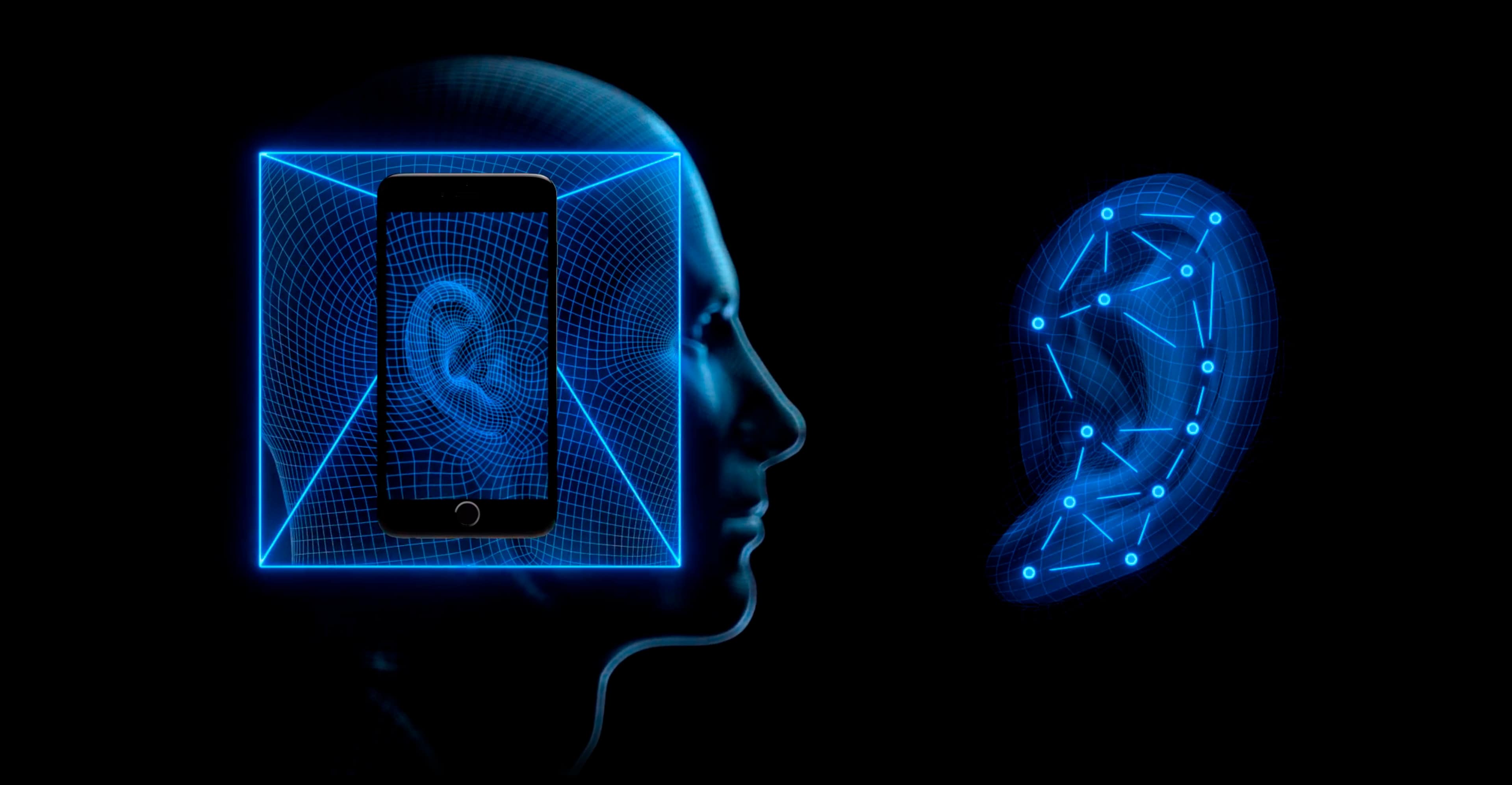
AI Personalization, Room Virtualization, and Headphone Equalization - these are the pillars that make Embody’s spatial audio technology the most accurate in the world.
Immerse Audio Bridge - Multi-Channel Audio Routing Between Applications
Immerse Audio Bridge (IAB) is a multi-channel virtual audio cable that allows you to route up to 16-channels from one application to another. Create hassle-free loopback or pass audio between applications with no additional setup required. IAB comes included with Immerse Virtual Studio Alan Meyerson Signature Edition.
One-time payment (10-year license) with FREE upgrades
From time to time, studio owners upgrade components, which can alter the room’s frequency response. If Alan upgrades Studio M, the Embody acoustic team will travel to Santa Monica, California, and remeasure his studio. Embody will provide the update to licensees free of charge. Anytime Alan upgrades his studio, licensees will receive a new version of the plugin absolutely free. Also, anytime Embody adds new features, licensees receive the upgrade at no additional cost.
Features
- Mix Surround Sound and Atmos on headphones
- Monitor with your personalized HRTF: Immerse offers a more realistic and accurate spatial monitoring environment by putting "You" into the sweet spot of iconic sound studios.
- Studio M virtualization tested and certified by Alan Meyerson himself
- Comes with both plug-in (VST3, AU, and AAX) and standalone versions for compatibility with Dolby Atmos Renderer
- Includes the Immerse Audio Bridge, a virtual cable that can route up to 16-channel audio between applications
- Compatible with all headphones
Find additional information on this product in the FAQ section.
System Requirements
Mac
- MacOS: 10.9x and above
- CPU: Apple M1, Intel
- Formats: VST3, AAX Native & AU
- Memory: 4GB
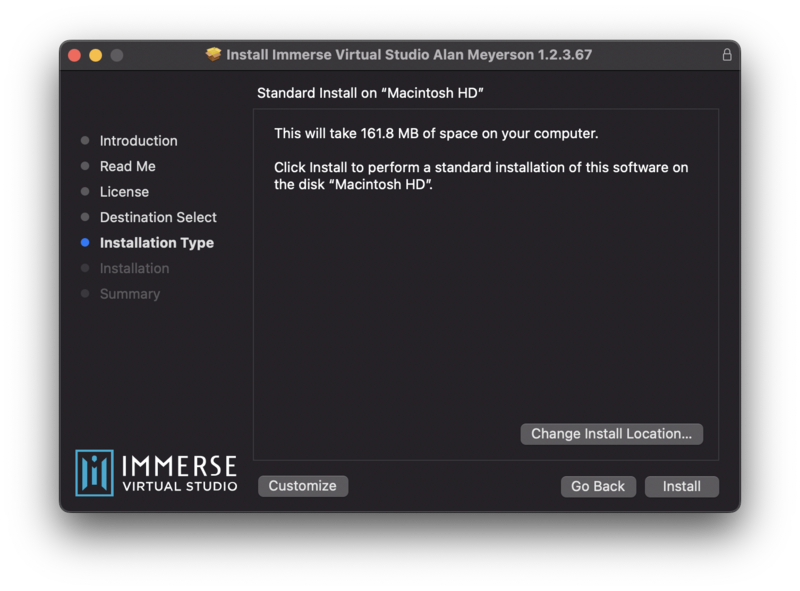
- Disk Space: 150MB
Windows
- Windows 10 + 11
- CPU: Intel, AMD
- Formats: VST3, AAX Native
- Memory: 4GB
- Disk Space: 150MB
TRY FOR FREE
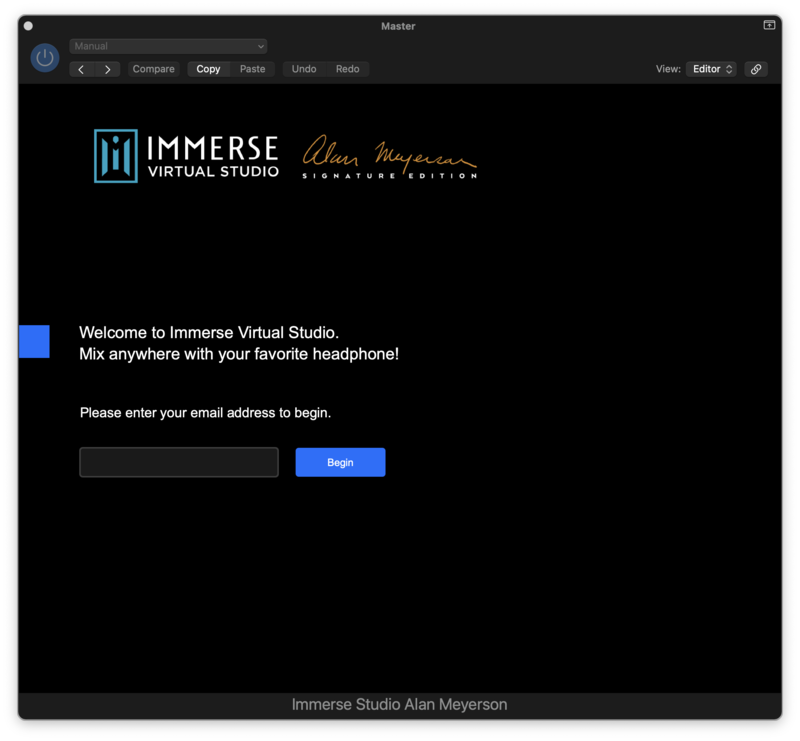
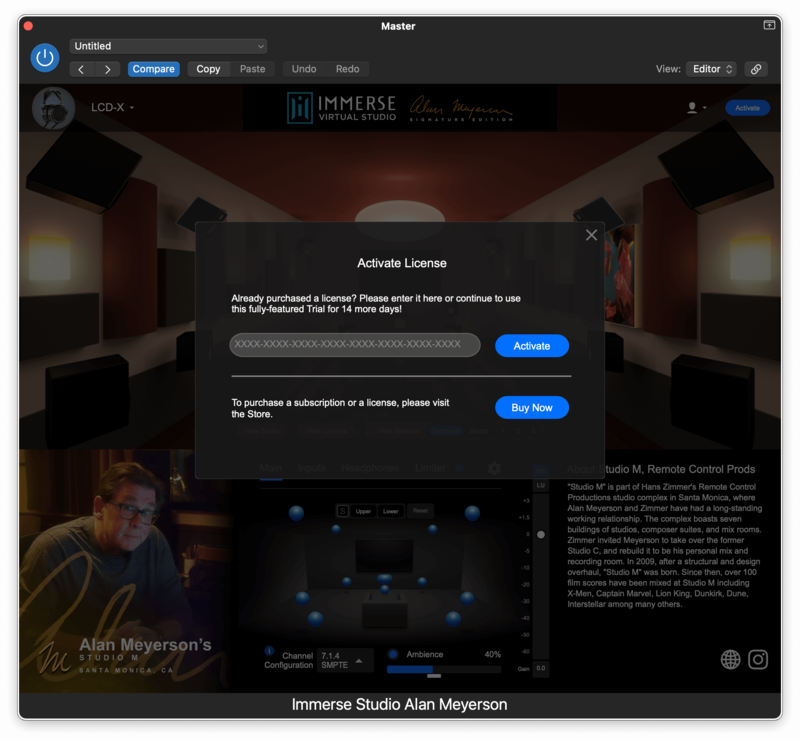
You can try Immerse Virtual Studio | Alan Meyerson edition for 14 days, FREE of charge. No dongle required. No credit card required. Enjoy!
Bob Horn
Multi-platinum Grammy award-winning Producer & Mixing Engineer
“The Alan Meyerson signature plugin is the best playback of Atmos in headphones I have ever heard.”
Jimmy “The Senator” Douglass
4-time Grammy award-winning Recording Engineer and Record Producer
“Spatial audio technology has the chance to challenge conventional music production. The Immerse Virtual Studio plugin gets spatial monitoring right - it’s a powerful tool.”
Sound on Sound
Sound on Sound is an independently owned, monthly music technology magazine published by SOS Publications Group, based in Cambridge, United Kingdom.
“The Alan Meyerson Signature Edition extends the concept of the virtual control room to immersive audio, which is perhaps where it is most needed.”