


Buy Sonnox Drum Refinement Bundle, get a free gift with purchase:
A precision drum processing suite combining intelligent transient detection, adaptive gating, and dynamic levelling (Oxford Drum Gate) with advanced frequency-dependent envelope shaping for detailed transient and sustain control (Oxford Envolution).
Oxford Drum Gate
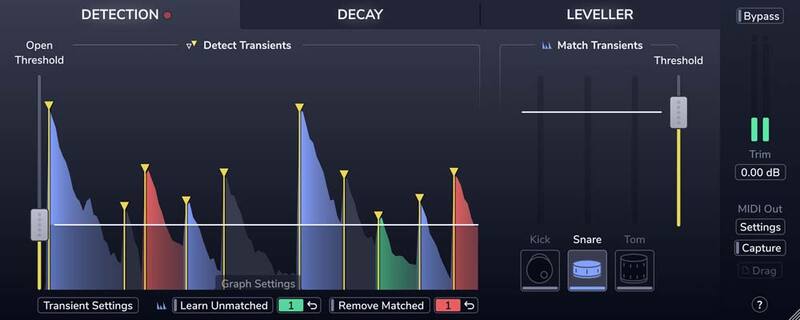
Precise and transparent drum gating
Have you become frustrated with the results of unreliable drum gating using traditional tools; chatter, misdetection, choked or lost ghost notes? Are you tired of overly complex and manual workflows?
Then meet the new Oxford Drum Gate; it's swift and logical workflow solves these problems and delivers the fastest, most musical and transparent results available. At the heart of the Drum Gate is intelligent drum-hit detection. First, the Plug-In detects them all with tailor-made transient detection. Then, you simply decide which ones to keep.
Detection
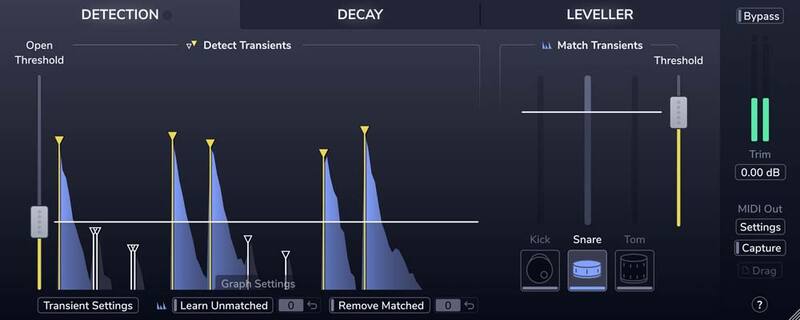
Need to reduce spill on a snare track in a dynamic mix of backbeats, ghost notes, and cross stick hits?
No problem! Just click the Snare button.
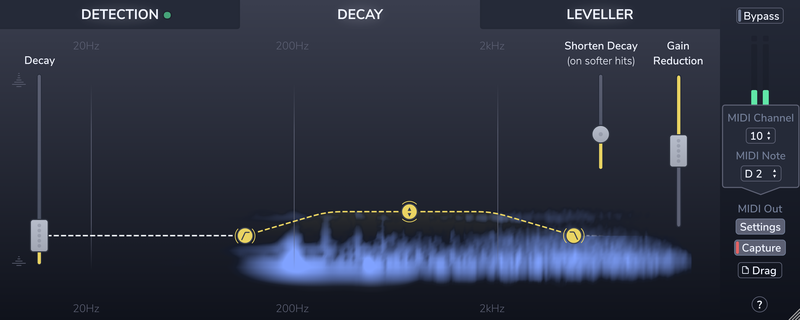
Decay
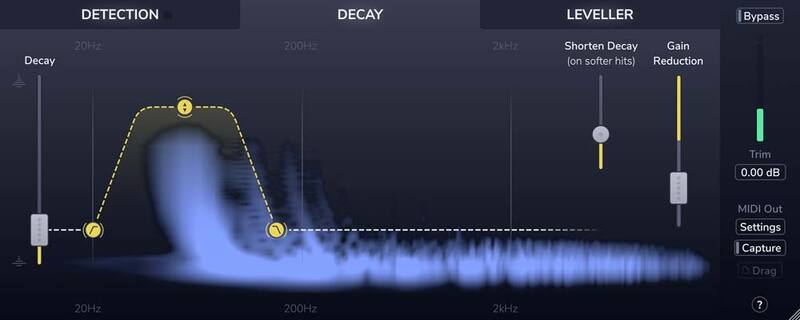
Tired of fighting abrupt and un-musical gating? Do you want to keep the natural ring of toms and remove the spill around them?
Easy! Use Drum Gate's adaptive Decay section to quickly focus on the resonance of each tom, in real-time, according to the velocity of each detected hit.
Leveller
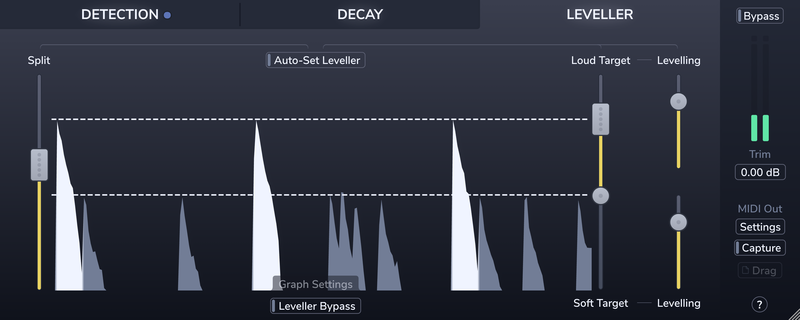
Wish you could improve the consistency of the drummer's performance? Of course, you do!
Conform louder main hits and softer background articulations to two separately controlled target level ranges in the Leveller section.
MIDI
Want to augment/replace individual drums with samples and confidently retain the dynamics from the original performance?
Piece of cake! It's delivered by Drum Gate's hit detection and MIDI triggering functionality.
Features
- Precise transient detection and intelligent drum-type matching to effortlessly separate the hits you want to keep from the spill you don't.
- Create custom drum profiles to isolate unusual drum types or fix the occasional kick, snare, or tom mismatch.
- A decay curve that adapts to the velocity of each drum hit, giving you consistent spill reduction on dynamic performances.
- The Spectral decay editor lets you preserve the resonance, ring, or rattle of each drum hit while quickly clamping down on the spill.
- The leveller's dual-target and amount controls let you improve level consistency without losing the contrast between loud hits and soft ghost notes.
- Real-time MIDI output and MIDI file capture, for accurately triggering drum samples.
Learn more about Oxford Drum Gate
Oxford Envolution
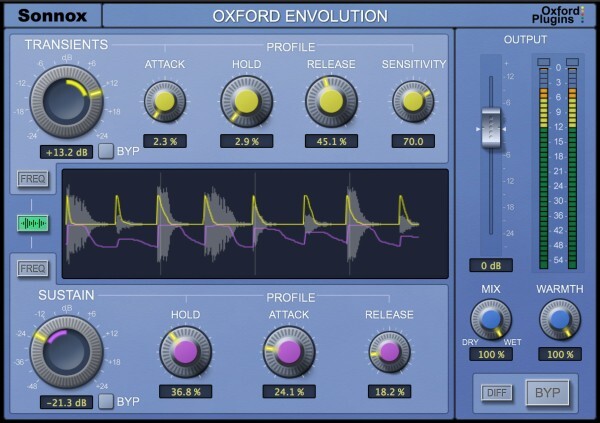
Envolution is a frequency-dependent envelope shaper with separate transient and sustain sections, to radically re-shape the envelope of your instruments or audio.
Use a broader tilt mode or the more parametric-style focus mode to choose which frequencies are processed.
Insert on a track, bus or even master output to add presence/distance to drums, piano, guitar and any other percussive content. Boost sustain to make the ambience around a recording bloom, or cut it for quick and precise gating.
We love the more creative and extreme side of the plug-in too; like using the DIFF button to generate negative ratio compression effects.
Features
- Frequency-dependent control of Transients & Sustain
- Tilt/parametric targeting of frequencies to process
- DIFF button to solo the effect
- Use in parallel without phase cancellation
- Warmth control for - Harmonic saturation/tone shaping and prevention of excessive output levels
- Many great presets to get you started
Learn more about Oxford Envolution
macOS
- macOS 10.12 or later (Intel / M1 Apple Silicon supported) (64-bit only)
- Plugin Formats - AAX Native, AU, VST3
- Supported Hosts - Pro Tools 11 or above or any desktop application that supports Audio Unit (AU) or VST3 plugins.
Windows
- Windows 10 or later
- Plugin Formats - AAX Native, VST3
- Supported Hosts - Pro Tools 11 or above or any desktop application that supports VST3 plugins.
Activation
The Toolbox range offers 2 activations for each product licence you buy.
Providing you have an iLok account, each activation will allow you to authorise your plugin on one of these devices:
- Machine
- iLok device, iLok2 / iLok3 required with latest drivers OR
- iLok Cloud (Active internet connection required)
Note: VoxDoubler has been used as an example.
Mac
2. Visit Sonnox to register your product.
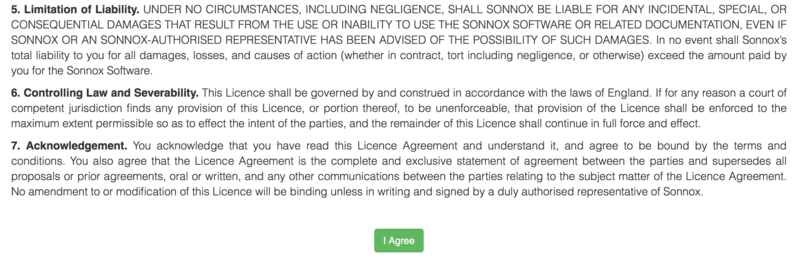
3. Read the Sonnox Software Licence Agreement > Click 'I Agree' at the bottom of the page.
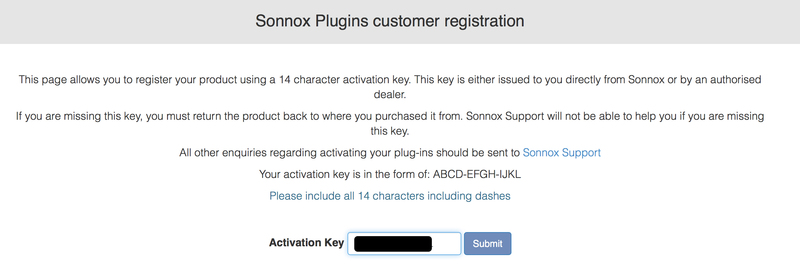
4. Copy and paste/manually type in the 14 character Activation Key (serial number) from your User Account, into the 'Activation Key' box and click 'Submit.'
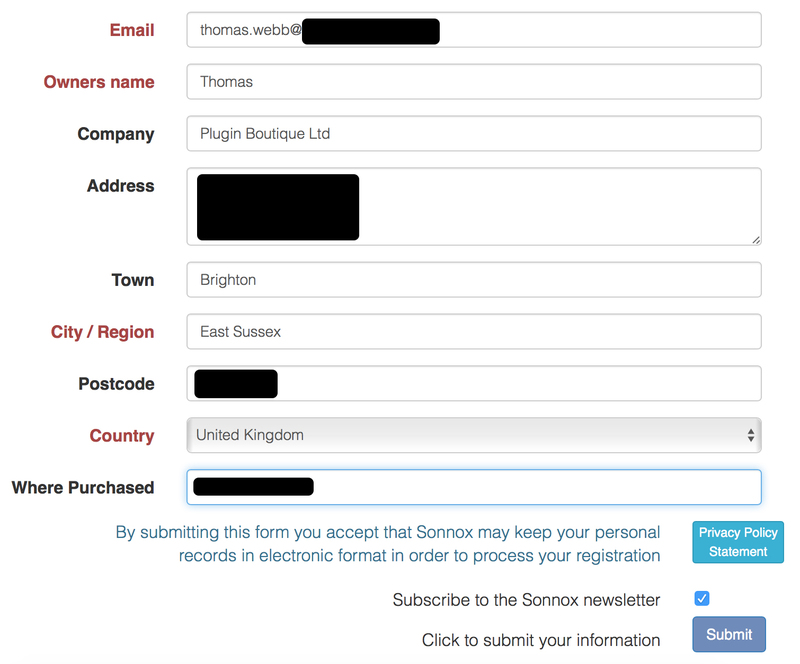
5. Enter your personal details and complete the customer registration page and once inputted, click 'Submit.'
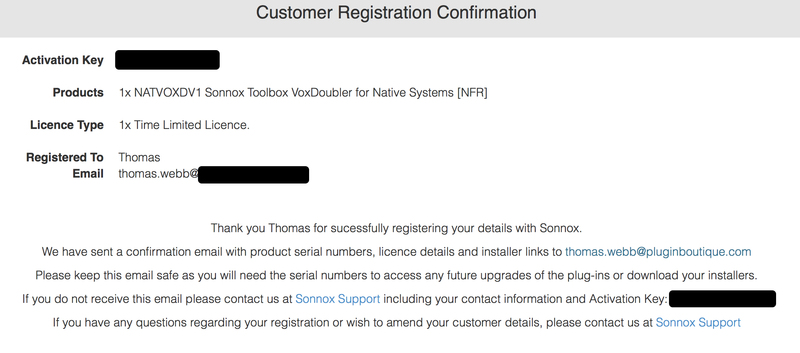
6. Your software product has now been successfully registered.
Please note:
- You will have been sent a confirmation email containing your product serial numbers, licence details and installer links to your registered Sonnox email address.
- Please keep this email safe as you will need the serial numbers to access any future upgrades of the plug-ins or download your installers
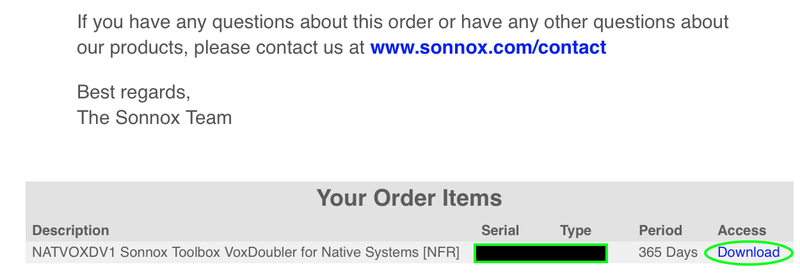
7. Log into your email address inbox and click the 'Download' option.
NB: This email may be located in the spam/junk folder of your inbox.
8. Enter your iLok Account User ID and then click 'Verify.'
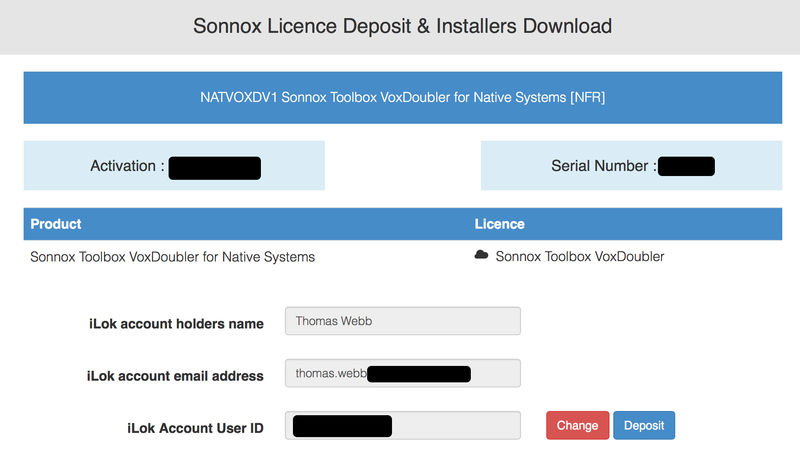
9. Check and verify your details by selecting 'Deposit.'
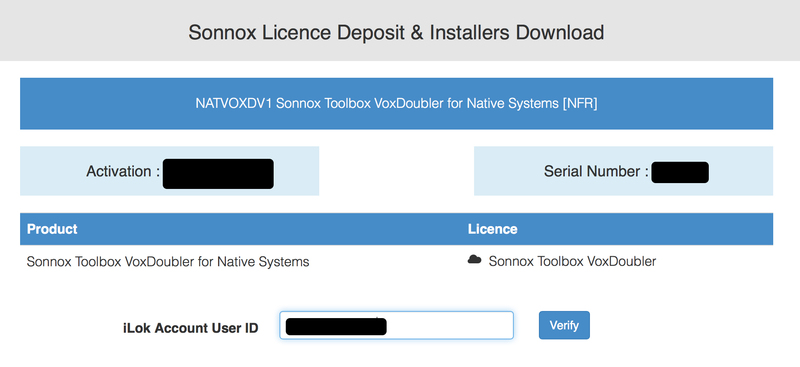
10. Launch your iLok licence manager application and log into your account > locate the Sonnox VoxDoubler product name and drag and drop this onto the computer/iLok USB location that you wish to activate the software to.
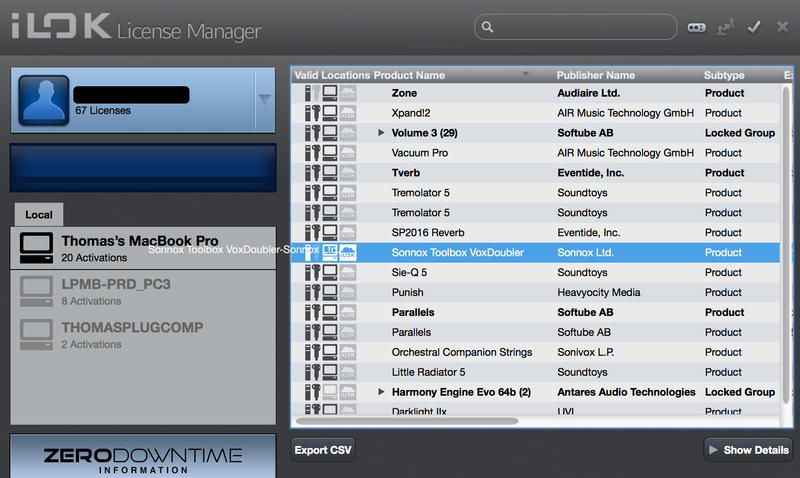
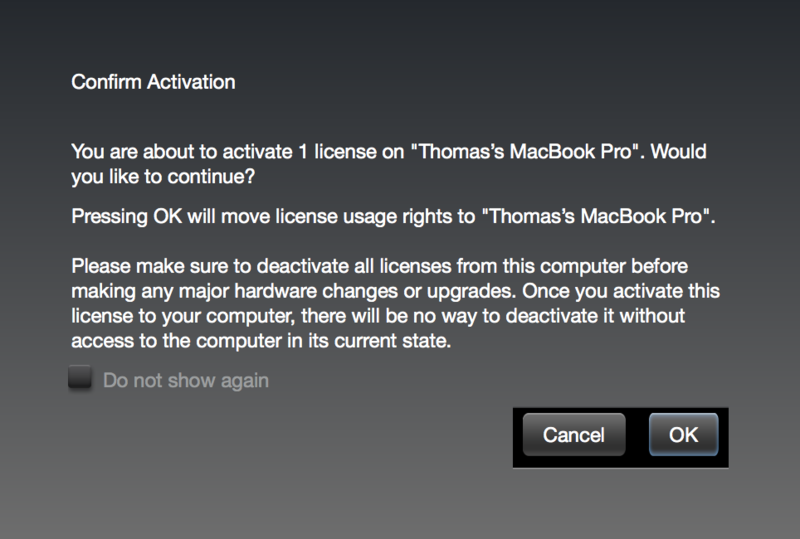
11. Select 'OK' to confirm the activation.
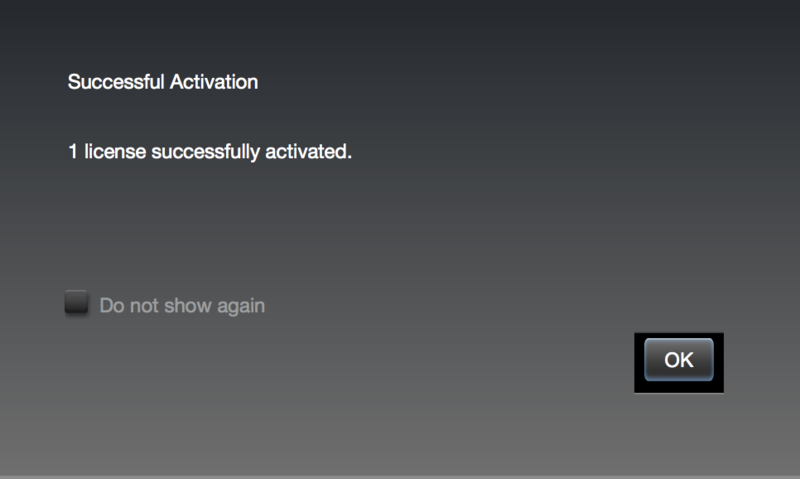
12. The software is now successfully activated to your location of choice > you can now close the iLok licence manager application.
13. Click 'Mac Installers' to navigate to the product download section.
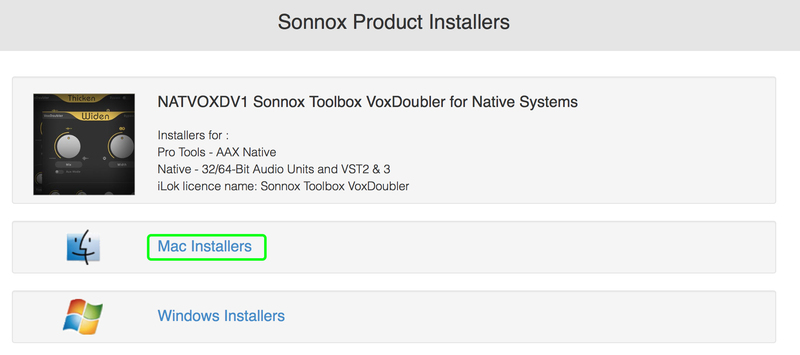
14. Select the 'Sonnox Toolbox VoxDoubler' link to initiate the downloading of the software.

15. Once the .pkg file has successfully downloaded, double-click it to begin the installation process > click 'Continue.'
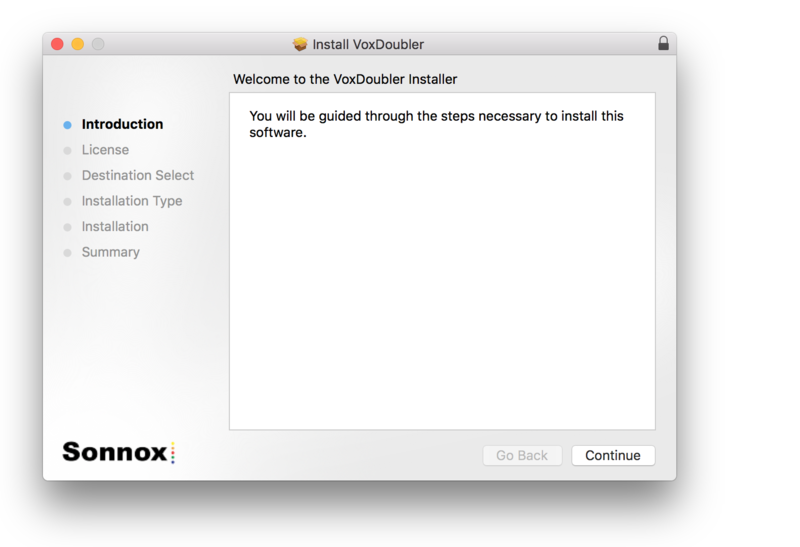
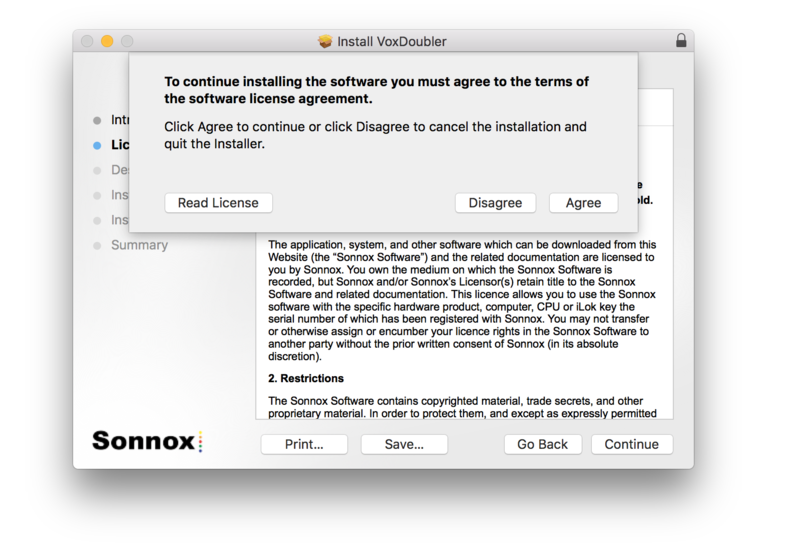
16. Read through the Licence Agreement > click 'Continue' then 'Agree.'
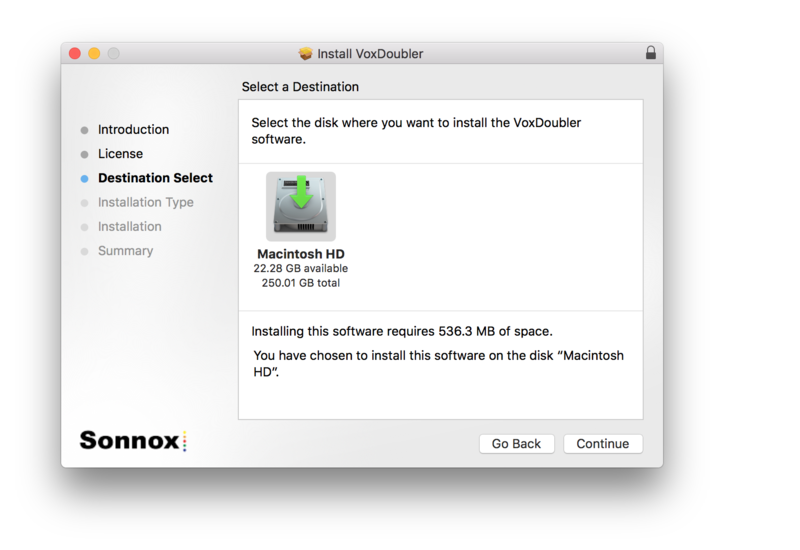
17. Select a computer destination in which to install the software to > click 'Continue.'
18. Select which software components you wish to install > click 'Continue.'
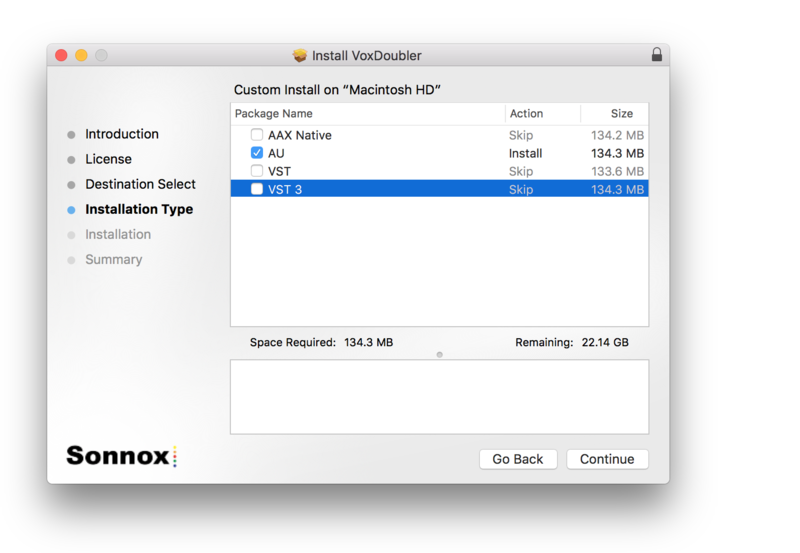
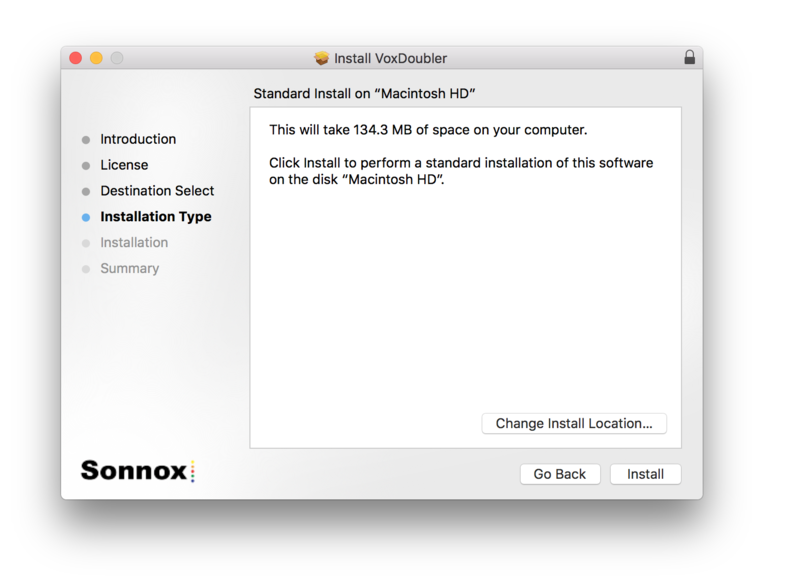
19. Review the installation and click 'Install.'
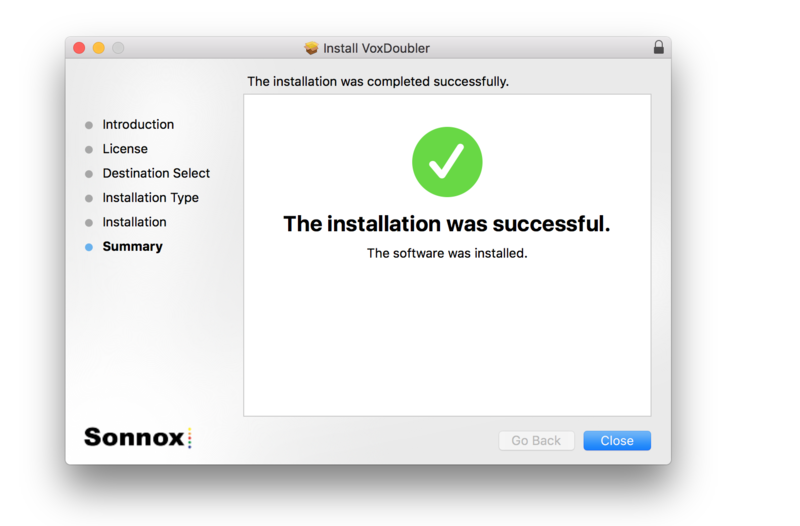
20. The installation of the software has successfully completed > click 'Close.'
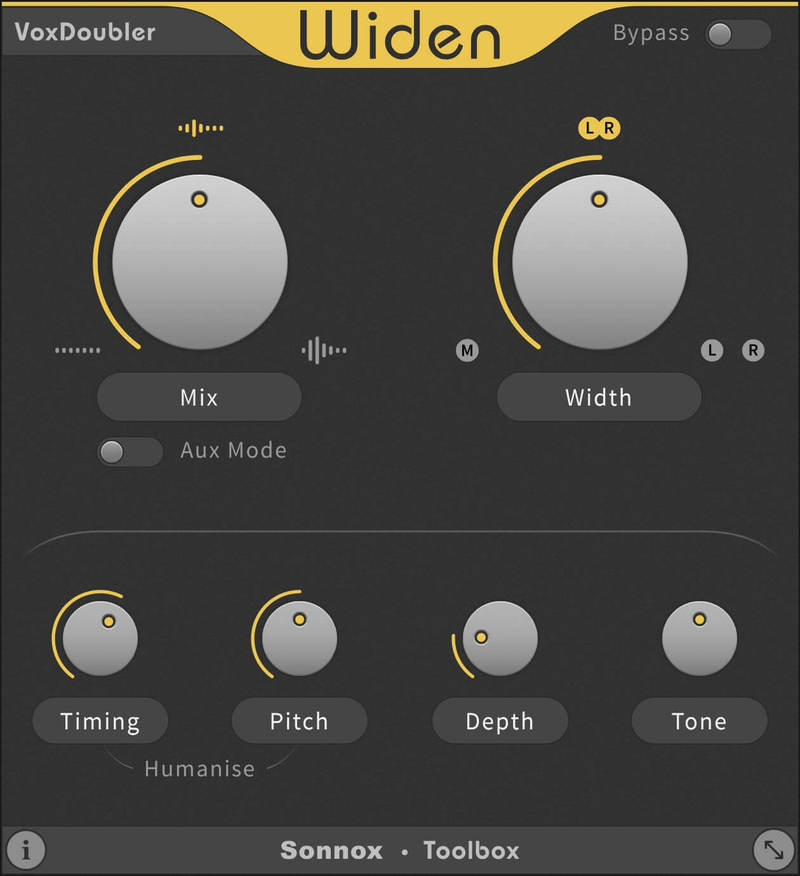
21. Restart/open your DAW, then locate and select Vox Doubler from your Audio FX drop-down selection.
Note: if the software fails to show, restart your DAW and/or rescan your plugin selection to refresh the installation.
The Software is now Ready for Use!
Windows
Note: Either an iLok USB Key and/or FREE soft iLok licence manager account (and application) are required to activate your Sonnox Software. If you do not have an iLok Key, you can purchase one from HERE and your FREE iLok account can be created HERE.
2. Visit Sonnox to register your product.
3. Read the Sonnox Software Licence Agreement > Click 'I Agree' at the bottom of the page.
4. Copy and paste/manually type in the 14 character Activation Key (serial number) from your User Account, into the 'Activation Key' box and click 'Submit.'
5. Enter your personal details and complete the customer registration page and once inputted, click 'Submit.'
6. Your software product has now been successfully registered.
Please note:
- You will have been sent a confirmation email containing your product serial numbers, licence details and installer links to your registered Sonnox email address.
- Please keep this email safe as you will need the serial numbers to access any future upgrades of the plug-ins or download your installers
7. Log into your email address inbox and click the 'Download' option.
NB: This email may be located in the spam/junk folder of your inbox.
8. Enter your iLok Account User ID and then click 'Verify.'
9. Check and verify your details by selecting 'Deposit.'
10. Launch your iLok licence manager application and log into your account > locate the Sonnox VoxDoubler product name and drag and drop this onto the computer/iLok USB location that you wish to activate the software to.
11. Select 'OK' to confirm the activation.
12. The software is now successfully activated to your location of choice > you can now close the iLok licence manager application.
13. Click 'Mac Installers' to navigate to the product download section.
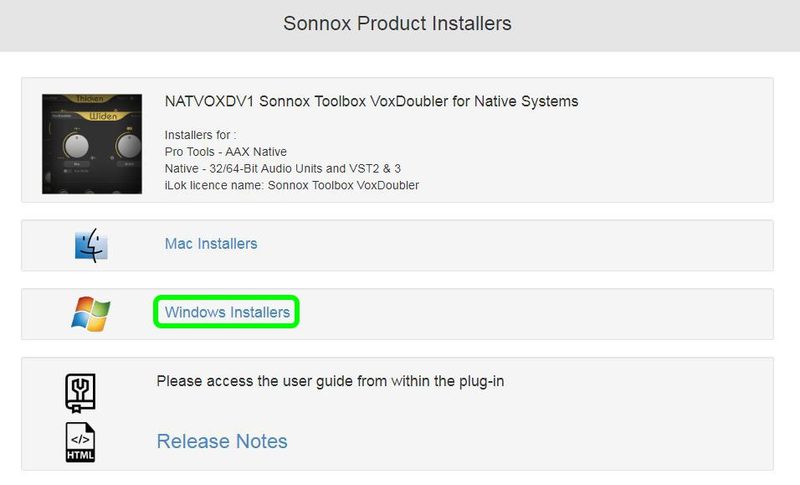
14. Select the 'Sonnox Toolbox VoxDoubler' link to initiate the downloading of the software.

15. Once the .exe file has successfully downloaded, double-click it to begin the installation process > click 'Run.'
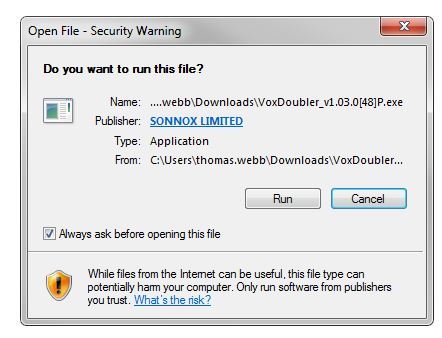
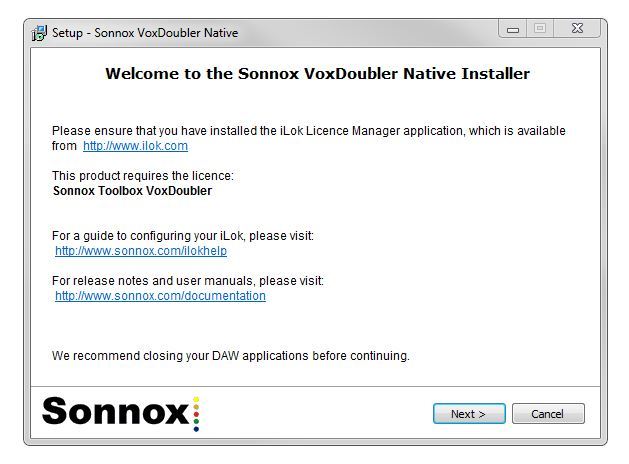
16. click 'Next.'
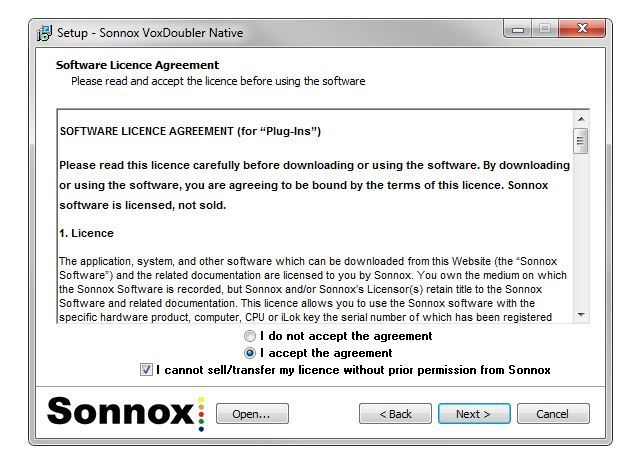
17. Read through the information and select the 'I accept the agreement' as well as 'I cannot sell/transfer my licence without prior permission from Sonivox' boxes > then click 'Next.'
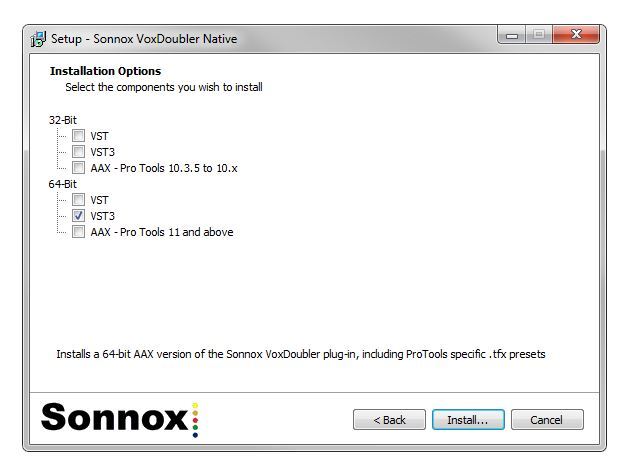
18. Select which software components you wish to install > click 'Install.'
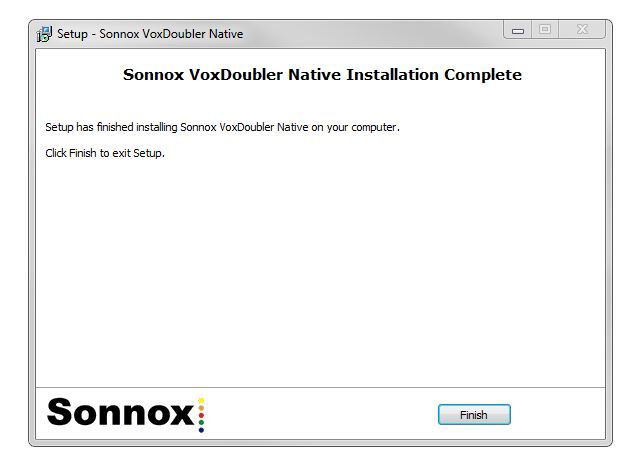
19. The installation of the software has successfully completed > click 'Finish.'
20. Restart/open your DAW, then locate and select Vox Doubler from your Audio FX drop-down selection.
Note: if the software fails to show, restart your DAW and/or rescan your plugin selection to refresh the installation.
The Software is now Ready for Use!


