


 Log In
Free gifts available with your purchase
Manage Transients Like the Pros
The Vintage Compressors Bundle features Pulsar 1178, VM-COMP, IPA 25, and Smasher. Each plugin offers unique compression styles, allowing you to glue your mix, shape and smash transients, or infuse grit and color into your audio sources. Drawing inspiration from classic analog compressors renowned for their musicality and effectiveness, these plugins faithfully capture their tonal nuances and compression characteristics.
Far from mere replicas, the Vintage Compressors Bundle elevates iconic compression into the digital age. With many exciting additional features like modern visualization and sidechain EQ, these plugins are fine-tuned for today’s production environments, ensuring seamless integration with your DAW of choice.
1178
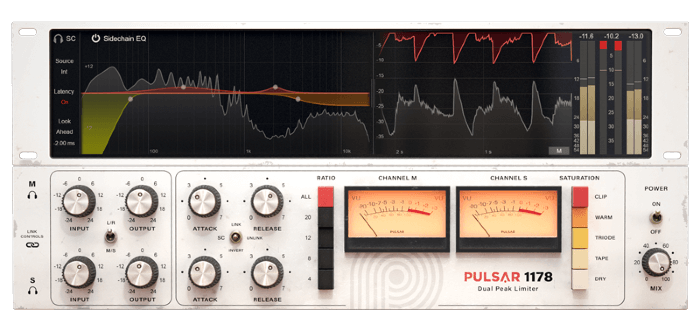
A compressor with fast control over transients, the 1178 is a rare and expensive recording studio legend, cleaner and more versatile than its older brother, the Urei 1176. Pulsar 1178 meticulously recreates the original 1178 hardware in its tonal color and compression character. Known for its versatility, this compressor can be super effective in bringing warmth and character thanks to its different saturation stages. With it, you get the world’s most flexible FET compressor, reimagined with cutting-edge features for the contemporary producer.
VM-COMP
With Pulsar VM-COMP, you get the market’s most accurate emulation of an iconic all-tube compressor, a staple in mastering studios globally. Often employed as a glue compressor, it’s the go-to tool on audio busses to add cohesion to the sound. It allows for gentle, musical transient shaping, even at extreme settings, and provides complete dynamic range control with its sidechain, lookahead/behind options, M/S mode, and contemporary graphics.
IPA 25
IPA 25 delivers the compression behavior you expect from a classic VCA design, then extends it with selectable circuit topologies, intelligent clipping/limiting, visual sidechain control, and modular signal flow. From mastering-grade VCA precision to tube-style warmth and diode grit, you can switch character instantly without breaking your workflow. See exactly what’s happening with real-time visuals and get character and control without guesswork.
Smasher
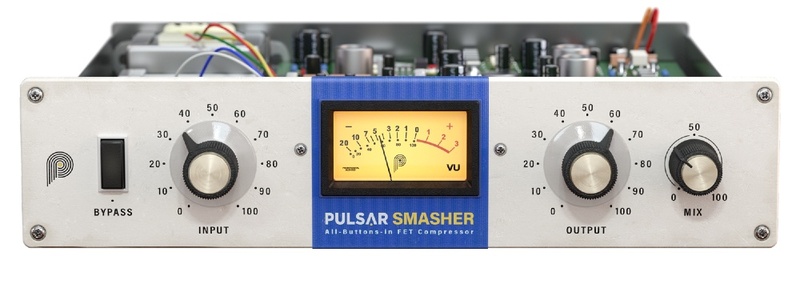
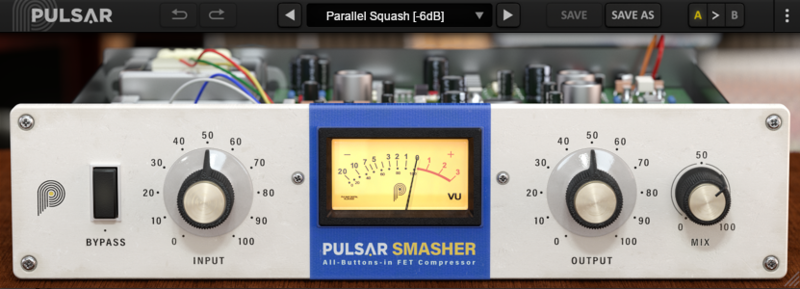
Pulsar Smasher offers an unprecedented custom modification of the classic Urei 1176 compressor circuit, a unique formula we stumbled upon while fine-tuning other algorithms. While remaining very close to the original circuitry, the modifications we’ve built into Smasher add definition to transients and make your tone more aggressive. Smasher excels at raw and gritty sounds, calling to mind bands like Vulfpeck, The Whitefield Brothers, and The Black Keys.
Windows
- Windows 7 with SP1 / Windows 8.1 / Windows 10 (all 64-bit only)
- CPU: Intel Core i3 / i5 / i7 / i9 / Xeon or AMD Quad-Core minimum
- Memory: 4 GB RAM & 1 GB free disk space
- GPU: OpengGL 2.0 compatible GPU
- Monitor: Minimum 1024×768 Resolution (recommended 1920×1080) & 60 Hz Refresh rate
Compatible Plugin Formats (32 & 64-bit):
- AAX Native
- VST 2.4
- VST 3
Mac
- macOS 10.9 and higher (M1 Apple Silicon supported) (64-bit only)
- CPU: Intel Core i3 / i5 / i7 / Xeon
- Memory: 4 GB RAM & 1 GB free disk space
- GPU: OpengGL 2.0 compatible GPU
- Monitor: Minimum 1024×768 Resolution (recommended 1920×1080) & 60 Hz Refresh rate
Compatible Plugin Formats (64-bit only):
- AAX Native
- Audio Unit
- VST 2.4
- VST 3
Activation:
- You need to have an account at ilok.com to be able to use Pulsar software.
- The Mac version of this software is 64-bit only and will not function on 32-bit systems.
Important - You need to have an account at ilok.com to be able to use Pulsar software.
Please note: Pulsar Smasher is used as an example.
Mac
iLok Registration
1. Go to the iLok website and create a new account if you are not currently registered and do not have the iLok License Manager installed on your computer.
Note: Skip to the 'Pulsar Software Installation' procedure if you are already an iLok registered user.
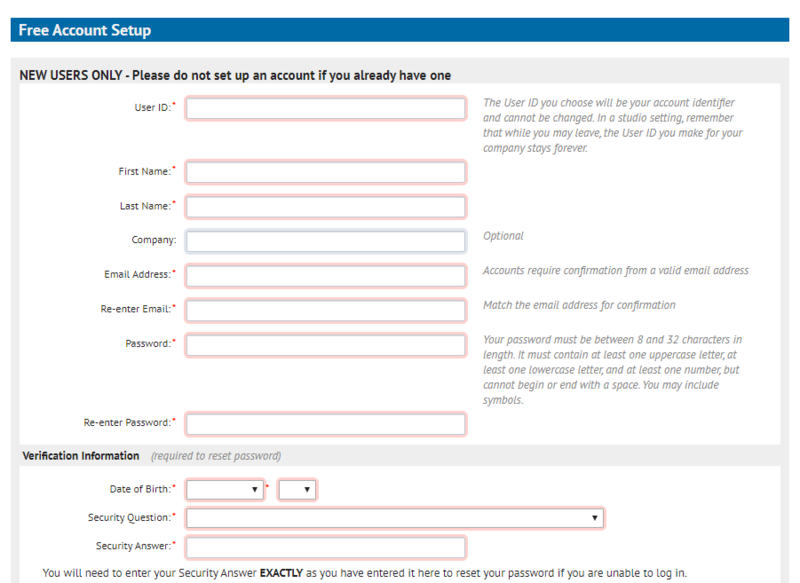
2. Download and install the iLok License Manager.
Pulsar Software Installation
1. Download the .dmg file from within your Plugin Boutique User Account and open it > Double-click the .pkg file to begin the installation.
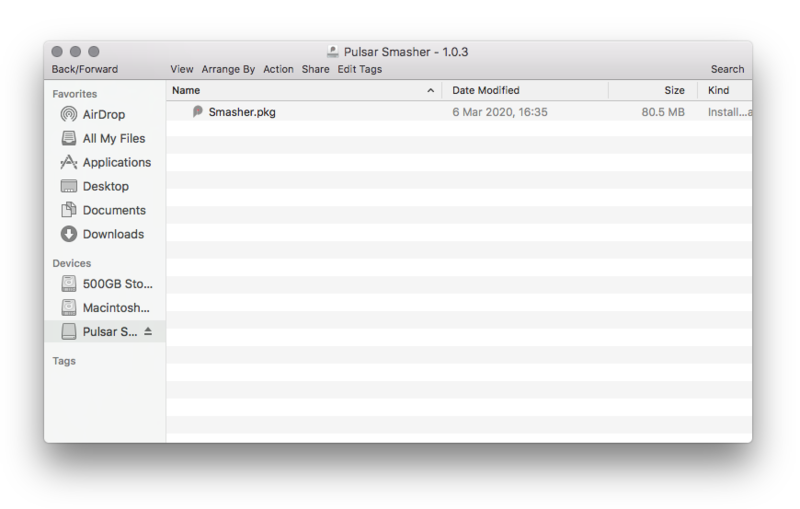
2. Click 'Continue'.
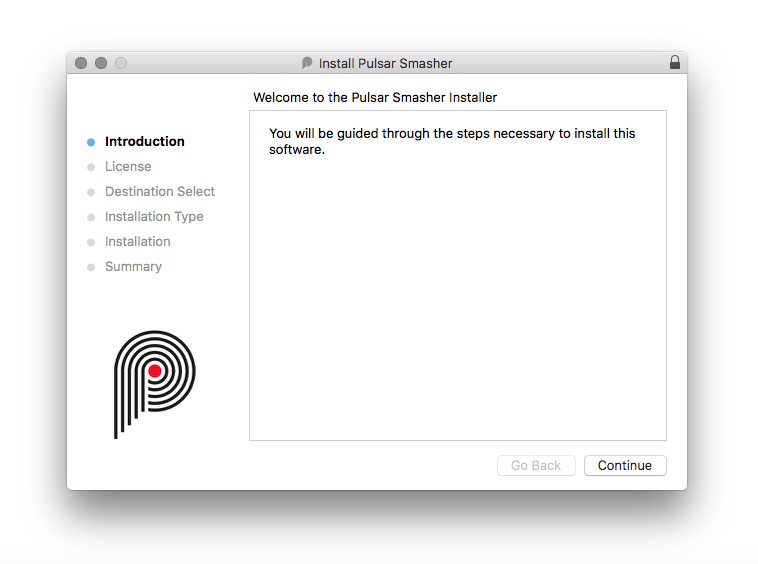
3. Click 'Continue'.
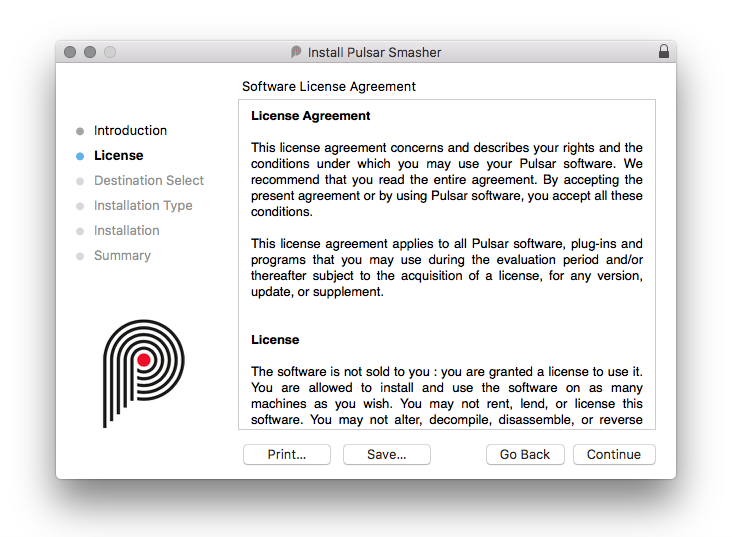
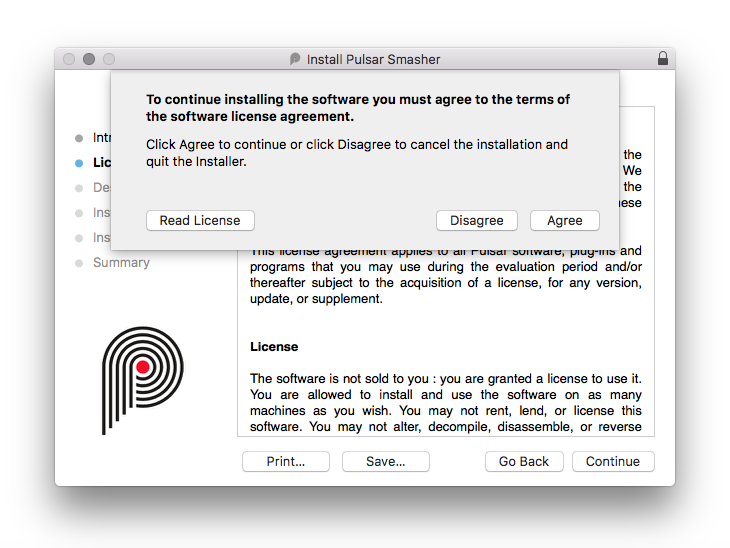
4. Click 'Agree'.
5. Click 'Install'.
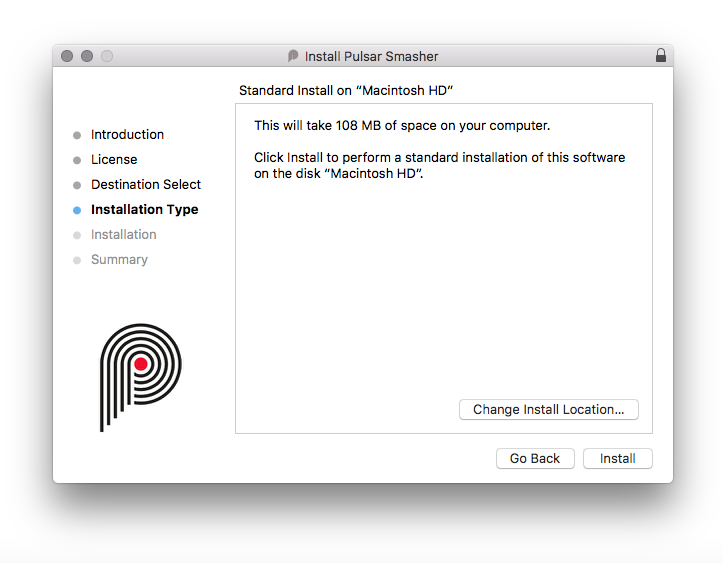
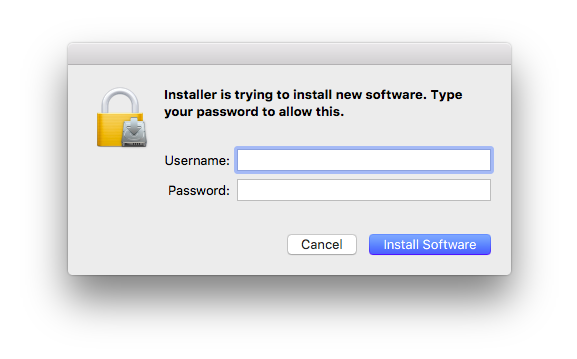
6. Enter your computer Username and Password > Click 'Install Software'.
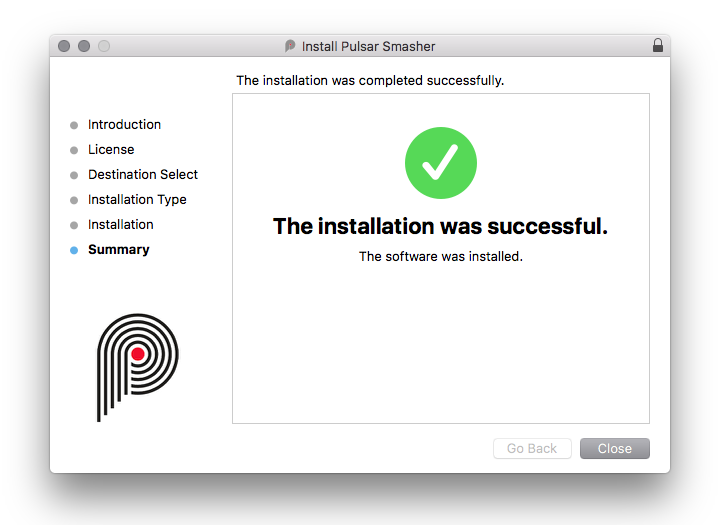
7. Click 'Close'.
iLok Activation
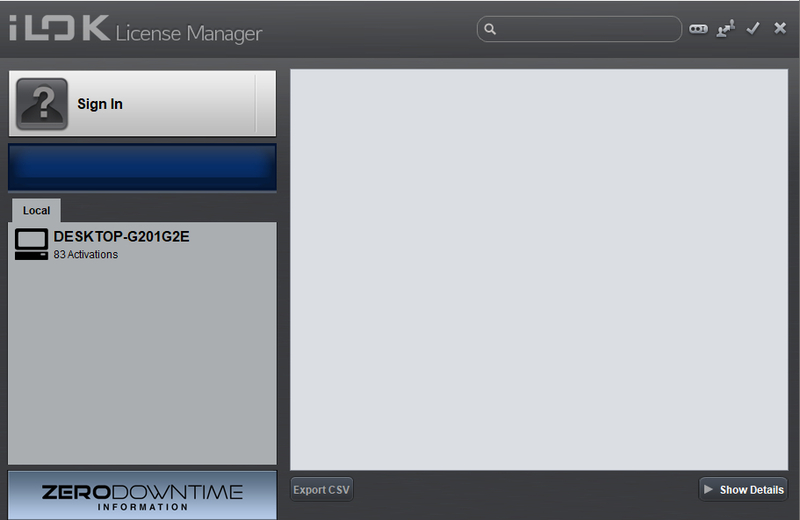
1. Open the iLok License Manager > Click 'Sign In'.
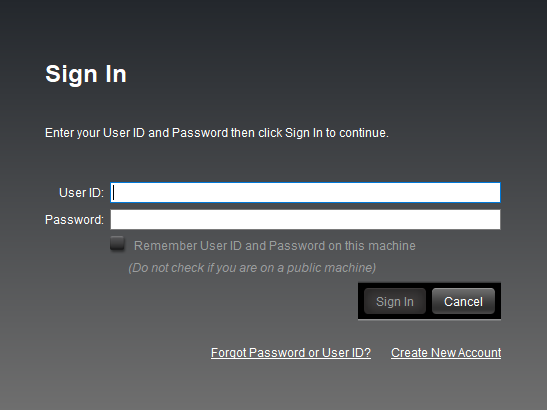
2. Enter your iLok User ID and Password > Click 'Sign In'.
3. Click the redeem icon in the top right-hand corner of the iLok License Manager window.

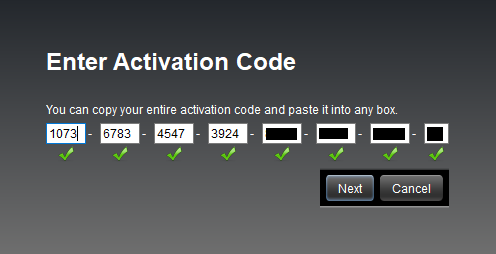
4. Enter the Activation Code in of your Plugin Boutique User Account > Click 'Next'.
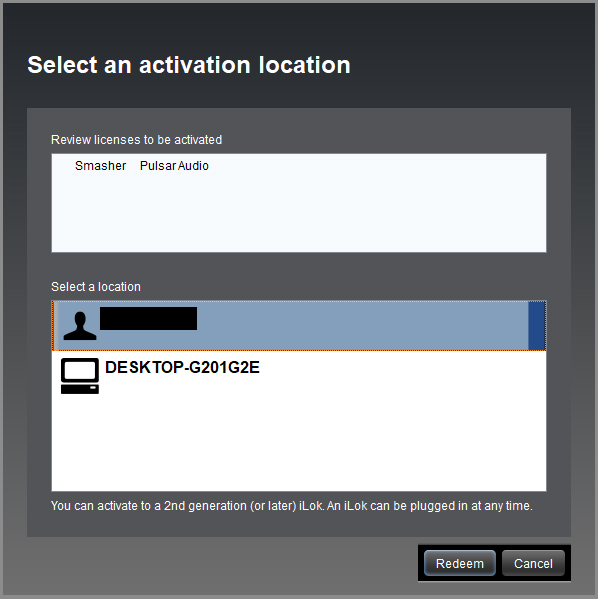
5. Select your account that you wish to redeem your product to > Click 'Redeem'.
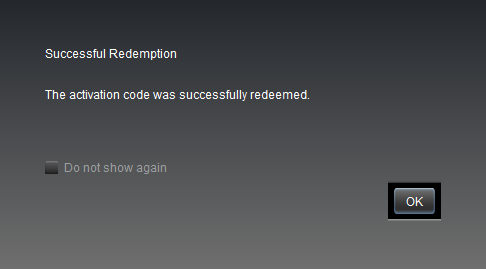
6. Click 'Ok'.
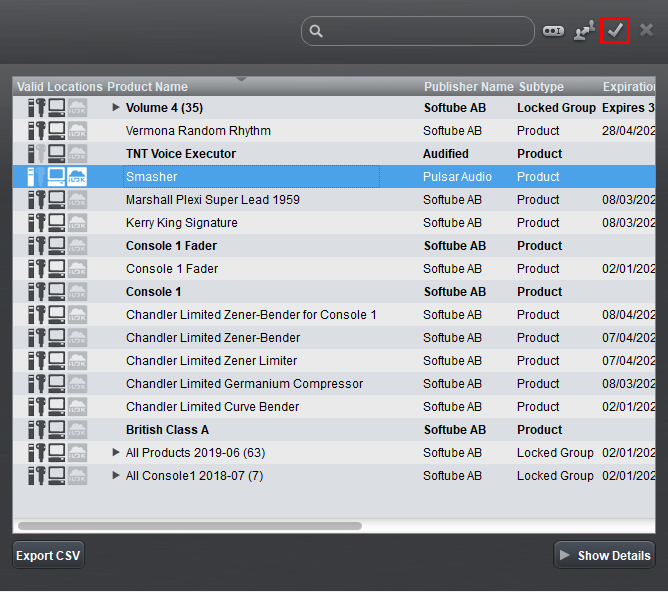
7. Select your redeemed product > Click the tick icon in the top-right hand corner of the iLok License Manager.
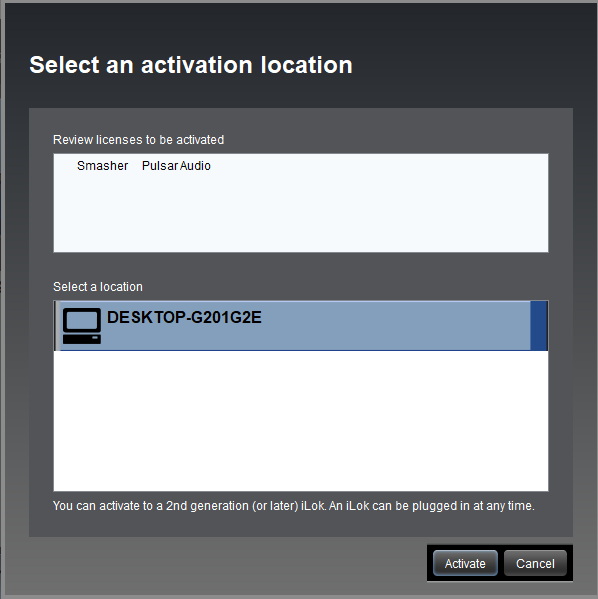
8. Select your computer from the list of activation locations > Click 'Activate'.
9. Click 'Ok'.
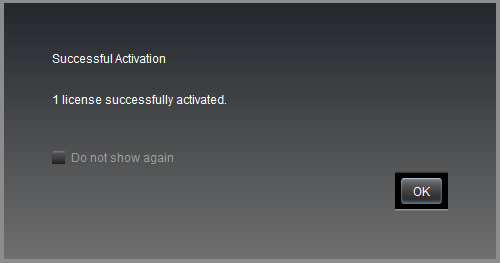
Your product is now activated and ready to use within your DAW.
Windows
iLok Registration
1. Go to the iLok website and create a new account if you are not currently registered and do not have the iLok License Manager installed on your computer.
Note: Skip to the 'Pulsar Software Installation' procedure if you are already an iLok registered user.
2. Download and install the iLok License Manager.
Pulsar Software Installation
1. Download the installer file from your Plugin Boutique User Account.
2. Double-click the .zip folder to reveal the installer file > Double-click the .exe installer file to begin the installation process.
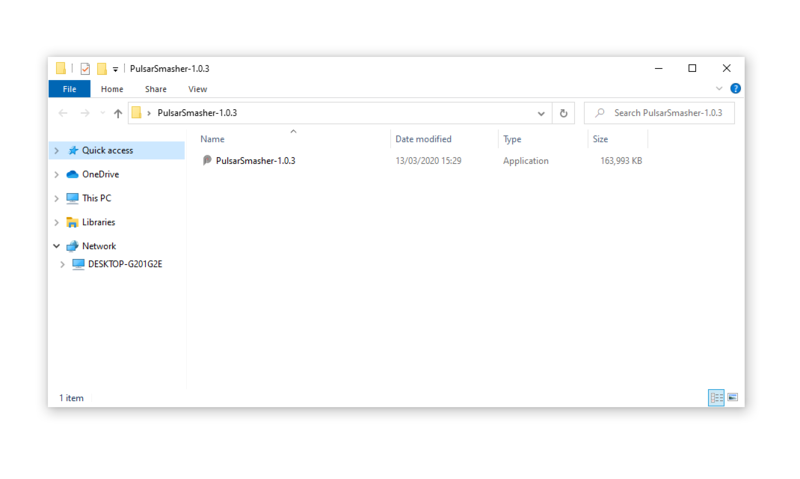
3. Select 'I Accept the Agreement' > Click 'Next'.
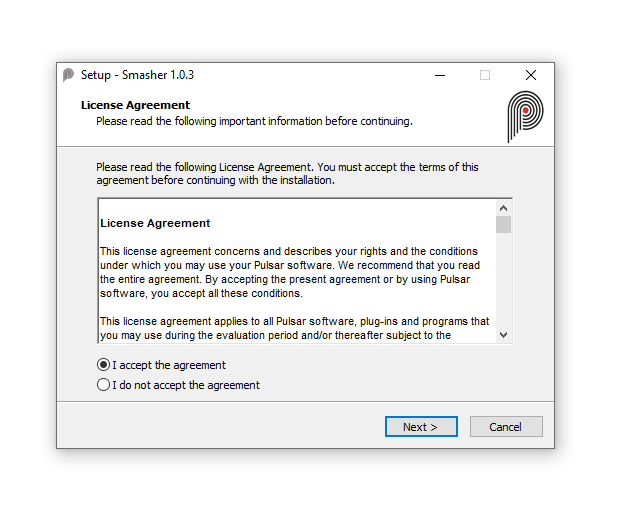
4. Select the components you wish to install > Click 'Next'. (Note: Untick 'PACE iLok license support' if you already have it installed on your computer).
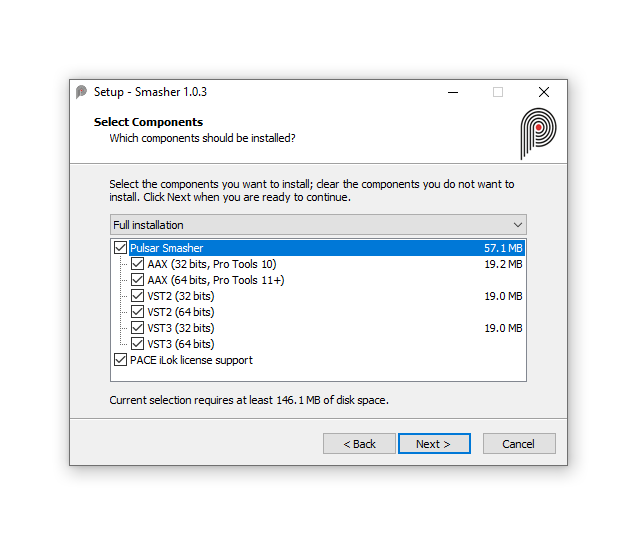
5. Click 'Next'.
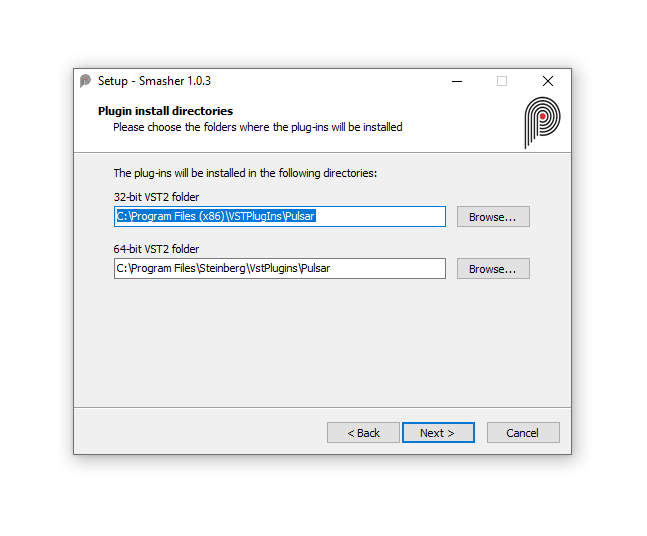
6. Click 'Install'.
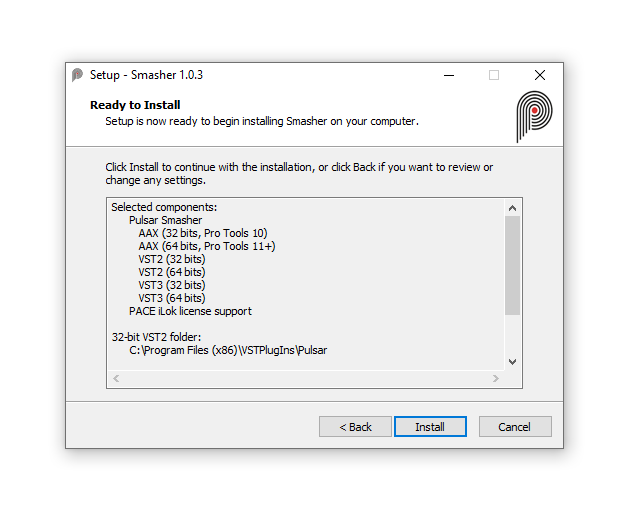
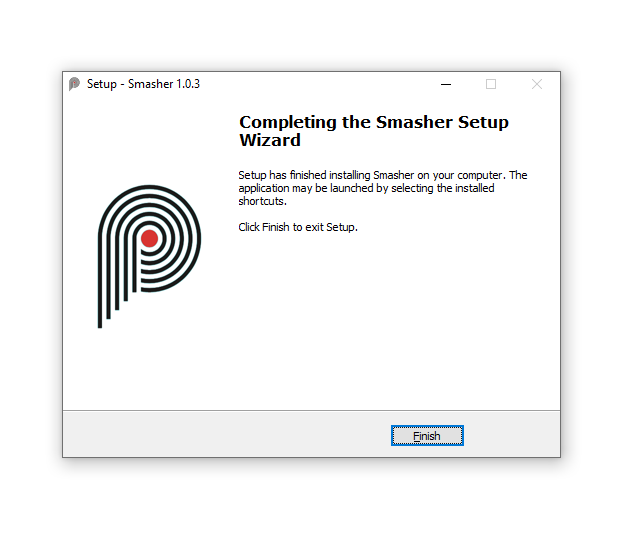
7. Click 'Finish'.
iLok Activation
1. Open the iLok License Manager > Click 'Sign In'.
2. Enter your iLok User ID and Password > Click 'Sign In'.
3. Click the redeem icon in the top right-hand corner of the iLok License Manager window.
4. Enter the Activation Code in of your Plugin Boutique User Account > Click 'Next'.
5. Select your account that you wish to redeem your product to > Click 'Redeem'.
6. Click 'Ok'.
7. Select your redeemed product > Click the tick icon in the top-right hand corner of the iLok License Manager.
8. Select your computer from the list of activation locations > Click 'Activate'.
9. Click 'Ok'.
Your product is now activated and ready to use within your DAW.


