Free gifts available with your purchase
Synthesized Reed Electric Piano
Before samplers, before huge computers, emulations were made with old and good synthesis. Wursy is the recreation of (what we think) the best way to achieve a Reed Electric Piano via synthesis.
The result? A super-expressive electric piano. With tons of harmonics and variations over the octaves, and a NON-STATIC sound.
Wursy has a tremolo with intensity and frequency modulators and a reverb FX. And it's only 40 MB with extremely low CPU usage.
System Requirements
macOS
- Standalone App, VST3 and AU included.
- OSX 10.7 or later (Catalina, Big Sur and Monterey supported).
- Host must support VSTi or AU plugins.
- 70 MB HDD.
- 4GB RAM.
Windows
- Standalone 64 bits App and VST3 included.
- Windows 7 or later.
- Host must support VSTi plugins.
- 70 MB HDD.
- 4GB RAM.
Important Note: Pro Tools is not supported.
Please Note: Stage54 is used as an example.
Mac
Download Installer
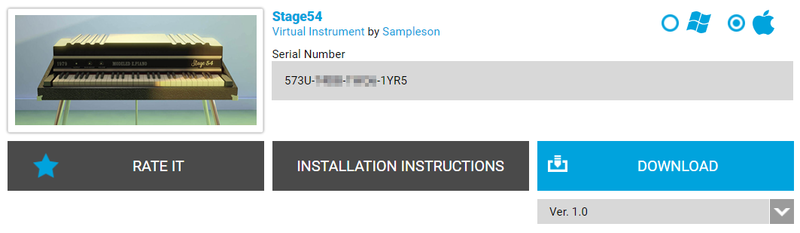
1. Navigate to your Plugin Boutique User Account and locate Stage54 > Click the blue 'DOWNLOAD' button.
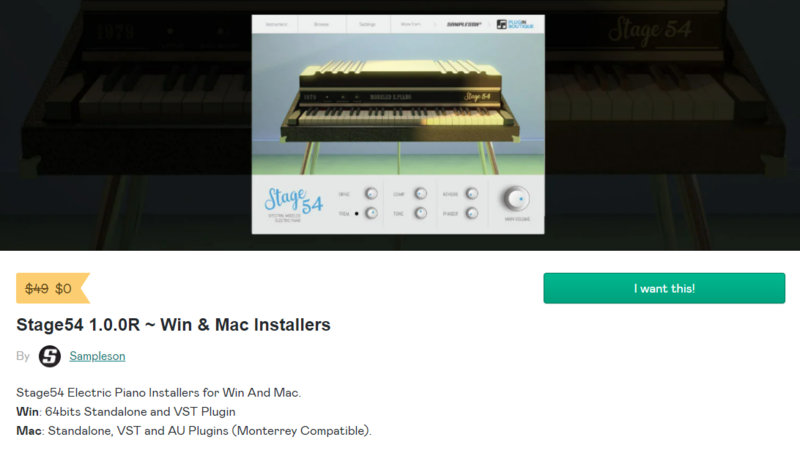
2. Click 'I want this!'.
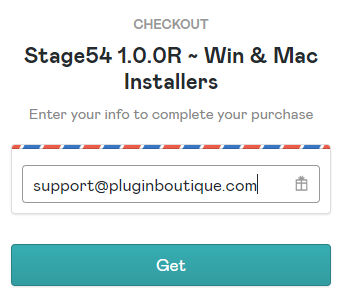
3. Enter your email address > Click 'Get'.
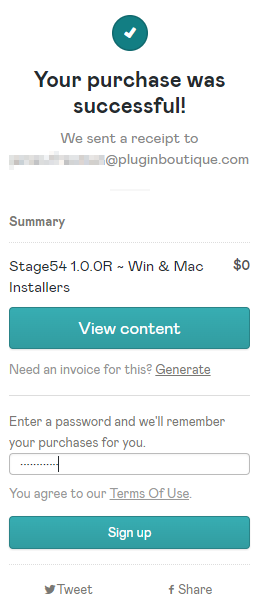
4. Click 'View content' to proceed straight to your downloads > Alternatively, enter a password to create an account for future access to your download > Click 'Sign Up'.
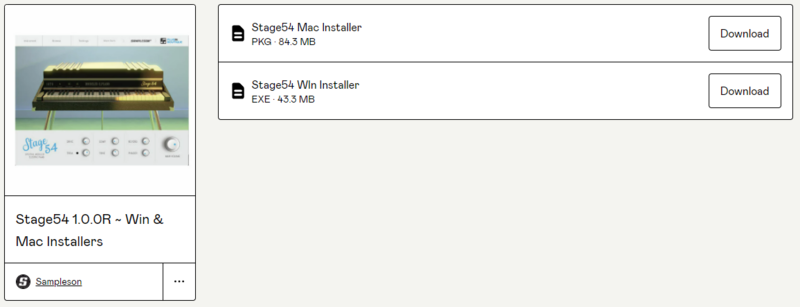
5. Locate the 'Stage54 Mac Installer' > Click 'Download'.
Installation
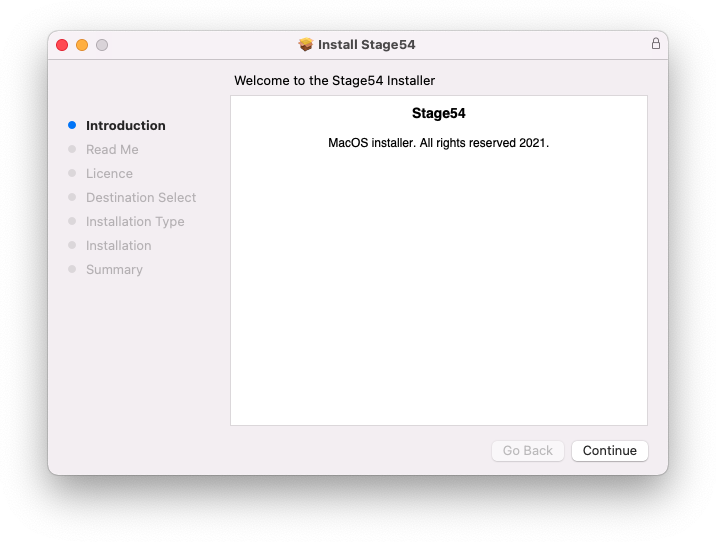
1. Navigate to your Downloads folder and locate the 'Stage54 Mac Installer.pkg' > Launch the installer.
2. Click 'Continue'.
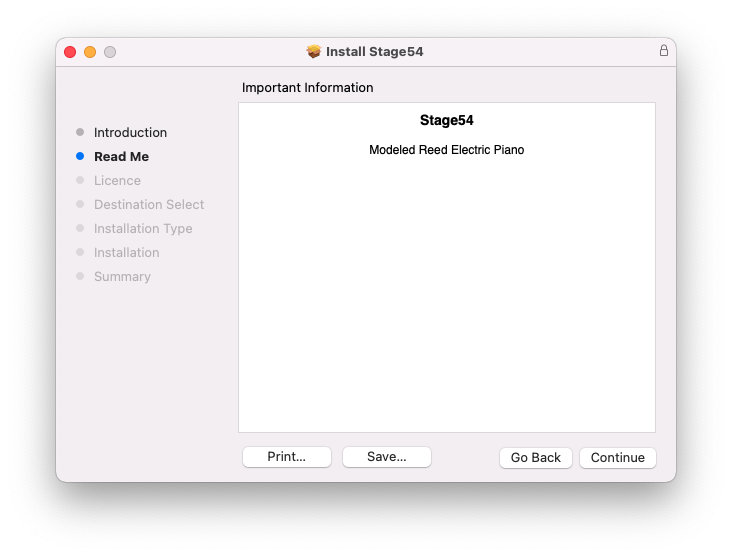
3. Click 'Continue'.
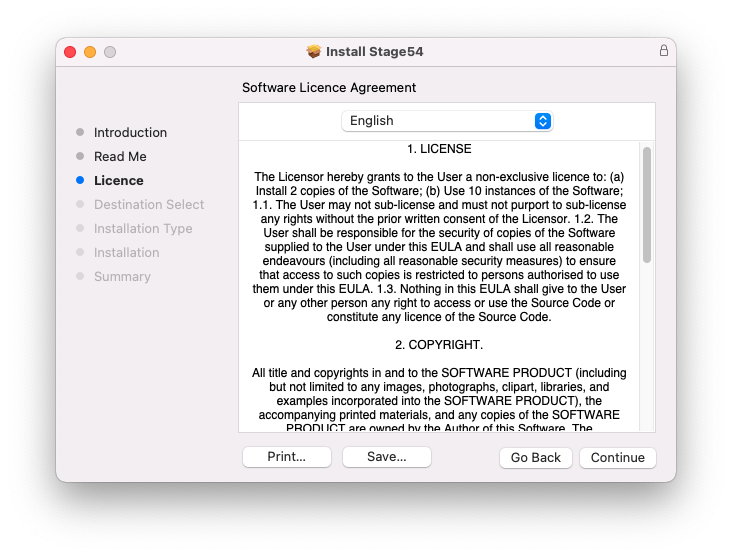
4. Click 'Continue'.
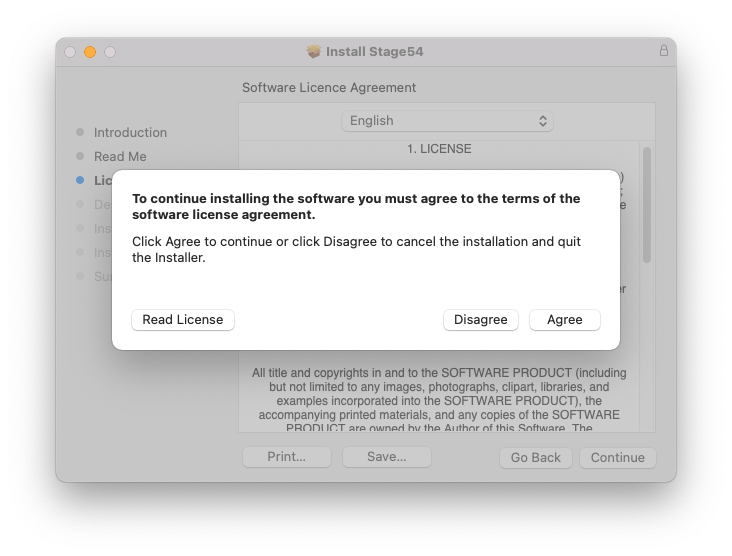
5. Click 'Agree'.
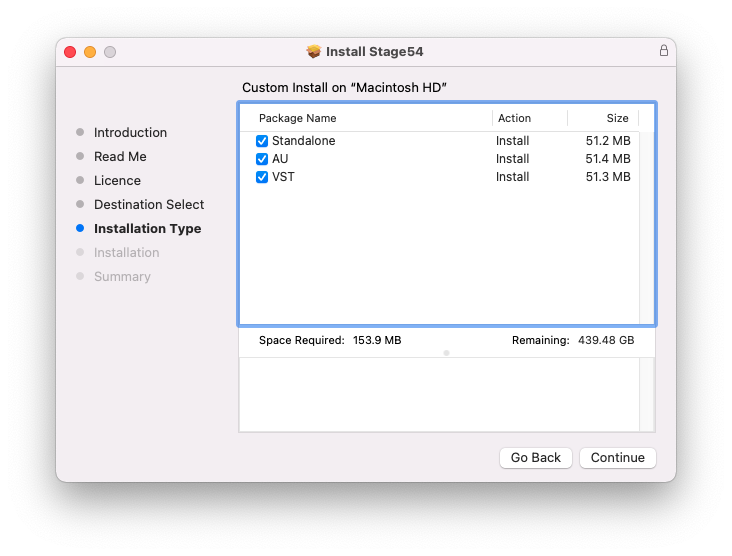
6. Click 'Continue'.
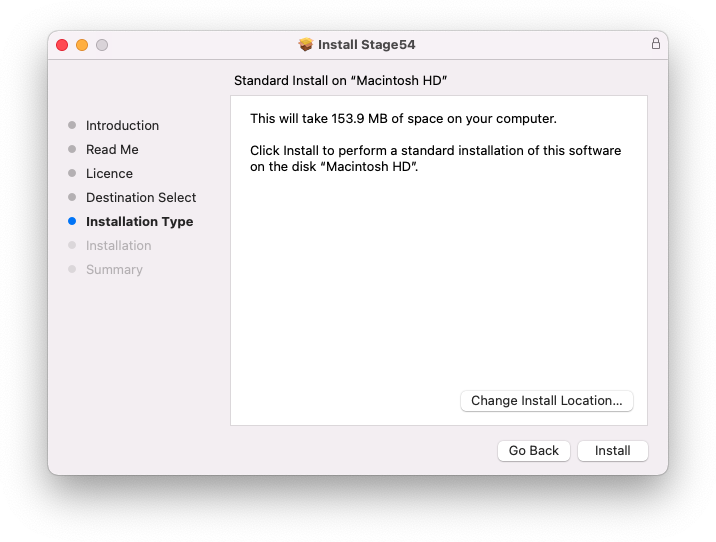
7. Click 'Install'.
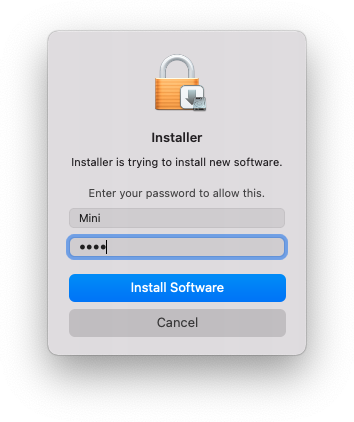
8. Enter your system password > Click 'Install Software'.
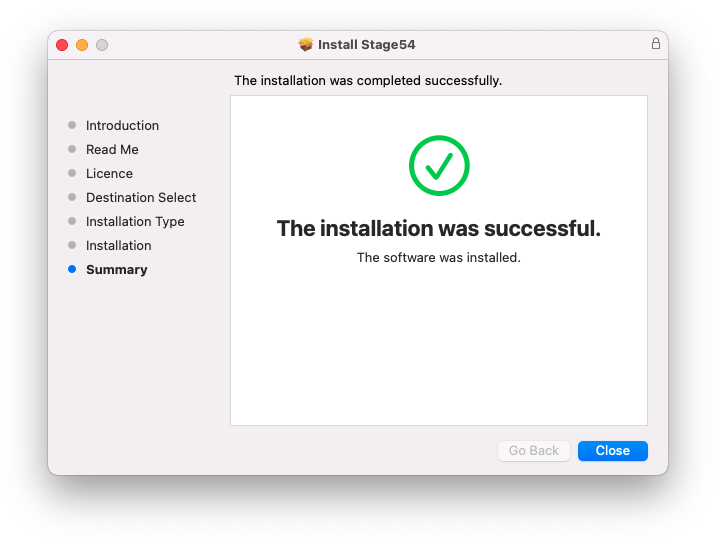
9. Click 'Close'.
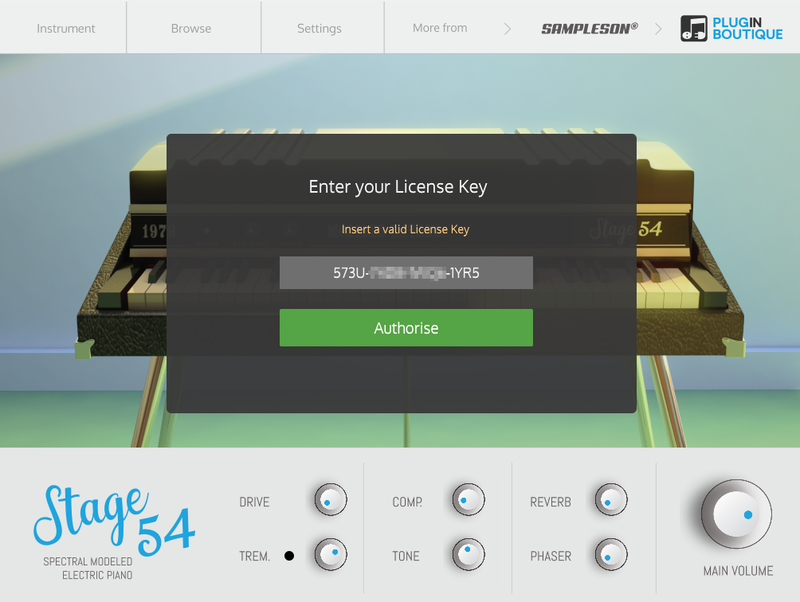
10. Launch your DAW > Create a new Virtual Instrument track > Insert Stage54 onto the channel > Paste your 16 digit serial number found within your Plugin Boutique User Account into the box > Click 'Authorise'.
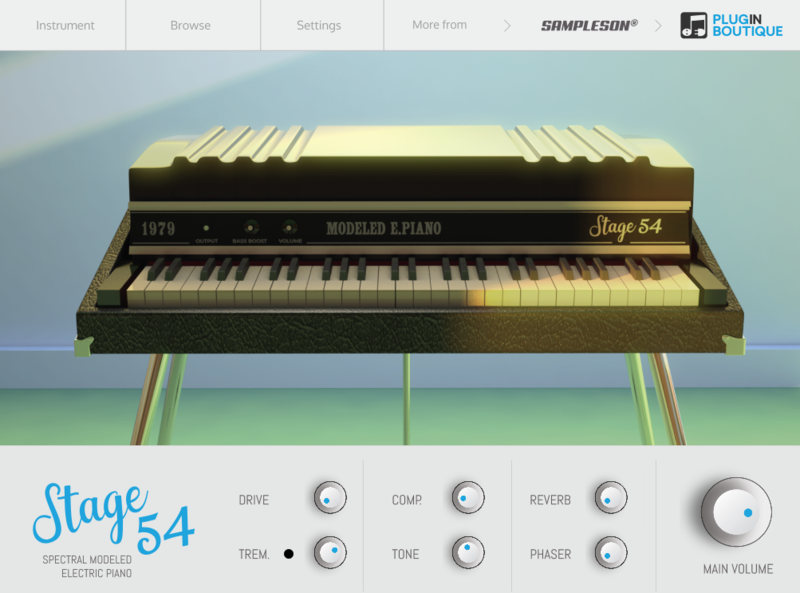
Stage54 is now installed, activated, and ready to use within your DAW.
Windows
Download Installer
1. Navigate to your Plugin Boutique User Account and locate Stage54 > Click the blue 'DOWNLOAD' button.
2. Click 'I want this!'.
3. Enter your email address > Click 'Get'.
4. Click 'View content' to proceed straight to your downloads > Alternatively, enter a password to create an account for future access to your download > Click 'Sign Up'.
5. Locate the 'Stage54 Win Installer' > Click 'Download'.
Installation
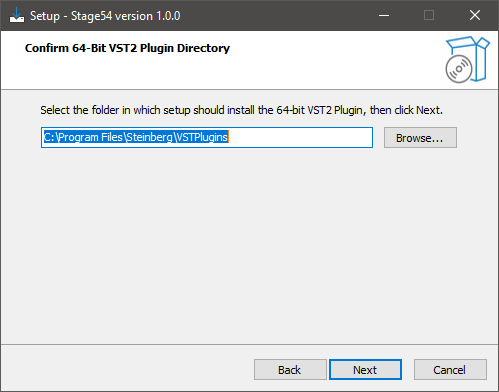
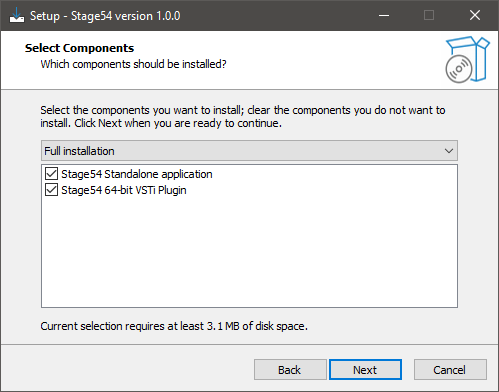
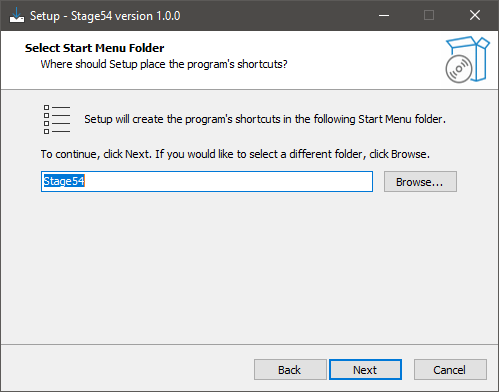
1. Navigate to your Downloads folder and locate the 'Stage54 Win Installer.exe' > Launch the installer.
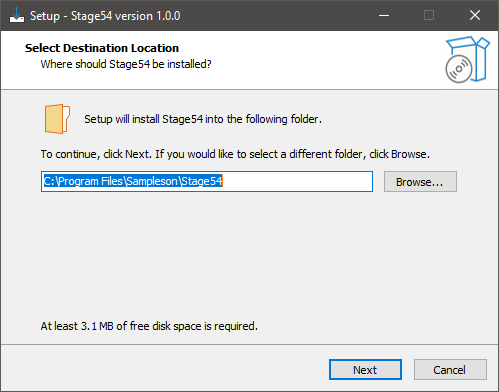
2. Click 'Next'.
3. Click 'Next'.
4. Click 'Next'.
5. Click 'Next'.
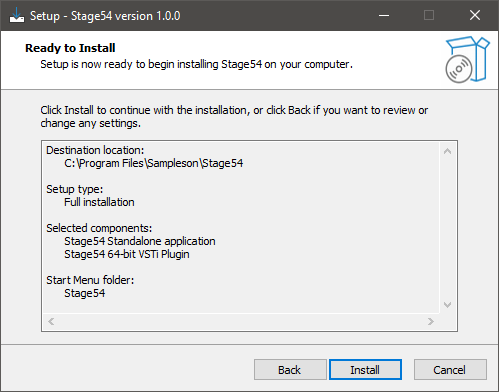
6. Click 'Install'.
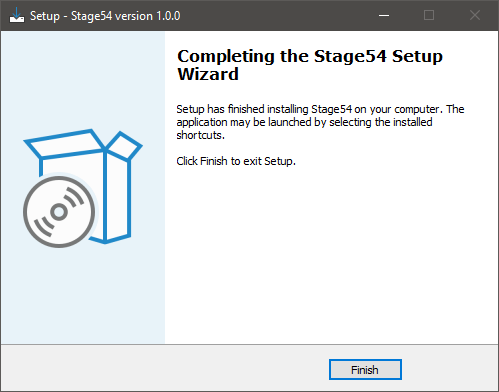
7. Click 'Finish'.
8. Launch your DAW > Create a new Virtual Instrument track > Insert Stage54 onto the channel > Paste your 16 digit serial number found within your Plugin Boutique User Account into the box > Click 'Authorise'.
Stage54 is now installed, activated, and ready to use within your DAW.