Buy UCHRONIA , get a free gift with purchase:
Parallel sonic realities are just a few clicks away!
UCHRONIA is a unique and powerful granular synthesis instrument for Kontakt 6+. Through its 4 independent granular engines and arpeggiators, radar XY pad, 3 playback modes, tons of fully controllable FXs, and its unique Entropy randomizer, you will be able to deconstruct, sculpt and redesign any type of sound - from loops, playable synths, and textures, ambient soundscapes, up to complex rhythms and playable pads and, of course, your own sounds.
You can drag & drop up to 32 samples for each engine for a total of 128 imported samples. Any sound source can be turned into complex rhythmic sequences and evolving soundscapes in just a few clicks. Let Uchronia inspire you and take you to unexplored musical territories!
Features
- 3 playback modes: normal verse, reverse, multiverse (normal and reverse at the same time)
- 4 independent granular engines
- Granular controls: position, pitch, grain size, density, envelope, spray, spread, atomic structure, speed, tone
- 4 arpeggiators (4 pattern modes, up to 32 steps, 3 octaves + and -, 16 rhythmic subdivision rates)
- ENTROPY: smart randomizer to generate infinite aleatoric sound combinations and FX settings
- Tape reel noises sampled from authentic analog tape devices
- 72 patches (one-shots, playable, textures, loops)
- 78 Entropies - snapshots (playable, rhythmic, sound design)
- 9 built-in FXs
- 3 additional controls for the Master bus:
- 72 convolution reverbs and creative FXs for each granular engine
System Requirements
- Granular synthesis requires a fast CPU in order to work properly
- 8GB RAM minimum is required (16GB+ recommendable)
- Kontakt Full Version 6.6+ required (not compatible with the free Kontakt Player)

![]()
Please note: This instrument will not work with the free Kontakt Player and will show the demo mode message.
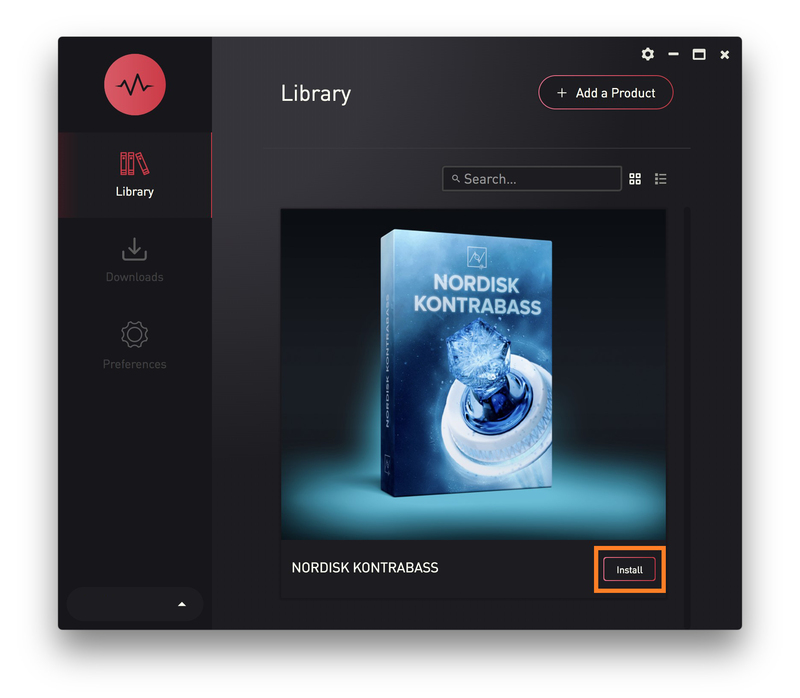
Please note: Nordisk Kontrabass is used as an example as the installation process is the same for all Have products.
Mac
Installation
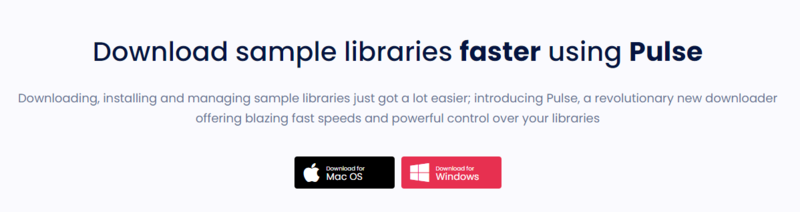
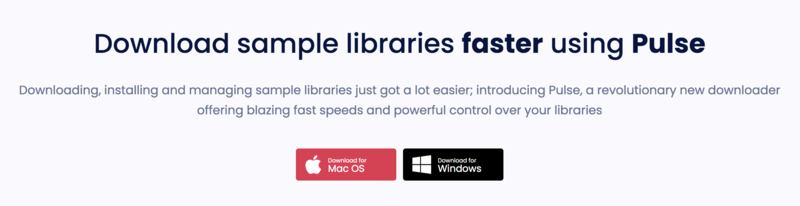
1. Go to https://pulsedownloader.com/ > Click 'Download for Mac OS' to download the Pulse application installer.

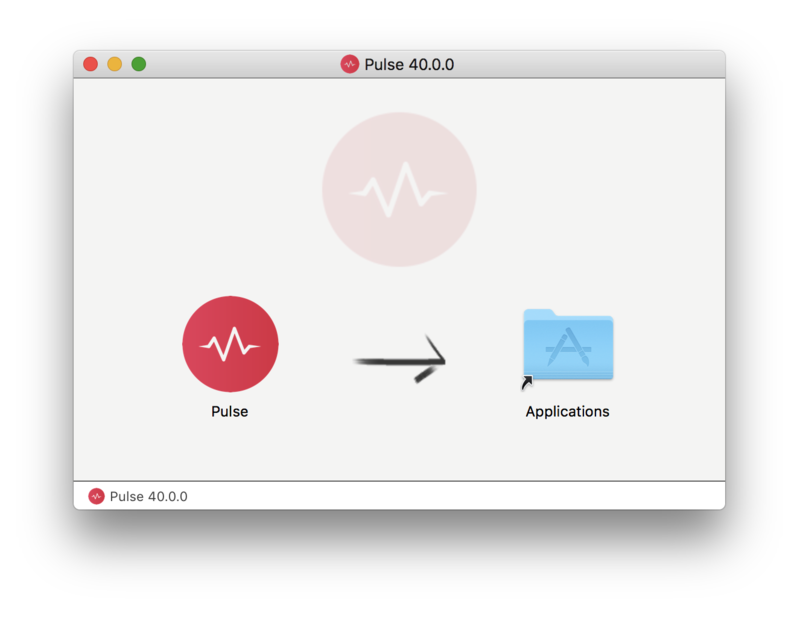
2. Open the .dmg file > Click and drag the application icon into the applications folder.

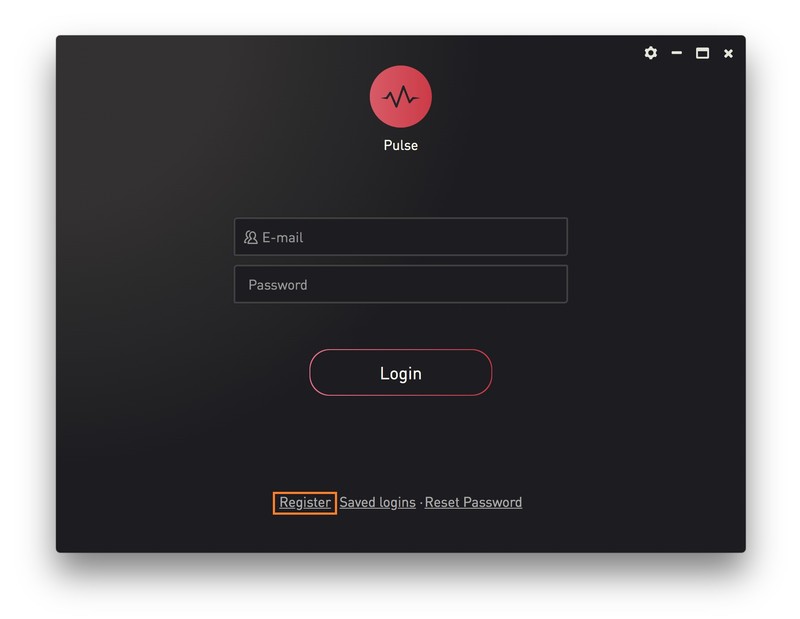
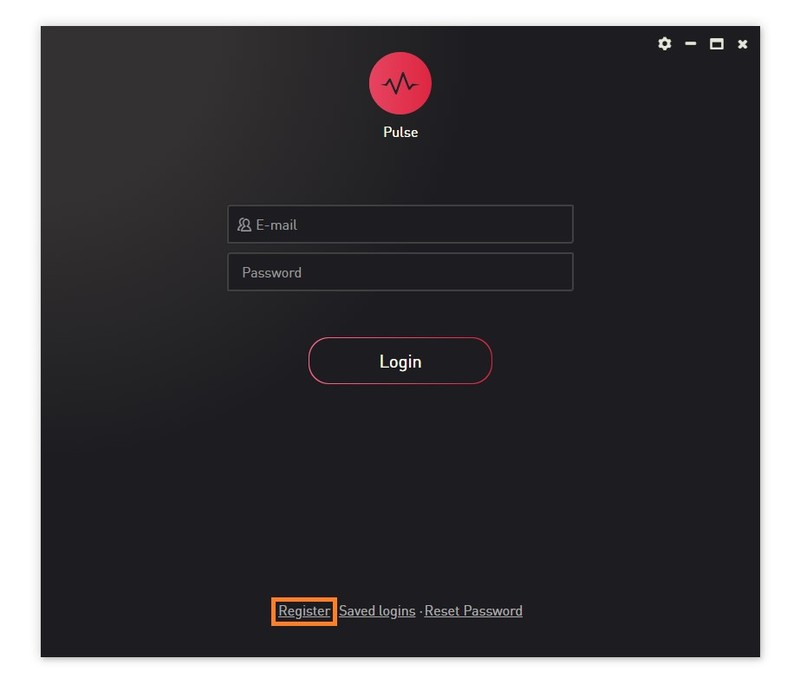
3. Open the Pulse application > Click 'Register'

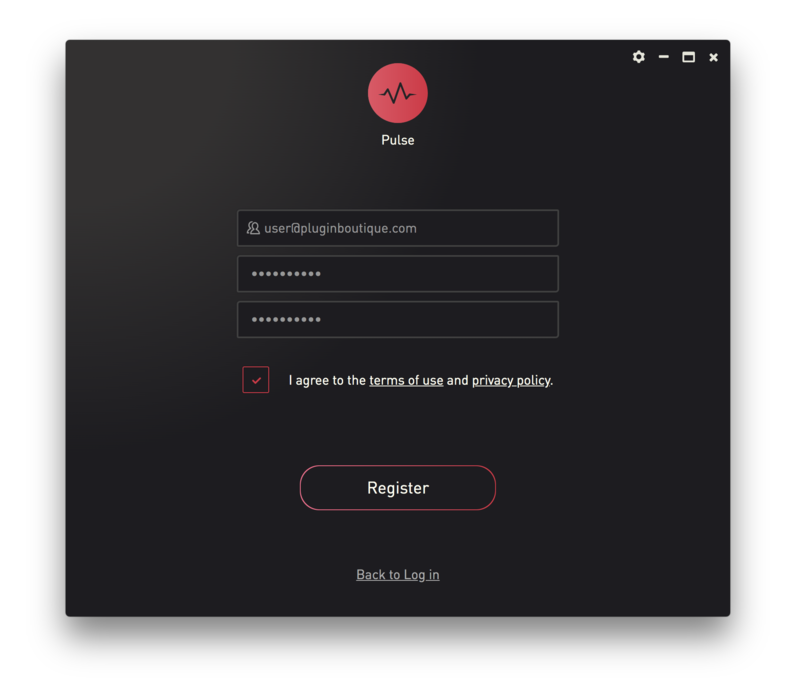
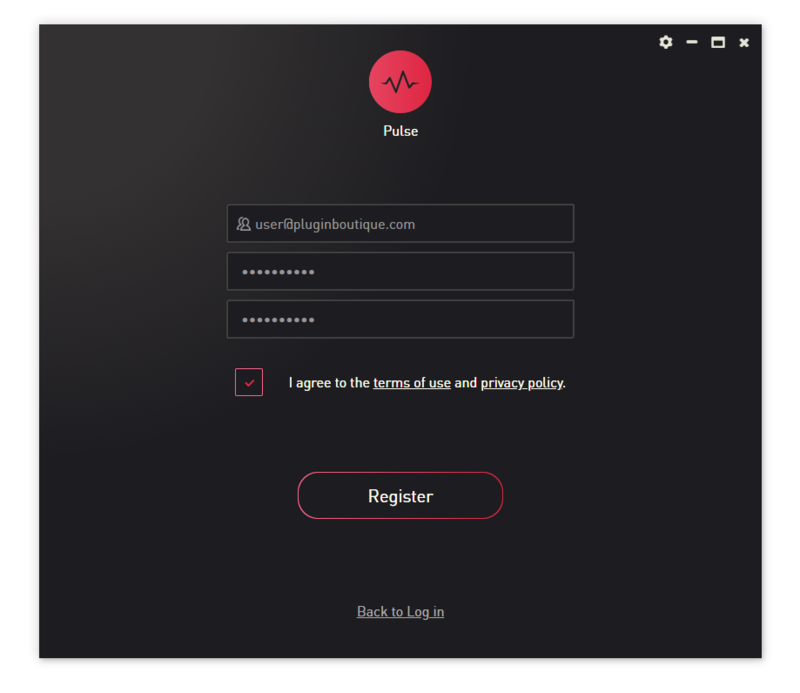
4. Enter your Email Address and Password > Check the box that states 'I agree to the terms of use and privacy policy' > Click 'Register'.

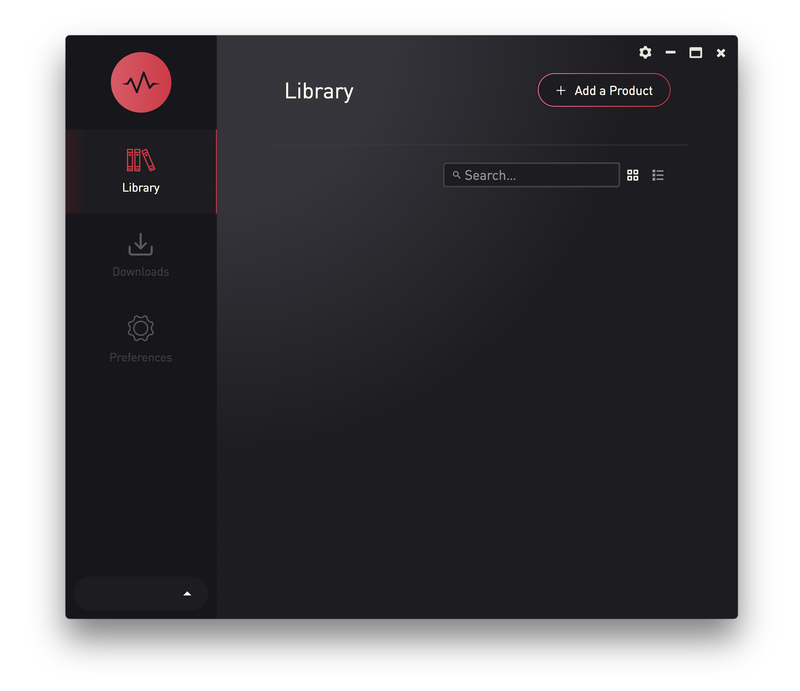
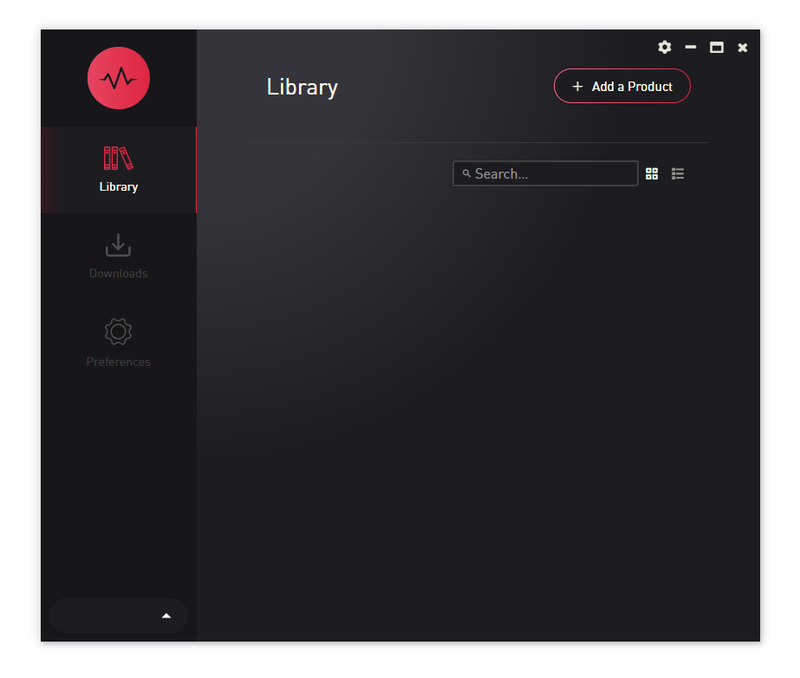
5. Click 'Add a Product'.

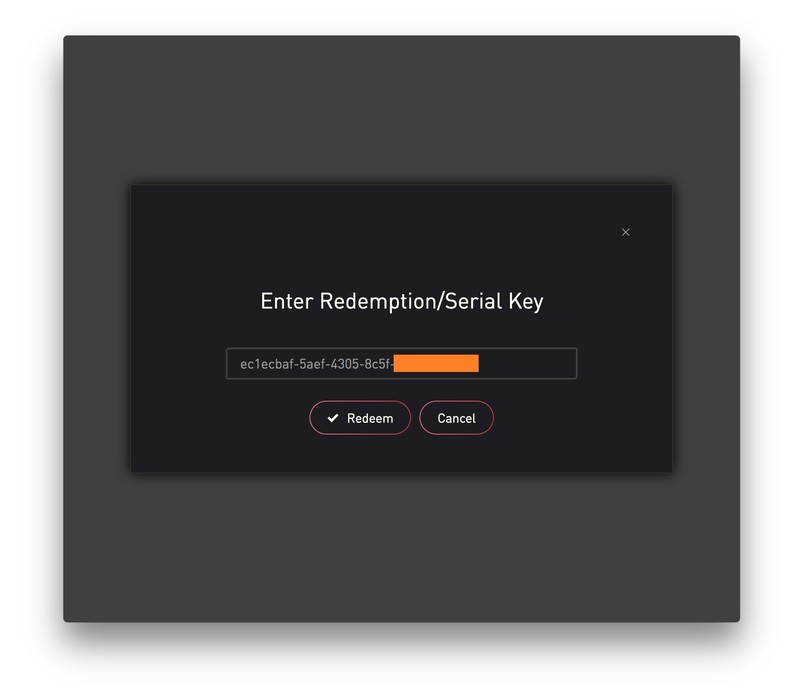
6. Enter your 32-digit serial key, found within the serial number section of your Plugin Boutique User Account > Click 'Redeem'.

7. Click 'Install'.

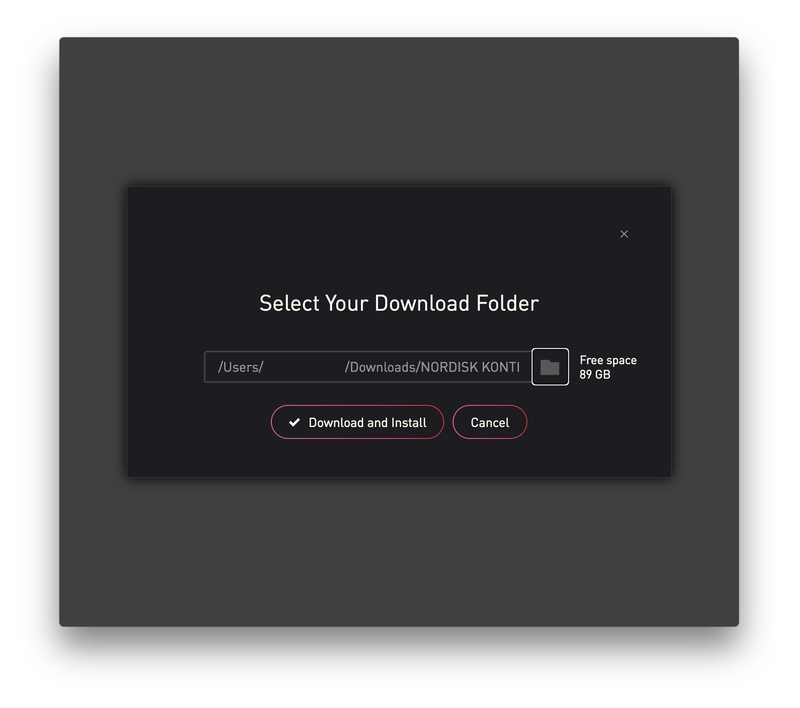
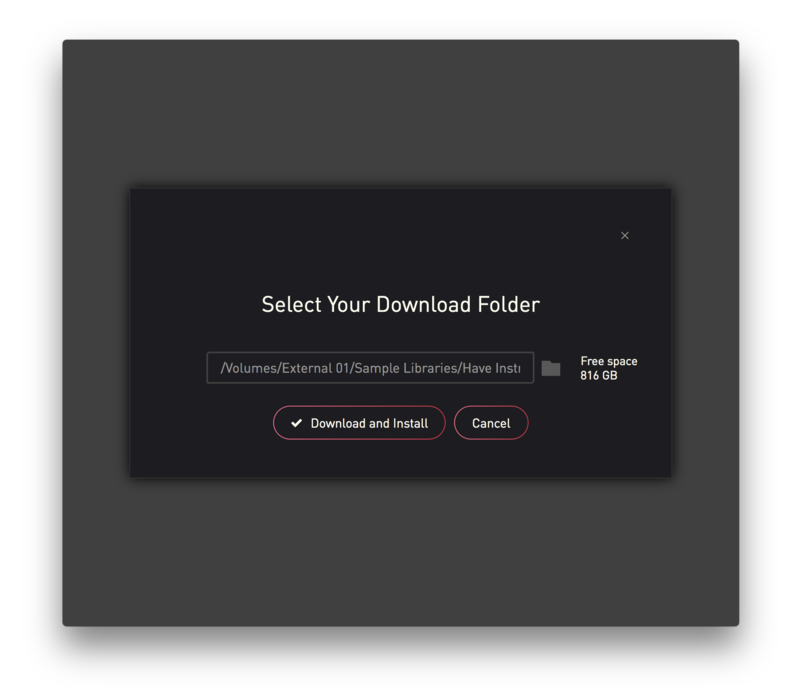
8. Click the folder icon to select the installation location for your library.

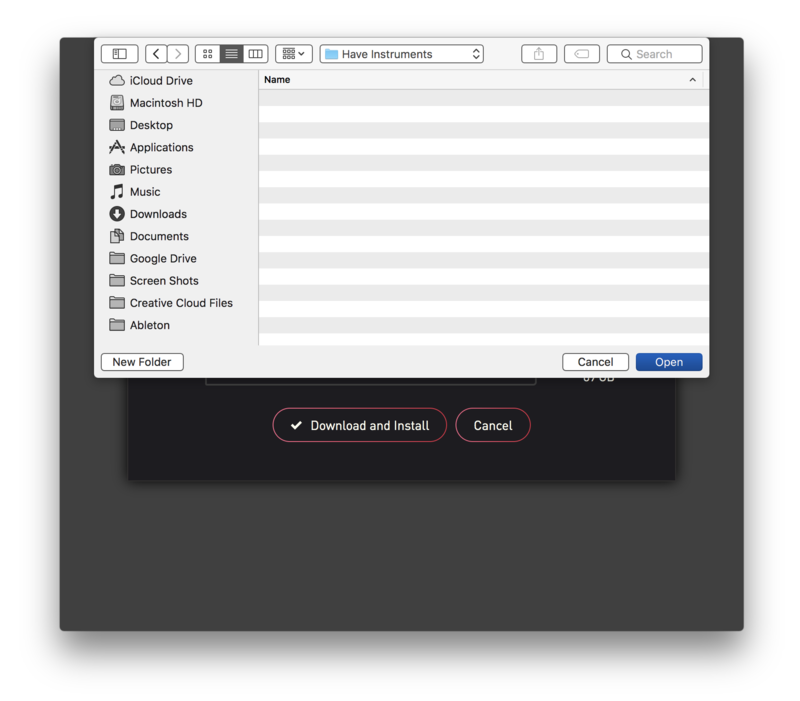
9. Choose your installation location > Click 'Open'.

10. Click 'Download and Install'.

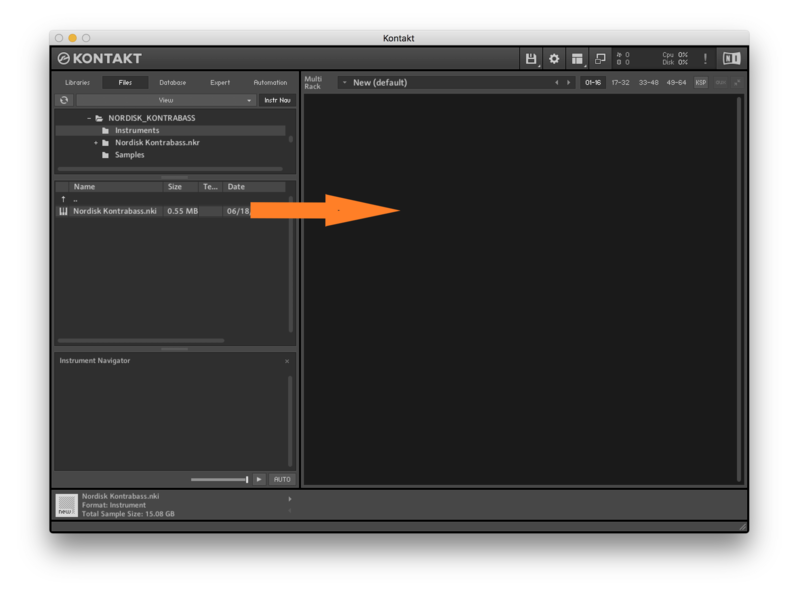
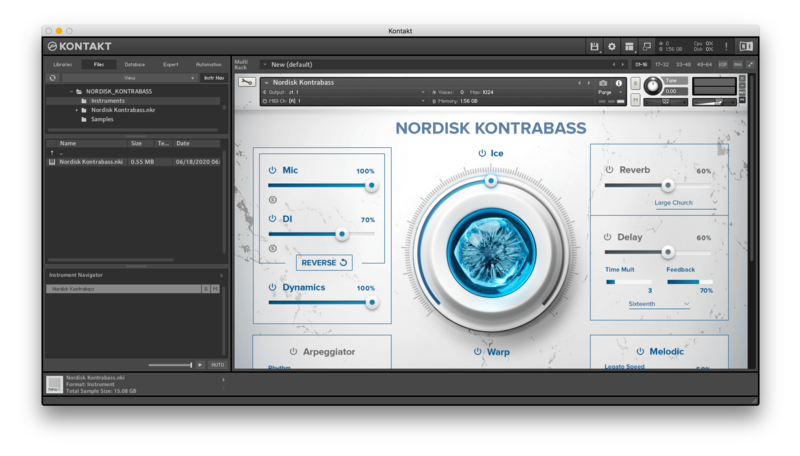
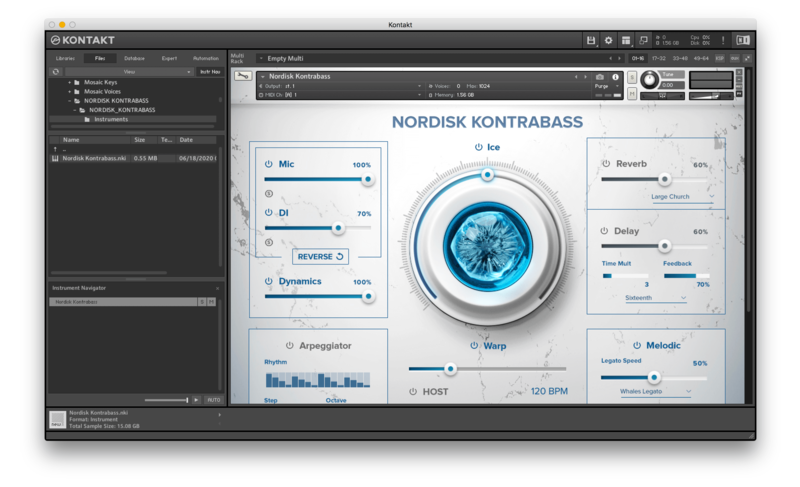
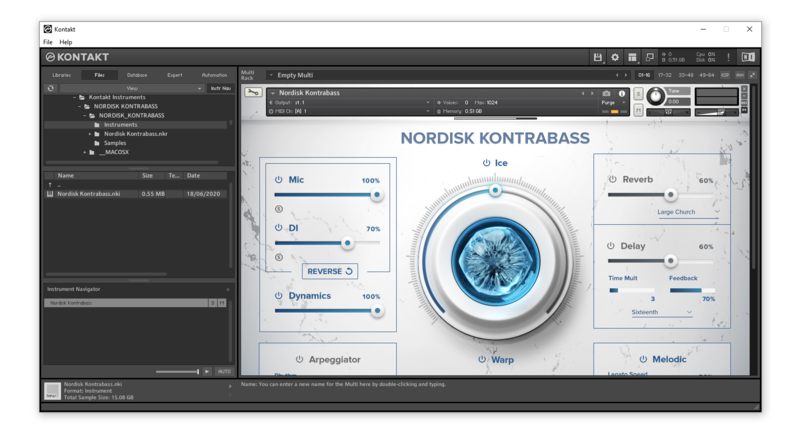
11. Open Kontakt > Select the 'Files' tab and navigate to your installed Kontakt library > Click and drag the .nki file into the empty window.

Your Kontakt Instrument is now installed and ready to use.

Batch Re-save Instructions
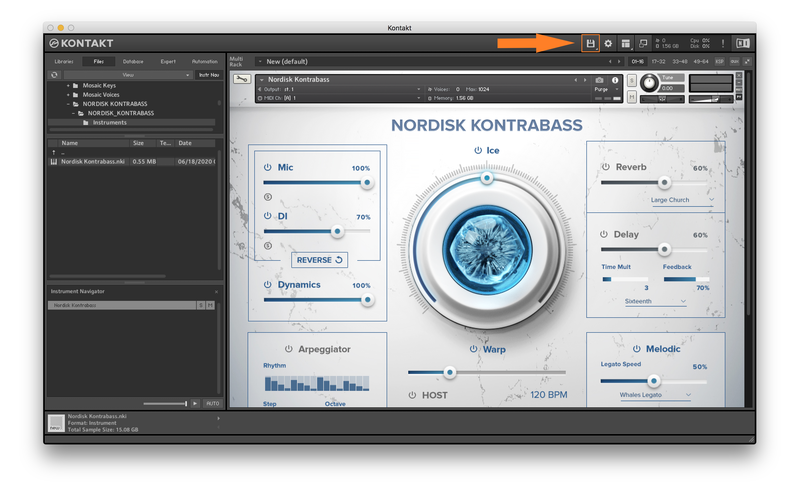
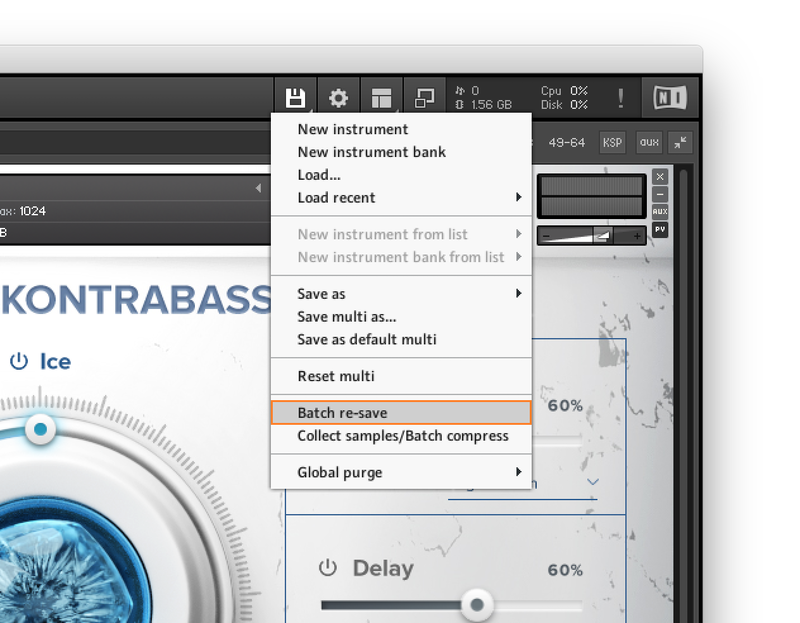
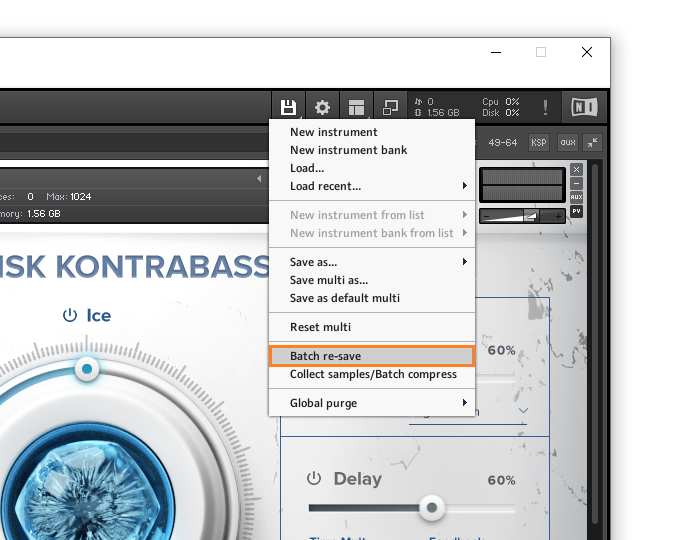
1. Within Kontakt, click the floppy disk icon.

2. From the drop-down menu, click 'Batch re-save'.

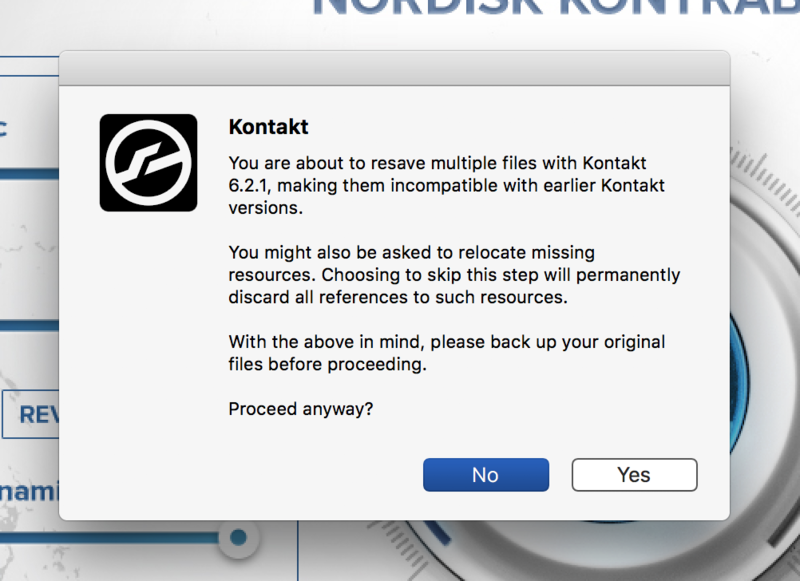
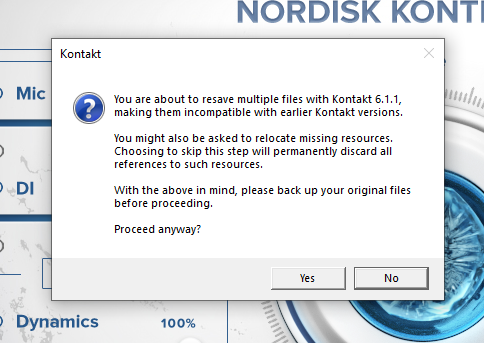
3. Click 'Yes'.

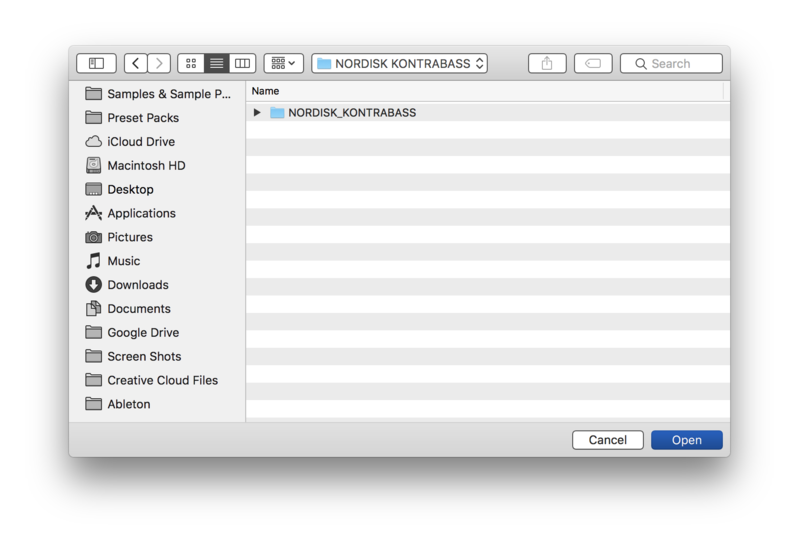
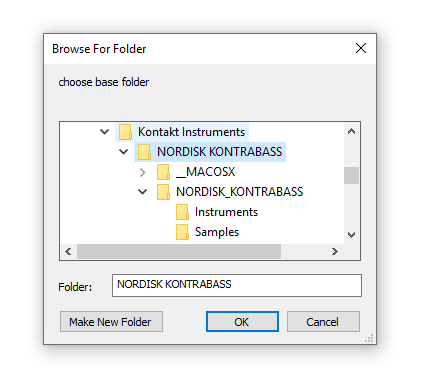
4. Navigate to the installation location for your Kontakt library > Click 'Open'.

Batch re-save is now complete and you can expect to see quicker loading times for your Kontakt Instrument.

Windows
Installation
1. Go to https://pulsedownloader.com/ > Click 'Download for Windows' to download the Pulse application installer.

2. Open the .exe file to install the Pulse application > Open Pulse and click 'Register'.

3. Enter your Email Address and Password > Check the box that states 'I agree to the terms of use and privacy policy' > Click 'Register'.

4. Click 'Add a Product'.

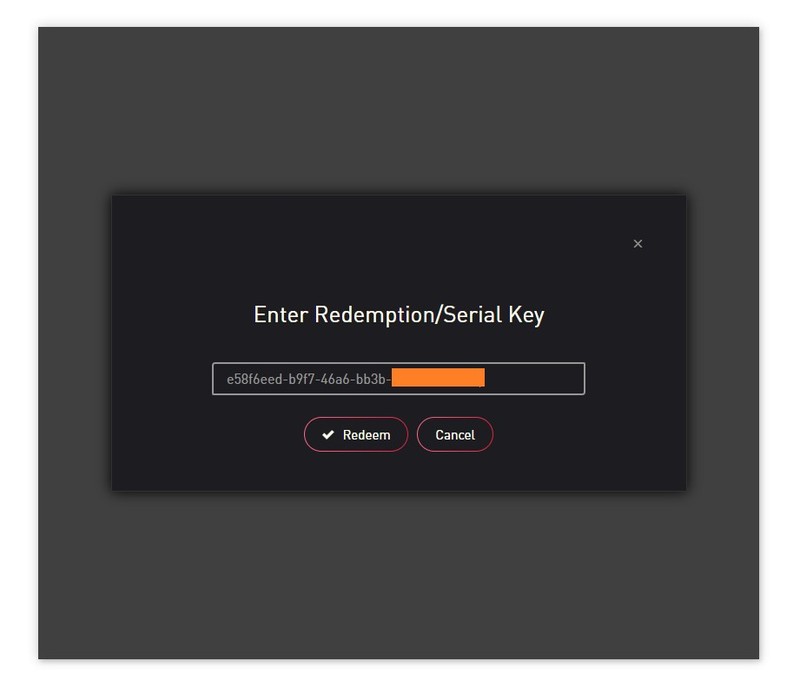
5. Enter your 32-digit serial key, found within the serial number section of your Plugin Boutique User Account > Click 'Redeem'.

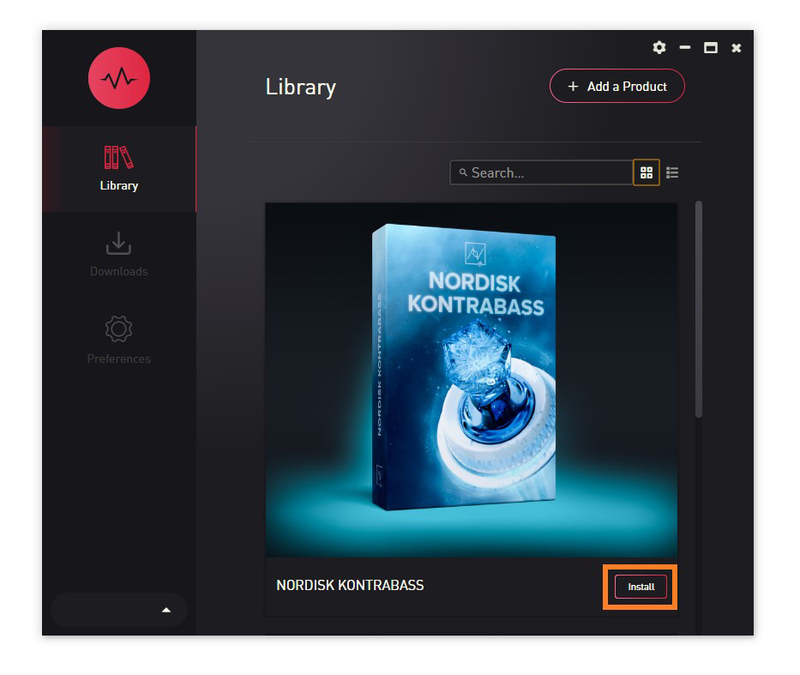
6. Click 'Install'.

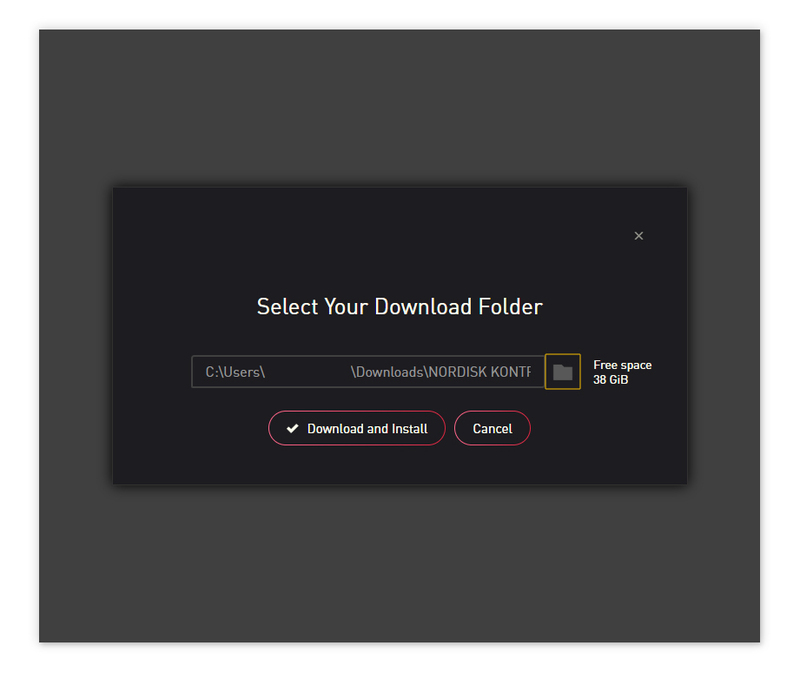
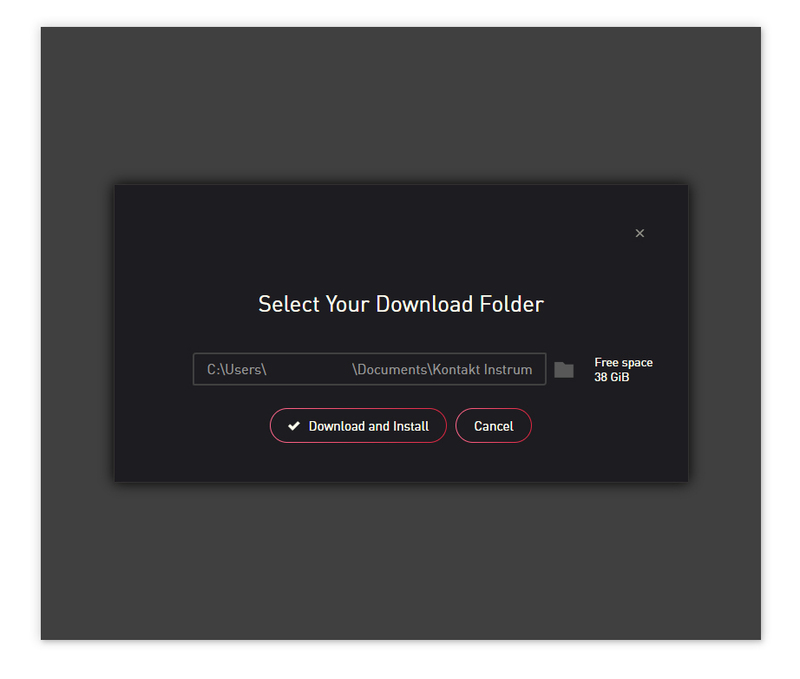
7. Click the folder icon to select the installation location for your library.

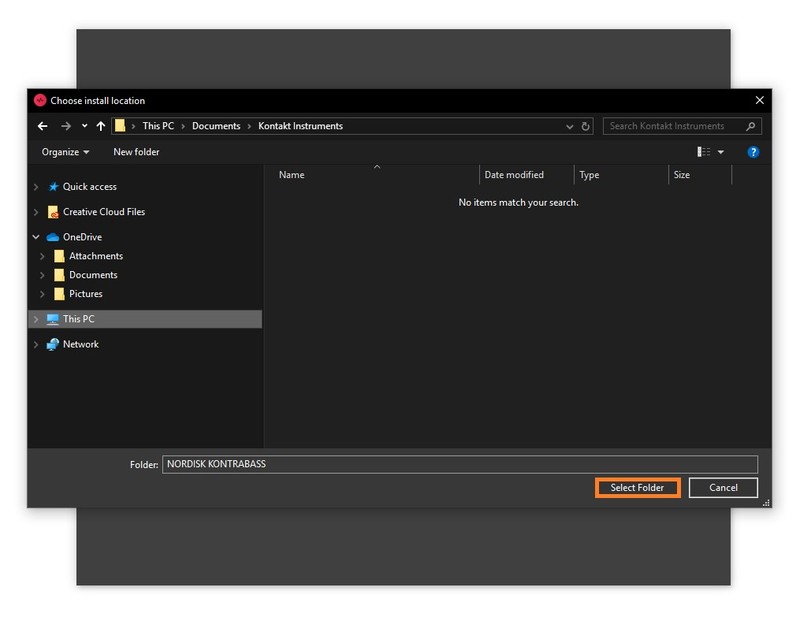
8. Choose your installation location > Click 'Select Folder'.

9. Click 'Download and Install'.

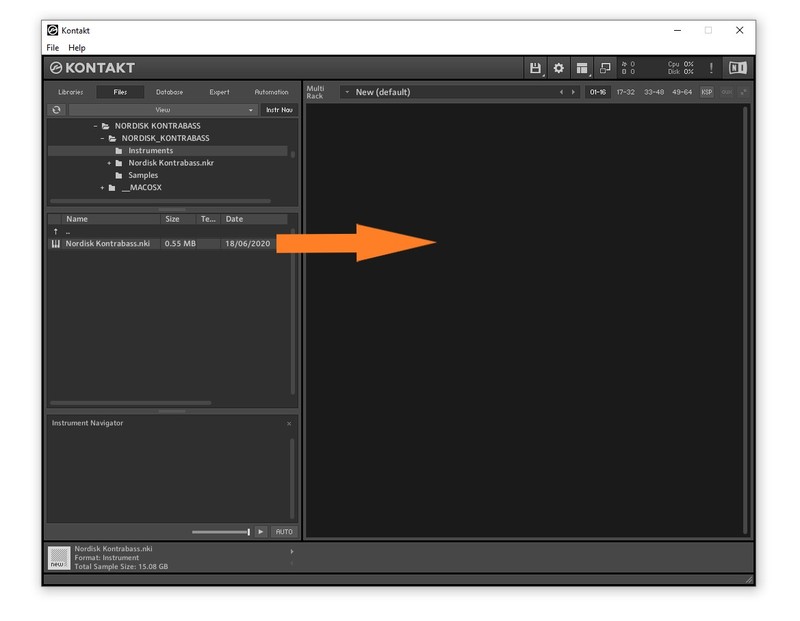
10. Open Kontakt > Select the 'Files' tab and navigate to your installed Kontakt library > Click and drag the .nki file into the empty window.

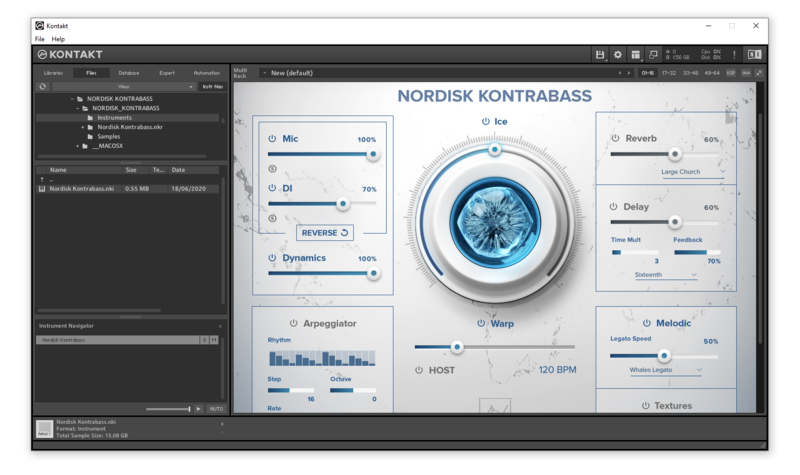
Your Kontakt Instrument is now installed and ready to use.

Batch Re-save Instructions
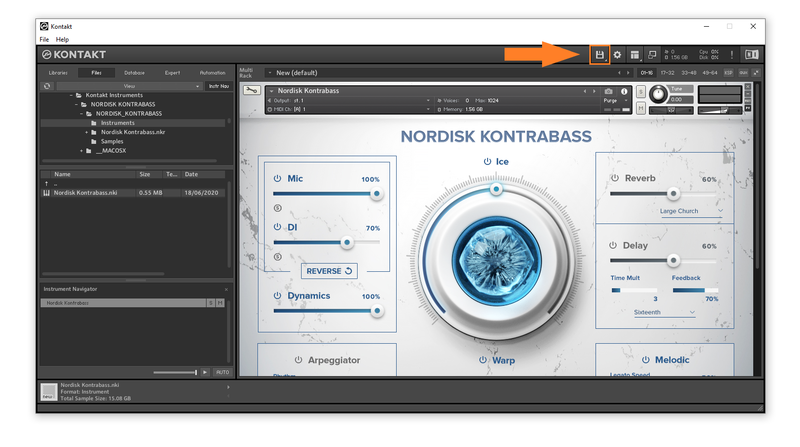
1. Within Kontakt, click the floppy disk icon.

2. From the drop-down menu, click 'Batch re-save'.

3. Click 'Yes'.

4. Navigate to the installation location for your Kontakt library > Click 'Ok'.

Batch re-save is now complete and you can expect to see quicker loading times for your Kontakt Instrument.