Log In

Free gifts available with your purchase
PSP PianoVerb2 is a redesigned and improved creative resonant reverb plug-in based on the famed freeware plug-in PSP PianoVerb. This new version offers a redesigned GUI with a brand new resizing feature and a new preset management system. Like the original PianoVerb, it creates its unique sound with twelve resonant filters that mimic the behavior of piano strings. The ability to transpose, tune and detune the set of strings allow you to set up PianoVerb2 to deliver a wide range of reverberations ranging from traditional wide spread reverb to unique and unusual resonances.
With the addition of a brand new modulation section and the ability to set up multiple settings of time and damping and decay freezing (via the A/B comparison function) this plug-in delivers amazing options for creative use. Add to that some other amazing new additions such as a high pass filter section, independent dry/wet controls, and a reverb tail freeze control, it's easy to see how PianoVerb2 has become a comprehensive and truly unique algorithmic reverb.
Whenever you want to add some natural resonance to a weak piano track, vitalize your lead guitar with a bit of sustain, or simply add a touch of a unique reverb to a track, PSP PianoVerb2 can do the job!
System Requirements
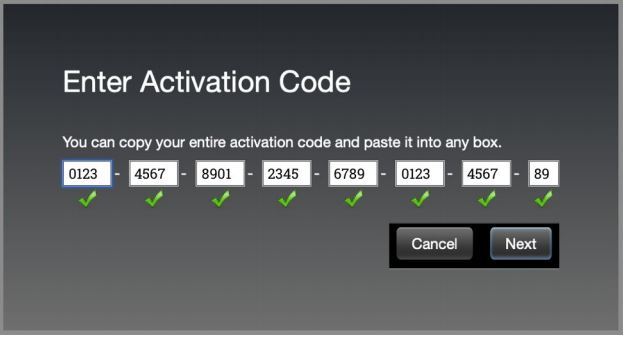
In order to run PSP L'otary2 in 30-day trial mode or activate it, you need an iLok user ID which you can create for free at www.ilok.com, and you need to install the free iLok License Manager application but you don't need any hardware dongle.
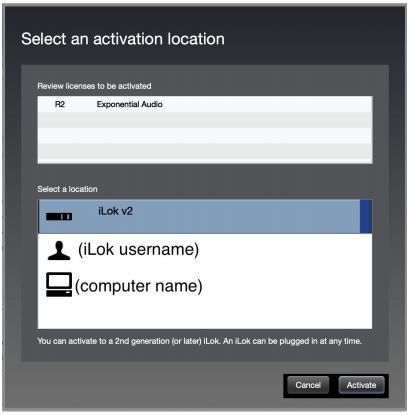
You can activate the license in 3 separate locations, each of which can be either a computer or an iLok dongle (2nd generation or above). You can move these licenses at any time using PACE's iLok License Manager software.
PC
VST3:
- Windows 7 – Windows 11
- 64-bit VST3 compatible application
VST:
- Windows 7 – Windows 11
- 64-bit VST compatible application
AAX:
-
Windows 7 – Windows 11
-
Pro Tools
All DAWs:
- The latest iLok License Manager application installed
Mac OS X:
Audio Unit:
- macOS 10.14 – macOS 14 Sonoma
- 64-bit AudioUnit compatible host application
VST:
- macOS 10.14 – macOS 14 Sonoma
- 64-bit VST compatible host application
VST3:
- macOS 10.14 – macOS 14 Sonoma
- 64-bit VST3 compatible host application
AAX:
- macOS 10.14 – macOS 14 Sonoma
- Pro Tools
All DAWs:
- The latest iLok License Manager application installed
Awards

If you've ever listened to the undamped strings of a piano resonating in sympathy with the sounds in a room, then you already have some understanding of what PSP's PianoVerb2 is all about. Some years ago, the Polish company developed their intriguing reverb concept as a freeware plugin, and now i...
Read More