Log In

Free gifts available with your purchase
Concert Grand Piano recorded at the MGM Scoring Stage
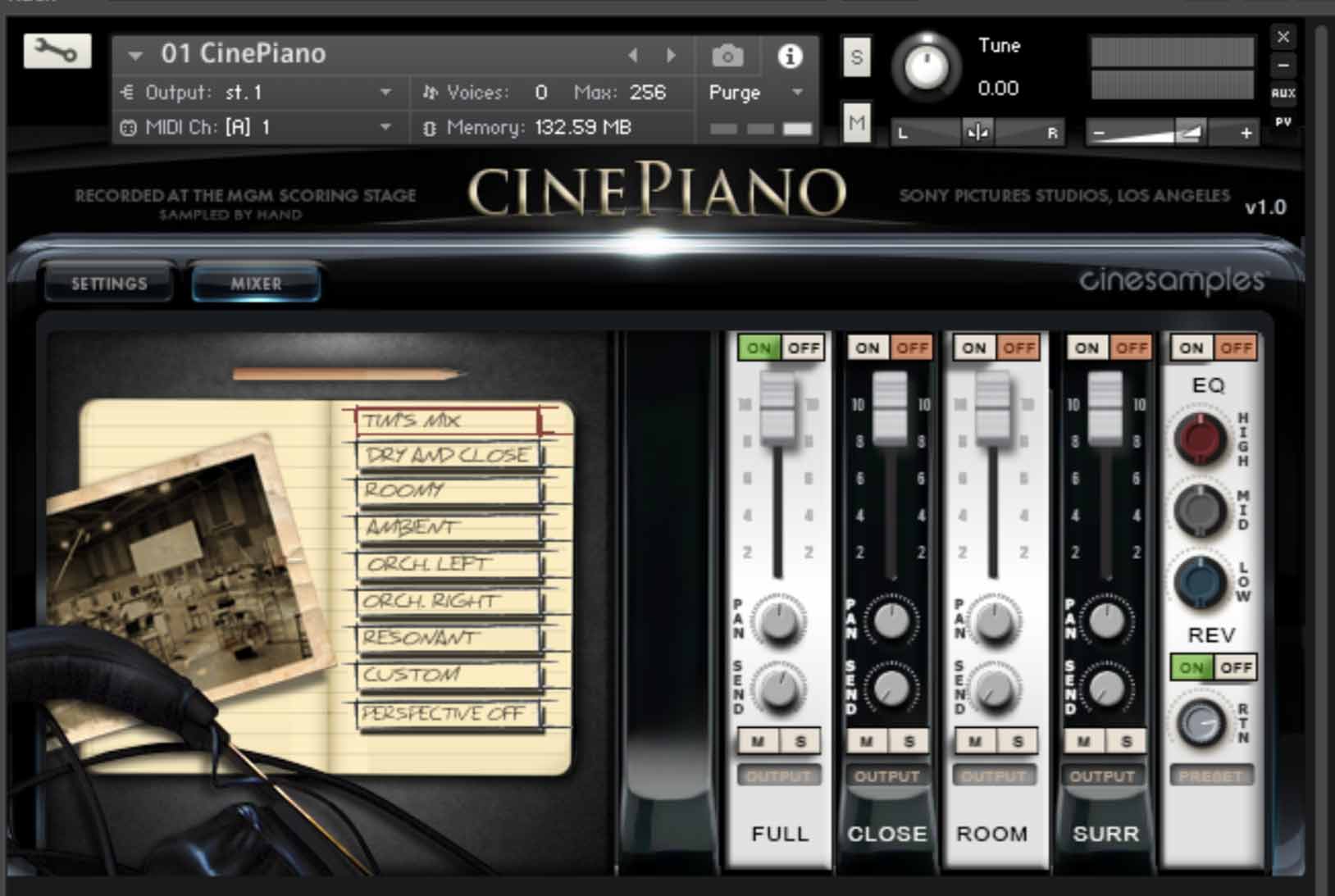
4 UNIQUE CHARACTERS
CinePiano
- This is a standard representation of the grand piano on the scoring stage employing the M49s and the room array. The separate close, room, and surround microphone mixes are available on this patch.
Classical
- The Classical mix is a slightly more distant mix employing a different combination of microphones and designed for concert realism. It is a very specific mix and thus the only available mix in this patch.
Cinematic
- The Cinematic mix is a very intimate and muted sound, perfect for cinematic textures. This mix is made from a completely unique set of microphones and mixing techniques. It is a very specific mix and thus the only available mix in this patch.
Rock Studio Grand
- The Rock Studio Grand relies more heavily on mixing techniques to achieve a brighter, punchy, edgy sound with a slight distortion on the attacks to cut through a heavy mix. It is a very specific mix and thus the only available mix in this patch.
Features
The Perspective Fader

CinePiano, like CineHarps, includes a new Perspective Mode feature that allows for changes through microphone positions. When you activate Perspective Mode, a slider appears that gives a smooth crossfade between the microphone perspectives. The slider is automatically mapped to the Mod Wheel, giving instant control of the relative depth of CinePiano.
Pedal Behavior - Repedalling

Cinesamples added a new feature called Pedal Behavior to CinePiano. When you play a note on a real grand piano with the sustain pedal down, quickly releasing and depressing the sustain pedal does not allow the dampers enough time to stop the strings from vibrating completely. CinePiano effectively models this behavior for a much more lifelike performance.
**Turning this feature to MIDI slightly reduces CPU usage.**
Character
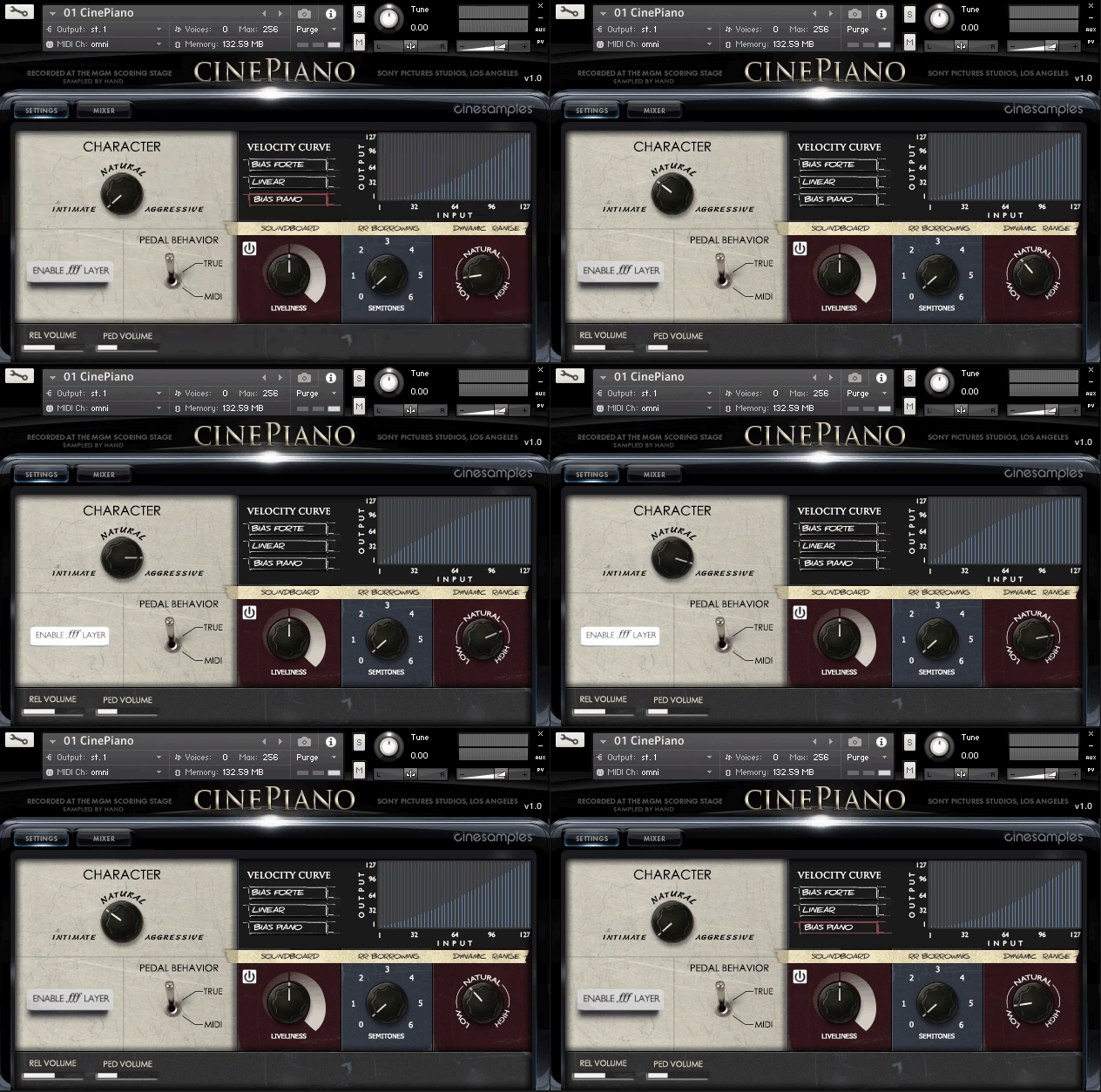
The Character knob acts as a macro knob, controlling multiple parameters at once. This can be used to change the play style from intimate to aggressive and everything in-between. When set to intimate, the velocities are biased towards the lower dynamics, with a low dynamic range (see Dynamic Range Knob below).
Soundboard

The Soundboard feature emulates the sympathetic resonances of the soundboard and other strings. This effect is only active when the sustain pedal is down and can be turned off by pressing the power button.
**Disabling this feature moderately reduces CPU usage.**
Enable fff layer

The Enable fff Layer button enables and disables the highest recorded dynamic.
Dynamic Range

The Dynamic Range knob acts a bit like a MIDI-controlled compressor. This knob doesn't impact the velocities, but instead changes the actual volume of each note. A low value reduces the volume difference between the softest and loudest dynamics, and a high value increases the difference.
Round Robin Borrowing

The RR Borrowing knob employs surrounding notes as additional round robins. A value of 6 results in up to +/- a tritone of borrowing providing up to an additional 12 round robins per note. A value of zero only plays one round robin per dynamic level. Higher values result in more round robins and more tonal variation. The default value is 0.
Velocity Curve
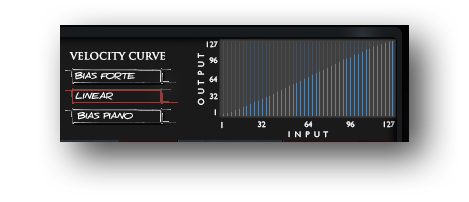
The Velocity Curve control can be used to dial in exactly the dynamic you are looking for. Bias Forte makes it easier to play louder dynamics, and Bias Piano makes it easier to play soft dynamics. Linear allows the velocities to pass through unaffected. The Velocity Curve control can also be used to compensate for a MIDI keyboard with an undesirably hard or soft action. You can custom-draw a velocity curve by clicking and dragging with the mouse.
Release and Pedal Volume
These two faders control the volume of the release samples and pedal up/down volume, respectively.
Kontakt and NKS Integration
CinePiano is our first library to be scripted for Native Instruments' Native Kontrol Standard (NKS) format.
As with all CineSymphony libraries, the CinePiano library does not require you to purchase any additional sample playback software, and is licensed to work with the Native Instrument’s free Kontakt Player. Explore the latest version of Kontakt HERE. All you need is a sequencer like Logic, Cubase, Digital Performer, LIVE, Pro Tools, Cakewalk, or even Apple GarageBand and you’ll be up and running. You can also use CinePiano with your favorite notation software such as Sibelius or Finale.
System Requirements
- Requires Kontakt 6.7.1 and above (Works with both the free Kontakt Player and the paid, full version of Kontakt)
- Requires a minimum of 20GB free hard drive space during installation. Library size is approx. 10GB after installation
- Minimum 4GB RAM Recommended
- Kontakt 6.7.1 Supported Interfaces
- Mac OS X (64-bit only): Stand-alone, VST, AU, AAX
- Windows (32/64-bit): Stand-alone, VST, AAX
This instrument requires the FREE or FULL version of Kontakt 6.7.1+