/ Kontakt Instrument / Artist Series - Randy’s Celeste
Cinesamples

Artist Series - Randy’s Celeste

3.0 (1 Reviews)
$99.00
Artist Series - Randy’s Celeste
Buy Now
Product information

Uniquely recognizable Celeste sound designed by Randy Kerber
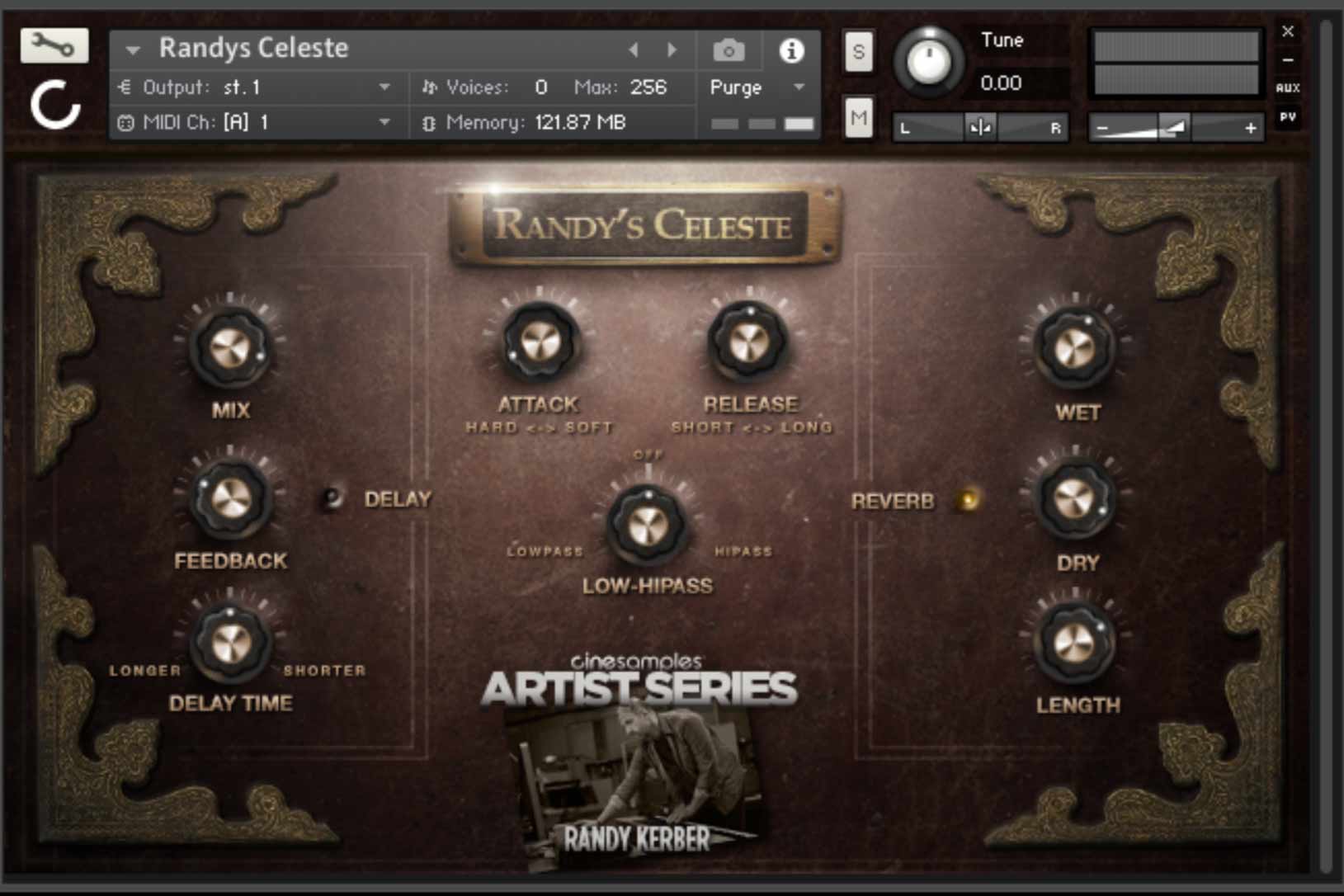
Randy Kerber is a composer, orchestrator and keyboard player, who has had a prolific career in the world of cinema. The recognizable celeste theme in “Harry Potter” composed by John Williams was played by Randy Kerber who developed a unique sound for the celeste that has been featured not only in “Harry Potter I, II, and III” but also “Minority Report”, “Catch Me If You Can”, “The Adventures of Tintin”, and “Warhorse”.

In Randy's own words:

“I was asked to create a sound that would capture the magical personality of Hedwig, the Owl in Harry Potter. First, I called up an initialized voice patch on the DX-7 synthesizer to embody the soft character of the celeste. Next, I combined a sample of an actual celeste. After some manipulation of these two instruments, I was able to arrive at the unique sound you hear today.”

System Requirements

  • Onboard Delay, Reverb, Attack, and Release controls
  • Compatible with Kontakt Player 6.6.1+ and Komplete Kontrol with NKS integration
  • Available for direct installation through Native Access
  • 138 MB disk space required

This instrument requires the FREE or FULL version of Kontakt 6.6.1+

Installation Instructions

Important note: Sonuscore Time Textures is used as an example as the process is identical for this product.

Mac

1. Download the .dmg installer file from your Plugin Boutique account.

2. Double-click the .dmg file to install Native Access.

3. Open Native Access > Create a new Native ID if you do not have one already. If you do, skip ahead to step 5.

4. You will then receive an email with a confirmation link > Open the email and click 'CONFIRM EMAIL'.

5. Log in to Native Access with your Native ID.

6. Click 'Add a serial'

7. Enter your Serial Number found in your Plugin Boutique account > Click 'ADD SERIAL'.

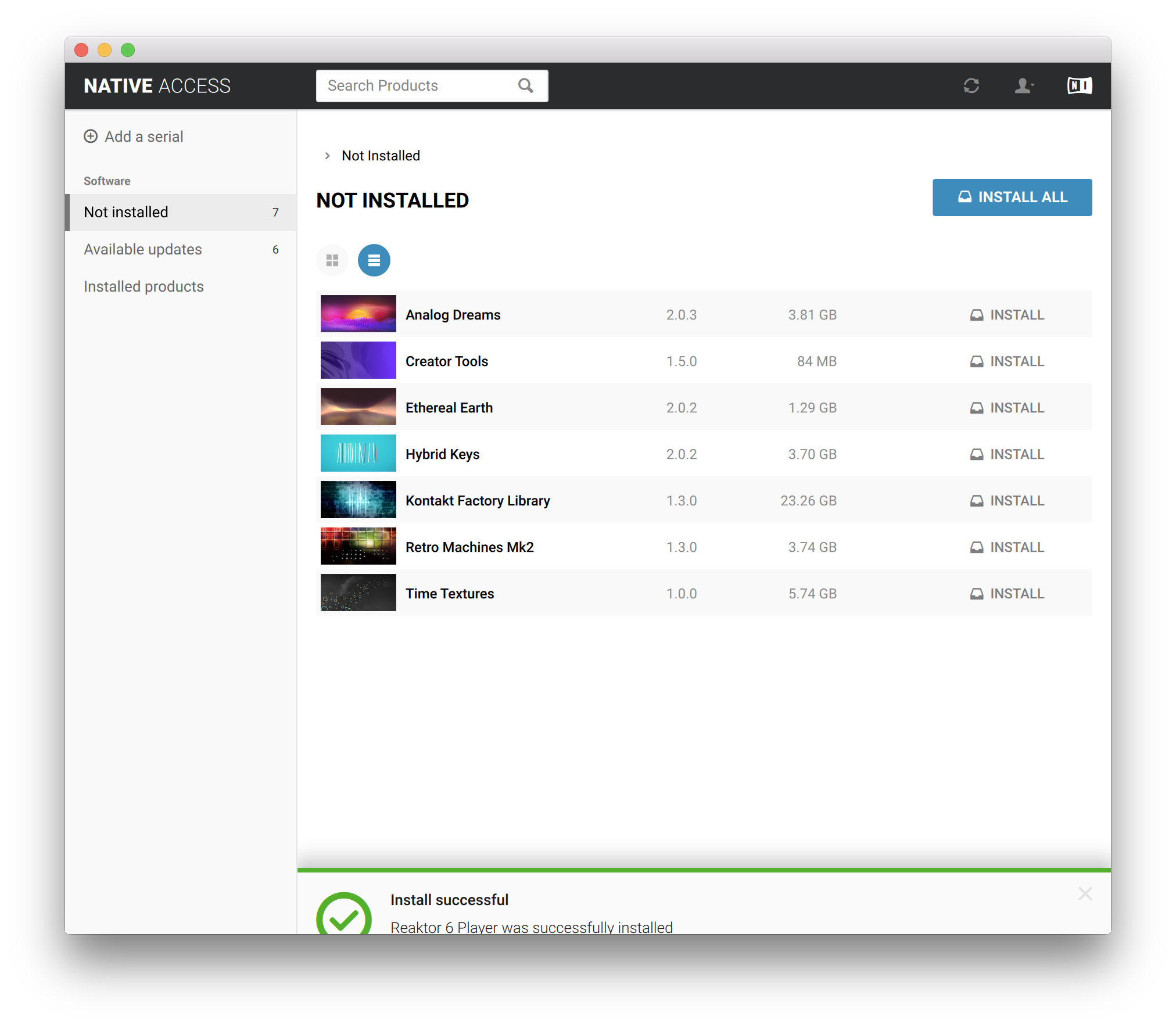
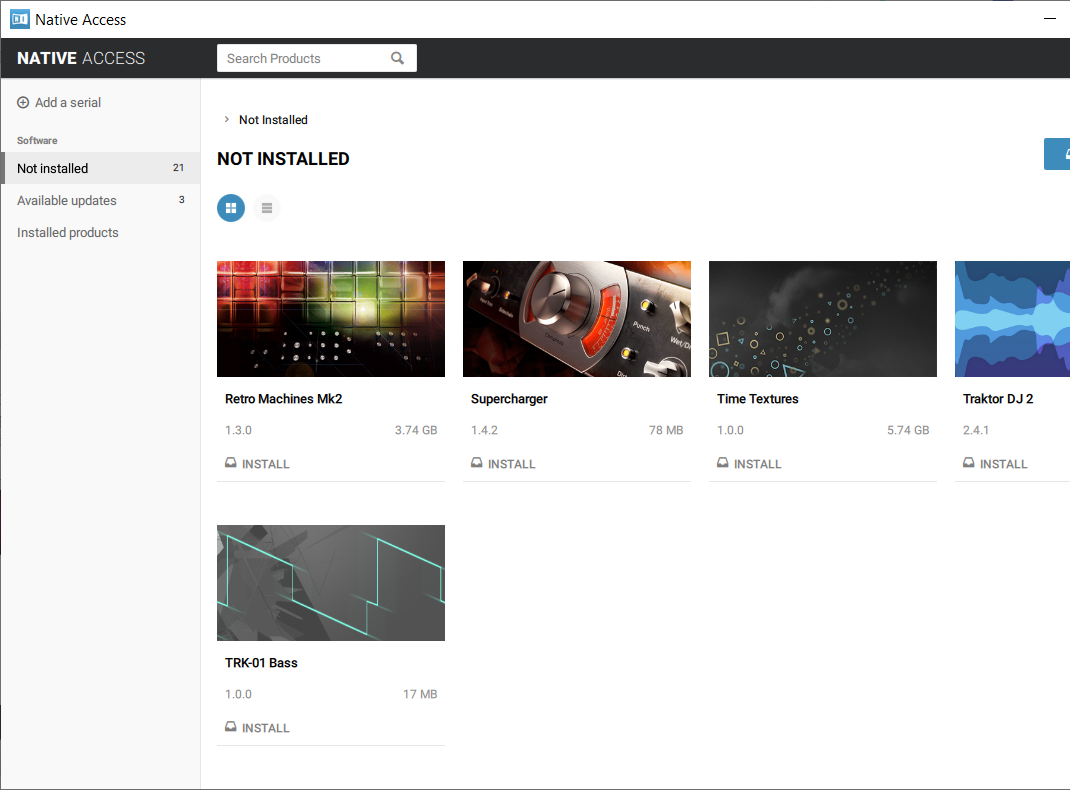
8. Click the 'Not installed' tab > Locate Time Textures > Click 'INSTALL'.

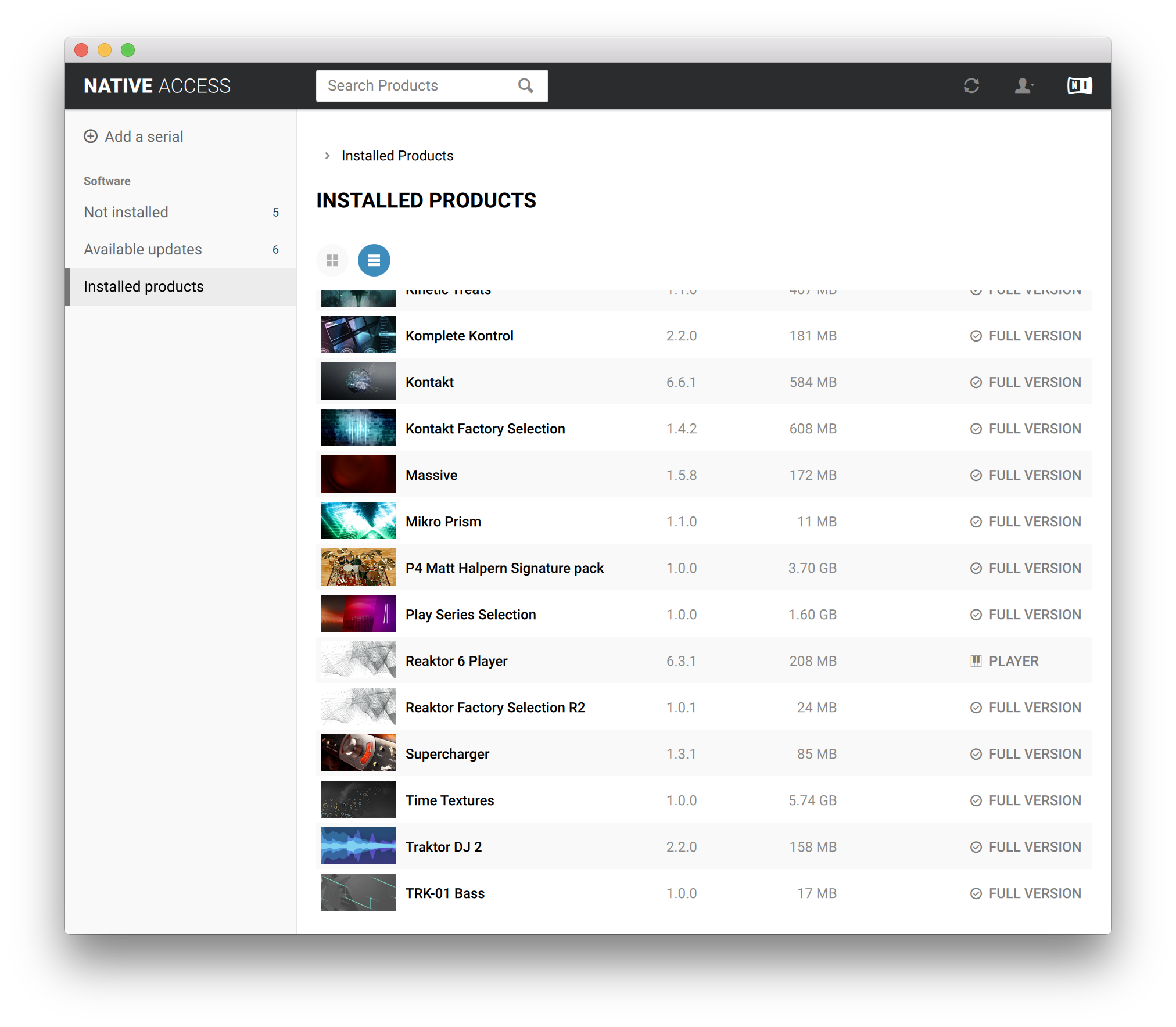
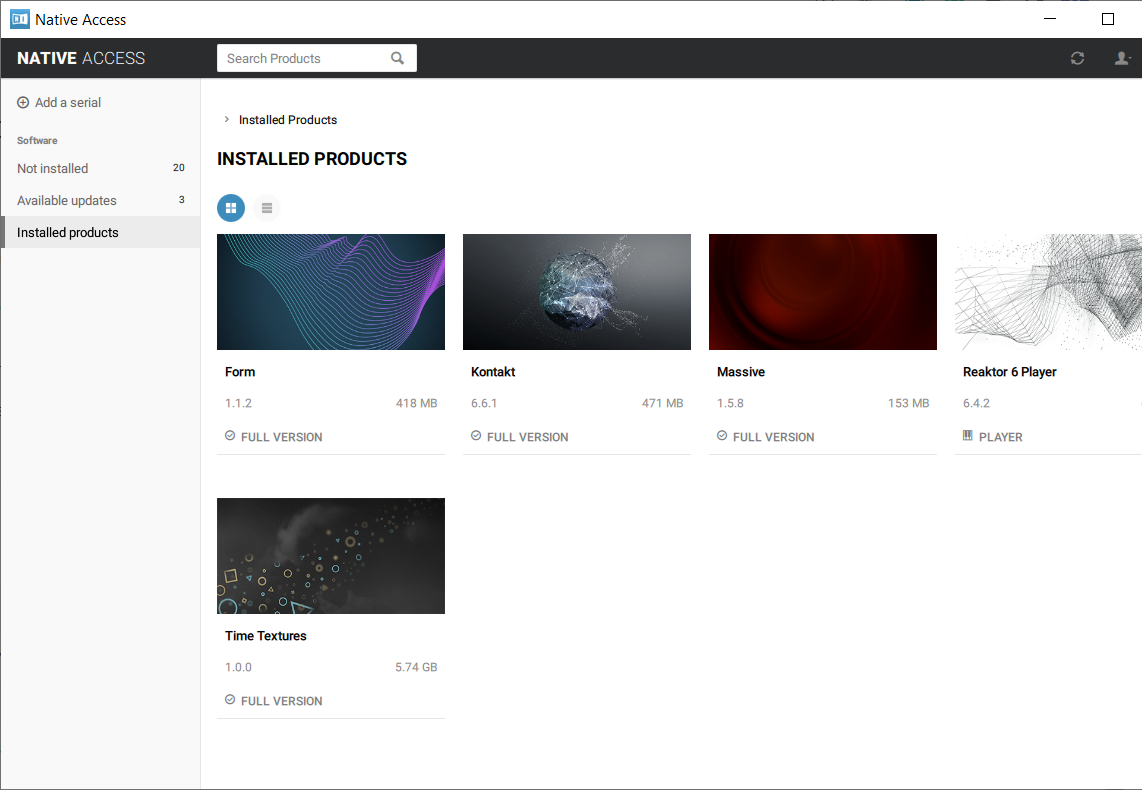
9. Time Textures is now installed on your system.

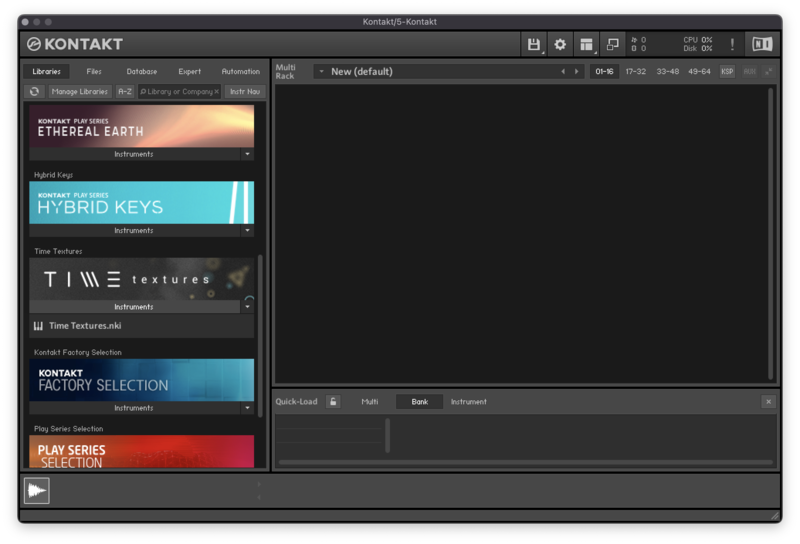
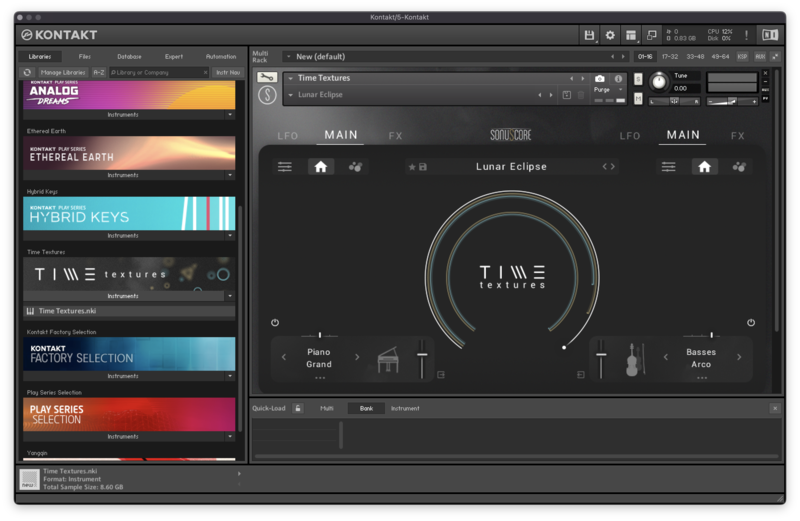
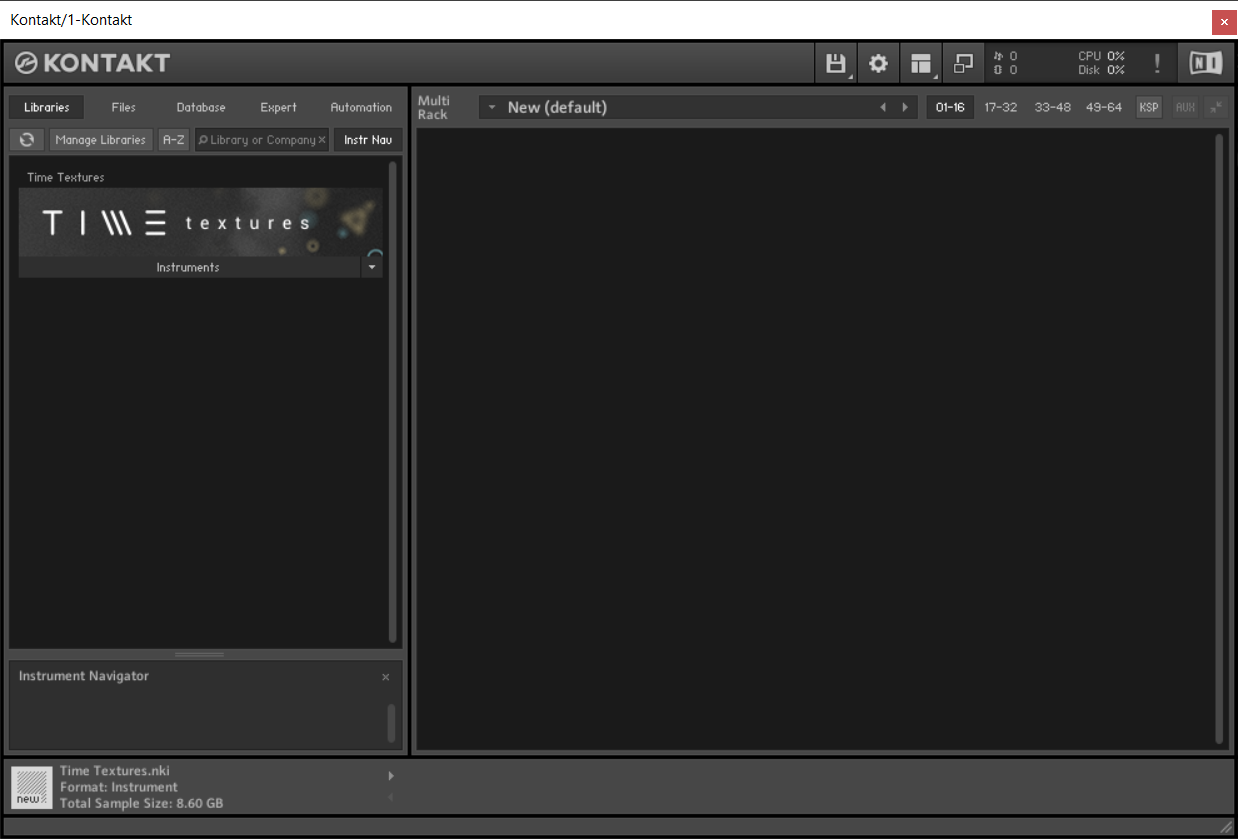
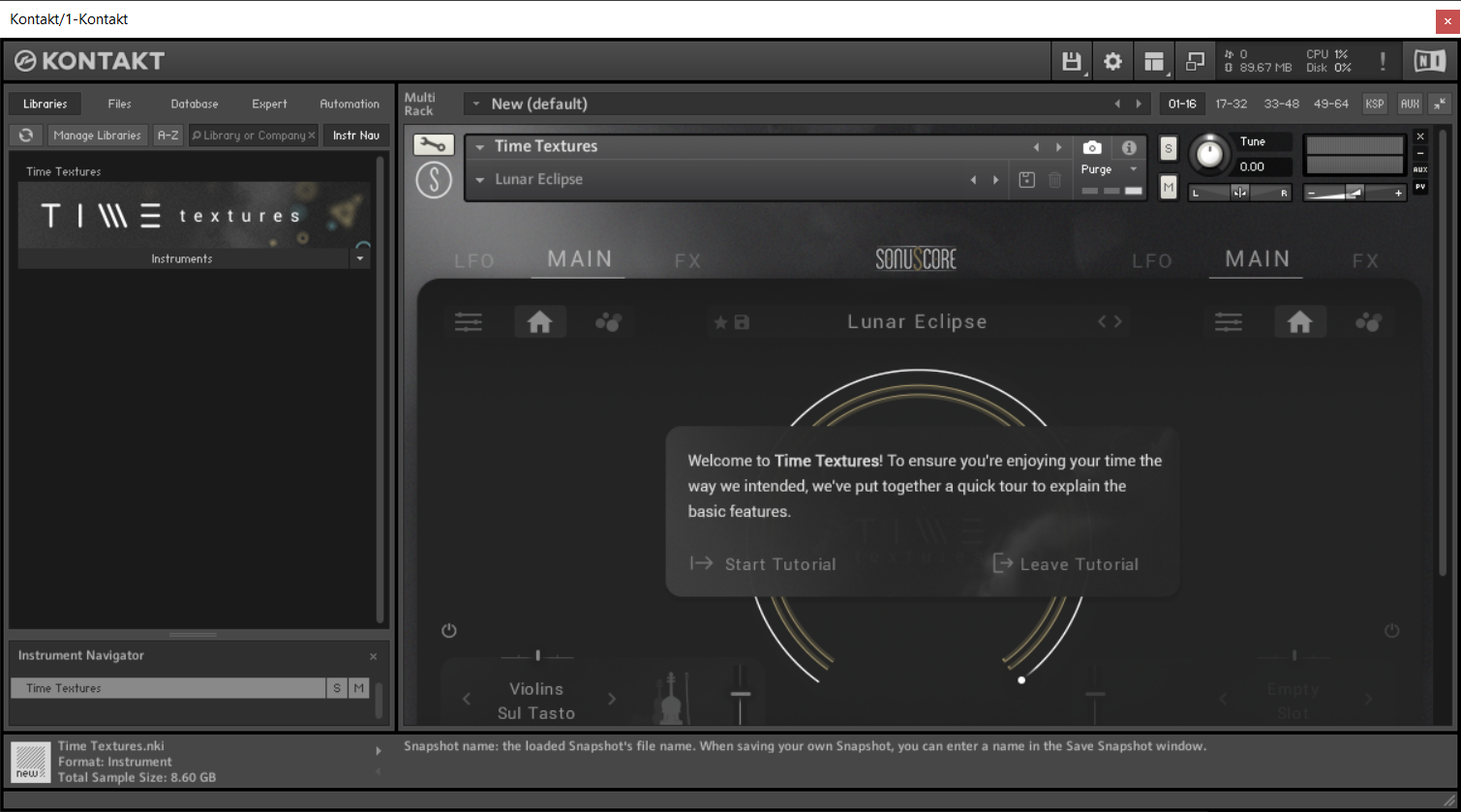
10. Open Kontakt in your DAW > You should see Time Textures on the left sidebar > Click the drop-down bar and drag the .nki file into the middle of the window.

Your software is now ready to use in your DAW!

Windows

1. Download the .zip installer file from your Plugin Boutique account.

2. Double-click the extracted .exe file to begin the installation process > click ‘Run’.

3. Read the welcome message > click 'Next'.

4. Click 'Next' to begin the installation.

5. Native Access has now been installed > Click 'Finish'.

6. Open Native Access > Create a new Native ID if you do not have one already. If you do, skip ahead to step 8.

7. You will then receive an email with a confirmation link > Open the email and click 'CONFIRM EMAIL'.

8. Log in to Native Access with your Native ID.

9. Click 'Add a serial'.

10. Enter your Serial Number found in your Plugin Boutique account > Click 'ADD SERIAL'.

11. Click the 'Not installed' tab > Locate Time Textures > Click 'INSTALL'.

12. Your new Kontakt Instrument is now installed on your system.

13. Open Kontakt in your DAW > You should see Time Textures on the left sidebar > Click the drop-down bar and drag the .nki file into the middle of the window.

Your software is now ready to use in your DAW!

Plugin Boutique Rewards

Discover the most rewarding loyalty programme among all plugin retailers.

  • Free Loopmasters Samplepacks
  • Discounts on products and courses
  • Extra Virtual Cash claimed immediately at checkout
Find out more

Follow us:

X (Twitter) Facebook YouTube Instagram
Logo Logo

Plugin Boutique Limited, Part of the Beatport Group LLC.

Copyright © 2011-2025 Plugin Boutique. All rights reserved