Log In

Free gifts available with your purchase
Tina Guo's Acoustic Cello Legato
How is Tina Guo vol 2 different from Tina Guo Acoustic Cello Legato?
The primary difference is playing style. Tina Guo Acoustic Cello Legato features a romantic, espressivo style of playing that lends itself well to longer melodic lines. Tina Guo vol 2 allows for an agile, more connected style of playing. Also, faster playing naturally allows less time for vibrato on passing notes. Vol 2 also features more articulations not available in the original library.
Otherwise, Tina played the same instrument at the MGM Scoring Stage in Los Angeles, recorded using same microphones as the original library. Cinesamples recreated the same mix as the original library as well as the desk mix from the Scoring Stage to keep the sounds consistent between the two libraries. For best results, treat them as separate instruments, rather than trying to use both in the same passage.
Articulations
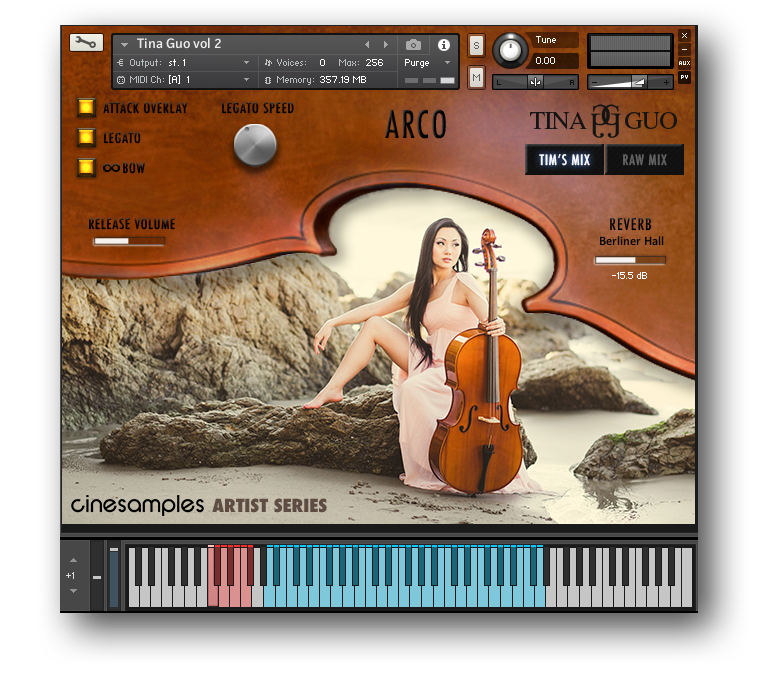
Attack Overlay
- Selecting this adds a staccato attack overlay to the beginnings of sustains. Its volume is velocity dependent. They appear at higher velocities. The attack of sustains are also sensitive to velocity.
Legato
- Selecting this allows monophonic voicing with recorded legato transitions. Unselected allows polyphonic sustain samples only. Legato transitions are sensitive to velocity.
Bow
- Unselected, this includes Tina's natural bow changes on sustained notes. Selected, it allows you to extend the bow length as needed. Simply re-attack a note when you need a bow change on the same note.
Release Volume
- This controls the volume of the note releases. If set too high, it will sound like too much reverb and decay. A setting too low will give an unnatural sound to the legato transititons.
Legato Speed (CC02)
- Higher settings allow for faster playing. Lower settings allow for slower playing and will reveal more of the recorded legato transition.
Mod Wheel
- The Mod Wheel controls general dynamics.
Other articulations include:
- Open Strings - sustains on the 4 open strings of the cello
- Sul Ponticello
- Harmonics
- Spiccato
- Marcato - an elongated espressivo-style short
- Vibrato Pizzicato
- For more articulations, click on ARCO to reveal the drop down menu:
Mini Phrases and Effects
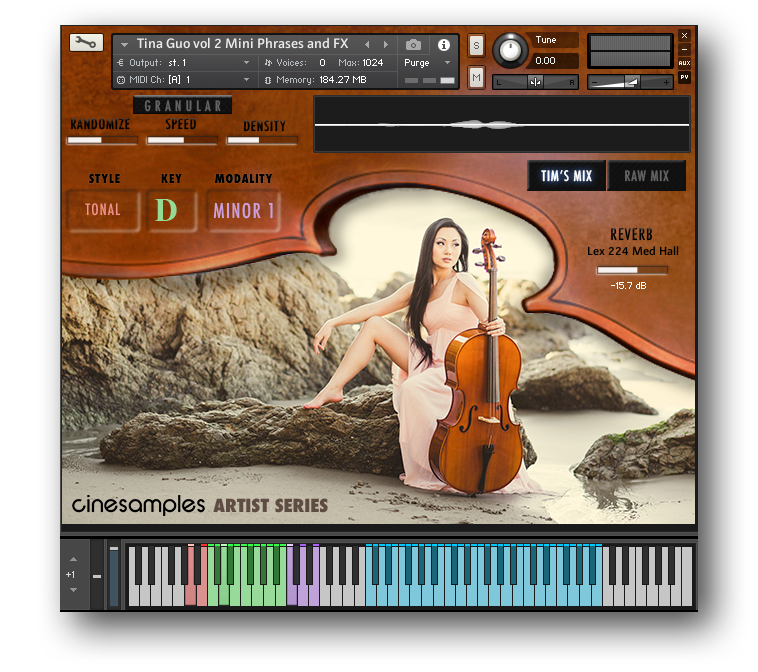
This patch contains a variety of cello effects and improvisation phrases in each key, and major and minor modes.
- The RED keyswitches toggle between tonal and non-tonal samples.
- The GREEN keswitches select the tonal center of the tonal samples.
- The VIOLET keyswitches toggle between major and minor modes of the tonal samples.
GRANULAR
Instead of playing back the entire sample as recorded, the GRANULAR button triggers a stream of "grains" or small chunks of audio that begin playing from the playhead.
- The SPEED slider controls how quickly the playhead scrubs through the sample.
- The DENSITY slider controls how many grains are generated per second. Higher densities may result in CPU overload.
- The RANDOMIZE Slider randomizes the position of the playhead as well as the grains' panning and microtuning.
Kontakt and NKS Integration
Tina Guo vol 2 is scripted for Native Instruments' Native Kontrol Standard (NKS) format.
System Requirements
- Requires Kontakt 5.6.8 and above (Works with both the FREE Kontakt Player and the paid, full version of Kontakt v5.6.8+)
- Requires a minimum of 22GB free hard drive space during installation. Library size is approx. 11GB after installation
- Minimum 8GB RAM Recommended
Kontakt 5.6.8 Minimum System Requirements
- Mac OS X 10.10 or higher (i5 CPU or higher)
- Windows 7, Windows 8, or Windows 10 (latest Service Pack, 32/64-bit) Intel Core 2 Duo or AMD Athlon 64 X2
Kontakt 5.6.8 Supported Interfaces
- Mac OS X (64-bit only): Stand-alone, VST, AU, AAX
- Windows (32/64-bit): Stand-alone, VST, AAX
This instrument requires the FREE or FULL version of Kontakt 5.6.8+