Buy Viola Da Gamba, get a free gift with purchase:
Versatile 6-stringed Renaissance Instrument
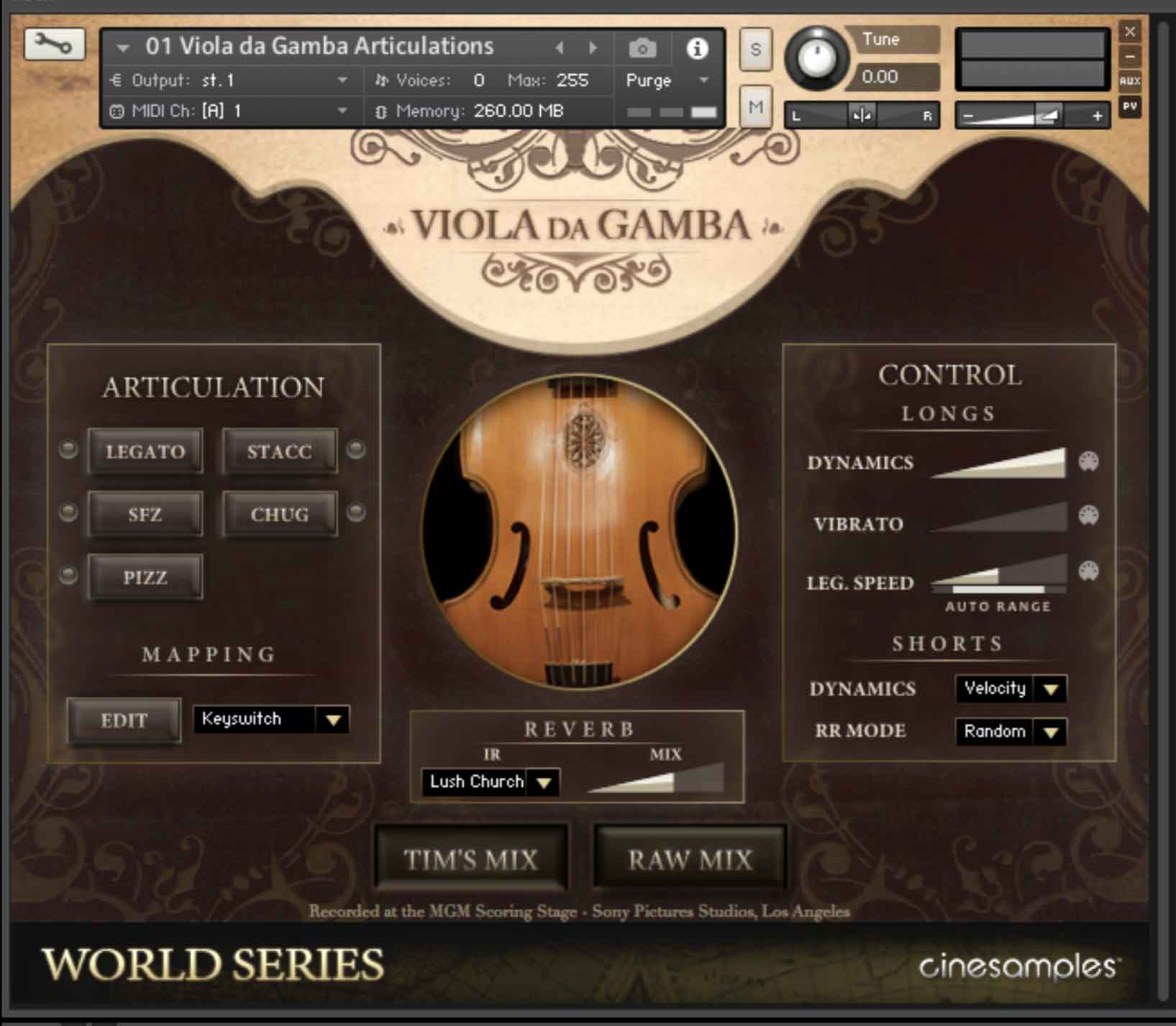
Cinesamples World Series: Viola da Gamba, recorded at the legendary MGM Scoring Scoring Stage at Sony Pictures Studios in Los Angeles.
This unique Renaissance bowed string delivers a rich timbre suitable for a wide variety of film, TV, game, and media scoring.
The Viola da Gamba is a 6-stringed bowed and fretted instrument that first appeared in Spain in the mid to late 15th century and was most popular in the Renaissance and Baroque periods. We sampled a great combination of articulations and textures perfect for melodies and beds, characteristic of how this instrument sits well in a mix for scoring.
This instrument is strung with 6 strings that are tuned to (relative to Kontakt): D1, G1, C2, E2, A2, and D3.
Viols are fretted in a manner similar to early guitars or lutes, by means of movable wrapped-around and tied-on frets. The movable nature of the tied-on frets permits the viol player to make adjustments to the tempering of the instrument. On this particular instrument, the frets only extend 7 semi-tones on each string.
System Requirements
- Requires Kontakt 6.6.1 and above (Works with both the FREE Kontakt Player and the paid, FULL version of Kontakt)
This instrument requires the FREE or FULL version of Kontakt 6.6.1+


Important note: Sonuscore Time Textures is used as an example as the process is identical for this product.
Mac
1. Download the .dmg installer file from your Plugin Boutique account.
2. Double-click the .dmg file to install Native Access.
3. Open Native Access > Create a new Native ID if you do not have one already. If you do, skip ahead to step 5.

4. You will then receive an email with a confirmation link > Open the email and click 'CONFIRM EMAIL'.
5. Log in to Native Access with your Native ID.

6. Click 'Add a serial'

7. Enter your Serial Number found in your Plugin Boutique account > Click 'ADD SERIAL'.

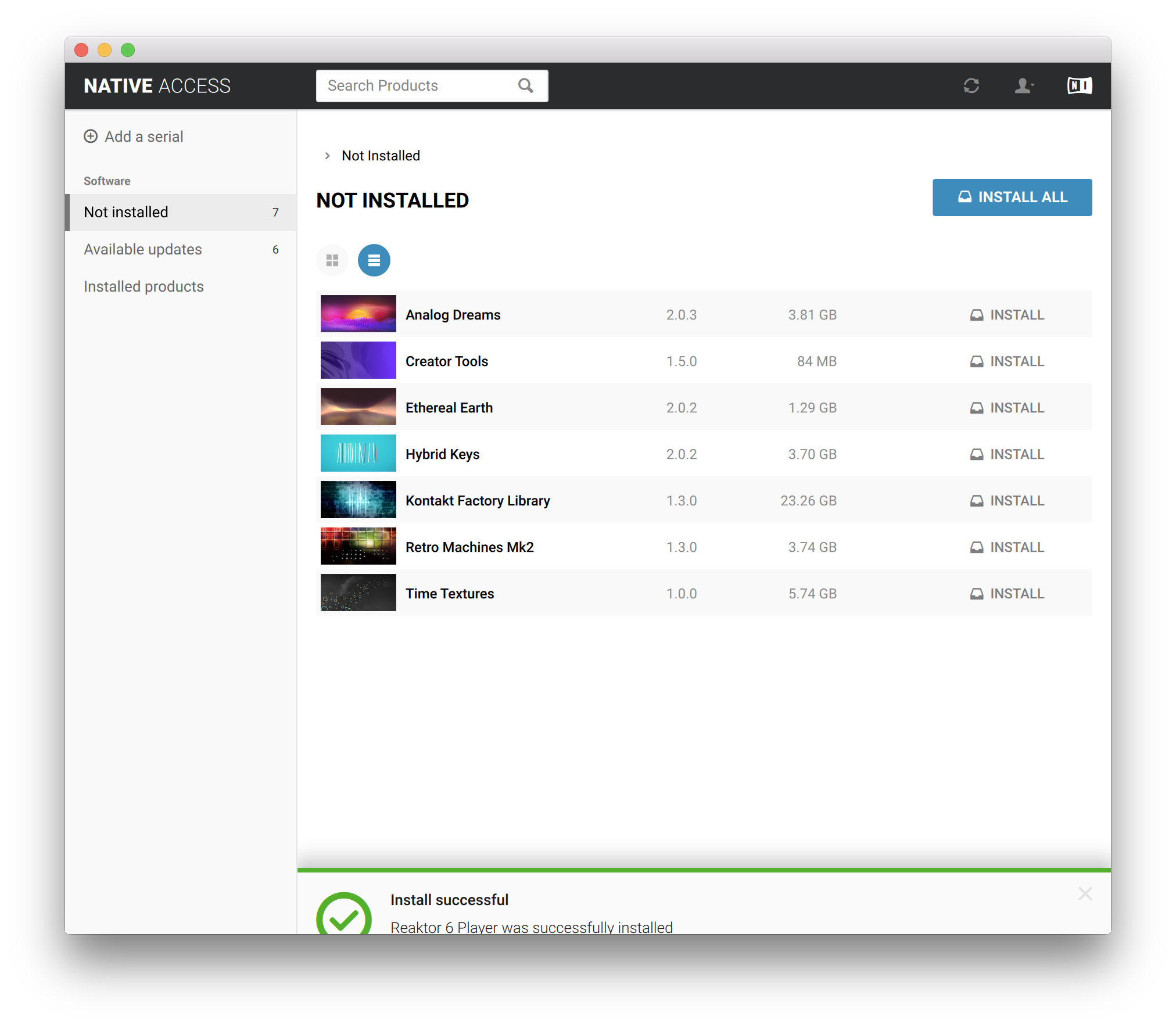
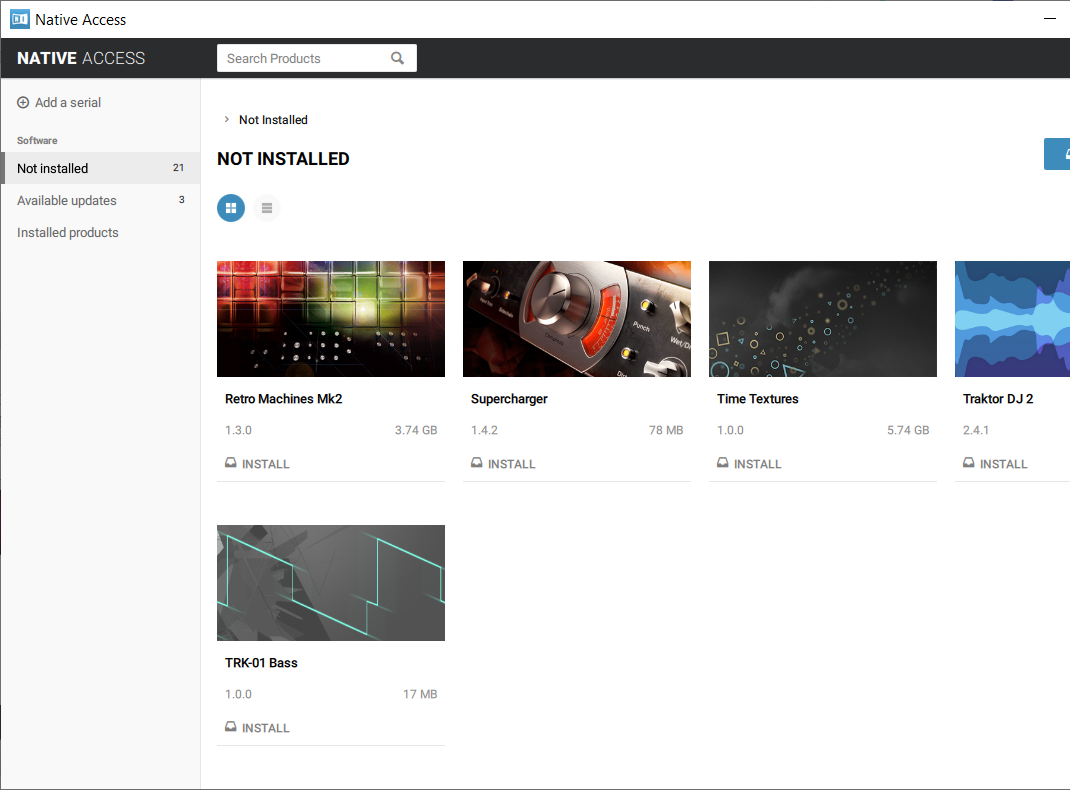
8. Click the 'Not installed' tab > Locate Time Textures > Click 'INSTALL'.

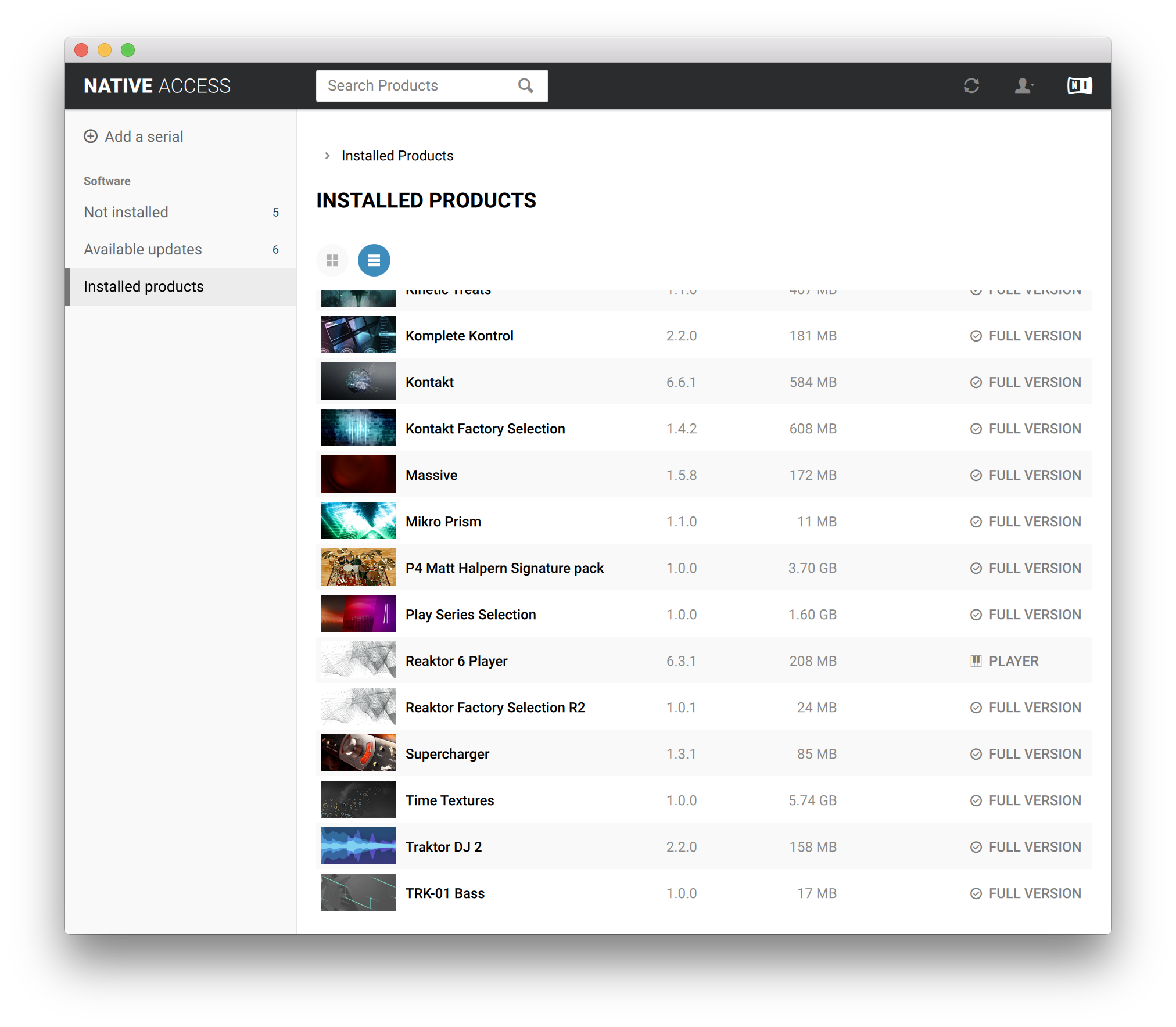
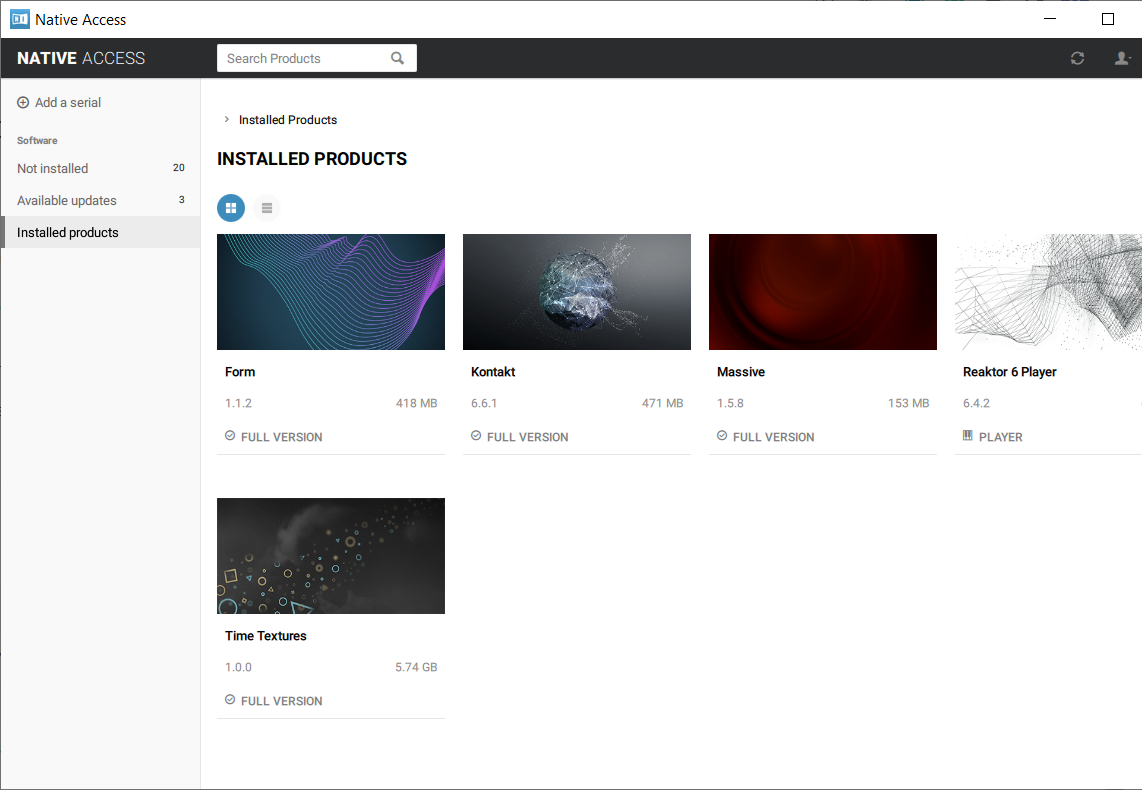
9. Time Textures is now installed on your system.

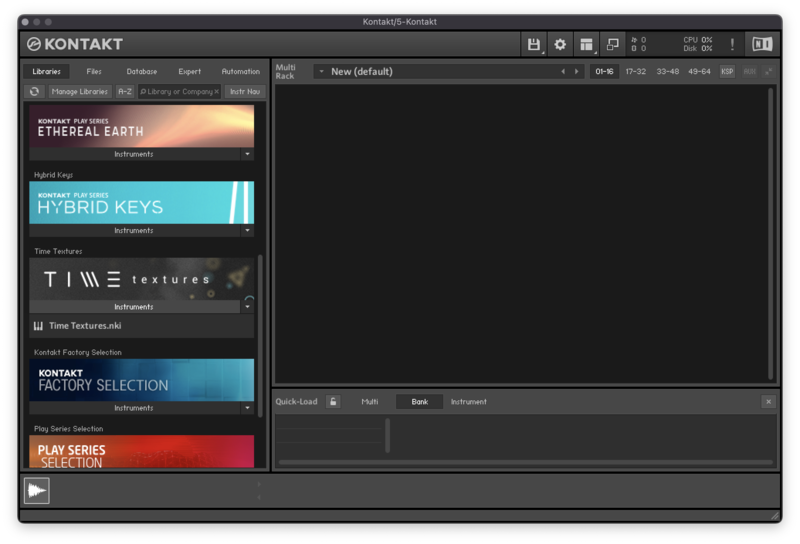
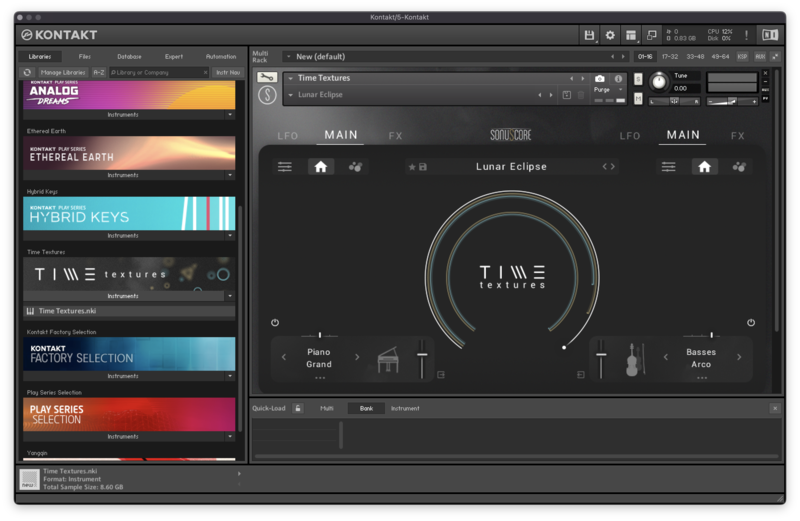
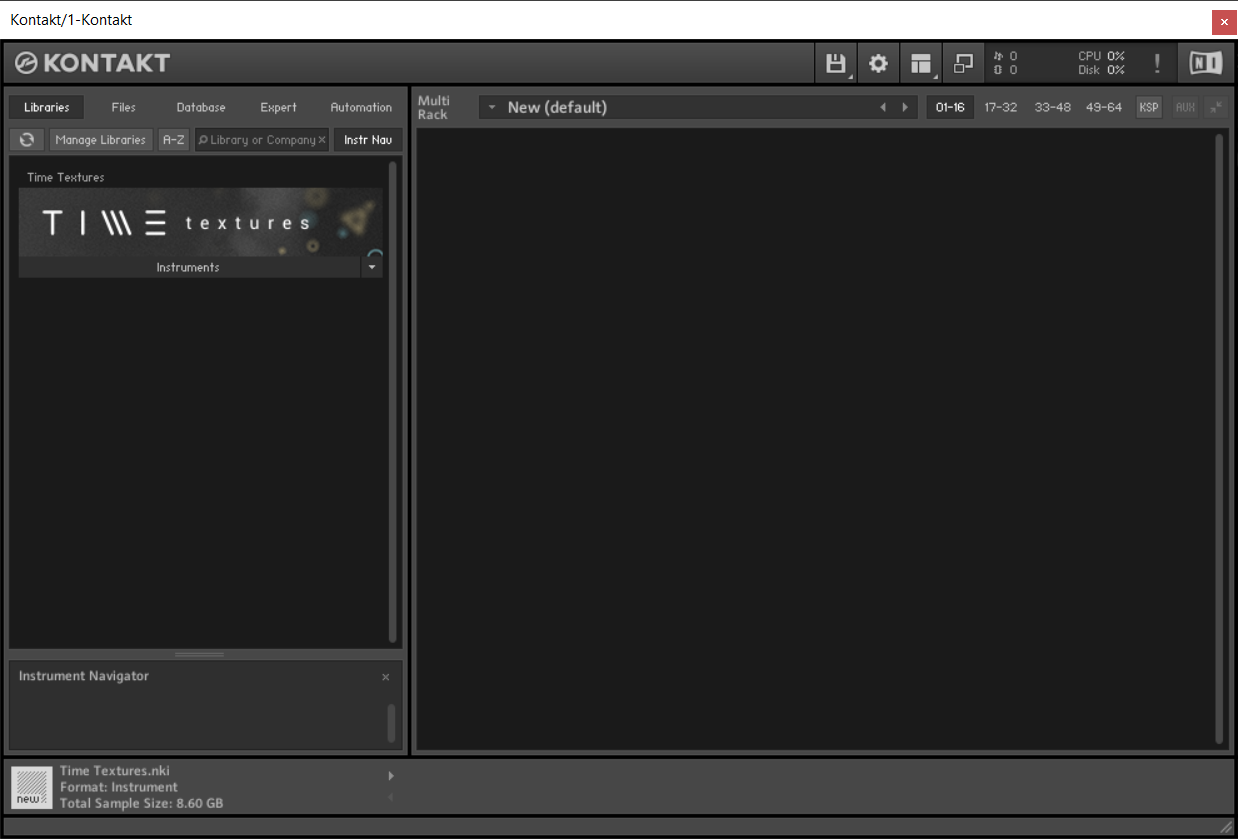
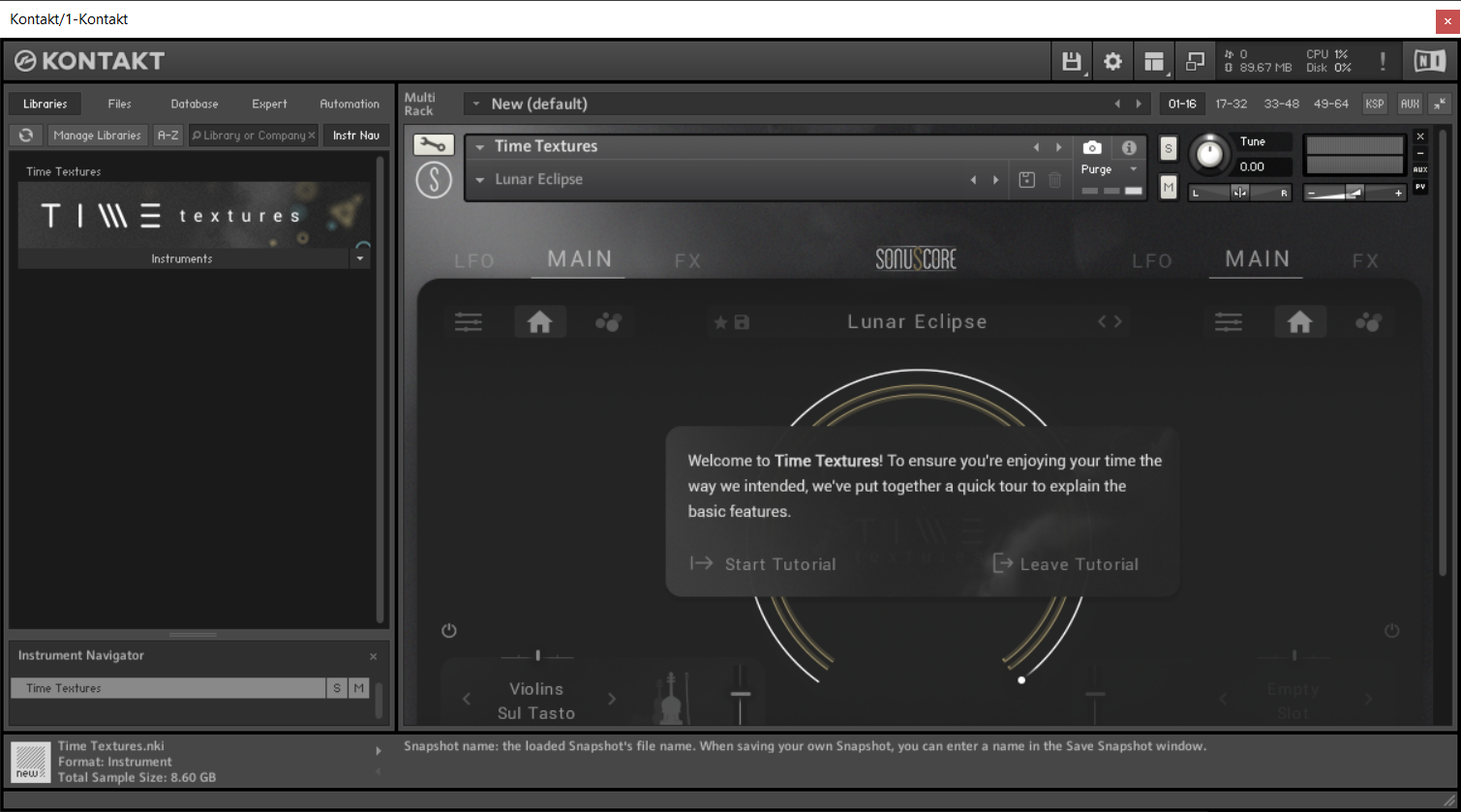
10. Open Kontakt in your DAW > You should see Time Textures on the left sidebar > Click the drop-down bar and drag the .nki file into the middle of the window.

Your software is now ready to use in your DAW!

Windows
1. Download the .zip installer file from your Plugin Boutique account.
2. Double-click the extracted .exe file to begin the installation process > click ‘Run’.
3. Read the welcome message > click 'Next'.

4. Click 'Next' to begin the installation.

5. Native Access has now been installed > Click 'Finish'.

6. Open Native Access > Create a new Native ID if you do not have one already. If you do, skip ahead to step 8.

7. You will then receive an email with a confirmation link > Open the email and click 'CONFIRM EMAIL'.
8. Log in to Native Access with your Native ID.

9. Click 'Add a serial'.

10. Enter your Serial Number found in your Plugin Boutique account > Click 'ADD SERIAL'.

11. Click the 'Not installed' tab > Locate Time Textures > Click 'INSTALL'.

12. Your new Kontakt Instrument is now installed on your system.

13. Open Kontakt in your DAW > You should see Time Textures on the left sidebar > Click the drop-down bar and drag the .nki file into the middle of the window.

Your software is now ready to use in your DAW!