Log In

Free gifts available with your purchase
Beautiful full orchestra chords and textures
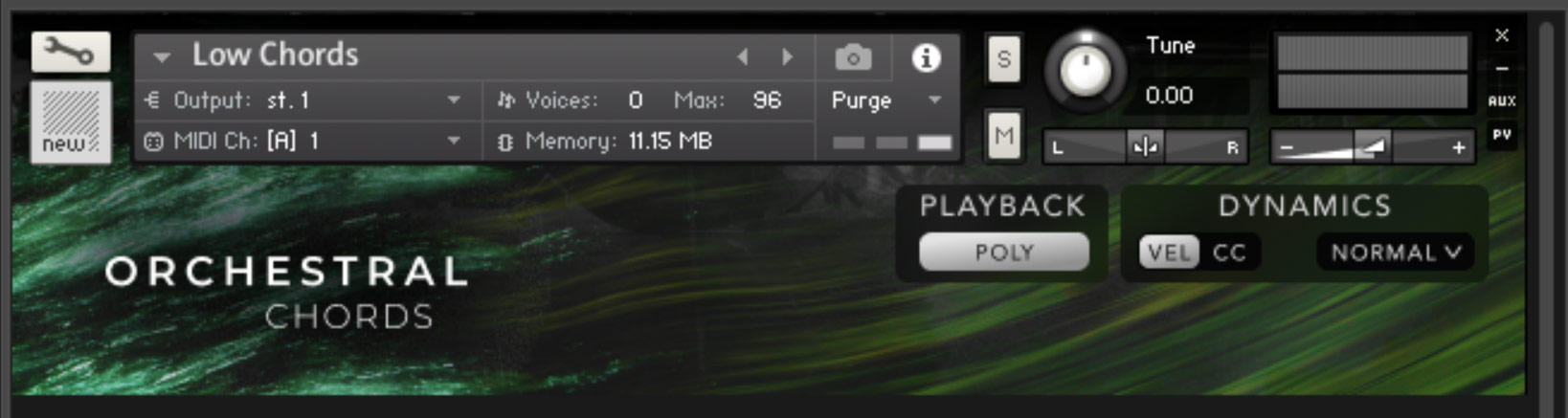
Nothing beats the sound of a full ensemble playing together when capturing chords. The way the instruments interact with each other and with the recording space in real time creates a magnificently realistic texture. Cinesamples sampled a world-class 70 piece orchestra playing a tremendous variety of major, minor, augmented chords with inversions, plus octaves and low, warm muted chords.
- Tutti Octaves (RR staccato, sustains, p to ff dynamics. Three-, four-, and five-octave orchestral voicings.)
- Tutti Chords (RR staccato, sustains, p to ff dynamics, majors, minors, augmented, each in 3 inversions)
- Low Chords (4 chord types: majors with root bass, minors with root bass, majors with third bass, minors with third bass. p to ff dynamics)
With an intuitive mapping format that allows you to play chords with single keys, use Orchestral Chords to add depth and character to your mockups.
Chord Mapping
Low Chords:
Major, Root - dark blue keys (A-1 to F1)
Major, First Inversion - yellow keys (F#1 to B2)
Minor, Root - light blue keys (C3 to F#4)
Minor, First Inversion - green keys (G4 to D6)
Tutti Chords:
- Keyswitches
- Sustain/Staccato - red key (A1), switching between sustain/staccato is triggered by velocity
- Marcato - red key (A#1)
- Sustain/Staccato
- Major, Root - light blue keys (C0 to B2)
- Minor, Root - green keys (C3 to B5)
- Augmented Major Seventh - orange keys (C6 to C7)
- Marcato
- Major, Root - dark blue keys (C0 to B2)
- Minor, Root - yellow keys (C3 to B5)
- Augmented Major Seventh - light blue keys (C6 to C7)
Tutti Octaves:
- Octaves Marcato - dark blue keys (A-1 to D3)
- Octaves Sustain/Staccato - yellow keys (A3 to D7), switching between sustain/staccato is triggered by velocity
Vivaldi Tremolo:
- Low Tremolo - green keys (G1 to C3)
- High Tremolo - light blue keys (C#3 to G#4)
System Requirements
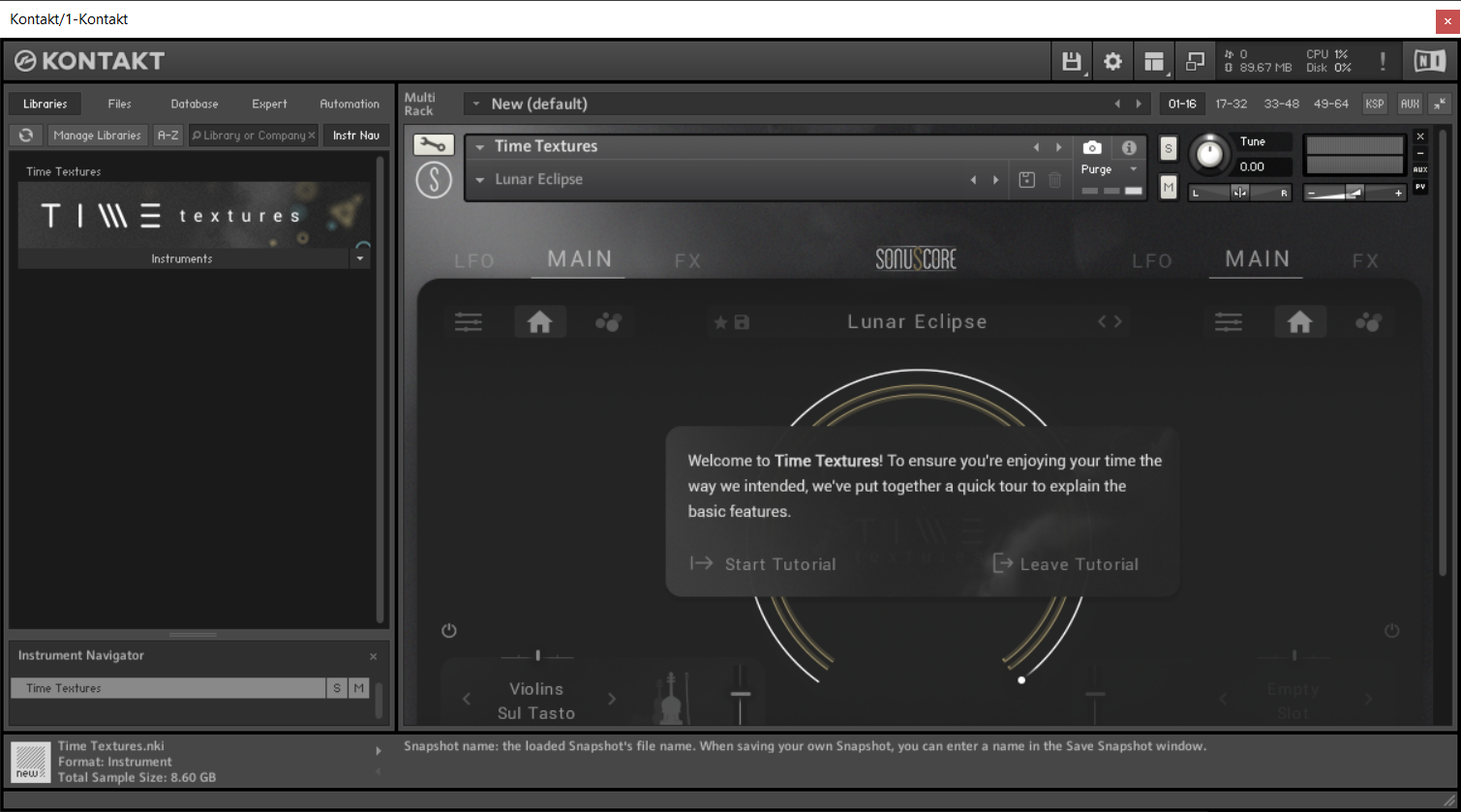
This instrument requires the FREE or FULL version of Kontakt 6.6.1+