Log In

Free gifts available with your purchase
Experience the most famous tube compressor ever made.
The cherished late '60s “Silver” LA-2A remains the first-choice vocal compressor in professional studios around the world. The LA-2A Tube Compressor plug-in is the definitive emulation of this iconic optical limiter, giving you the same smooth, radio-ready dynamics control on vocals, guitars, bass, synths, and more.
Add Perfect Compression with Simple Controls and Presets
Even if you are not a professional mixer, the LA-2A Tube Compressor's intuitive controls give you the right sound, quickly, so you can sit your tracks perfectly in the mix every time. And with professionally crafted presets for vocals, guitars, bass, and more, your productions will benefit from the same gentle tube compression heard on over 50 years of popular music.
UAD for All, No Hardware Required
Universal Audio set the standard in analog emulation and are now striving to give creators of all types access to award-winning UAD plug-ins. LA-2A Tube Compressor runs natively on Mac or PC and works with any compatible DAW – no UA hardware required.
Features
- Add analog richness with the most famous tube compressor ever made
- Get warm optical compression textures for vocals, bass, drums, and synths
- Enjoy radio-ready results quickly, with professionally-crafted presets
- macOS 11 Big Sur or higher
- Windows 10 or Windows 11 (64-bit only Editions)
- Intel, AMD, or Apple silicon processor
Internet connection to download software and authorize UADx plug-ins
Free iLok account with iLok Cloud or iLok USB (2nd generation or higher)
A physical iLok dongle is NOT required to activate this product
You can activate this software on an online system (using iLok Cloud) or an offline system (using an iLok USB):
-
Online: an active internet connection and a FREE iLok account are required to authorise UAD Plug-ins using iLok Cloud
-
Offline: you will need a physical iLok USB (2nd generation or higher) to authorise this software
Important note: UAD plugins do not work in Apple's Garageband DAW
Registration
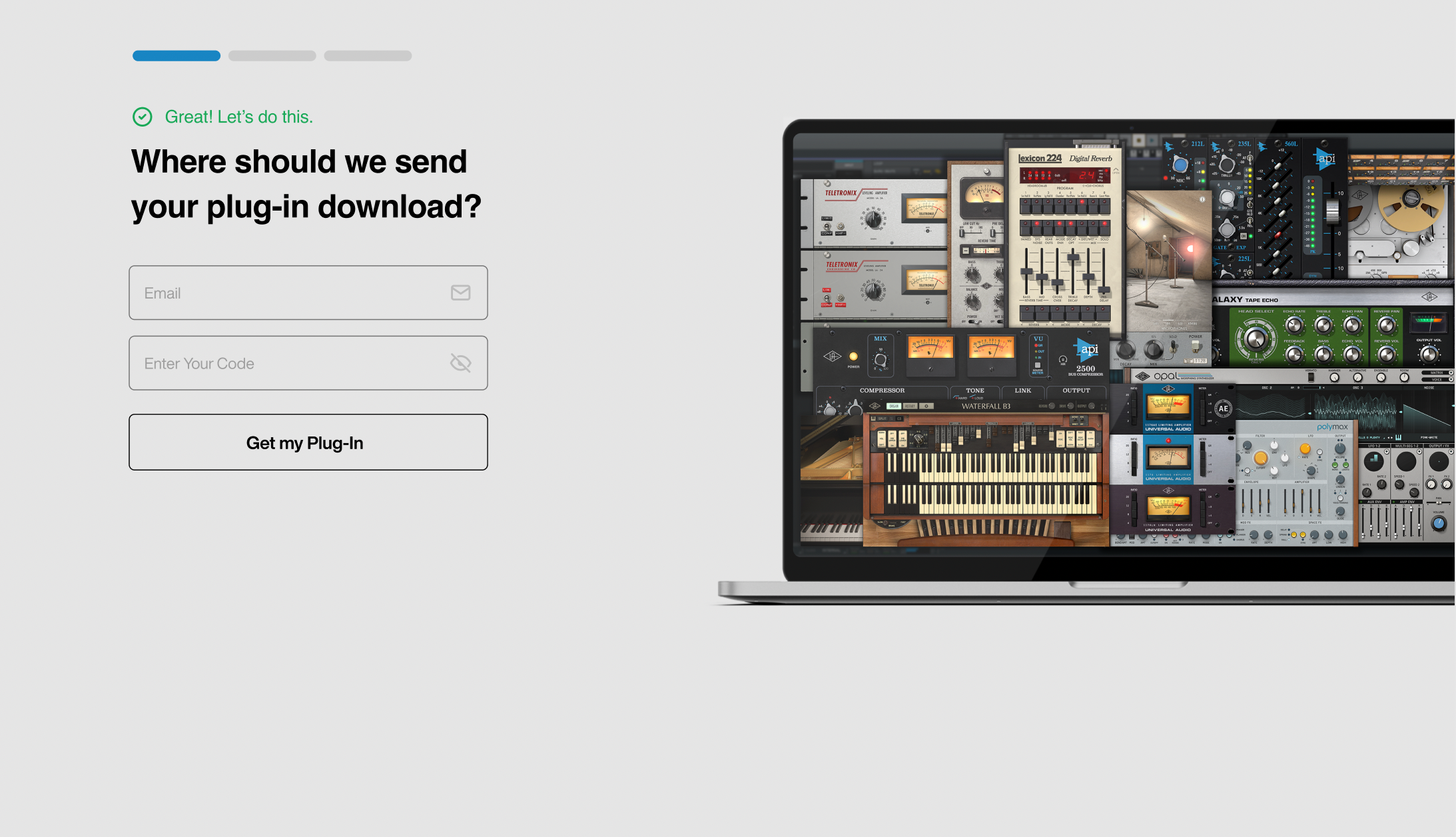
1. Click the Download button in your Plugin Boutique account or go to https://www.uaudio.com/my/account/redeem/.
2. Enter your email and the serial code found in your Plugin Boutique User Account > Click 'Get my Plug-in'.
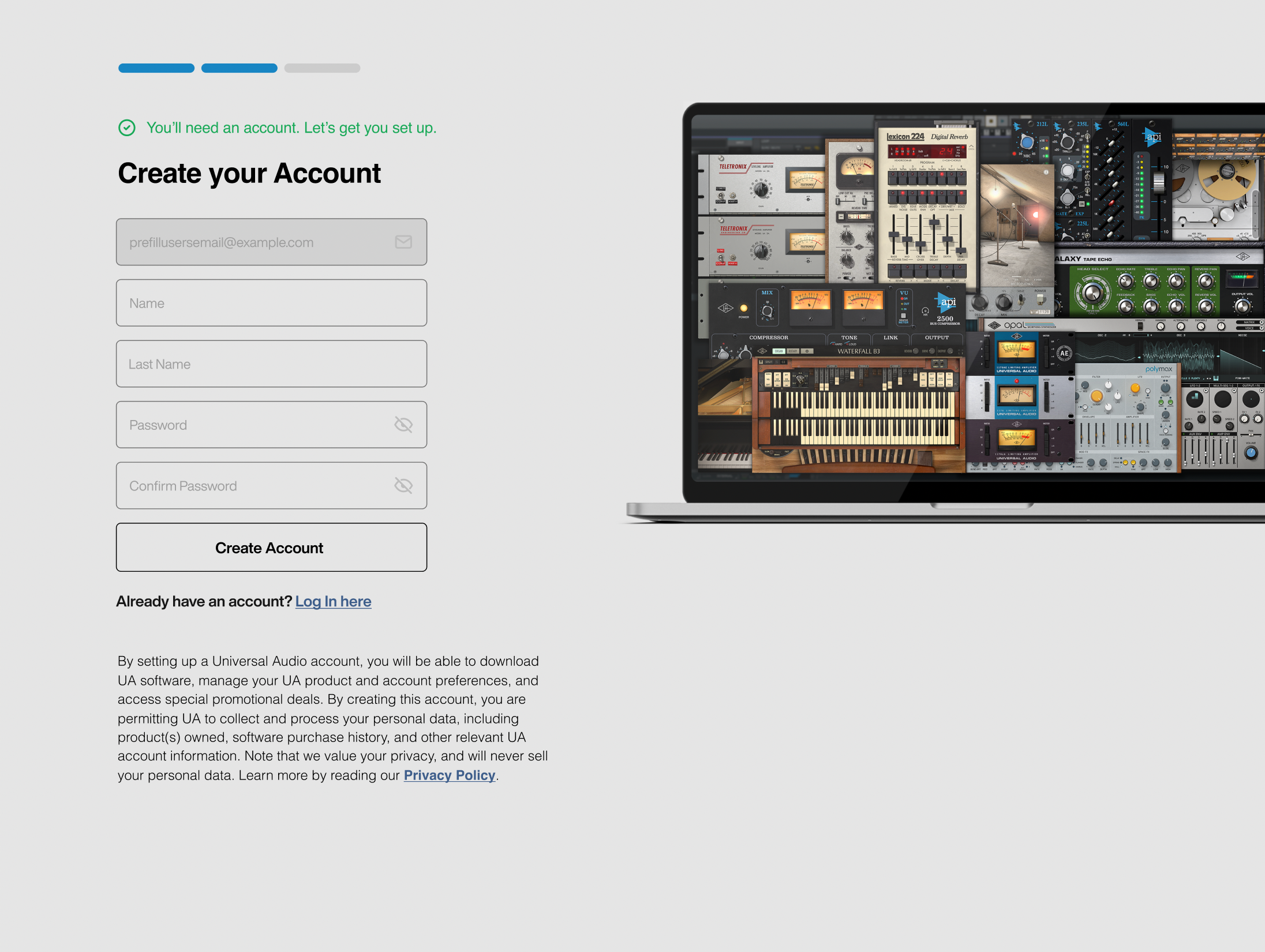
3. Enter the details required to create your Universal Audio account > Click 'Create Account'.
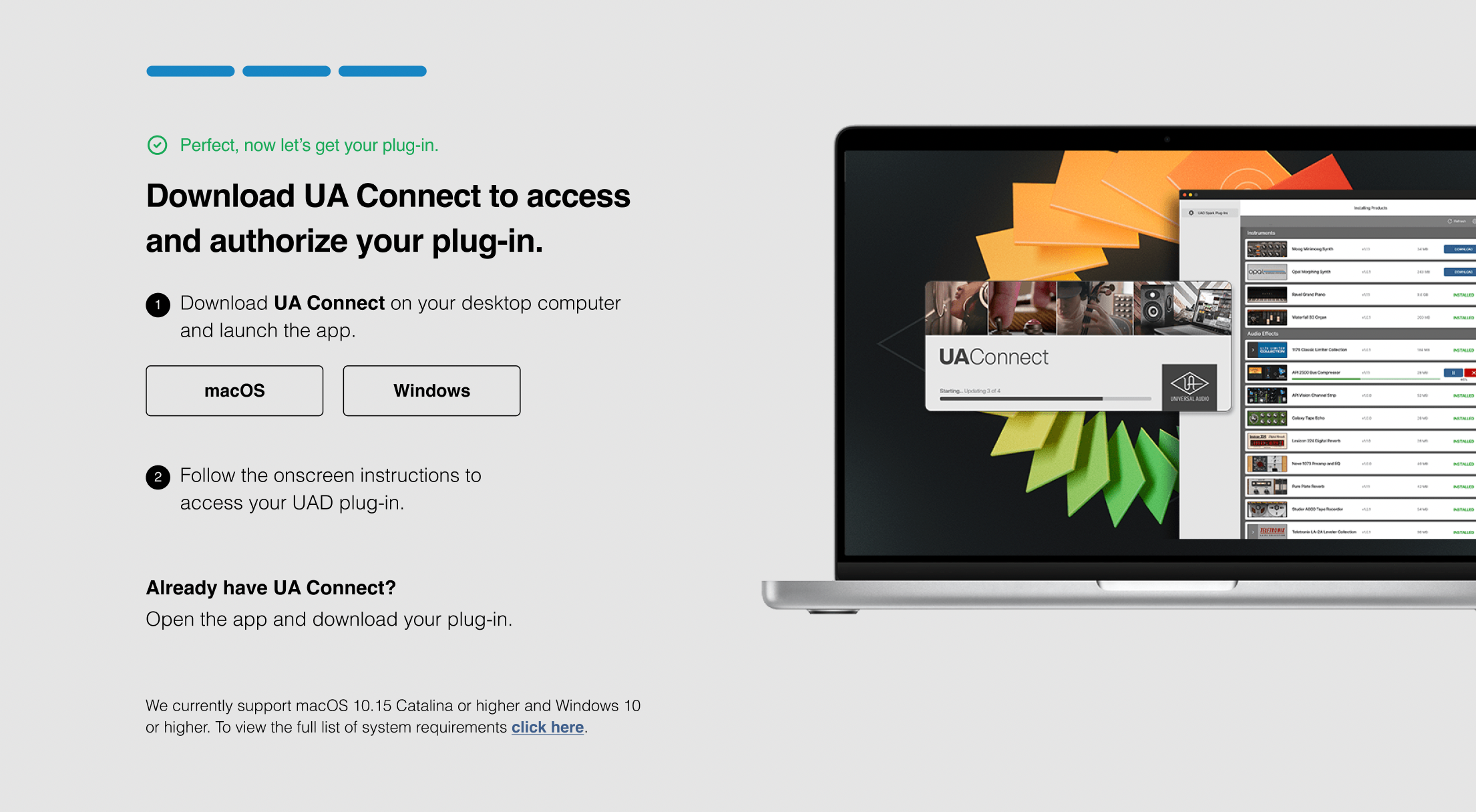
4. Download UA Connect by clicking either 'macOS' or 'Windows' depending on the system you are using.
Windows Installation
1. Once the download is complete, extract and open the ZIP folder you just downloaded > Open the PC folder > Double-click the UA Connect.exe installer file.
2. Read the terms of agreement > Click 'I Agree'.

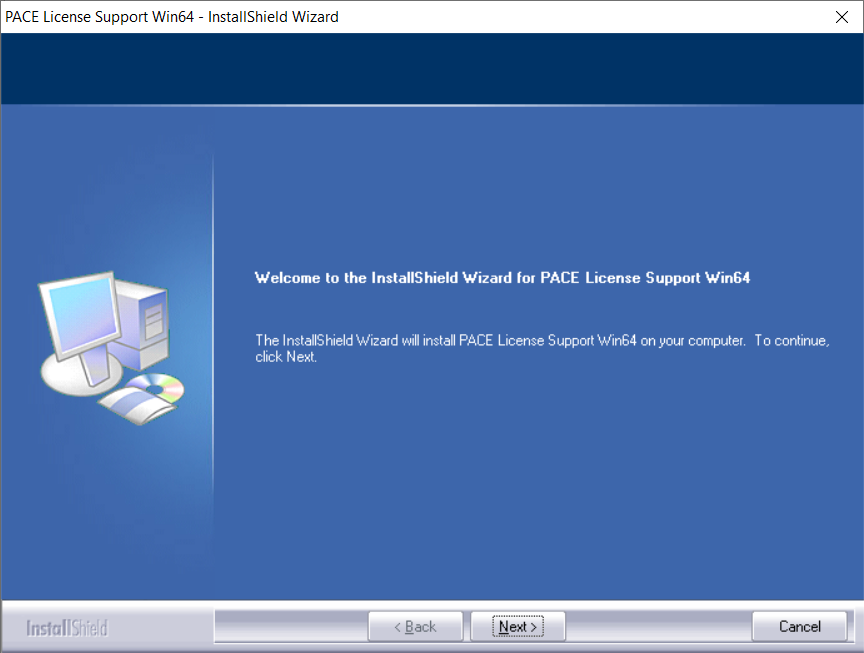
3. The installation of PACE License Support will now begin > Click 'Next >'.
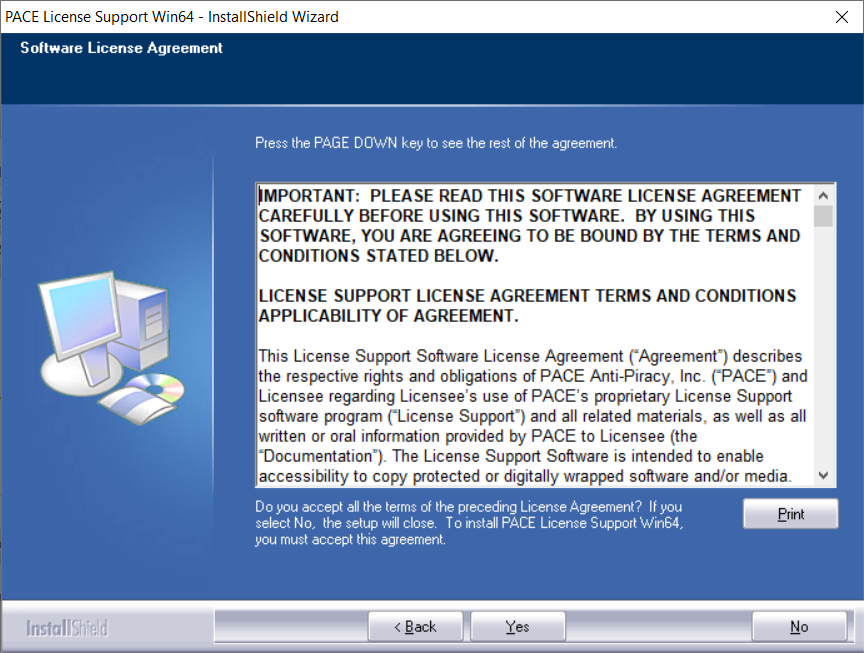
4. Read the license agreement > Click 'Yes'.
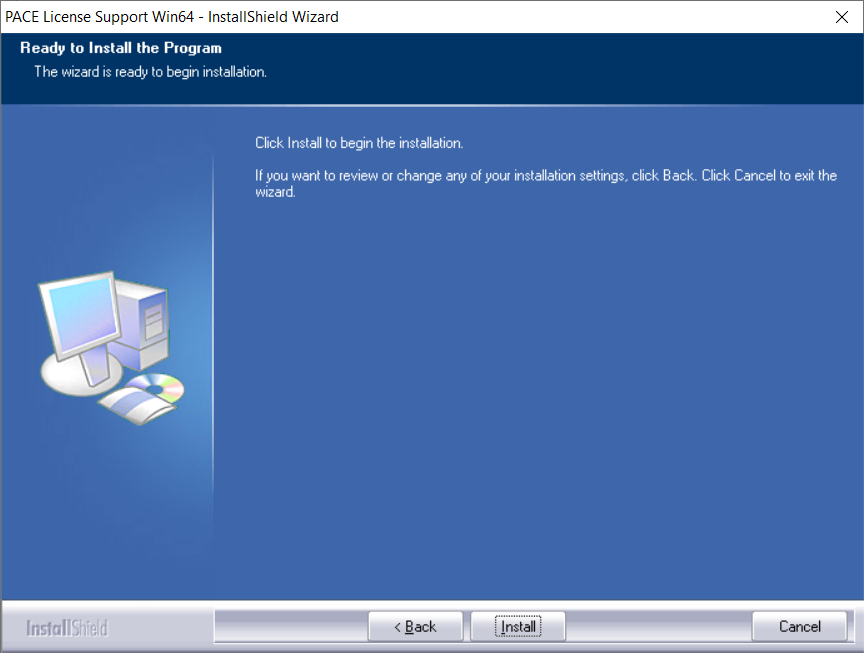
5. Click 'Install'.
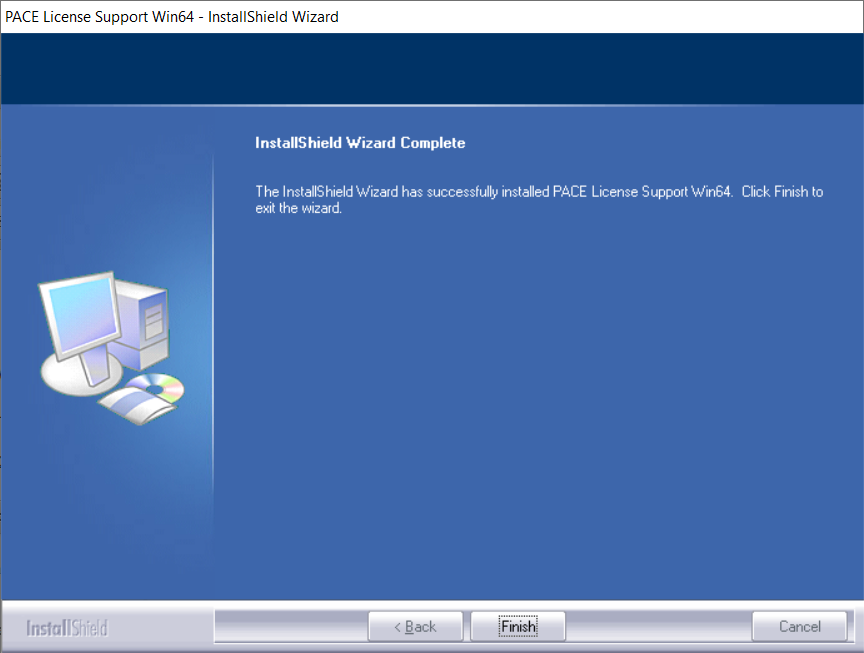
6. Click 'Finish'.
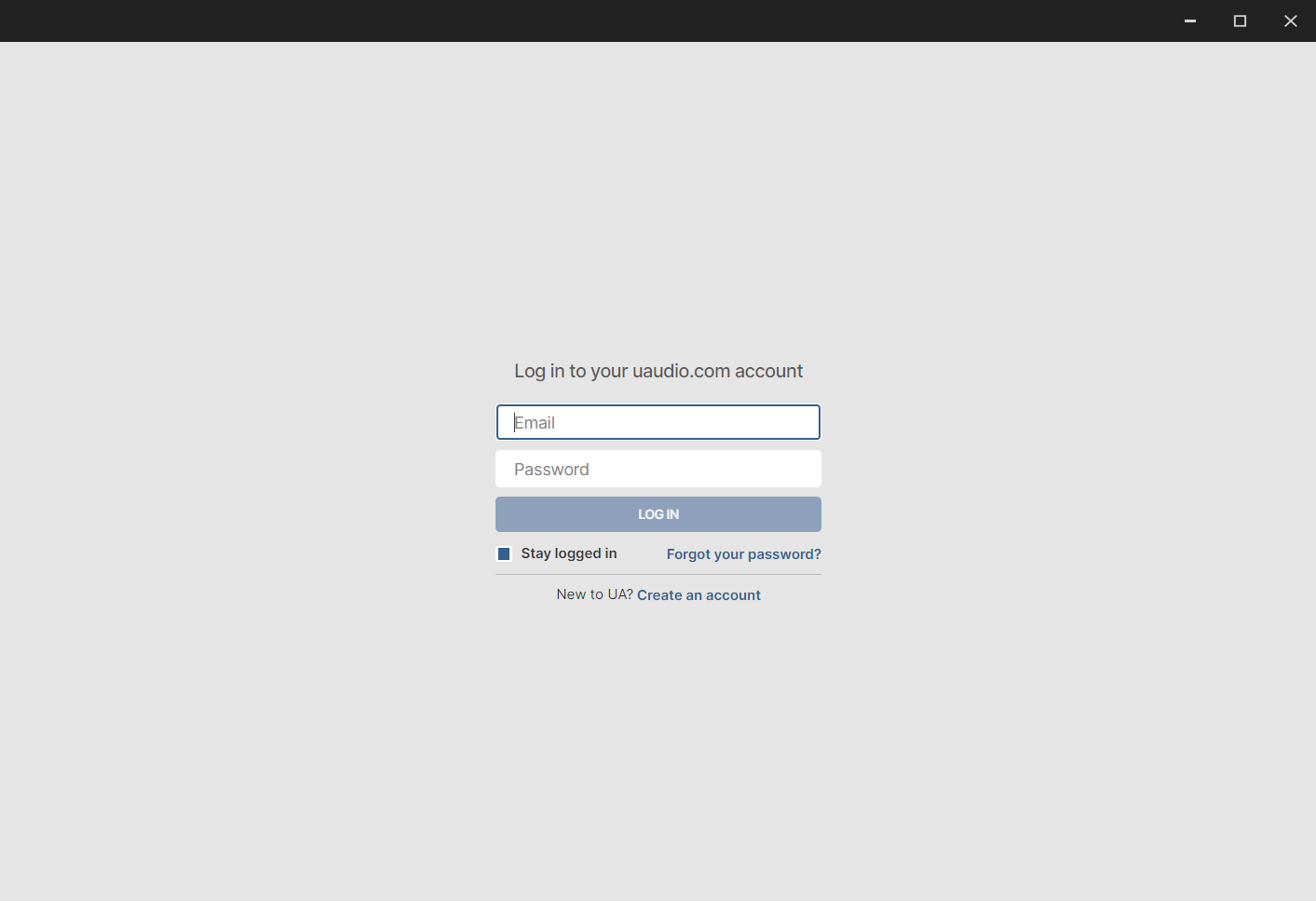
7. Locate and open UA Connect > Enter the email address and password of your Universal Audio account.
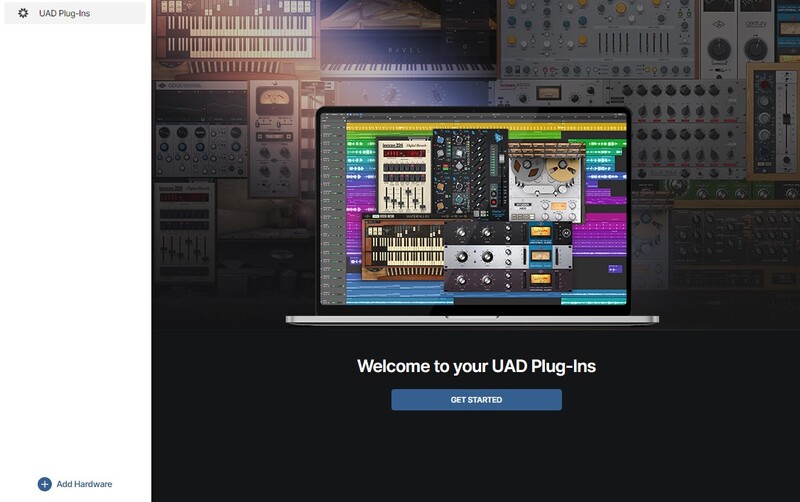
8. Click 'GET STARTED'.
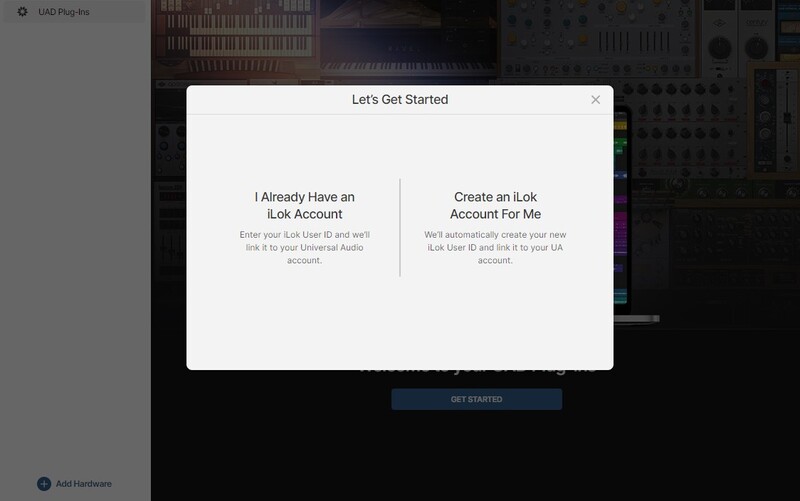
9. Select the option that is relevant to you - either 'I Already Have an iLok Account' or 'Create an iLok Account For Me'.
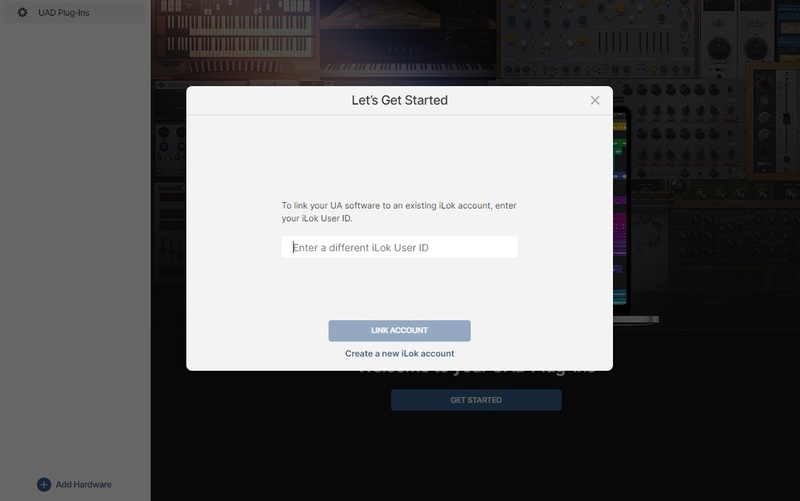
10. Enter your iLok account User ID then click 'LINK ACCOUNT'
 .
.
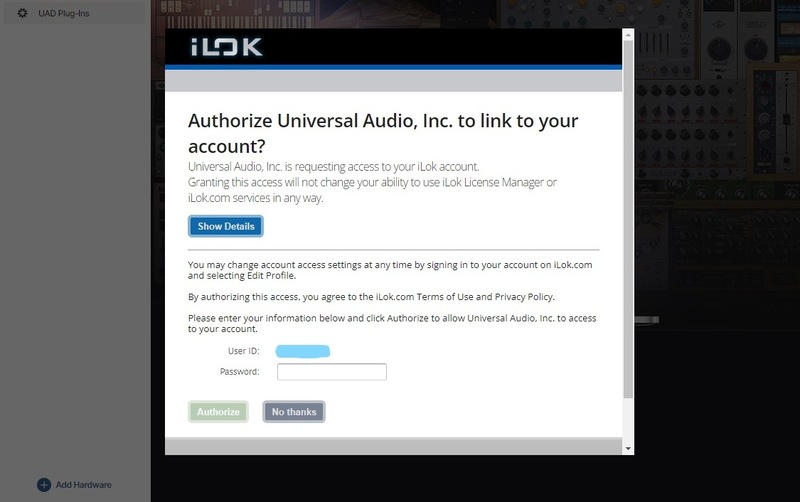
11. Enter the password for you iLok account and click 'Authorize'.
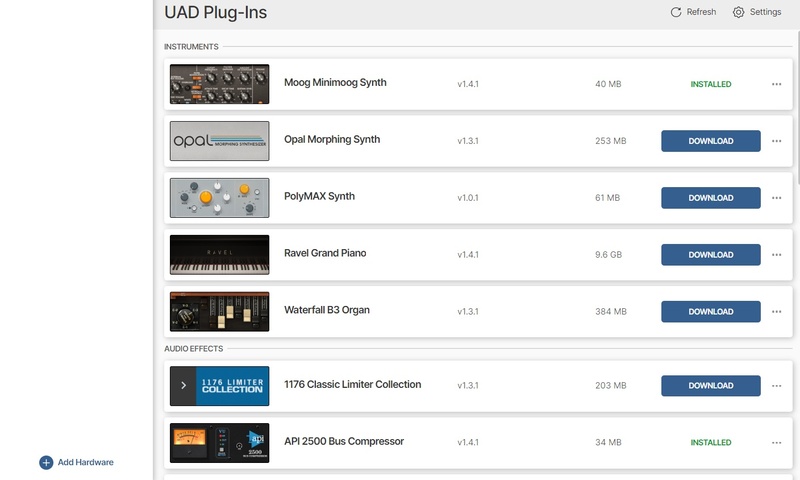
12. Locate the plugin you wish to install > Click 'DOWNLOAD'.
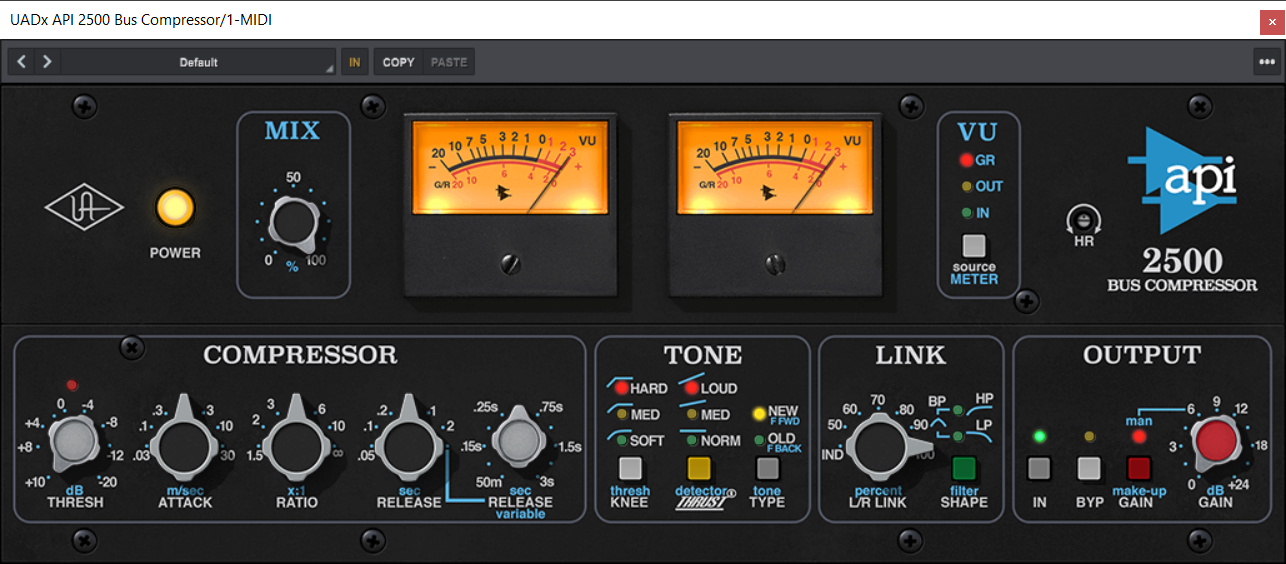
13. Once the plugin has been installed, open your DAW and then the newly installed plugin.
Your software is now activated and ready to use in your DAW!
Mac Installation
1. Once the download is complete, double-click the UA Connect.dmg installer file.
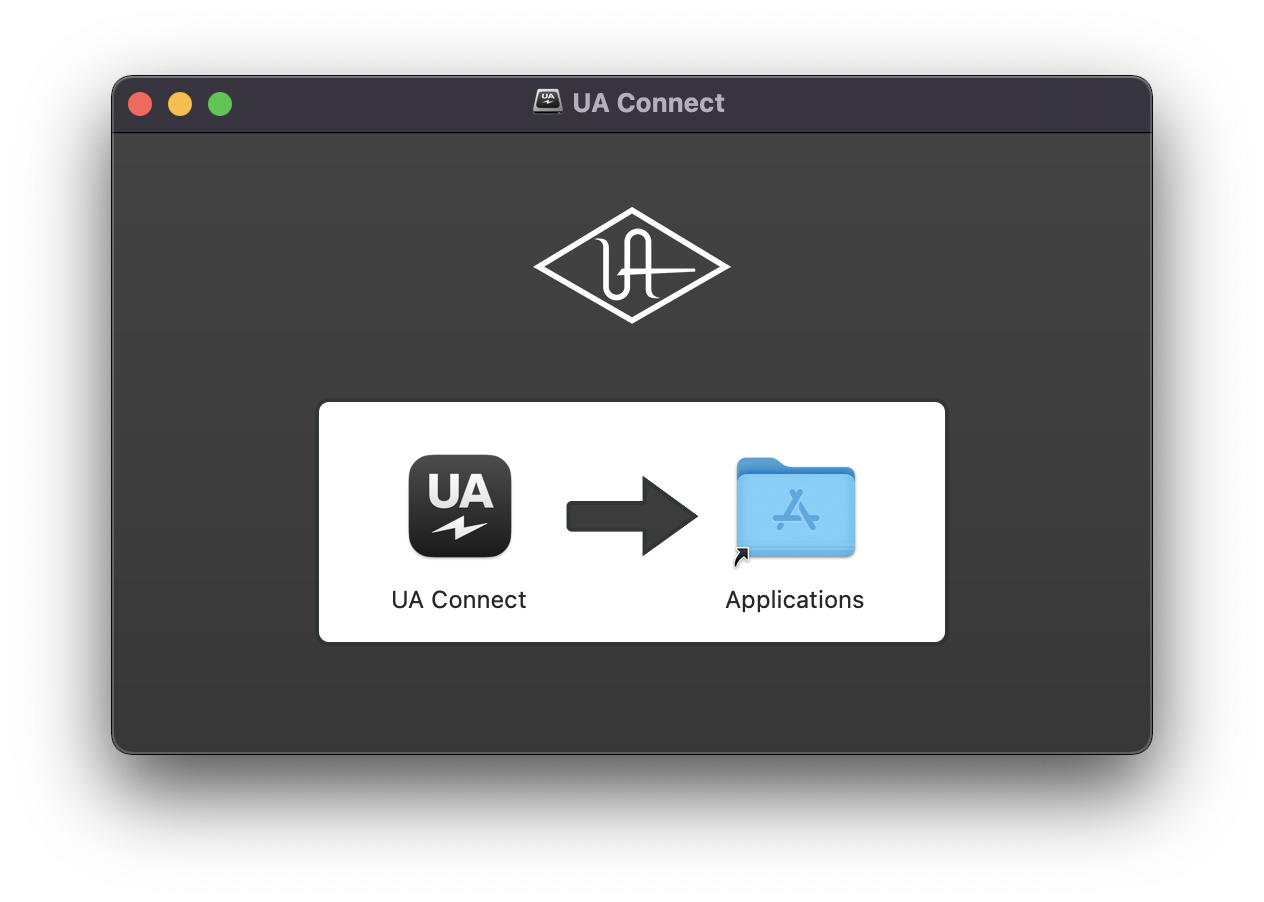
2. Drag UA Connect into your Applications folder.
3. Locate and open UA Connect > Enter the email address and password of your Universal Audio account.
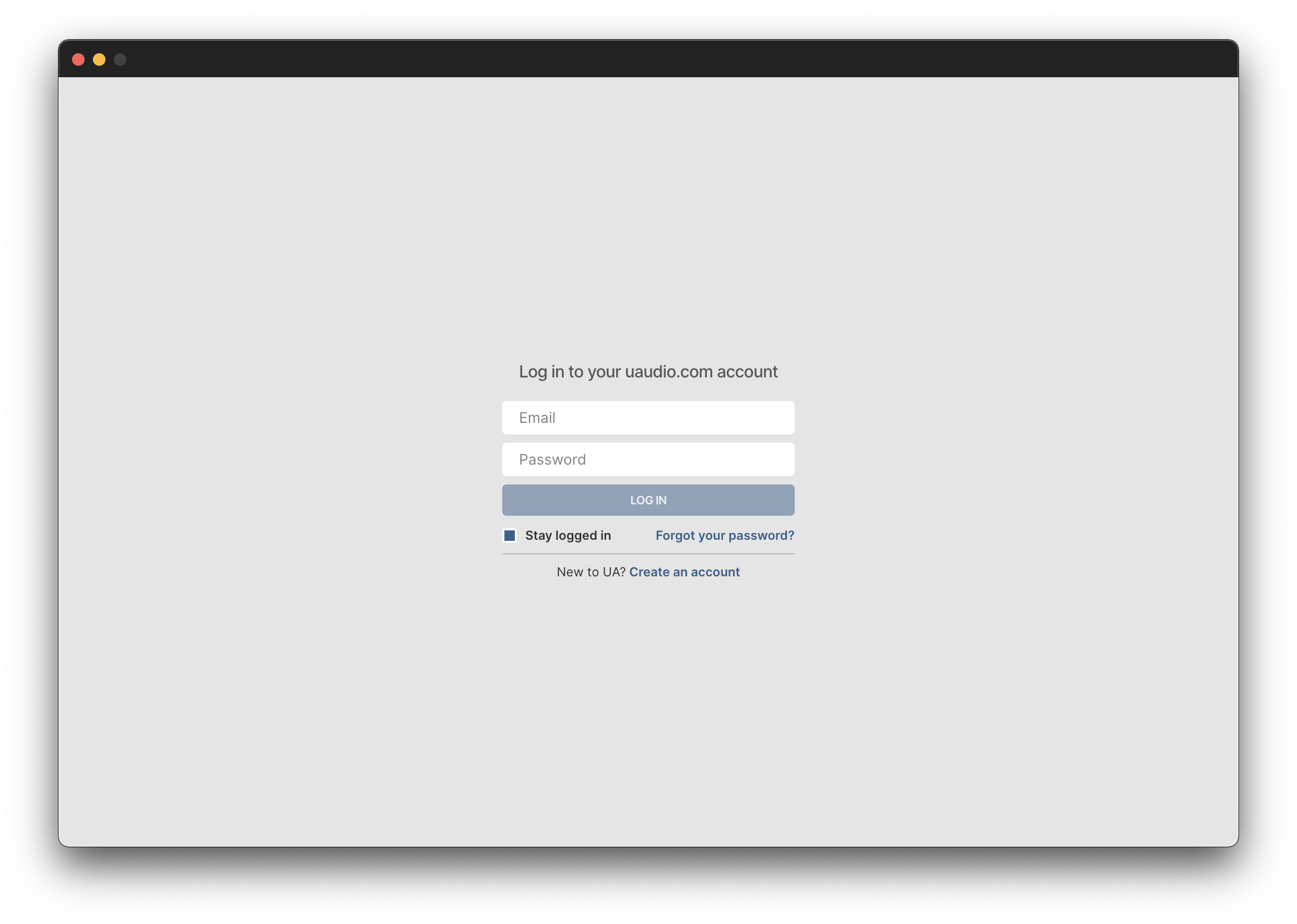
4. Click 'GET STARTED'.
5. Select the option that is relevant to you - either 'I Already Have an iLok Account' or 'Create an iLok Account For Me'.
6. Enter your iLok account User ID then click 'LINK ACCOUNT'
.
7. Enter the password for you iLok account and click 'Authorize'.
8. Locate the plugin you wish to install > Click 'DOWNLOAD'.
9. Once the plugin has been installed, open your DAW and then the newly installed plugin.
Your software is now activated and ready to use in your DAW!